
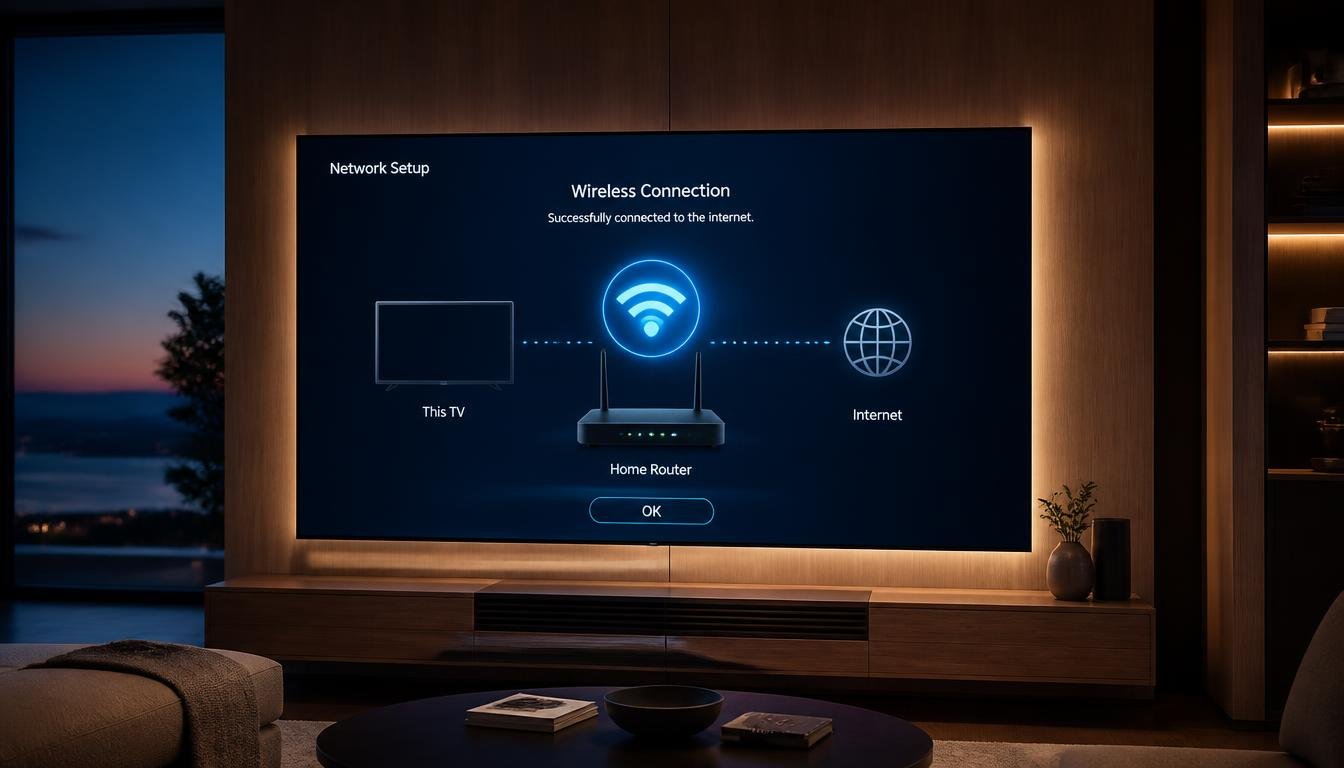
How Do I Connect My TV to the Internet In Under 60 Sec Guide
You need a network, either your home WiFi or an Ethernet cable, and about five minutes. On a Smart TV, the easiest route is Settings, then Network, then WiFi. If WiFi is unreliable, a cable or a phone hotspot works as a backup, and a TV that is not smart needs a streaming device.
Quick Answer
Quick Answer: To connect your TV to the internet, open Settings, choose Network or Connection, select WiFi, pick your network, enter the password, and wait for the confirmation. Menu names differ by manufacturer and model. A TV without built-in network hardware needs a streaming device, because HDMI alone does not carry internet.
In This Guide
Which Connection Method Should You Use?
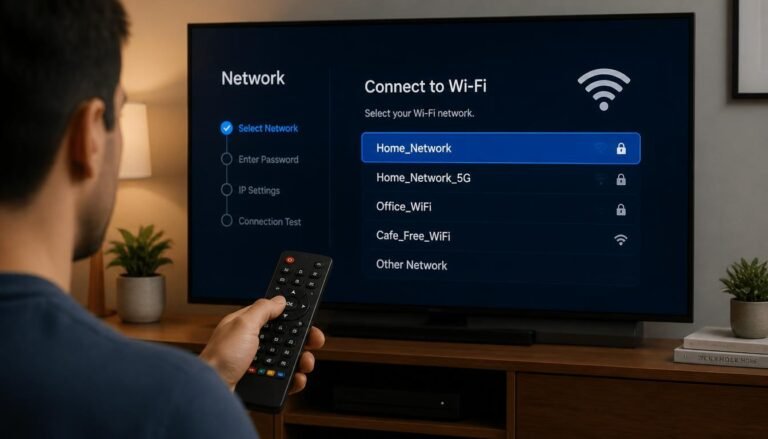
How to Connect Your TV to the Internet Over WiFi
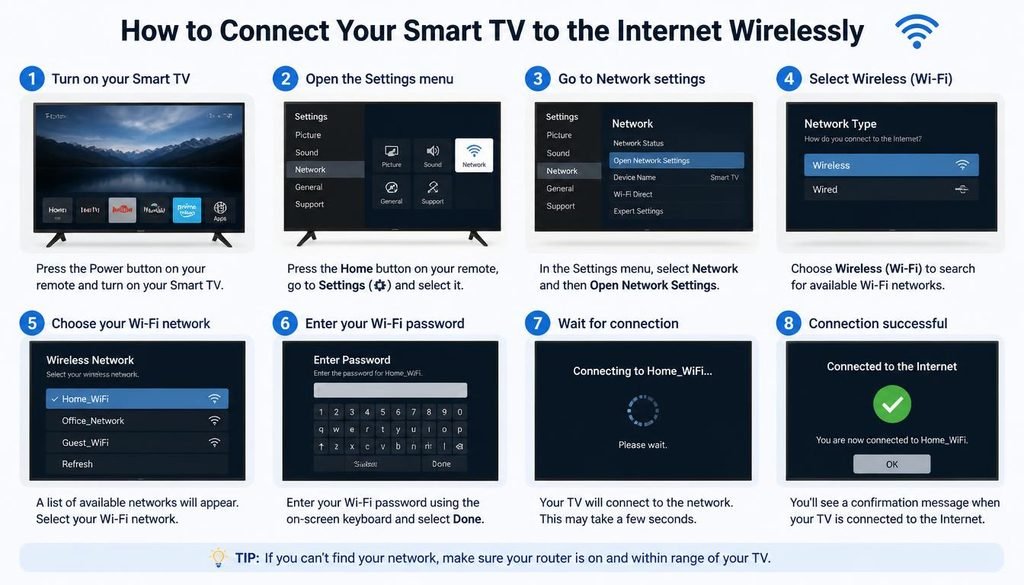
This is the same basic pattern on almost every Smart TV. Button and menu names change, so look for the closest match.
- Turn on the TV. If it is a new TV, the first time setup often asks for a network. You can connect there and skip the settings menu.
- Open Settings. Press the gear or Settings button. If there is none, press Home and choose Settings on the screen.
- Open Network or Connection settings. It may sit under General, Connection, or Network & Internet.
- Select WiFi or Wireless. If the option is missing, unplug any Ethernet cable first, because some TVs default to a wired link.
- Choose the correct network. The TV lists nearby networks. Match the name printed on your router.
- Enter the WiFi password. It is case sensitive. Turn on the show password option if there is one.
- Wait for the connection. You should see Connected, a checkmark, or a similar message.
- Test it. Open a streaming app and play a short video, as described in the verification section below.
If a step does not match your TV, use the brand section below or check your model manual.
This is the same basic pattern on almost every Smart TV. For step-by-step instructions specific to popular TV models, you can read our detailed Smart TV WiFi setup guide. Button and menu names change, so look for the closest match.
How to Share Your WiFi Connection With Your TV
A TV joins your WiFi the same way any device does: it selects your network and receives the password. The TV cannot copy the connection by itself. You have four legitimate ways to give it your details:
- Type the password using the on screen keyboard.
- Use a QR or phone assisted feature, on TVs that offer one. Sony describes a Quick connect option that shows a QR code on the TV, which you scan with a mobile device so the TV joins the WiFi.
- Use WPS, if both the TV and router support it (see the WPS note below).
- Share from your phone. Many phones can show or share the password of the network they are connected to, which makes typing easier.
Use these only on a network you own or have permission to use.
Brand Specific Menus
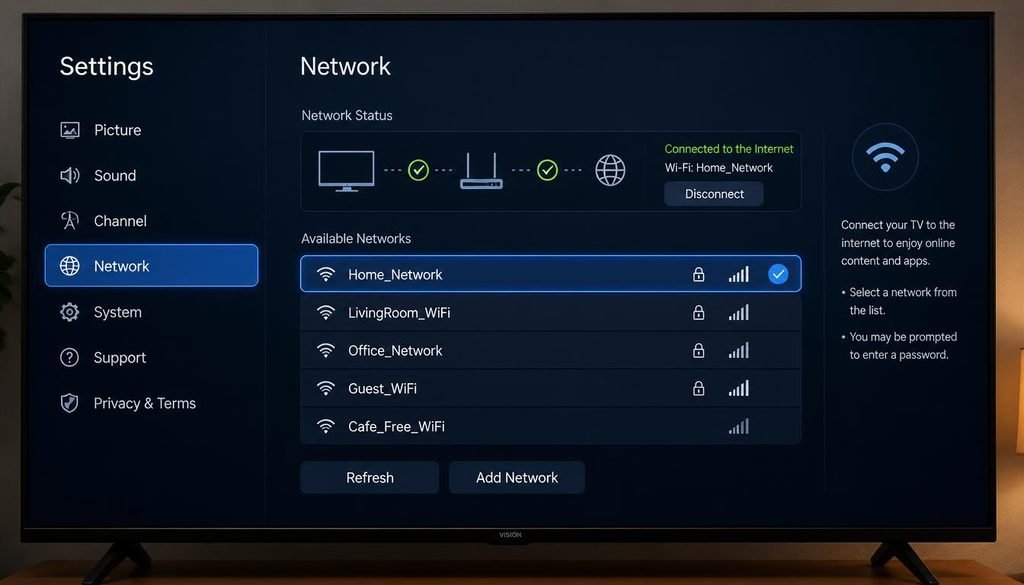
Menus change by model, year, and software platform, so treat each path as a starting point.
Samsung
Samsung Support describes going to Settings, then General, then Network, then Open Network Settings, where you select your WiFi network and enter the password. Newer models can arrange settings differently. Samsung also states that some 2018 models support only 2.4 GHz networks, so a 5 GHz network will not appear in the list on those TVs.
LG
LG lists different paths by webOS version. TVs from 2021 onward use Settings, All Settings, General, Network, Internet Connection, then WiFi Connection, and 2020 and older models use paths under Connection or Network. Check your webOS version before following a path.
Sony
On Sony Google TV models, Sony documents Dashboard, All settings, then Network & Internet. A hidden network can be added with the Add new network option, and a USB keyboard can be used instead of the on screen keyboard for the password. Older Sony TVs use other paths, such as Network, Network setup, then Easy.
TCL
TCL TVs run different platforms, so there is no single path. On Roku TV models, Roku documents Settings, Network, Set up connection, then Wireless. On Google TV and Android TV models, look for Network & Internet in Settings, and confirm the wording in your model manual.
Panasonic
Panasonic documents Menu, Network, Network Connection, then Quick setup for many VIERA models. It notes that some models without built in wireless need a WiFi adapter, and that newer models may show terms to accept after connecting.
Hisense
Hisense sells TVs on several platforms, including VIDAA, Google TV, Roku TV, and Fire TV. The path depends on the platform, so check your model manual or Hisense support.
How to Connect a TV to the Internet With an Ethernet Cable
Ethernet is the most stable option, and it isolates WiFi problems. It requires a LAN port on the TV.
- Plug one end of an Ethernet cable into the LAN port on the TV.
- Plug the other end into a LAN port on the router or modem.
- Open the TV network settings if it does not connect on its own.
- Choose Wired, or select OK on the Network screen, depending on the platform.
LG notes that a TV detects a wired connection automatically. Samsung describes plugging a cable into the LAN port on the TV or the One Connect Box, then opening Settings, General, Network, and selecting OK. Roku describes choosing Wired on screen.
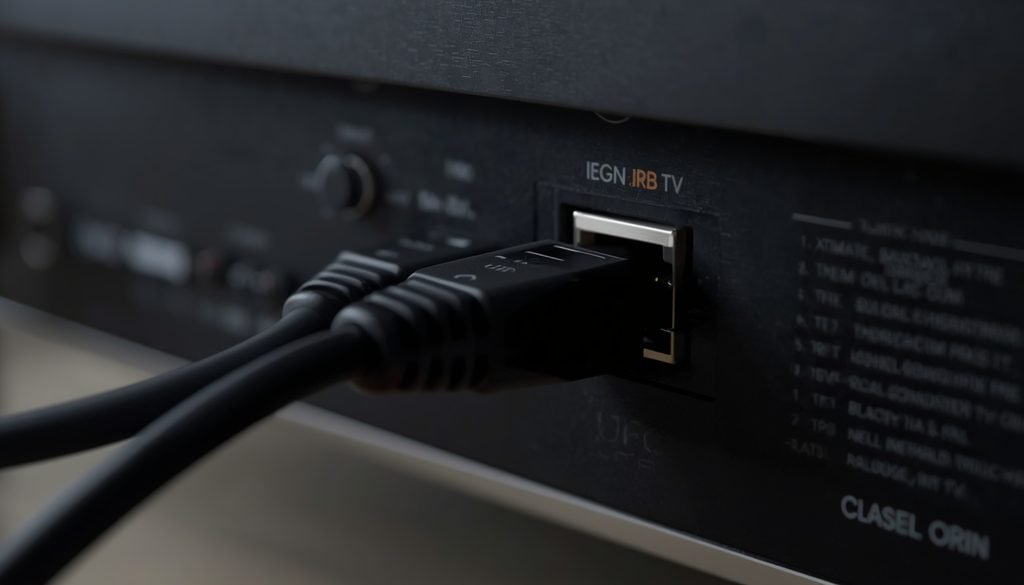
The TV usually gets its network settings from the router automatically, so you do not have to enter anything. To verify, open the network status screen and check for a connected message.
Ethernet helps when WiFi drops, the router is far away, or the TV WiFi hardware is unreliable, because the cable does not depend on the TV WiFi radio. Panasonic also recommends a wired connection for high quality video and to avoid interference from other 2.4 GHz devices.
If you are having trouble entering your router credentials or finding your SSID, check our complete breakdown on connecting your TV to WiFi for alternative wireless solutions.
How to Connect a TV to the Internet Using a Phone Hotspot
A hotspot turns your phone into a small router. Roku documents it as an option when no WiFi is available.
- Turn on the hotspot. On iPhone, look for Personal Hotspot in Settings. On Android, look for Hotspot or Tethering in network settings. Menus vary by phone.
- Note the hotspot name and password. Both are shown on the hotspot screen.
- Open the TV WiFi menu. Select the hotspot name from the list.
- Enter the password and wait for the connection.
Two cautions apply. Streaming video can use a large amount of mobile data, so use it briefly or check your data plan first. And if the hotspot does not appear, the phone may be broadcasting on 5 GHz, while some TVs see only 2.4 GHz. Some phones have a compatibility option that favors 2.4 GHz.
A hotspot is also a useful test. If the TV connects to the hotspot but not to your home WiFi, the fault is likely your router or its settings, not the TV.
How to Connect an Older or Non Smart TV to the Internet
A traditional non smart TV generally cannot join WiFi by itself. It has no network hardware to connect with. The fix is an external device.
Practical options:
- Roku type streaming devices
- Google TV or Android TV streaming devices
- Fire TV type devices
- Other compatible HDMI streaming devices, including some game consoles and Blu-ray players
Basic setup is the same for all of them:
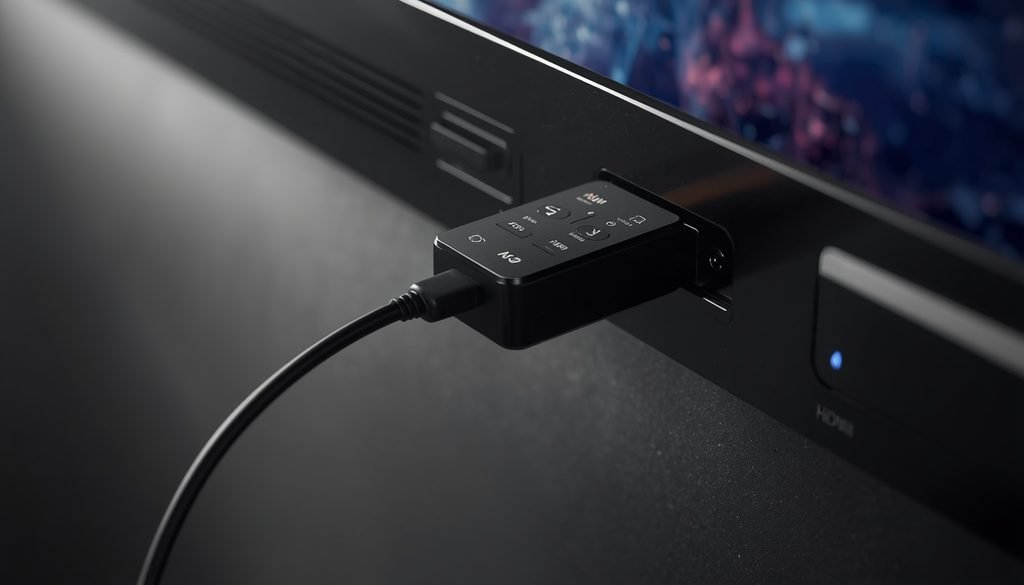
- Plug the device into an HDMI port on the TV.
- Connect power, usually through USB or a power adapter.
- Switch the TV to that HDMI input.
- Follow the device setup screens to choose your WiFi network and enter the password.
How Do I Connect My TV to the Internet?
The device connects to the internet, and the TV displays its picture. Some TVs are marked as WiFi ready but need a specific adapter, and Panasonic documents this for certain models, so check the manual before buying one.
Can You Connect a TV to the Internet Without WiFi?
Yes, in three ways: an Ethernet cable, a compatible streaming device connected by Ethernet, or a phone hotspot. A hotspot is not home WiFi, but the TV connects to it in the same way.
Does HDMI Provide Internet?
No. HDMI carries audio and video from a device to a TV. It does not give the TV network access. A streaming device uses HDMI to send video, while that device connects to WiFi or Ethernet by itself.
How to Connect a TV Without the Remote
Options depend on the model, and not every TV can be set up without its original remote.
- Physical buttons. Many TVs have buttons or a small joystick on the frame. They can open menus, though typing a password is slow.
- USB keyboard. Sony documents this for password entry. Support varies by brand.
- Replacement or universal remote. Often the quickest fix.
- Manufacturer mobile app. A phone control app may require the TV to already be on the same network or previously configured, so it may not help with first setup.
- Ethernet. A wired connection can bring the TV online, and then a phone app may work.
How to Check That the TV Is Connected to the Internet
A Connected message is a good sign, but the real test is loading content. A TV can connect to the router and still have no working internet.
- Open the network status or connection test screen. LG shows a Connected to Internet message after success.
- Open a streaming app and play a video.
- Check whether the app loads without errors.
If the TV says connected but the app fails, the router may not have internet, or the TV may have a network setting problem.
Why Is My TV Not Connecting to the Internet?
Most cases come from a wrong password, weak signal, a router problem, or an internet outage. First decide where the fault is. Test a phone on the same WiFi.
- Phone works, TV does not: the problem is on the TV side.
- Nothing works on any device: the problem is the router, modem, or internet service.
Advanced Steps and Why They Work
- Restart the router and TV. This clears temporary faults in both devices. A TV is not a Windows computer, so no command line steps apply here.
- Forget and reconnect. This removes a saved network entry that may be corrupt or outdated.
- Test another network or a hotspot. This tells you whether the TV or your router is the cause.
- Check other devices. If a phone has no internet either, the fault is outside the TV.
- Try Ethernet. If a cable works but WiFi does not, the WiFi signal or TV radio is the problem.
- Reset network settings. This removes saved network configuration. Use it after simpler steps.
- Update the TV software. Updates can fix connection bugs. Use Ethernet or a hotspot if WiFi will not work.
- Check the DHCP setting. If the connection fails, Sony says the router DHCP setting should be on.
Restart the router and TV. This clears temporary faults in both devices. A TV is not a Windows computer, so no command line steps apply here. However, if you are facing connectivity issues on your PC as well, see our guide on troubleshooting Windows network errors.
Public WiFi, Hotels and Captive Portals
Hotel and dorm networks often require a login page in a browser. Most TVs cannot show that page, so the TV may connect but never get internet. Options include registering the TV with the provider using its MAC address (Samsung says to check Settings, Support, then About this TV), using a hotspot, or using a travel router.
2.4 GHz and 5 GHz
Routers broadcast on 2.4 GHz and 5 GHz. 2.4 GHz generally travels farther, and 5 GHz generally offers higher speeds at shorter range. Not every TV supports both, and Samsung confirms that some 2018 models cannot see 5 GHz. If your TV does not see the network, try a separate 2.4 GHz network name.
FAQ (How Do I Connect My TV to the Internet)
How do I connect my wireless internet to my TV?
Open Settings, choose Network, select WiFi, pick your network, and enter the password. Menu names vary by brand. If the TV is not smart, plug a streaming device into HDMI and connect that device to your wireless network instead.
How do I share my WiFi connection with my TV?
Select your network on the TV and enter the password, or use a QR or phone assisted feature if the TV offers one. Many phones can show or share the saved password for a network. WPS is another option where both the TV and router support it.
Why is my TV not connecting to the internet?
Common causes are a wrong password, weak signal, a router problem, or an outage. Test a phone on the same WiFi first. If it works, retype the password, forget and reconnect, and update the TV. If it fails, restart the router.
How do I know if my Smart TV is connected to the internet?
Check the network status for a Connected message, then open a streaming app and play a video. The TV can show connected while the router has no internet. Loading real content is the reliable test.
Can I connect my TV to the internet without WiFi?
Yes, with an Ethernet cable, a streaming device, or a phone hotspot. Ethernet needs a LAN port on the TV. A hotspot uses mobile data, so watch your data plan.
Can a non smart TV connect to the internet?
Not directly. A traditional TV needs a streaming device connected through HDMI, or a manufacturer approved adapter if the model supports one. The device connects to the network, and the TV shows the picture.
Does HDMI connect a TV to the internet?
No. HDMI only carries audio and video. A streaming device may use HDMI for output while it connects to the internet by WiFi or Ethernet.
Can I connect my TV to the internet without a remote?
Sometimes. Try the physical buttons, a replacement remote, or a USB keyboard where supported. Phone apps may need the TV already on your network, so Ethernet can help you get it online first.
Can a phone hotspot work as internet for my TV?
Yes, on most TVs that support WiFi. Turn on the hotspot, then select it in the TV WiFi list. Streaming uses a lot of mobile data, and some TVs cannot see a 5 GHz hotspot.
Should my TV use 2.4 GHz or 5 GHz WiFi?
Use 5 GHz for speed when the TV is close to the router and supports it, and 2.4 GHz for range or older TVs. Some older TVs only see 2.4 GHz, so a missing network may be a band issue.
Conclusion
To connect a TV to the internet, use WiFi for most Smart TVs, Ethernet for a stable link, a phone hotspot for temporary access, and a streaming device for older TVs. Menus differ by brand, so match the steps to your model. If the TV still cannot connect, test another device on the same network, restart the router, try Ethernet or a hotspot, and update the TV software. That sequence shows whether the TV or the router needs attention.
3 Comments