
How to Connect a Printer to WiFi Fix Under 60 Sec Guide 2026
To connect a printer to WiFi, open the printer’s wireless setup, either on its screen or through the manufacturer app, choose your home network, and enter the WiFi password. Then add the printer to your computer or phone. The exact menus depend on the brand and model, so this guide separates the steps that are universal from the ones that are not.
Quick Answer (How to Connect a Printer to WiFi)
Quick Answer
To connect a printer to WiFi, place it near your router, turn it on, and open its wireless setup from the printer screen or manufacturer app. Select your 2.4 GHz network if required, enter the WiFi password, confirm the connection, and then add the printer to your computer or phone.
Diagnostic table: find your problem first
| Problem | Likely Cause | What to Try |
|---|---|---|
| Printer cannot find WiFi | Router on a band the printer does not support, or too far away | Use the 2.4 GHz network, move the printer closer, check model specs |
| Printer connected but computer cannot find it | Printer and computer are on different networks, or never added | Confirm both use same network, add printer in system settings |
| New router installed | Printer still holds the old network name and password | Reset network settings, then set up again on the new router |
| WiFi password changed | Stored password no longer matches | Reconnect the printer using the new password |
| Printer keeps going offline | Weak signal, changed IP address, or sleep behavior | Improve signal, restart printer, check advanced steps |
| Printer has no screen | Setup needs an app, WPS, or USB assisted method | Use manufacturer app first, then WPS if supported |
| Phone cannot find printer | Different WiFi networks, or print service not enabled | Join same network, enable AirPrint or Android print service |
| Printer supports only certain WiFi bands | Many models use 2.4 GHz only, some use both | Check model manual, keep 2.4 GHz network active |
Step 1: Check your printer and WiFi
Before starting, gather your WiFi network name and password. Put the printer close to the router for setup. It does not have to stay there afterward if the signal remains strong.
Check three things:
- The printer supports WiFi.
Lenovo’s guide notes that not every printer has built in wireless, so look for a WiFi symbol or check the manual. - The band.
Many printers use only 2.4 GHz. Canon’s manual says that, depending on country or region, its printer does not support 5 GHz standards. - The router security.
Canon’s manual says WEP and TKIP based security cannot be used, and recommends WPA2 (AES) or WPA3. Do not turn security off to make setup work. An open network exposes your documents and WiFi.
If your router shows two names, one for 2.4 GHz and one for 5 GHz, note the 2.4 GHz name. If you are unsure how to look at these settings, see how to access router settings.
If your printer repeatedly drops connection or your network seems unstable, the issue might stem from your router rather than the printer itself. For a complete walkthrough on resolving wireless drops, check out this guide on how to fix WiFi connection issues before proceeding with the setup.
Step 2: Connect the printer to WiFi
There are four common methods. Which one is available depends on the printer model.
- Manufacturer app.
HP, Canon, and Epson each provide one. The app finds the printer and passes your WiFi details to it. - Printer control panel.
Open the wireless or network menu and run the setup wizard. This needs a screen. - WPS.
Press the WPS button on the router, then the wireless button on the printer, within about two minutes. HP describes this method for supported models. Canon warns that WPS may not work if the router security includes WPA3. - USB assisted setup.
Some printers use a temporary USB cable to receive the WiFi details. Apple documents this approach for printers that need Mac software.
While home routers are standard, some users attempt setup using a mobile hotspot. Printer software updates and driver downloads can consume significant data. If you are relying on mobile data, you can quickly check your remaining allotment with this guide on how much hotspot do I have left to avoid interruptions.
Step 3: Confirm the printer is connected
Look for a steady WiFi indicator. On HP printers using WPS, the WiFi light should turn solid blue. Epson’s screens show a WiFi icon when the connection succeeds, and many Epson models can print a network connection report.
Print a network or test page. This is the best confirmation.
Step 4: Add the printer to a computer or phone
A printer that is on WiFi is not automatically installed on your devices.
Connecting to the network and adding the printer to Windows, macOS, Android, or iOS are separate steps. The sections below cover each.
How to connect an HP printer to WiFi
HP says the HP app replaced HP Smart, and older guides may still use the old name. Exact steps vary by model.
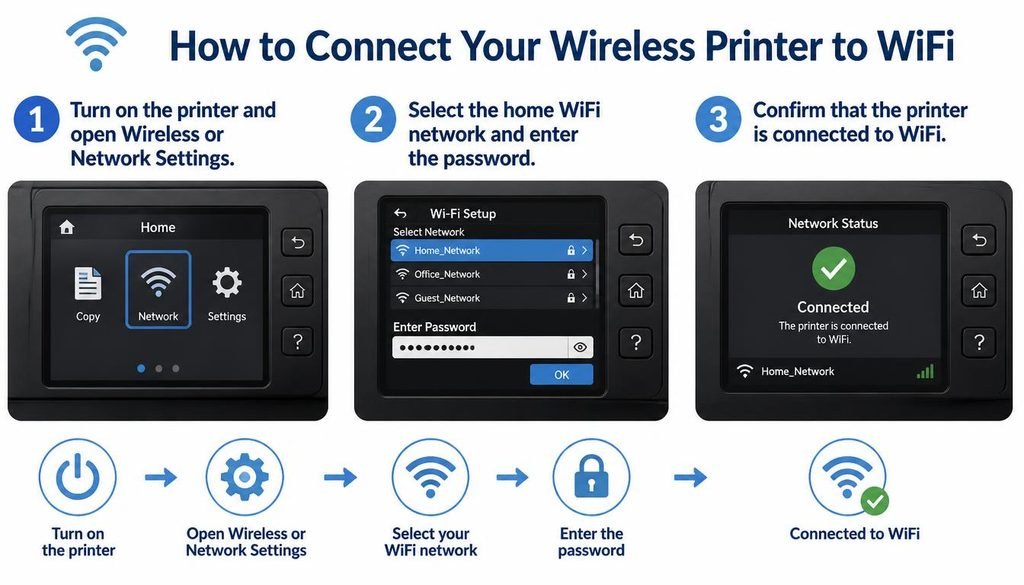
- Using the HP app.
Download it from 123.hp.com, open it, and add a new printer. HP says the app finds a new printer through Bluetooth or a temporary direct WiFi connection and then transfers your WiFi details to the printer. - Using WPS.
Hold the WPS button on the router until its light blinks, then within two minutes press the WiFi button on the printer. HP says the connection is complete when the printer’s WiFi light turns solid blue. - Using the control panel.
On a touchscreen printer, open Setup or Settings, then Network or Wireless Settings, then the Wireless Setup Wizard. Pick your network and enter the password.
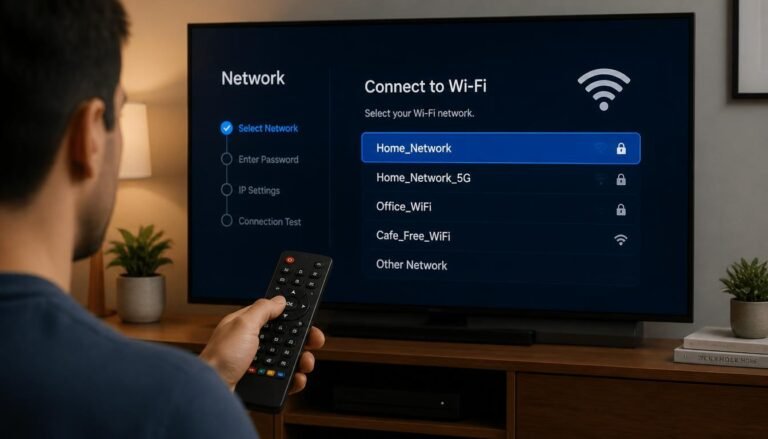
If the setup keeps choosing the wrong band, make sure your phone or computer is on the 2.4 GHz network during setup when your model requires it.
How to connect a Canon printer to WiFi
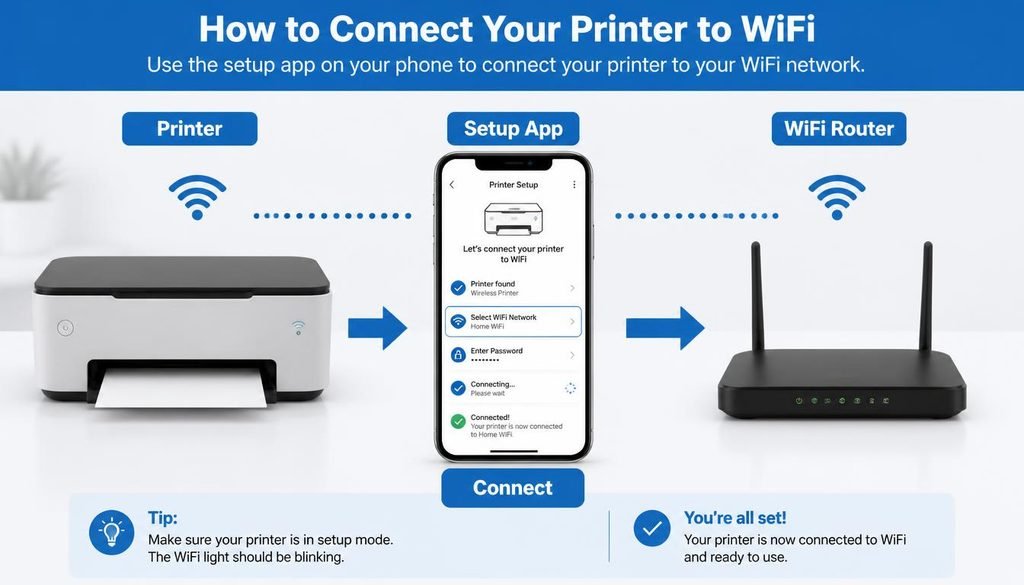
Canon’s official manual for the TS3700 series offers Easy Wireless Connect, which lets a computer or smartphone send the router details to the printer without touching the router. If that fails, the manual points to other setup methods, including WPS with a router button or a PIN code.
Three points from Canon’s manual matter for troubleshooting:
- WPS may fail if your router security includes WPA3.
- WEP, WPA-PSK (TKIP), and WPA2-PSK (TKIP) cannot be used.
- Wi-Fi and USB can be used at the same time.
Other Canon models have different menus, so check the manual for your exact model.
How to connect an Epson printer to WiFi
Epson’s support pages use the Wi-Fi Setup Wizard, but the path depends on the model:
- Button models: choose Wi-Fi Setup, then Wi-Fi Setup Wizard, and select your network.
- Touchscreen models: select the WiFi icon, then Wi-Fi (Recommended), then Start Setup or Change Settings, then Wi-Fi Setup Wizard.
Epson notes that the network name and password are case sensitive. To enter a hidden network name, look for an option such as Other Networks or Enter Manually. Epson also states that many of its models work with the Epson Smart Panel app, so check whether your model is supported.
How to connect an HP printer to WiFi without a screen
There is no single universal method. These options depend on the model:
- HP app setup.
This is the first choice for most current HP printers. It uses Bluetooth or a temporary direct WiFi connection. - WPS.
Use it only if both printer and router support it and the router security allows it. - USB assisted setup.
HP describes installing through USB, then converting to wireless in the app under printer settings.
If none of these work, look for a network reset option in your model’s manual, then run the app setup again.
How to connect a printer to a phone
Android.
Android uses a print service, often Mopria, and many devices include one. Epson’s instructions say to open Settings, choose Printing, enable the Mopria Print Service, join the same network as the printer, and then use Print from an app such as Chrome. Mopria also supports Wi-Fi Direct, where both devices support it.
iPhone and iPad.
Use AirPrint. HP notes that on iOS you can print from apps such as Photos or Mail once the printer is on the same network. The printer must support AirPrint.
If the phone cannot find the printer:
confirm both are on the same network, turn off any VPN temporarily, and check that the phone is not on a guest network.
How to connect a printer to a Windows computer
Microsoft says that for a wireless printer, make sure it is on the same network as the Windows device. Then:
- Open Start, then Settings, then Bluetooth & devices, then Printers & scanners.
- Next to Add a printer or scanner, select Add device.
- Wait for the list to fill (Microsoft says it can take a few minutes), then select Add device next to your printer.
- If it is not listed, choose the manual option for a printer that is not listed.
After installation, check Windows Update for a newer driver.
If Windows is lagging during the device addition process or background background tasks are interfering with driver installation, optimizing your operating system can help. You can streamline your system performance by following this Windows 11 debloater guide to ensure a smooth connection process.
How to connect a printer to a Mac
Apple says that if your Mac and printer are on the same WiFi network, the printer might be available without any setup. Otherwise:
- Open System Settings, then Printers & Scanners.
- Click Add Printer, Scanner, or Fax and choose the printer from the list.
- If it is missing, add it as an IP printer. Apple says the printer must support AirPrint, HP Jetdirect (Socket), LPD, or IPP.
Apple adds that AirPrint works without extra drivers, but a printer that does not support AirPrint needs the manufacturer software.
How to reconnect a printer after changing your router
How to Connect a Printer to WiFi ?
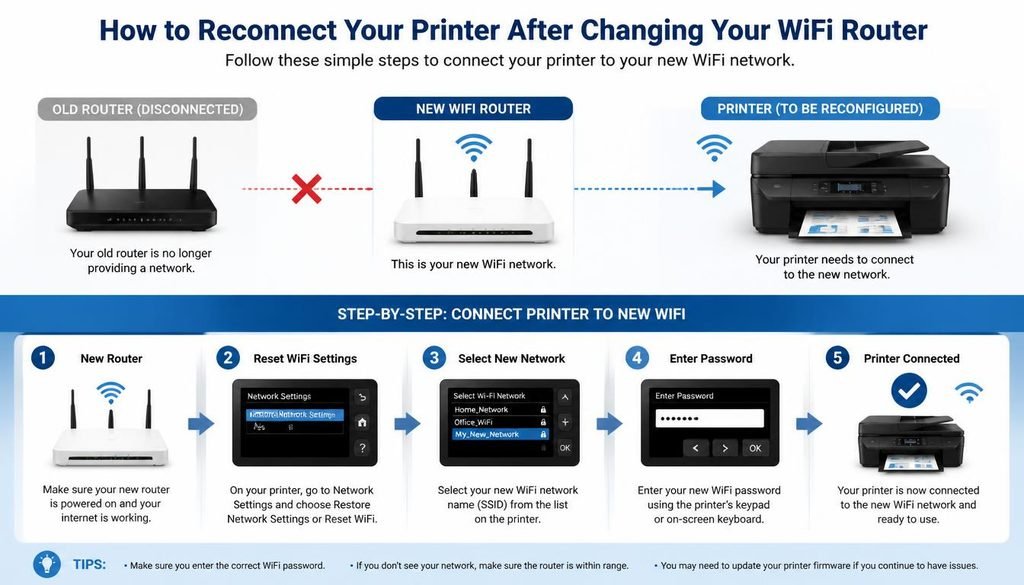
The old router details are still stored on the printer. When you change routers or the WiFi name, the printer keeps looking for the old network and cannot join the new one.
- Set up the new router first. Note the new network name and password.
- Reset the printer’s network settings. Look in the printer’s setup or network menu for an option to restore or reset network settings. Some HP printers use a wireless button held for a few seconds. This differs by model, so check your manual. Do not confuse it with a full factory reset, which erases other settings.
- Run the wireless setup again. Use the app, control panel, or WPS steps above.
- Reconnect computers and phones. Make sure they are on the new network. If needed, remove the old printer entry and add it again.
If only the WiFi password changed, the router name may be the same, but the stored password is not. Reconnect the printer through its wireless setup and enter the new password.
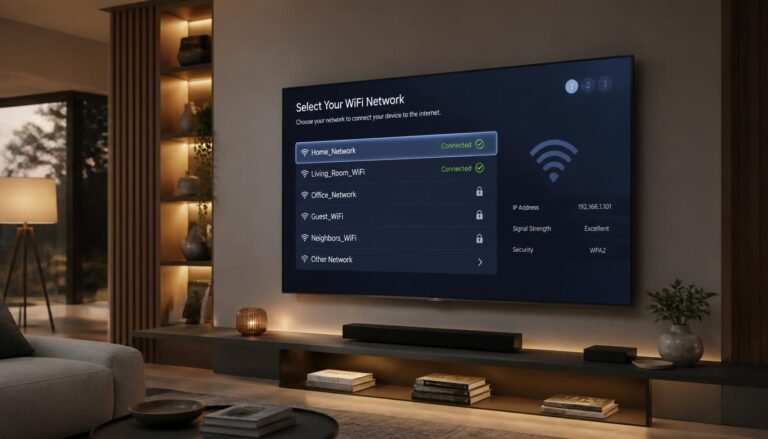
If you are also moving other devices to the new router, the same idea applies to a smart TV. See how to connect TV to WiFi.
Troubleshooting: symptom, likely cause, fix
| Symptom | Likely Cause | Fix |
|---|---|---|
| Printer cannot find WiFi | The router uses only a band the printer does not support, or the printer is too far away | Enable or use the 2.4 GHz network and move the printer closer |
| Password rejected | The password is case sensitive, or a character was mistyped | Retype it carefully. Epson notes case sensitivity |
| Printer connected but computer cannot find it | Different networks, or the printer is not added to the computer | Compare networks, then add the printer in Windows or macOS settings |
| Printer offline | Weak signal, address change, or the computer is using an old printer entry | Restart printer and router, then re-add the printer |
| Printer prints nothing | Queue is stuck or paper and ink problems | Clear the print queue and check supplies |
| Printer keeps disconnecting | Distance, interference, or router settings | Move the printer closer, keep it away from thick walls |
| WPS does not work | The printer or router security does not allow it | Use the app or control panel instead |
| Printer was on another network | Old credentials are stored | Reset the network settings and set up again |
| App cannot find the printer | Different networks, VPN, or blocked discovery | Use the same network and turn off the VPN temporarily |
| Guest network or segmented network | Discovery traffic is blocked | Use the main network, or add the printer by IP address |
Restarting can help because it clears a stuck connection and lets the router assign the printer an address again, but it will not fix a wrong password or an unsupported band.
Advanced troubleshooting on Windows
Use these only when the simple fixes fail.
Find the printer’s IP address. Print a network report or check the printer’s network menu.
Run ipconfig. Open Command Prompt and type ipconfig. It shows your computer’s IPv4 address and gateway. On a home network, the printer usually starts with the same first three groups of numbers. If it starts with different numbers, the two devices may be on different networks or subnets.
Run ping. Type ping followed by the printer’s IP address. A Reply means the printer is reachable. Request timed out can mean the printer is unreachable, but it can also mean the printer ignores ping requests, so treat it as a clue and not proof.
If the printer works by IP address but disappears by name, add it manually with its IP address. Also consider reserving the printer’s address in the router if your printer keeps changing addresses.
Common mistakes
- Choosing the 5 GHz network on a printer that supports only 2.4 GHz.
- Assuming a connected printer is installed on the computer.
- Skipping the network reset after a router change.
- Turning off router security to make setup work. It exposes your network.
- Following steps from another brand or model. Menu names vary.
- Using outdated instructions, such as old Mac menus or the old HP app name.
FAQ (How to Connect a Printer to WiFi)
How do I reconnect my HP printer to WiFi?
Use the HP app or the printer’s wireless setup again. Open the app, add the printer, and confirm the network and password. On models with a screen, run the Wireless Setup Wizard. If the network changed, reset the printer’s network settings first. The exact button or menu depends on the model.
How do I get my printer to recognize my new router?
Reset the printer’s network settings, then run wireless setup on the new router. The printer keeps the old network details and cannot use them. After it connects, make sure your computer and phone are on the new network and re-add the printer if it does not appear.
How do I reset my printer to a new WiFi?
Use the printer’s network reset or restore network settings option, then set up WiFi again. The name and location of that option varies by model, and some HP models use a held wireless button. Avoid a full factory reset unless the manual recommends it, because it erases other settings too.
Why is my HP printer not connecting to WiFi?
The most common causes are a wrong password, an unsupported band, or a weak signal. Check that you are using the 2.4 GHz network if your model requires it, move the printer closer, and retry through the HP app. Also confirm your phone or computer is on the same network.
How do I connect an HP printer to WiFi without a screen?
Use the HP app first. HP says the app can find a new printer through Bluetooth or a temporary direct WiFi connection and then pass along your WiFi details. WPS or USB assisted setup may work on some models. Check your model’s manual for the supported method.
Can I connect a printer to WiFi from my phone?
Yes, in most cases. Use the manufacturer app for setup. For printing, Android uses a print service such as Mopria, and iPhone uses AirPrint. Your phone must be on the same network as the printer, and the printer must support the printing method.
Does my printer support 5 GHz WiFi?
It depends on the model. Many printers support only 2.4 GHz. Canon states that support for 5 GHz depends on the country or region. Check your model’s specifications or manual, and keep the 2.4 GHz network available on your router.
How do I connect a Canon printer to WiFi?
Use Easy Wireless Connect from a computer or smartphone, or try WPS. Canon’s manual for the TS3700 series describes both. WPS may fail if the router security includes WPA3. Menus differ by model, so check the manual for yours.
How do I connect an Epson printer to WiFi?
Open the printer’s WiFi settings and run the Wi-Fi Setup Wizard. Choose your network and enter the password, which is case sensitive. The menu path differs between button and touchscreen models. Many models also work with the Epson Smart Panel app.
Why does my printer show offline even though it is connected?
The computer may be using an old printer entry, or the printer address may have changed. Restart the printer and router, confirm both devices are on the same network, and remove and re-add the printer. If needed, add it using its IP address.
Conclusion
Connecting a printer to WiFi has two separate parts: joining the printer to your network, and adding it to each computer or phone. Most failures come from a wrong band, a changed password or router, or skipping the second part. Start with the manufacturer app or the printer’s wireless wizard, confirm with a test page, then add the printer to your devices.
If you want more plain guides on everyday tech problems, Problevo publishes them regularly, including how to access router settings when you need to check your network band or security.
If you need any more help you can visit our website.

2 Comments