
How to Access Router Settings Under 60 Sec Easy Guide (2026)
This guide (How to access router settings) explains the correct method for every major device, why common addresses do not always work, and which troubleshooting steps actually solve the problem. Most people only need to do this once or twice: setting up a new router, changing a Wi-Fi password, or fixing a connection problem. The process feels confusing mainly because the correct address is not identical on every router, and the login page sometimes fails to load for reasons that have nothing to do with user error.
To access router settings, connect a device to the router’s network, open a web browser, and enter the router’s default gateway address (commonly
192.168.1.1
or
192.168.0.1).
Log in using the administrator username and password, which are typically printed on a label on the back or bottom of the router itself.
In This Guide
Common Router Access Problems
| Problem | Likely Cause | What to Do |
|---|---|---|
| ⚠️ Login page does not open | Wrong IP address, or device not connected to the router’s network | Confirm your router’s actual gateway address rather than guessing |
192.168.1.1 does not work |
Router uses a different default address | Check your device’s current default gateway |
192.168.0.1 does not work |
Same as above, or firmware changed the default | Look up the real gateway instead of trying common defaults repeatedly |
| 🔒 Admin password rejected | Password was changed previously, or the Wi-Fi password was entered by mistake | Try the label on the router; reset only if credentials are truly unknown |
| 📱 Phone cannot open router page | Phone is on mobile data instead of the router’s Wi-Fi | Connect the phone to the router’s own network first |
| 🔌 Works on Ethernet but not Wi-Fi | Wi-Fi client isolation, or a temporary network glitch | Restart the router; check for an “AP isolation” setting |
| 🌐 Browser shows a connection error | Incomplete address, or address typed into a search bar | Type the full address directly into the browser’s address bar |
| 👥 Page loads but on a guest network | Guest Wi-Fi often blocks access to the admin page by design | Connect to the main Wi-Fi network, not the guest network |
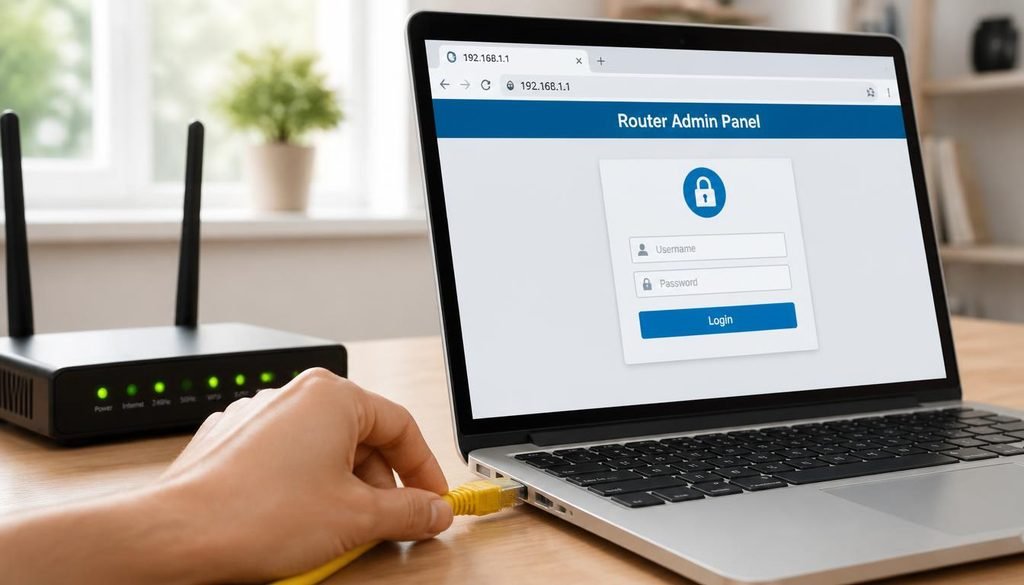
How to Access Router Settings
Step 1: Connect to the router.
Use a device already connected to the router’s Wi-Fi, or plug in an Ethernet cable for a more stable connection. Avoid guest Wi-Fi networks, since many routers block admin access from them intentionally.
Step 2: Find the router’s gateway address.
This is the address you will enter into the browser. It is not always 192.168.1.1, so it is worth confirming (see the section below).
Step 3: Open the address in a browser.
Type the IP address directly into the browser’s address bar, not the search bar, and press Enter.
Step 4: Enter the administrator credentials.
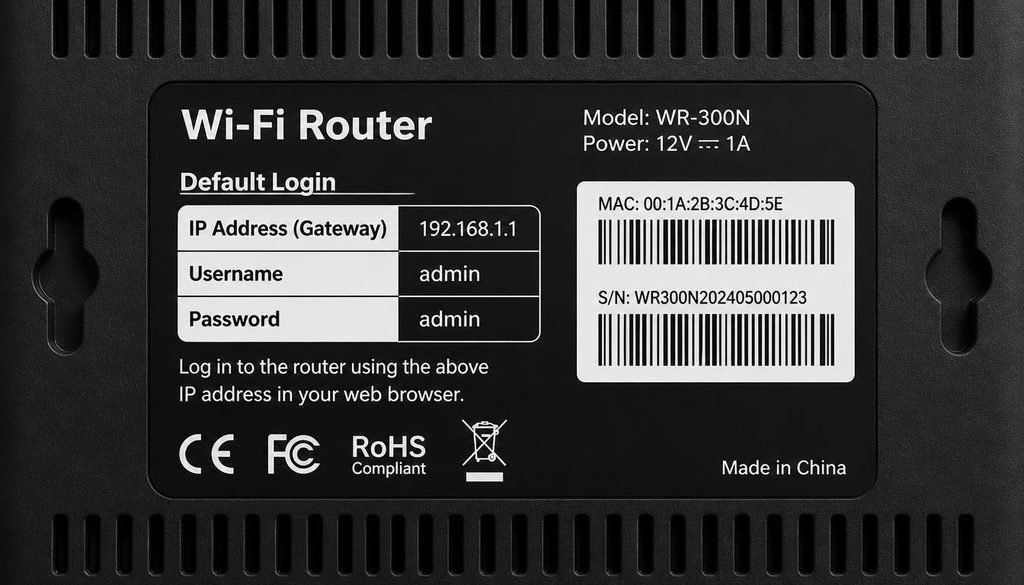
This is a separate login from your Wi-Fi password. Default credentials are usually printed on a label on the router.
Step 5: Open the settings you need.
Once logged in, the dashboard allows changes to the Wi-Fi name, password, and other network options.
If the page will not load, disconnect any active VPN first. A VPN routes traffic away from the local network and commonly blocks access to a router’s local admin page.
How to Find Your Router’s IP Address
The address used to reach the router’s admin page is technically the default gateway. It differs from:
- Router IP — the same as the default gateway in most home setups
- Device IP — the address assigned to your phone or computer, not the router
- Public IP — the address your internet provider assigns to your entire network
Use the method below for your device, then apply that address in Step 3 above.
Windows
Open Command Prompt and type ipconfig. Look for Default Gateway under your active network adapter.
Mac
Open System Settings > Network, select the active connection, and click Details. The address appears next to Router.
Android
Open Settings > Wi-Fi, tap the connected network, and look for Gateway or Router under the network details. Exact wording varies by manufacturer.
iPhone
Open Settings > Wi-Fi, tap the (i) icon beside the connected network, and check the Router field under IPv4 Address.
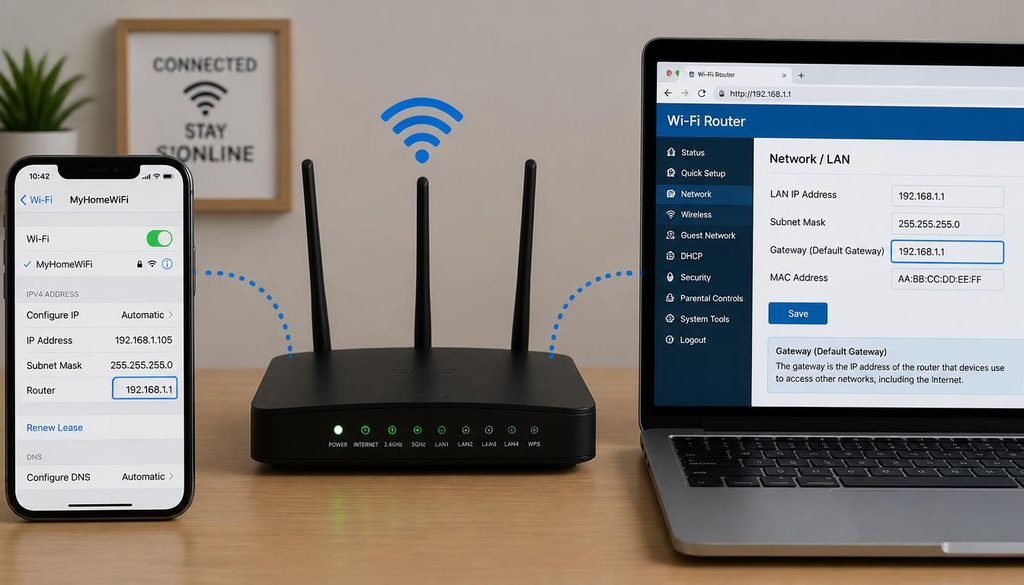
192.168.1.1 and 192.168.0.1 Explained
These are the two most common default gateway addresses on consumer routers, which is why they appear in most search results. They are not universal. Some manufacturers use 192.168.2.1, 10.0.0.1, or a custom address entirely.
If neither address opens the login page, do not keep guessing. Use the device-specific steps above to check the actual gateway, then use that exact address.
Accessing Router Settings on Different Devices
The IP address lookup is covered above. The steps below cover only what differs by device once you have that address.
Windows PC and Mac: Open any browser and enter the gateway address directly. No additional app is required.
Android and iPhone: Open the phone’s default browser (Chrome or Safari) and enter the address the same way. Some router manufacturers also offer a dedicated app as an alternative to the browser method.
Ethernet: Connecting directly by cable bypasses Wi-Fi-related issues such as client isolation or a weak signal, and is a useful troubleshooting step when the admin page will not load over Wi-Fi.
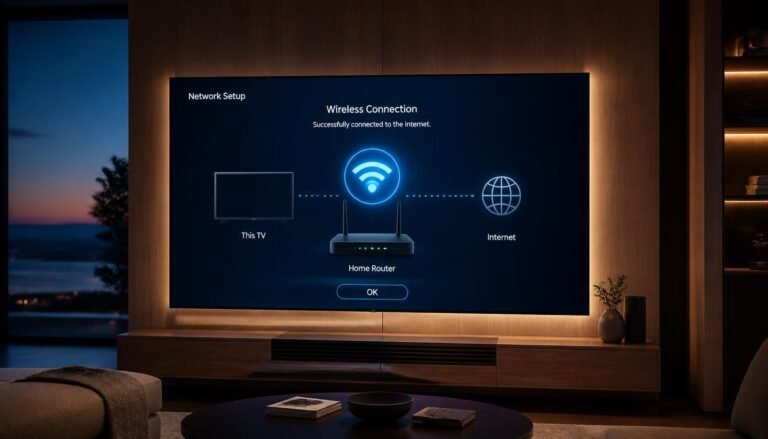
The router’s admin page is not only useful for computers and phones. Once you can log in, you can also check which devices are connected, including smart TVs and streaming boxes. If your television is not online yet, see how to connect your TV to the internet for the full setup process.
How to Access TP-Link Router Settings
TP-Link routers commonly use 192.168.0.1 or the address tplinkwifi.net for admin access. The exact menu layout depends on the model and firmware version, so treat menu names as a general guide rather than an exact match for every unit. For model-specific steps, consult TP-Link’s official support documentation.
Router Login Credentials
The administrator username and password control access to router settings and are separate from the Wi-Fi password used to connect devices. Default admin credentials are usually printed on a label on the back or bottom of the router.
If the admin password was changed previously and is now unknown, do not try credentials from unrelated routers or guides, since defaults vary by manufacturer and model. A factory reset, typically triggered with a recessed button on the router, restores the original credentials but also erases custom Wi-Fi settings. Treat this as a last resort.
Troubleshooting Router Login Problems
Login page does not open at all.
Confirm you are connected to the router’s own network (not guest Wi-Fi or mobile data), then verify the actual gateway address instead of assuming 192.168.1.1 or 192.168.0.1 is correct.
Login page keeps loading or times out.
Restart the router, wait about a minute, then try again. A temporary firmware hang is a common cause.
Browser says the page cannot be reached.
Make sure the address is typed in full in the address bar rather than searched through Google.
Admin password does not work.
Try the label on the router first. If it was changed and is unknown, a factory reset is usually required.
Router page opens but settings will not save.
Some routers require clicking Save or Apply on each page individually, and some changes need a router reboot to take effect.
No internet, but the local admin page still works.
This is normal. The admin page runs on the local network and does not depend on an active internet connection.
Router page loads on Ethernet but not Wi-Fi.
This can indicate Wi-Fi client isolation, a setting that blocks devices from reaching each other. Check for an “AP isolation” or “client isolation” option.
Router address does not match common defaults.
Some ISP-provided routers use nonstandard addresses. Check the gateway directly using the device-specific steps above rather than relying on general guides.
How to Access Router Settings ?
A VPN is active.
A VPN can route traffic away from the local network entirely, which frequently blocks the admin page from loading. Disconnect it and try again.
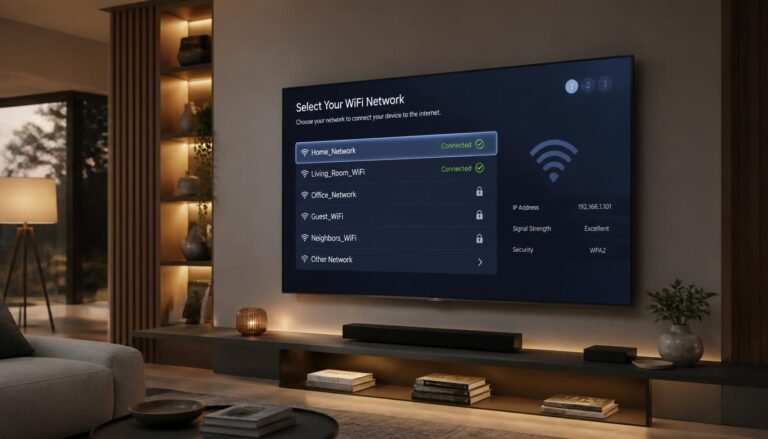
If a smart TV cannot reach the internet even though the router is working correctly, the issue is often on the TV’s Wi-Fi setup rather than the router itself. A step-by-step walkthrough is available in how to connect a smart TV to Wi-Fi.
Common Mistakes When Accessing Router Settings
- Searching the IP address in Google instead of typing it into the browser’s address bar
- Assuming every router uses 192.168.1.1
- Confusing the Wi-Fi password with the admin password
- Trying to access the router page while on mobile data or a guest network
- Connecting to a neighboring Wi-Fi network by mistake
- Typing an incomplete address, missing a digit or period
- Performing a factory reset before trying simpler fixes
How to Keep Router Settings Secure
- Change the default administrator password if it has not been changed already
- Use a strong, unique admin password, separate from the Wi-Fi password
- Keep router firmware updated through the admin panel when updates are available
- Avoid sharing administrator credentials unnecessarily
- Use HTTPS for the admin login when the router supports it
- Do not expose the router’s admin page to the public internet unless there is a specific, secured reason to do so
Accessing router settings also raises a common privacy question: does changing these settings affect what shows up on your internet bill? Many users assume their browsing activity is fully visible to whoever manages the network. For a clear answer on what actually appears on a Wi-Fi bill, see can you see search history on a Wi-Fi bill.
Frequently Asked Questions
How do I log into my 192.168.1.1 router?
Connect to the router’s Wi-Fi or Ethernet, type 192.168.1.1 into a browser’s address bar, and enter the admin username and password. If the page does not load, confirm this is actually your router’s gateway address.
How do I find my Wi-Fi router settings?
Check your device’s network details for the default gateway address, then open that address in a browser to reach the settings page.
How do I log into a Wi-Fi router?
Connect to the router’s network, open its gateway address in a browser, and log in using the administrator credentials, not the Wi-Fi password.
How do I access and manage my router settings?
Log into the admin page using the gateway IP address and admin credentials, then use the dashboard menus to change the Wi-Fi name, password, or other network options.
Why does 192.168.1.1 not work on my router?
Not every router uses this address. Check your device’s actual default gateway instead of assuming it is correct.
What is the difference between the Wi-Fi password and the admin password?
The Wi-Fi password connects devices to the network. The admin password logs into the router’s settings page and is usually a separate credential.
Can I access router settings without Ethernet?
Yes. Connecting over Wi-Fi works for most routers; Ethernet is mainly useful as a troubleshooting step when Wi-Fi access fails.
What happens if I forget my admin password?
A factory reset restores default credentials but also erases custom settings, so it should only be used when the password genuinely cannot be recovered.
Why can’t I access router settings from the guest Wi-Fi network?
Guest networks are often deliberately isolated from the router’s admin page for security reasons. Connect to the main Wi-Fi network instead.
Why does a VPN stop me from accessing router settings?
A VPN routes device traffic through an external server, which can prevent the browser from reaching a local address like the router’s admin page. Disconnect the VPN before trying to log in.
Conclusion
Accessing router settings comes down to three things: connecting to the correct network, finding the right gateway address for your specific router, and using the correct admin credentials. Most access problems trace back to one of these three steps rather than a faulty router.
Router access is often just the first step in setting up a fully connected home network. Once your settings are configured, the next common task is linking individual devices such as your television. See how to connect a TV to Wi-Fi for that process.

3 Comments