How to Connect Phone to Printer: Easy Methods (2026)
Most phones can print to a wireless printer in under five minutes, as long as both devices are on the same network and the printer supports a standard such as AirPrint or Mopria.
Quick Answer(how to connect phone to printer)
⚡ Quick Answer: How to Connect a Phone to a Printer
Connect both your phone and printer to the same WiFi network, then follow your device steps below:
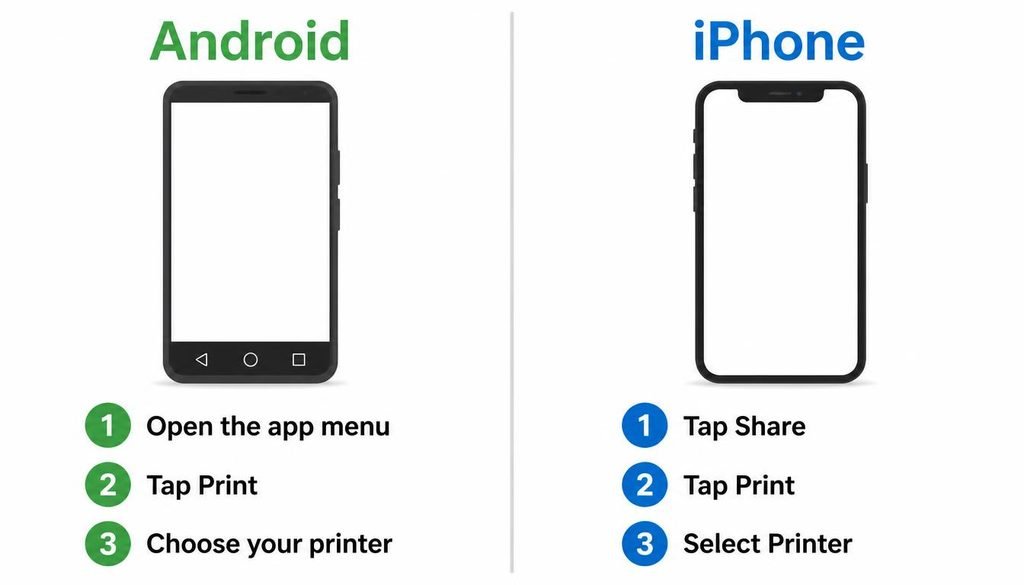
- iPhone (AirPrint): Tap Share, then select Print and choose your AirPrint-compatible printer.
- Android: Open your app menu, tap Print, and pick your printer from the auto-detected list.
- Without WiFi: Use WiFi Direct if your specific printer model supports a direct wireless connection.
In This Guide
Quick Diagnostic Table
| Symptom | Likely Cause | Actionable Fix |
|---|---|---|
| Printer does not appear | Phone and printer are on different networks | Join both to the same WiFi network, then search again |
| Printer does not appear on a visitor network | Guest WiFi or client isolation blocks local devices | Use the main network or turn off client isolation in the router |
| AirPrint option shows no printers | Printer does not support AirPrint, or discovery is blocked | Check the printer specifications, then try the manufacturer app |
| Android shows no printers | Print service is off or missing | Open Settings > Connected devices > Connection preferences > Printing and turn on a service |
| Printer shows offline | Printer is asleep, off or lost WiFi | Wake the printer, check its WiFi light, restart it |
| Printer needs its own app | Model is not covered by the standard print services | Install the official app from the manufacturer |
| Bluetooth pairs but nothing prints | Bluetooth printing is not normal document printing | Use WiFi or the manufacturer app instead |
| USB cable is not detected | Phone and printer do not support USB printing from a phone | Use WiFi or WiFi Direct instead |
| Job is stuck | Queue is blocked or printer lost connection | Cancel the job, restart the printer, send it again |
| Printer worked before but not now | Router gave the printer a new IP address | Restart the router and printer, or add the printer again |
What You Need Before You Start
Check these four things first. They solve most failures before any settings are touched.
- A printer with WiFi, WiFi Direct, or a manufacturer approved Bluetooth feature.
- A phone with WiFi turned on. Mobile data alone cannot find a printer on your home network.
- The WiFi network name and password, if the printer is not yet on the network. The guide on how to connect a printer to WiFi covers that first step.
- The printer powered on, with paper and ink or toner loaded.
If you use a phone hotspot for setup, remember that app downloads use mobile data. You can check how much hotspot data you have left before downloading a large printer app.
How to Connect a Phone to a Printer Over WiFi
This is the most common method, and it works for both Android and iPhone.
Step 1: Put the printer on your WiFi network
Use the printer control panel or the manufacturer app. The printer must join the same router as your phone. If the router is giving trouble, see how to fix WiFi connection problems.
Step 2: Join the same network on the phone
Open the WiFi settings on the phone and connect to the same network name the printer uses. Some routers have a 2.4 GHz and a 5 GHz network. Many printers support only 2.4 GHz, so check your printer specifications. If the phone is on one band and the printer on the other, they are usually still on the same router, but a router with separate settings for each band can break discovery.
Step 3: Open the item you want to print
Open a photo, PDF, web page or document in a supporting app.
Step 4: Choose Print and select the printer
On iPhone, use Share, then Print. On Android, use the app menu, then Print. Pick your printer, set the copies and page range, and tap Print. Not every app supports printing. If an app has no print option, a screenshot of the screen can be printed instead.
How to Connect a Printer to an Android Phone
Default Print Service and Mopria
Android includes a print service that searches for printers on the same WiFi network. Mopria states that most Android devices come with a Mopria powered service and that a separate Mopria app is available if your phone cannot print yet.
Menus differ by phone brand and Android version. Google documents this path for recent Pixel phones: Settings > Connected devices > Connection preferences > Printing. Some Android 11 and Android 12 phones use different wording or a different starting menu. If you cannot find it, search for “Printing” in the Settings search bar.
- Open the Printing screen.
- Turn on the Default Print Service, or the service from your printer brand.
- Open a photo or document, tap the menu, then tap Print.
- Pick the printer from the list.
If the printer appears twice, one entry is usually the WiFi network connection and the other is WiFi Direct. Either one will normally work.
Add a Printer Manually
If the printer does not appear, go to the Printing screen and tap Add service or Add printer, depending on your phone. Some print services let you enter the printer details, including the IP address. You can find the IP address on a printer settings page or network information page. A fixed address avoids problems if the router changes it later. You can also access your router settings to find the printer in the connected devices list.
How to Connect a Printer to an iPhone
iPhone printing uses AirPrint. Apple states that the printer must support AirPrint and that the iPhone and printer must be on the same WiFi network.
- Confirm the printer lists AirPrint support in its specifications.
- Connect the iPhone and printer to the same WiFi network.
- Open the app you want to print from.
- Tap Share, then Print.
- Tap Select Printer or No Printer Selected, then choose the printer.
- Set copies and pages, then tap Print.
If no printer appears, wait a few minutes after turning the printer on, update iOS and the app, and confirm both devices share a network. Not every printer supports AirPrint. If yours does not, check whether the manufacturer offers an iPhone app. Apple also states that AirPrint does not work over a USB or Bluetooth connection to a computer.
How to Connect an HP Printer to a Phone
HP offers the HP Smart app for Android and iPhone. It can set up the printer on WiFi and send print jobs. HP support staff also describe printing through WiFi Direct on models that support it. On Android, HP has used a print service plugin as part of its mobile printing setup.
Setup steps differ between models, so check the support page for your exact printer. A printer with a screen usually has a wireless menu. A printer without a screen is usually set up from the app.
How to Connect a Canon Printer to a Phone
Canon provides the Canon PRINT app for supported PIXMA and SELPHY models, and many Canon printers also work with AirPrint on iPhone and a standard print service on Android. Canon documentation for office models confirms AirPrint works when the device and printer share the same network.
Direct connection modes and Bluetooth features are model dependent. Look up your printer model on Canon support before following any generic steps.
Other Printer Brands
Brother and Epson also publish their own mobile printing apps. The reliable approach is the same for every brand.
- Find the exact model name on the printer label.
- Search “[brand] [model] mobile printing” on the manufacturer support site.
- Install the app from the official store listing.
How to Connect a Phone to a Printer Without WiFi
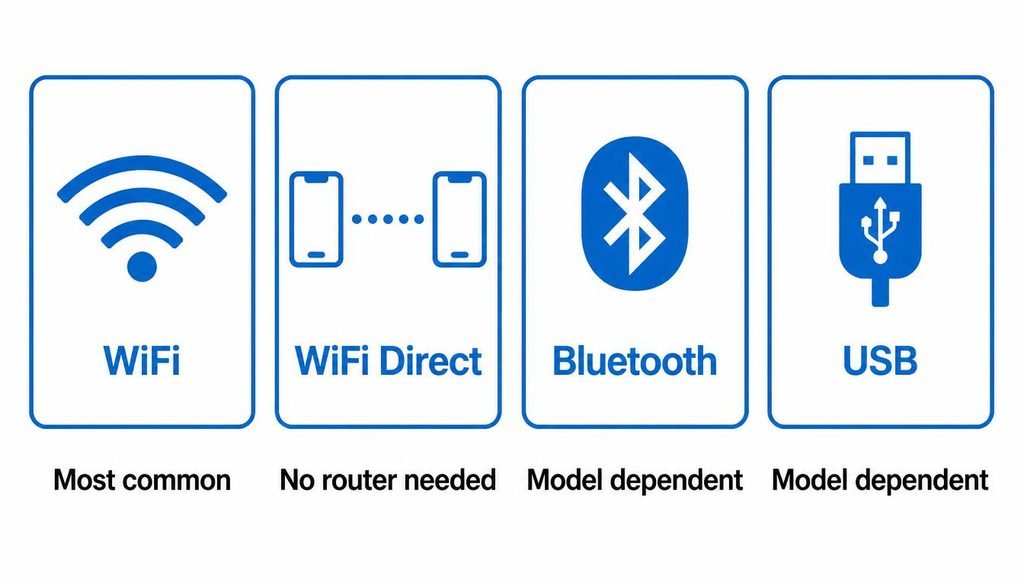
Yes, it can work, but only on printers that support a direct method. The realistic options are WiFi Direct, Bluetooth on specific models, and USB on specific model pairs.
WiFi Direct
WiFi Direct makes the printer create its own wireless network. HP support staff describe the process like this:
- Turn on WiFi Direct from the printer control panel.
- Print or view the WiFi Direct name and password from the printer menu.
- On the phone, open WiFi settings and join the network that starts with DIRECT.
- Open the item to print, tap Print, and select the printer.
While connected, many phones lose access to the internet and your normal WiFi network. Switch back afterward. A standard WiFi printer is not the same thing as WiFi Direct. The first joins your router. The second makes its own network.
If you are working without WiFi in other situations, the guide on how to use devices without WiFi explains similar direct connection ideas for screens.
How to Connect a Phone to a Printer With Bluetooth
Bluetooth printing works only on printers that explicitly support it, and often through the manufacturer app. Pairing a phone with a printer in Bluetooth settings does not guarantee that normal documents can be printed. Some printers use Bluetooth only to find the printer or to help with setup, while the print job travels over WiFi. A Canon office model manual describes this for AirPrint searching.
Check the printer manual for the words “Bluetooth printing” before spending time on pairing.
How to Connect a Phone to a Printer With USB
A USB cable does not guarantee mobile printing. Android phones need a USB OTG capable port and the correct adapter, and the printer needs a way to accept jobs from a phone. Printing through a USB cable is model dependent and varies between brands and apps. I could not verify any general rule that works for every printer, so treat it as a last resort.
On iPhone, Apple states that AirPrint works over WiFi or wired network connections, so a direct USB cable between an iPhone and a printer is not an AirPrint method.
If your printer has only a USB port, the practical routes are a computer that shares the printer, a small wireless print server, or a newer wireless printer.
Troubleshooting a Printer That Does Not Connect
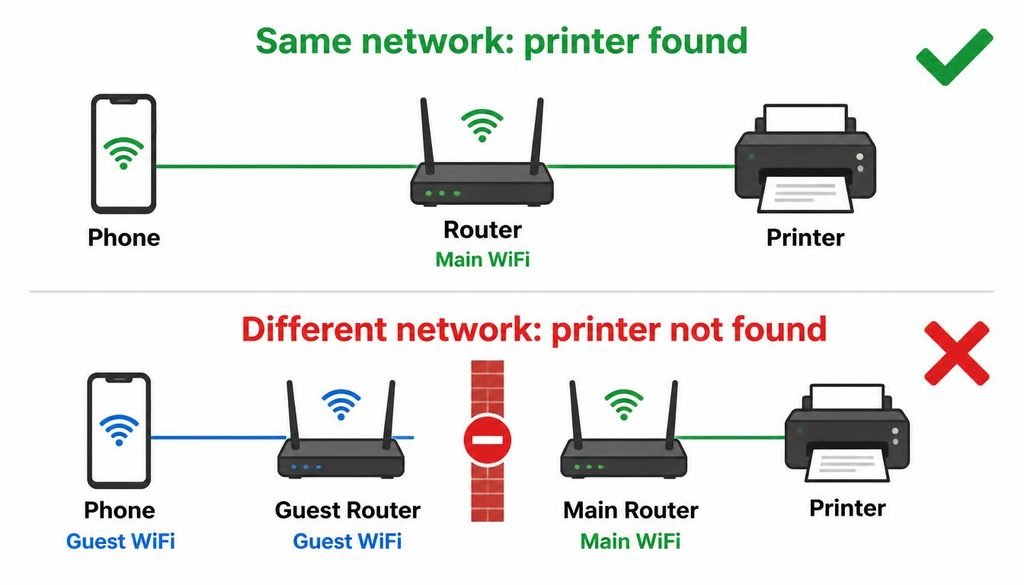
How to Connect Your Phone to a Printer?
1. Phone cannot find the printer
Problem: The printer list is empty.
Why it happens: The devices are on different networks, or a print service is off.
Fix: Join the same WiFi network, then turn on the print service and search again.
2. Printer appears offline
Problem: The printer is listed but shows offline.
Why it happens: The printer lost its WiFi connection or is in sleep mode.
Fix: Press a button on the printer to wake it, confirm the WiFi light is steady, and restart the printer.
3. Different WiFi networks
Problem: The phone and printer use separate networks.
Why it happens: The router may have two networks, or a range extender created a new one.
Fix: Join both to the same named network.
4. Printer is on guest WiFi
Problem: The printer is on a visitor network.
Why it happens: Guest networks often block devices from talking to each other.
Fix: Move the printer and phone to the main network.
5. Router client isolation
Problem: Both devices are on the same network name but still cannot see each other.
Why it happens: Client isolation, also called AP isolation, blocks local traffic between devices.
Fix: Turn off client isolation in the router settings.
6. Printer supports only 2.4 GHz
Problem: The printer will not join the network.
Why it happens: Many printers cannot join a 5 GHz network. Check your model.
Fix: Connect the printer to the 2.4 GHz network.
7. Different band on the phone
Problem: Discovery fails even though both are on the same router.
Why it happens: Some routers handle the two bands as separate networks with different settings.
Fix: Put the phone on the same band as the printer for the test.
8. Printer app cannot detect the printer
Problem: The manufacturer app shows no printer.
Why it happens: The app lacks local network permission, or the printer is on another network.
Fix: Allow the local network or nearby devices permission if your phone asks for it, then reopen the app.
9. Print service is disabled
Problem: The Print option is greyed out or no printers show on Android.
Why it happens: The service is turned off.
Fix: Open the Printing settings and turn on a service.
10. AirPrint printer does not appear
Problem: iPhone shows no AirPrint printers.
Why it happens: AirPrint discovery uses Bonjour (mDNS), and some networks block it between segments.
Fix: Place the phone and printer on the same segment, update iOS, and wait a few minutes after the printer starts.
11. Printer IP address changed
Problem: A printer added by IP address stops working.
Why it happens: The router assigned a new address.
Fix: Check the printer settings page for the new IP address and re-add the printer, or reserve an address in the router.
12. Printer is asleep
Problem: The first print attempt fails and a second works.
Why it happens: The printer needs time to wake.
Fix: Wake it, wait a minute, then print.
13. Print job is stuck
Problem: A job stays in the queue.
Why it happens: An earlier job failed or the connection dropped.
Fix: Cancel the job on the phone, restart the printer, and send it again.
14. App is outdated
Problem: An old app does not see a new printer.
Why it happens: Older app versions may miss newer printer models.
Fix: Update the printer app and the print service.
15. Printer firmware needs an update
Problem: Features such as AirPrint behave oddly.
Why it happens: Firmware can affect network behavior.
Fix: Look for a firmware update in the manufacturer app or on the support site.
16. Network settings need a reset
Problem: Nothing works after several changes.
Why it happens: Saved settings may be corrupted.
Fix: Reconnect the printer to WiFi, then forget and rejoin the network on the phone. Reset network settings on the phone only as a last step, because it also removes saved WiFi networks.
17. VPN interferes with discovery
Problem: The printer disappears while a VPN is on.
Why it happens: Some VPN apps route traffic away from the local network.
Fix: Turn the VPN off while printing, or allow local network access in the VPN app.
If every step fails, the problem may be the router itself. The guide to connect another device to the internet shows how to confirm the router works, and the guide to connect a smart device to WiFi helps check another device on the same network.
Common Mistakes
- Treating Bluetooth pairing and WiFi printing as the same thing.
- Leaving the phone on mobile data while expecting to find a home printer.
- Using a guest network.
- Installing the wrong printer app. Always use the official one from the printer brand.
- Assuming every printer supports AirPrint.
- Assuming every Android phone has the same settings menu.
- Buying a cable without checking that the printer and phone support USB printing.
- Ignoring an offline or sleeping printer.
- Installing unofficial printer apps when the standard print service already works.
Security and Privacy
Use the official manufacturer app where possible, and avoid unknown printer apps that ask for broad permissions. On shared printers, collect confidential pages quickly. Check the printer sharing settings on shared networks, and use a secured network for sensitive documents.
FAQ (How to connect your phone to a printer)
How do I print directly from my phone?
Open the item, tap the app menu or Share, then choose Print and select your printer. The phone and printer must be on the same WiFi network, or connected through WiFi Direct. Not every app supports printing, so print a screenshot if the print option is missing.
Why cannot my phone find my printer?
The most common cause is that the phone and printer are on different networks. Check for guest WiFi, router client isolation, a sleeping printer, a disabled print service and an active VPN. Join both devices to the main WiFi network, wake the printer, then search again.
How do I pair my iPhone with my printer?
An iPhone does not pair with a printer in Bluetooth settings for normal printing. Put the printer and iPhone on the same WiFi network, tap Share, then Print, and select an AirPrint printer. If the printer lacks AirPrint, use the manufacturer app instead.
Where do I find the printer settings on my phone?
On many Android phones, open Settings > Connected devices > Connection preferences > Printing. The path varies by brand and Android version, so search Settings for “Printing”. iPhone has no general printer settings page. Printers are chosen from the Print screen inside each app.
Can I connect my phone to a printer without WiFi?
Yes, if the printer supports WiFi Direct, Bluetooth printing, or a compatible USB connection. WiFi Direct is the most common choice. Turn it on at the printer, join the printer network that starts with DIRECT, then print. Support differs by model.
How do I connect an Android phone to an HP printer?
Install the HP Smart app, add the printer, and follow the prompts, or use the built in Android print service. Both devices should be on the same network. WiFi Direct is another option on supported models. Check your exact model on HP Support.
Can I print from my phone using USB?
Sometimes, but not reliably. It needs an OTG capable Android phone, the right adapter, and a printer and app that support the connection. A USB cable alone does not guarantee printing. iPhone AirPrint does not use a direct USB cable to the printer.
Can I print from my phone using Bluetooth?
Only if the printer supports Bluetooth printing. Pairing alone often does not let you print ordinary documents. Some printers use Bluetooth through their own app, and some use it only to find the printer. Check the printer manual before pairing.
Why is my wireless printer not showing on my phone?
A wireless printer may be offline, asleep, on the wrong network, or blocked by a guest network or router client isolation. Confirm the WiFi light is steady, restart the printer, and check that both devices share one network before trying a manual add.
Do I need an app to print from my phone?
Often no. iPhone uses built in AirPrint, and most Android phones include a default print service. You need a manufacturer app when your printer is not covered by those standards, or when you want scanning and ink checks. Use the official app only.
Conclusion
To connect a phone to a printer, start with the simplest route: same WiFi network, then Share and Print on iPhone, or the menu and Print on Android. If the printer does not appear, check the network first, then the print service, then the manufacturer app. For printing without WiFi, WiFi Direct is the most dependable option, but only on models that support it. Always confirm model specific features on the official support page for your printer.