
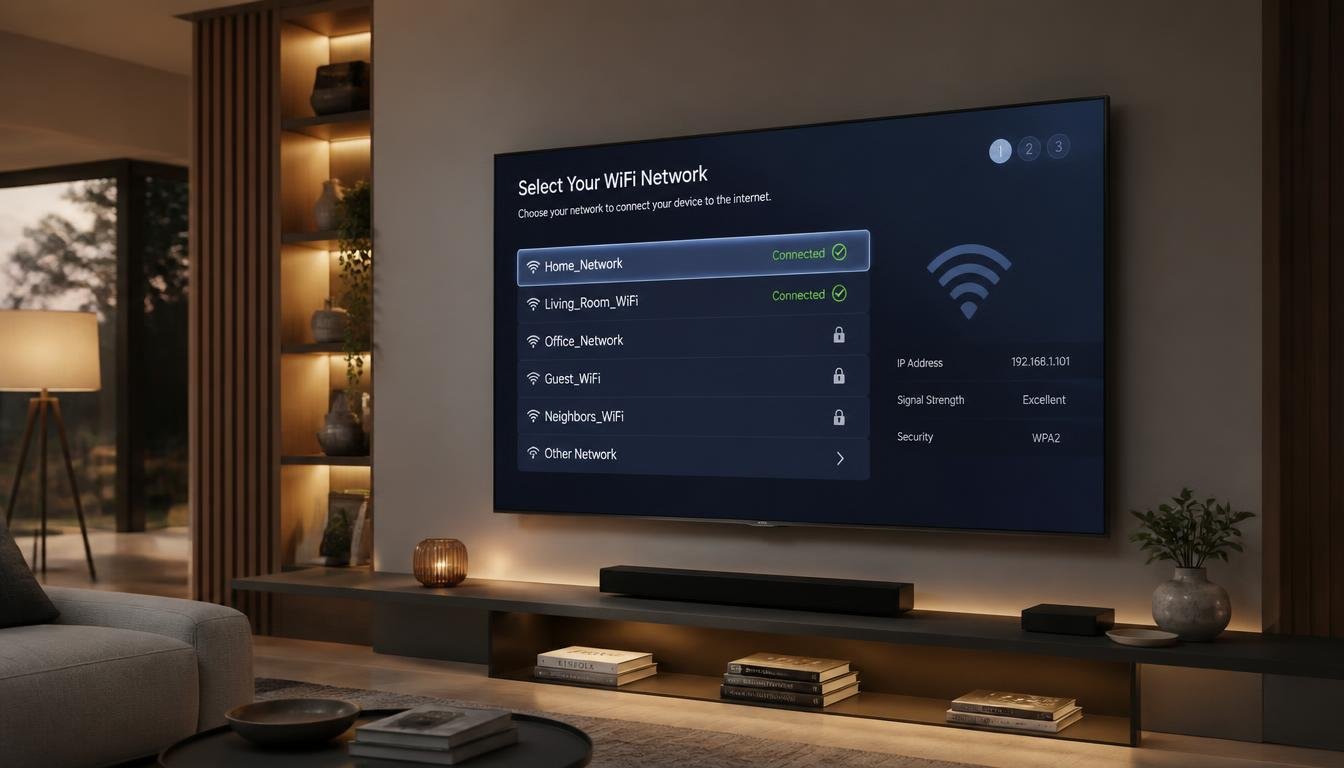
How to Connect TV to WiFi: Fix Under 60 Sec Easy Guide 2026
Most TVs sold in the last several years can join WiFi in under two minutes. The trouble starts when the menu looks different from the instructions, the network does not appear, or the TV is too old to have WiFi at all. This guide how to connect TV to WiFi covers all three situations.
Quick Answer
To connect a TV to WiFi, open Settings, go to Network or WiFi, select your network name, enter the password, and confirm the connection.
In This Guide
What You Need Before You Start
Have these ready:
- Your WiFi network name (SSID) and password. Both are usually printed on a label on the router.
- The TV remote, or a plan for setup without one (covered below).
- The TV within reasonable range of the router.
Manufacturers recommend confirming the exact network name and password before you begin. A small typo is the most common reason a first attempt fails.
Quick Diagnosis Table
Use this if the connection is already failing.
| Problem | What It Usually Means | What To Try |
|---|---|---|
| TV cannot see your network | Wrong WiFi band, weak signal, hidden network, or router issue | Check that the router is broadcasting, move closer, and see the 2.4 GHz section below |
| TV sees the network but the password fails | Typing error, wrong network selected, or a security mode the TV does not support | Retype the password, check capital letters, forget the network and try again |
| TV connects but there is no internet | Router, ISP, or DNS problem | Test a phone on the same network, restart the router, check DNS on the TV |
| TV connects but apps fail | Wrong date and time, DNS problem, or outdated firmware | Set date and time to automatic, update the TV, try different DNS |
| TV keeps disconnecting | Weak signal, interference, router placement, or firmware | Improve signal, update the TV, reset network settings |
| Only the TV has the problem | TV settings, WiFi hardware, or firmware | Work through the TV steps below |
| Every device has the problem | Router or ISP | Restart the router and contact your provider |
How to Connect a Smart TV to WiFi
These steps work as a general pattern. Exact wording changes by brand.
- Open Settings. Press the Settings or gear button on the remote. On some remotes you press Home first and then choose Settings on screen.
- Open Network or Connection. It may sit inside General, Connection, or Network & Internet.
- Select WiFi or Wireless. If the TV is plugged into Ethernet, it may use the cable first. Unplug the cable if the WiFi option does not appear.
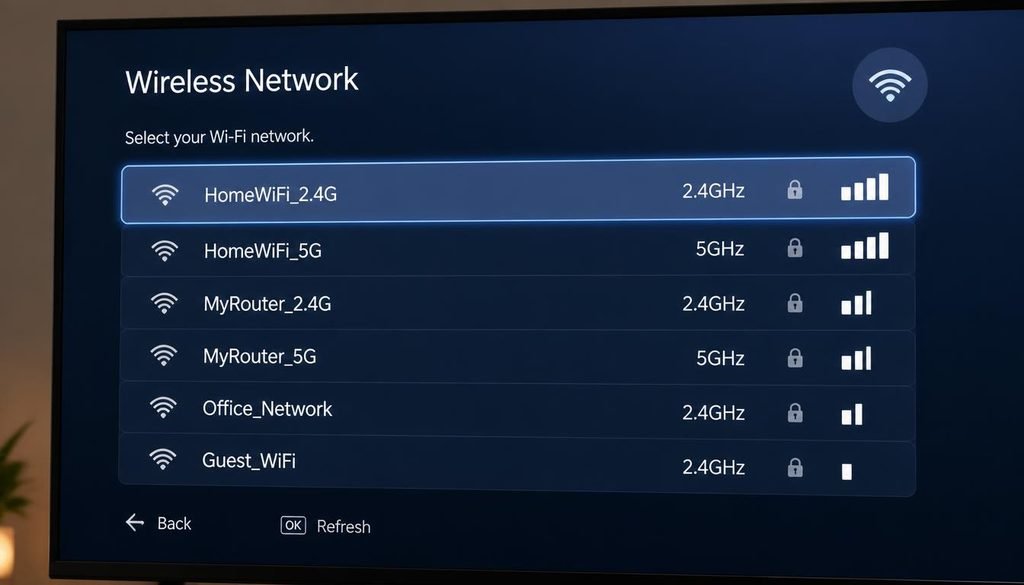
- Choose your network. The TV scans and shows a list. Pick your SSID.
- Enter the password. Passwords are case sensitive. Use the option to show the characters so you can check what you typed.
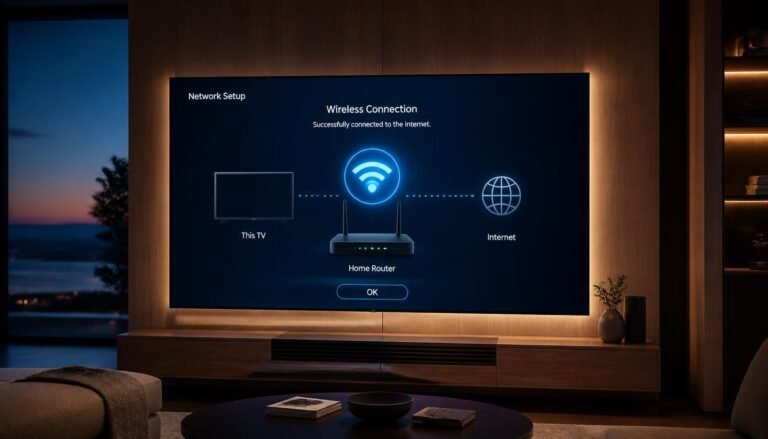
- Confirm the connection. Look for a message such as Connected, Connected to Internet, or a checkmark beside the network name.
- Test the internet. Open a streaming app or the TV network status screen. A connection to the router without internet access is a different problem, covered in the troubleshooting section.
Brand Specific Methods
Menus change between model years and operating systems. Treat these paths as a starting point and check your model manual if a step does not match.
Samsung TV
On Samsung TVs, Samsung Support describes the path as Settings, then General, then Network, then Open Network Settings, where you select your WiFi network, enter the password, and confirm. Some newer models organize settings differently, so search the menu for Network if you cannot find it.
One detail matters for older sets. Samsung states that some 2018 models (NU7100, NU7200 and NU7300 series) support only 2.4 GHz networks and will not show 5 GHz networks in the list. samsung
LG TV
LG changed its menu path over the years. LG lists these paths: TVs from 2021 onward (webOS 6.0 or later) use Settings, All Settings, General, Network, Internet Connection, then WiFi Connection. The 2020 models (webOS 5.0) use All Settings, Connection, Network Connection Settings, then WiFi Connection. Older models use Connection or Network, then WiFi Connection.
LG also offers hidden network entry and WPS options on the WiFi screen. The LG setup guide shows options to add a hidden wireless network and to connect using WPS PBC or WPS PIN.
Sony TV
On Sony Google TV models, Sony describes the path as Dashboard, All settings, Network & Internet, where you select your network from the list. If your network name is hidden, select Add new network and type the name yourself.
Sony has a helpful shortcut. Its Quick connect feature shows a QR code on the TV. You scan it with a mobile device, and the phone helps the TV join the WiFi. That is a way to avoid typing a long password with a remote.
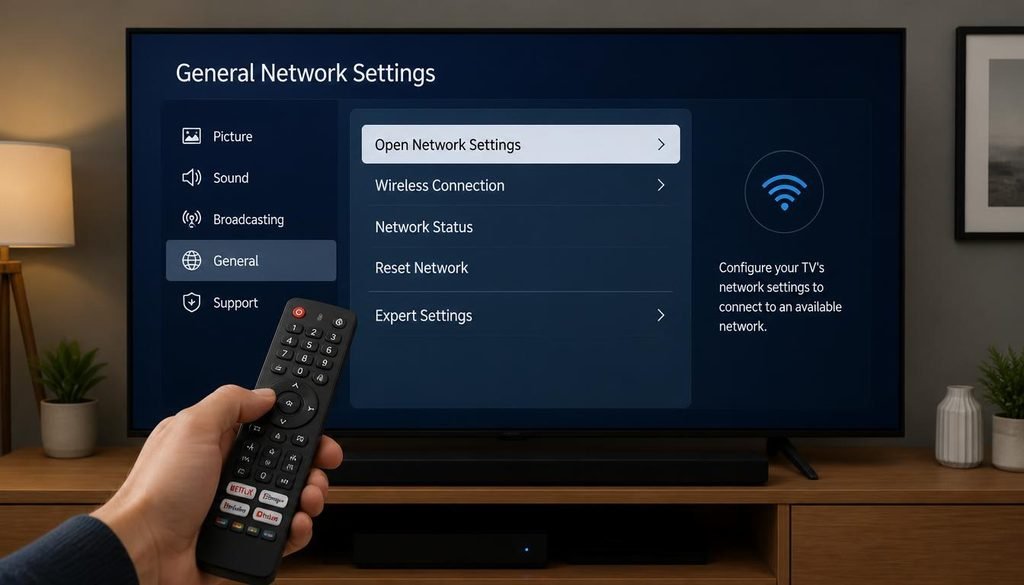
Older Sony menus differ. Sony lists variations such as Network & Internet then WiFi, Network & Internet then Easy setup, or Network then Network setup then Easy, depending on the TV. Sony also notes that a USB keyboard can replace the on screen keyboard for typing the password.
TCL TV
TCL TVs run different operating systems depending on model and region, commonly Google TV, Android TV, or Roku TV. That means there is no single TCL menu path.
- Google TV or Android TV models: look for Settings, then Network & Internet, then WiFi.
- Roku TV models: look for Settings, then Network, then Set up connection, then Wireless.
If neither matches, use the manual for your exact model number. TCL also publishes a WPS guide, covered in the WPS section below.
Hisense, Vizio and Panasonic
These brands also use different platforms across models. Hisense TVs may run VIDAA, Google TV, Roku TV, or Fire TV. Vizio and Panasonic have their own menus that change by year. In each case, look for Network or WiFi inside Settings, and confirm the exact path with the manufacturer support page for your model.
How to Connect a Non Smart TV to WiFi
A traditional TV without built in network hardware cannot join WiFi by itself. It has no WiFi radio to connect with.
HDMI does not provide WiFi. HDMI carries audio and video from a device to the screen. Plugging an HDMI cable into a TV does not give it an internet connection. The HDMI specification includes an Ethernet channel feature, but it needs support in both devices and the cable, is rarely used, and is wired rather than wireless.
Practical options:
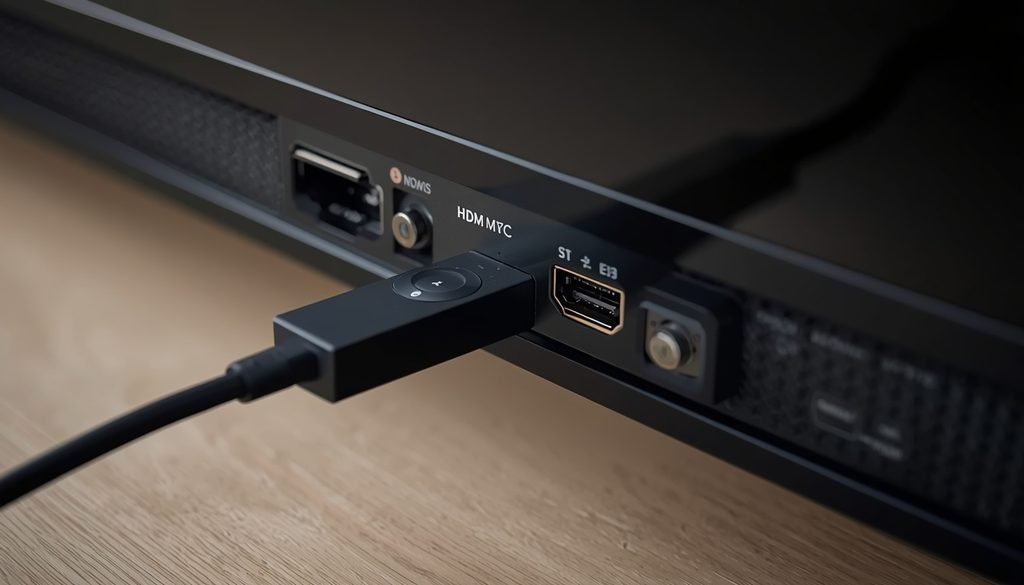
- Streaming stick or box. A Fire TV Stick, Roku, or Chromecast plugs into an HDMI port, gets power from a USB port or adapter, and connects to WiFi itself. The TV only shows the picture.
- Game console or Blu-ray player with WiFi. These can provide streaming apps through HDMI.
- Manufacturer WiFi adapter. Some TVs marked as network ready need a specific adapter from the same brand. Generic USB WiFi dongles usually do not work. Check the manual.
- Ethernet. Only if the TV has a LAN port, which most non smart TVs do not.
For most people, a streaming stick is the simplest and cheapest fix.
Connecting a WiFi Device to Your TV
If you are asking how to connect a WiFi device to your TV, the steps depend on the device:
- Plug the device into an HDMI port.
- Power it on and switch the TV to that HDMI input.
- Follow the device setup screen to choose your WiFi network and enter the password.
The device connects to the router, and the TV displays the output.
Using a Phone: Two Different Things
People often mix these up, so keep them separate.
A. Using a Phone to Help Set Up the TV
Some TVs let a phone assist with setup. Sony Quick connect is one example. Streaming devices such as Chromecast and Fire TV also offer app based setup. This uses the phone to send WiFi details to the TV. The TV still joins your router.
B. Using a Phone Hotspot as the TV’s Internet
A phone hotspot turns the phone into a small router. The TV then connects to it like any other WiFi network.
- Turn on Personal Hotspot (iPhone) or Mobile Hotspot (Android).
- Note the hotspot name and password.
- On the TV, select that name in the WiFi list and enter the password.
Keep two points in mind. Video uses a lot of mobile data. And some TVs only see 2.4 GHz networks, so if the hotspot does not appear, turn on the phone option that favors 2.4 GHz (on iPhone this is Maximize Compatibility).
Screen Mirroring Is Not Internet
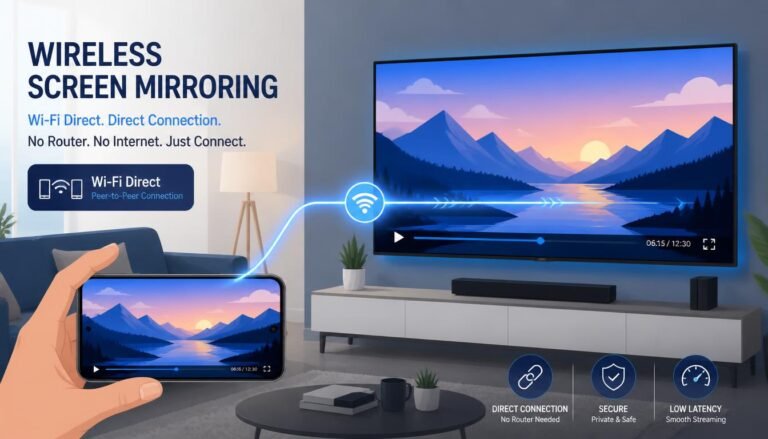
Screen mirroring or casting sends your phone screen or a video to the TV. It does not give the TV internet access. Casting usually needs both devices on the same network, and the TV still needs its own connection for built in apps.
How to Connect a TV to WiFi Without a Remote
You have several legitimate options.
- Physical buttons or joystick. Many TVs have a button or small joystick on the frame or underside. It can open the menu and move through the settings, though typing a long password is slow.
- USB keyboard. Some TVs accept one for text entry. Sony documents this for password entry. Support varies by brand and model.
- Replacement or universal remote. A remote with the right code for your TV, or a Bluetooth remote for the platform, is often the easiest fix.
- Phone remote apps. Apps from TV makers and platforms can control the TV, but many need the TV and phone on the same network. That means they often cannot help with first time setup.
- Ethernet first, then the app. If the TV has a LAN port, connect a cable. The TV gets internet and appears in the phone app. Then use the app to set up WiFi and remove the cable.
Some Android phones have an infrared blaster and can act as a basic remote for an IR TV.
WPS: Connecting Without Typing the Password
WPS (WiFi Protected Setup) lets the TV join your router by pressing a button instead of typing a password. It only works if both the TV and the router support it.
- On the TV, find the WPS option in the WiFi menu. LG models show Connect via WPS PBC and Connect via WPS PIN on the WiFi screen. Some Sony menus offer Connect by WPS button.
- Start WPS on the TV.
- Press the WPS button on the router. The pairing window is typically about two minutes, though it varies by router.
- Wait for the TV to confirm the connection.
Some modern TVs do not show WPS, and some routers disable it or hide it in advanced settings for security reasons. The push button method is safer than the PIN method.
Connecting Without the WiFi Password
Only use your own network or one you have permission to use. There are legitimate ways to avoid typing a password:
- WPS, if supported by both devices.
- Your phone’s saved credentials. Most phones can show or share the password of a network they are connected to. Android offers a QR code for sharing, and iPhones can show the saved password after you verify your identity.
- Router label or router app. The default password is often printed on the router. Some routers offer a QR code or sharing feature in their app.
- Phone hotspot. You know the password because you set it.
- Quick connect style features, such as the one on Sony TVs.
Bypassing security on a network you do not own is not something this guide covers.
2.4 GHz and 5 GHz: When It Matters
Routers broadcast on two common bands, and not every TV supports both.
- 2.4 GHz usually reaches farther and passes through walls better, but can be slower and more crowded.
- 5 GHz can deliver higher speeds over a shorter range.
- Some older TVs support only 2.4 GHz. Samsung confirms this for certain 2018 models, which cannot detect 5 GHz networks at all.
If your router uses one combined name for both bands, some TVs behave unpredictably. A simple test is to give each band a separate name in the router settings, then try the 2.4 GHz one on the TV. Use 5 GHz when the TV is close to the router and supports it.
Security and Compatibility
Sometimes the TV can see the network but cannot join it because of a compatibility gap:
- Security mode. Older TVs may not support WPA3. If the router is set to WPA3 only, choose WPA2/WPA3 mixed mode or WPA2 first. This keeps strong encryption while helping older devices.
- Do not drop to open, WEP, or outdated TKIP security just to make the TV connect. If a change is needed, prefer a separate 2.4 GHz network with WPA2 or use a streaming device.
- Old TV WiFi hardware. A TV with dated WiFi hardware may simply not work well with a modern router. A streaming stick often solves it.
- Firmware. Outdated software can cause drops and app problems. Update the TV once it has any working connection, even a phone hotspot or Ethernet.
Troubleshooting: Find the Cause Before Changing Settings
Start with two questions.
Do other devices work on the same WiFi?
- No, every device has the problem: the issue is the router, modem, or ISP. Restart the router, check the modem lights, and contact your provider if it continues.
- Yes, only the TV has the problem: focus on the TV settings, firmware, and WiFi compatibility.
Then match what you see on the TV.
The TV Cannot See Your WiFi Network
- Confirm the router is on and broadcasting. Check other devices see the network.
- Move the TV or router closer, or remove obstacles.
- Check the band. If the TV is old, it may only see 2.4 GHz.
- Restart the router and the TV.
- Check whether the SSID is hidden. Sony notes that a hidden network needs the Add new network option so you can type the name manually.
The TV Sees the Network but Rejects the Password
- Retype the password slowly and show the characters. Check capitals and similar looking characters.
- Confirm you picked the correct network. Neighbors and extenders can have similar names.
- Forget the network on the TV and reconnect.
- Check the router security mode (see the compatibility section).
The TV Connects but Has No Internet
- Test a phone on the same network. If it also has no internet, the router or ISP is the cause.
- Restart the router and modem.
- Check the TV network status screen for an IP address.
- Sony notes that the router DHCP setting should be switched on if the connection fails.
- If the TV has custom DNS settings, set DNS back to automatic, or try a public DNS server.
- If the TV has a LAN port, test with an Ethernet cable. If the cable works and WiFi does not, the TV WiFi or signal is the problem.
The TV Connects but Apps Fail
Some apps may fail even when the TV shows as connected. Check that the date and time are set to automatic, because wrong values can break secure connections. Then try different DNS settings, update the TV software, and restart the router.
The TV Keeps Disconnecting
- Check signal strength. Walls and distance weaken it.
- Reduce interference. Sony lists microwave ovens, DECT phones, and other wireless devices as possible sources of interference.
- Move the router higher and away from cabinets or metal.
- Update the TV firmware.
- Reset the TV network settings and reconnect.
- Try a wired connection or a mesh node close to the TV.
The Network Uses a Login Page
Hotel, dorm, and public networks often use a captive portal, which requires you to sign in through a web page. Most TVs cannot open that page properly. Options include registering the TV MAC address with the provider (Samsung documents where to find the MAC address under Support and About this TV), using a phone hotspot, or using a travel router.
Common Mistakes
- Choosing the guest network or a neighbor network with a similar name.
- Typing the password with the wrong capitalization.
- Expecting HDMI to provide internet.
- Expecting screen mirroring to give the TV internet.
- Blaming the TV before testing another device on the same WiFi.
- Lowering router security instead of using a 2.4 GHz WPA2 network.
- Ignoring firmware updates.
Frequently Asked Questions
Why is my TV not connecting to WiFi?
Most often the cause is a wrong password, weak signal, an unsupported WiFi band, or a router problem. Test another device on the same network first. If it also fails, restart the router. If only the TV fails, retype the password, move closer, check 2.4 GHz support, and update the TV software.
How do I connect my WiFi device to my TV?
Plug the device into an HDMI port, power it, switch the TV to that input, and follow the setup screen to join your WiFi. This applies to streaming sticks, boxes, and consoles. The device connects to the router, and the TV only displays its video and audio.
How to connect WiFi to TV by phone?
You can use a phone hotspot as the TV’s internet source, or use a phone app or QR feature to help the TV join your router. For a hotspot, turn it on, then select it in the TV WiFi list. Screen mirroring shows your phone on the TV but does not provide internet.
Can you connect WiFi directly to TV?
Yes, if the TV is a smart TV or has built in WiFi. Open Settings, choose Network, and join your network. If the TV is not smart, it cannot connect on its own, and you need a streaming device or supported adapter.
How do I connect a Samsung TV to WiFi?
Go to Settings, then General, then Network, then Open Network Settings, and select your WiFi network. Enter the password and confirm. Menu paths can vary by model year, so search for Network if yours differs. Some 2018 models support only 2.4 GHz networks.
How do I connect a Sony TV to WiFi?
On Sony Google TV models, open Settings, then Network & Internet, and choose your WiFi network. Some models offer Quick connect, which lets you scan a QR code with your phone. Older menus use Network setup and Easy, so check your model manual.
Can a non smart TV connect to WiFi?
Not by itself. A traditional TV has no WiFi radio. Add a streaming stick or box through HDMI, or use a manufacturer adapter if your TV supports one. HDMI carries video and audio, not internet.
How do I connect a TV to WiFi without a remote?
Use the TV physical buttons, a replacement remote, or a supported USB keyboard. Phone remote apps often need the TV already on your network. If the TV has an Ethernet port, connect a cable first, then use the phone app to set up WiFi.
Can I connect my TV to WiFi without the password?
Yes, if you have legitimate access to the network. Use WPS if both the TV and router support it, share credentials from a connected phone, scan a router QR code, or use your own phone hotspot. Do not try to bypass the security of a network you do not own.
Does my TV use 2.4 GHz or 5 GHz WiFi?
It depends on the model. Many newer TVs support both, but some older ones support only 2.4 GHz. Check the manual or specifications. If your TV does not see your network, try a separate 2.4 GHz network name on the router.
Conclusion
Connecting a TV to WiFi is straightforward once you match the method to the TV. A smart TV uses its built in WiFi through Settings and Network. A TV that is not smart needs a streaming device or supported adapter, because HDMI does not carry WiFi. If the remote is missing, use the physical buttons, a replacement remote, a supported keyboard, or Ethernet as a bridge to a phone app. When the connection fails, test another device first to decide whether the TV or the router is the cause before changing any settings.
If you are experiencing slow performance or system errors alongside network issues, troubleshooting your operating system can often resolve deeper connectivity conflicts. For step-by-step solutions to common OS glitches, performance slowdowns, and update errors, check out our detailed guide on Windows Problems. Fixing these core system issues will ensure a faster, more stable connection across all your home devices.
7 Comments