5 Best Windows 11 Debloater Tools That Actually Work 2026
A Windows 11 PC often arrives with games you never installed, Start menu suggestions you never asked for, and background features you may never use. A debloater promises to clear all of that in a few minutes. Sometimes it does. Sometimes it also removes something you needed and leaves you searching for a fix.
Quick Answer
A Windows 11 debloater is a tool or script that removes preinstalled apps, turns off ads and telemetry, and changes settings in bulk. While it makes Windows cleaner and less distracting, gains in speed or memory are usually small. Always create a restore point first, review every change, and use an open-source script you can inspect.
Editorial note: This article is based on official documentation and published third party testing listed under Sources, not on original benchmarks. Tool interfaces and defaults change between releases, so review every change a tool proposes before you apply it. Documentation was last checked in September 2026.
In This Guide
What Is Causing Your Problem? A Quick Diagnostic Table
| Symptom | Likely Cause | Recommended Action |
|---|---|---|
| Slow startup | Too many startup apps, or a slow drive | Review Settings > Apps > Startup and check whether Windows is on an SSD |
| High background activity | A specific app or update task, not necessarily bloatware | Sort Task Manager by CPU, memory, and disk to find the real source |
| Unwanted preinstalled apps | Trial software and promotional apps from Microsoft or the PC maker | Uninstall from Settings > Apps > Installed apps or use a reviewed debloater |
| Excessive notifications | Tips, suggestions, and app alerts | Adjust Settings > System > Notifications |
| Unnecessary Windows features | Optional features or AI features you do not use | Review Settings > System > Optional features |
| Privacy concerns | Optional diagnostics, ad personalization, activity history | Review Settings > Privacy & security |
| Low storage | Temporary files, old downloads, large apps | Use Settings > System > Storage before removing any system app |
| General sluggishness | Low RAM, an old hard drive, or heavy software | Measure first. Hardware limits are not fixed by debloating |
Not every problem is bloatware. Match your symptom to the most likely cause before you change anything.
What Is a Windows 11 Debloater?
A Windows 11 debloater automates cleanup work you could do by hand. Most either run as a PowerShell script or provide a small graphical interface on top of one.
Win11Debloat, one of the most widely used examples, describes itself as a lightweight PowerShell script that removes preinstalled apps, disables telemetry, removes intrusive interface elements, and applies other declutter changes without installation.
A debloater typically does three kinds of work:
- Removes apps. It uninstalls preinstalled Microsoft Store apps such as trial games or promotional apps.
- Changes settings. It edits registry values and policies to turn off suggestions, ads, or some diagnostic data.
- Disables features. It switches off items such as Widgets, Copilot, or Recall.
Removing an app is different from disabling a feature. An app can usually be reinstalled from the Microsoft Store. A disabled feature may be controlled by a policy that stays in place until you reverse it.
Does a Windows 11 Debloater Actually Improve Performance?
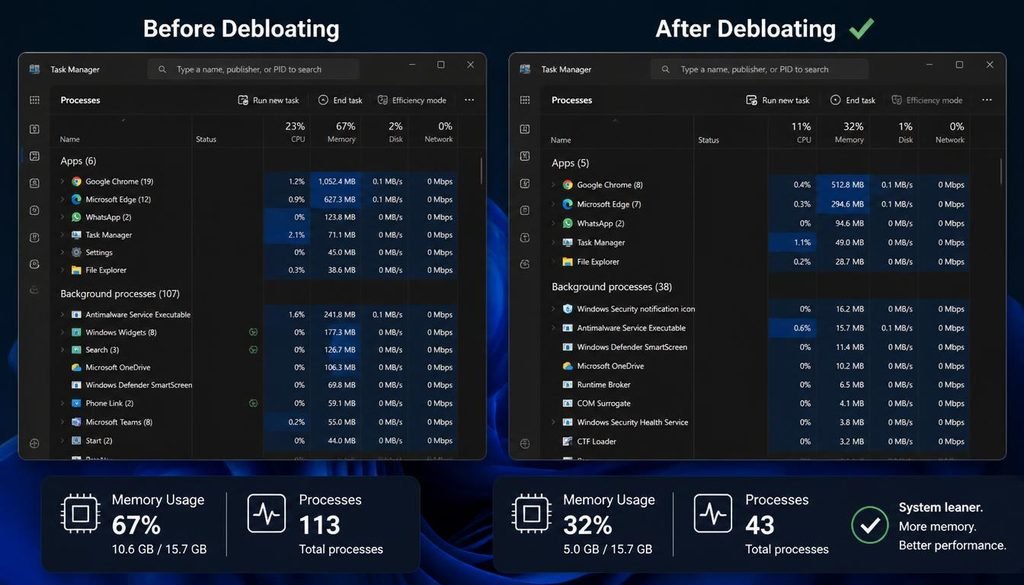
Usually only a little. Debloating removes clutter. It does not add processing power.
PCMag tested Chris Titus Tech’s Windows Utility, Win11Debloat, Tiny11 Builder, and Tiny11 Core Builder. The reviewer concluded these tools did not transform Windows the way he hoped, and that some made questionable changes to the system. A separate summary of that test reports that none of the tools reduced memory use by more than roughly 100 to 200 MB on a fresh install.
That result makes sense. A clean Windows 11 install is already fairly lean, so there is not much to remove.
Where a debloater can help:
- Startup and background activity: fewer preinstalled apps and services competing at sign in.
- Notifications and ads: fewer prompts and suggestions.
- Storage: a small amount of disk space returns.
- Privacy: some optional data collection and ad personalization is reduced.
Where it will not help:
- A full or failing drive. Free space and drive health matter more.
- A hard drive instead of an SSD. The storage device is the bottleneck.
- Too little RAM for your workload. Removing small apps does not change that.
- Heavy third party software. Antivirus suites, browser extensions, and sync tools often cost more than preinstalled apps.
Results vary with hardware, RAM, CPU, storage type, the number of startup programs, and background workload. If you want to know whether your PC improved, measure it. The measurement section below explains how.
What Counts as Bloatware on Windows 11?
There is no strict definition. Bloatware usually means software or features you did not choose and do not use. That includes:
- Promotional and trial apps installed by Microsoft or the PC maker
- Games and streaming shortcuts
- Ads, suggestions, and tips inside Windows
- Optional diagnostic data collection
- Features you may not want, such as Widgets, Copilot, or Recall
The last group is personal. Someone who uses Teams for work does not consider it bloat. Someone who never opens Sticky Notes might. That is why a review step matters more than any preset.
Is Debloating Windows 11 Safe?
It can be safe when you use a reputable source, review the changes, and have a way back. It is not risk free.
The Win11Debloat README warns that although great care went into avoiding broken OS functionality, you use the script at your own risk. That is a fair statement of the situation for any debloater.
The main risks are:
- Removing something you depend on. Some apps are shared dependencies for other features.
- Changing update or security behavior. PCMag singled out Tiny11 Core Builder as dangerous because it disables Windows Update and stops the PC from receiving security fixes.
- Running unreviewed remote code. A single pasted command can run a script you never read.
- Settings that return. Some changes can be reset by major Windows updates, so recheck after large updates.
Before You Debloat
Preparation is the most valuable step. It costs about fifteen minutes and turns a possible mistake into a small inconvenience.
1. Back up your files.
System Restore does not back up personal files. Copy important documents, photos, and browser data to an external drive or cloud storage.
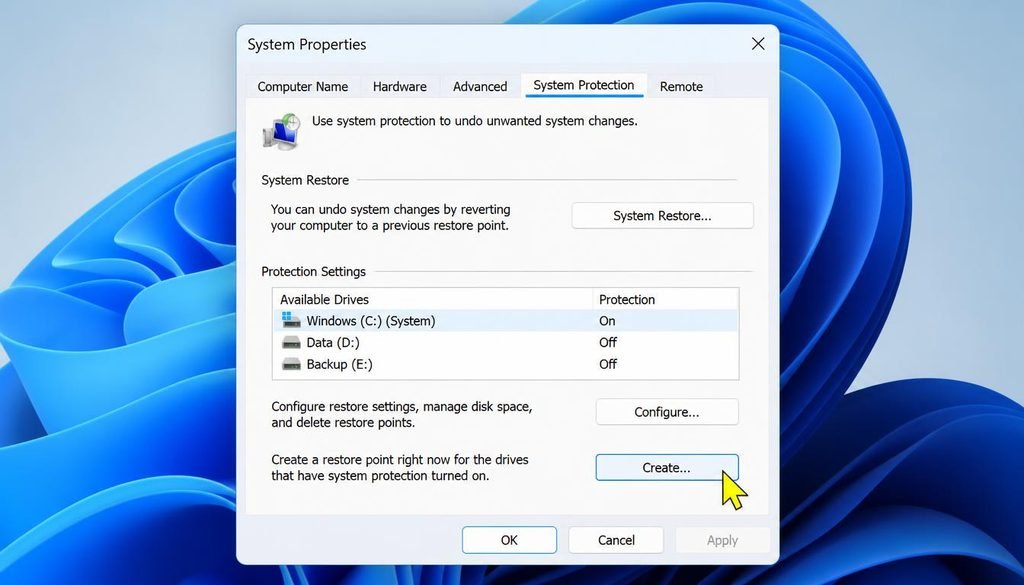
2. Turn on System Protection and create a restore point.
Microsoft describes System Protection as a recovery feature that is not enabled by default but is recommended. Some PCs ship with it on and some do not, so check yours.
- Press Start, type Create a restore point, and open it.
- On the System Protection tab, select your Windows drive (usually C:) and choose Configure.
- Select Turn on system protection, then choose Apply.
- Choose Create, type a name such as “Before debloat”, and select Create again.
3. Record your baseline.
Write down or save:
- The startup apps list from Settings > Apps > Startup
- Memory and CPU use after the PC has idled for ten minutes
- Free storage in Settings > System > Storage
- Your boot time (see the measurement section)
- The apps you must keep working, such as VPN clients, printer software, and work tools
4. Check whether the PC is managed.
If your PC belongs to an employer or school, do not run system tweaks without asking IT. Policies set by the organization can conflict with the tool.
Windows 11 Debloater Approaches Compared
You have three realistic options. None is automatically the best. The right one depends on how much control you want and how much risk you accept.
| Criteria | Win11Debloat | Chris Titus Tech WinUtil | Manual Cleanup |
|---|---|---|---|
| Source | Open source on GitHub (Raphire/Win11Debloat), MIT license |
Open source on GitHub (ChrisTitusTech/winutil) |
Built into Windows |
| Windows Support | Windows 10 and 11, some features limited by version | Launch instructions cover Windows 10 and 11 | Windows 11 |
| Interface | Setup wizard with a command line option | Graphical utility with install, tweaks, config, and update areas | Settings app |
| Customization | Default Mode or Custom Setup, editable config files | Presets such as Standard and Minimal, plus individual tweaks | Total control |
| Rollback | Re-run and untick tweaks, registry backup restore, undo registry files, optional restore point | Undo Selected Tweaks button, optional restore point tweak | Reverse each change by hand |
| Transparency | Readable script, wiki lists changes | Readable script, documentation for tweaks | Fully visible |
| Risk Level | Moderate if you review choices | Moderate to higher | Lowest |
| Effort | Low | Low to moderate | Highest |
Notes on the comparison:
- Win11Debloat is narrowly focused on removing apps, reducing ads and telemetry, and customizing the interface.
- WinUtil is broader. The project describes it as a compilation of Windows tasks meant to streamline installs, debloat with tweaks, troubleshoot with config, and fix Windows updates.
- Chris Titus Tech’s older Windows 10 debloat articles and scripts are mostly outdated. If a guide tells you to run an old script for Windows 11, look for the current tool documentation instead.
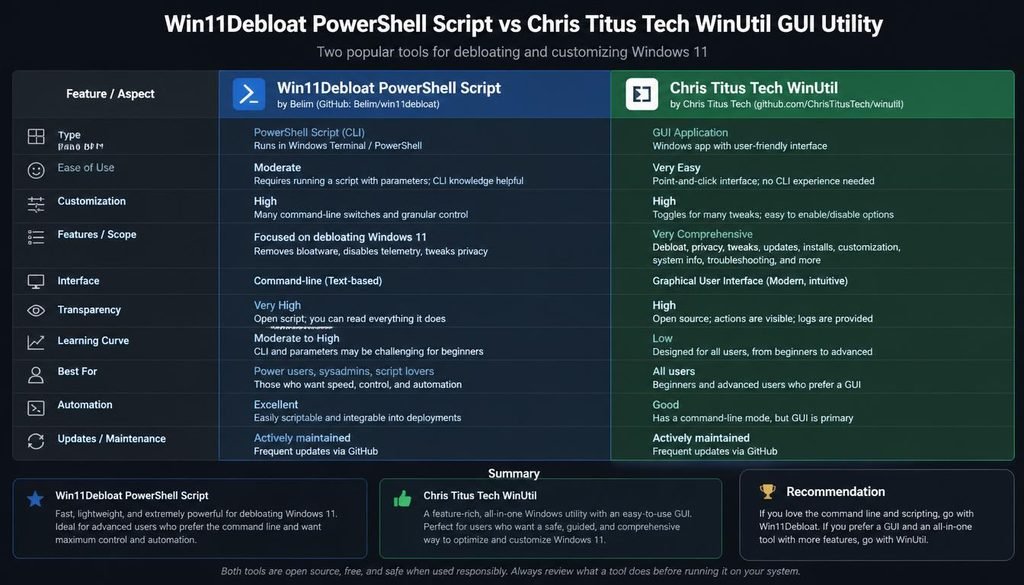
Several websites with names similar to Win11Debloat appear in search results. The official project lives in the Raphire/Win11Debloat repository on GitHub. Treat any other site as unverified until you can confirm its connection to the project.
Win11Debloat Explained
Win11Debloat is the tool most readers ask about, so it deserves a closer look. Use the official README and wiki as your reference.
What It Supports
Win11Debloat works on both Windows 10 and Windows 11, although some features are limited to specific Windows versions. Windows 10 reached the end of regular support in October 2025, so most new users will be on Windows 11.
What Default Mode Means
Win11Debloat’s documentation says Default Mode applies the changes the project recommends for most people, including removing distractions, disabling telemetry and tracking, and optionally uninstalling a range of apps.
The default tweaks include:
- Disabling telemetry, diagnostic data, activity history, and targeted ads
- Disabling tips, suggestions, and ads across Windows and Edge
- Disabling Bing web search and Copilot integration in Windows search
- Disabling and removing Copilot, plus disabling Recall and Click to Do
- Disabling Widgets on the taskbar and lock screen
- Showing file extensions for known file types
The default app selection is long. It includes obvious candidates such as trial games, but also apps some people use daily, such as Quick Assist, Sticky Notes, Sound Recorder, Windows Maps, Alarms & Clock, Microsoft To Do, and the new Microsoft Teams. Do not accept the default app list without reading it.
The README also lists optional changes that go beyond decluttering. Examples include disabling Storage Sense, disabling fast startup, disabling BitLocker automatic device encryption, and changing how Windows receives updates. Leave these unticked unless you understand why you want them.
RunDefaults and RunDefaultsLite
These are command line parameters that skip the graphical interface. According to the wiki, -RunDefaults applies the default settings and removes the default app selection, while -RunDefaultsLite applies the default settings without removing any apps.
Because they bypass the review screen, treat them as options for people who have already reviewed the defaults. If you use the command line at all, -RunDefaultsLite is the lower risk choice for a first run.
The Interface and Review Step
By default, the script launches a wizard. It lets you select apps to remove, toggle system settings, and choose the user account to change, then review all pending changes and choose whether to create a system restore point before applying them.
The Custom Setup path with the Quick Select menu lets you start from the defaults and untick items you want to keep. That is a better starting point than applying Default Mode blindly.
How to Use Win11Debloat Safely
The safest sequence uses a downloaded copy you can inspect, not a command that runs remote code immediately.
- Update Windows first. Install pending updates so you are not changing a half updated system.
- Back up files and create a restore point. See the preparation section above.
- Download from the official Releases page. Use the latest release in the Raphire/Win11Debloat GitHub repository and extract the ZIP file.
- Skim what you downloaded. Open
Win11Debloat.ps1and theConfigfolder in a text editor. TheApps.jsonfile lists removable apps andDefaultSettings.jsonlists default tweaks. You do not need to understand every line, but you should see that it matches the documentation. - Start the tool. The traditional method says to double click Run.bat and accept the Windows UAC prompt to run the script as administrator, which the script requires to function.
- Choose Custom Setup. Use Quick Select if you want a starting point, then untick anything you use.
- Read the review screen. Confirm the app list and tweak list. Choose the option to create a restore point if it is offered.
- Apply the changes and restart.
- Run through the after checklist later in this article.
If the console window closes immediately, the wiki recommends the advanced method described below.
PowerShell Method
Several PowerShell commands appear in debloating guides. Each one below is labeled by what it does.
Commands That Only Read Information
These are safe and help you record a baseline.
powershell
Get-AppxPackage | Select-Object Name, Version | Sort-Object Name | Out-File "$env:USERPROFILE\Desktop\AppsBefore.txt"This lists installed Microsoft Store style apps and saves the list to your desktop. It does not change anything.
powershell
Get-CimInstance Win32_StartupCommand | Select-Object Name, Command, Location | Out-File "$env:USERPROFILE\Desktop\StartupBefore.txt"This lists many startup commands. It may not match Task Manager exactly, so treat Task Manager > Startup apps as your main reference.
Command That Creates a Restore Point (Modifies the System)
Open PowerShell as administrator, because creating a restore point requires elevated rights.
powershell
Checkpoint-Computer -Description "Before debloat" -RestorePointType MODIFY_SETTINGSThis creates a restore point. It only works if System Protection is on for your drive. Microsoft’s documentation notes that System Restore can skip creating a new restore point if one was created within a configured recent period, so confirm it exists.
powershell
Get-ComputerRestorePointThe Advanced Method for Win11Debloat (Modifies the System)
Open PowerShell or Terminal as administrator, then allow scripts for the current window only:
powershell
Set-ExecutionPolicy Bypass -Scope Process -ForceThis changes the execution policy only for the current PowerShell process. It does not change your permanent policy. The README uses Bypass, while the wiki page shows Unrestricted. Both are scoped to the current process, so use the version the current README shows.
Navigate to the extracted folder and run the script:
powershell
cd C:\Win11Debloat
.\Win11Debloat.ps1
Administrator rights are required because the script edits system wide registry values and removes apps.
The Quick Method: Understand the Tradeoff Before You Paste
The README’s quick method looks like this:
powershell
& ([scriptblock]::Create((irm "https://debloat.raphi.re/")))This downloads code from the internet and runs it immediately. Here is what each part does:
irmis short forInvoke-RestMethod. It downloads the text at that address.[scriptblock]::Create(...)turns the downloaded text into runnable code.&runs it.
The tradeoff is that you run whatever the server sends at that moment, often with administrator rights, without reading it. A mistyped address, a compromised host, or a changed script would run just the same. WinUtil’s launch command, irm "https://christitus.com/win" | iex, carries the same tradeoff.
Safer habits:
- Type the address yourself or copy it from the official repository, never from a video comment or a forum reply.
- Prefer the downloaded release and read it first.
- Do not add parameters you do not understand.
- Never paste a command that someone cannot explain line by line.
Manual Windows 11 Debloating
Manual cleanup is slower but gives you full control and the lowest risk. Menu names can change between Windows 11 versions, so use the search box if a path looks different.
Remove apps you do not use. Go to Settings > Apps > Installed apps, select the three dots next to an app, and choose Uninstall. Skip anything you are unsure about.
Trim startup apps. Go to Settings > Apps > Startup and switch off apps you do not need at sign in. You can also use Task Manager > Startup apps.
Review optional features. Go to Settings > System > Optional features. The More Windows features link opens the classic Windows Features dialog. On supported Copilot+ PCs, Microsoft documents that Recall is an optional component that can be removed, and that removal requires a restart. To only stop snapshots, go to Settings > Privacy & security > Recall & snapshots and turn Save snapshots off.
Reduce notifications. Go to Settings > System > Notifications. Turn off notifications from apps you do not need, and review the additional settings for tips and suggestions.
Review privacy settings. Go to Settings > Privacy & security. Check General, Diagnostics & feedback, and the app permission pages. Windows Home and Pro still send required diagnostic data, so you can reduce optional collection but not eliminate all of it.
Limit background activity for Store apps. Open Settings > Apps > Installed apps, choose the three dots for an app, then Advanced options, and adjust the background permission where it appears. Many desktop programs do not offer this setting.
Clean up storage. Go to Settings > System > Storage and review Temporary files and cleanup recommendations before deleting anything.
What You Should Not Remove
The safest rule is to ask what depends on a component. If you cannot answer that, leave it alone.
| Category | Examples | Why |
|---|---|---|
| 🟢 Usually safe to remove | Trial games, promotional apps, OEM trial software | Nothing else depends on them |
| ⚠️ Remove with caution | Teams, Quick Assist, Phone Link, Xbox components, OneDrive | Work, remote support, game, or file sync workflows may depend on them |
| 🛑 Keep unless specific reason | Windows Security, Windows Update components, drivers, networking components, recovery tools, accessibility features | Removing them can weaken security or stop recovery |
| 🔹 Dependencies to respect | Microsoft Store, Edge WebView2 Runtime, App Installer | Other apps rely on them, and App Installer provides winget |
A few examples of dependency logic:
- Microsoft Store. The Win11Debloat wiki says the Store itself is one of the few things that cannot easily be reinstalled after removal, along with XboxSpeechToTextOverlay. If you install apps from the Store, do not remove it.
- Xbox components. Removing Xbox services can break Store games. The wiki points to Microsoft’s official Gaming Services Repair Tool for repair.
- Edge WebView2. Many desktop apps use it to display content, even if you never open Edge.
- Windows Search. You can turn off web results without breaking local search. Removing search components is a different matter.
How to Measure Performance Before and After
Do not rely on how the PC feels. Compare numbers taken the same way.
- Reboot and wait ten minutes without opening anything. Idle background tasks settle down.
- Open Task Manager (Ctrl + Shift + Esc). On the Performance tab, note memory in use, CPU, and disk. On the Processes tab, note how many background processes are running.
- Check Startup apps in Task Manager and note the startup impact column.
- Record boot time. In Event Viewer, open Applications and Services Logs > Microsoft > Windows > Diagnostics-Performance > Operational and look for Event ID 100, which reports boot duration. Task Manager also shows a Last BIOS time value, but that covers only firmware startup.
- Run a repeatable workload. For example, open the same browser tabs and the same two apps, then note responsiveness or task time.
- Repeat three times before and after, then compare averages.
Resource Monitor (search for resmon) gives a more detailed memory and disk view if you need to trace a specific problem.
If the numbers barely move, that is a normal outcome. It is not a sign that you did something wrong.
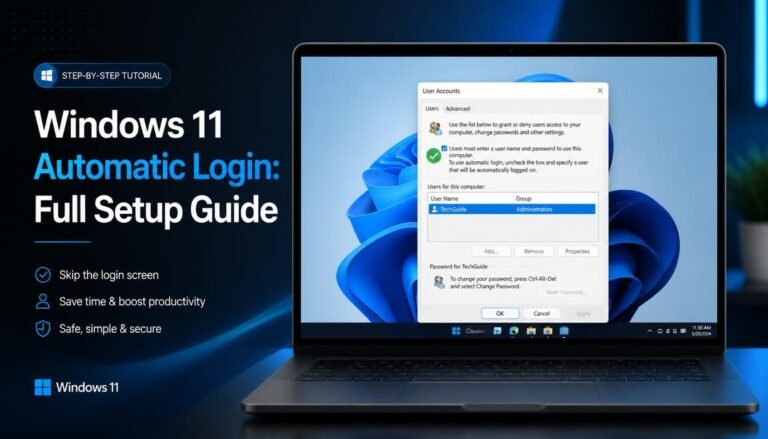
To speed up your boot process even further on a secure home PC, read our step-by-step tutorial to enable Windows 11 automatic login and bypass the password screen.
Common Problems After Debloating
Use this section if something stopped working. The steps go from least to most drastic.
Microsoft Store No Longer Works
- Why it happens: The Store or a dependency was removed, or a policy blocks it.
- What to check: Whether Microsoft Store appears in the Start menu, and whether other Store apps still update.
- Steps: Run wsreset.exe from the Start menu search. If the Store is present but broken, open PowerShell as administrator and re-register it (this modifies the system):
powershell
Get-AppxPackage -AllUsers Microsoft.WindowsStore | ForEach-Object { Add-AppxPackage -DisableDevelopmentMode -Register "$($_.InstallLocation)\AppXManifest.xml" }This tells Windows to register the Store package again from its existing files.
- When to stop: If the Store package is gone entirely, use System Restore. The Win11Debloat wiki notes the Store is not easy to reinstall otherwise.
Windows Search Problems
- Why it happens: Web search or Copilot integration was disabled, or a search component or service was changed.
- What to check: Whether the problem is missing web results (expected after disabling Bing search) or missing local files.
- Steps: For local files, check Settings > Privacy & security > Searching Windows, run the Search and Indexing troubleshooter under Settings > System > Troubleshoot > Other troubleshooters, and restart the Windows Search service in services.msc. To bring back web search in Win11Debloat, run
Enable_Bing_Cortana_In_Search.regfrom theRegfiles\Undofolder. In the European Economic Area, you may also need to reinstall the Web Search from Microsoft Bing app. - When to stop: If search stays broken after undoing the tweak, use System Restore.
Windows Update Problems
- Why it happens: A tweak or tool changed update behavior, paused updates, or disabled related services.
- What to check: Settings > Windows Update for paused updates and error codes.
- Steps: Undo any update related tweak first. Run the Windows Update troubleshooter, then open Terminal as administrator and run
sfc /scannow, followed byDISM /Online /Cleanup-Image /RestoreHealth. Restart and check again. - When to stop: If updates still fail, use System Restore. Do not leave Windows Update disabled.
A Missing Application
- Why it happens: The app was in the removal list.
- What to check: Your saved app list from before the change.
- Steps: Search the Microsoft Store. The wiki notes that nearly all removed apps can be reinstalled through the Microsoft Store or WinGet. From a terminal,
winget search AppNameandwinget install AppNamework when App Installer is present. Some apps, such as Xbox Game Bar, may only appear in the Store Library tab or through a direct link. - When to stop: If many apps are missing or Store installs fail, use System Restore.
A Broken Windows Feature
- What to check: Which tweak or app removal relates to the feature.
- Steps: Re-run the tool and untick the related tweak, reinstall the app, or restore the registry backup.
- When to stop: If the feature is still broken after two attempts, use System Restore.
The “Managed by Your Organization” Message
- Why it happens: The tool uses local machine policies to change Windows or Edge settings. The Win11Debloat wiki says the device is not actually managed by any organization, and the message appears only because policies are used.
- What to check: In Edge, open
edge://policyto see which policies are active. - Steps: Revert the related tweaks. That removes the message.
- When to stop: If the message stays after reverting on a personal PC, use System Restore.
PowerShell Execution Error
- Why it happens: The execution policy blocks scripts, or a Group Policy enforces it.
- What to check: Run
Get-ExecutionPolicy -Listto see each scope. - Steps: Use the process scoped command from the PowerShell section. If a policy still blocks it, the PC may be managed, and you should stop.
- When to stop: Do not disable security software or edit policy files just to make a script run.
The Tool Does Not Start
- Why it happens: It was not run as administrator, the download was blocked, or the console closed too fast to read errors.
- What to check: Whether the UAC prompt appeared and whether your antivirus quarantined a file.
- Steps: Use the advanced method from an administrator terminal so you can read the error text. Check your internet connection if you use the quick method.
- When to stop: If antivirus flags the file, do not disable protection. Confirm you downloaded from the official repository.
The Changes Did Not Improve Performance
- Why it happens: The bottleneck was elsewhere.
- What to check: Your before and after measurements, disk type, free space, and the top resource users in Task Manager.
- Steps: Look at storage health, RAM, thermal issues, and heavy background software. A hardware upgrade often helps more than any tweak.
- When to stop: If the system is unstable or corrupted, reinstalling may be more appropriate than more tweaking.
How to Undo Windows 11 Debloating Changes
Work from least to most drastic.
1. Re-run the tool and untick tweaks. The Win11Debloat wiki says that almost all changes can be reverted by running the script again and unchecking tweaks, with the Detect applied tweaks checkbox ticked on the System Tweaks page.
2. Restore the registry backup. The wiki states that starting with release 2026.05.10, Win11Debloat backs up your registry settings before applying changes. To use it:
- Open the Options menu at the top right and choose Restore backup.
- Choose Restore Registry Backup, then Select backup file.
- Read the summary and select Restore from backup.
- Restart the PC.
This does not bring back uninstalled apps.
3. Run the individual undo files. Open the Regfiles\Undo folder inside the Win11Debloat folder and run the registry file that matches the setting you want back. Sign out or restart afterward.
4. Reinstall removed apps. Use the Microsoft Store or winget.
5. Use System Restore. Search for Create a restore point, choose System Restore, and pick the point you created. The wiki notes a system restore does not restore user data, but it removes apps, drivers, and updates installed after the restore point.
6. Reset or reinstall Windows. As a last resort, use Settings > System > Recovery > Reset this PC. If you used WinUtil, its documentation offers Undo Selected Tweaks for tweaks you applied, and it also points to System Restore as an alternative. Some changes may not fully reverse.
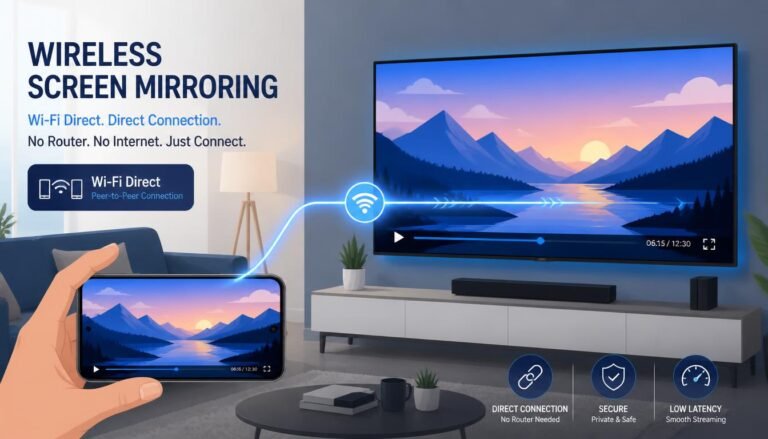
If you are travelling or experiencing network outages, check out our guide on how to screen mirror without Wi-Fi to cast your phone or laptop completely offline.
Before and After Checklist
| Area | Before Debloating | After Debloating |
|---|---|---|
| Files | Back up important files | Confirm files and shortcuts are intact |
| Recovery | Turn on System Protection and create a restore point | Confirm you know how to open System Restore |
| Startup | Save the startup apps list | Compare the startup list and startup impact |
| Storage | Note free space | Compare free space |
| Memory and CPU | Record idle memory, CPU, and process count | Repeat under the same conditions |
| Boot time | Record boot duration | Record it three times and average |
| Required apps | List apps that must keep working | Open and test each one |
| Windows Update | Note current status | Run Check for updates |
| Microsoft Store | Check that it opens | Install or update one app |
| Search and network | Test local search and browsing | Test both again |
| Security | Confirm Windows Security is active | Confirm real-time protection is still on |
Common Mistakes
- Running a command from a video comment or forum reply. You cannot verify what it does.
- Skipping the restore point. It takes two minutes and removes most of the risk.
- Accepting the whole default selection. Defaults suit an imagined average user, not you.
- Removing the Microsoft Store. It is one of the few components that is hard to bring back.
- Disabling Windows Update. You give up security fixes for a tiny gain.
- Using tools on a work PC. Policies from your organization may conflict, and IT may not approve.
- Chasing a benchmark result. Debloating rarely produces dramatic numbers.
- Forgetting to recheck after a major update. Some changes can be reset, so review your settings afterward.
If your wireless connection remains unstable or requires IP configuration, follow our guide on how to access router settings to update your network preferences.
Which Approach Fits You?
- You want the most control: use manual changes in Settings.
- You want a guided tool: evaluate a reputable open source option, download it from its official repository, and review each change.
- You are troubleshooting an old or slow PC: measure the real bottleneck first. It is often storage, RAM, or startup software.
- Your system is already stable and fast: aggressive debloating may give little benefit.
- Your system is corrupted or unstable: a reset or clean install may be simpler than tweaking.
Frequently Asked Questions
What is a Windows 11 debloater?
A Windows 11 debloater is a script or app that removes preinstalled software and switches off selected features in bulk. Typical targets include trial games, promotional apps, Start menu ads, telemetry settings, and AI features. It saves time compared with manual cleanup, but you still need to review what it changes.
Does a Windows 11 debloater make your PC faster?
Usually only slightly. Published testing found small memory savings on a fresh install. Benefits are more noticeable when the tool reduces startup programs and background activity on a crowded system. A slow hard drive, low RAM, or heavy software will not be fixed by removing preinstalled apps.
Is Win11Debloat safe?
It is open source and documents its changes, but no script is risk free. The maintainers say you use it at your own risk. Download it from the official GitHub repository, read what it will change, create a restore point, and apply only the tweaks you understand.
Is Win11Debloat the same as the Chris Titus debloater?
No, they are separate projects. Win11Debloat is a PowerShell script by Raphire. Chris Titus Tech’s Windows Utility, often called WinUtil, is a broader toolkit that also installs programs and manages updates. Both are open source on GitHub, and both apply system wide changes.
How do I run a Windows 11 debloater from GitHub?
Download the latest release from the project’s official Releases page, extract it, and start it with administrator approval. For Win11Debloat, you double click Run.bat and accept the UAC prompt. Reading the script first takes a few minutes and lets you confirm it matches the documentation.
Can I undo Windows 11 debloating?
Mostly yes. Win11Debloat can detect applied tweaks so you can untick them, restore a registry backup created since release 2026.05.10, or run undo registry files. Removed apps must be reinstalled separately. System Restore is the fallback if problems continue.
Can PowerShell debloat Windows 11 without a third party tool?
Yes, but it is riskier than using Settings. PowerShell can remove Store apps with Remove-AppxPackage, yet removing the wrong package can break features. For most people, uninstalling apps in Settings and reviewing startup and privacy options gives most of the benefit with less risk.
What should I never remove when debloating Windows 11?
Do not remove Windows Security, Windows Update components, drivers, networking components, or recovery tools. Be cautious with the Microsoft Store, Edge WebView2 Runtime, and App Installer, because other apps rely on them. The right answer also depends on which apps you use every day.
Does debloating Windows 11 improve privacy?
It can reduce some data collection and advertising, but it cannot eliminate all of it. Windows Home and Pro still send required diagnostic data. Tools mainly change optional diagnostics, ad personalization, suggestions, and AI features. Check your settings after major updates, because some may change back.
Is it better to reinstall Windows than to debloat?
It depends on the problem. If the system is unstable, corrupted, or full of unwanted software, Settings > System > Recovery > Reset this PC may be cleaner. If Windows is stable and you only dislike ads and preinstalled apps, targeted cleanup is faster and less disruptive.
Conclusion
A Windows 11 debloater is a cleanup tool, not a performance upgrade. It works best when you know what you want removed, keep a way back, and check the result with measurements. If you want control, use Settings. If you want a guided tool, choose one you can inspect, review every change, and leave security and update components alone.
Concerned about network privacy and logging? Read our breakdown on whether someone can see search history on a Wi-Fi bill to understand what network administrators can actually track.
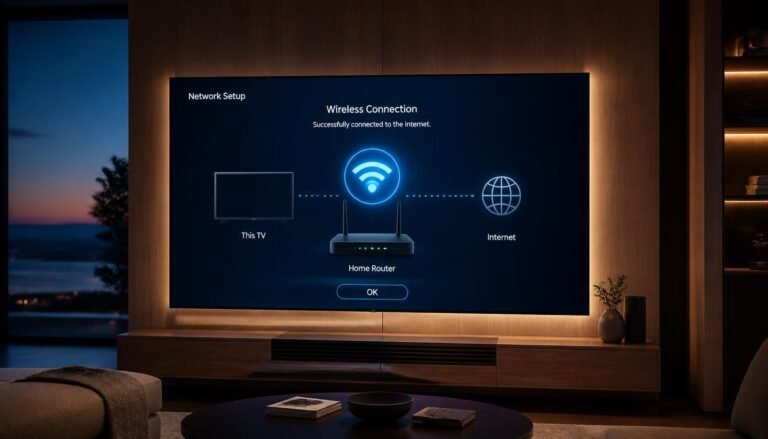
For broader troubleshooting across both smart and non-smart models, check our universal guide on how to connect TV to Wi-Fi to resolve common wireless connection errors.

2 Comments