
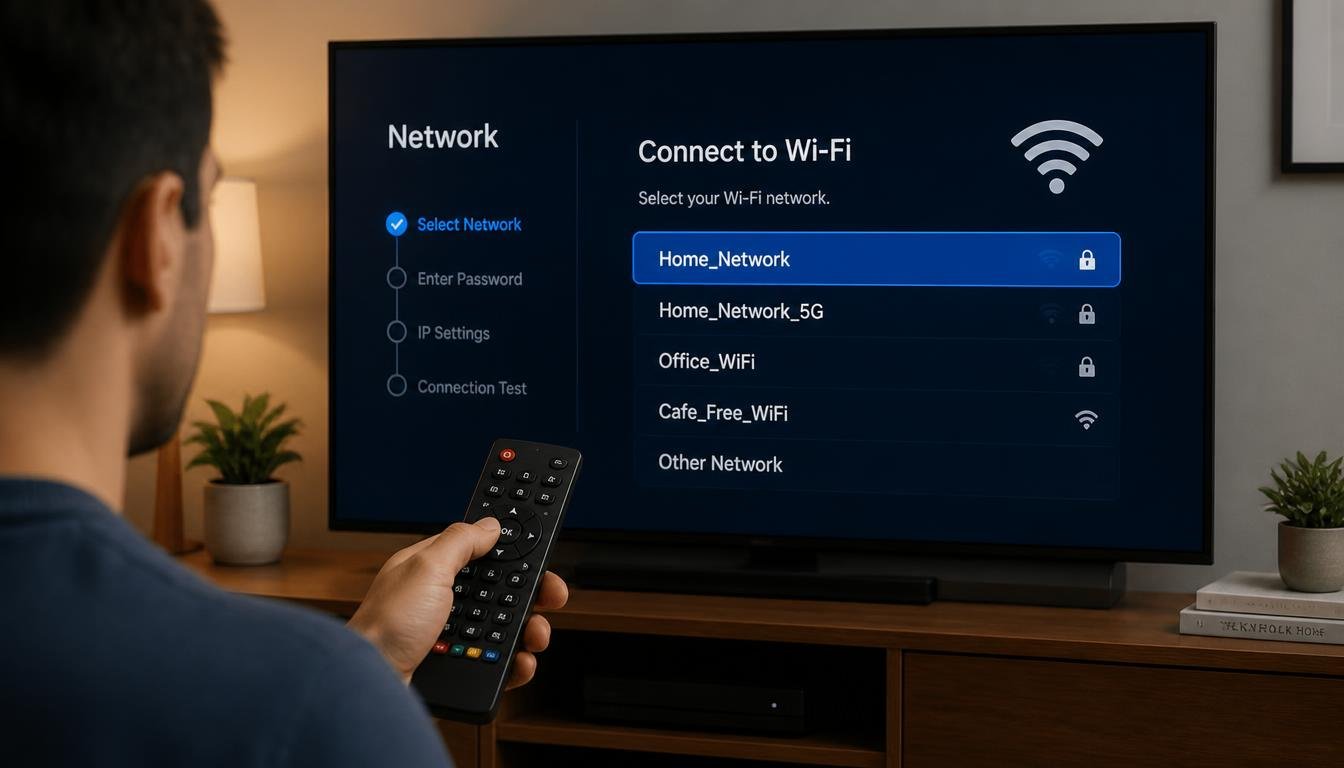
How to Connect Smart TV to WiFi: Steps & Fix It Under 60 Sec
Connecting your Smart TV to a wireless network is usually a simple two-minute process, but network bugs, wrong passwords, or weak signals can sometimes make it frustrating. Whether you are setting up a brand-new Samsung, LG, Sony, or Android TV, or trying to fix a TV that refuses to connect, this guide covers everything you need.
In this step-by-step tutorial, you will learn how to connect smart TV to WiFi, troubleshoot common connection errors, and even connect a non-smart TV using streaming devices.
Quick Answer (How to Connect Smart TV to WiFi)
Quick Answer: To connect a Smart TV to WiFi, open Settings, go to Network, choose WiFi or Wireless, select your network name, enter the password, and connect. Menu names differ between manufacturers, operating systems, and model years, so the exact wording on your TV may not match these steps.
In This Guide
Quick Diagnosis Table
If the connection is already failing, start here.
What You Need Before You Connect
You need only three things.
- Your WiFi name (SSID) and password. Both are usually printed on a label on the router.
- A working remote, or one of the alternatives covered in the no remote section.
- A TV within reasonable range of the router. Thick walls and long distances weaken the signal.
Check the password before you start. Passwords are case sensitive, and one wrong character is the most common reason a first attempt fails.
How to Connect a Smart TV to WiFi: The Universal Method
The exact labels change by brand, but nearly every Smart TV follows this pattern.
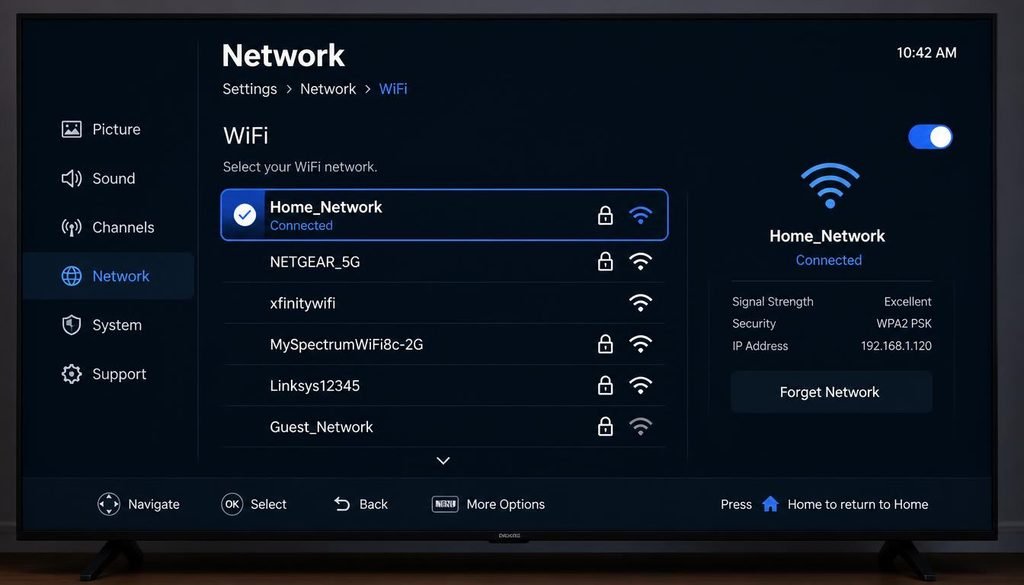
Step 1: Open Settings
Press the Settings or gear button on the remote. If there is no such button, press Home and choose Settings on the screen. You should see a list of setting categories.
Step 2: Find Network Settings
Look for a category called Network, Connection, General, or Network & Internet. If you cannot find it, check inside General or All Settings first.
Step 3: Select WiFi or Wireless
Choose WiFi, Wireless, or Wireless Connection. If the option is missing or greyed out, unplug any Ethernet cable, because some TVs prefer a wired connection when one is present.
Step 4: Select Your Network
The TV scans and shows nearby networks. Pick the exact name shown on your router. If neighbors have similar names, compare carefully.
If your network does not appear, use the rescan or refresh option and see the troubleshooting section.
Step 5: Enter the WiFi Password
Type the password using the on screen keyboard. Turn on the option to show characters if there is one, and check capital letters and symbols.
Step 6: Connect
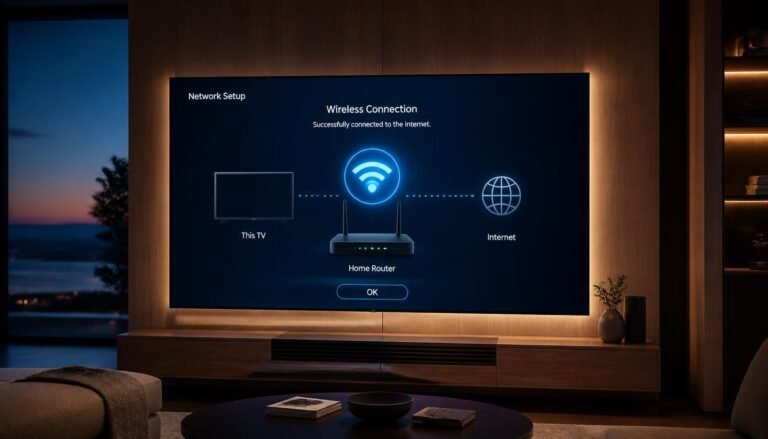
Select Connect, Done, or OK. The TV should show a message such as Connected or a checkmark next to the network name.
Step 7: Test the Connection
Open a streaming app or the TV network status screen. A successful WiFi link does not always mean working internet, so this test matters. The TV network status or connection test, where available, shows whether the TV reached the internet or only the router.
How to Connect Up a Smart TV
People also ask how to connect up a Smart TV in general. A new Smart TV needs four things:
- Power, from the wall socket.
- A signal source, such as an antenna, cable box, or streaming apps.
- A network connection, by WiFi or Ethernet.
- An account sign in, since many platforms require one for apps.
Connect power first, then follow the first time setup screens. They usually ask for language, region, and a network, and this is the easiest moment to connect WiFi.
How to Tell If Your Smart TV Is Connected to WiFi
Look for a confirmation message, a checkmark, or a Connected status in the network menu. Then confirm with a real test.
- LG: the network screen shows Connected to Internet, and Advanced WiFi Settings shows connection status, according to the LG setup guide. LG documents that the message “Connected to Internet” appears after success and status details appear in Advanced WiFi Settings.
- Roku: a network info screen appears after connecting, and Roku offers a connection check in the Network menu.
- Any brand: open a streaming app and start a video. If it loads, the TV has working internet.
A network that shows as connected but will not load anything is the “connected without internet” situation, covered in the troubleshooting section.
Samsung Smart TV
Samsung Support describes the WiFi path as Settings, then General, then Network, then Open Network Settings, where you select your network, enter the password, and confirm. Models and software versions differ, and some newer sets may arrange menus differently, so search the settings for Network if you cannot find it.
Age matters here. Samsung states that certain 2018 models (NU7100, NU7200, and NU7300 series) support only 2.4 GHz networks and do not detect 5 GHz networks. If your Samsung TV cannot see your network, the band may be the reason.
LG Smart TV
LG uses different paths depending on the webOS version.
- 2021 and later (webOS 6.0 or later): Settings, All Settings, General, Network, Internet Connection, then WiFi Connection.
- 2020 (webOS 5.0): Settings, All Settings, Connection, Network Connection Settings, then WiFi Connection.
- 2019 and earlier: paths under Connection or Network, then WiFi Connection.
These paths come from LG Support, which lists them by model year. Check the version of your TV before following a path, and use your model manual if it does not match. LG WiFi screens can also offer hidden network entry and WPS. LG lists options to add a hidden wireless network and to connect using WPS PBC or WPS PIN.
Sony Smart TV
On Sony Google TV models, Sony describes going to Dashboard, then All settings, then Network & Internet, and selecting your network from the list. Sony offers useful extras:
- Add new network. If the network name is hidden, Sony says to choose Add new network and type the name yourself.
- Quick connect. A QR code on the TV can be scanned with a mobile device, which then helps the TV join the WiFi.
- USB keyboard. Sony notes that a USB keyboard can replace the on screen keyboard when entering a wireless password.
Older Sony models differ. Sony lists variations such as Network & Internet then WiFi, Network & Internet then Easy setup, or Network then Network setup then Easy. The same source mentions connecting by scan list or by WPS button on some screens.
TCL Smart TV
TCL TVs use different platforms, so there is no single TCL path. Common platforms are Google TV, Android TV, and Roku TV.
- Roku TV models: Roku documents the path as Home, Settings, Network, Set up connection, then Wireless, followed by choosing your network and entering the password. If your network is missing, it suggests choosing Scan again.
- Google TV and Android TV models: these platforms usually place WiFi under Network & Internet in Settings, as Sony documents for its Google TV models. TCL wording may differ, so confirm in your model manual.
TCL also publishes a guide describing WPS, which involves choosing the WPS option in the TV network setup and pressing the WPS button on the router.
Hisense, Vizio and Panasonic
Hisense sells TVs on several platforms, including VIDAA, Google TV, Roku TV, and Fire TV. The path depends on which platform your model runs, so check the manual or Hisense support for your model.
Vizio menus commonly start with the Menu button, then Network, then choosing your network. Third party support guides describe Menu, Network, Wireless, choosing the network, and entering the password. Because these are not official Vizio pages, confirm on Vizio support for your model, especially on newer sets where the settings icon replaces the Menu button.
Panasonic documents its VIERA path officially. Panasonic describes pressing Menu, choosing Network, then Network Connection, then Quick setup, and selecting your wireless network. It notes that models without built in wireless may need a WiFi adapter, and that newer models may ask you to accept terms after connecting. Newer Panasonic TVs may use a different platform, so treat this as a starting point.
Connect Using a Phone or Hotspot
Three different things get mixed together here, and they are not the same.
A. Using a phone to help set up the TV. Some TVs and platforms let a phone assist. Sony Quick connect is one example. This sends the WiFi details to the TV, and the TV then joins your router. Not every Smart TV supports this.
B. Using a phone hotspot as the TV’s internet source. The phone acts as a small router. Turn on the hotspot, then select it in the TV WiFi list like any other network. Roku documents this as an option when no WiFi is available.
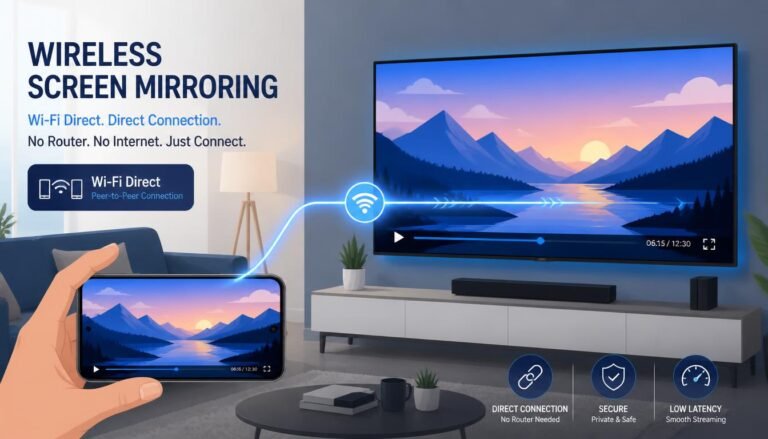
C. Screen mirroring. This shows your phone screen on the TV. It does not give the TV internet access, and the TV still needs its own connection for built in apps.
Can a phone hotspot replace home WiFi?
Yes for a short time, but streaming uses a lot of mobile data and quality depends on phone signal. It works well as a temporary bridge, such as during setup or while the router is down. If the hotspot does not appear on the TV, the phone may be broadcasting on 5 GHz, and some phones have a setting that favors 2.4 GHz.
If you are trying to cast your screen or share files from a PC and face network glitches, visit our Windows problems hub to resolve system and adapter issues fast.
Connect Without a Remote
There are several legitimate ways.
- Physical buttons. Many TVs have a button or small joystick on the frame or underside. It can open menus, though typing a long password is slow.
- USB keyboard. Sony documents this for password entry. Support varies by brand and model.
- Replacement or universal remote. A remote with the right code, or a Bluetooth remote for your platform, is often the fastest fix.
- Manufacturer phone app. Many apps act as remotes, but they often need the TV and phone on the same network. That means they may not help before the first setup.
- Ethernet first. If the TV has a LAN port, connect a cable. The TV then gets internet and may appear in its phone app, where you can set up WiFi.
Do not assume a phone can control every TV before the TV is on a network. If none of these work, the physical buttons or a replacement remote are the most reliable path.
Connect Without Typing the Password
Use these only on your own network or one you have permission to use.
- WPS, if both the TV and router support it (see below).
- QR based setup, such as Sony Quick connect.
- Password sharing from a phone. Many phones can show or share the password of a network they are connected to.
- Router label or router app. The default password is often printed on the router, and some routers offer sharing features in their app.
- Phone hotspot. You already know the password because you set it.
This article does not cover ways around the security of a network you do not own.
Connect Using WPS
WPS (WiFi Protected Setup) lets a TV join the router by pressing a button instead of typing a password. It only works if both devices support it.
- On the TV WiFi screen, look for a WPS option. LG shows Connect via WPS PBC and Connect via WPS PIN. Some Sony screens offer Connect by WPS button.
- Start WPS on the TV.
- Press the WPS button on the router within the time the router allows. The window is often around two minutes, but it varies.
- Wait for the TV to confirm the connection.
WPS may not appear on a TV, and many routers disable or hide it for security reasons. The button method is the better choice. The PIN method has known weaknesses, and many routers no longer offer it.
Connect Using Ethernet
Ethernet skips the TV WiFi radio entirely. It suits TVs with a LAN port when the signal is weak, the TV WiFi is unreliable, or you want a stable wired link.
Samsung describes connecting an Ethernet cable from the TV LAN port (or the One Connect Box) to the router, then opening Settings, General, Network and selecting OK. Panasonic also recommends a wired connection for high quality video and to avoid interference with 2.4 GHz devices. Some streaming devices need a separate adapter for wired use, so check the device documentation.
Does HDMI Connect a TV to WiFi?
No. HDMI carries audio and video signals from a device to the TV. It does not give a TV access to WiFi.
A streaming device, such as a Roku or Fire TV stick, uses HDMI to send video to the TV. That device connects to WiFi separately. The TV shows the picture, and the streaming device handles the internet.
Can a Non Smart TV Connect to WiFi?
A traditional TV generally cannot join WiFi by itself. It needs built in network hardware, a manufacturer supported adapter, or an external device.
The difference is simple:
- TV with built in WiFi: connects directly through its settings.
- TV that needs an external device: connects through a streaming stick, box, or console plugged into HDMI.
How to Connect Smart TV to WiFi?
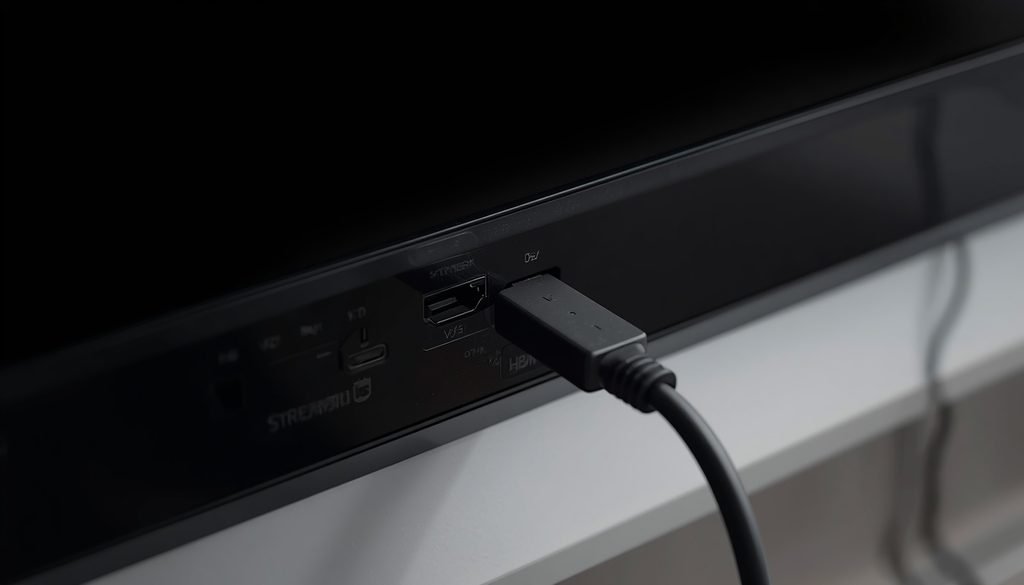
Options include Roku, Fire TV, Chromecast, another compatible streaming device, or a game console. Ethernet applies only if the TV has a LAN port. Some TVs are WiFi compatible but need a specific adapter, and Panasonic documents this for certain models, so check the manual before buying anything.
If you are working with an older model or a non-smart TV, check out our dedicated guide on how to connect TV to WiFi to explore external device setups and adapter options.
Why Is My Smart TV Not Connecting to My WiFi?
The most common causes are a wrong password, weak signal, an unsupported WiFi band, or a router problem. Work through the cause in this order.
First, Decide: TV or Router?
Test with a phone or laptop on the same WiFi.
- Every device has the problem: the router, modem, or internet service is at fault. Check modem lights, restart the router, and contact the provider if it continues.
- Only the TV has the problem: focus on the TV settings, software, band support, and hardware.
This one test saves a lot of wasted resetting.
Situation A: The TV Cannot See Any WiFi Networks
- Confirm the router is on and other devices see the network.
- Move closer or remove obstacles.
- Check the band. Older TVs may see only 2.4 GHz.
- Restart the router and TV.
- Check for a hidden network name. Sony notes that a hidden network needs the Add new network option so you can type the name yourself.
- If no networks appear at all, the TV WiFi hardware may be faulty. Try Ethernet or a streaming device.
Why can my phone see the WiFi but my TV cannot?
Usually the phone supports more bands and newer standards than the TV. It can also be that the TV is farther away or has a weaker antenna.
Situation B: The TV Sees WiFi but Rejects the Password
- Retype the password with characters visible.
- Check capitals, numbers, and similar looking characters.
- Make sure you picked the correct network name, not a neighbor or an extender.
- Forget the network on the TV and reconnect.
- Check the router security mode (see the compatibility section).
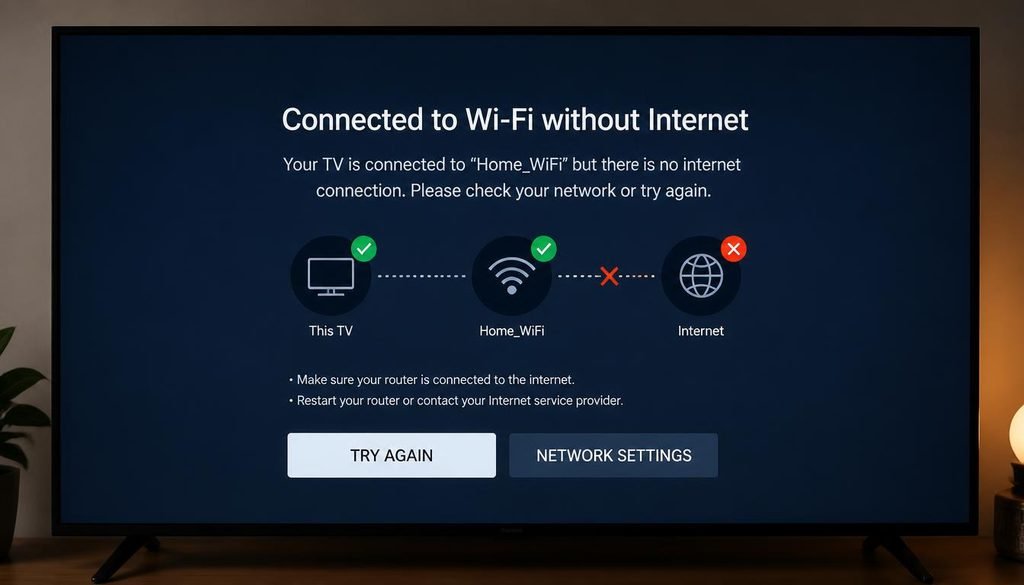
Situation C: The TV Connects but Has No Internet
Connected without internet means the TV reached the router but the router did not provide working internet, or the TV has a network setting problem.
- Test a phone on the same WiFi. If it has no internet either, the router or provider is the cause.
- Restart the modem and router, then the TV.
- Open the TV network status screen and check for an IP address.
- If custom DNS is set on the TV, return it to automatic, or try a public DNS server.
- If Ethernet is possible, test with a cable to separate WiFi trouble from other trouble.
If apps fail but the connection looks fine, check that date and time are set to automatic. Incorrect values can break secure connections.
Situation D: The TV Keeps Disconnecting
- Check signal strength. Walls and distance weaken it.
- Reduce interference. Sony lists microwave ovens, DECT phones, and other WiFi devices nearby as possible sources of disturbance.
- Move the router higher and away from cabinets or metal.
- Try a different band if both are available.
- Update the TV software.
- Reset the TV network settings and reconnect.
- Consider Ethernet or a mesh node closer to the TV.
Situation E: Only the TV Has the Problem
Check the TV settings, software version, and network configuration. Update the software if you can reach the internet by hotspot or Ethernet. If nothing works, the TV WiFi hardware may be faulty, and a streaming device is a practical workaround.
Situation F: Every Device Has the Problem
The TV is not the cause. Check the router and modem, restart both, confirm the internet service is active, and review any recent router changes. Contact the provider if the problem continues.
2.4 GHz vs 5 GHz
Routers broadcast on two common bands, and not every TV supports both.
- 2.4 GHz generally travels farther and passes through walls better, but it can be slower and more crowded.
- 5 GHz generally offers higher speeds at shorter range.
Combined network names that merge both bands can confuse some TVs. If you suspect this, give each band its own name in the router settings and try the 2.4 GHz network on the TV. Use 5 GHz when the TV is close to the router and supports it.
Older Smart TVs and Router Compatibility
An old Smart TV can often work with a modern router, but security settings sometimes get in the way. Older TVs may not support the newest security mode, WPA3, and some cannot handle the newer WiFi standards.
Try these in order:
- Update the TV software.
- Check the manufacturer documentation for your model.
- Set the router to a mixed mode such as WPA2/WPA3, or to WPA2, which keeps strong encryption.
- Use Ethernet or a streaming device if the TV still fails.
Do not switch to open networks, WEP, or outdated encryption just to make a TV connect. That weakens the security of every device on your network.
Common Mistakes
- Choosing a neighbor network with a similar name.
- Typing the password with the wrong capitalization.
- Expecting HDMI to provide internet.
- Treating screen mirroring as an internet connection.
- Blaming the TV before testing another device on the same WiFi.
- Lowering router security as the first fix.
- Skipping TV software updates.
Frequently Asked Questions
Why is my Smart TV not connecting to my WiFi?
Usually because of a wrong password, weak signal, an unsupported band, or a router fault. Test another device on the same WiFi first. If it also fails, restart the router. If only the TV fails, retype the password, move closer, try 2.4 GHz, and update the TV software.
How do I connect my TV to WiFi?
Open Settings, go to Network, select WiFi or Wireless, choose your network, enter the password, and connect. Menu names vary by brand and model year. If your TV is not smart, use a streaming device instead, because HDMI does not provide WiFi.
How do I connect up a Smart TV?
Plug in power, connect a signal source, complete the first time setup, and join WiFi or Ethernet. Many platforms also ask you to sign in to an account. The network step is easiest during first time setup, when the TV prompts for it.
How do I know if my Smart TV is connected to my WiFi?
Look for a Connected message or checkmark in the network menu, then open a streaming app to confirm. Some TVs show a network status or connection test screen. If the TV shows connected but apps will not load, the router may have no internet.
How do I connect a Samsung Smart TV to WiFi?
Go to Settings, General, Network, Open Network Settings, then choose your network and enter the password. Menus can differ by model. Some 2018 models support only 2.4 GHz.
How do I connect a Sony Smart TV to WiFi?
On Google TV models, open Dashboard, All settings, then Network & Internet, and pick your network. Quick connect lets you scan a QR code with a phone. Older Sony menus use Network setup, so check your manual.
Can I connect a Smart TV to WiFi without a remote?
Yes, using physical buttons, a replacement remote, a supported USB keyboard, or Ethernet first. Phone apps often need the TV already on your network, so they may not help before setup.
Can I connect a Smart TV to WiFi without the password?
Yes, if you have permission to use the network. Use WPS, a QR feature, password sharing from a connected phone, or your own phone hotspot. Bypassing security on a network you do not own is not covered here.
Does HDMI connect a Smart TV to WiFi?
No. HDMI carries audio and video only. A streaming device can use HDMI for video while it connects to WiFi separately.
Should I use 2.4 GHz or 5 GHz for my Smart TV?
Use 5 GHz if the TV is close to the router and supports it, and 2.4 GHz for longer range or older TVs. If your TV cannot see the network, the band may be the reason.
Conclusion
Connecting a Smart TV to WiFi follows one pattern: Settings, Network, WiFi, select your network, enter the password, and test. Brand menus differ, so use the section that matches your TV and check your model manual when the wording is different. If the TV is not smart, add a streaming device, because HDMI does not provide WiFi. If it fails, test another device on the same network first, so you know whether to fix the TV or the router.
4 Comments