
Easy Windows 11 Automatic Login Fix (2026 Updated Guide)
Windows 11 automatic login lets an account load straight to the desktop at startup instead of stopping at the sign in screen. The simplest way to turn it on is through the built in netplwiz tool, though on many devices that option is blocked by a Windows Hello setting until you adjust sign in options first. The path also differs depending on whether the account is local, a Microsoft account, or joined to a domain.
Quick Answer
To set up Windows 11 automatic login, press Windows + R, type netplwiz, select your account, then uncheck “Users must enter a user name and password to use this computer.” Enter the account password when prompted and restart. If the checkbox is missing, a Windows Hello sign-in setting is the most common reason.
In This Guide
Diagnostic Table
| Symptom | Likely Cause | Fix |
|---|---|---|
| Netplwiz checkbox is missing | Windows Hello exclusive sign in setting may be enabled | Check Sign in options and turn off the Windows Hello only requirement |
| Windows still asks for a PIN | A Windows Hello PIN is still active on the account | Remove the PIN in Accounts, then Sign in options |
| Automatic login stopped working | The stored password no longer matches the account password | Reopen netplwiz or Autologon and re-enter the current password |
| Wrong account signs in automatically | DefaultUserName or DefaultDomainName point to a different account | Review and correct these values in the registry |
| Microsoft account will not auto sign in | Windows Hello may still be required for that account | Disable the requirement, then reconfigure netplwiz |
| Domain account fails to auto sign in | DefaultDomainName is missing, or a Group Policy blocks the feature | Confirm the domain value and check with an administrator |
| Registry values are ignored | A Logon Banner policy may override automatic logon | Check Local Group Policy Editor for an interactive logon message |
| Password change breaks automatic login | DefaultPassword in the registry is outdated | Update the stored password to match the current one |
Introduction
Windows 11 automatic login is not a hidden feature. It uses the same Winlogon registry mechanism Windows has relied on for years to store credentials and skip the interactive sign in prompt. What differs on many Windows 11 devices is that Windows Hello sign in settings can take priority, which is why the classic netplwiz checkbox sometimes does not appear the way it did on earlier versions of Windows.
This guide covers the netplwiz method, why the checkbox can go missing, the registry approach and its security tradeoffs, Sysinternals Autologon, and how the setup differs for Microsoft accounts, local accounts, and domain accounts.
Main Method: Windows 11 Auto Login With Netplwiz
For a personal computer with no shared access concerns, netplwiz is the standard starting point.
Step 1. Press Windows + R to open the Run box.
Step 2. Type netplwiz and press Enter. This opens the User Accounts control panel applet.
Step 3. On the Users tab, select the account you want signed in automatically.
Step 4. Uncheck “Users must enter a user name and password to use this computer.”
Step 5. Click Apply. An “Automatically sign in” dialog appears asking for a username and password.
Enter the account’s sign in password here, not a Windows Hello PIN. A PIN is a device specific sign in method and is not accepted in this dialog.
Step 6. Click OK twice to close both windows, then restart the computer to confirm Windows 11 signs in automatically.
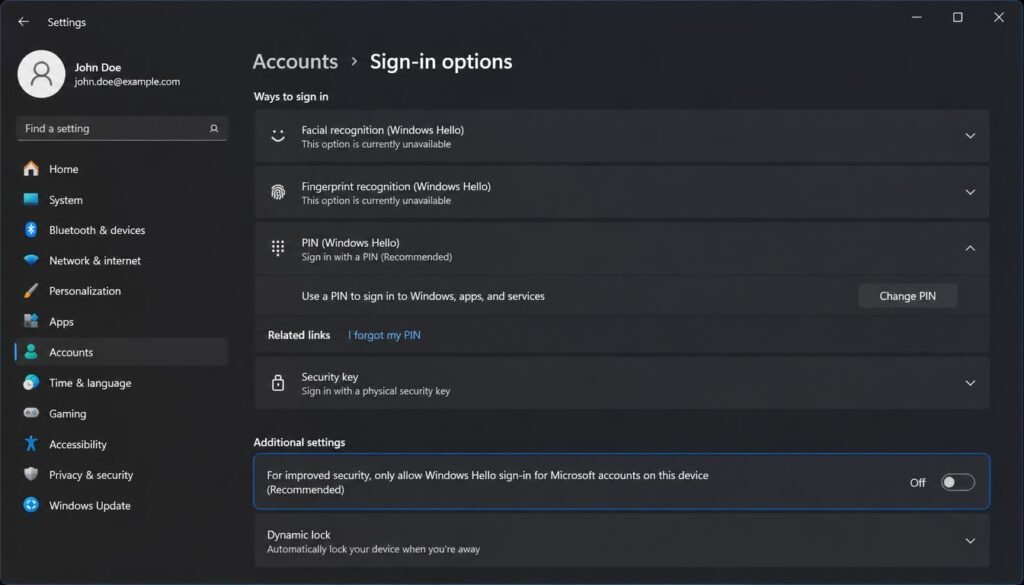
If you are unsure of the exact username, check the Users tab list before closing netplwiz. For a Microsoft account, use the full email address rather than a display name.
Windows 11 Auto Login With Netplwiz Missing Checkbox
If the checkbox is not visible in netplwiz, do not jump straight to editing the registry. Work through the simpler causes first.
One common reason is the Windows 11 setting “For improved security, only allow Windows Hello sign in for Microsoft accounts on this device.” When this setting is turned on, password based automatic sign in through netplwiz can be blocked, and the checkbox may not display.
To check and adjust it:
- Open Settings, then Accounts, then Sign in options.
- Look for “For improved security, only allow Windows Hello sign in for Microsoft accounts on this device” and turn it off if present.
- If a PIN is configured, expand PIN (Windows Hello) and remove it. A stored PIN can also interfere with password based automatic sign in.
- Reopen netplwiz and check whether the checkbox is now available.
If the PIN removal button appears grayed out, disable the Windows Hello only setting first, then return to remove the PIN. Trying to remove the PIN before adjusting that setting often does not work.
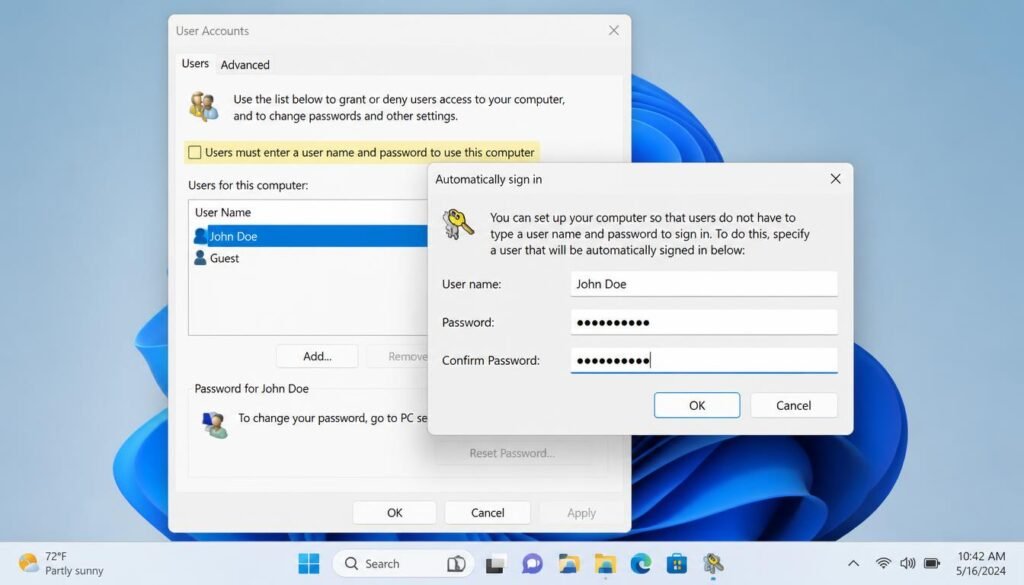
On some managed, enterprise, or Microsoft Entra joined devices, the checkbox may remain unavailable even after these changes because of an organizational policy. In that case, the registry method or Sysinternals Autologon are the remaining options, though both can still be blocked by Group Policy on a managed machine. If none of these work, the device is likely restricted by design and automatic sign in may not be intended to be available on it.
Windows Hello PIN Versus Account Password
This distinction causes a lot of confusion, so it is worth stating plainly: a Windows Hello PIN and your account password are two separate sign in credentials. A PIN is tied to the specific device and is not sent anywhere for authentication. Your account password (or the credentials tied to your Microsoft account) is what automatic login tools actually store and use.
Removing a PIN does not by itself turn on automatic login. It only removes one sign in method from the lock screen. You still need to complete the netplwiz, registry, or Sysinternals Autologon setup separately for automatic sign in to take effect.
Windows 11 Automatic Login Registry Method
Security warning before you begin: the manual registry method stores your account password as plain, readable text inside the registry. Anyone with local access to the machine and basic registry knowledge can view it. Back up the registry or create a system restore point first, and consider Sysinternals Autologon, covered below, as a more secure alternative if credential exposure is a concern.
Registry path:
HKEY_LOCAL_MACHINE\SOFTWARE\Microsoft\Windows NT\CurrentVersion\Winlogon
Step 1. Press Windows + R, type regedit, and press Enter.
Step 2. Navigate to the Winlogon key above.
Step 3. Locate or create a String Value named AutoAdminLogon and set it to 1 to enable automatic logon, or 0 to disable it.
Step 4. Locate or create DefaultUserName and enter the account username.
Step 5. Locate or create DefaultPassword and enter the account password. According to Microsoft documentation, if this value is missing, Windows resets AutoAdminLogon back to 0 automatically, which disables the feature.
Step 6. If the computer is joined to a domain, add DefaultDomainName and enter the fully qualified domain name, for example contoso.com. Leave this value out for local or Microsoft accounts.
Step 7. Close Registry Editor and restart the computer.
What each value controls:
- AutoAdminLogon turns the feature on (1) or off (0).
- DefaultUserName specifies which account signs in automatically.
- DefaultPassword is stored as unencrypted text, which is the main limitation of this method.
- DefaultDomainName applies only to domain joined accounts.
To undo this configuration: set AutoAdminLogon back to 0 and delete the DefaultPassword value, since a leftover plaintext password left in the registry is a real exposure even after the feature is turned off.
If this registry change does not take effect, Microsoft’s troubleshooting documentation notes that a Logon Banner value defined through Group Policy can prevent automatic logon from working, regardless of how correctly the Winlogon values are configured.
How to Use Microsoft Sysinternals Autologon
Sysinternals Autologon is an official Microsoft tool that configures the same Winlogon mechanism without requiring you to type your password into the registry as plain text.
Why it can be preferable to the manual registry method: according to Microsoft’s Sysinternals documentation, Autologon stores the password as an LSA (Local Security Authority) secret rather than a plain string value in the registry. The documentation also notes directly that although the password is encrypted as an LSA secret, a user with administrative rights on the same machine can still retrieve and decrypt it. So this reduces exposure to casual registry browsing but does not eliminate risk from a local administrator account.
How to configure it:
- Download Autologon from the official Microsoft Sysinternals Autologon page, or install it with winget install –id Microsoft.Sysinternals.Autologon. Confirm the package id is current before running it, since winget package identifiers can change.
- Run Autologon64.exe on 64 bit systems, or Autologon.exe on 32 bit systems.
- Accept the license agreement on first run.
- Enter the username, domain (leave blank for a local account), and password.
- Click Enable.
How to disable it: reopen Autologon and click Disable, or set AutoAdminLogon to 0 directly in the registry, since Autologon writes to the same Winlogon key.
You can hold the Shift key while Windows is starting up to skip a configured automatic logon for that single session without changing the underlying setup, which is useful for signing in as a different user temporarily.
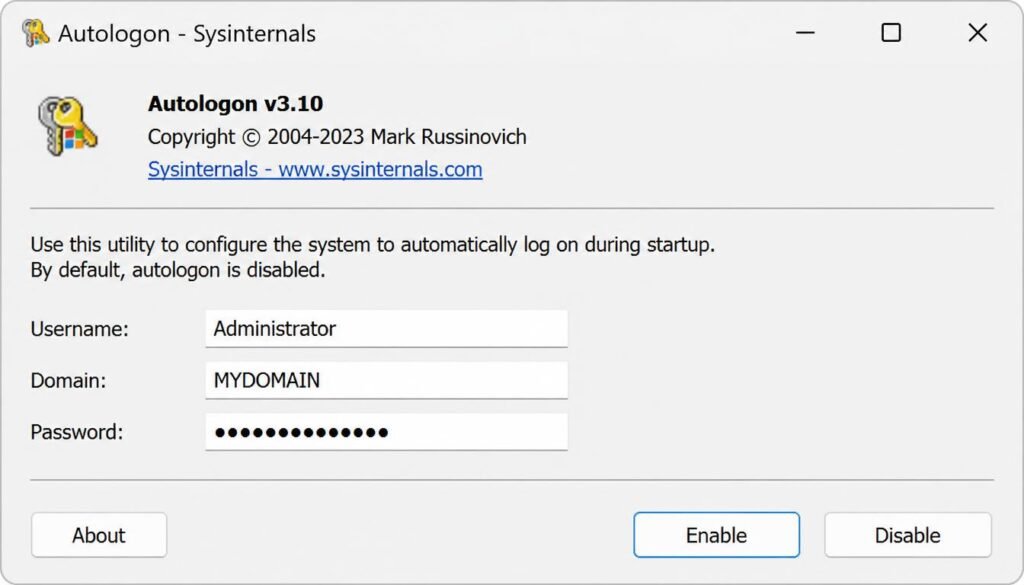
Download Autologon only from the official Microsoft Sysinternals page or install it through winget. Avoid third party download sites for this tool.
Windows 11 Auto Login With a Microsoft Account
A Microsoft account adds a layer beyond a local account because Windows 11 often favors Windows Hello sign in for these accounts. As covered above, a PIN is not your account password, and removing it does not enable automatic sign in on its own. You still need to complete the netplwiz or registry configuration after any Windows Hello only requirement is turned off.
For a Microsoft account, use the full email address as the username in netplwiz and as the registry DefaultUserName value. Leave DefaultDomainName empty, since a Microsoft account is authenticated online but is not the same as a Windows domain account.
Behavior can vary slightly across Windows 11 builds and device configurations, particularly on devices with additional Windows Hello enhanced sign in security enabled, so treat these steps as the general path rather than a guarantee that applies identically to every setup.
Windows 11 Auto Login for a Local Account
Local accounts generally have fewer obstacles for automatic sign in since they do not depend on Windows Hello cloud authentication behavior.
Example configuration for a local account:
- Username: TestUser
- Domain: leave blank
- Password: the account’s local sign in password
If the local account has no password set, leave the password field blank in netplwiz and click OK. Fully passwordless local accounts are generally discouraged on any computer with shared or uncontrolled physical access, even though the setup itself is simple.
Windows 11 Auto Login Domain User
Automatic sign in on a domain joined computer involves considerations beyond a personal PC setup.
You will need:
- DefaultUserName: the domain account username.
- DefaultDomainName: the fully qualified domain name, for example contoso.com.
- Awareness that scheduled password expiration under domain policy will break automatic sign in until the stored credential is manually updated.
- Awareness that many organizations intentionally block automatic logon through Group Policy on business hardware. If the registry method does not work on a managed device, this is a likely reason, and it should not be bypassed without authorization from IT.
Automatic login is generally not appropriate for shared business computers, since it removes the sign in barrier for anyone with physical access. Treat this as a deliberate policy decision on managed devices, not a routine convenience setting.
Troubleshooting Windows 11 Automatic Login
1. Netplwiz checkbox missing. Likely cause: a Windows Hello exclusive sign in setting is active. Fix: disable it under Accounts, then Sign in options, and remove any PIN. Check: reopen netplwiz and confirm the checkbox is visible.
2. Windows still asks for a password.
Likely cause: the stored password does not match the current account password. Fix: reopen netplwiz or Autologon and re-enter the correct password. Check: restart and confirm no prompt appears.
3. Windows still asks for a PIN.
Likely cause: a PIN sign in method is still active on the account. Fix: remove the PIN in Sign in options. Check: restart and confirm the PIN prompt no longer appears.
4. Wrong account signs in automatically.
Likely cause: DefaultUserName or DefaultDomainName point to an unintended account. Fix: correct these values in the registry or reconfigure netplwiz for the intended account. Check: confirm which account loads after restart.
5. Automatic login stopped after a password change.
Likely cause: the stored password value is now outdated. Fix: update the password in netplwiz, the registry, or Autologon. Check: restart to confirm sign in works without a prompt.
6. Microsoft account does not automatically sign in.
Likely cause: a Windows Hello only requirement is still active for that account. Fix: disable that setting before configuring netplwiz. Check: restart and confirm.
7. Domain account fails.
Likely cause: missing DefaultDomainName, an expired password, or a Group Policy restriction. Fix: verify all three, and consult an IT administrator if the device is managed. Check: restart on the domain network and confirm sign in.
8. Registry values are ignored.
Likely cause: a Logon Banner value defined through Group Policy is overriding automatic logon, per Microsoft’s own troubleshooting documentation. Fix: review Local Group Policy Editor for an interactive logon message policy. Check: test in an environment where the policy can be temporarily disabled, where permitted.
9. Automatic login works once but fails after restart.
Likely cause: a Windows update reset the Winlogon values, or security software cleared the stored credential. Fix: reapply the netplwiz or Autologon configuration. Check: restart more than once to confirm the setting persists.
10. You want to disable automatic login entirely.
See the dedicated section below.
How to Disable Windows 11 Automatic Login
If you used netplwiz: reopen netplwiz, select the account, and recheck “Users must enter a user name and password to use this computer.” Click Apply, then OK.
If you used the registry method: open Regedit, navigate to the Winlogon key, set AutoAdminLogon to 0, and delete the DefaultPassword value so no plaintext password remains stored.
If you used Sysinternals Autologon: reopen the tool and click Disable. This clears the stored LSA secret and resets AutoAdminLogon.
Confirm the change took effect by restarting the computer and checking that the normal sign in screen reappears.
If you are setting up automatic sign in on a home PC, you may be configuring other connected devices at the same time. Check how to connect your TV to the internet if a smart TV in your home network still needs to be set up.
Is Windows 11 Automatic Login Safe?
Automatic sign in removes the normal sign in barrier. Anyone with physical access to a computer configured this way can reach the signed in account without a password, PIN, or biometric check. Whether that tradeoff is reasonable depends on the situation, not on the feature itself.
On a private desktop with no shared access, the practical exposure is limited and the convenience is real. On a laptop that travels outside the home, the same setting means a lost or stolen device gives whoever has it direct access to your files, browser sessions, and connected accounts.
On shared computers, family devices, and business or domain joined machines, automatic login generally works against the purpose of the sign in screen. Credential storage also differs by method: the manual registry approach stores a readable password, while Sysinternals Autologon stores an encrypted LSA secret that is still recoverable by an administrator on the same machine. Neither method is secure against someone who already has administrative access to that computer.
Weigh this as a tradeoff between convenience and physical exposure, based on where the computer lives and who can reach it, rather than treating automatic login as universally safe or unsafe.
Common Mistakes
- Treating a Windows Hello PIN as the same thing as the account password.
- Editing the wrong registry key instead of the Winlogon subkey listed above.
- Using a Microsoft account display name instead of the full email address as the username.
- Leaving out DefaultDomainName on a domain joined computer.
- Downloading Autologon from an unofficial site instead of the official Microsoft Sysinternals page.
- Storing a plaintext password in the registry without considering Sysinternals Autologon as a safer alternative.
- Changing the account password without updating the stored credential, which breaks automatic sign in without an obvious cause.
- Bypassing an organizational Group Policy restriction on a managed device without authorization.
- Skipping the restart test after making a change, then assuming the setup failed.
If your automatic login setup is on a device connected to a home or office network, you may occasionally need to check network level settings alongside your Windows sign in configuration. See how to access your router settings if you need to review your network configuration while troubleshooting a connected device.
FAQ
How do I turn on automatic login?
Press Windows + R, type netplwiz, select your account, and uncheck “Users must enter a user name and password to use this computer.” Enter your password when prompted, then restart to confirm the change applied.
How do I turn on automatic logon in Windows?
Use netplwiz for the standard method, or edit the Winlogon registry key directly by setting AutoAdminLogon to 1 along with DefaultUserName and DefaultPassword. Both approaches configure the same underlying setting.
How do I skip password login on Windows 11?
Check Sign in options for a Windows Hello only requirement and turn it off if present, then use netplwiz to remove the sign in prompt for your account. This covers most local and Microsoft account setups.
How to set automatic startup in Windows 11?
This question can mean two different things. For automatic sign in, use netplwiz or the registry method described above. For apps that launch automatically after sign in, that is managed separately through the Startup apps section in Settings or the Startup tab in Task Manager.
Why is the netplwiz checkbox missing on my Windows 11 PC?
A common cause is the Windows Hello only sign in setting for Microsoft accounts. Check Sign in options, turn that setting off if enabled, remove any active PIN, then reopen netplwiz to see if the checkbox reappears.
Does removing my PIN turn on automatic login by itself?
No. A PIN and your account password are separate credentials. Removing the PIN only removes that one sign in method. Automatic login still needs to be configured separately through netplwiz, the registry, or Sysinternals Autologon.
Is the registry method safe to use for automatic login?
It works, but it stores your password as plain, readable text in the registry. For stronger credential protection, Sysinternals Autologon stores the password as an encrypted LSA secret instead, though it is still recoverable by a local administrator.
Can I use automatic login with a domain account?
Yes, by adding the DefaultDomainName value with the fully qualified domain name. Organizational Group Policy may still block automatic logon on managed business computers regardless of this configuration.
How do I disable automatic login once it is set up?
Reopen netplwiz and recheck the sign in requirement box, or set AutoAdminLogon to 0 in the registry and delete the DefaultPassword value so no plaintext credential remains stored.
Is Sysinternals Autologon safer than the manual registry method?
It is an improvement, since the password is stored as an encrypted LSA secret rather than plain text. Microsoft’s own documentation notes that an administrator on the same machine can still retrieve and decrypt it, so it reduces exposure but does not remove the risk entirely.
Conclusion
For most Windows 11 users, netplwiz is the simplest starting point for automatic login, and a missing checkbox is most often tied to a Windows Hello sign in setting rather than a system fault. The registry method and Sysinternals Autologon exist for situations netplwiz cannot handle, but both involve real security tradeoffs that matter more on laptops, shared computers, or domain joined devices than on a private desktop. If netplwiz does not work initially, check Sign in options for a Windows Hello only requirement, remove any stored PIN, and try again before moving to the registry.
Automatic login only affects local sign in, not what your internet provider can see on your network. If you are curious whether your browsing activity shows up elsewhere, read can you see search history on a WiFi bill for a clear answer.
For a broader walkthrough that covers most TV brands, see how to connect a TV to WiFi, which is useful alongside general home network setup tasks like this one.
2 Comments