
Can You Screen Mirror Without WiFi? Yes Here Is How (2026)
Your router is down, the hotel network blocks casting, or you are somewhere with no signal at all, and you still need your phone screen on a bigger display.
Quick Answer (Can You Screen Mirror Without WiFi)
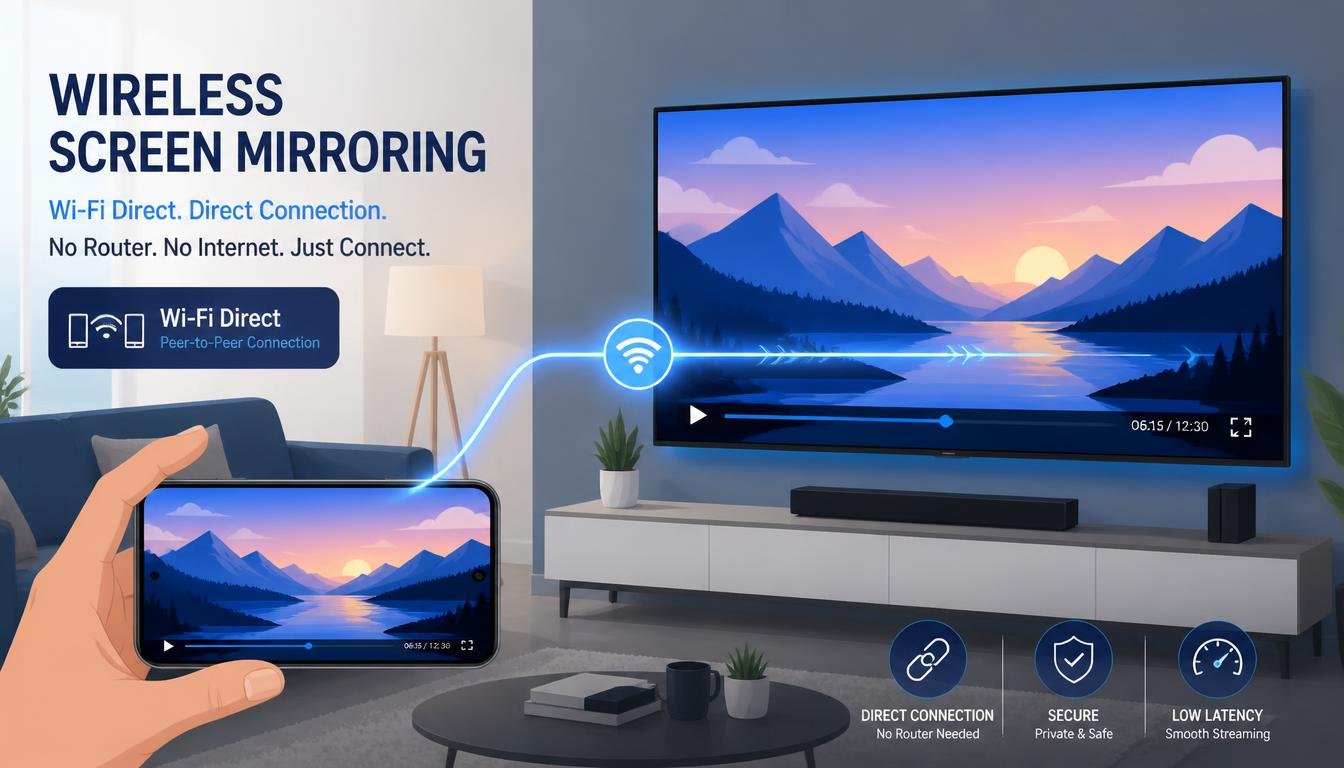
Yes, you can screen mirror without WiFi. Use Miracast (WiFi Direct) on Android and Windows, peer to peer AirPlay on iPhone to Apple TV or Mac, or a wired USB Type C or Lightning HDMI adapter. A phone hotspot also works for Chromecast and Roku.
In This Guide
Which Offline Method Fits Your Devices?
Screen mirroring does not always need a router. It needs a network path between two devices. That path can be a direct wireless link, a cable, or a small network created by a phone hotspot.
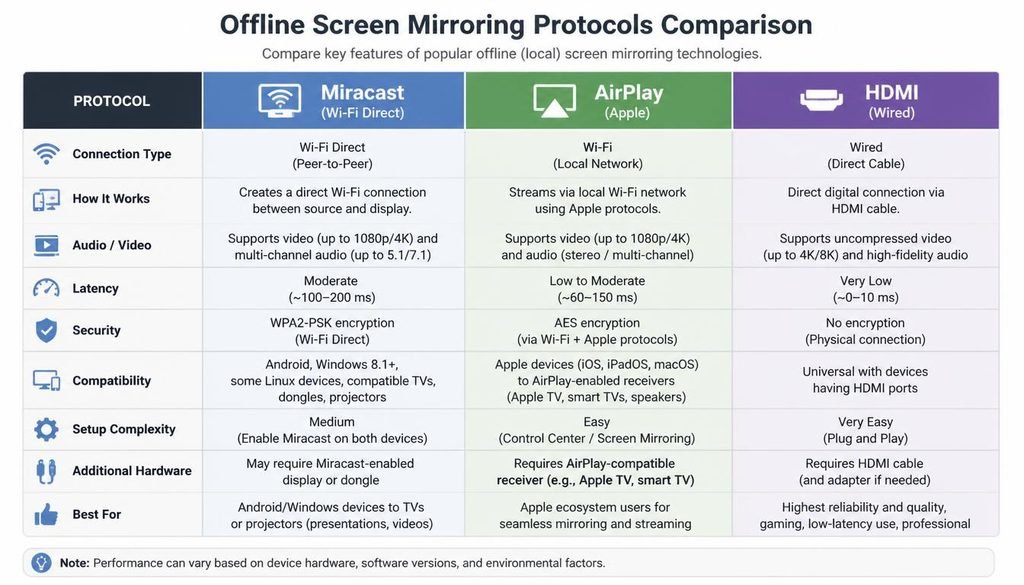
| Connection Method | Signal Type / Protocol | Max Resolution | WiFi Required? | Best For |
|---|---|---|---|---|
| Miracast / WiFi Direct | Peer to Peer Wireless | 1080p / 4K | No | Android to TV / Windows |
| Peer to Peer AirPlay | Direct Bluetooth / WiFi Discovery | 4K HDR | No | iPhone to Apple TV / Mac |
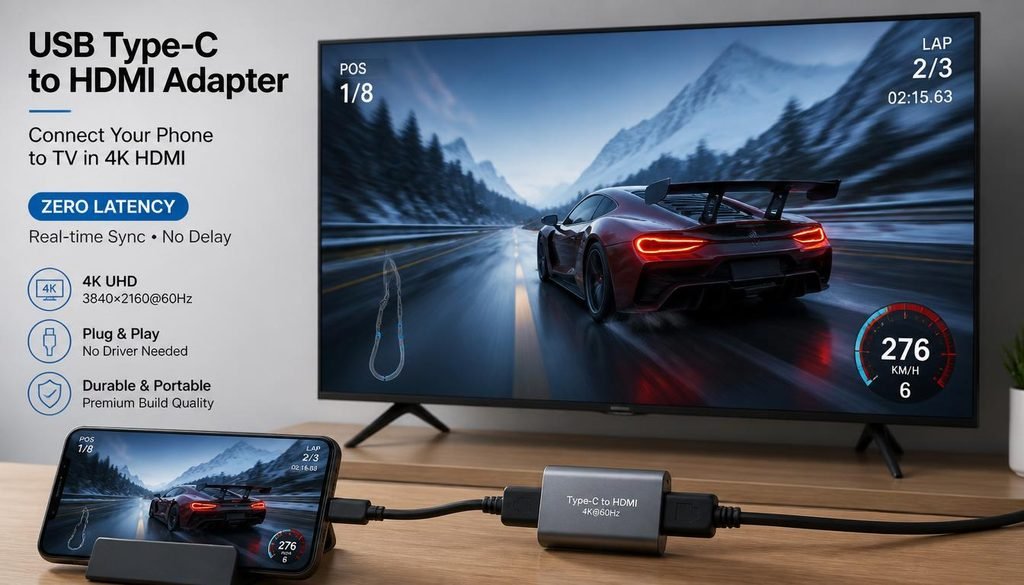
| HDMI / USB Type C to HDMI | Wired Digital Signal | 4K @ 60Hz | No | Zero Latency / Gaming / Streaming |
| Cellular Hotspot | Local Wireless Network Bridge | 1080p | No (Uses Data) | Chromecast / Smart TV Setup |
Two terms cause most of the confusion:
- WiFi (the internet connection): A router connected to your internet provider. Offline mirroring does not need this.
- WiFi radio (the hardware): The chip inside your phone, TV, or PC. WiFi Direct and peer to peer AirPlay still use this radio, so it must stay switched on even when no network is joined.
That is why the answer to “can you screen mirror without WiFi or Bluetooth” is different. Without both radios, only a cable works.
Method 1: WiFi Direct and Miracast (Android, Smart TVs, Windows)
How it works: WiFi Direct lets two devices create a private wireless link without a router. One device acts as the group owner, the other joins it, and the video travels straight between them. Miracast is the display standard built on top of WiFi Direct. It encodes your screen as an H.264 stream and sends it to the receiver. No internet connection is involved.
This is the most direct way to mirror an Android phone to a TV without WiFi. One warning first: Google Pixel phones do not include Miracast. Pixel owners should use Method 3 or Method 4.
Samsung Smart View (Galaxy phone to Samsung TV)
- Step 1: On the TV, press Source on the remote and select Screen Mirroring. On some models the path is Source > Connection Guide > Screen Mirroring.
- Step 2: On the Galaxy phone, swipe down twice to open Quick Settings.
- Step 3: Tap Smart View. Allow the Nearby devices permission if asked.
- Step 4: Select your TV from the list.
- Step 5: Accept the prompt on the TV. Your screen appears within a few seconds.
The same steps answer “can you screen mirror without WiFi on Samsung smart TV”. Samsung TVs accept a direct Miracast style connection.
LG webOS (Android phone to LG TV)
- Step 1: Press the Home button on the LG remote.
- Step 2: Open Screen Share (on older models, Settings > Connection > Screen Share).
- Step 3: On the Android phone, open Cast, Smart View, or Screen Mirroring. The name depends on the brand.
- Step 4: Select the LG TV and accept the connection request.
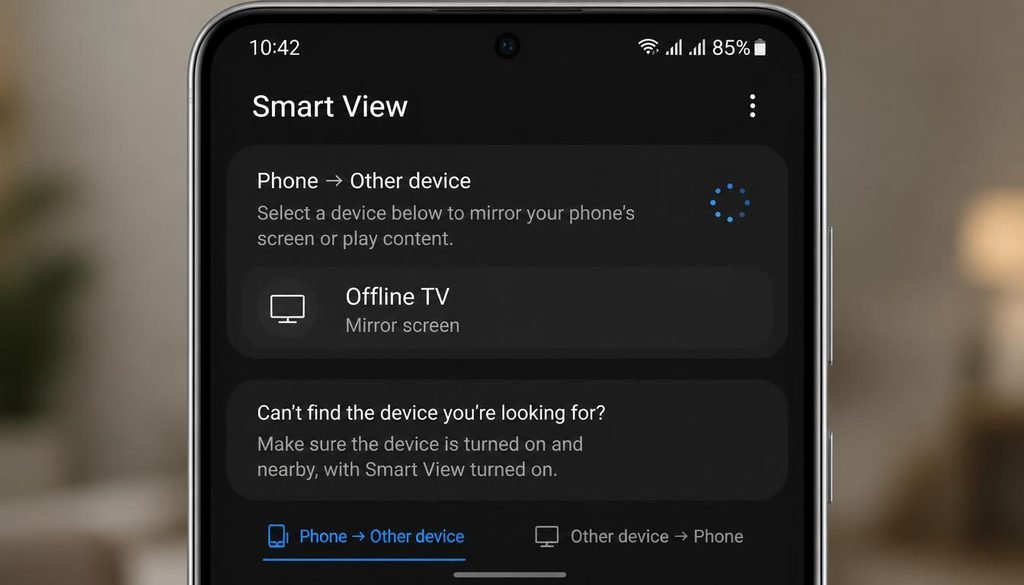
While Wi-Fi Direct enables screen casting without an active internet connection, some older smart TV models still require an initial local network handshake. If you are setting up your television for the first time, review our guide on how to connect a smart TV to WiFi step by step.
Windows 10 and 11: Project to This PC
Use this when your PC is the receiving screen.
- Step 1: On Windows 11, open Settings > System > Optional features, click View features, search for Wireless Display, and install it. Windows 10 includes it in Settings > Apps > Optional features.
- Step 2: Open Settings > System > Projecting to this PC.
- Step 3: Set the first menu to Available everywhere or Available everywhere on secure networks.
- Step 4: Set Ask to project to this PC to First time only.
- Step 5: On the Android phone, open Cast or Smart View and select the PC.
To send your PC screen to a TV, press Windows + K and pick the TV instead.
Check Miracast support from the command line. Open Command Prompt and run:
netsh wlan show drivers
Look for Wireless Display Supported: Yes. To see the full status, press Windows + R, type dxdiag, click Save All Information, and open the text file. Find the line Miracast: Available, with HDCP. If it says Not Supported, update your WiFi driver from the laptop manufacturer.
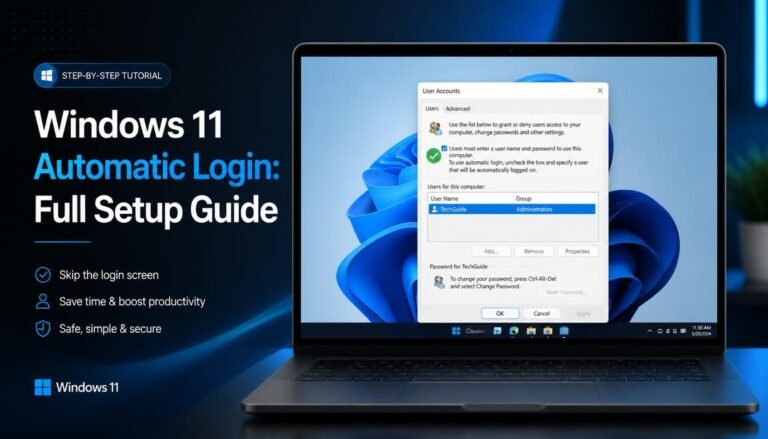
When project-casting your PC display offline, persistent lock screens can interrupt the stream. If you are configuring a dedicated home media center or display PC, you can enable automatic login in Windows 11 to bypass password prompts on startup.
Latency: 2.4GHz vs 5GHz
WiFi Direct picks a radio band automatically. The 5GHz band gives higher throughput and lower delay, which suits video and gaming. The 2.4GHz band travels farther through walls but suffers interference from microwaves, Bluetooth devices, and neighbors. If your mirror lags, move within 3 meters of the TV and remove obstacles. Many TVs and phones choose 5GHz when the devices are close.
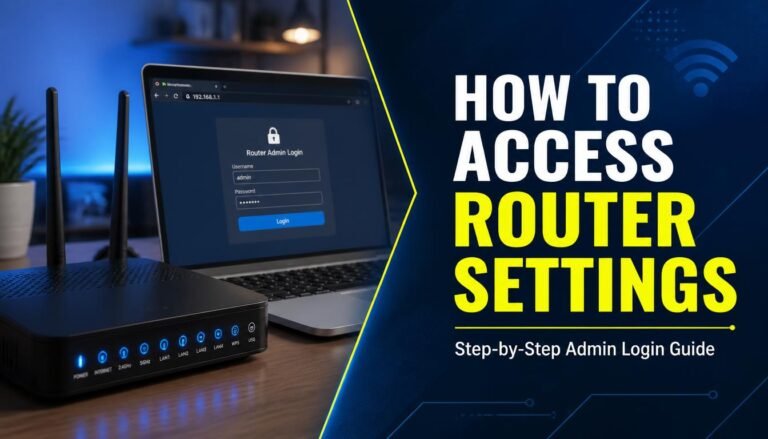
If your TV or casting device struggles to discover the phone’s mobile hotspot, ensure your personal hotspot is broadcasting on the 2.4 GHz frequency instead of 5 GHz. Alternatively, you can access your router settings to change WiFi bands on your home network to ensure device compatibility.
Method 2: Peer to Peer Apple AirPlay (iPhone, Mac, Apple TV)
How it works: Apple devices find each other over Bluetooth Low Energy. They then create a direct peer to peer WiFi link to carry the video. Both devices need WiFi and Bluetooth switched on, but neither needs to join a router.
Can you screen mirror without WiFi on iPhone to Apple TV?
Yes. Newer Apple TV models support this.
- Step 1: On the Apple TV, open Settings > AirPlay and HomeKit.
- Step 2: Set Allow Access to Anyone (this permits nearby devices that are not on the same network).
- Step 3: On the iPhone, keep WiFi and Bluetooth toggled ON. Leave any current network by tapping the network name in Settings > Wi-Fi and choosing Forget This Network, or simply move out of router range.
- Step 4: Open Control Center and tap Screen Mirroring.
- Step 5: Select the Apple TV and enter the four digit code if shown.
The key detail is that WiFi stays ON but is not associated with a network. Turning WiFi fully OFF breaks the peer to peer link.
Can you screen mirror without WiFi iPhone to Mac?
Yes, on a Mac running macOS Monterey or later.
- Step 1: On the Mac, open System Settings > General > AirDrop & Handoff.
- Step 2: Turn on AirPlay Receiver.
- Step 3: Set Allow AirPlay for to Everyone or Current User.
- Step 4: Keep Bluetooth and WiFi ON on both devices.
- Step 5: On the iPhone, open Control Center > Screen Mirroring and select the Mac.
Can You Screen Mirror Without WiFi?
Can you screen mirror without WiFi iPhone to iPad?
Not directly. An iPad cannot act as an AirPlay receiver. Third party receiver apps on the iPad usually need a shared network, so a personal hotspot from a third device can supply one. Alternatively, connect the iPhone to a Mac by cable and view it in QuickTime Player under File > New Movie Recording.
If you are working through TV issues, see our page on resolving Smart TV wireless connections.
Method 3: Wired Connections (USB Type C, MHL, Lightning)
A cable is the most reliable answer when you ask “can you screen mirror without WiFi or Bluetooth”. It needs no radios, adds almost zero latency, and keeps quality stable.
Android and USB Type C phones
Your phone must support DisplayPort Alt Mode. Many flagship phones do, and many budget phones do not.
- Step 1: Plug a USB Type C to HDMI cable or adapter into the phone.
- Step 2: Plug the HDMI end into the TV.
- Step 3: Press Source or Input on the TV remote and select the matching HDMI port.
- Step 4: If nothing appears, check the phone under Settings > Connected devices for display options.
MHL was an older standard that used a Micro USB port. It has largely disappeared from modern phones, so use it only for older devices with the right adapter.
iPhone and iPad (Lightning or USB Type C)
- Step 1: Connect an Apple Lightning Digital AV Adapter (or a USB Type C Digital AV Multiport Adapter for newer models) to the iPhone.
- Step 2: Connect an HDMI cable from the adapter to the TV.
- Step 3: Plug the adapter power port into a charger if it has one. Power delivery keeps the phone charged while mirroring.
- Step 4: Select the correct HDMI input on the TV.
Bonus: scrcpy over USB for Android to PC
This mirrors an Android screen to a Windows PC with no WiFi at all.
- Step 1: On the phone, open Settings > About phone and tap Build number seven times.
- Step 2: Open Settings > System > Developer options and turn on USB debugging.
- Step 3: Connect the phone to the PC by USB cable.
- Step 4: Accept the Allow USB debugging? prompt on the phone.
- Step 5: In PowerShell, run
adb devicesto confirm the phone is listed, then runscrcpy.
HDCP and resolution mismatches
HDCP (High bandwidth Digital Content Protection) is copy protection used by Netflix, Hulu, and similar apps. The source, the adapter, and the display must all confirm HDCP support. A weak link causes a black screen or a low resolution image. Use a certified adapter, a short high speed HDMI cable, and a TV port marked HDCP 2.2 for 4K content. If the picture is cropped or stretched, open the TV picture menu and set the size to Just Scan, Screen Fit, or Original.
Method 4: Mobile Hotspot Bridging (Chromecast and Roku)
Chromecast and standard Google Cast need both devices on the same network. A phone hotspot can supply that network. It counts as offline in the sense that no home router is needed, but it uses cellular data for internet content.
- Step 1: On a second phone (the host), open Settings > Network & internet > Hotspot & tethering and turn on the WiFi hotspot. On iPhone, use Settings > Personal Hotspot.
- Step 2: Connect the Chromecast to the hotspot. Open the Google Home app on the casting phone, choose the device, and select Settings > WiFi > Forget if it is tied to an old network. Then connect it to the new one.
- Step 3: Connect the casting phone to the same hotspot.
- Step 4: Open the app you want and tap the Cast icon.
Use a separate host phone whenever possible. Many phones cannot cast reliably to a device that depends on that same phone for its network. Local mirroring stays on the hotspot, but casting an app such as YouTube makes the TV pull video over cellular data. Lower the streaming quality to protect your data plan.
Roku without WiFi
Can you screen mirror without wifi Roku? Yes, on supported models. Roku uses Miracast, so the phone connects directly.
- Step 1: On the Roku, open Settings > System > Screen mirroring.
- Step 2: Set Screen mirroring mode to Prompt or Always allow.
- Step 3: On the Android phone, open Cast or Smart View and pick the Roku.
- Step 4: Approve the request on the TV.
iPhones cannot mirror to Roku directly because Roku does not use AirPlay for this purpose on every model and does not support peer to peer AirPlay from an iPhone. Also complete the Roku initial setup once before going offline.
Troubleshooting Common Offline Mirroring Errors
Fixing HDCP black screens on DRM apps
- Step 1: Swap the HDMI cable for a certified high speed cable.
- Step 2: Remove any HDMI splitter, switch, or capture device from the chain.
- Step 3: Try a different HDMI port on the TV, ideally one labeled HDCP 2.2.
- Step 4: Restart the TV and the phone.
- Step 5: Test in the Netflix app itself. Some apps block mirroring and allow only casting.
Resolving “Device Not Found” errors
- Step 1: Toggle WiFi off and on again on the phone, then do the same for Bluetooth.
- Step 2: On Android, clear the Bluetooth cache at Settings > Apps > Show system apps > Bluetooth > Storage > Clear cache.
- Step 3: On iPhone, open Settings > General > Transfer or Reset iPhone > Reset > Reset Network Settings. This clears saved networks too.
- Step 4: On Windows, press Windows + R, type
services.msc, find Bluetooth Support Service, and click Restart. Then open Device Manager, right click your WiFi adapter, and choose Disable device, then Enable device. - Step 5: Move both devices within 3 meters and turn off VPN and battery saver modes.
Using offline protocols like Peer-to-Peer AirPlay or Miracast keeps your data local and off the router’s log files. Unlike standard internet browsing where admins can potentially see your search history on a WiFi bill, offline screen mirroring transfers display packets directly between devices.
Frequently Asked Questions
How can I mirror my phone on my TV without WiFi?
Use Miracast (labeled Screen Mirroring or Smart View) on Android, peer to peer AirPlay on iPhone with Apple TV, or a wired USB Type C to HDMI or Lightning Digital AV Adapter. These methods create a direct link between the phone and TV, so no router or internet connection is required.
Can I screen mirror using cellular data?
Yes, but only indirectly. Turn on a mobile hotspot on a second phone, connect both your casting phone and the Chromecast or Roku to it, and cast normally. Mirroring itself stays local, but casting an app such as Netflix makes the TV pull the video over cellular data
Can you screen mirror with just Bluetooth?
No. Bluetooth cannot carry a video stream because its bandwidth is far too low. It is only used for discovery and pairing, such as AirPlay device detection or Chromecast Guest Mode. The actual picture travels over WiFi Direct, peer to peer WiFi, or a cable.
Can I cast to my TV offline?
Standard Google Cast needs both devices on the same network, so offline casting requires a workaround. Use a phone hotspot as the network, or switch to Miracast or a wired HDMI connection. Chromecast Guest Mode still needs the Chromecast itself to be online.
Can you screen mirror without WiFi from iPhone to Mac?
Yes. On a Mac running macOS Monterey or later, enable AirPlay Receiver in System Settings > General > AirDrop & Handoff. Keep WiFi and Bluetooth switched on for both devices without joining a network. Then open Control Center > Screen Mirroring on the iPhone and choose the Mac.
Can you screen mirror without WiFi on a Samsung Smart TV?
Yes. Samsung Smart TVs support Miracast style mirroring. On the TV, open Source and choose Screen Mirroring. On a Galaxy phone, swipe down and tap Smart View, then select the TV. Both devices connect through WiFi Direct, so no router is needed. Google Pixel phones do not support Miracast.
Can you screen mirror without WiFi on Roku?
Yes, on supported models. Go to Settings > System > Screen mirroring on the Roku and set the mode to Prompt or Always allow. On Android, use Smart View or Cast. Roku relies on Miracast, so iPhones cannot mirror to it directly. Finish the Roku initial setup first.
Why do Netflix and Hulu show a black screen when I mirror?
HDCP is copy protection that blocks protected video when the chain cannot be verified. Netflix and Hulu may show a black screen over adapters or wireless links that fail the check. Use a certified HDMI adapter with HDCP 2.2 support, a shorter cable, or a direct Miracast link that reports HDCP support.
Can you screen mirror without WiFi from iPhone to iPad?
Not natively. An iPad cannot act as an AirPlay receiver, so direct iPhone to iPad mirroring is not supported. Third party receiver apps usually need a shared network, so a personal hotspot can supply one. Another option is plugging the iPhone into a Mac and viewing it through QuickTime Player.
Conclusion
For the best quality and the least trouble, a wired HDMI connection wins. It has no discovery problems, near zero latency, and handles protected video when the adapter supports HDCP. For a cable free setup, use Miracast on Android and Windows, or peer to peer AirPlay on Apple devices. Keep the WiFi radio switched on, stay within a few meters, and prefer the 5GHz band for smoother video. Use a phone hotspot only when you need Chromecast or Google Cast.
Still stuck with a black screen, a missing device, or a display that will not connect? Visit Problevo.com for step by step technical support and more troubleshooting guides.
One Comment