
How to Fix WiFi: 100% Trusted & Easy Fixes Guide (2026)
A WiFi problem feels like one problem, but it is really a family of different problems that happen to look the same. Learning how to fix WiFi starts with one question: is the fault in your device, your router, or the connection that comes into your home? Once you know that, most of the work is done.
This guide walks through the checks in a safe order. It starts with quick, reversible fixes, moves to device settings, then to network tests, and only later to router settings and hardware.
Quick Answer: How to Fix WiFi
To fix WiFi, first test whether one device or every device is affected. Restart your modem and router, toggle WiFi off and on, then forget and rejoin the network.
- If EVERY device fails: The issue is with your router, modem, or Internet Service Provider (ISP).
- If ONLY ONE device fails: The issue is isolated to that specific device’s settings, network adapter, or saved profile.
In This Guide
Match Your Symptom to the Likely Cause
Find the row that matches what you see, then jump to the section named in the last column.
| WiFi Symptom | Most Likely Cause | What To Try First |
|---|---|---|
| WiFi connected but no internet | Router has lost its internet link, or the device has an IP or DNS problem | Test another device, then restart modem and router (Steps 2 and 6) |
| WiFi will not connect | Wrong password, outdated saved network, weak signal, band mismatch | Forget the network and rejoin (Step 4) |
| WiFi keeps disconnecting | Weak signal, interference, adapter power saving, old driver | Test near the router, then check power settings (Step 12) |
| WiFi is slow | Distance, interference, busy network, or a slow ISP plan | Speed test near the router (Step 11) |
| Only one device cannot connect | Device settings, driver, or saved profile | Troubleshoot that device (Steps 3 to 5, 7, 13 to 15) |
| No WiFi networks appear | WiFi turned off, adapter problem, or router not broadcasting | Check WiFi and Airplane Mode, then the router (Steps 1 and 5) |
| WiFi works on phone but not laptop | Laptop adapter, driver, or saved profile | Forget network, then run the Windows troubleshooter (Step 7) |
| WiFi works near router but not in another room | Weak signal from distance or obstacles | Move closer to confirm, then improve placement (Step 16) |
| All devices lost internet | Modem, ISP outage, or router fault | Check lights, restart, then check ISP status (Steps 1 and 18) |
| Router has WiFi but no internet | Modem or ISP link is down, or the WAN cable is loose | Check the WAN cable and modem lights (Step 1) |
How to Fix WiFi Quickly
Start with the checks that are safe, fast, and reversible. Do them in this order and test the connection after each one.
- Move closer to the router. This rules out signal strength immediately.
- Turn WiFi off and on on the affected device.
- Restart the router and modem using the proper sequence in Step 1.
- Test a second device. The result tells you where to look next (Step 2).
- Forget the network and rejoin with the password (Step 4).
If none of these help, keep reading. The next sections explain how to narrow the fault down instead of guessing.
First, Find Out Where the WiFi Problem Is
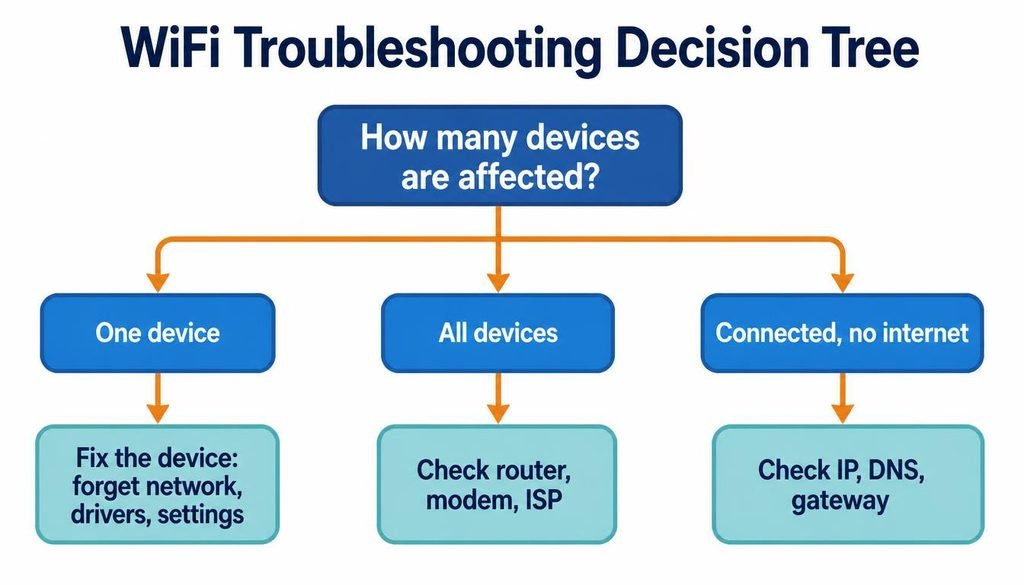
Five questions separate most WiFi problems:
- One device affected: The problem is most likely on that device.
- Several devices affected: The problem is most likely the router, the modem, or the ISP.
- WiFi connected but internet unavailable: The device reaches the router, but something after the router or in the addressing is broken.
- WiFi network not visible: The device cannot see the signal, or the router is not broadcasting it.
- Weak or slow WiFi: The connection works but the signal or speed is poor.
Why is my WiFi not available? The three common reasons are that WiFi is switched off on the device, the router is off or not broadcasting, or the device WiFi adapter has a hardware or driver fault. If your neighbors’ networks appear but yours does not, look at the router. If no networks appear at all, look at the device.
Step 1: Check Your Router and Modem
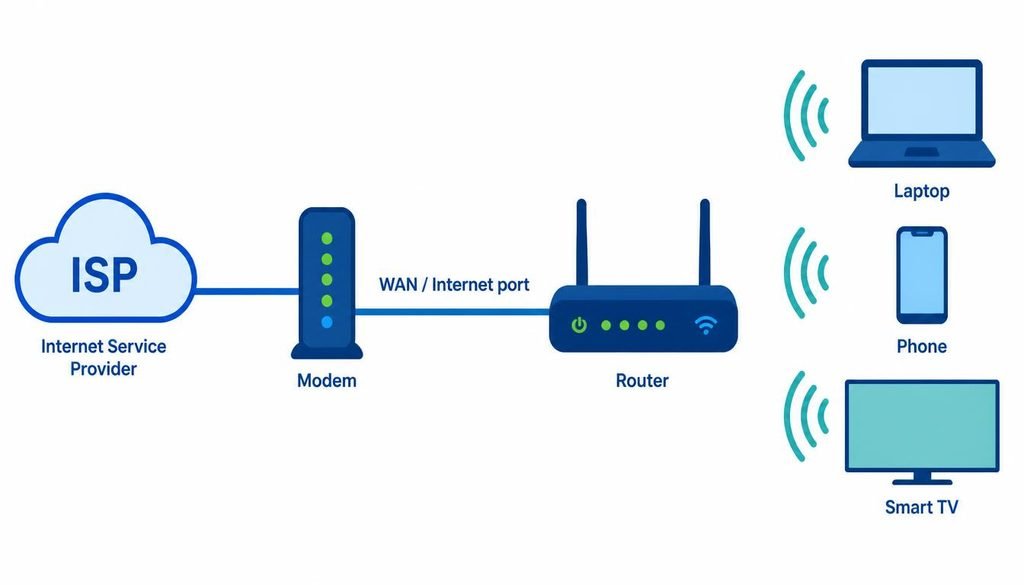
Many people use the words router and modem interchangeably. The modem brings the internet connection in from your ISP. The router shares it with your devices, wired and wireless. Some ISPs supply one combined box.
Check these things first:
- Power: Both devices should have power and lit status lights.
- Status lights: A light labeled Internet or WAN that is off, red, or amber usually signals a problem with the incoming connection. Light meanings vary by brand, so check the manual.
- Cables: Press each cable in firmly. The cable from the modem must be in the router WAN or Internet port, not a numbered LAN port.
- Damage: Look for bent connectors or crushed cables.
Restart properly. Microsoft describes this sequence: unplug the router, unplug the modem, wait at least 30 seconds, plug in the modem and wait for its lights to settle, then plug in the router and wait a few minutes. If your modem has a backup battery and stays lit, remove the battery for the wait. If you have one combined device, restart only that device.
Important: Restarting is not the same as a factory reset. A restart only power cycles the device and keeps every setting. A factory reset erases custom settings, including your WiFi name and password. Do not factory reset early.
Some routers also need a moment before WiFi returns, so give them a few minutes before deciding the restart failed.
Step 2: Check Whether Another Device Can Connect
This is one of the most useful tests in the whole process. It costs nothing and tells you which half of the problem to work on.
| Result | What It Means | Next Step |
|---|---|---|
| Another device works normally | The network is fine, so the fault is on your device | Steps 3 to 5 and the device sections |
| Another device also has no internet | The router, modem, or ISP is the issue | Steps 1, 6, 10, 17, 18 |
| Another device connects but is also slow | Signal, interference, or ISP speed | Steps 11 and 16 |
| Another device cannot even see network | The router may not be broadcasting | Step 17 and Step 20 |
Test with a device that already worked on this network. A brand new device adds its own variables.
Step 3: Turn WiFi Off and Back On
Toggling WiFi forces the device to search and connect again, which clears many small glitches.
- Windows: Select the Network, Sound, or Battery icons on the right side of the taskbar and switch WiFi off and on.
- Android: Swipe down for Quick Settings and tap the WiFi tile, or use Settings then the WiFi or Internet section.
- iPhone: Open Settings > Wi-Fi and use the toggle. The Control Center toggle can leave the phone connected to nearby devices, so the Settings toggle is the cleaner test.
Wait about ten seconds before switching it back on.
Step 4: Forget the WiFi Network and Reconnect
Forgetting a network deletes the saved profile and password on that device. It does not change your router. You will need the password to rejoin, so make sure you have it first.
- Windows: Settings > Network & internet > WiFi > Manage known networks, select your network, then Forget. Reconnect and enter the password.
- Android: Open the WiFi settings, tap your network, then Forget. On many phones the path is Settings > Network & internet > Internet. On Samsung phones it is usually Settings > Connections > Wi-Fi. Menu names vary by manufacturer and Android version.
- iPhone: Settings > Wi-Fi, tap the info button next to your network, then Forget This Network.
Why is my WiFi not connecting? A wrong password, an old saved profile, a weak signal, or a band the device does not support are the usual reasons. This step handles the first two.
Step 5: Check Airplane Mode and WiFi Settings
Airplane Mode turns off all wireless radios, and turning it on can also switch WiFi off even if you turned WiFi on earlier.
- Windows: Settings > Network & internet > Airplane mode. Confirm it is off, and confirm WiFi is on. Some laptops also have a physical WiFi switch or a function key.
- Android and iPhone: Open Quick Settings or Control Center and confirm Airplane Mode is off.
Also confirm the date and time are correct on the device, and that a VPN is not blocking traffic. A misconfigured VPN can look exactly like a broken WiFi connection.
Step 6: Fix WiFi Connected but No Internet
WiFi connected but no internet means the device joined the router, but traffic is not reaching the internet. Three layers can be at fault: the internet link into your home, the addressing your device received, or the name lookup that turns a website name into an address.
Work through these in order:
- Test another device. If every device has no internet, the fault is the router, modem, or ISP. Restart them (Step 1) and check for an outage (Step 18).
- Check for a captive portal. Hotel, cafe, and airport networks often need a login page. Open a plain website and look for the sign in page.
- Check proxy and VPN settings. On Windows, open Settings > Network & internet > Proxy and turn off any manual proxy you did not set up on purpose. Disconnect any VPN and test again.
- Check the IP address. An address starting with 169.254 means the device did not get an address from the router (Step 9).
- Test DNS. DNS is the system that translates a name like problevo.com into a numeric address. If the numeric address works and the name does not, DNS is the fault (Step 8).
- Renew the IP address and flush DNS using the commands in Step 8.
What This Means: Windows shows No Internet when a small test request to an internet server gets no reply. The message tells you the check failed, not why. That is why the steps above matter.
Step 7: Fix WiFi on Windows PC
Work from the simplest Windows check upward.
- Check status. Select the network icon in the taskbar and confirm WiFi is on and your network shows Connected.
- Run the troubleshooter. On Windows 11, Microsoft recommends the automated Network and Internet troubleshooter in the Get Help app. You can also look under Settings > System > Troubleshoot > Other troubleshooters. Names can differ by build.
- Confirm the adapter is enabled. Open Device Manager, expand Network adapters, right click your WiFi adapter, and choose Enable device if it is disabled.
- Check for updates. Settings > Windows Update > Check for updates, then restart.
- Restart the WLAN AutoConfig service if the WiFi option is missing. Press Win + R, type services.msc, find WLAN AutoConfig, right click, and select Restart.
- Check the driver. Compare the driver version in Device Manager with the version on your PC manufacturer support page. If the problem began after an update, Microsoft suggests uninstalling the adapter driver (Uninstall device in Device Manager), then restarting so Windows reinstalls it.
Warning: Before uninstalling a network driver, download the current driver from your PC manufacturer on another device and save it to a USB drive. If Windows does not reinstall a driver automatically, you will need it.
Save network reset for later (Step 19).
Mac users: On a Mac, look under System Settings > Network > Wi-Fi. For deeper checks, hold the Option key and click the WiFi icon in the menu bar to open Wireless Diagnostics. Menu names can vary by macOS version.
Step 8: Use Windows Network Commands
Use these only after the simple fixes fail. Each does something specific. Open Command Prompt as administrator by searching for it and selecting Run as administrator.
| Command | What It Does | When To Use It |
|---|---|---|
ipconfig
|
Shows your IP address and default gateway | Any time you need to see your settings |
ipconfig /all
|
Shows full detail, including DNS servers and DHCP | To check DNS and DHCP details |
ipconfig /release
|
Drops the current IP address | Before renewing |
ipconfig /renew
|
Requests a new IP address from the router | Connected but no internet, or 169.254 address |
ipconfig /flushdns
|
Clears the stored name lookup cache | Websites fail by name but work by IP |
netsh winsock reset
|
Resets the Windows network socket settings | Later step, after simpler fixes fail |
netsh int ip reset
|
Resets the TCP/IP stack to defaults | Later step, after simpler fixes fail |
Microsoft lists the reset and release, renew, flush sequence together for connection problems. Restart the PC after the two netsh commands.
Try This: Run ping 8.8.8.8 and then ping google.com. If the first gets replies and the second fails, the internet link works but name lookup does not, which points to DNS. Some networks block ping, so treat this as a strong clue, not proof.
Changing your DNS server is possible, but leave it until the basic connection is confirmed working. Changing DNS on a broken connection only adds confusion.
Step 9: Check the IP Address
An IP address identifies your device on the network. The router usually assigns it automatically through DHCP, a service that hands out addresses to devices when they join.
Run ipconfig and look at your WiFi adapter.
- Normal home addresses usually begin with 192.168, 10, or a number from 172.16 to 172.31.
- 169.254.x.x is an automatic fallback address, called APIPA. Windows uses it when it could not get an address from the router.
- Default gateway is the address of your router, and it should be listed. A blank gateway means the device is not properly joined.
A 169.254 address means the device reached the network but did not receive an address. Try ipconfig /renew, then restart the router. If it persists across several devices, check that DHCP is turned on in the router settings (Step 17).
Step 10: Test the Router With Ping
The default gateway from Step 9 is your router. Pinging it tests the path from your device to the router without involving the internet.
Run ping followed by your gateway address, for example ping 192.168.1.1.
| Result | What It Means | Next Step |
|---|---|---|
| Replies come back | Your device reaches the router, so the problem is likely the modem, ISP, or DNS | Steps 8 and 18 |
| Request timed out | The router is not answering this device | Try Ethernet, then Steps 1, 12, 17 |
| Destination host unreachable | The device has no working route to the router | Check IP address (Step 9), reconnect WiFi |
Microsoft suggests connecting the PC directly to the modem or router with an Ethernet cable if there is no reply. If the wired connection works, the WiFi part of the router or the wireless link is the problem.
Compact Decision Tree
- No devices can connect: Check router, modem, and ISP (Steps 1 and 18).
- Other devices work but one does not: Troubleshoot that device (Steps 3 to 5, 7, 13 to 15).
- WiFi connects but there is no internet: Check router, ISP, IP, DNS, and gateway (Steps 6 and 8 to 10).
- WiFi is slow: Test near the router, then investigate signal, interference, and device load (Step 11).
- WiFi keeps disconnecting: Investigate signal, power management, drivers, firmware, and interference (Step 12).
- WiFi network does not appear: Check the adapter, whether the router broadcasts, and band compatibility (Steps 17 and 20).
Step 11: Fix Slow WiFi
Slow WiFi and slow internet are different problems. Slow WiFi means the wireless link is weak or crowded. Slow internet means the ISP connection itself is limited.
Separate them with a speed test. Run a test next to the router on WiFi. Then run it in the slow room. If possible, run it on a computer connected to the router by Ethernet. Compare all three against your plan speed.
- Slow everywhere, including Ethernet: The ISP plan, modem, or an outage is the likely cause.
- Fast near the router, slow far away: Signal strength is the issue.
- Slow at busy times only: Many devices or heavy downloads may be sharing the connection.
Common WiFi causes include:
- Distance and walls. Concrete, brick, and metal weaken signals more than plain drywall.
- Interference. Microwave ovens, cordless phones, Bluetooth devices, and neighboring networks can crowd the 2.4 GHz band.
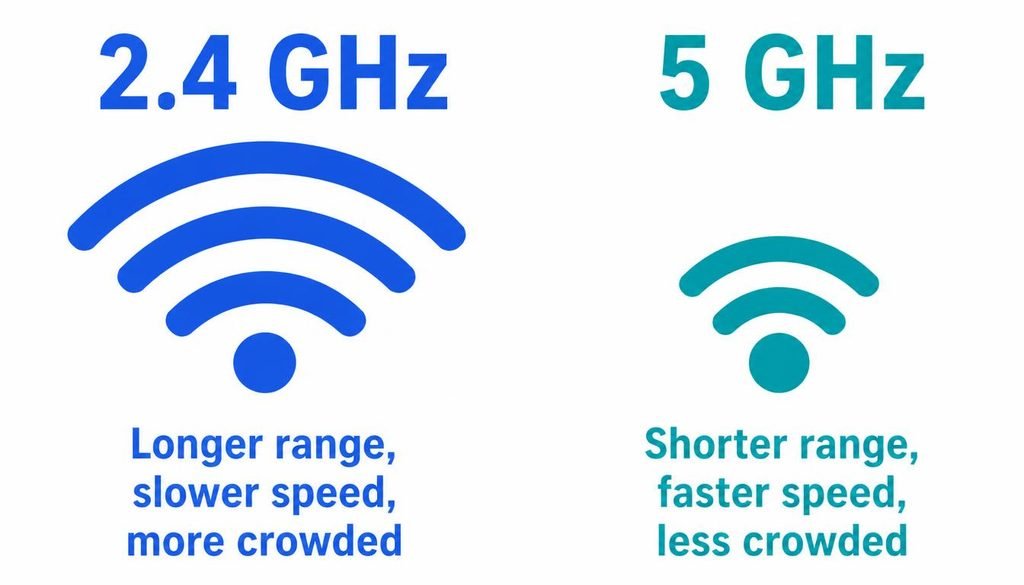
- Band choice. 2.4 GHz reaches farther but is slower and more crowded. 5 GHz is usually faster but has shorter range.
- Too many active devices. Video streaming, cloud backups, and game downloads all compete for the same connection.
- Background apps. On Windows, open Task Manager with Ctrl + Shift + Esc and check which processes use the network.
Microsoft also has a page on why an internet connection can be slow, linked in the sources below.
Step 12: Fix WiFi That Keeps Disconnecting
Drops usually have one of a handful of causes. Check them from easiest to hardest.
- Weak signal. Test the device next to the router. If drops stop, signal is the cause.
- Interference. Try the other band, or change the channel (Step 17).
- Power management. On Windows, open Device Manager, right click the WiFi adapter, choose Properties, open Power Management, and uncheck Allow the computer to turn off this device to save power. You can also check Wireless Adapter Settings under advanced power options.
- Outdated driver. Update from Windows Update or the PC manufacturer.
- Router firmware or overload. Restart the router, then check for a firmware update in the router settings.
- Band switching. Some devices bounce between 2.4 GHz and 5 GHz when both share one name. Try separate names for each band.
- ISP instability. If every device drops at the same moment, and the router lights change when it happens, the line may be unstable. Note the times and give them to your ISP.
Step 13: Fix WiFi on Android
Android menus differ by manufacturer, so treat the paths below as a guide and use the Settings search bar if a name does not match.
- Toggle WiFi and Airplane Mode from Quick Settings.
- Restart the phone.
- Forget the network and rejoin (Step 4).
- Check that mobile data is not confusing the test. Some phones switch to mobile data when WiFi has no internet, which can hide the problem.
- Update the phone software in Settings under System or Software update.
- Reset WiFi, mobile, and Bluetooth settings as a later step. On many Pixel phones this is under Settings > System > Reset options. On Samsung it is usually under Settings > General management > Reset. This removes saved WiFi networks and Bluetooth pairings.
Why is my WiFi not working on my phone? If other devices work fine, the cause is on the phone: WiFi or Airplane Mode, a saved profile, software, or the band it can use.
Step 14: Fix WiFi on iPhone
- Toggle WiFi in Settings > Wi-Fi.
- Check Airplane Mode in Control Center or Settings.
- Restart the iPhone.
- Forget the network and rejoin (Step 4).
- Install the latest iOS update. Apple advises installing updates before deciding to change Private Wi-Fi Address settings.
- Check Private Wi-Fi Address for that network. Go to Settings > Wi-Fi, tap the info button next to the network, and look at Private Wi-Fi Address. Apple says some networks that filter by device address can have problems with private addresses, and turning it off for that one network is an option. It is a privacy feature, so leave it on if the network works.
- Reset Network Settings as a last resort. Go to Settings > General > Transfer or Reset iPhone > Reset > Reset Network Settings. This removes saved WiFi networks and passwords and can reset VPN and cellular settings.
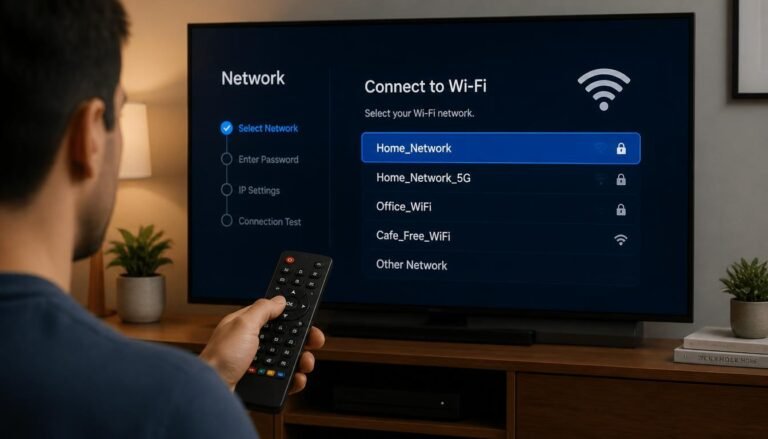
Step 15: Fix WiFi on a TV
TV menus differ by brand and model, so names will vary. The logic is the same as for any device.
- Restart the TV, and if possible unplug it for a minute.
- Restart the router (Step 1).
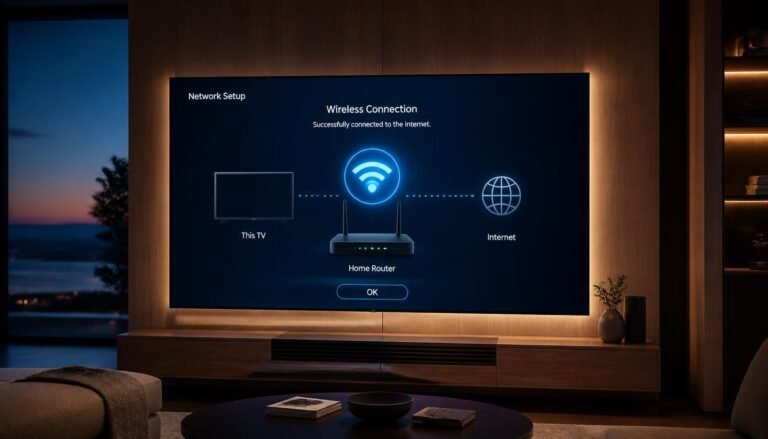
- Forget the network and reconnect. Look under Settings for Network or WiFi, choose your network, and enter the password again.
- Check the network status page on the TV, which usually reports whether the TV reached the router and the internet.
- Test another device in the same spot. If a phone also has a weak signal there, the TV is not the problem.
- Check TV software. Install pending system updates.
- Improve the signal by moving the router closer, or use an Ethernet cable if the TV has a port. Wired is often the most reliable option for a TV.
For full setup walkthroughs, see our guides on how to connect a TV to the internet, how to connect a TV to WiFi, and how to connect a smart TV to WiFi.
Step 16: Fix Weak WiFi Signal at Home
Try free changes before spending money.
- Move the router to a central spot. A corner near an outside wall wastes signal outdoors.
- Raise it. A shelf usually works better than the floor.
- Keep it in the open. Avoid cabinets, behind a TV, or next to large metal objects.
- Stay away from interference. Microwave ovens and cordless phones can disturb 2.4 GHz.
- Point antennas sensibly. If your router has adjustable antennas, try a mix of vertical and angled positions.
If those changes are not enough, hardware may help. A mesh WiFi system uses several units that work as one network, and it can cover a large or multi floor home. A range extender repeats an existing signal, and because it relays traffic it can reduce speed, so place it where the signal is still decent. A wired backhaul, meaning Ethernet between the router and the extra units, generally gives the best result. Buy hardware only after you have confirmed that distance and obstacles are the real cause.
Step 17: Check Your Router Settings
To reach the router settings page, follow our guide on how to access router settings. Screens vary by brand.
Warning: Change one setting at a time and write down the original value. Do not change advanced settings unless you understand what they do.
Useful settings to review:
- WiFi bands. Confirm that both 2.4 GHz and 5 GHz are enabled if your devices need them.
- Channel. On 2.4 GHz, channels 1, 6, and 11 are commonly used because they do not overlap in many regions. Automatic selection is often fine.
- Channel width. Wider channels can be faster but are more prone to interference. A narrower width can help in crowded areas.
- Security mode. WPA2 or WPA3 is preferred. Very old devices may not support WPA3 only mode.
- Firmware. Install updates from the manufacturer.
- Connected devices. Check for unknown devices or a very large number of them.
- DHCP. Keep it enabled unless you know you have another device handing out addresses. Two devices handing out addresses on one network can cause conflicts.
- QoS. Quality of Service prioritizes certain traffic. It is only worth changing if you have a specific need, such as video calls competing with downloads.
Step 18: Check for an ISP Outage
If the router and modem work and all devices have no internet, the fault may be outside your home.
- Check the modem lights. An Internet or online light that stays off or blinking is a common outage sign.
- Check the ISP status page or app on your phone using mobile data.
- Check your account. Billing and service notices can also cause a shutdown.
- Call the ISP if the modem lights and status page point to a line problem, and describe what you already tried.
A phone hotspot can keep you online meanwhile. It uses your mobile data, so see how much hotspot data you have left before relying on it.
Step 19: When to Reset Network Settings
A network reset returns network components on a device to defaults. It is a later step, not a first step.
- Windows: On Windows 11, go to Settings > Network & internet > Advanced network settings > Network reset, then Reset now. On Windows 10, it is under Status > Network reset.
- What it removes: Microsoft says it removes network adapters and their settings, which are reinstalled afterward with defaults. You may need to reinstall VPN software or virtual switches, and known networks may return to a public profile.
- iPhone and Android: Saved WiFi networks and passwords are removed (see Steps 13 and 14).
Use it only when simpler steps have failed. It solves configuration problems, and it can create extra work if the real fault is the router.
Step 20: When the Problem May Be Hardware
Hardware failure is possible, but confirm it before replacing anything.
- Router or modem: Frequent restarts, lights that will not settle, a device that is very hot, or no WiFi with a wired connection also failing all point to the box. Make sure it has ventilation first.
- Cables: A damaged Ethernet or coax cable can cause drops. Swap in a known good cable.
- WiFi adapter: If no networks appear on one device, Device Manager shows a warning or no adapter, and updates do not help, the adapter may be faulty. A USB WiFi adapter is a low cost test.
- Age: Very old equipment may not support current features or security.
Microsoft also notes that an adapter may not support the band the network uses, for example an adapter that only supports 2.4 GHz while the network is on 5 GHz.
Common WiFi Troubleshooting Mistakes
| Common Mistake | Better Approach |
|---|---|
| ✕ Factory resetting the router too early | ✓ Restart first, and reset only after backing up settings and trying everything else |
| ✕ Changing advanced router settings without understanding them | ✓ Change one setting at a time and note the original value |
| ✕ Assuming the router is broken when one device is affected | ✓ Test another device first |
| ✕ Changing DNS before checking the basic connection | ✓ Confirm the gateway and IP address first |
| ✕ Replacing hardware before testing cables | ✓ Swap cables and test with Ethernet |
| ✕ Confusing signal strength with internet speed | ✓ Run a speed test on WiFi and Ethernet |
| ✕ Running commands without knowing their purpose | ✓ Use only the commands that match the symptom |
8. FAQ ( How to fix WiFi)
Why is my WiFi not available?
Your WiFi is usually not available because the router is off, the router is not broadcasting, or WiFi is switched off on the device. Check WiFi and Airplane Mode settings, look at the router lights, and restart the router. If no networks appear at all, the WiFi adapter or its driver may have failed.
Why is my WiFi connected but no internet?
WiFi connected but no internet means your device reaches the router, but the router cannot reach the internet, or the device has an IP or DNS problem. Test another device. If all devices fail, restart the modem and router and check for an ISP outage. If one device fails, renew its IP address and check DNS.
Why is my WiFi not connecting?
WiFi usually will not connect because of a wrong password, an outdated saved network profile, a weak signal, or a router that has stopped accepting new connections. Forget the network and enter the password again, move closer to the router, and restart the router. Check that the device supports the band in use.
How do I reset my WiFi?
To reset WiFi safely, turn WiFi off and on, restart the router, and forget and rejoin the network. These steps are reversible. A factory reset erases custom router settings, including the WiFi name and password, so use it only late in troubleshooting. Network reset on a phone or PC removes saved networks.
Why does WiFi work on my phone but not my laptop?
When WiFi works on a phone but not a laptop, the router is usually fine and the problem is on the laptop. Check Airplane Mode, forget and rejoin the network, run the Windows network troubleshooter, and update or reinstall the WiFi driver. Also check that the laptop supports the 2.4 GHz or 5 GHz band in use.
Why does my WiFi keep disconnecting?
WiFi that keeps disconnecting is commonly caused by weak signal, interference, adapter power saving, an outdated driver, or an overloaded router. Move closer to the router to test, disable adapter power saving on Windows, update the driver, and restart the router. If every device drops at the same time, suspect the router or ISP line.
How do I fix slow WiFi?
To fix slow WiFi, first run a speed test near the router, then repeat it in the slow room. If speeds are low everywhere, including over Ethernet, the ISP or modem is the likely cause. If only far rooms are slow, improve router placement, reduce interference, or consider a mesh system.
Why can my TV not connect to WiFi?
A TV that cannot connect to WiFi often needs a restart, a fresh network connection, or a stronger signal. Restart the TV and router, forget the network and rejoin, and test another device nearby. If the signal is weak, move the router closer or use an Ethernet cable. Menus differ by TV brand and model.
How do I fix WiFi on Android?
To fix WiFi on Android, toggle WiFi and Airplane Mode, restart the phone, and forget and rejoin the network. If the problem continues, reset WiFi, mobile, and Bluetooth settings, which removes saved networks and Bluetooth pairings. Menu names vary by manufacturer, so search Settings for reset if you cannot find the option.
Conclusion
The logic behind fixing WiFi is the same every time. Start with basic, reversible checks. Decide whether one device or the whole network is affected, and test a second device to prove it. If the whole network is down, work through the router, modem, and ISP. If only one device is affected, move into that device with forget and reconnect, settings, and drivers. Use Windows commands only when they match the symptom, and treat network reset and factory reset as late steps.
If you also want to tune your router or connect a TV once WiFi is stable, our guide to accessing your router settings is a good next stop.

One Comment