

How to Pin a Website to Taskbar: Easy Steps Guide (2026)
A pinned website opens in one click, and this guide shows how to pin a website to taskbar in Edge, Chrome, Firefox, and Opera GX without guessing which menu your version uses.
Quick Answer (How to Pin a Website to Taskbar)
Use the pinning or app install option inside your browser. In Edge, choose Pin to taskbar or install the site as an app. In Chrome, create a shortcut or install the page as an app, then pin it. Steps vary by browser and Windows version. Firefox and Opera GX differ.
Table of Contents
Quick diagnosis table
| Problem or Goal | Likely Reason | Recommended Fix |
|---|---|---|
| Chrome has no direct Pin to taskbar option | Chrome puts Create shortcut and Install page as app under Cast, save, and share, not a one click pin | Create a shortcut and pin it, or install the page as an app and pin its taskbar icon |
| Edge displays an Apps option | Apps installs a site as a separate app. Pin to taskbar is a different command | Use More tools, Apps, Install this site as an app, or More tools, Pin to taskbar |
| Firefox does not offer the expected pinning command | Older Firefox versions have no web app button | Look for the web apps button in the address bar, or build a program shortcut that points to firefox.exe |
| A desktop shortcut exists but cannot be pinned | A plain internet shortcut is a web document, not a program | Create a shortcut to the browser with the website address |
| Windows 11 hides the required option | The right-click menu can place it under Show more options | Right-click, select Show more options, then Pin to taskbar |
| The website opens in the wrong browser | A plain internet shortcut uses the default browser | Create a shortcut that names the browser you want |
| A pinned shortcut stops working | The address changed, or the browser or shortcut was moved or deleted | Check the shortcut Properties, then recreate it |
Choose the right method
| Browser or Platform | Recommended Approach | Important Limitation |
|---|---|---|
| Microsoft Edge | More tools, Pin to taskbar for a quick pin, or Apps, Install this site as an app for a separate window | Menu labels vary by version |
| Google Chrome | Cast, save, and share, Create shortcut or Install page as app | Older versions use More tools |
| Firefox | Web apps button in the address bar, or a browser shortcut with the website address | Web apps are Windows only; plain shortcuts cannot be pinned |
| Opera GX | A Windows shortcut that points to the Opera GX program | I found no official pinning command, so test the result |
| Windows 10 | Same browser steps; the right-click menu usually shows Pin to taskbar | Support ended on 14 October 2025 |
| Windows 11 | Same browser steps | Pin to taskbar may sit under Show more options |
| macOS | Safari File, Add to Dock | The Dock is not the Windows taskbar |
How to Pin a Website to Taskbar?
How to pin a website to taskbar in Microsoft Edge
Edge has two separate features. Do not mix them up.

Option 1: Pin the page. Microsoft says to open the website, select Settings and more, choose More tools, then select Pin to taskbar. Windows-focused reporting says these pins open as a normal tab in Edge.
Option 2: Install the site as an app. Microsoft’s support page gives this path :
- Open the website in Edge.
- Select Settings and more, then More tools, then Apps, then Install this site as an app.
- Name the app and select Install.
- When the app opens, choose Pin to taskbar if Edge offers it.
- If not, open
edge://apps, select Details on the app card, and choose Pin to taskbar or Pin to Start.
An installed app is a website that runs in its own window, without tabs or the address bar. It is not the same as a shortcut. Some older Edge versions show Apps directly in the main menu instead of under More tools. Microsoft notes that features can vary by device, market, and browser version.
How to pin a website to taskbar in Google Chrome
Chrome offers a shortcut method and an app method.
Method 1: Create a shortcut
- Open the website in Chrome.
- Select More, then Cast, save, and share, then Create shortcut….
- Rename the shortcut if you want, then select Create.
- Find the shortcut. Microsoft’s Q&A answer and other guides say Chrome opens its location. Right-click it and choose Pin to taskbar.
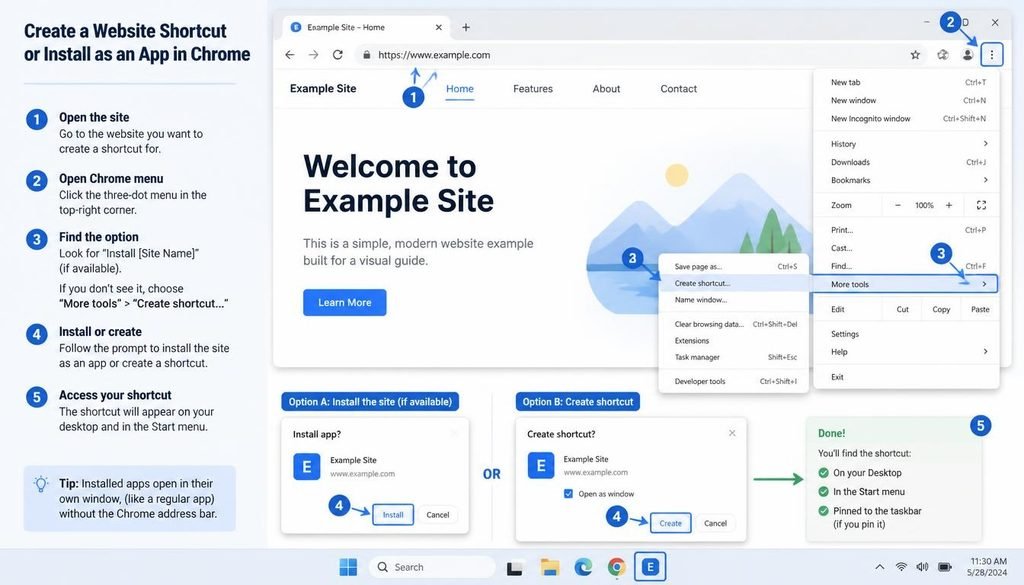
Older guides, including Elementor’s, describe More tools, Create shortcut and an Open as window checkbox. Google’s current help page lists only a Name field. Google does not say whether the shortcut opens in a tab or its own window, so test it.
Method 2: Install the page as an app
- Select More, then Cast, save, and share, then Install page as app…. On some websites an Install icon appears in the address bar.
- Follow the prompts. Right-click the app icon on the taskbar and choose Pin to taskbar.
Availability can vary by site and Chrome version. If neither method suits you, see the shortcut workaround in the alternative method section below.
How to pin a website to taskbar in Firefox
Firefox for Windows now has a web apps feature, and Mozilla describes it in Use web apps in Firefox for Windows.
- Open the website in Firefox.
- Click the web apps button that appears in the address bar.
- Firefox installs the site and it appears in the Windows taskbar. You may see a prompt to pin it.
Mozilla says web apps work on Windows only. A Mozilla community post says the feature arrived in Firefox 143 and is not available in Microsoft Store installs of Firefox. If the button is missing, update Firefox or use the program shortcut method below. Do not rely on dragging the address bar icon to the desktop. That creates a plain internet shortcut, and Mozilla community volunteers say such shortcuts cannot be pinned.
How to pin a website to taskbar in Opera GX
I could not find an official Opera page that documents pinning a website. I will not invent a menu item. The reliable route is a Windows shortcut.
Opera forum moderators give the default install folder as C:\Users\YourName\AppData\Local\Programs\Opera GX. To build a shortcut, follow the steps in the alternative method section, using opera.exe from that folder. Adding the website address after the program path is standard for browsers, but Opera does not document it, so test it.
The same forum warns that a pinned Opera GX shortcut may not behave perfectly. It might group under the regular Opera GX taskbar button. A taskbar pin is a Windows feature, not an Opera GX feature.
Windows 11 versus Windows 10
Browser steps are the same on both. The Windows menus differ.
- Context menus. On Windows 11, Pin to taskbar may appear only after you select Show more options.
- Dragging. A Mozilla forum user reports a blocked symbol when dragging a website shortcut onto the Windows 11 taskbar.
- Pinned browser versus pinned website. Pinning the browser adds the browser only. A website needs its own pin from the browser menu or a program shortcut.
- Restrictions. Microsoft says pinning may be affected by browser settings, device settings, or organization managed policies.
- Windows 10. Support ended on 14 October 2025. The pinning steps still work, but the PC no longer gets regular updates. See how much Windows 11 costs if you are planning an upgrade.
If the taskbar itself misbehaves, see this guide on how to fix Windows 11 problems. Exact menus can differ between builds, so do not assume every Windows 11 PC looks identical.
Alternative method: create a shortcut manually
Use this when your browser has no pin option. It is the best way to learn how to pin a website to taskbar when the browser menu fails.
- Right-click an empty area of the desktop and select New, then Shortcut.
- For location, type the browser program path in quotes, then a space, then the address. Example for Firefox:
"C:\Program Files\Mozilla Firefox\firefox.exe" -url https://problevo.com. A Mozilla volunteer confirms this style, and browser paths can vary. - To find your browser path, right-click the browser icon, then select Properties, then read the Target box.
- Name the shortcut after the website and select Finish.
- Right-click the new shortcut and choose Pin to taskbar. On Windows 11, select Show more options first.
- Click it to confirm the correct browser opens.
Tradeoffs. A shortcut that only contains the website address is an internet shortcut. It opens in your default browser and generally cannot be pinned. A shortcut to the browser program can be pinned, opens in the browser you chose, and usually shows the browser icon. It may also group under the browser’s own taskbar button.
Troubleshooting
1. The Pin to taskbar option is missing
Symptom: the right-click menu has no pin entry.
Likely cause: a hidden Windows 11 menu, a plain internet shortcut, a different browser menu, or a managed device.
Steps: select Show more options first. Check whether the item is a plain internet shortcut and rebuild it using the alternative method. On a work or school PC, an administrator may have blocked pinning, which you cannot change.
2. A desktop shortcut cannot be pinned
Symptom: dragging shows a blocked symbol.
Likely cause: the shortcut is a web document, not a program.
Steps: right-click it, select Properties, and look for a Web Document tab. If it shows, create a program shortcut with the browser path and the address.
3. The shortcut opens the wrong browser
Symptom: the site loads in a browser you did not choose.
Likely cause: an internet shortcut uses the Windows default browser.
Steps: build a program shortcut for the right browser. Or change the default in Settings, Apps, Default apps. The second option affects every link.
4. The pinned website no longer opens
Symptom: nothing happens, or an error appears.
Likely cause: the address changed, or the shortcut or browser moved.
Steps: right-click the pin, then the entry name, then Properties, and read the Target. Recreate the shortcut if it points to a missing file. For installed apps, check edge://apps or chrome://apps.
5. The icon is wrong or generic
Symptom: you see a browser icon instead of the site icon.
Likely cause: program shortcuts use the browser icon by default.
Steps: open the shortcut Properties, select Change Icon, and choose an .ico file. Installed web apps usually take the site icon.
6. A browser update changes the menu options
Symptom: menu labels no longer match a guide.
Likely cause: Chrome now uses Cast, save, and share, and older Edge versions place Apps differently.
Steps: check the current official help page and your browser version in its About page. Use the label that appears on your screen.
7. You cannot find the website shortcut
Symptom: you created it but cannot see it.
Steps: look on the desktop and search the Start menu. Chrome apps are listed at chrome://apps and Edge apps at edge://apps. Mozilla says Firefox web apps are typically in the Firefox Web Apps folder in the Start menu.
8. The taskbar shortcut disappears after a restart or profile change
Symptom: the pin is gone.
Likely cause: an installed app may belong to the browser profile that created it, or a policy removed the pin.
Steps: open the matching profile, reopen the app, and pin it again. Opera forum users report pinned Opera GX icons vanishing on some Windows 10 systems, so test after a restart. If the window opens but is out of view, see how to move a window that is off screen.
Do not edit the Windows registry or run unverified commands to fix pinning problems.

How to unpin or remove a website
Three actions are different, and only one affects the app.
- Remove the pin: right-click the website icon on the taskbar and select Unpin from taskbar. This removes only the pin.
- Delete a desktop shortcut: this removes that shortcut only. It does not uninstall the browser.
- Uninstall an installed web app: in Chrome, open the app, then select More, Uninstall, then Remove. In Edge, use
edge://apps. In Firefox, move the app’s last window back into Firefox. Mozilla notes that unpinning a Firefox web app does not remove it from the Start menu.
To close an app window quickly, see these shortcut keys to close windows.
Can you pin a website to the Mac Dock?
Yes, with a different tool. macOS has a Dock, not a Windows taskbar. In Safari on macOS Sonoma 14 or later, open the website and choose File, Add to Dock. Apple says Safari saves it as a web app in the Applications folder of your home folder. To delete it, drag the web app from the Applications folder to the Trash. Do not apply Windows steps on a Mac.
FAQs
How do I pin a website in Chrome?
Open the site in Chrome, select More, Cast, save, and share, Create shortcut, name it, and click Create. Then right-click the shortcut and choose Pin to taskbar. Alternatively choose Install page as app. Older versions use More tools instead of Cast, save, and share.
How do I pin a shortcut to my taskbar?
Right-click the shortcut and choose Pin to taskbar. On Windows 11, you may need Show more options first. If the option is missing, the item may be a plain internet shortcut, which generally cannot be pinned. Create a shortcut to the browser with the website address instead.
How do I pin a website to my screen?
Pinning to the screen usually means a desktop shortcut. In Chrome, use Cast, save, and share, then Create shortcut. In Edge, install the site as an app and choose Create Desktop shortcut. On a Mac, use Safari Add to Dock. Each browser labels these options slightly differently.
Why cannot I pin something to my taskbar?
Common reasons are a plain internet shortcut, which Windows generally cannot pin, a browser or Windows version with different menus, or organization managed policies. On Windows 11, check Show more options. Create a shortcut to the browser with the website address, or install the site as an app.
How do I pin a website to taskbar in Windows 11?
Use the browser menu first. In Edge, choose More tools, Pin to taskbar. In Chrome, create a shortcut or install the page as an app, then pin it. If the right-click menu lacks Pin to taskbar, select Show more options. Menus can differ by Windows 11 build.
How do I pin a website to taskbar in Windows 10?
The browser steps are the same as Windows 11, and the right-click menu usually shows Pin to taskbar directly. Windows 10 support ended on 14 October 2025, so the PC no longer gets regular updates. Windows 11 is the safer choice if your hardware supports it.
Can I pin a website in Firefox?
Yes, in newer Firefox for Windows versions, use the web apps button in the address bar. If it is missing, create a program shortcut to firefox.exe with the website address and pin that. Dragging the address bar icon creates a plain shortcut that usually cannot be pinned.
How do I open a pinned website in a specific browser?
Use a shortcut that names the browser. Create a new shortcut whose target is the browser executable file followed by the website address. A plain internet shortcut opens in the default browser, which you can change in Settings, Apps, Default apps.
How do I remove a website from my taskbar?
Right-click the website icon on the taskbar and choose Unpin from taskbar. This removes only the pin. To remove an installed web app, uninstall it from the browser, for example through edge://apps or chrome://apps. Deleting a desktop shortcut does not uninstall the browser.
Can I pin a website to the Mac Dock?
Yes. In Safari on macOS Sonoma 14 or later, open the site and choose File, Add to Dock. Safari saves it as a web app in the Applications folder of your home folder. The Dock is not the Windows taskbar, so Windows steps do not apply.
Conclusion
Start with the browser, not the taskbar. In Edge, use More tools, Pin to taskbar or Apps. In Chrome, use Cast, save, and share. In Firefox, use the web apps button, or a program shortcut if it is missing. If a pin will not stick, check for a plain internet shortcut first. For more Windows fixes, browse the troubleshooting guides on Problevo.
One Comment