
How to Move a Window That Is Off Screen Tips and Tricks 2026
It is frustrating when an application icon appears on your taskbar, but the actual program window is nowhere to be found on your desktop. If you are wondering how to move a window that is off screen, you can usually fix the problem with a few simple keyboard shortcuts. This issue often occurs after disconnecting an external monitor, changing display resolution, or moving a window beyond the visible screen area. Fortunately, you can recover the missing window using built in operating system controls without downloading third party software.
⚡ Quick Answer
To recover an off-screen window in Windows, press Alt + Tab to make the app active, press Alt + Space to open the system menu, press M to select Move, and use your keyboard arrow keys to guide the window back onto your visible desktop before pressing Enter.
Table of Contents
| Symptom | Likely Cause | Recommended Fix |
| Window icon visible on taskbar but invisible | Window positioned outside active display bounds | Use Alt + Space and the Move keyboard command |
| Window disappeared after unplugging second monitor | Saved coordinates belong to a disconnected display | Use Windows + Shift + Left or Right Arrow keys |
| Window appears minimized or hidden | Application is suspended in the system tray | Use Alt + Tab to select and restore the active window |
| Resolution change caused misplaced window | Display scaling or resolution altered desktop boundaries | Adjust display resolution or reconnect external display |
Why Is Your Application Window Off Screen?
Operating systems remember the exact coordinate location where an application window was last closed. When you use a multiple monitor setup, dock a laptop, or switch between different display resolutions, an application can easily save coordinates that place it outside the boundaries of your current physical screen.
When this happens, clicking the taskbar icon does not bring the window into view because the program operates entirely beyond your visible desktop area. Understanding how to navigate windows using keyboard shortcuts solves this issue immediately.
How to Move a Window That Is Off Screen in Windows 11
Windows 11 includes robust window management tools designed to handle multi-monitor environments and single-display setups alike. If you need how to fix Windows 11 problems related to display layout, start with these proven keyboard methods.
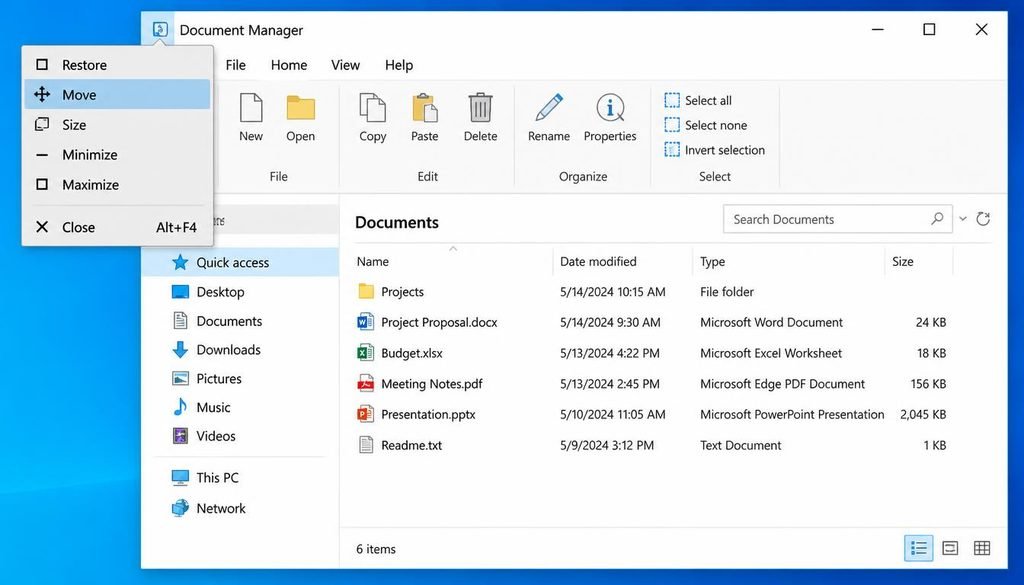
Method 1: Use Alt + Space and the Move Option
The classic Windows system menu provides a direct way to move invisible windows using only your keyboard.
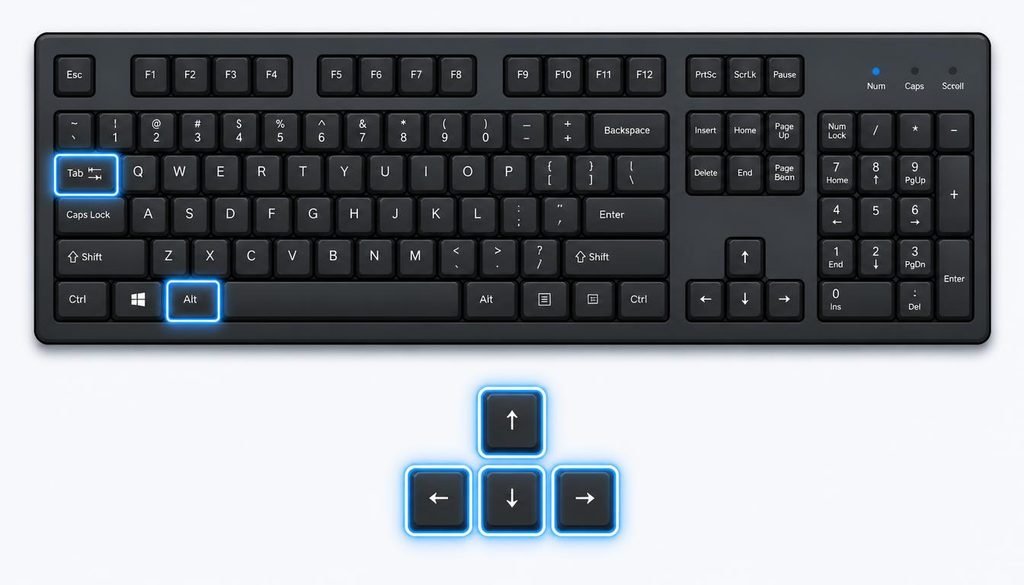
- Press Alt + Tab repeatedly until the target application is selected and active on your screen.
- Press Alt + Space together to open the hidden window system menu.
- Press the M key on your keyboard to activate the Move command.
- Press any of the Arrow Keys (Left, Right, Up, Down) once to attach the window pointer to your mouse cursor.
- Move your mouse without clicking, and the window will follow your cursor back onto the visible desktop.
- Click your left mouse button or press Enter to lock the window into its new position.
Method 2: Move the Window Using Keyboard Shortcuts
If you do not have a working mouse or touchpad connected, you can rely purely on arrow key navigation.
- Activate the application using Alt + Tab.
- Press Alt + Space, then press M.
- Press a Directional Arrow Key pointing toward your main monitor screen (for example, press the Left Arrow if the window drifted off the right side).
- Hold down the arrow key until the window reappears at the edge of your display.
- Press Enter to complete the movement.
Method 3: Maximize or Restore the Window
Sometimes forcing a window to resize immediately forces the operating system to redraw its coordinates within the primary display boundaries.
- Bring the missing application to the foreground using Alt + Tab.
- Press Windows + Up Arrow to maximize the application window to full screen.
- Once the window is maximized, press Windows + Down Arrow to restore it to a windowed state. This forces Windows to center the application.
Method 4: Move the Window Between Monitors
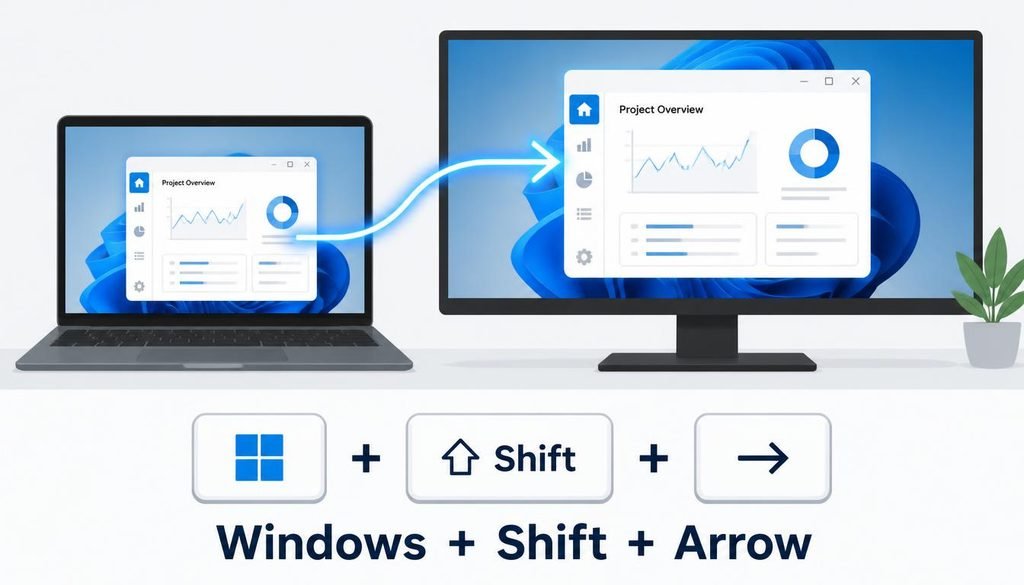
If you are using multiple displays or recently disconnected a secondary screen, Windows shortcut keys can snap the active window across your available monitors.
- Select the invisible application using Alt + Tab.
- Press Windows + Shift + Left Arrow or Windows + Shift + Right Arrow.
- This command instantly shifts the active application window from your current display to the adjacent monitor, bringing off-screen programs back into view.
How to Move a Window That Is Off Screen?
Method 5: Check Display Settings and Monitor Arrangement
Incorrect monitor arrangement can trap windows in invisible dead zones between screens. You can reorganize your display layout through Windows settings.
- Right-click an empty space on your desktop and select Display Settings.
- Review the visual monitor boxes at the top of the settings page.
- Click the Identify button to verify which number corresponds to your physical display.
- Drag any misaligned monitor box so that it aligns correctly with your primary display, ensuring no navigation gaps exist.
If your system runs older configurations, you can also review general shortcut keys to close windows if a stubborn application refuses to respond.
How to Move an Off-Screen Window in Windows 10
Windows 10 handles window snapping and system menus similarly to newer versions, making recovery straightforward.
- Activate the off-screen application using Alt + Tab.
- Open the system menu by pressing Alt + Space.
- Press M for Move, then tap any keyboard arrow key.
- Move your mouse toward the center of your screen until the window appears, then click to drop it.
If your system experiences performance lag or high resource usage while running troubleshooting tasks, you can check system performance using our guide on how to check CPU temp Windows 11 to ensure your hardware is operating stably.
How to Move an Off-Screen Window Without a Mouse
When your mouse or trackpad stops working entirely, keyboard-only navigation is your best solution.
- Press Alt + Tab until the target program is active.
- Press Alt + Space, then press M.
- Use the keyboard Arrow Keys exclusively to nudge the window back onto the screen. Because pressing an arrow key binds the window to your invisible cursor, tapping the arrow key pointing toward your monitor will pull the window inward.
- Press Enter once the window is visible.
How to Resize a Window That Is Off Screen
If a window is partially visible but its resize handles are pushed beyond the screen edges, you can use the system resize menu.
- Activate the application with Alt + Tab.
- Press Alt + Space to open the system menu.
- Press the S key to select the Size option.
- Press an arrow key to select which edge or corner you want to adjust, then use the arrow keys to shrink the window dimensions before pressing Enter.
How to Recover a Window After Disconnecting a Monitor
Disconnecting an external monitor or docking station is the most frequent cause of lost application windows. Windows remembers that an app was open on Display 2, so when you unplug the monitor, the app continues opening in that now-nonexistent space.
To solve this, reconnect the external monitor temporarily, drag all open application windows onto your primary laptop screen, and then safely disconnect the external display. Alternatively, use the Windows + Shift + Right Arrow shortcut while the app is active to pull it back to your primary screen without plugging the monitor back in.
How to Move an Off-Screen Window on a Mac
macOS handles window management differently than Windows, utilizing built-in mission control and display scaling options rather than system menus.
- Open Mission Control by swiping up with three fingers on your trackpad or pressing the designated function key.
- Look for the missing application window across your active spaces and desktop previews.
- If the window is trapped off-screen due to a resolution mismatch, open System Settings, select Displays, and temporarily switch your resolution to a standard setting to force macOS to reorganize open windows.
- You can also use the Window menu in the top Apple menu bar and select Zoom or Move to Window options if supported by the application.
How to Move an Off-Screen Window in Ubuntu
Ubuntu Linux relies on the GNOME desktop environment, which provides keyboard shortcuts for window manipulation.
- Select the invisible application window using Alt + Tab.
- Press Alt + F7 on your keyboard to activate the window move mode.
- Use the arrow keys to drag the window back into your visible workspace.
- Press Enter to drop the window in its new location.
What to Do When the Window Still Will Not Move
If standard keyboard shortcuts fail because an application has frozen or crashed in the background, you must terminate the process.
- Press Ctrl + Shift + Esc to open the Task Manager.
- Locate the unresponsive application under the Processes tab.
- Right-click the application name and select End Task.
- Relaunch the application, which will reset its default window position to the center of your primary screen.
How to Prevent Windows From Opening Off Screen Again
To stop applications from launching outside your visible display area in the future, follow these preventative habits:
- Always close applications on your primary monitor before disconnecting external docking stations or secondary screens.
- Keep your graphics drivers updated to prevent display coordinate mapping errors.
- Avoid changing display resolutions while multiple full-screen applications are actively running in the background.
Frequently Asked Questions
How do I retrieve a window that is off the screen?
Press Alt + Tab to activate the missing window, press Alt + Space to open the system menu, press M for Move, and use your keyboard arrow keys to pull the window back onto the visible desktop before pressing Enter.
How can I resize a window that is off-screen?
Activate the application, press Alt + Space, and press S to select the Size option. Use your keyboard arrow keys to adjust the dimensions of the window so that it fits within your active screen boundaries.
How do I move an app that is off-screen?
Select the app using Alt + Tab, press Alt + Space, choose Move, and use the directional arrow keys. Alternatively, use Windows + Shift + Left or Right Arrow to transfer the window across monitors.
How do I move an off-screen window without a mouse?
Activate the target program with Alt + Tab, press Alt + Space, press M, and tap the arrow keys on your keyboard to drag the window inward toward your active display area. Press Enter to finish.
How do I move a window back from a second monitor?
Make the application active by pressing Alt + Tab, then press Windows + Shift + Left Arrow or Windows + Shift + Right Arrow to shift the window directly onto your active monitor screen.
Why does an application keep opening off screen?
Applications save their last known coordinate location upon closing. If an app was last active on a disconnected external display or secondary monitor, it will attempt to open in those missing coordinates.
How do I recover an off-screen window in Windows 11?
Use the standard Windows 11 shortcut combination by pressing Alt + Tab, opening the system menu with Alt + Space, selecting Move, and using your arrow keys to drag the window back into view.
Final Thoughts
Dealing with an invisible application window can be frustrating, but built-in keyboard shortcuts like Alt + Space and multi-monitor shifting keys solve the issue in seconds. By understanding how operating systems map window coordinates, you can recover misplaced programs without restarting your computer. If you continue experiencing system display issues, explore our related guides on how to fix WiFi and other how to fix Windows 11 problems to keep your workstation running smoothly.




2 Comments