

How to Check CPU Temp Windows 11: Easy Fix & Guide (2026)
How to check CPU temp Windows 11 has a simple answer, but with one catch: Windows 11 does not show CPU temperature in Task Manager. You need a hardware monitoring tool, or you can look in BIOS or UEFI. This guide explains each method, when to use it, and how to read the number.
Quick Answer
To check CPU temperature on Windows 11, install a trusted hardware monitor such as Core Temp from its official website and open it to read each core. Windows 11 Task Manager shows CPU usage and speed but does not normally show CPU temperature. BIOS or UEFI can also show it, usually at idle.
Table of Contents
Quick Method Comparison
| What you want to check | Best method | Why to use it | Limitation |
|---|---|---|---|
| Quick temperature check | Core Temp or a similar monitor | Shows live readings for each core | Requires installing software |
| No third party software | BIOS or UEFI hardware monitor | Independent of Windows | Usually idle readings only |
| Laptop temperature | Monitor tool or manufacturer app | Some laptop apps show temperature with fan control | Features differ by brand and model |
| Gaming temperature | Monitor tool running during the game | Shows temperature under real load | Needs a tray icon or second screen to read |
| BIOS temperature | UEFI hardware monitor page | Works when Windows is not running normally | Menu names vary, no load |
| Temperature limits | Intel or AMD specification page | Gives the limit for your exact processor | You need your exact CPU model |
| Troubleshooting overheating | Monitor plus Task Manager together | Links heat to usage and clock speed | Needs a few minutes of observation |
How to check CPU temp windows 11?
Can You Check CPU Temperature in Windows 11 Task Manager?
No. Windows 11 Task Manager does not normally show CPU temperature. Open it with Ctrl + Shift + Esc, select Performance, then CPU. You will see utilization, speed, processes, threads, handles, and uptime. These are usage figures, not heat figures.

This is a common point of confusion. Task Manager can show GPU temperature for supported graphics cards on the GPU tab, so people assume the CPU tab should show it too. It does not. A Microsoft Community Hub discussion from August 2026 explains why: CPU temperature comes from vendor specific sensors (package, core, Tctl, Tdie), and the ACPI thermal zone value Windows can read may represent the chassis or motherboard, not the CPU.
Two things to remember:
- CPU usage is how busy the processor is. CPU temperature is how hot it is. High usage often causes high temperature, but they are different numbers.
- GPU temperature in Task Manager belongs to the graphics card. Do not treat it as CPU temperature.
How to Check CPU Temperature in Windows 11
The easiest reliable way is a free hardware monitor that reads the processor sensors directly.
- Choose a trusted tool. Core Temp is a small, widely used option. HWiNFO and HWMonitor are other well known choices.
- Download it only from the developer website, never from a download portal or an ad.
- Install it, reading each installer screen. Decline any optional extras you do not want.
- Open the program. It should list your processor model and the temperature of each core.
- Leave it open and use your PC normally, so you can see idle and load readings.
If you want to see readings while using a full screen game or app, use the tool’s notification area (system tray) icons or a second screen.
How to Check CPU Temperature With Core Temp
Core Temp is a free monitoring program from its developer at alcpu.com. The official site lists Windows 11 as a supported operating system and version 1.20.1 as the current release (dated May 2026 on the site when this article was prepared). Check the site for the latest version before installing.
Where to get it: use the official Core Temp website. It offers an installer and a standalone ZIP (32 bit or 64 bit) that needs no installation.
Tip: verify the download. The download page lists a SHA-256 hash. After downloading, open PowerShell in your Downloads folder and run:
Get-FileHash .\Core-Temp-setup-v1.20.1.150.exe -Algorithm SHA256Compare the result to the hash on the page. Change the file name if you downloaded a different version.
How to read it:
- The top section shows your processor model and platform.
- Tj. Max is the thermal junction maximum Core Temp reports for your CPU. Compare it with your processor specification (see the section on normal temperatures).
- Each core row shows its temperature and load. Cores differ slightly, which is normal.
- Core Temp reads each core through the digital thermal sensor built into supported processors.
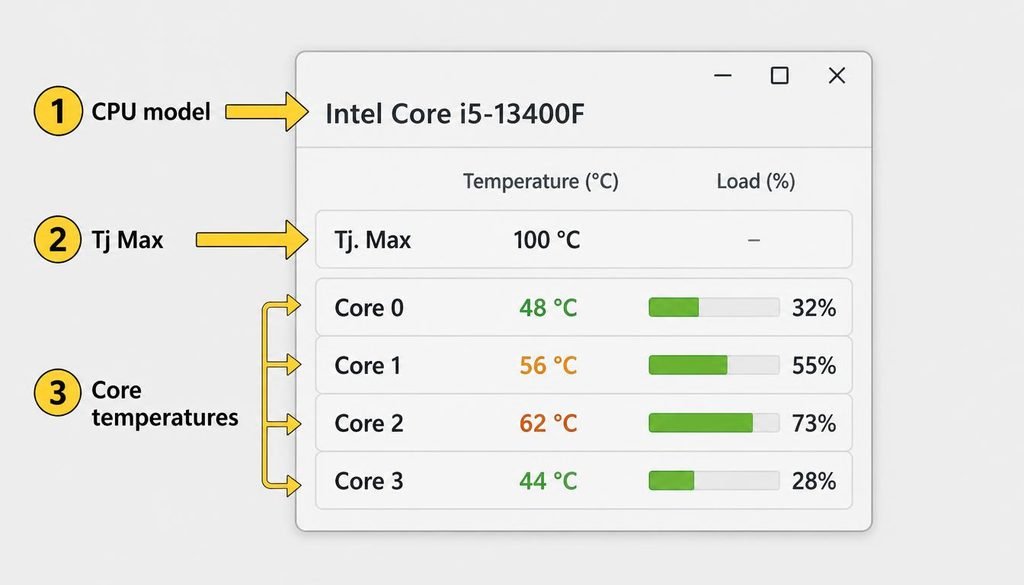
Avoid confusion: a monitor can list many sensors (CPU, graphics card, drives, motherboard). Make sure the number you read is labeled as a CPU or core temperature. In tools that show a package value, that reading covers the whole processor and is often the headline number. Labels vary by tool and processor, with AMD Ryzen systems often showing Tctl or Tdie.
If Core Temp shows no readings, restart it as administrator, update it, and confirm your processor is supported on the site’s CPU list.
How to Check CPU Temperature Without Third Party Software
Windows 11 has no normal built in screen for CPU temperature. Realistic options without installing a monitor are:
- BIOS or UEFI hardware monitor (see the BIOS section below).
- A manufacturer app that came with your PC or motherboard. Some brand apps show temperature and fan speed. Others do not.
- A PowerShell query, which works on only some systems (covered next).
If you want reliable live readings in Windows, a trusted monitoring tool is still the practical answer.
Is There a Windows 11 CPU Temperature Command Line Method?
Not a reliable one. Windows does not include a universal command that returns the CPU temperature. The usual forum suggestion is to query the ACPI thermal zone in PowerShell (open it as administrator):
Get-CimInstance -Namespace root/wmi -ClassName MSAcpi_ThermalZoneTemperatureBe careful with the result:
- The value is reported in tenths of a Kelvin. To convert to Celsius, divide by 10 and subtract 273.15.
- On many systems the command returns an error, nothing, or a fixed value.
- Even when it works, the value may describe a thermal zone on the motherboard or chassis, not the CPU itself.
- The old wmic tool is deprecated, and recent Windows 11 versions no longer install it by default, so older wmic temperature guides often fail.
Use the command only as a rough hint. Do not make decisions based on it alone. A monitoring tool or BIOS reading is better evidence.
How to Check CPU Temperature on a Laptop
The methods are the same as on a desktop: a monitoring tool, a manufacturer app if one exists, or BIOS or UEFI. How to check CPU temp Windows 11 on a laptop is similar, but interpreting it is different.
- Laptop cooling is limited.
Thin chassis, small fans, and shared heat pipes mean laptops often run hotter than desktops under the same task. - Power mode matters.
In Settings > System > Power & battery, the power mode changes how hard the CPU is allowed to work. Best performance usually produces more heat. - Surface and room matter.
Beds, sofas, and blocked vents trap heat. A warm room raises every reading. - Manufacturer apps differ.
Some gaming laptop apps show CPU temperature and let you change fan profiles. Many ordinary laptops have no such app. - BIOS access varies.
Some laptops hide hardware monitoring pages entirely.
Do not open a laptop to “check” temperature. Use software and vents first. If you suspect an internal cooling fault, a technician or the manufacturer service is the safer route.
How to Check CPU Temperature in BIOS or UEFI
BIOS or UEFI is firmware that runs before Windows. Many motherboards show CPU temperature there, which is helpful when you want a reading outside Windows.
How to enter it from Windows 11:
- Open Settings > System > Recovery.
- Next to Advanced startup, select Restart now.
- Choose Troubleshoot > Advanced options > UEFI Firmware Settings, then Restart.
The option appears only on UEFI systems. The key to press during startup (such as Del, F2, F10, or Esc) depends on the manufacturer, so check your PC or motherboard manual.
Where to look: menu names vary. Look for sections called Hardware Monitor, PC Health Status, H/W Monitor, or similar. The page usually lists CPU temperature, fan speeds, and voltages.
Limitations: BIOS readings are taken while the PC is mostly idle. They can differ from Windows readings because sensors and timing differ. A low BIOS temperature does not prove the CPU stays cool under load.
How to Check CPU Temperature While Gaming or Under Load
Idle temperature alone does not tell you much. Heat problems usually appear when the CPU is working hard.
- Open your monitoring tool before you start the workload.
- Use a real task: a game, a video render, code compilation, or a benchmark you trust.
- Watch the temperature for several minutes, not just the first few seconds.
- Open Task Manager > Performance > CPU and watch Speed at the same time.
- Note the highest temperature and whether it stays steady.
If temperature climbs while the clock Speed drops and performance stutters, the CPU may be throttling because of heat or power limits. Avoid running extreme stress tests on a PC with known cooling problems. Normal workloads give useful readings with less risk.
What CPU Temperature Is Normal in Windows 11?
There is no single normal CPU temperature for Windows 11. The reading depends on:
- the processor model and architecture
- the workload and its duration
- the cooling solution and airflow
- room temperature
- desktop or laptop design
- power settings and boost behavior
Idle and load readings must be judged separately. A CPU doing very little work should stay noticeably cooler than one rendering video. Modern processors also boost aggressively, so higher load readings can be expected by design.
To find your processor’s maximum, look up the exact model:
- Intel: the Intel product specifications (ARK) page for your processor lists a maximum temperature, often shown as Tjunction.
- AMD: the AMD processor specifications page lists a maximum operating temperature for supported models.
Then compare your highest load reading with that figure, and with whether the PC performs normally.
Is 84 C Hot for a CPU?
It depends. 84 C cannot be judged without knowing the CPU, the workload, and how long the reading lasts. It is neither automatically safe nor automatically dangerous.
Check these points:
- CPU model: compare 84 C to the maximum temperature in the official specification.
- Workload: a short peak during a heavy task is different from 84 C while the PC is nearly idle.
- Duration: a brief spike is different from a steady reading for long periods.
- Margin: how far is the reading from the processor’s limit?
- Behavior: do you see throttling, fan noise, stutter, or sudden shutdowns?
If 84 C happens only during heavy work, stays below the specified limit, and performance is steady, it may be expected for that CPU. If it appears at idle or causes slowdowns, investigate cooling.
What to Do If Your CPU Temperature Is Too High
Work through this sequence from simple to complex:
- Check CPU usage. Press Ctrl + Shift + Esc, open Processes, and sort by CPU. A runaway app can heat the PC at idle.
- Close background apps. If startup bloat is the cause, see this Windows 11 debloater guide.
- Clean vents and fans. Power off and unplug first. Hold fan blades still when using compressed air so they do not spin.
- Confirm fans work. Listen for fan spin and check that case fans and the CPU cooler turn.
- Check the cooler. On a desktop, make sure the cooler is mounted firmly. On liquid coolers, confirm the pump runs.
- Consider thermal paste only on a desktop, and only if you are comfortable. Old or poorly applied paste can reduce cooling. If unsure, ask a technician.
- Improve laptop airflow. Use a hard flat surface or a stand, and keep vents clear.
- Consider room temperature. A hot room raises readings.
- Review power settings. Try Balanced under Settings > System > Power & battery.
- Compare with the specification for your exact processor.
If the PC also shows blue screens, random shutdowns, or file errors, read how to fix common Windows 11 problems, because heat can be one cause among several.
How to Check CPU Temp Windows 10
The process is nearly the same. Core Temp, HWiNFO, BIOS or UEFI, and manufacturer apps work on Windows 10. Task Manager does not show CPU temperature there either. The main difference is menu layout. Windows 10 reached end of support on October 14, 2025, so Windows 11 is the current focus for most readers.
Common Mistakes When Checking CPU Temperature
- Confusing usage with temperature. Percent busy is not heat.
- Reading the wrong sensor. Make sure the label says CPU, core, or package.
- Using one number as universally safe. Limits differ by processor.
- Checking only idle temperature. Look under load too.
- Ignoring the processor specification. Look up the exact model.
- Trusting random software. Download only from the developer site.
- Confusing GPU and CPU temperature. Task Manager shows the GPU, not the CPU.
- Assuming Task Manager shows every sensor. It does not show CPU temperature.
- Treating a spike as sustained overheating. Watch the trend over minutes.
Troubleshooting Decision Tree

What do you need?

Just see the current CPU temperature
> Install a trusted monitor such as Core Temp

Do not want to install software
> Check BIOS or UEFI hardware monitor, or a manufacturer app

PC runs hot while gaming
> Monitor during the game and watch Task Manager clock Speed

High only during heavy work
> Compare reading with your processor specification

High even at idle
> Check CPU usage, background apps, cooling, airflow, power mode

Near the processor thermal limit
> Clean, check fans and cooler, review manufacturer guidance

Still unsure or hardware seems faulty
> Ask a technician or the manufacturer
FAQ (How to check CPU temp windows 11)
How can I check my CPU temperature?
Install a trusted monitoring tool such as Core Temp from its official site and open it. It shows the temperature of each core. You can also check the hardware monitor page in BIOS or UEFI, though that usually shows idle readings only.
Can you see CPU temps in Task Manager?
No, Windows 11 Task Manager does not normally show CPU temperature. It shows CPU usage, speed, and related details. It can show GPU temperature for supported graphics cards, which is not the same as CPU temperature.
How do I check my laptop CPU temperature?
Use a monitoring tool, a manufacturer app if your laptop has one, or BIOS or UEFI. Laptop readings are usually higher under load because of limited cooling. Judge them against your processor specification and how the laptop performs.
Is 84 C hot for a CPU?
It depends on the CPU, the workload, and the duration. Compare it to the maximum temperature in the official Intel or AMD specification. A brief peak under heavy load may be expected. A steady 84 C at idle deserves investigation
Can Windows 11 show CPU temperature without software?
Not in a normal built in screen. BIOS or UEFI can show it, and some manufacturer apps do. A PowerShell thermal zone query works on only some systems and may not report the CPU itself.
What is the easiest CPU temperature monitor for Windows 11?
Core Temp is a simple option that lists the temperature of each core. HWiNFO and HWMonitor are other known tools. Download from the developer website only, and read installer screens carefully.
Can I check CPU temperature from BIOS?
Yes, on many motherboards. Look for Hardware Monitor, PC Health Status, or H/W Monitor. Menu names vary. BIOS readings are usually idle and can differ from Windows readings.
What CPU temperature is too high?
There is no universal number. The limit depends on the exact processor. Check the maximum temperature on the Intel ARK or AMD specifications page and watch for throttling, slowdowns, or shutdowns.
Why does CPU temperature suddenly increase?
A heavy task, a background app, blocked airflow, a failing fan, or a higher power mode can raise it. Short spikes when opening programs are common. Check Task Manager usage and clean vents if it stays high.
How do I check CPU temperature while gaming?
Start a monitoring tool before the game and watch its tray icons or a second screen. Also watch clock speed in Task Manager. Rising temperature with falling speed and stutter can point to throttling.
Conclusion
The easiest way to check CPU temp Windows 11 is a trusted monitoring tool such as Core Temp, because Task Manager does not show CPU temperature. On laptops, results depend on cooling and power mode. BIOS or UEFI gives an independent but mostly idle reading. Judge any number against your exact processor specification and how the PC behaves. If heat is a problem, work through cleaning, airflow, and settings before replacing parts.
For more practical Windows guides, browse the other fixes and tutorials on Problevo.





4 Comments