How to Find Router IP: Windows, Mac, iPhone & Android (2027)
Knowing how to find router IP gives you direct access to your network gateway dashboard, where you can change passwords, update security protocols, and fix slow connections. The address is already stored on every device connected to your network. You only need to know where to read it.
Quick Answer: How to Find Router IP
- Windows: Run
ipconfigin Command Prompt, then read Default Gateway.- iPhone: Tap the info icon (i) beside your Wi-Fi, read Router.
- Android: Open Wi-Fi network details and read Gateway.
- Linux: Run
ip route | grep defaultin Terminal.- Any device: Read the sticker on the router base.
Table of Contents
Router IP & Gateway Diagnostics: Lookup & Login Matrix
| Device / Brand Scenario | Underlying Network Parameter | Actionable Command or Fix |
| Windows 10 or 11 PC | Default Gateway | Run ipconfig and read the Default Gateway line |
| Mac | Router field | Run netstat -nr | grep default or open System Settings > Wi-Fi > Details > TCP/IP |
| Linux | Default route | Run ip route | grep default and read the address after “via” |
| iPhone | Router address | Open Settings > Wi-Fi, tap the info icon (i), read Router |
| Android | Gateway address | Open Settings > Network & internet > Internet, tap the gear icon |
| Gateway shows 192.168.100.1 | Modem or optical ONT management address | Use it for modem status, then find the separate router behind it |
| Gateway shows 10.0.0.1 | Common on Xfinity gateways | Open [http://10.0.0.1](http://10.0.0.1) in a browser |
| Login page will not load | VPN, HTTPS block, or Double NAT | Disable the VPN, type http://, and run ping against the gateway |
| Command output is unclear | Wrong adapter or disconnected interface | Check the router label for the printed address |
Understanding Router IP vs. Public IP vs. Device IP
Most confusion about this topic comes from the fact that three different IP addresses exist in every home network. They look similar, but they do completely different jobs.
- Router Default Gateway IP (LAN gateway): This is the private address of the router itself on your local network. Every device uses it as the exit door to reach anything outside the home. It is also the address you type into a browser to open the admin dashboard. Typical examples are 192.168.1.1, 192.168.0.1, and 192.168.100.1.
- Private Client IP (DHCP lease): This is the address your phone, laptop, or smart TV receives from the router through DHCP. It usually looks like 192.168.1.23. It changes when the lease expires or when you reconnect, and it only has meaning inside your home network.
- Public WAN IP: This is the address your internet service provider assigns to the router on the internet side. Websites see this address when you visit them. You cannot use it to open your router dashboard from inside your home. Some providers use carrier grade NAT, which places several customers behind one shared public address in the 100.64.0.0 to 100.127.255.255 range.
| Address Type | Assigned By | Example | Used For |
| Router Default Gateway | Router firmware or manufacturer | 192.168.1.1 | Opening the admin dashboard |
| Private Device IP | Router through DHCP | 192.168.1.23 | Identifying your phone or laptop locally |
| Public WAN IP | Your ISP | Varies by provider | Identifying your connection on the internet |

Why 192.168.1.1 Is Shared by Millions of Homes
The addresses 192.168.1.1, 192.168.0.1, and 192.168.100.1 belong to the private ranges defined in RFC 1918. These ranges are reserved for internal networks and are never routed across the public internet. That is why millions of homes can use the same gateway address without any conflict. Your router at 192.168.1.1 and your neighbor’s router at 192.168.1.1 never see each other.
The full private ranges are 10.0.0.0 to 10.255.255.255, 172.16.0.0 to 172.31.255.255, and 192.168.0.0 to 192.168.255.255. The ending “.1” is a convention rather than a rule, so a router can use any address inside its range.
Once you locate your gateway address, follow our step-by-step guide on how to access router settings to log into your admin console. After entering your gateway dashboard, read how to change wifi password on router to secure your wireless network.
How to Find Router IP Address on Windows & Mac
Windows Method 1: Command Prompt
This is the fastest method and works on Windows 10 and Windows 11.
- Step 1: Press Windows + R, type
cmd, and press Enter. - Step 2: Type
ipconfigand press Enter. - Step 3: Find the adapter you are using. It is named Wireless LAN adapter Wi-Fi on wireless connections or Ethernet adapter on wired ones.
- Step 4: Read the number beside Default Gateway. That is your router IP.
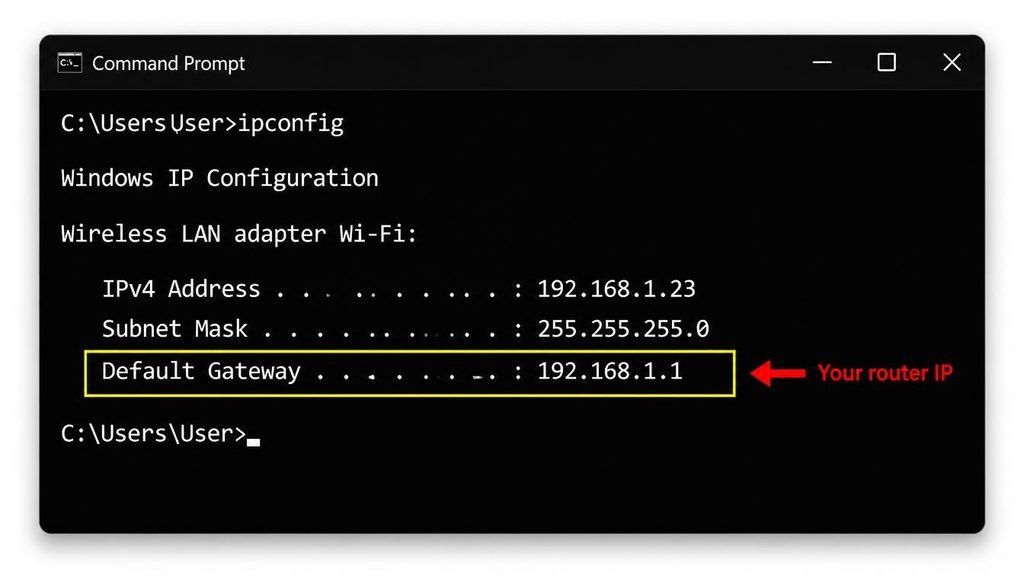
Ignore adapters marked “Media disconnected” and virtual adapters created by VPN or virtual machine software. If the gateway line shows a long address starting with fe80, that is IPv6. Use the shorter IPv4 line instead.
Windows Method 2: Settings and Control Panel
- Step 1: Open Settings > Network & internet > Wi-Fi.
- Step 2: Select Hardware properties for your connected adapter.
- Step 3: Look at the gateway entry listed with the IPv4 details. Some Windows builds label it IPv4 default gateway.
The older route also works: open Control Panel > Network and Internet > Network and Sharing Center, click your connection name, select Details, and read IPv4 Default Gateway.
macOS Method 1: System Settings
- Step 1: Open System Settings > Wi-Fi.
- Step 2: Click Details beside your connected network.
- Step 3: Open the TCP/IP tab.
- Step 4: Read the Router field.
macOS Method 2: Terminal
- Step 1: Open Terminal from Applications and Utilities.
- Step 2: Run
netstat -nr | grep default. - Step 3: Read the address in the second column of the first result.
You can also run route -n get default and read the line labeled gateway.
If you forgot your current network security key before logging into the admin page, check how to share wifi password from a connected device. When your router admin page refuses to load due to connection drops, review how to fix wifi for basic stability checks.
How to Find Router IP Address from Mobile (iPhone & Android)
Make sure your phone is connected to the router Wi-Fi and not to mobile data. Cellular connections have no local gateway to show.
iPhone (iOS)
- Step 1: Open Settings > Wi-Fi.
- Step 2: Tap the info icon (i) beside your connected network.
- Step 3: Scroll to the IPV4 ADDRESS section.
- Step 4: Read the number beside Router.
Android
- Step 1: Open Settings > Network & internet > Internet.
- Step 2: Tap the gear icon beside your connected Wi-Fi network.
- Step 3: Look for Gateway in the network details. On some phones you may need to tap Advanced first.
- Step 4: Read the gateway address.

On Samsung phones, open Settings > Connections > Wi-Fi, tap the gear icon, and choose View more or Advanced. Menu names change between brands and Android versions, but the field is always called Gateway or Router.
Finding the Wi-Fi Password Alongside the IP Address
You often need both pieces of information at once, so here is where each device stores the password:
- Windows: Run
netsh wlan show profile name="NetworkName" key=clearand read Key Content. - Mac: Open Keychain Access, search for the network name, and tick Show password.
- iPhone: Open Settings > Wi-Fi, tap the info icon (i), and tap Password. Authentication is required.
- Android: Tap the gear icon beside the network and choose Share. A QR code appears, and many phones display the password beneath it.
If hardware age prevents your gateway from assigning local IP addresses properly, read how to tell if router is bad. To understand the distinction between modem hardware and gateway routing functions, check how long do modems last.
How to Find Router IP Address on Linux & Hardware Labels
Linux Terminal Commands
- Step 1: Open a terminal window.
- Step 2: Run
ip route | grep default. - Step 3: Read the address after the word
via. For example,default via 192.168.1.1 dev wlan0means your router IP is 192.168.1.1.
For a second confirmation, run nmcli dev show | grep IP4.GATEWAY. This lists the gateway for each network interface that NetworkManager controls.
Checking the Physical Router Sticker
The label on the bottom or back of the router usually prints the default gateway address or a hostname such as tplinkwifi.net. It also lists the default admin username and the original Wi-Fi name and password. Remember that the sticker shows factory defaults. If someone changed the address in the dashboard, the command line methods above are more accurate.
Common Default Router IP Addresses by Brand
| Brand | Default IP Address | Default Login URL |
| TP-Link | 192.168.0.1 or 192.168.1.1 | [http://tplinkwifi.net](http://tplinkwifi.net) |
| Netgear | 192.168.1.1 | [http://routerlogin.net](http://routerlogin.net) |
| Linksys | 192.168.1.1 | [http://myrouter.local](http://myrouter.local) |
| Asus | 192.168.1.1 (some models use 192.168.50.1) | [http://router.asus.com](http://router.asus.com) |
| D-Link | 192.168.0.1 | [http://dlinkrouter.local](http://dlinkrouter.local) |
| Tenda | 192.168.0.1 | [http://tendawifi.com](http://tendawifi.com) |
| Huawei or ZTE optical ONT | 192.168.100.1 (ZTE also uses 192.168.1.1) | Address printed on the label |
| Xfinity gateways | 10.0.0.1 | [http://10.0.0.1](http://10.0.0.1) |
Defaults change between models and firmware versions, so treat this table as a starting point and confirm with the label or the gateway command for your device.
If you need to power-cycle an ISP-provided gateway to reset a frozen admin interface, follow how to restart spectrum router. When browser errors interrupt local gateway access on Windows PCs, review fixing DNS server not responding on Windows 11.
Why Your Router IP Address Will Not Open
Finding the address is only half the job. If the page stays blank or shows an error, work through these fixes in order.
1. Disable Active VPN Connections
A VPN sends your traffic through an encrypted tunnel to a remote server. Local addresses such as 192.168.x.x may then be routed away from your home network and never reach the router.
- Step 1: Disconnect your VPN client completely.
- Step 2: Confirm you are on the router Wi-Fi or Ethernet.
- Step 3: Reload the gateway address.
2. Force http:// Instead of https://
Many routers use a self-signed certificate or none at all. Modern browsers may block or redirect the page for that reason.
- Step 1: Type
http://192.168.1.1with the full prefix in the address bar. - Step 2: If the browser upgrades the address to
https, open a private window. - Step 3: If a certificate warning appears, choose the advanced option to continue to the local address.
3. Resolve Double NAT Conflicts
Double NAT happens when two routers are chained together, such as an ISP gateway feeding your own router. The inner router receives a private address on its WAN side instead of a public one, and you may reach the wrong dashboard.
- Step 1: Log in to the inner router and check the WAN IP in its status page.
- Step 2: If it starts with 192.168, 10, or 172.16 to 172.31, Double NAT is active.
- Step 3: Place the ISP gateway in bridge mode, or set your own router to access point mode.
4. Test the Connection and Clear Local Problems
- Step 1: Run
ping 192.168.1.1(use your gateway address). Replies mean the router is reachable. - Step 2: On Windows, run
ipconfig /flushdnsto clear stale name data. - Step 3: Try another browser and turn off any proxy settings.
- Step 4: Restart the router. Use a factory reset only as a last resort, because it erases your settings.
To clarify how internal LAN addresses relate to external internet service, read is wifi and internet the same. If you want to improve wireless coverage after adjusting your router channel settings, consult how to extend wifi range.
Frequently Asked Questions
Is 192.168.1.1 my IP?
No, not usually your personal IP. 192.168.1.1 is a private Default Gateway address that many routers use as their own admin address. Your phone or laptop receives a different private device IP such as 192.168.1.23, and your internet provider assigns a separate public WAN IP to the router.
Is 192.168.100.1 my router’s IP?
Sometimes. 192.168.100.1 is the management address of many cable modems and fiber ONT units from brands such as Arris, Huawei, and ZTE. If your Default Gateway shows this address, you are reaching the modem or ONT. If a separate router sits behind it, that router uses a different gateway address.
What is my 192.168 IP address?
A 192.168.x.x address is a private IPv4 address from the range reserved for home and office networks. Your own device address appears in ipconfig on Windows, Settings > Wi-Fi on phones, or ifconfig on Mac. It is only visible inside your local network, never on the public internet.
How can I find my Wi-Fi IP address and password?
Your Wi-Fi IP appears in Wi-Fi details on your device, while the password is stored in saved network settings. On Windows, run netsh wlan show profile name="NetworkName" key=clear. On iPhone, tap the info icon beside the network and choose Password. On Android, use the Share option.
How to find router IP address on iPhone?
Open Settings > Wi-Fi, tap the info icon (i) beside your connected network, then scroll to the IPV4 ADDRESS section. The number beside Router is your Default Gateway, such as 192.168.1.1. Type it into Safari to reach the admin page while connected to that Wi-Fi network.
How to find router IP address on Android?
Open Settings > Network & internet > Internet, tap the gear icon beside your connected Wi-Fi, and look for Gateway. On Samsung phones, open Connections > Wi-Fi, tap the gear, and choose View more or Advanced. Menu names vary by brand and Android version.
How to find router IP address on Mac and Linux?
On Mac, open System Settings > Wi-Fi > Details > TCP/IP and read Router, or run netstat -nr | grep default in Terminal. On Linux, run ip route | grep default and read the address after via. The nmcli dev show command also lists IP4.GATEWAY.
What do I do if my router IP address login page does not load?
First confirm you are on the router Wi-Fi, not mobile data. Turn off any VPN, type http:// before the address, and try a private browser window. Then run ping against the gateway. If it fails, restart the router, check for Double NAT, or use the printed address on the router label.
Final Thoughts on Finding Your Router IP
Your router IP is the Default Gateway that every device on your network already knows. On Windows, ipconfig shows it in seconds. On Mac and Linux, one Terminal command does the same job. On iPhone and Android, the Wi-Fi details screen lists it as Router or Gateway.
Four quick takeaways to remember:
- Separate IP roles: The Default Gateway opens your dashboard, the client IP identifies your device, and the WAN IP identifies your ISP connection.
- Use native terminal lookups: Run
ipconfig(Windows),netstat -nr(Mac), orip route(Linux) for instant results. - Troubleshoot blocked logins: Disable active VPNs and type
http://explicitly if the dashboard fails to load. - Check for Double NAT: Place ISP modems in bridge mode if two routers are chained together.
Once you can reach the dashboard, write down the address and store it somewhere safe. You will need it again for password changes, firmware updates, and every future network fix.