

How to Fix Windows 11 Problems Safely in 2026
Knowing how to fix Windows 11 problems starts with one idea: the correct repair depends on the symptom. A slow PC, a blue screen, and a failed update have different causes, so they need different fixes. This guide gives you a diagnostic path, from the safest steps to advanced recovery.
Quick Answer
Quick Answer: The right fix for Windows 11 depends on the symptom. Start with the least disruptive steps: restart, install updates, and run a troubleshooter. If system files may be damaged, run DISM and then SFC. Use Startup Repair, System Restore, or a reinstall only when simpler fixes fail.
No single command fixes every Windows 11 problem. Windows 11 also has no one universal repair tool. It has several built-in tools, and each one targets a different kind of failure.
Table of Contents
Diagnostic Table: Where Should You Start?
| Windows 11 Problem | Likely Cause | Best First Fix |
|---|---|---|
| Windows is slow | Too many startup apps, low storage, pending updates | Check Task Manager startup apps and free disk space (Fix 14) |
| Windows keeps freezing | Driver conflict, failing drive, low memory | Install updates, then check the drive (Fixes 1 and 6) |
| Blue screen | Faulty driver, bad update, memory or disk problem | Record the stop code, then use Fix 10 |
| Windows will not boot | Damaged boot files or a bad update | Startup Repair from Windows Recovery (Fix 8) |
| Windows Update fails | Low space, corrupted update components | Update troubleshooter, then Fix 9 |
| Apps crash | Damaged app files or outdated drivers | Repair the app in Settings (Fix 12) |
| File Explorer stops responding | Shell extension, corrupted files, display driver | Restart File Explorer, then Fix 13 |
| Internet does not work | Adapter, DNS, router, or driver problem | Fix 11 |
| System files are corrupted | Failed update, disk error, abrupt shutdown | DISM, then SFC (Fixes 4 and 5) |
| Windows repeatedly restarts | Driver crash, failed update, hardware fault | Safe Mode, then System Restore (Fixes 7 and 15) |
How to fix windows 11 problems?
Before You Start: Protect Your Data
Some recovery steps can remove apps, reset settings, or delete personal files. Microsoft explains how to back up your Windows PC using OneDrive or File History. If Windows still starts, back up your important files first.
Here is the safety scale used in this guide:
- Normally preserves personal files: restarting, updates, troubleshooters, DISM, SFC, Startup Repair, System Restore, repair install.
- May remove apps or reset settings: System Restore (removes apps installed after the restore point), Reset this PC with Keep my files.
- Can remove personal files: Reset this PC with Remove everything, clean installation.
No repair method can promise zero data loss. A backup is the only real protection.
Step 1: Identify What Kind of Windows 11 Problem You Have
Ask three questions before you change anything.
- Does Windows start? If yes, use Fixes 1 to 7 and Fixes 9 to 17. If no, go straight to Fix 8 and Fix 18.
- When did the problem begin? A problem that began right after an update, driver, or app install points to that change. Undoing the change is often safer than repairing Windows.
- Is the problem limited to one thing? One app, one website, or Wi-Fi only usually means an app or network problem, not a damaged Windows.
Write down any error code or message. Codes narrow the cause quickly.
Common Windows 11 Problems and Their Fixes
The most common Windows 11 problems fall into six groups: slow performance, freezing, update failures, blue screens, network problems, and apps or File Explorer errors. The fixes below move from least to most disruptive.
Fix 1: Restart and Install Pending Windows Updates
Symptom: almost any minor problem. Likely cause: a pending update, a stuck process, or a temporary driver fault.
- Save your work and restart the PC. Use Restart, not Shut down, because Fast startup can keep some system state.
- Open Settings > Windows Update.
- Select Check for updates and install everything offered, including optional driver updates under Advanced options > Optional updates when a device is misbehaving.
- Restart again.
If the problem began right after an update, skip ahead to Fix 9.
Fix 2: Run Windows Troubleshooters Where Available
- Open Settings > System > Troubleshoot > Other troubleshooters.
- Run the one that matches your symptom, such as Windows Update, Network and Internet, Audio, or Printer.
- Follow the prompts and restart if asked.
The available list can vary by Windows 11 version. Troubleshooters fix common configuration errors. They do not repair deep system corruption.
Fix 3: Repair Corrupted Windows System Files
Windows 11 has two built-in tools for damaged system files: DISM and SFC. Use them when you see random crashes, features that stop working, update errors, or missing system components. Run DISM first, then SFC. The next two fixes explain why.
Open Command Prompt as administrator: select Start, type cmd, right-click Command Prompt, and choose Run as administrator. Windows Terminal (Admin) also works.
Fix 4: Run DISM
Command:
DISM.exe /Online /Cleanup-image /RestorehealthPurpose: DISM repairs the Windows component store, which is the source SFC uses to restore files. If the component store is damaged, SFC may not be able to fix anything.
How to run it: paste the command into the elevated Command Prompt and press Enter. It needs an internet connection, because it can download clean files from Windows Update. It may seem stuck at 20 percent or 62 percent for several minutes. Wait for it to finish.
Expected result: a message that the restore operation completed successfully.
If it fails: restart, confirm that you are online, and run it again. If it still fails, run Fix 2 (Windows Update troubleshooter), free some disk space, and try again. As a next step, repair using Windows Update or an in-place repair install (Fix 16).
Microsoft documents the command in its system file repair guidance.
Fix 5: Run SFC
Command:
sfc /scannowPurpose: System File Checker scans protected system files and replaces damaged ones with correct copies.
How to run it: after DISM completes, run the command in the same elevated window. Wait until verification reaches 100 percent.
Possible results:
- No integrity violations: system files are probably not the cause. Look elsewhere (drivers, apps, hardware).
- Found corrupt files and repaired them: restart and test.
- Found corrupt files but was unable to fix some of them: run DISM again, then SFC again. If it fails a third time, review the log at
C:\Windows\Logs\CBS\CBS.log, or move to Fix 16. - Could not perform the requested operation: restart in Safe Mode (Fix 7) and run it again.

SFC is appropriate when you suspect corrupted files. It does not fix hardware faults, bad drivers, or malware.
Fix 6: Check the Drive With CHKDSK When Appropriate
Use CHKDSK when you see file errors, very slow disk activity, freezes while opening files, or repeated corruption. It checks the file system and can mark bad sectors.
Command:
chkdsk C: /fWindows will offer to run it at the next restart because the system drive is in use. Type Y, restart, and wait.
Warning: the /r option reads the whole drive and can take hours. On a drive that may be failing, extra stress can make things worse. If you suspect a failing drive, back up your files first. Persistent errors after CHKDSK suggest hardware (see the hardware section below).
Fix 7: Use Safe Mode
What it does: Safe Mode starts Windows with a minimal set of drivers and services. If a problem disappears there, the cause is probably a third-party driver, startup program, or recent software.
How to enter it from Windows Recovery:
- Open Settings > System > Recovery, select Restart now next to Advanced startup. (If Windows will not start, power off three times during boot to trigger recovery.)
- Choose Troubleshoot > Advanced options > Startup Settings > Restart.
- Press 4 or F4 for Safe Mode, or 5 or F5 for Safe Mode with Networking.
In Safe Mode you can uninstall a recent driver, remove a recent app, or run SFC. Safe Mode is a diagnostic aid, not a universal repair. See Microsoft’s page on starting your PC in Safe Mode.
Fix 8: Repair Windows Startup Problems
Use Startup Repair when Windows will not start, shows a boot loop, or cannot find the boot device. It tries to repair missing or damaged boot files and startup settings. It does not fix slow performance, app crashes, or general errors on a PC that already starts.
- Enter the Windows Recovery Environment (WinRE). It opens automatically after failed boots, or hold Shift while selecting Restart.
- Choose Troubleshoot > Advanced options > Startup Repair.
- Select your account, enter the password, and let the scan finish.

If it reports that it could not repair the PC, try System Restore or Uninstall Updates from the same menu, then Command Prompt for advanced checks. If the PC cannot reach WinRE at all, use USB recovery media (Fix 18).
Fix 9: Fix Windows Update Problems
| Symptom | Likely Cause | Fix |
|---|---|---|
| Update fails with an error code | Low disk space or corrupted update files | Free at least 10 to 20 GB, run the troubleshooter, restart |
| Update stuck at a percentage | Slow download or background process | Wait a few hours, then restart and retry |
| Update fails repeatedly | Damaged component store | DISM, then SFC, then retry |
| Problems began after an update | Faulty update or driver | Uninstall the update, or use System Restore |
To uninstall a recent update: open Settings > Windows Update > Update history > Uninstall updates, pick the update, and confirm.
If Windows Update itself is broken, Windows 11 offers Fix problems using Windows Update under Settings > System > Recovery. It reinstalls the current Windows version while keeping files, apps, and settings. The label and availability depend on your Windows 11 version.
Do not delete system folders to force an update. Follow Microsoft’s guide to troubleshoot problems updating Windows first. If you are short on mobile data for large downloads, check how much hotspot data you have left before downloading over a phone connection.
Fix 10: Fix Blue Screen Problems
How to fix blue screen errors in Windows 11: record the stop code, remove the most recent change, test Safe Mode, check system files, and test memory and disk. A message such as Your device ran into a problem and needs to restart is the standard Windows 11 stop screen. Different stop codes mean different causes, so one fix does not work for all of them.
- Record the stop code (for example CRITICAL_PROCESS_DIED, MEMORY_MANAGEMENT, or INACCESSIBLE_BOOT_DEVICE). Photograph the screen.
- Undo recent changes. Remove a newly installed driver, app, or update.
- Boot into Safe Mode (Fix 7). If crashes stop, suspect a driver or startup software.
- Run DISM and SFC (Fixes 4 and 5) if you suspect system file corruption.
- Test memory. Press Windows + R, type mdsched.exe, and choose to restart and check. Memory errors point to faulty RAM.
- Check the drive (Fix 6) and update graphics and chipset drivers from the PC manufacturer.
Crash dump files are stored in C:\Windows\Minidump and can be read by technicians. See Microsoft’s blue screen troubleshooting guide. If crashes continue with different stop codes, hardware is a strong possibility.
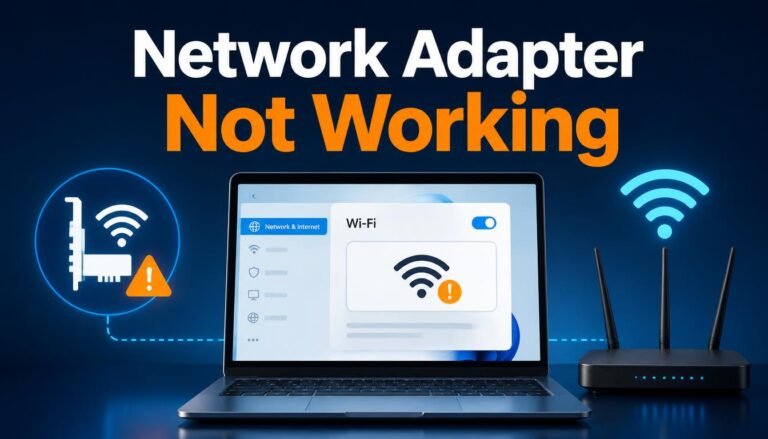
Fix 11: Fix Network and Internet Problems
Common symptoms are Wi-Fi not working, Ethernet not working, connected but no internet, adapter errors, and DNS problems.
- Restart the PC and the router.
- Run the Network and Internet troubleshooter (Fix 2).
- Test another device. If it also fails, the router or ISP is the cause, not Windows. You may need to access your router settings.
- In Settings > Network & internet > Advanced network settings, try Network reset. It reinstalls adapters and resets network settings, so you must re-enter Wi-Fi passwords.
- For DNS symptoms, open an elevated Command Prompt and run
ipconfig /flushdns.
For a deeper walkthrough, read how to fix common Wi-Fi problems on Windows 11.
Fix 12: Repair Problematic Apps
Repairing an app is different from repairing Windows. If only one app misbehaves, do not run Windows recovery tools first.
- Open Settings > Apps > Installed apps.
- Select the three dots next to the app and choose Advanced options.
- Select Repair. It keeps app data where possible.
- If that fails, select Reset. This deletes the app data.
- If that fails, uninstall and reinstall the app.
Printer and device apps often fail after updates because of drivers. For printer connection problems, see how to connect a printer to Wi-Fi.
Fix 13: Fix File Explorer Problems
If File Explorer freezes or says it is not responding:
- Press Ctrl + Shift + Esc to open Task Manager.
- Find Windows Explorer, right-click it, and choose Restart.
- In File Explorer, open the three-dot menu, choose Options, and select Clear under Privacy to remove history.
- Update your display driver and run DISM and SFC.
If Explorer crashes only with certain folders, a shell extension or damaged files in that folder may be the cause.
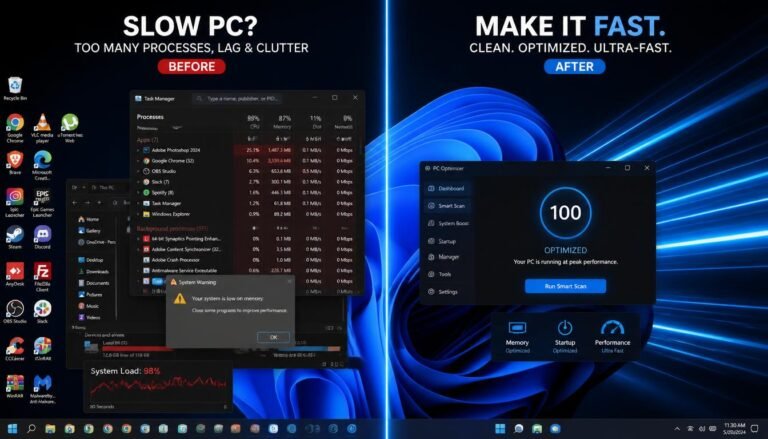
Fix 14: Repair Performance and Freezing Problems
- Open Task Manager > Startup apps and disable apps you do not need. A cleaner system also helps, see this Windows 11 debloater guide.
- Check Settings > System > Storage. Keep at least 15 percent of the drive free.
- Check the Task Manager Performance tab for disk, memory, or CPU stuck at 100 percent.
- Install updates and drivers (Fix 1).
- Run CHKDSK (Fix 6) if disk activity stays high.
A drive that stays near 100 percent usage with very low speeds may be failing. That is a hardware sign.
Fix 15: Use System Restore
What it does: System Restore returns system files, drivers, registry settings, and installed programs to an earlier restore point.
What it affects: apps, drivers, and updates installed after the restore point.
What it does not normally affect: your personal documents, photos, and downloads.
How to use it: search for Create a restore point, open it, select System Restore, and choose a point from before the problem began. From WinRE, use Troubleshoot > Advanced options > System Restore.
Limitation: System Restore only works if a restore point exists. Protection may be off on some PCs. See Microsoft’s page on System Restore.
System Restore versus Reset this PC: System Restore rolls back recent changes and is generally safer for personal files. Reset this PC reinstalls Windows and is much more disruptive.
Fix 16: Reinstall the Current Windows 11 Version
This is the answer to how to repair Windows 11 without losing anything, as far as any method can. A repair install (in-place upgrade) reinstalls Windows while keeping personal files, apps, and settings. It does not guarantee zero data loss, so back up first.
Option A: Fix problems using Windows Update. Open Settings > System > Recovery and look for Fix problems using Windows Update (or Reinstall now).
Option B: Use official installation media.
- Download the Windows 11 ISO or Media Creation Tool from Microsoft’s official Windows 11 download page.
- Mount the ISO and run setup.exe from inside Windows.
- Choose Keep personal files and apps when prompted.
- Wait for the process to finish.
Use the same language and edition as your current installation.
Fix 17: Reset Windows 11
Reset this PC is under Settings > System > Recovery. It reinstalls Windows. You choose:
- Keep my files: removes apps and settings, keeps personal files.
- Remove everything: removes personal files, apps, and settings.
- Cloud download: gets a fresh Windows copy from Microsoft.
- Local reinstall: uses files already on the PC.
Use Reset only after simpler fixes fail. After reset, you must reinstall apps and may need to check Settings > System > Activation if activation issues appear. You can also set up sign-in again, see how to enable Windows 11 automatic login if you want that convenience.
Fix 18: Repair Windows 11 From USB
USB recovery media is useful when Windows will not boot and WinRE is not available.
- On another working PC, create installation media with the Media Creation Tool from Microsoft. You need a USB drive of at least 8 GB. Creating the drive erases it.
- Boot the broken PC from the USB drive (use the boot menu key from the PC manufacturer, often F12, F10, Esc, or F2).
- On the setup screen, choose Next, then Repair your computer (not Install now).
- Use Troubleshoot > Advanced options for Startup Repair, System Restore, Command Prompt, or Uninstall Updates.
Repair versus clean installation: repairing uses recovery tools and keeps your system. A clean installation (Install now with a custom install) erases the chosen drive. Choose clean installation only as a last resort.
Windows 11 Repair Tool and Repair Tool Download: What Is Real?
There is no single “Windows 11 repair tool.” The real tools are built in: Windows Update recovery, Startup Repair, System Restore, DISM, SFC, Reset this PC, and the Windows Recovery Environment. For a Windows 11 repair tool download, the only safe source is Microsoft for installation media.
Warning: many sites advertise a free Windows repair tool download. These often bundle adware, fake scanners, or malware. Do not install registry cleaners or one-click fixers from unknown sites. The same logic applies if you are looking for how to repair Windows 10: the built-in tools are similar, though menus differ, and Windows 10 reached end of support on October 14, 2025.
Data Preservation Table
| Method | Personal Files | Apps | Settings |
|---|---|---|---|
| DISM and SFC | Kept | Kept | Kept |
| Startup Repair | Kept | Kept | Kept |
| System Restore | Kept | Removes apps installed after restore point | Reverts to restore point |
| Repair install (keep files & apps) | Kept | Kept | Kept |
| Reset this PC, Keep my files | Kept | Removed | Reset |
| Reset this PC, Remove everything | Removed | Removed | Reset |
| Clean installation | Removed on formatted drive | Removed | Reset |
Back up first anyway. Software failures and power loss can still cause damage.
Decision Tree: What To Do Next
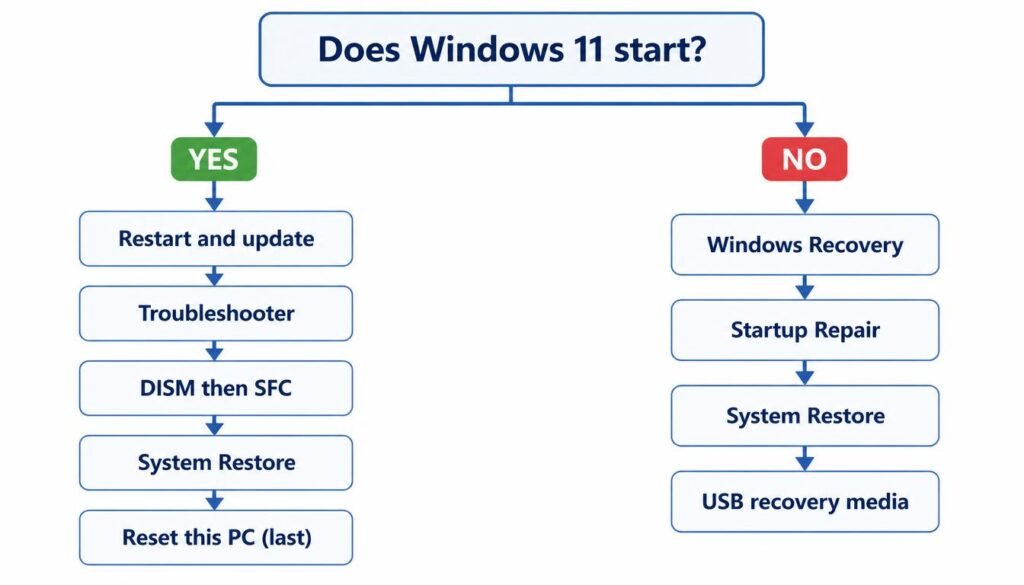
Does Windows 11 start normally?

YES
> Identify the symptom (table above)
> Restart and install updates (Fix 1)
> Run the matching troubleshooter (Fix 2)
> Problem began after a change? Undo it or use System Restore
> Suspect corruption? DISM, then SFC
> Disk errors? CHKDSK (back up first)
> Still broken? Repair install, keep files and apps
> Last option: Reset this PC

NO
> Enter Windows Recovery Environment
> Startup Repair
> Uninstall Updates or System Restore
> Safe Mode to remove bad drivers
> No recovery menu? Use USB recovery media
> Reinstall or reset only when necessary
> Repeated failures? Test hardware
When You Should Stop Troubleshooting: Hardware Problems
Some Windows problems are really hardware problems. Consider hardware when:
- Failing SSD or hard drive: repeated CHKDSK errors, very slow reads, files disappearing, or the drive missing from boot.
- Faulty RAM: random blue screens with different stop codes, or failed Windows Memory Diagnostic results.
- Overheating: sudden shutdowns, loud fans, and throttled speeds.
- Power problems: random shutdowns, a failing battery, or a bad charger.
- Network hardware: only one adapter failing on every network, or a router that fails for all devices.
Hardware failure should not be assumed without evidence. If your backup is safe and repeated clean recovery fails, contact the PC manufacturer or a technician for hardware testing.
FAQ (How to Fix Windows 11 Problems)
How can I fix issues with Windows 11?
Start with the least disruptive fixes: restart, install updates, and run the matching troubleshooter. If problems continue, run DISM and then SFC, use Safe Mode or System Restore, and reset Windows only as a last step. Match the fix to the symptom.
How can I repair my Windows 11?
Use the built-in tools in order: Windows Update, DISM and SFC, Startup Repair, System Restore, then a repair install. If Windows will not start, use the Windows Recovery Environment or USB recovery media. Back up important files before major recovery steps.
What are the most common problems with Windows 11?
The most common problems are slow performance, freezing, failed Windows updates, blue screens, Wi-Fi or internet issues, app crashes, and File Explorer errors. Each has a different cause, so identify the symptom first and check recent updates or driver changes.
How do I repair Windows 11 without losing anything?
Run DISM and SFC, or use a repair install that keeps personal files and apps. Startup Repair and System Restore also normally keep documents. No method can guarantee zero data loss, so back up your files first.
What is the best Windows 11 repair tool?
There is no single best tool. Windows 11 includes DISM, SFC, Startup Repair, System Restore, and Reset this PC. Each fixes a different failure type. Avoid third-party repair downloads, because many are fake or unsafe.
How do I repair Windows 11 from USB?
Create Microsoft installation media on a USB drive, boot from it, and select Repair your computer. Then open Troubleshoot > Advanced options for Startup Repair, System Restore, or Command Prompt. Do not choose Install now unless you want a reinstall.
Can DISM and SFC fix Windows 11?
They can fix corrupted system files and a damaged component store, but not hardware faults, bad drivers, or every crash. Run DISM first, then SFC. If both fail, try a repair install.
How do I fix a Windows 11 blue screen?
Record the stop code, then remove recent drivers or updates, test Safe Mode, run DISM and SFC, and check memory and the drive. The message “Your device ran into a problem and needs to restart” has many possible causes, so the stop code matters.
How do I repair Windows 11 without reinstalling everything?
Try Startup Repair, System Restore, DISM and SFC, or uninstall a problematic update. These do not remove personal files or require a full reinstall. Use a repair install only if they fail.
What should I do if Windows 11 will not start?
Open the Windows Recovery Environment and run Startup Repair. If it fails, try Uninstall Updates or System Restore. If recovery does not open, boot from a Microsoft USB recovery drive. Back up files with a recovery tool before resetting when possible.
Conclusion
To fix Windows 11 problems, match the repair to the symptom and move from least to most disruptive: updates, troubleshooters, DISM and SFC, Safe Mode, System Restore, repair install, and Reset this PC last. Back up your files, use only Microsoft sources for repair media, and record error codes before each major step.


10 Comments