
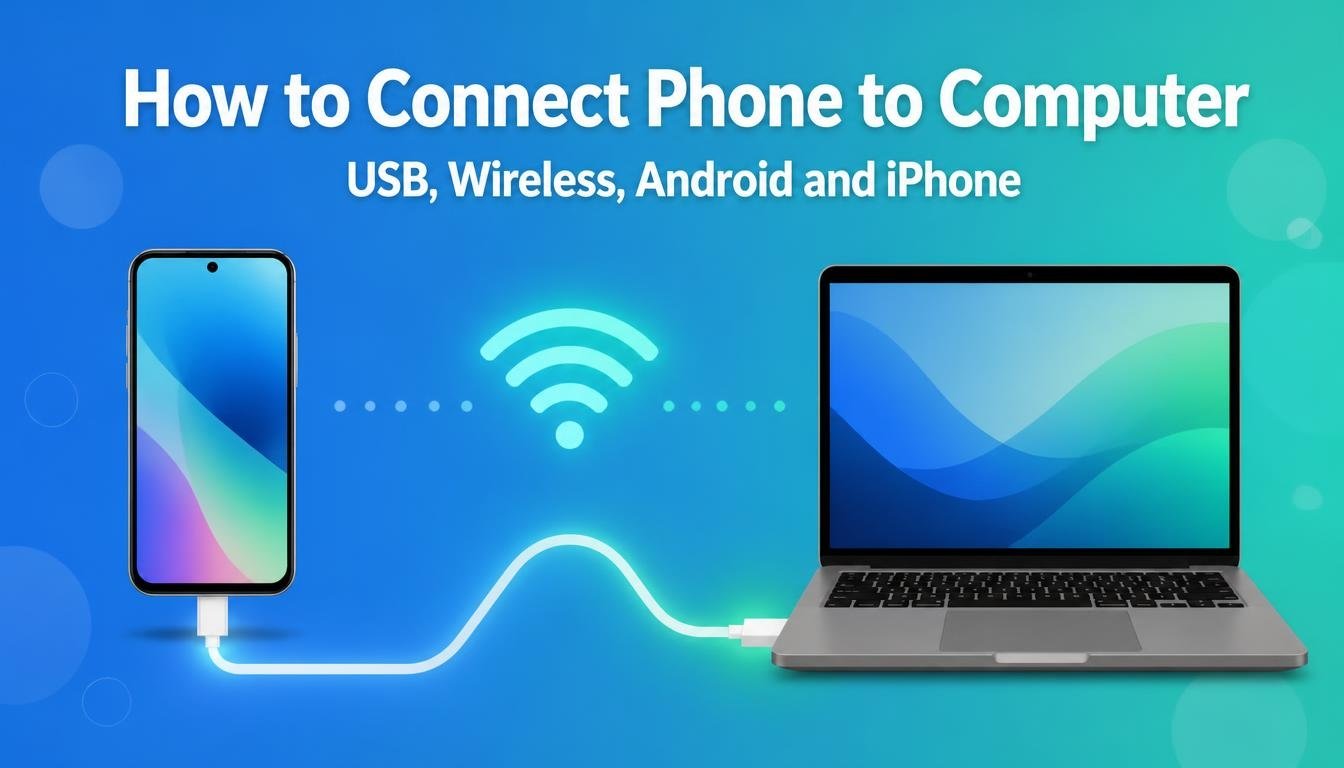
How to Connect Phone to Computer: Complete Guide (2026)
If your computer will not show your phone, or you are unsure which option fits your task, this guide explains how to connect phone to computer using USB, wireless tools, and official Apple, Google, and Microsoft features.
Quick Answer (How to Connect Phone to Computer)
The right way depends on your goal. For files, use a data capable USB cable and select File transfer on Android, or trust the computer on iPhone. For wireless sharing, try Quick Share or Phone Link. Screen mirroring and internet sharing are separate features that need their own setup.
Table of Contents
Start with your goal
Connecting a phone can mean five different things. No single app or cable does all of them.
- File transfer: moving photos, videos, documents, and folders.
- Phone integration: reading supported messages, notifications, and calls on the computer through Phone Link.
- Screen mirroring: showing or controlling the phone screen on the computer, on supported devices only.
- Internet sharing: giving the computer internet access through USB tethering or a mobile hotspot.
- Apple device management: backing up, updating, restoring, or syncing an iPhone.

How to Connect Phone to Computer?
Quick diagnosis table
| Symptom or Goal | Likely Cause or Requirement | Recommended Action |
|---|---|---|
| Phone charges but does not appear | The cable may carry power only, or the phone is on a charging only USB mode | Try a different data capable cable and port, unlock the phone, then choose File transfer (Android) or tap Trust (iPhone) |
| Android files are unavailable | USB mode is set to charging only | Tap the “Charging this device via USB” notification and select File Transfer |
| Phone Link fails to pair | Different Wi-Fi networks, Android older than version 10, or a different Microsoft account | Put both devices on the same Wi-Fi network, update the apps, and sign in with the same Microsoft account |
| Wireless transfer cannot find the computer | Quick Share is closed, visibility is set to No one, Bluetooth or Wi-Fi is off, or the network blocks device to device sharing | Open Quick Share on the PC, check visibility, turn on Bluetooth and Wi-Fi, and keep devices close |
| iPhone does not appear on Windows | Apple Devices is not installed or open, or the Trust alert was not answered | Install and open Apple Devices, unlock the iPhone, and tap Trust |
| You want the phone screen on the PC | Mirroring is separate from file transfer and depends on a supported phone | Use Phone screen in Phone Link on a supported Android phone |
| You want to share mobile internet | This needs tethering or a hotspot, not file transfer | Turn on USB tethering or Mobile hotspot on the phone |
Choose the right connection method
These methods are not interchangeable. Pick by task.
| Method | Best Use Case | Cable or Wireless | Important Limitations |
|---|---|---|---|
| USB file transfer (Android) | Moving many photos, videos, or folders | Cable | Needs a data capable cable and File transfer mode |
| Apple Devices app (iPhone) | Backup, update, restore, and sync | Cable | Not a general file browser for the iPhone |
| Phone Link | Messages, calls, notifications, and photos on supported setups | Wireless | Android and iPhone features differ; iPhone needs Windows 11 and Bluetooth |
| Quick Share | Sending files between Android and Windows | Wireless | Needs the Windows app, Bluetooth, and Wi-Fi; visibility settings matter |
| Bluetooth | Small files between nearby devices | Wireless | Slower for large files; does not unlock other phone features |
| Cloud transfer | Photos and documents on any device | Wireless (internet) | Needs an account, storage space, and uploads |
| Screen mirroring | Viewing or controlling the phone screen | Wireless on supported devices | Not available on every phone; a USB cable alone does not mirror |
| USB tethering or hotspot | Giving the computer internet access | Cable or wireless | Uses mobile data and may be limited by the carrier |
How to connect phone to computer using USB
A cable is the simplest option for large transfers and needs no internet connection. The steps differ between Android and iPhone.
Android to Windows
- Unlock the phone.
- Connect it to the computer with a USB data cable.
- Pull down the notification shade and tap Charging this device via USB.
- Under Use USB for, select File Transfer.
- Open File Explorer (press
Win + E) and select the phone under This PC. - Copy the files. When you finish, eject the phone in Windows and unplug the cable.
These are the steps in Google’s Android Help guide for USB file transfer. Menu names can differ by manufacturer and Android version, so you may see “Transferring files” or “MTP” instead. MTP (Media Transfer Protocol) is the standard Windows uses to read a phone’s storage.

Why a cable can charge but not transfer. Google states that not all USB cables can transfer files. Many cheap cables carry power only. If the phone charges but nothing appears, change the cable before changing any setting.
iPhone to Windows
- Install the Apple Devices app from the Microsoft Store. Apple describes it as the app to update, back up, restore, manage, and sync an iPhone.
- Open Apple Devices, then connect the iPhone with a cable that supports both data and charging.
- Unlock the iPhone.
- Tap Trust if the “Trust This Computer?” alert appears. Apple explains that trusted computers can access photos, videos, contacts, and other content.
- The iPhone appears in the Apple Devices sidebar.
Use the right tool for the task. Apple Devices handles backups, updates, and sync. To copy photos and videos, Apple points Windows users to the Photos app import. If iCloud Photos is turned on, download the original versions to the iPhone before importing.
An iPhone does not expose its storage as a simple folder tree the way most Android phones do. App data is generally not available as ordinary files, and whether a specific app allows file sharing depends on that app.
Mac
On a Mac, connect the iPhone with a cable. If your Mac shows “Allow accessory to connect?”, click Allow. Then tap Trust on the iPhone. The iPhone appears in the Finder sidebar. For photos, open the Photos app on the Mac and use its Import screen.
Do not apply the Windows steps to a Mac. Google’s USB guide covers Windows and Chromebook only, so for an Android phone and a Mac, use a cloud service. Google also offers a separate Mac app for this, but check its current availability on Google’s Android site before relying on it.
Connect a phone to a computer without USB
Wireless methods are convenient, but each one does a different job. If you are working out how to connect phone to computer without USB, start with the method that matches your task.
Method A: Google Quick Share
Quick Share sends files between Android phones and Windows computers. It is built into Android 6.0 and later, and Windows needs a separate app .
- On the PC, download and install Quick Share for Windows. Samsung PCs use Samsung’s own Quick Share app from the Microsoft Store.
- Open the app and sign in with a Google Account for all options. Do not open it as administrator.
- Open Settings, then Device visibility, and choose Everyone, Contacts, Your devices, or No one.
- On the phone, open Quick Share, select the files, and pick the computer from the nearby list.
- Accept the transfer on the receiving device. Files arrive in Downloads, in a folder named Quick Share.
Both devices need Bluetooth and Wi-Fi (or Ethernet) turned on and connected to the same network, within about 16 feet (5 meters). Google lists a 64 bit version of Windows 10 or later. Its two pages disagree on ARM based PCs, so check before installing on one.
Method B: Microsoft Phone Link
Phone Link brings phone features to Windows. It is not a general file transfer tool.
Android. Microsoft’s setup page lists Windows 10 (October 2022 update or later) or Windows 11, Android 10 or later, and both devices on the same Wi-Fi network.
- On the PC, open Phone Link and select Android.
- Sign in with your Microsoft account.
- On the phone, open
aka.ms/yourpcto get the Link to Windows app, or use the version already installed on select Samsung and other phones. - Sign in with the same Microsoft account, scan the QR code, and approve the permissions.
Phone Link can then show messages, recent photos, calls, and notifications. Calls need Bluetooth pairing.
iPhone. Microsoft states that Phone Link for iPhone needs iOS 14 or later, a Windows 11 PC, Bluetooth, and the latest Phone Link app. It is not available for iPad or Mac. Features are limited to calls, notifications, messages, and contacts. Messaging is limited by iOS, with no image or video sharing and no group messaging. Do not expect the iPhone to match the Android feature list.
Method C: Cloud transfer
Cloud services upload files from one device and download them on another. Google describes using Google Drive and Google Photos for this, and Apple describes iCloud Photos for iPhone and Windows. You need an internet connection, an account on both devices, and enough storage. The upload must finish before the file appears on the computer. This is the easiest route between an iPhone and any computer.
Method D: Bluetooth
Bluetooth suits small files between nearby devices. On Windows 11, open Settings, then Bluetooth & devices, then Add device, and choose Bluetooth. Confirm the pairing code on both screens. Then look for the file sending option in the Bluetooth settings. Options vary by phone and Windows version.
Pairing does not give the computer access to everything on the phone. An iPhone generally cannot send files to Windows over Bluetooth, so use Apple Devices, Photos, or the cloud instead.
How to display a phone screen on a PC
Four ideas get mixed together here:

- Screen mirroring: the phone display appears on the computer.
- Remote control: you operate the phone from the computer with a mouse or keyboard.
- Casting: the phone sends its screen or an app’s video to a compatible receiver, such as a TV.
- Phone Link features: you use selected phone features, such as notifications, without showing the whole phone.
On supported Android phones, Phone Link offers Phone screen, which shows the phone and lets you use it with your mouse and keyboard. Microsoft says it needs a supported Android device with Link to Windows installed, Android 10 or later, and both devices on the same Wi-Fi network. Your PC also needs a graphics card with DirectX 11 support.
- Pair the phone with Phone Link as described above.
- Open Phone Link and select Phone screen.
- Follow the setup and approve the permission requests.
Check Microsoft’s supported device list first, because many phones are not on it. By default the phone screen may go black while connected to protect privacy. You can turn that off in Phone Link settings.
A USB connection alone does not guarantee screen mirroring. The cable lets Windows read files, but mirroring needs a supported feature on both devices. For iPhone, Microsoft’s documentation lists calls, notifications, messages, and contacts, and does not list screen mirroring. Apple’s AirPlay is designed for Apple and AirPlay compatible receivers, so showing an iPhone on a Windows PC usually means third party software, which this guide does not recommend as a universal solution.
If you only want the phone on a TV, see how to mirror a screen without a Wi-Fi router.
Share mobile internet with your computer
Internet sharing is a separate feature. On Android, USB tethering and Mobile hotspot are usually found under network or hotspot settings, and names vary. Google documents both in its hotspot and tethering guide. For laptops, see how to use your mobile data on your laptop. iPhone owners can follow the guide to turn on Personal Hotspot on iPhone. If the option is unavailable, read why Personal Hotspot is grayed out.
Troubleshooting common connection problems
1. The phone charges but the computer does not recognize it
Likely cause: a charge only cable, a locked phone, or a charging only USB mode.
Next action: unlock the phone, reconnect it, and try another cable and port. Restart both devices. Check Settings, Windows Update for pending updates.
2. Android USB file transfer is missing
Likely cause: the phone defaults to charging, or the notification is collapsed.
Next action: unlock the phone, reconnect, and pull down the notification shade. Tap the USB notification and choose File Transfer. If no notification appears, replace the cable.
3. The phone appears in Device Manager but not File Explorer
Likely cause: the phone is not in file transfer mode, or its driver needs attention.
Next action: press Win + R, type devmgmt.msc, and press Enter. This opens Device Manager. Look under Portable Devices or for a yellow warning icon. Set File Transfer on the phone first. If the warning remains, right click the device and choose Update driver, then use Windows Update or the computer or phone maker’s official support page. Do not download drivers from unknown sites.
4. The USB cable or port is faulty
Likely cause: a damaged cable, a loose port, or debris in the charging port.
Next action: try another cable and another port. Google suggests testing the phone on a different computer, and testing the computer’s port with a different device. Apple advises checking the charging port for debris if the iPhone does not chime or vibrate when connected. Avoid sharp metal objects.
5. The iPhone does not appear in Apple Devices
Likely cause: the app is not open, the cable is charge only, or Windows or iOS is out of date.
Next action: open Apple Devices before connecting. Use a cable that supports data and charging. Try another port or computer, and update Windows and iOS.
6. The Trust This Computer prompt does not appear
Likely cause: the iPhone is locked, or an earlier Don’t Trust choice is remembered.
Next action: unlock the iPhone and reconnect it. Restart the computer and the iPhone. If the alert still does not appear, go to Settings, General, Transfer or Reset iPhone, Reset, Reset Location & Privacy. Reset Network Settings only as a last step, because it also removes saved Wi-Fi passwords.
7. Phone Link cannot pair or synchronize
Likely cause: devices on different Wi-Fi networks, an unsupported Android or Windows version, a different Microsoft account, or denied permissions.
Next action: check the requirements above and update both apps. On Android, review permissions under Settings, Apps, Link to Windows. If pairing still fails, remove the device under Settings, My Devices in Phone Link and pair again. For iPhone, make sure Bluetooth is on and the devices are discoverable. If the PC has no Wi-Fi option at all, read the guide on the Windows 11 no Wi-Fi option.
8. Quick Share cannot discover the computer
Likely cause: closed app, visibility set to No one, Bluetooth off, different networks, or a network that blocks device to device sharing.
Next action: follow Google’s checklist: keep both devices on the same network, turn on Bluetooth on both, check the receiver’s visibility, and bring them within about a foot (30 centimeters) of each other. Close and reopen the app. Some office networks block sharing, so Google suggests using your phone’s hotspot for the PC. If notifications do not appear, check Focus Assist or Do not disturb. For broader network trouble, read how to fix common Wi-Fi problems.
9. Wireless file transfers repeatedly fail
Likely cause: weak signal, distance, interference, or a very large file.
Next action: move both devices closer to the router and to each other, then retry. Switch to USB for large folders or video libraries. For slow coverage, see how to fix a weak Wi-Fi signal.
10. Connecting to a Windows 10 or Windows 11 computer
Likely cause: version limits.
Next action: Phone Link supports Windows 10 (October 2022 update or later) and Windows 11, but Phone Link for iPhone needs Windows 11. Microsoft ended Windows 10 support on 14 October 2025, so Windows 10 PCs no longer receive regular updates. Useful shortcuts: Win + E opens File Explorer, and Win + X opens the Quick Link menu, where you can reach Device Manager and Network Connections.
Android versus iPhone
| Area | Android | iPhone |
|---|---|---|
| USB file access | File Explorer shows the phone after File Transfer is selected | Apple Devices for management; Photos app for importing photos and videos |
| Wireless file sharing | Quick Share to Windows | Cloud services such as iCloud; no Quick Share for Windows |
| Phone integration | Phone Link: messages, photos, calls, notifications, and apps on supported phones | Phone Link on Windows 11: calls, notifications, limited messages, and contacts |
| Screen mirroring | Phone screen in Phone Link on supported phones | Not listed in Microsoft’s iPhone documentation |
| Device management | Handled by the phone and Google tools | Apple Devices app (Windows) or Finder (Mac) |
| Common limits | Cable quality, USB mode, manufacturer menu names | Trust prompt, iCloud originals, no ordinary file folder access |
Privacy and connection safety
- Approve pairing requests only when you started them.
- Review Quick Share visibility. Google suggests Contacts or Your devices for better privacy.
- Use trusted cables and official apps from Microsoft, Google, and Apple.
- Do not accept unexpected file transfers. Quick Share asks you to approve each one, and you should decline any you did not expect.
- Remember that cloud services upload and sync your files to online storage.
- Remove or disconnect your phone from shared computers when you finish.
- Do not give third party software more permissions than it needs.
FAQs
How do I display my phone screen on my PC?
On supported Android phones, open Phone Link on Windows, choose Phone screen, and follow the setup. Both devices must share the same Wi-Fi network. A USB cable alone does not mirror the screen, and Phone Link lists calls, messages, and notifications for iPhone, not screen mirroring.
How to connect phone to computer without USB?
Use Quick Share for Android and Windows file transfers, Phone Link for messages, calls, and notifications, or a cloud service such as Google Drive or iCloud. Bluetooth can work for small Android files. Each method has different requirements, so choose by task: files, phone features, or syncing photos.
Can I wirelessly connect my phone to my PC?
Yes, but wireless connections are task specific. Android phones can use Quick Share or Phone Link, and iPhones can use Phone Link on Windows 11 for calls, notifications, and limited messaging. Phone Link does not offer an iPhone the same features as an Android phone. Cloud services work on both.
How do I connect my iPhone to my computer?
On Windows, install the Apple Devices app, connect the iPhone with a data capable USB cable, unlock it, and tap Trust when asked. On a Mac, the iPhone appears in the Finder sidebar. For photos, use the Windows Photos app or the Mac Photos app.
Why is my phone charging but not connecting to my computer?
The cable may support charging only, or the phone may be set to a charging mode. Try a different data capable cable and another USB port, unlock the phone, and select File transfer on Android or tap Trust on iPhone. Restarting both devices is a safe next step.
How do I transfer photos from my phone to my laptop?
For Android, connect by USB, choose File transfer, and copy photos from the DCIM folder in File Explorer, or use Quick Share. For iPhone on Windows, use the Photos app import, after downloading originals if iCloud Photos is on. Cloud backup avoids cables, but needs internet and storage space.
Can I connect my phone to a Windows 10 computer?
Yes. Microsoft lists Windows 10 (October 2022 update or later) for Phone Link, and Google lists 64 bit Windows 10 for Quick Share. However, Microsoft ended Windows 10 support on 14 October 2025, so Windows 11 is the safer long term choice. Phone Link for iPhone requires Windows 11.
Do I need an application to connect my phone to my PC?
Not for basic Android USB file transfer, which uses File Explorer. Wireless methods need apps: Quick Share for Windows, or Phone Link with the Link to Windows app on Android. For an iPhone on Windows, Apple Devices is the supported management app, and Photos handles imports.
Can I connect my phone to my computer using Bluetooth?
Yes, for pairing and small transfers between an Android phone and a PC. Pair the devices in Windows Settings and send files from the Bluetooth options. Bluetooth is slow for large files, and it does not unlock other phone features. An iPhone generally cannot send files to Windows this way.
How do I connect my phone to a computer for internet access?
Use USB tethering or a mobile hotspot. USB tethering shares mobile data through the cable, while a hotspot shares it over Wi-Fi. Both use your data plan and may be restricted by your carrier. Menu names differ, so search settings for hotspot or tethering.
Conclusion
Start with the task, not the cable. For many files, use a USB data cable. For quick Android transfers, use Quick Share. For phone features, use Phone Link, and for an iPhone, use Apple Devices or the cloud. If a connection fails, check the cable, the USB mode or Trust prompt, and the app requirements in that order. For more fixes, explore the networking and Windows troubleshooting guides on Problevo.



One Comment