
DNS Server Not Responding Windows 11: Proven Solutions 2026
Your phone loads every page, but your Windows 11 PC insists the DNS server is not responding. It is a frustrating mismatch, and it usually points to a problem you can narrow down in a few minutes.
Quick Answer (DNS Server Not Responding in Windows 11)
Quick Answer: DNS Server Not Responding (Windows 11)
The “DNS server not responding” error means your Windows 11 PC cannot translate website names into IP addresses. The root cause could be Windows settings, your router, or your ISP.
Fast Fix:
- Test if other devices (like your phone) work on the same Wi-Fi.
- If they do, open Command Prompt and run:
ipconfig /flushdns - Restart your network adapter via Windows settings.
This guide does not hand you a random list of fixes. It teaches you to test first, so you know whether the fault sits in Windows, the router, or outside your home.
In This Guide
Diagnostic table: match your symptom to a fix
What the error means
When you type a website name, your PC asks a DNS server for the matching IP address. This process is called DNS resolution. If that server does not answer, the browser cannot find the site, even when the connection is healthy.
Windows may word this differently depending on where you see it. The Network troubleshooter may report that the DNS server is not responding, and a browser may show “DNS_PROBE_FINISHED_NO_INTERNET” or “This site can’t be reached”. These messages describe the same broken step.
Common causes
- The router is acting as the DNS forwarder and has stalled or crashed.
- The DNS server assigned by your internet provider is slow or down.
- A manual DNS entry on your PC points to a server that no longer works.
- A VPN or proxy is redirecting DNS requests.
- A damaged DNS cache or a corrupted network stack (Winsock or TCP/IP).
- An outdated, corrupted, or misbehaving network adapter driver.
- Security software or a firewall blocking DNS traffic.
These are likely causes, not confirmed ones. The steps below separate them.
Fast diagnosis: is it DNS or the connection?

Open Command Prompt (press the Windows key, type cmd, and press Enter), then run these two tests:
ping 8.8.8.8
ping example.com
The first command tests raw connectivity to a public IP address. The second tests connectivity plus name resolution.
Next, test name resolution directly:
nslookup example.comDNS Server Not Responding Windows 11

nslookup asks your configured DNS server for an address and shows which server answered. A response with an address means DNS works. “DNS request timed out” means the server did not reply. Seeing “Default Server: UnKnown” on its own is not a failure. It only means Windows could not look up the name of the DNS server, so judge the result by whether the website name resolves.
To see which DNS server your PC uses, run:
ipconfig /allFind your active adapter and read the DNS Servers line. Addresses such as 192.168.x.x usually mean your router is the DNS server. Addresses such as 8.8.8.8 or 1.1.1.1 mean someone configured a public DNS manually.
Step by step troubleshooting
Work in order. Stop when the problem is solved.
Step 1: Confirm the internet connection works
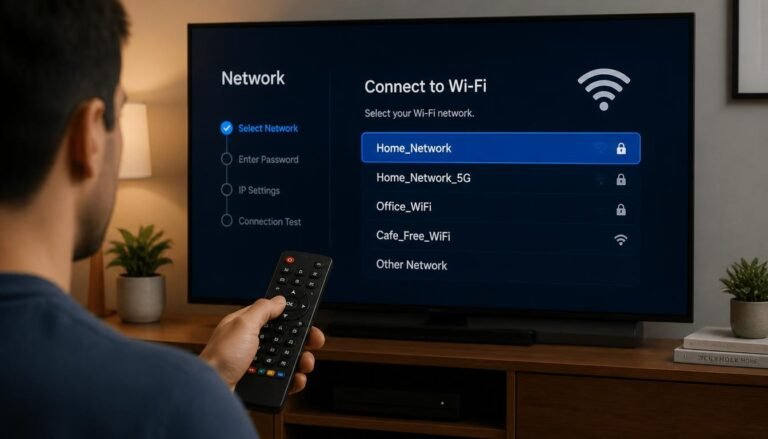
Use another device on the same network, such as a phone or a smart TV. If you do not know how to test with a TV, see how to connect a TV to the internet. If the phone also cannot load pages, the fault is likely the router or provider, so jump to Step 3 and Step 13. You can also switch the phone to mobile data and test whether it works there, which helps you tell a router problem from a problem on your Windows PC.
Restart needed: No.
Step 2: Restart the network connection
Go to Settings > Network & internet > Advanced network settings > More network adapter options. Right click your active adapter, choose Disable, wait ten seconds, then right click and choose Enable. This forces Windows to renegotiate its network configuration without a full restart.
Expect: The connection reconnects within seconds. If it fails: continue to Step 3.
Step 3: Restart the router
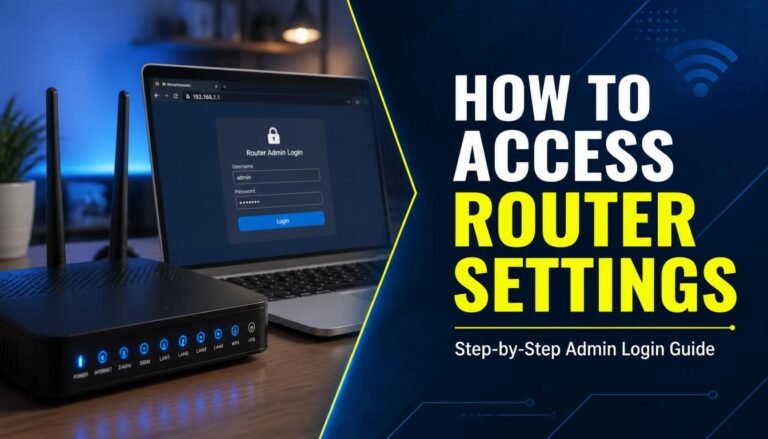
Unplug the router for about 30 seconds and plug it back in. Wait a few minutes until all lights settle. A router’s built in DNS forwarder can stall after long uptime, and a restart clears it. If you need to check settings afterward, read how to access router settings.
Restart needed: The router, not Windows.
Step 4: Flush the DNS cache
Open Command Prompt as administrator (search cmd, right click, Run as administrator) and run:
ipconfig /flushdnsWhat it does: It deletes the DNS records your PC saved locally, so Windows asks the DNS server again instead of reusing an old or damaged answer. It does not fix a DNS server that is down, and it does not touch passwords, history, or files.
Expect: “Successfully flushed the DNS Resolver Cache.” Restart needed: No.
Step 5: Renew the IP configuration
ipconfig /release
ipconfig /renew
What it does: /release drops your current IP address. /renew asks the router’s DHCP service for a new address and fresh DNS settings. Your connection will drop briefly between the two commands. Avoid this step over a remote desktop session, because it can disconnect you.
Expect: A new IPv4 address and gateway listed. If it fails: If renew reports that it cannot contact the DHCP server, the router or cable is a likely cause. Restart needed: No.
Step 6: Reset Winsock and TCP/IP
Use this step if flushing and renewing did not help, or if the problem began after software installs or malware cleanup. In an administrator Command Prompt:
netsh winsock reset
netsh int ip reset
What they do: netsh winsock reset restores the Windows Sockets catalog to its default state. Network software and some security or VPN programs add entries to it, and a broken entry can interfere with connections. netsh int ip reset rewrites TCP/IP related registry settings to defaults. Neither command is a general fix, so run them when earlier steps failed, not first.
Restart needed: Yes. Restart Windows afterward. Custom static IP settings may need to be entered again.
Step 7: Check the DNS configuration
Go to Settings > Network & internet, choose Wi Fi (or Ethernet), open your connection properties, and find DNS server assignment. Select Edit.
- If it says Manual, someone set a custom server. Test by switching to Automatic (DHCP) and saving.
- If it says Automatic (DHCP), your PC uses the DNS server given by the router.
Leave IPv6 settings alone unless you know why you are changing them. Changing both IPv4 and IPv6 without a reason often makes later troubleshooting harder.
Restart needed: No.
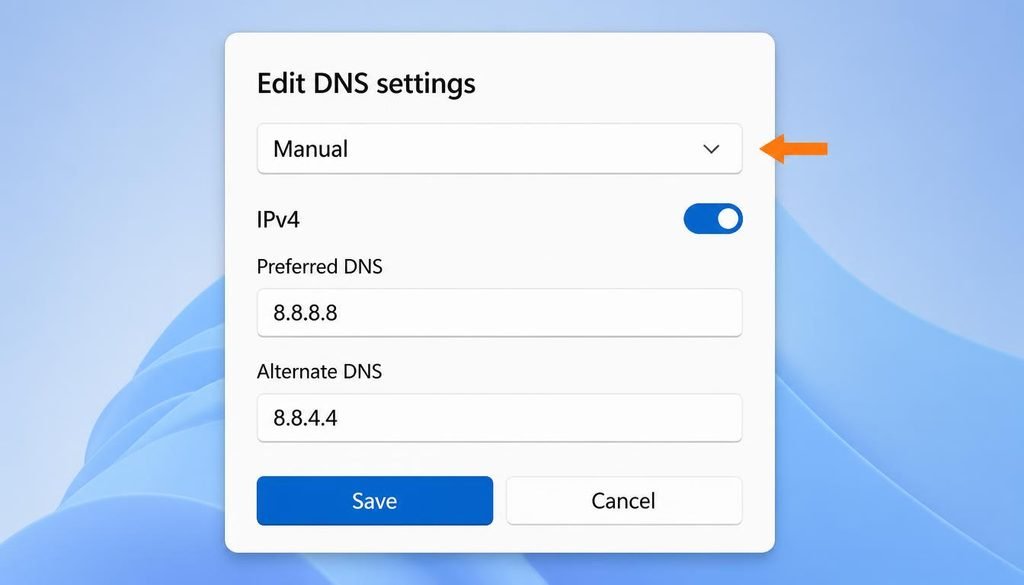
Step 8: Test another DNS server
On the same Edit DNS settings screen, choose Manual, turn IPv4 on, and enter a public DNS pair, for example 8.8.8.8 and 8.8.4.4, or 1.1.1.1 and 1.0.0.1. Save and test again with nslookup example.com.
If websites load now, your previous DNS server was the problem, either the router’s forwarder or the provider’s server. If nothing changes, DNS is probably not the real cause. See the DNS provider section below for details and how to undo the change.
Step 9: Check VPN and proxy settings
Go to Settings > Network & internet > VPN. Disconnect any active VPN and test again. Also check any VPN or security apps that run in the background.
Then go to Settings > Network & internet > Proxy. If Use a proxy server is on and you did not set it, turn it off and test. Some software changes proxy settings without asking, and a dead proxy can look like a DNS failure in a browser.
Step 10: Check the network adapter and driver
Right click the Start button, open Device Manager, expand Network adapters, and check for warning icons. Right click your Wi Fi or Ethernet adapter and choose Properties to read the status and driver tab.
Try Update driver and Search automatically for drivers. If a driver update caused the problem, open the driver tab and choose Roll Back Driver if it is available. Also check Settings > Windows Update > Advanced options > Optional updates > Driver updates for a newer network driver.
Restart needed: Often yes.
Step 11: Use Network Reset when appropriate
Go to Settings > Network & internet > Advanced network settings > Network reset and choose Reset now.
This reinstalls network adapters and resets networking components to their defaults. It also removes saved Wi Fi networks, VPN profiles, and virtual switch settings, so have your Wi Fi password ready. Use it after Steps 1 to 10 have not worked, not before.
Restart needed: Yes, Windows restarts automatically.
Step 12: Investigate Windows update related problems
See the Windows update section below.
Step 13: Test the router or internet provider side
If other devices also fail, log in to the router and look at its status page. Check whether it shows an internet connection and a WAN address. If you need help with that, see how to fix Wi Fi problems for broader checks. Then check your provider’s outage page or contact support. Router DNS fields can also be changed there, which fixes the problem for all devices at once.
Advanced troubleshooting: reason through the results
Use this logic instead of guessing.
- Name fails, IP works: DNS is likely. Compare nslookup example.com against nslookup example.com 8.8.8.8. If the second command works and the first does not, your default DNS server is the problem.
- Name and IP both fail: The connection is broken before DNS matters. Check the router, cable, signal, and adapter.
- Only one site fails: Do not blame the DNS server. Test that site on another device and another network. It may be down or blocked.
- Works in Command Prompt but not the browser: A browser can use its own DNS settings, such as secure DNS, or a proxy extension. Check the browser’s privacy and security settings.
- Works on a phone hotspot but not home Wi Fi: The PC is probably fine and the router or provider is the likely issue. If you need to confirm, see how much hotspot data you have left before using a hotspot for long tests.
DNS providers: what to know before changing
A public DNS service is a DNS server run by a company that anyone can use instead of the one from their provider. Changing it can help when your provider’s server is slow or unreliable. It cannot fix a broken cable, a failed router, or a provider outage.
To set a DNS server in Windows 11: go to Settings > Network & internet > Wi Fi (or Ethernet) and open your connection properties. Under DNS server assignment, choose Edit, select Manual, turn on IPv4, enter the preferred and alternate addresses, and select Save.
To return to automatic DNS: use the same screen and choose Automatic (DHCP). This is also the answer to resetting DNS settings. It is worth doing if you set custom servers long ago and forgot.
Privacy: Your DNS server can see the domain names you look up. Public providers publish how long they keep logs and what they collect, so read the current policy before choosing. Your internet provider also sees DNS traffic when you use its server, and the router can log requests. If that interests you, read about what a Wi Fi bill can and cannot show.
Which is best? No provider is best for everyone. Reliability, privacy preferences, filtering needs, location, and measured speed on your own network all matter. Test on your own connection if performance matters to you.
Windows 11 after an update
If the error appeared right after an update, including a feature update such as 24H2, there are a few realistic explanations. An update can replace a network driver, reset adapter settings, change VPN or security components, or leave the network stack in a bad state. None of these happen to every user, and no single update should be blamed without evidence.
Try this order:
- Run Steps 4 to 6 first.
- Check Settings > Windows Update > Update history and see what installed before the problem began.
- Update or roll back the network driver (Step 10).
- Update or reinstall any VPN client, since older VPN software sometimes fails after a major update.
- Check Microsoft’s Windows release health page for known issues that match your symptoms.
- Consider uninstalling a recent quality update from Update history > Uninstall updates only as a test, and only if the evidence points to it. Security updates matter, so reinstall later.
Heavy system tweaking tools can also interfere with networking components. If you used one, see the Windows 11 debloater guide to check what it may have changed.
Wi Fi versus Ethernet
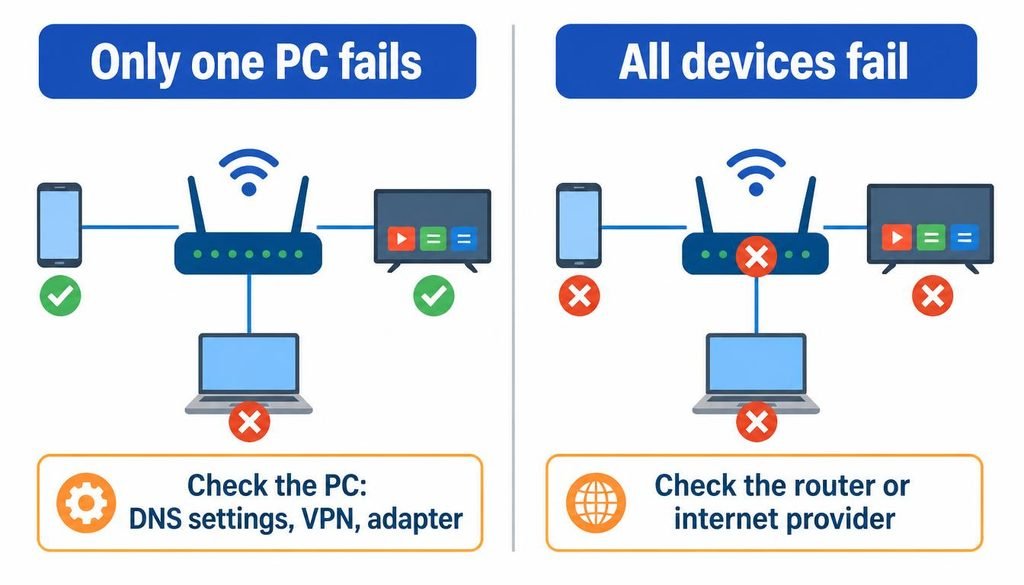
These are guides, not absolute rules. A weak signal can cause DNS timeouts that look like a DNS fault, and one misconfigured router can affect one band more than another. If the cause might be wireless quality, read how to fix Wi Fi problems.
For Ethernet, test a different cable and port first. A loose cable can show a connected icon while dropping packets.
Manufacturer specific considerations (including Lenovo)
On laptops, the network driver and power settings are often supplied or tuned by the manufacturer. For a Lenovo PC, check Lenovo’s support site or Lenovo Vantage for network driver updates for your exact model. On any brand, look for bundled security or VPN software, and check Device Manager to see if the adapter allows the computer to turn it off to save power. Use only the official manufacturer site, not driver download tools.
Verify the fix
Run these after each change:
ipconfig /all
nslookup example.com
ping example.com
A good result is a valid IP address, a DNS server that matches what you configured, an nslookup answer with a real address, and ping replies. Then load a normal website in the browser. Test again after a restart to confirm the fix lasts.
When DNS is not actually the problem
Changing DNS will not help if:
- The router has lost its connection to the internet.
- The provider has an outage.
- A firewall or security product blocks traffic.
- The network adapter has failed.
- A captive portal (hotel or public Wi Fi login page) has not been completed.
- The IP address is invalid or the connection shows limited access.
If IP pings fail too, treat it as a connection problem. If the issue persists after Network Reset, test the PC on another network. If it still fails there, the cause may be hardware or a deeper Windows problem. At that point, back up your files and consider contacting Microsoft support or the manufacturer, or consider an in place repair install of Windows.
Common mistakes when fixing DNS problems
- Changing DNS before testing whether the connection works.
- Running commands without knowing what they do.
- Changing IPv4 and IPv6 settings without a reason.
- Assuming every connection error is a DNS error.
- Forgetting that a VPN or proxy can intercept requests.
- Ignoring the router.
- Installing random “DNS fixer” software.
- Following outdated Windows instructions that use old menu paths.
- Repeating the same command without diagnosing the cause.
Prevention
- Keep the network driver current, but update from official sources.
- Avoid leaving old manual DNS entries in place.
- Restart the router occasionally if it shows signs of stalling.
- Keep a record of any custom DNS or proxy settings you create.
- Create a restore point before large system or network changes.
- Use one VPN client and keep it updated.
FAQ
How can I fix the “DNS server is not responding” error on Windows 10?
The steps are nearly identical to Windows 11. Test with ping and nslookup, flush the DNS cache, renew your IP, and check DNS settings. In Windows 10, open Settings > Network & Internet > Change adapter options, open the adapter’s properties, and edit the IPv4 DNS entries. This article focuses on Windows 11 menus.
How do I reset my DNS settings on Windows 11?
Go to Settings > Network & internet, open your Wi Fi or Ethernet properties, select Edit next to DNS server assignment, and choose Automatic (DHCP). Then run ipconfig /flushdns to clear the cached records. This restores the DNS addresses provided by your router.
Is DNS 8.8.8.8 and 8.8.4.4 safe?
These are the addresses for Google Public DNS, a widely used service operated by Google. They are legitimate and commonly used. Safety here is mainly a privacy question, because the provider sees your lookups. Read Google’s current privacy information and decide whether that fits your needs.
Is 1.1.1.1 still the best DNS?
No single DNS provider is best for everyone. 1.1.1.1 is a reliable and popular Cloudflare service, but the best choice depends on reliability, privacy preferences, filtering, and speed on your own network. Test a few and keep the one that works consistently for you.
Why does DNS server not responding appear after a Windows update?
An update may change a driver, reset network settings, or affect VPN or security software. It is a possible cause, not a certain one. Try flushing DNS, resetting Winsock, updating or rolling back the network driver, and checking Microsoft’s release health information.
What if DNS fails only over Wi Fi?
If Ethernet works, suspect the wireless adapter, its driver, or signal quality. Disable and enable the adapter, update the driver, and test closer to the router. If other devices also fail on Wi Fi, check the router.
What if DNS fails only over Ethernet?
Try another cable and port first. Then restart the Ethernet adapter, update its driver, and confirm DNS is set to automatic. If Wi Fi works on the same PC, the issue is likely cable, port, or the Ethernet adapter.
Does flushing DNS delete saved passwords?
No. ipconfig /flushdns only removes the saved DNS lookup records on your PC. It does not delete passwords, browsing history, bookmarks, or files. The only effect is that Windows asks the DNS server again for the next lookup.
Why does changing DNS not fix the problem?
Because the fault may be elsewhere. If the router has no internet, the provider is down, or a firewall or adapter problem exists, no DNS server can help. Test with an IP address ping to see whether the connection works at all.
How do I know whether my router or my PC is causing the DNS problem?
Test another device on the same network. If it also fails, the router or provider is likely at fault. If only your PC fails, focus on its settings, VPN, proxy, and adapter. A phone hotspot test on the PC helps confirm it.
Conclusion
The most useful habit is to test before you fix. A ping to an IP address, an nslookup, and a second device tell you whether to look at Windows, the router, or the provider. Start with the quick steps, move to Winsock, adapter, and Network Reset only if needed, and treat DNS provider changes as a test, not a cure.
If you want more practical Windows and network guides, explore the rest of Problevo for step by step troubleshooting articles.
6 Comments