White Spots on Lenovo Laptop Screen: Causes and Fixes 2026
A bright mark that will not go away is hard to ignore, especially on a dark background. If you searched for “white spots on Lenovo laptop screen”, you are probably looking at a tiny bright dot, a cloudy patch, or a glow near an edge, and you want to know whether a setting can remove it.
Sometimes a software cause is the answer. More often the mark is a physical display problem that no Windows setting will change. This guide shows you how to tell the difference with safe tests, explains what each result can and cannot prove, and covers when to contact Lenovo or a repair technician.
Quick Answer (White Spots on Lenovo Laptop Screen)
Quick Answer: White spots on a Lenovo laptop screen are often caused by pressure marks, uneven backlight, or stuck pixels. Wipe the surface gently, then test different backgrounds, a screenshot, and an external monitor. A spot that is missing from screenshots is likely physical, so software will not fix it.
Table of Contents
| Symptom | Possible Cause | Recommended Action |
|---|---|---|
| Tiny sharp bright dot, visible mostly on dark backgrounds | Stuck or defective pixel | Check it on several colored backgrounds, then see the pixel section below |
| Irregular bright or cloudy patch with soft edges | LCD pressure mark | Stop pressing the area and arrange a professional diagnosis |
| Soft glow near an edge or corner on a black screen | Uneven backlight | Compare at different brightness levels and note it for Lenovo support |
| Smudge that changes when you wipe the glass | Surface residue | Clean gently with a dry microfiber cloth |
| Spot visible in a screenshot or only inside one app | Software or graphics issue | Check Windows updates and the Lenovo driver for your model |
| Spot appears after a drop, bend, or heavy pressure, sometimes with lines or color bands | Panel damage | Stop using the laptop heavily and contact Lenovo or a technician |
What Do White Spots Look Like, and Why Do They Appear?
A laptop LCD is built from several layers. A backlight sits at the back, followed by films that spread the light evenly, a liquid crystal layer, and a color filter at the front. A bright mark appears when a pixel stays lit, when pressure disturbs the layers, or when the backlight reaches the viewer unevenly. Some Lenovo models use OLED panels instead. An OLED has no separate backlight, so backlight explanations do not apply to those models. You can confirm your panel type in Lenovo’s product specifications reference.
A written description cannot identify the exact cause. The tests below narrow the possibilities. They do not give a certain diagnosis.
The Most Likely Causes Compared
| Cause | What it often looks like | Can software fix it? |
|---|---|---|
| Pressure mark | Irregular bright or cloudy patch, soft edges | No |
| Uneven backlight | Brighter glow, often near edges, clearest on black | No |
| Stuck pixel | One tiny dot stuck on a single color | Sometimes, results vary |
| Panel damage | Spots with lines, cracks, or spreading marks | No |
| Surface residue | Smudge on the outer surface | Cleaning may remove it |
| Software or graphics fault | Visible in screenshots or only in certain apps | Often, depending on the cause |
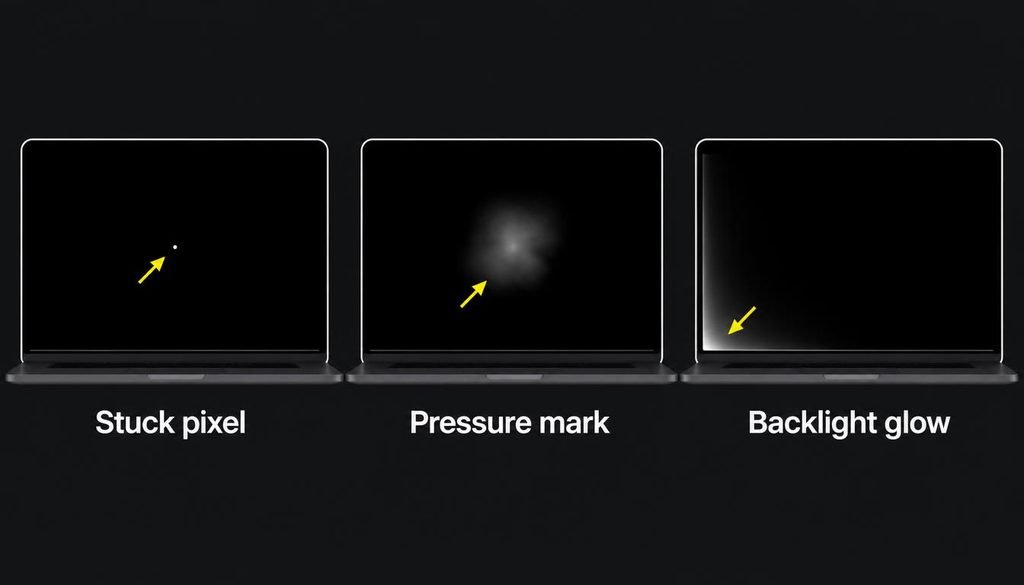
Pressure marks. Pressure on the lid or screen can disturb the layers inside the panel. Common triggers include a pen or cable left on the keyboard when the lid closes, or a tightly packed bag. Forum posts from ThinkPad owners often link bright spots to pressure, but these are individual experiences and not proof of a cause in your laptop.
Backlight problems. Light that is not spread evenly shows up most on dark content in a dim room. It usually looks like a glow, not a sharp dot. Whether a given level of unevenness counts as a defect is for Lenovo to decide, not for a test at home.
Stuck or defective pixels. A stuck pixel stays lit on one color. A dead pixel stays dark. A tiny bright dot that does not change size is a stuck-pixel candidate. These are not the same as a larger cloudy patch.
Surface residue. Dried liquid, oil, or dust on the outer surface can look like a display defect.
Software or graphics issues. Rendering errors can appear as bright artifacts. They are the only type that a driver or Windows update might correct.
Safe Steps to Diagnose White Spots on Lenovo Laptop Screen Problems
Work through these in order. Each one has limits, so treat the results as clues.
Step 1: Inspect and Clean the Screen
Power down the laptop. Look at the screen from a steep angle in good light. A smudge often reflects light differently from a mark inside the panel. Wipe the area with a clean, dry microfiber cloth using light, flat strokes. Lenovo advises never spraying liquid onto the display, and its monitor cleaning guidance says to avoid paper towels and harsh chemicals and to use a cloth dampened with distilled water if a dry cloth is not enough. Check your model’s user guide for model-specific instructions.
Do not press, massage, scrape, or rub the spot. If the mark does not move, it is likely inside the panel.
Step 2: Test Different Backgrounds
Fill the screen with white, black, gray, red, green, and blue in turn. An easy way is to set a solid color as the desktop background in Settings > Personalization > Background.
- A tiny sharp dot that stands out on black but fades on white points toward a pixel issue.
- A soft glow that grows on black, especially near an edge, points toward backlight unevenness.
- A cloudy patch that stays visible on most colors is consistent with a pressure mark.

These patterns are hints. Two different causes can look alike.
Step 3: Check Brightness and Display Settings
Open Settings > System > Display and move the brightness slider up and down. Some laptops also have an automatic or adaptive brightness option, but the name and location vary by Windows version and laptop model, so only turn it off for testing if you can find it.
A spot that becomes less visible at lower brightness is still there. Reduced visibility is not a repair.
Step 4: Check a Screenshot and an External Monitor
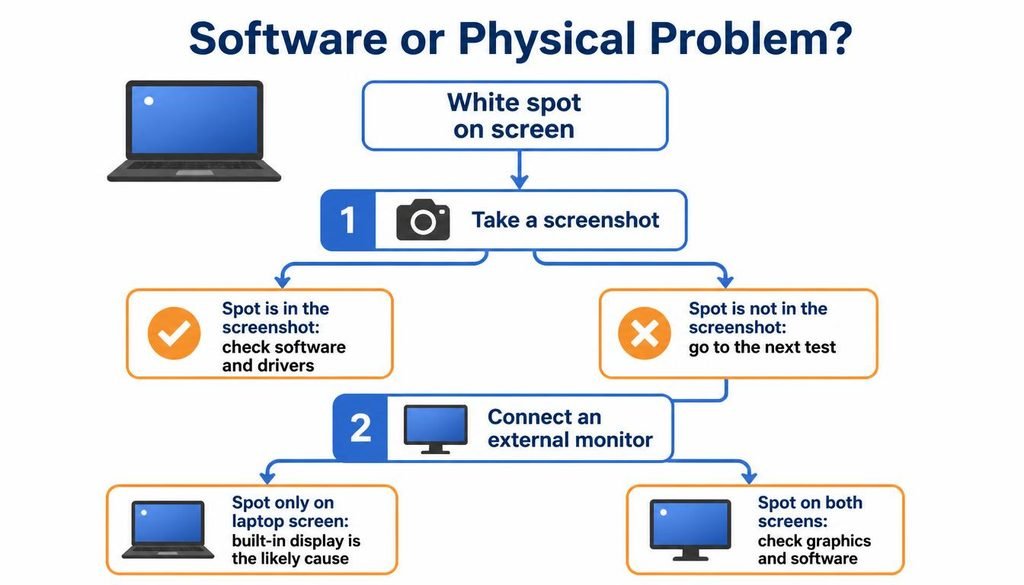
Screenshot test. Press the Windows key and Print Screen together. Windows saves the image in Pictures > Screenshots. Open it and zoom in on the area. If the spot appears in the image, the laptop is displaying something Windows is drawing, which points to software or graphics. If it does not appear, the mark is not part of the image, which fits a physical problem. A screenshot viewed on another device cannot capture a physical defect, so a missing spot suggests but does not prove a panel fault.
External monitor test. Connect a monitor or TV, press the Windows key and P, and choose Duplicate. If the spot appears only on the laptop panel, the built-in display is the more likely source. A clean external screen does not prove the graphics system is perfect. If a window opens out of view on the second display, see how to move a window that is off screen.
Step 5: Check Whether It Appears Outside Windows
Restart the laptop and watch the Lenovo logo screen. If the spot is visible before Windows loads, a Windows setting or driver is unlikely to be the cause. To enter BIOS/UEFI, many Lenovo laptops use the Novo button or the F1 or F2 key at startup, but the method depends on the model, so check your user guide. This check is optional and only practical when you can reach the setup screen.
Step 6: Consider Graphics Drivers and Windows Updates
Do this only if the spot appeared in your screenshot or only inside Windows. Open Settings > Windows Update and check for updates. You can also look up your model on Lenovo’s support site for its display driver. If display problems began after a large update, general Windows 11 troubleshooting may help. Do not use random third-party driver tools, remove drivers as a first step, or reinstall Windows for a spot that looks physical.
Optional: Pixel-Fixing Tools
For one tiny stuck pixel, some people try tools that flash colors over the pixel. Results vary, they cannot repair pressure marks or backlight faults, and flashing colors can bother people sensitive to them. Use a trusted browser-based tool, not a download from an unknown site.
What Not to Do
- Do not push, massage, or rub the spot with a finger, fingernail, or stylus. Some online guides suggest this. It can spread the damage.
- Do not use suction cups, heat, or bending to “re-seat” the panel.
- Do not spray liquid on the screen or use alcohol or household cleaners.
- Do not open the display assembly unless you have the model’s service documentation and the skills to follow it. Lenovo publishes hardware maintenance manuals for technicians through its support site.
- Do not buy a replacement panel based only on an online guess.
Warranty, Professional Diagnosis, and Screen Replacement
If the spot passes the screenshot test and appears on the logo screen, treat it as a hardware matter.
- Record your model and serial number. Lenovo explains how to find them in its warranty information guide, including through Lenovo Vantage.
- Check warranty status with Lenovo’s warranty lookup.
- Take clear photos of the spot on black and white backgrounds.
- Contact Lenovo support and describe what you tested. Lenovo decides what a warranty covers. Physical damage and manufacturing defects may be treated differently, and Lenovo lists a customer induced damage guide among its support articles.
- Get a written estimate from a qualified technician before you approve paid work.
A screen replacement may be appropriate when marks are persistent, spreading, or tied to impact or pressure damage, or when a diagnosis confirms an internal display fault. Prices depend on the model and panel type, so ask for a quote instead of relying on a general figure.
Conclusion
Start with a gentle clean, then run the background, screenshot, and external monitor tests. If your white spots on Lenovo laptop screen hardware show up only on the built-in panel, treat them as a physical issue and avoid pressing the area. Your best next step is to check your warranty status and contact Lenovo support with photos and your test results.
FAQs
How do I fix a white spot on my laptop screen?
First identify the type. Clean the surface gently with a dry microfiber cloth, then check a screenshot and an external monitor. Software or driver causes may be fixable. A spot that stays only on the laptop panel is usually physical and needs Lenovo support or a technician.
How to remove white dots on screen?
A surface smudge may come off with a dry microfiber cloth. A stuck pixel may respond to a pixel-fixing tool, but results vary. Dots caused by pressure, backlight faults, or panel damage generally cannot be removed with software or pressing, and need a professional repair.
Why are there white spots on my screen?
Common causes are pressure marks, uneven backlight, stuck pixels, panel damage, surface residue, or a graphics issue. The look of the spot, how it behaves on different backgrounds, and whether it appears in screenshots help narrow it down. The exact cause often needs hands-on inspection.
How to fix white spots on an LCD screen?
Fixes depend on the cause. Cleaning helps with residue, and a driver update may help with software artifacts. Pressure marks, backlight irregularities, and panel damage are hardware problems. They generally need panel repair or replacement, not Windows settings or pixel tools.
Can pressure marks on a Lenovo screen be repaired?
Pressing the area at home is not a safe repair and can make damage worse. Pressure marks usually reflect damage inside the panel layers. A professional may recommend a panel replacement, and Lenovo support can say whether the issue is eligible for warranty service.
Are white spots on an LCD screen permanent?
Not always, but many physical ones are. A smudge or software artifact can disappear after cleaning or an update. Pressure marks and backlight problems usually stay, and some can slowly grow. If a spot is spreading, get it inspected soon.
Can a stuck pixel cause a white spot?
Yes, a stuck pixel can look like a tiny bright dot, especially on a dark background. It stays the same size and does not look like a cloudy patch. A pixel-fixing tool may help sometimes, but there is no guarantee. If it does not respond, a technician can confirm whether the panel needs replacement.
Will updating a graphics driver fix white spots?
A driver update helps only when the spot is a software or graphics artifact, such as one that shows up in screenshots. It will not repair pressure marks or backlight problems inside the panel. If the spot appears on the Lenovo logo screen, a driver is an unlikely cause.
Are white spots covered by a Lenovo warranty?
It depends on the cause, the model, and your coverage terms, so check your warranty status with Lenovo’s lookup tool and contact support. Lenovo makes the final decision. Do not assume that physical damage or a normal panel characteristic will be covered.