
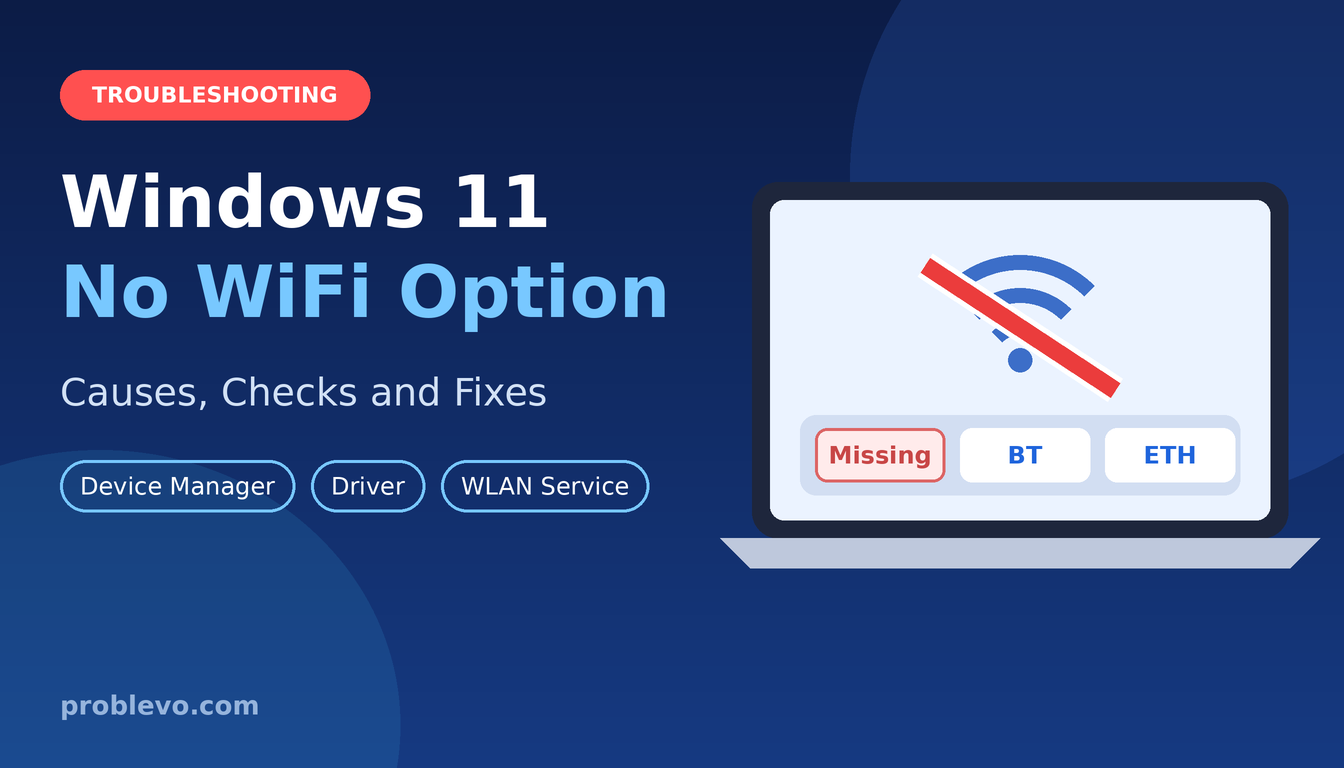
Windows 11 No WiFi Option: Fix It Easily Guide (2026)
You open Quick Settings and the Wi-Fi tile is gone. Settings may show no Wi-Fi page either. This is stressful because you often need the internet to fix the problem.
The Windows 11 no WiFi option problem is not one single fault. A hidden tile, a disabled adapter, a failed driver, a stopped service, and missing hardware all look similar on screen. This guide helps you work out which one you have before you change anything.
Quick Answer
The Windows 11 “No Wi-Fi Option” problem usually comes from a disabled network adapter, missing or outdated drivers, a stopped WLAN AutoConfig service, or turned-on Airplane mode. Quick fixes include turning Airplane mode on and off, updating the Wi-Fi driver in Device Manager, and restarting network services.
1. Quick Initial Checks
Before tweaking deep settings, check these primary controls:
- Toggle Airplane Mode: Turn Airplane Mode ON for 5 seconds, then turn it OFF to reset wireless radios.
- Check Hardware Switch: On laptops, make sure the physical Wi-Fi switch or Function key combination (e.g., Fn + F2 / F5) hasn’t accidentally disabled Wi-Fi.
2. Enable Wi-Fi Adapter in Device Manager
If the network card was turned off by Windows, re-enable it manually:
- Press Windows + X and select Device Manager.
- Expand the Network adapters section.
- Right-click your wireless card (e.g., Intel, Realtek, or MediaTek Wi-Fi) and click Enable device.
3. Update or Reinstall Wi-Fi Driver
Corrupted drivers often make the Wi-Fi icon disappear completely:
- In Device Manager, right-click your wireless adapter and select Update driver.
- If updating doesn’t work, select Uninstall device, restart your PC, and Windows will automatically reinstall the missing driver on boot.
4. Restart WLAN AutoConfig Service
Windows requires this background service to detect wireless networks:
- Press Windows + R, type
services.msc, and press Enter. - Scroll down to WLAN AutoConfig.
- Right-click it, select Properties, set Startup type to Automatic, then click Start (or Restart).
Note: If Wi-Fi is still missing after these steps, run the built-in Network & Internet Troubleshooter in Settings > System > Troubleshoot.
In This Guide
Match Your Symptom to the Likely Cause
Find the row that describes what you see. The last column tells you where to go next.
| Symptom | Possible cause | Recommended action |
|---|---|---|
| Wi-Fi tile missing from Quick Settings, but Wi-Fi appears in Settings | The tile was removed from the Quick Settings layout | Edit Quick Settings (Step 1) |
| Wi-Fi missing from both Quick Settings and Settings | Windows does not see a working wireless adapter | Check Device Manager (Step 3) |
| Ethernet works, Wi-Fi is absent | Wi-Fi adapter disabled, driver failed, or no Wi-Fi hardware | Check Device Manager, then the driver (Steps 3 and 5) |
| Bluetooth is present, Wi-Fi is missing | Separate Wi-Fi driver or adapter problem | Read the Bluetooth section below, then Step 5 |
| Adapter listed with a disabled icon | Adapter turned off | Select Enable device (Step 3) |
| Adapter listed with a warning symbol | Driver error or device error | Read the error status, then Step 5 or 6 |
| Adapter not listed at all | Not detected, no driver, firmware setting, or hardware fault | Steps 7 and 10, then the hardware section |
| Missing right after a Windows update | Driver replaced or incompatible | Step 6, then the update section |
| Missing after a network reset | Adapter not reinstalled correctly, or an earlier fault exposed | Read the network reset section |
| No Wi-Fi option during Windows setup | Missing network driver or no Wi-Fi hardware | Read the setup section |
A cause in this table is a likely explanation, not a certain one. The steps below confirm which one applies.
Why Is the Wi-Fi Option Missing in Windows 11?
The Wi-Fi tile in Quick Settings is only a shortcut. The real test is whether Windows has a wireless network adapter that works. That is a chain of parts:
- The hardware, either a card inside the laptop or a USB adapter.
- Firmware settings, which sometimes include a wireless switch in BIOS or UEFI.
- The driver, which is the software that lets Windows talk to the hardware.
- The WLAN AutoConfig service, which Windows uses to find and join wireless networks.

If any link fails, the Wi-Fi option can disappear.
Compare the two places where Wi-Fi should appear:
- Missing from Quick Settings only: the tile layout is the likely issue. The adapter is probably fine.
- Missing from Quick Settings and Settings: Windows probably cannot see a usable adapter. This is the more serious case.
Quick Settings can look different on different devices and Windows versions. Use the steps that match what you see.
Recommended troubleshooting order
- Check Quick Settings and Airplane mode.
- Check any physical switch or function key.
- Inspect Device Manager.
- Check the WLAN AutoConfig service.
- Fix the driver using the correct source.
- Look at recent updates, then network reset, then BIOS and hardware.
This order starts with low risk checks and saves the larger changes for later.
How to Fix Windows 11 No WiFi Option
Step 1. Check Airplane Mode and Quick Settings
Select the Network, Sound, or Battery icons on the right side of the taskbar to open Quick Settings. Microsoft’s guide uses the same starting point in its Wi-Fi troubleshooting article.
- Look for the Wi-Fi tile. If you see it, make sure it is turned on.
- Go to Settings > Network & internet > Airplane mode and make sure it is off.
- Open Settings > Network & internet and look for a Wi-Fi entry.
- If the Wi-Fi page exists in Settings but the tile does not, open Quick Settings and select the pencil (edit) icon. If your build lists a Wi-Fi tile under Add, add it back.
- Restart the PC and look again.
If Settings has no Wi-Fi page at all, continue to Step 2.
Step 2. Check the Physical Wi-Fi Switch or Function Key
Some laptops have a physical wireless switch or a function key that turns the radio off. Microsoft notes that not every device has a physical Wi-Fi switch, and that an indicator light usually shows its state.
Look along the edges of the laptop for a slider. Check the top row of keys for an icon that looks like an antenna or an airplane. The exact key differs by model, so confirm it in the manual for your laptop instead of guessing.
Step 3. Enable the Wireless Adapter in Device Manager
Device Manager lists the hardware Windows can see.
- Press Windows + X and select Device Manager.
- Expand Network adapters.
- Look for a name containing Wi-Fi, Wireless, WLAN, or a chipset maker such as Intel, Realtek, MediaTek, or Qualcomm.
- If the adapter has a down arrow icon, right click it and select Enable device.
- If the adapter has a yellow warning symbol, double click it and read the Device status box. Note the error text or code. Microsoft links to a Device Manager error code list from its Wi-Fi guide.
- If no wireless adapter is listed, go to Step 7.

An adapter that is listed and enabled points to a driver or service problem. An adapter that is not listed points to detection, firmware, or hardware.
Step 4. Check the WLAN AutoConfig Service
WLAN AutoConfig is the Windows service that scans for wireless networks and manages connections. If it is stopped, Wi-Fi features may not work properly.
- Press Windows + R, type
services.msc, and press Enter. - Find WLAN AutoConfig in the list.
- Check the Status and Startup Type columns.
- Right click the service and select Restart, or Start if it is stopped.
- If the startup type is not Automatic, open Properties and set it to Automatic.
Microsoft lists restarting this service as a fix for a missing Wi-Fi toggle. Do not change unrelated services. If the service refuses to start, or the Wi-Fi option stays missing, the adapter may be the real problem. A PC with no wireless hardware may not run this service in a useful way.

Step 5. Update or Reinstall the Correct Wi-Fi Driver
A driver is the software that lets Windows use a piece of hardware. These cases are different and need different actions:
| Situation | What it means | Action |
|---|---|---|
| Disabled adapter | Windows sees it but it is turned off | Select Enable device |
| Driver error | A driver is installed but failing | Update, roll back, or reinstall |
| Missing driver | Windows sees a device but has no driver | Install from the PC maker |
| Incompatible driver after an update | A newer driver does not suit your hardware | Roll back or install the maker version |
| Adapter not detected | Windows does not see hardware at all | Go to Steps 7 and 10 |
Use these sources, in this order:
- Windows Update. Open Settings > Windows Update > Advanced options > Optional updates and look for driver updates.
- The PC manufacturer support site. Enter your exact model name or service tag. This is the safest source.
- The adapter maker, only if the PC maker has nothing for your model.
Do not use random driver download sites or automatic driver updater tools.
Warning: Download a replacement driver before you uninstall the current one. Microsoft advises having a backup driver ready, and says that a PC without internet needs the driver downloaded on another PC and moved by USB flash drive. You will need to know the PC manufacturer and model.
To check the current driver, right click the adapter in Device Manager, select Properties, and open the Driver tab. Compare the Driver Version and Driver Date with the maker’s website.
If you must reinstall:
- Right click the adapter and select Uninstall device.
- Select Attempt to remove the driver for this device only if you already have a replacement ready.
- Restart the PC. Windows may install a driver by itself.
- If it does not, run the installer you saved earlier.
Step 6. Roll Back a Driver After a Windows Update
If Wi-Fi vanished right after an update, the driver may have changed.
- In Device Manager, double click the wireless adapter.
- Open the Driver tab.
- If Roll Back Driver is available, select it and follow the prompts.
- Restart the PC.
The button is greyed out when Windows has no earlier driver stored. That is normal, and it means you should use the manufacturer driver instead. Rolling back is not the same as uninstalling. A rollback restores the previous driver. An uninstall removes the current one.
Step 7. Check for Hidden or Undetected Network Hardware
In Device Manager, open the View menu and select Show hidden devices. Look again under Network adapters.
A hidden or greyed out entry is not proof that the adapter works. It usually means Windows once knew about a device that is not currently active. Use it as a clue, not as a fix.
Next, try Action > Scan for hardware changes. If a wireless adapter appears, return to Steps 3 to 5.
If nothing appears, Windows does not detect the adapter. Microsoft states that in this case you may have to install the driver manually and check the device manufacturer website. Continue to Steps 8 to 10 and the hardware section.
Step 8. Run Appropriate Network Diagnostics
Commands cannot create a missing adapter, but they can confirm what Windows sees. Open a terminal by pressing Windows + X and selecting Terminal (Admin). Select Yes if asked.
Command 1: list all network adapters.
ipconfig /allThis lists every network interface Windows knows about. Look for a section named Wireless LAN adapter Wi-Fi. If that section is missing, Windows has no wireless interface. No restart is needed. It does not repair anything.
Command 2: show wireless driver details.
netsh wlan show driversThis shows the wireless driver name, version, and supported modes when a wireless interface exists. If there is no wireless interface, or the WLAN service is not running, Windows says so instead. No restart is needed. It reports only and changes nothing.
Commands 3 and 4: reset network components.
netsh winsock reset
netsh int ip reset
These reset Windows network socket settings and the TCP/IP stack. Microsoft includes them in its connection troubleshooting list. Restart the PC afterward. They may help when an adapter exists but connections behave strangely. They cannot restore Wi-Fi hardware, and they cannot reinstall a missing wireless driver. Do not run every command at once without a reason.
Microsoft also describes a wireless network report that lists a problem number for adapters that fail to load.
If your Wi-Fi returns, the general guide on how to fix WiFi problems covers slow speeds, drops, and connection errors that may follow.
Step 9. Use Network Reset Only When Necessary
Network reset is a late step. Microsoft says it should be the last step you try. It removes network adapters and their settings, then reinstalls the adapters with default settings after a restart.
To find it on Windows 11, go to Settings > Network & internet > Advanced network settings > Network reset, then select Reset now.
Be aware of these side effects:
- You may need to set up VPN software or Hyper‑V virtual switches again.
- Known networks may be set to a public network profile.
- It cannot repair a failed or physically disconnected wireless card.
If you use a wireless printer, you may need to connect it again afterward. This guide on how to connect a printer to WiFi covers that.
Step 10. Check BIOS or UEFI Wireless Settings When Supported
Some laptops include a wireless or WLAN on and off option in BIOS or UEFI. Many do not. The menu names and locations differ by brand and model.
Search your manufacturer support site for your exact model plus “BIOS wireless setting”. Follow their instructions. Do not change unrelated BIOS settings. If you are unsure, stop and contact support.
Windows 11 No WiFi Option, Only Ethernet
If Ethernet works but Wi-Fi does not exist, you have confirmed that the PC can get online through a cable. That tells you the internet service itself is probably fine. It says nothing about the wireless adapter, which is separate hardware with its own driver.
Follow this path:
- Open Device Manager and look for a wireless adapter (Step 3).
- If it is disabled, enable it.
- If it has a warning symbol, fix the driver (Steps 5 and 6).
- If it is not listed, work through Steps 7 and 10.
Use the Ethernet connection to download the correct driver from the manufacturer. Ethernet is the easiest way to repair a missing Wi-Fi driver. Also ask whether the PC is a desktop. Many desktop computers have no built in Wi-Fi at all. Check the product page for your model, or look for antenna connectors on the back of the case.
Windows 11 Shows Bluetooth but No Wi-Fi
A Bluetooth adapter is not a Wi-Fi adapter. They use different drivers and appear as different devices. On many laptops one combined card provides both, but Windows still treats them as separate functions. Some PCs have Bluetooth from a separate USB module and no Wi-Fi at all.
So Bluetooth working proves nothing about Wi-Fi. When Bluetooth is visible and Wi-Fi is missing, the Wi-Fi function of the card, or its driver, may be at fault. Check Device Manager for a Network adapters entry, then follow Steps 5 and 6. If both radios have disappeared, hardware or firmware becomes more likely.
Fix the Missing Wi-Fi Option on Dell and ASUS Laptops
The generic steps still apply. These tips only explain where each brand keeps its own tools.
Dell:
- Use the Dell support site and enter your Service Tag or model to see the driver list for that exact laptop.
- Wireless drivers are usually listed by chipset family, such as Intel, Qualcomm, Realtek, or MediaTek. Check Device Manager to see which one you have before downloading.
- Some business models include a wireless setting in BIOS. Check the model documentation.
- If Windows will not start the driver, the Dell support site can supply an installer you transfer by USB.
ASUS:
- Use the ASUS support page and search your exact model name, then open the driver section for Windows 11.
- The MyASUS app, if installed, can check for driver and BIOS updates for your model.
- ASUS laptops often have an airplane mode key on the function row. Confirm the key in your manual.
- If the Wi-Fi option disappeared after an update, compare the installed driver version with the ASUS download page.
For HP, Lenovo, Acer, and other brands, the same approach works. Start at the maker support page, enter the exact model, and download the wireless LAN driver for Windows 11.
Wi-Fi Option Missing After a Windows Update
Do not assume the update caused it. The update may have replaced a driver, or the adapter may have been failing before it. Work through the evidence:
| What you find | Likely meaning | Next step |
|---|---|---|
| Adapter listed, warning symbol | Driver problem | Roll back or install the maker driver |
| Roll Back Driver available | A previous driver exists | Try the rollback first |
| Adapter listed and enabled, no networks | Driver filter or service problem | Check Steps 4 and 5 |
| Adapter not listed | Detection or hardware problem | Steps 7 and 10 |
Try the driver steps first. Uninstalling the latest Windows update should not be your first move. Consider it only if the driver steps fail and the problem started right after that exact update. To check, open Settings > Windows Update > Update history and look at the dates. If you plan to uninstall an update, create a restore point first when System Restore is enabled.
For broader problems after an update, see this guide on how to fix Windows 11 problems.
Wi-Fi Option Missing After a Network Reset
Network reset is meant to reinstall adapters. If the Wi-Fi option is missing afterward, it did one of two things. It may not have reinstalled the driver correctly, or it exposed a fault that already existed.
- Restart the PC once more.
- Open Device Manager and look under Network adapters.
- Select Action > Scan for hardware changes.
- Install the manufacturer driver if the adapter has no driver.
A second reset is unlikely to help. A reset cannot fix a physically disconnected or failed wireless card.
How to Set Up Windows 11 Without Wi-Fi
Microsoft states that an internet connection is required to finish setting up a PC with Windows Home or Pro. The supported options when Wi-Fi is not available are listed in Microsoft’s setup connection guide:
- Ethernet. Plug a cable into the router.
- USB to Ethernet adapter, if the PC has no Ethernet port.
- Cellular, if the PC has a SIM or eSIM.
- Phone mobile hotspot, if your plan allows it. Check how much data you have first. This guide on how much hotspot data you have left helps. Setting the connection as metered can reduce data use.
If no Wi-Fi networks appear during setup, you may need the wireless driver. Microsoft describes an advanced method:
- On another PC, download the Wi-Fi driver from the manufacturer.
- Unzip it and copy it to a USB flash drive. The
.inffile must be in the root of the drive, not in a subfolder. - On the PC being set up, plug in the drive and press Shift + F10 to open Command Prompt.
- Find the drive letter, for example with
diskpartandlist volume. - Run the install command, replacing
D:with your drive letter:
pnputil /add-driver D:\*.inf
pnputil /scan-devices
If your download is an .exe file, Microsoft says you may only need to open that file to install it.
Some online guides suggest setup bypass commands. Their behavior changes between Windows builds and this article does not rely on them. Use the supported options above first.
When to Suspect a Hardware Problem
Suspect hardware when these are true together:
- Device Manager shows no wireless adapter, even after Show hidden devices and Scan for hardware changes.
- The manufacturer driver does not fix it.
- Any BIOS wireless setting is enabled where your model offers one.
- Bluetooth has disappeared too, or the laptop was dropped or recently opened.
Test with a USB Wi-Fi adapter. If a USB adapter shows up and connects, Windows Wi-Fi is working and the internal card is the likely fault. Opening a laptop to reseat the card can void a warranty. Use the manufacturer support or an authorized repair service. A desktop with no Wi-Fi hardware simply needs a USB or PCIe Wi-Fi adapter.
If Wi-Fi returns and you need to reach the router, this guide on how to access router settings helps.
Frequently Asked Questions
Why is my Wi-Fi option not showing?
The Wi-Fi option may be missing because Airplane mode is on, the adapter is disabled, the driver failed, or Windows cannot detect a wireless adapter. Open Device Manager and expand Network adapters. If an adapter appears, enable it or fix the driver. If none appears, check hardware controls, BIOS, and the manufacturer support page.
How to setup Windows 11 with no Wi-Fi?
Use a supported alternative such as an Ethernet cable, a USB to Ethernet adapter, a phone hotspot, or cellular where available. Microsoft states that Windows Home and Pro setup needs an internet connection. If no Wi-Fi networks appear, load the wireless driver from a USB drive using Microsoft’s documented steps.
How to fix PC not showing Wi-Fi?
First decide whether the PC has Wi-Fi hardware, because many desktops do not. If it does, check Airplane mode, enable the adapter in Device Manager, restart WLAN AutoConfig, and install the correct driver from the PC or motherboard maker. If Device Manager lists no wireless adapter, test a USB Wi-Fi adapter.
How do I get my Wi-Fi icon back on Windows 11?
Open Quick Settings and look for the Wi-Fi tile. If it is missing, check Settings > Network & internet and Device Manager. The icon returns when Windows detects an enabled wireless adapter with a working driver. If Settings shows Wi-Fi but the tile is gone, edit Quick Settings and add the tile again.
Why is there no Wi-Fi option in Windows 11, only Ethernet?
Ethernet and Wi-Fi use separate hardware and drivers. A working cable only shows that your internet service is fine. The wireless adapter may be disabled, missing a driver, switched off in firmware, or absent from the PC. Check Device Manager first, then download the correct driver over Ethernet.
Why is Wi-Fi missing after a Windows update?
An update may have replaced the wireless driver with a version that does not suit your hardware, or the adapter may have been failing already. Check Device Manager for a warning symbol, try Roll Back Driver, then install the manufacturer driver. Remove the update only after those checks fail.
How do I reinstall a Wi-Fi driver without internet?
Download the correct driver from your PC maker on another device and copy it to a USB flash drive. Then run the installer on the affected PC, or install the .inf file through Device Manager. Microsoft also documents a pnputil method for use during setup. Save the driver before uninstalling anything.
Can a network reset remove the Wi-Fi option?
Network reset removes network adapters and their settings, then reinstalls them after a restart. If the adapter does not return correctly, the Wi-Fi option can be missing. Restart again, scan for hardware changes in Device Manager, and install the manufacturer driver. A reset does not repair a failed wireless card.
Does Bluetooth mean my computer has Wi-Fi?
No. Bluetooth and Wi-Fi are separate functions with separate drivers. Many laptops share one card for both, but a PC can have Bluetooth with no Wi-Fi at all. Check Network adapters in Device Manager for a wireless entry, or check the specifications for your exact model.
Final Checklist
- Airplane mode is off, and the Wi-Fi tile and Settings page were checked
- Any physical switch or function key was checked in the model manual
- Device Manager was inspected under Network adapters
- The wireless adapter was enabled, and its status was read
- WLAN AutoConfig was checked where appropriate
- The driver came from Windows Update or the correct manufacturer page
- Recent Windows updates were considered before any removal
- Network reset was used only after simpler steps failed
- Hardware and firmware were considered if the adapter stayed undetected
Conclusion
Fixing the Windows 11 no WiFi option problem starts with matching your symptom to the right path. A missing tile, a disabled adapter, a driver error, and an undetected adapter each need a different next step. Work from the low risk checks to the larger ones, and keep the manufacturer driver ready before you remove anything.
Problevo publishes more guides on Windows and Wi-Fi problems. Browse the Windows & PC section when you need a next step.


7 Comments