Lenovo Laptop Screen Shaking: Find The Causes & Fixes 2026
Lenovo laptop screen shaking is rarely random. The pattern tells you where to look. Three clues usually separate a Windows or driver problem from a faulty display cable or panel:
- when the problem starts
- whether Task Manager shakes along with everything else
- whether an external monitor shows the same thing
Run those tests in order and you can stop guessing.
This guide covers screens that flicker, blink, vibrate, flash, or show horizontal lines on Lenovo IdeaPad, ThinkPad, Yoga, and Legion laptops running Windows 11 or Windows 10. Menus and keys can vary by Lenovo model, so each step notes where that matters.
Quick Answer: A Lenovo laptop screen that shakes or flickers is usually caused by a display driver, a Windows or app conflict, or a faulty display cable or panel. Restart first, then check whether Task Manager flickers, update the graphics driver, and test an external monitor to separate software from hardware.
Table of Contents
Lenovo Screen Shaking Diagnostic Table
| Symptom | Likely Cause | Best First Action |
|---|---|---|
| Entire screen flickers, including Task Manager | Display driver or graphics output problem (hardware not excluded) | Press Windows + Ctrl + Shift + B, then update or roll back the graphics driver |
| Screen shakes only in Windows, not at the Lenovo logo or BIOS | Driver, display setting, power feature, or app | Work through Steps 2 to 6 |
| Screen flickers in Task Manager | Display driver or system level cause | Roll back or reinstall the driver (Step 3) |
| Screen is normal in Task Manager but flickers elsewhere | Incompatible app, browser, or hardware acceleration | Update or remove the app, test another browser, turn off hardware acceleration |
| Horizontal lines appear | Driver or refresh rate fault if Windows only; cable or panel if lines persist in BIOS or move with the lid | Take a screenshot and check BIOS (see the horizontal lines section) |
| Flickering starts during startup | Firmware or hardware if it begins at the logo or BIOS; driver loading if it begins with Windows | Note the exact stage where it begins |
| Screen flickers when moving the lid | Worn internal display cable or connector near the hinge | Move the lid slowly to confirm, then seek repair |
| External monitor works normally | Internal display path: panel, cable, internal display settings, or power features | Test BIOS and Safe Mode, then decide on repair |
| External monitor also flickers | Graphics driver, GPU, or system level cause | Reinstall the driver and test Safe Mode |
| Flickering happens only on battery | Display power saving or adaptive brightness features | Turn off automatic brightness and test again |
| Flickering happens only while charging | Charger, outlet, or power related behavior (cause less certain) | Try another outlet and the original Lenovo adapter |
| Flickering started after a Windows update | Driver replaced by Windows or an incompatible update | Roll back the driver, then install the Lenovo version |
| Flickering started after a graphics driver update | Faulty or wrong driver version | Roll back, then install the driver listed for your exact model |
What Causes a Lenovo Laptop Screen to Shake or Flicker?
On a laptop, three more areas matter.
- Display or graphics driver.
Windows Update can replace a Lenovo tuned driver with a generic one. Any driver can also become corrupted. Many laptops have two graphics adapters, one integrated and one dedicated. - Apps and browsers.
An app that draws its window badly can shake only its own area, while the rest of the screen stays stable. - Display settings and power features.
Refresh rate settings, dynamic refresh rate, adaptive brightness, and display power saving can all change how the panel behaves, especially on battery. - Firmware.
An outdated BIOS is a less common cause, but it is worth checking on some models. - Hardware.
Possibilities include a worn internal display cable, a damaged panel or backlight, a connector problem, or, less often, a GPU or motherboard fault.
For a wider look at other display faults such as dim or black screens, see this guide to Lenovo laptop screen problems.
Is the image shaking, or is the screen physically wobbling?
These are two different problems. If the picture jitters but the lid is steady, continue with this guide. If the whole lid moves when you type or touch the keyboard, the hinges are loose or damaged. That is a mechanical repair, not a display setting. Do not force or tighten hinges yourself.
Follow This Diagnostic Path Before You Change Settings
Random changes waste time. Use these checks in order and write down each answer.
Check 1: Does the problem appear at the Lenovo logo or inside BIOS Setup?
- Yes: Windows is not running yet, so the Windows driver is not responsible. Hardware or firmware becomes more likely. Continue to Check 2 to confirm, then read the hardware section.
- No: Continue.
Check 2: Does an external monitor stay stable while the laptop screen flickers?
- External also flickers: The cause is more likely the graphics driver, GPU, or system level. Continue to Check 3.
- External is stable: The internal display path becomes more likely. That means the panel, cable, internal display settings, or power features. Continue to Check 3 anyway, because drivers can still affect the internal display only.
Check 3: Does Task Manager flicker with everything else?
- Yes: A display driver or system level issue is more likely.
- No, Task Manager is steady: An app, browser, or hardware acceleration setting is more likely.
Check 4: Does the problem disappear in Safe Mode?
- Yes: Software is more likely, either a driver or startup app.
- No: Hardware or firmware becomes more likely.
Check 5: Does it change with power state or lid movement?
- Only on battery: Power saving display features.
- Only when the lid moves: Internal display cable.

No single check proves a cause. Together they narrow it down well.
How to Fix Lenovo Laptop Screen Shaking Step by Step
After each step, use the laptop for 3 to 5 minutes before deciding whether it worked. Change one thing at a time.
Step 1: Restart and observe when the problem occurs
Use Restart, not just sleep or lid closing. If the laptop will not respond to the power button at all, start with the basics in how to turn on a Lenovo laptop. If the screen is frozen, hold the power button for about 10 seconds to force a shutdown, then power on again.
Watch four stages during startup and note the first stage where the shaking appears:
- Lenovo logo
- Windows logo with loading dots
- Sign in screen
- Desktop
While the desktop is visible, try the quick driver reset: press Windows logo key + Ctrl + Shift + B. Microsoft lists this as a way to reset the graphics driver. The screen may blink briefly. If it calms the flicker for a while, a driver cause is more likely.
Step 2: Check whether Task Manager flickers
Press Ctrl + Shift + Esc to open Task Manager. If it does not open, press Ctrl + Alt + Delete and choose Task Manager. Keep it open for a minute while the problem is active.
- Task Manager flickers with the rest of the screen: Microsoft says a display driver is probably responsible. Go to Step 3.
- Task Manager stays steady while other areas flicker: Microsoft says an incompatible app is probably responsible. Go to Step 6.
This is a clue, not a perfect diagnosis. A hardware fault can also make everything flicker, so keep going if the result is unclear.
Step 3: Update or reinstall the graphics driver
Open Device Manager (right click Start, then Device Manager) and expand Display adapters. Many Lenovo laptops list two adapters, for example Intel or AMD integrated graphics plus NVIDIA or AMD dedicated graphics. Handle both.
If the problem started after an update, roll back first:
- Right click the adapter and select Properties.
- Open the Driver tab.
- Select Roll Back Driver. It is greyed out if no earlier driver exists.
To install the correct driver:
- On another device or while connected, open Lenovo Support and select your exact product by name or serial number.
- Download the display driver for your Windows version, and the BIOS and chipset updates if listed.
- In Device Manager, right click the adapter, choose Uninstall device, tick Attempt to remove the driver for this device if shown, and restart.
- Run the Lenovo installer you downloaded.
Download the installer before uninstalling. If you cannot get online, read how to fix WiFi first. Avoid driver websites and driver updater tools. They often install the wrong version for Lenovo hardware.
Step 4: Check Windows display settings and refresh rate
Windows 11: Settings > System > Display > Advanced display. Under Choose a refresh rate, select the standard rate for your panel, often 60 Hz or the highest listed. If the list offers a Dynamic option, test a fixed rate instead.
Windows 10: Settings > System > Display > Advanced display settings > Display adapter properties for Display 1 > Monitor tab > Screen refresh rate. Newer Windows 10 builds may also show a refresh rate dropdown directly.
Keep the Recommended resolution. A higher refresh rate does not automatically fix flicker, so the goal is to match the panel, not to go as high as possible.
Then test automatic brightness features:
- Windows 11: Settings > System > Display > Brightness. Turn off the automatic options that appear on your model, such as Change brightness automatically when lighting changes or Change brightness based on content.
- Windows 10: Settings > System > Display. Turn off automatic brightness if the option appears.
- Both versions: Control Panel > Power Options > Change plan settings > Change advanced power settings > Display > Enable adaptive brightness.
Your graphics control app (Intel Graphics Software, Intel Graphics Command Center, or AMD software, depending on the driver) may also offer display power saving options on some systems. Turn those off as a test.
On OLED models, some people notice flicker only at low brightness because of how the panel dims. If raising brightness clears it, the cause may be the dimming method rather than a fault. A persistent problem still deserves a support check.
Step 5: Check Windows and Lenovo updates
- Windows 11: Settings > Windows Update > Advanced options > Optional updates > Driver updates.
- Windows 10: Settings > Update & Security > Windows Update > View optional updates.
Install updates for your display adapter only if you have not already installed the Lenovo version. Open Lenovo Vantage and select System Update to see Lenovo recommended drivers and firmware. The exact menu can differ by Vantage version.
If flickering began right after one specific update, you can remove it: Windows 11: Settings > Windows Update > Update history > Uninstall updates. Windows 10: Settings > Update & Security > Windows Update > View update history > Uninstall updates. Do this only for a recent update that matches when the problem started.
Step 6: Test Safe Mode or isolate application related issues
Safe Mode loads a basic display driver and minimal software.
Windows 11: Settings > System > Recovery > Advanced startup > Restart now > Troubleshoot > Advanced options > Startup Settings > Restart, then press 4 or F4.
Windows 10: Settings > Update & Security > Recovery > Advanced startup > Restart now, then follow the same path.
If device encryption or BitLocker is on, Windows may ask for a recovery key. Find it in your Microsoft account first.
- Flicker disappears in Safe Mode: Software is more likely, either the installed graphics driver or a startup app.
- Flicker remains in Safe Mode: Hardware or firmware becomes more likely.
To isolate an app, open Task Manager and go to Startup apps (Windows 11) or the Startup tab (Windows 10). Disable non essential items and restart. Then remove recently installed apps from Settings > Apps > Installed apps (Windows 11) or Apps & features (Windows 10). If only a browser shakes, turn off hardware acceleration: in Chrome, Settings > System > Use graphics acceleration when available. In Edge, Settings > System and performance. Restart the browser afterward.
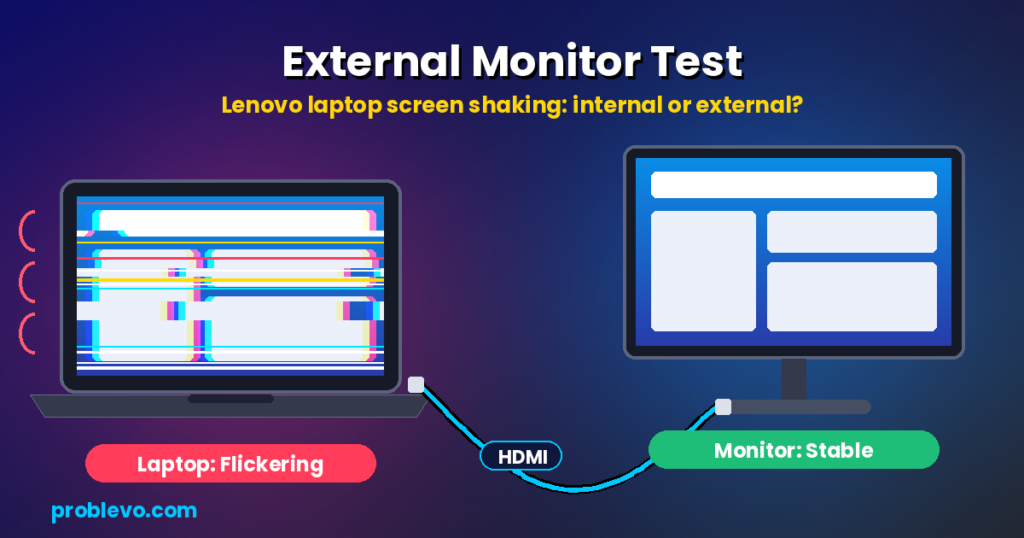
Step 7: Test with an external monitor
- Connect the laptop to a monitor or TV with an HDMI cable, or USB-C if that port supports video output on your model.
- Press Windows logo key + P and choose Duplicate or Extend.
- Watch both screens for several minutes.
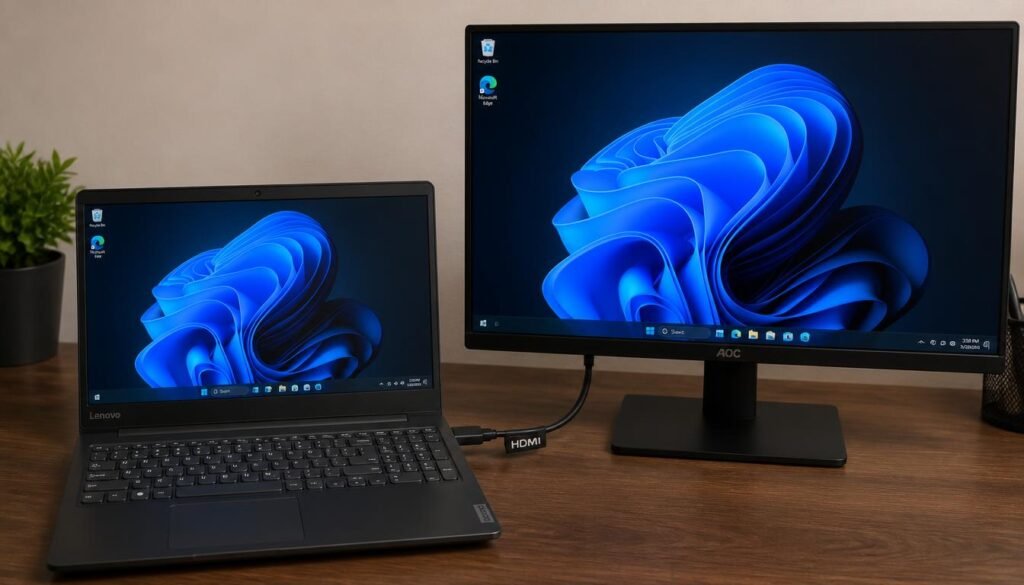
What the results suggest:
- External stable, laptop flickers: The internal display, cable, internal display settings, or power features are more likely. Check BIOS and Safe Mode before assuming a failed screen.
- Both flicker: Graphics driver, GPU, or system level causes are more likely.
- Neither flickers during the test: The fault may be intermittent. Repeat it while the problem is active.
This is a diagnostic clue, not proof of a specific failed part. A wireless mirror does not test the same output path as a cable, so use a cable. If you want to mirror wirelessly for other reasons, see how screen mirroring works without WiFi.
Step 8: Check power and charging behavior
Test each state for several minutes:
- Battery only
- AC adapter connected
- Battery Saver on and off: Windows 11 under Settings > System > Power & battery, Windows 10 under Settings > System > Battery
Interpretation:
- Only on battery: Display power saving, adaptive brightness, or panel self refresh type features are more likely.
- Only while charging: The cause is less certain. Try another outlet, remove USB accessories, and test the original Lenovo adapter if you have one.
- Both states: Power is less likely the cause.
Step 9: Check Lenovo Vantage and BIOS or firmware where appropriate
Entering BIOS. The key varies by model. Many ThinkPads use Enter at the logo, then F1. Many IdeaPad, Yoga, and Legion models use F2 or Fn + F2, or a Novo button menu. Check Lenovo Support for your model.
Stay in BIOS for a few minutes. Flicker in BIOS points toward hardware or firmware, because Windows is not loaded. A steady BIOS with flicker in Windows points toward Windows, drivers, or settings, though it does not clear every hardware cause.
BIOS update. Update only for your exact model, from Lenovo Vantage System Update or Lenovo Support. Keep the AC adapter connected and do not interrupt the update. A failed update can leave the laptop unusable, so do it only if your BIOS is old or the release notes mention display fixes.
Defaults. Loading BIOS defaults is a model dependent option. It can reset other settings, so note changes first.
GPU mode. Some gaming models offer a GPU working mode, such as hybrid or discrete graphics, in Lenovo Vantage or the BIOS. Switching modes and testing can help, but availability varies.
Hardware diagnostics. Some models include Lenovo diagnostics at startup, often through the Novo button or a startup key such as F10 on certain ThinkPads. If a display or LCD test is available, use it. The option varies by model.
Step 10: Determine whether the internal screen or cable may be faulty
If the problem appears in BIOS, survives Safe Mode, changes with lid movement, or the external monitor works while the internal screen does not, hardware becomes the leading suspect. See the next section for details and safe limits.
Hardware vs Software: When the Problem Is Physical
Lenovo laptop screen shaking that survives BIOS, Safe Mode, and a clean driver install usually needs a hardware check. The usual suspects:
- Loose or damaged display cable.
Modern laptops usually use an eDP cable that runs through the hinge. Repeated lid movement can wear it. - Display panel or backlight failure.
This can cause flicker, lines, patches, or sudden dimming. - Physical damage.
Pressure marks, cracks, or a bent lid point toward the panel. - Connector problems.
A cable that is not seated properly can behave intermittently. - GPU or motherboard faults.
These are rarer. They often show on an external monitor too, and may worsen as the laptop warms up.
Warning signs that make hardware more likely:
- Flicker or lines in BIOS
- Changes at certain lid angles
- Visible cracks, pressure marks, or color patches
- Lines that stay in the same place after a clean driver install
- A screenshot that looks clean while the screen still shows lines
Screenshot test: Press Windows logo key + Print Screen, then open the saved image in Pictures > Screenshots on another screen or later. If the lines appear in the image, the fault is in rendering, which points to an app, driver, or GPU. If the image is clean but the screen shows lines, the problem is more likely in the output path, such as the cable or panel. This is a clue, not proof.
Do not open the laptop unless you have the skill and tools. Opening it can void warranty on some models, risk static damage, and break fragile ribbon connectors. Professionals disconnect power and the internal battery before touching display connectors. Leave this to a repair service.
Windows 11 and Windows 10 Differences
Lenovo laptop screen shaking on Windows 11
Windows 11 may offer a Dynamic refresh rate on supported panels. If you see flicker, switch to a fixed rate to test. Windows 11 also groups brightness options under Settings > System > Display > Brightness, and driver updates under Settings > Windows Update > Advanced options > Optional updates.
Lenovo laptop screen shaking on Windows 10
Windows 10 refresh rate settings are often under Display adapter properties > Monitor tab. Microsoft ended regular support for Windows 10 on October 14, 2025, so drivers and fixes may be less frequent. Check Lenovo Support for the newest driver for your model.
| Task | Windows 11 | Windows 10 |
|---|---|---|
| Refresh rate | Settings > System > Display > Advanced display | Display adapter properties > Monitor tab |
| Optional driver updates | Settings > Windows Update > Advanced options > Optional updates | Settings > Update & Security > Windows Update > View optional updates |
| Safe Mode | Settings > System > Recovery > Advanced startup | Settings > Update & Security > Recovery > Advanced startup |
| Battery Saver | Settings > System > Power & battery | Settings > System > Battery |
Lenovo Screen Flickering With Horizontal Lines
Horizontal lines can come from software or hardware, and context decides which.
- Lines only in Windows, gone in BIOS and Safe Mode: Driver or refresh rate fault is more likely.
- Lines present in BIOS: Cable or panel is more likely.
- Lines change with lid movement: Internal display cable is more likely.
- Lines appear in a screenshot: The fault is upstream in rendering, often an app, driver, or GPU.
- Lines stay after a clean driver install and Safe Mode test: Hardware is more likely.
Lenovo Screen Flickering on Startup
The stage where it begins carries diagnostic value.
| Stage | What is running | What the flicker suggests |
|---|---|---|
| Lenovo logo or BIOS | Firmware only, no Windows driver | Hardware or firmware more likely, though not proven |
| Windows loading | Display driver starts loading | Driver more likely if flicker starts here |
| Sign in screen | Windows with few third party apps | Driver or hardware |
| Desktop after sign in | Startup apps and power features | Apps or display settings |
If you use automatic sign in, it skips the sign in screen. For diagnosis, you may want to turn it off temporarily. See Windows 11 automatic login for how it is set up.
Screen Shaking When You Move the Laptop Lid
Open and close the lid slowly through its normal range. Do not force it or press on the panel. If the flicker changes at specific angles, the internal display cable near the hinge becomes the leading suspect. Driver updates will not fix a worn cable. Stop testing and arrange repair, because continued movement may worsen the damage.
Screen Shaking Only in Certain Apps or Browsers
If Task Manager is steady and only one app shakes, treat it as an app problem first. Update the app, test another browser, turn off hardware acceleration, and check that the graphics driver is current. An app specific problem is not a reason to suspect failed hardware.
Common Mistakes When Fixing a Shaking Lenovo Screen
- Changing random display settings.
Change one thing at a time and test, or you will not know what worked. - Installing drivers from unofficial websites.
Use Lenovo Support or Windows Update. - Updating the wrong graphics driver.
Check which adapters your laptop has and install the version for your exact model. - Ignoring whether the problem happens before Windows loads.
The BIOS test is one of the most useful checks. - Assuming every flicker is Windows.
Lid sensitive or BIOS visible flicker points elsewhere. - Resetting Windows too early.
A reset cannot repair a bad cable or panel. - Skipping the external monitor test.
It is quick and narrows the cause. - Opening the laptop without the right knowledge.
You can damage ribbon connectors and void warranty. - Ignoring physical damage.
Cracks, pressure marks, or a dropped laptop point to hardware. - Treating a browser problem as hardware failure.
Test another browser and turn off hardware acceleration first.
If a debloating tool or system tweak was used before the problem began, review what changed. See the Windows 11 debloater guide before running any such tool again.
Factory reset as a last resort. It reinstalls Windows and can remove apps, settings, and, if you choose Remove everything, your files. Back up first. Consider it only if flicker is absent in BIOS and external display tests, and the driver reinstall and Safe Mode comparison did not isolate the cause.
When to Stop Troubleshooting and Get a Repair
Stop and seek a repair service if you see:
- Visible physical damage
- Flicker in BIOS
- An external monitor that works while the internal display does not
- Screen changes when the lid moves
- Persistent horizontal lines
- Unusual heat or a burning smell (power off and unplug immediately)
- A suspected display cable, connector, or panel fault
- No change after drivers, settings, updates, and Safe Mode tests
This is not cause for alarm. It means the test results point beyond what settings can fix. Before paying, check your warranty on the Lenovo Support warranty lookup. Record a short phone video of the symptom to show the technician. For other display faults, see this guide to Lenovo laptop screen problems.
Prevention Tips
- Install drivers and BIOS updates only from Lenovo Support or Lenovo Vantage.
- Create a restore point before changing graphics drivers.
- Avoid pressure on a closed lid, and do not close it on cables or pens.
- Hold the laptop by the base, not the screen corner.
- Avoid driver updater tools and aggressive tweaking utilities.
FAQ
How to fix a shaking laptop screen?
Restart the laptop, then press Windows logo key + Ctrl + Shift + B to reset the graphics driver. Check whether Task Manager flickers, update or roll back the graphics driver, and set the refresh rate again. If nothing changes, test an external monitor to learn whether the internal screen or cable is faulty.
Why does my laptop screen look like it is shaking?
Most often the display is receiving an unstable signal or the image is being redrawn incorrectly. Common reasons are a faulty or mismatched display driver, an incompatible app, or a wrong refresh rate. A worn display cable or damaged panel can cause the same effect, especially if the shaking changes when the lid moves.
How do I stop a shaking screen?
Work from simple to physical. Update or roll back the graphics driver, choose the correct refresh rate, install pending Windows and Lenovo updates, and test in Safe Mode. If the shaking continues in Safe Mode or inside BIOS, stop changing software settings and have the display hardware checked.
Why is my screen shaking?
A shaking screen usually means a software conflict or a hardware fault, and a few tests separate them. If Task Manager shakes with the rest of the screen, suspect the display driver. If the shaking also appears in BIOS or varies with the lid angle, suspect the cable or panel.
Why is my Lenovo screen flickering on Windows 11?
Windows 11 flicker commonly comes from a display driver that Windows Update replaced, an incompatible app, or a dynamic refresh rate or adaptive brightness feature. Roll back the driver if the problem started after an update, then install the Lenovo version for your exact model. Try a fixed refresh rate and switch off automatic brightness to test.
Why does my Lenovo screen flicker on startup?
The stage where it starts matters. Flicker at the Lenovo logo or in BIOS happens before Windows loads, so a hardware or firmware cause becomes more likely. Flicker that begins only when Windows loads points toward the display driver, and flicker only after sign in points toward apps or display settings.
What do horizontal lines on a Lenovo screen mean?
Horizontal lines can come from a driver fault, but lines that stay in BIOS, change with lid movement, or remain after a driver reinstall suggest a display cable or panel problem. Take a screenshot. If the lines are missing from the saved image, the fault is more likely in the screen hardware than in Windows.
How can I tell whether flickering is hardware or software?
Check three things: whether the problem appears in BIOS, whether it persists in Safe Mode, and whether an external monitor behaves normally. Problems in BIOS or Safe Mode lean toward hardware. Problems that disappear in Safe Mode lean toward drivers or apps. These are clues, not proof, so confirm with a technician.
When should I take a Lenovo laptop for repair?
Seek repair when you see physical damage, flicker in BIOS, lines that persist, changes when the lid moves, or heat with a burning smell (power off at once). Also stop if drivers, settings, and Safe Mode tests change nothing. Check warranty status through Lenovo Support first, because the repair may be covered.
Conclusion
The fastest diagnostic path is short. Note when the problem starts, check Task Manager, test an external monitor, compare Safe Mode, and try BIOS. Those results separate software causes such as drivers, apps, and settings from hardware causes such as the cable or panel. If the problem appears in BIOS, survives Safe Mode, or follows the lid, stop changing settings and arrange a hardware check. If it fits a software pattern, work through the driver and settings steps in order.
Problevo publishes practical troubleshooting guides like this one, so you can return when the next tech problem appears.