

Lenovo Laptop Screen Problem: Find the Cause and Fix It
The power light is on, the fan is humming, and the screen shows nothing. It is an alarming sight, but a black display does not always mean a dead screen.
Quick Answer (Lenovo Laptop Screen Problem)
Quick Answer: Lenovo Laptop Screen Problem
A Lenovo laptop screen problem typically stems from low brightness, a frozen display driver, a Windows startup glitch, or failing display hardware.
First Steps to Diagnose:
- Check if the laptop is actually powered on (listen for fans, look for indicator lights).
- Connect an external monitor to test the video output.
- If the external screen works: The fault lies in the laptop display path or panel.
- If it fails too: The issue points toward graphics, firmware, or system startup problems.
This guide helps you find out which kind of problem you have before you change anything. That saves time, and it avoids the two most common mistakes: replacing a screen that is fine and reinstalling Windows when the cause is a loose connection.
In This Guide
Diagnostic table: what you see and where to look
Lenovo Laptop Screen Problem ?
What a Lenovo screen problem actually means
Your laptop sends an image through a chain: the processor and graphics hardware create the picture, a display cable carries it to the panel, and the backlight makes it visible. A fault at any point can produce a black or damaged screen. Software can also fail at the start of that chain, which is why a screen that looks dead may be perfectly healthy.
Two details are easy to miss. First, the keyboard backlight and power light are separate from the display, so they can work while the screen does not. Second, a laptop that is on is not the same as a laptop that has finished starting Windows.
Common symptoms
Most reports fall into a few groups: a completely black screen, a black screen with a running laptop, a screen that goes black during use, dim or flickering output, lines or color artifacts, and a display that fails only after sleep or an update. User reports on forums such as the Lenovo subreddit describe all of these, but forum posts show symptom patterns only. They do not prove a cause. Use the tests below to confirm what is happening on your own laptop.
Fast diagnosis: answer these questions first
Work through them in order and write down the result.

- Does the laptop power on? Look for lights and listen for the fan. No signs of life points toward power, not display.
- Does the Lenovo logo appear? If yes, the display works at least at the earliest stage.
- Can you hear Windows start? A startup sound or other audio suggests the system is loading.
- Does the keyboard respond? Try Caps Lock. If the light toggles, the system may be responding, but this does not prove Windows loaded.
- Does an external monitor show an image? This is the most useful test, covered below.
- Does the display work in BIOS or UEFI?
- Does the problem begin only after Windows loads?
- Is there physical damage? Cracks, ink like spots, or a recent drop or liquid exposure matter.
- Does the lid angle change the picture?
- Is it constant or intermittent? Intermittent faults often relate to cables, drivers, or power states.
If the answers point to the screen failing before Windows, think hardware or firmware first. If it fails only after Windows loads, think software first. These are tendencies, not proof.
Step by step fixes
Step 1: Confirm the laptop is actually powered on
Connect the original charger and wait a minute. Press the power button once. Check for charging lights, fan noise, or a Caps Lock light that responds. If there are no signs of life, the problem may be power, not display. Try a different outlet and make sure the charger tip is fully seated.
Step 2: Check brightness and display output
Press the brightness keys on the keyboard several times. On some Lenovo models, the function row needs the Fn key, and some models have a function lock that reverses this. If the screen is a very dark gray rather than pure black, brightness may be at the lowest level.
If you can see a faint image, shine a flashlight at the screen from an angle. A faint picture in the beam suggests the panel is working and the backlight or brightness is the issue. This is a useful clue, not proof.
Step 3: Try the Windows display reset shortcut
Press Windows + Ctrl + Shift + B once. This asks Windows to restart the graphics driver. The screen may flicker and some laptops beep. It only helps if Windows is running and the graphics driver has stalled.
You can also press Windows + P to open the display output menu. The menu includes PC screen only, Duplicate, Extend, and Second screen only. If Windows is sending the picture to a hidden external display, choosing PC screen only restores the laptop screen. The order of items can differ by Windows build, so use this carefully if you cannot see the menu.
Step 4: Disconnect unnecessary devices
Unplug docking stations, USB drives, adapters, and external displays. A faulty dock or adapter can change display routing or stall startup. Restart and test again.
Step 5: Perform a power reset when supported
A power reset can clear a stuck state in the laptop firmware. Shut down, unplug the charger, and remove the battery only if your model has a removable battery. Hold the power button for about 30 seconds, reconnect the charger, and start again.
Lenovo models differ, and some have an emergency reset hole. Check the user guide for your exact model on Lenovo Support before trying anything beyond holding the power button.
Step 6: Test with an external monitor
See the dedicated section below. This test splits the problem into two groups, and it is worth doing early.
Step 7: Check whether the Lenovo logo appears
If the logo appears and then the screen goes black, the display hardware worked at startup. That points toward Windows, the graphics driver, or display settings. If nothing appears at any point, even on an external monitor, the cause is more likely earlier in the chain.
Step 8: Test BIOS or UEFI display behavior
See the BIOS and UEFI section below.
Step 9: Investigate graphics driver problems
See the graphics driver section below.
Step 10: Check Device Manager when Windows is accessible
Right click Start, open Device Manager, and expand Display adapters. Look for warning icons or an entry named Microsoft Basic Display Adapter, which may mean the proper graphics driver is not active. If the laptop has two graphics entries, such as Intel and NVIDIA or AMD, both should appear without errors.
Step 11: Test Safe Mode when appropriate
Safe Mode loads Windows with minimal drivers. If the screen works in Safe Mode but not normally, a driver or startup program is the likely cause. If Windows is accessible, go to Settings > System > Recovery > Advanced startup > Restart now, then Troubleshoot > Advanced options > Startup Settings > Restart, and choose Safe Mode.
If you cannot see the screen, Windows often enters its recovery environment after several interrupted startups. Treat this as a method to try, not a guarantee. The Lenovo Novo button, where your model has one, can also open recovery options.
Step 12: Consider Windows Update or recent software changes
Think about what changed just before the problem: a Windows update, a driver update, new software, a VPN or security tool, or a system optimizer. A restore point, if you have one, can return Windows to an earlier state. If you use tools that remove Windows components, see the Windows 11 debloater guide to understand what such tools can change.
Step 13: Inspect hardware symptoms
See the hardware diagnosis section below.
Step 14: Decide whether professional repair is appropriate
See the professional repair section below.
Lenovo laptop screen problem on Windows 11
Menu names can differ between Windows 11 builds, so use these paths as a guide and look for the closest match on your version.
- Brightness and display settings: Settings > System > Display. Check brightness, Night light, and the display list.
- Advanced display: Settings > System > Display > Advanced display. This shows connected displays and the refresh rate. If Windows lists only one display and it is not your laptop panel, the internal display may not be detected.
- Device Manager: Right click Start, then Device Manager > Display adapters.
- Windows Update: Settings > Windows Update. Check update history and optional driver updates.
- Recovery and Advanced startup: Settings > System > Recovery > Advanced startup.
- Safe Mode: through Advanced startup > Troubleshoot > Advanced options > Startup Settings.
If you can see the screen only briefly after sign in, make the most of that time. Check display settings, then Device Manager. If your laptop signs in automatically, it can be hard to tell whether the failure is before or after the sign in screen, so read how Windows 11 automatic login works to understand that stage.
Lenovo laptop screen black but keyboard lit up
Keyboard lights alone do not prove Windows has fully loaded. The keyboard backlight is controlled separately, and it can light up as soon as the laptop receives power.
Possible causes include display output set to the wrong screen, a graphics driver problem, a stalled Windows startup, an internal display or cable fault, or a wider hardware failure.
Try this order:
- Wait two minutes. Windows may be updating or starting slowly.
- Press Caps Lock. If the light responds, the system is at least partly running.
- Press Windows + Ctrl + Shift + B, then Windows + P and choose PC screen only if you can do so blindly.
- Connect an external monitor.
- Force a shutdown with a long press, wait ten seconds, and start again, watching for the logo.
- Try a power reset.
- If the logo appears but Windows never does, test recovery options and Safe Mode.
This is also the answer to “why is my Lenovo laptop screen black but still running.” The laptop is running, but the picture is not reaching you.
External monitor test
An external monitor shows whether the laptop can produce a picture at all. Connect it with HDMI, or USB C display output if your laptop supports it, and give it a minute. If you have a TV, it can work as a test display. For more on using a TV with a wired connection, see screen mirroring without Wi Fi.
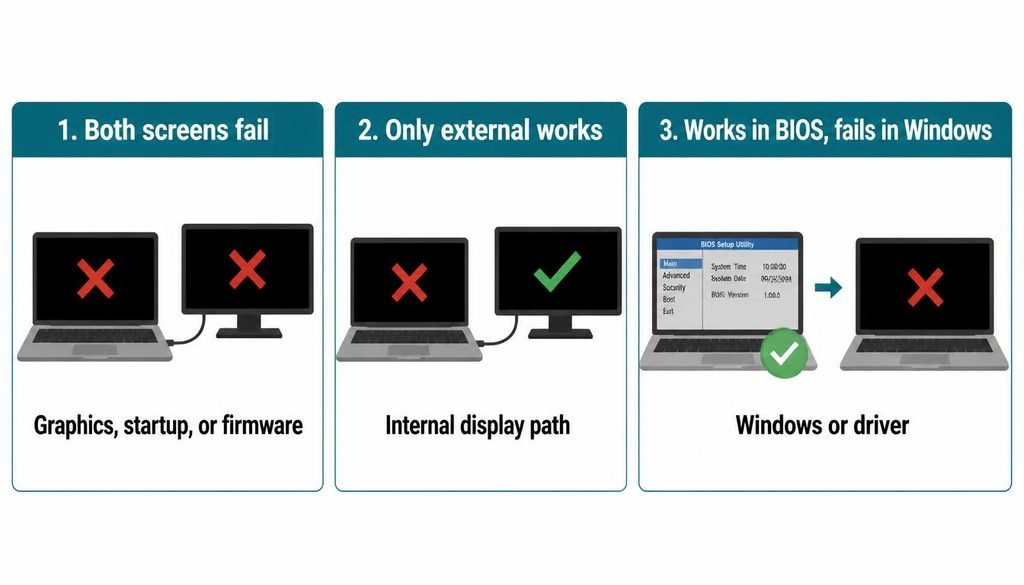
- Case A: laptop display fails and the external monitor also fails. The problem may be the graphics subsystem, system startup, firmware, or a broader hardware fault.
- Case B: external monitor works but the internal display does not. This raises suspicion of the internal display path: panel, cable, connector, or related hardware. A driver or display output setting can still cause this, so check Windows settings too.
- Case C: laptop display works in BIOS but fails after Windows starts. This raises suspicion of Windows, graphics drivers, or display configuration.
None of these cases is absolute proof. A weak adapter or a docking station can mislead the test, so try a different cable or port if the result looks odd.
BIOS and UEFI diagnosis
BIOS or UEFI is the firmware screen that appears before Windows. If you can see it on the laptop display, the panel and cable are working at that stage. This makes a Windows or driver cause more likely.
Entry keys vary by model. Many Lenovo laptops use F2 or F1, and some use Enter at the logo, and many IdeaPad models have a Novo button. Lenovo describes the Novo button as a small button or pinhole, usually on the side or near the power button, pressed with an unfolded paper clip. Its location differs by model, and Lenovo says not all products have one. Check your exact model on Lenovo Support to confirm the key or button.
If the BIOS screen is clear, avoid updating the BIOS just in case. A BIOS update can help when Lenovo documents a fix for your model, but an interrupted update can cause serious problems.
Graphics driver troubleshooting
Use official sources only: Lenovo Support for your model, Windows Update, or the graphics maker (Intel, AMD, or NVIDIA). Avoid third party driver download sites.
If the display does not work normally, do this work in Safe Mode or on an external monitor. Install one driver change at a time so you can see what helped.
Hardware diagnosis
These signs make a hardware problem more likely:

- Visible cracks or black ink like spots
- Vertical or horizontal lines that stay in the same place
- Flickering or changes when the lid or hinge moves
- Consistent success on an external monitor while the internal screen fails
- No display even before Windows loads, including in BIOS
- A faint image in a flashlight test, which can suggest a backlight problem
- A physical impact or liquid exposure
Treat all of this as likelihood, not proof. One symptom does not tell you exactly which part has failed. Only a technician can confirm the faulty component.
Repair cost: how much does it cost to fix a Lenovo laptop screen?
There is no universal price. The cost depends on:
- The Lenovo model and screen size
- Resolution and panel type
- Whether the screen has touch support
- Availability of replacement parts
- The condition of the display cable
- Labor charges
- Your local market
A repair may involve only a cable or connector, which can cost less than a full panel replacement, but a technician has to inspect it to know. Ask for a written quote that separates parts and labor. Check your warranty status through Lenovo Support before paying, since coverage may apply. Compare the quote with the value of the laptop, and consider your options if the repair costs a large share of a comparable replacement.
Common Lenovo display problems
Common mistakes when fixing a Lenovo laptop screen problem
- Replacing the screen before diagnosis
- Assuming keyboard lights mean Windows is running
- Reinstalling Windows unnecessarily
- Installing random graphics drivers
- Updating the BIOS without a reason
- Skipping the external monitor test
- Ignoring hinge or cable symptoms
- Assuming every black screen is a dead LCD
- Repeating the same step without noting the result
When to get professional repair
Seek repair when:
- The screen is cracked or has ink like spots
- Lines or flicker change with the lid angle
- The external monitor works and the internal display fails in BIOS too
- The laptop took an impact or liquid
- Safe Mode, driver fixes, and recovery have not helped
- The laptop is under warranty, since opening it yourself can affect coverage
Do not open the laptop unless you have the skills and the procedure suits your model. Internal batteries and connectors can be damaged, and you can hurt yourself. Back up your data first if you can see anything on screen, or use an external monitor to do so. If you need to download drivers or recovery files on another device, a stable connection helps, so see how to fix Wi Fi problems and, when you use a phone hotspot, how to check your remaining hotspot data.
FAQ
How much does it cost to fix a Lenovo laptop screen?
The price depends on the model, screen size, resolution, panel type, touch support, parts availability, cable condition, labor, and your local market. A cable repair can differ greatly from a panel replacement. Check warranty status first, then ask for a written quote that separates parts and labor.
Why is my Lenovo laptop turning on but no display?
The laptop may be running while the picture is lost somewhere between graphics and panel. Common areas are brightness, display output, a driver, startup problems, or hardware. Test an external monitor first, then check whether the Lenovo logo or BIOS appears.
How do I fix a laptop display problem?
Find where the failure happens before fixing it. Confirm the laptop is on, check brightness, press Windows + Ctrl + Shift + B, test an external monitor, and check BIOS. Then try Safe Mode and driver fixes. Persistent faults in BIOS or physical symptoms suggest repair.
What are some common Lenovo display issues and how can I fix them?
Common issues include black screens, flickering, dim output, lines, and failures after sleep or updates. Software causes respond to driver rollbacks, updates, and Safe Mode. Lines, cracks, and lid dependent flicker point toward hardware and professional repair.
Why is my Lenovo laptop screen black but still running?
The system may be powered while the display path is not working. Wrong output selection, a stalled driver, a Windows startup issue, or display hardware can cause it. Try Windows + Ctrl + Shift + B, Windows + P, and an external monitor.
Why is my Lenovo laptop screen black but the keyboard lit up?
The keyboard backlight works independently of the display and can turn on at power up. It does not prove Windows has loaded. Wait a few minutes, test Caps Lock, use an external monitor, and check whether the Lenovo logo appears.
How do I fix a Lenovo black screen on startup in Windows 11?
Work out whether the logo appears. If it does, try Safe Mode through recovery options, roll back recent drivers, and use a restore point. If nothing appears even in BIOS or on an external monitor, look at power and hardware causes and consider professional help.
Why does my Lenovo laptop work on an external monitor but not its own screen?
That points toward the internal display path: panel, cable, connector, or backlight. A Windows output setting or driver can also cause it, so press Windows + P and check display settings. If BIOS is also blank on the laptop screen, hardware is more likely.
How do I know if my Lenovo screen or display cable is broken?
There is no certain test without inspection. Flicker that changes with the lid angle suggests the cable or connector. Cracks, spots, and fixed lines suggest the panel. A faint image under a flashlight suggests the backlight. A technician should confirm.
Can a Lenovo laptop screen problem be caused by a graphics driver?
Yes. A faulty or incompatible driver, often after an update, can cause black screens, flicker, or a lost display. Boot into Safe Mode, then roll back or reinstall the driver from Lenovo, Microsoft, Intel, AMD, or NVIDIA.
Conclusion
Start by checking whether the laptop is actually running, then connect an external monitor. Those two tests separate the likely software causes from the likely hardware ones. A screen that works in BIOS but fails in Windows points to drivers or settings. A screen that fails everywhere, or shows cracks, lines, or lid dependent flicker, points toward repair.
If you found this useful, explore the rest of Problevo for practical, step by step troubleshooting guides.


One Comment