

Why Is My Personal Hotspot Grayed Out? 9 Must-Try Fast Fixes
When your Personal Hotspot suddenly becomes unavailable, even a simple task like connecting your laptop to the internet can become frustrating. The good news is that you can often narrow down the cause by checking a few settings before contacting your carrier or resetting your phone.
Quick Answer
⚡ Quick Answer: Why Personal Hotspot Is Grayed Out
- Cellular Data Off: Personal Hotspot requires active mobile data. Go to Settings > Cellular and toggle Cellular Data ON.
- Carrier Plan Restrictions: Your mobile plan may not support hotspot sharing or may require an account authorization.
- Content & Privacy Restrictions: Check Settings > Screen Time > Content & Privacy Restrictions to ensure changes are allowed.
- Outdated Carrier Settings: Go to Settings > General > About to trigger an official carrier network update.
Table of Contents
Personal Hotspot Troubleshooting at a Glance
| Symptom | Possible Root Cause | Recommended First Action |
|---|---|---|
| Personal Hotspot is missing from iPhone Settings | Carrier support or cellular configuration issue | Check cellular data and contact your carrier |
| Personal Hotspot is visible but grayed out | Cellular data, carrier provisioning, or a restriction | Turn on cellular data and verify plan eligibility |
| Hotspot turns on but connected devices have no internet | Mobile data or network connection problem | Test mobile internet directly on your phone |
| Android Mobile Hotspot is disabled | Carrier restriction, unavailable mobile data, or device settings | Check mobile data and SIM settings |
| Windows Mobile Hotspot is unavailable | No suitable connection or a Windows configuration issue | Check the available internet connection and network settings |
| Hotspot works with one device but not another | Receiving device compatibility or connection issue | Forget the saved network and reconnect |
| Hotspot stopped working after an update | Software or carrier configuration change | Check for additional updates and verify carrier support |
These symptoms are clues, not definitive diagnoses. The correct solution depends on your device, operating system, mobile carrier, and cellular plan.
Why Is My Personal Hotspot Grayed Out?
A grayed out Personal Hotspot setting usually means that the feature is unavailable under the phone’s current configuration. It does not automatically mean that your iPhone is damaged.
Several different problems can produce a similar symptom.
1. Cellular data is turned off or unavailable
Personal Hotspot shares your phone’s cellular internet connection with another device. If cellular data is disabled or your phone cannot access mobile internet, hotspot functionality may be affected.
Open a website using your phone’s mobile data with Wi Fi turned off. If the website does not load, resolve the cellular connection problem first.
2. Your mobile plan does not support hotspot use
Some mobile carriers restrict tethering to eligible plans or require a hotspot feature to be enabled on the account.
Even if ordinary mobile data works, your plan may not permit Personal Hotspot. Contact your carrier to confirm that tethering is supported and correctly provisioned on your account.
3. Carrier settings or APN configuration need attention
Carrier settings help your phone communicate with the mobile network. On some devices and networks, incorrect or missing Access Point Name settings can interfere with mobile data or tethering.
Do not enter random APN values from an online forum. Use only settings supplied by your carrier or device manufacturer.
4. A restriction is blocking the feature
A company or school may manage certain settings on a device. Restrictions, configuration profiles, or mobile device management policies can limit access to network features.
If the phone belongs to your employer or school, ask the device administrator whether hotspot use is permitted.
5. The problem is actually on the receiving device
Sometimes the phone hotspot works correctly, but a laptop or tablet cannot find it or connect to it.
If the hotspot can be enabled and another device connects successfully, investigate the receiving device before changing the phone’s network configuration.
How to Fix a Grayed Out Personal Hotspot on iPhone
Work through these fixes in order. Check the hotspot setting after each step so you can identify what resolves the problem.
Step 1. Check Cellular Data
Why this matters: Your iPhone uses its cellular connection to provide internet access through Personal Hotspot.
How to do it:
- Open Settings on your iPhone.
- Tap Cellular or Mobile Data, depending on your region and iOS version.
- Turn on Cellular Data.
- Temporarily turn off Wi Fi and open a website in Safari to test mobile internet.

What to do next: If mobile internet does not work, check your signal, cellular plan, SIM or eSIM status, and any carrier outage. Fix the cellular connection before troubleshooting hotspot sharing.
If mobile internet works but Personal Hotspot remains unavailable, continue to the next step.
Step 2. Confirm That Your Carrier Supports Personal Hotspot
Why this matters: A compatible iPhone does not guarantee that every mobile plan supports tethering.
How to do it:
- Open Settings.
- Look for Personal Hotspot or Cellular > Personal Hotspot.
- If the setting is missing or cannot be enabled, contact your mobile carrier.
- Ask whether your plan supports Personal Hotspot and whether tethering is enabled on your account.
Explain that cellular data works, if applicable, but the hotspot option is unavailable.
Your carrier can check whether the feature is supported, whether account provisioning needs correction, and whether any plan restrictions apply.
Apple also recommends checking with your carrier when Personal Hotspot cannot be found or enabled. See the official Apple Personal Hotspot troubleshooting guide.
Step 3. Check for a Carrier Settings Update
Why this matters: Carrier settings updates can provide changes that improve cellular connectivity and network compatibility.
How to do it:
- Connect your iPhone to Wi Fi if available.
- Open Settings > General > About.
- Wait briefly on the About screen.
- If a carrier settings update appears, follow the on screen instructions.
- Return to Settings and check Personal Hotspot again.
Not every iPhone will display an update prompt. If none appears, that does not necessarily mean your carrier settings are incorrect.
Step 4. Review Cellular and APN Settings
Why this matters: Some carriers require specific cellular configuration for tethering.
Open Settings > Cellular and review the available cellular options. If your carrier provides instructions for Personal Hotspot or APN configuration, follow those instructions for your exact device and plan.
Do not assume that every iPhone exposes editable APN settings. Availability depends on the carrier and configuration.
Important: Do not change APN values simply because a website recommends them. Incorrect settings may interrupt cellular data or tethering. Ask your carrier to verify the correct configuration if you suspect an APN issue.
Step 5. Check Dual SIM and Cellular Data Selection
If your iPhone uses two SIMs or an eSIM alongside a physical SIM, confirm which line supplies cellular data.
- Open Settings > Cellular.
- Review the cellular plans listed on your device.
- Tap Cellular Data and confirm that the intended line is selected.
- Check that the selected line has an active data plan and a working connection.
Carrier capabilities and plan eligibility can differ between lines. Do not assume that a plan supporting mobile data also supports tethering.
If the selected line cannot provide Personal Hotspot, ask the carrier whether that particular plan supports it.
Step 6. Check Screen Time and Device Management
If the iPhone is managed by an employer or school, network settings may be restricted by an administrator.
Check whether your device displays a supervision or management message in Settings. On a personally owned device, review any relevant Screen Time restrictions if you suspect that a restriction has been configured.
The exact effect of restrictions depends on the iOS version and management policy. Do not delete configuration profiles or attempt to bypass an employer’s controls.
If the device is managed, contact the administrator to confirm whether Personal Hotspot is allowed.
Step 7. Restart Your iPhone
A restart can clear a temporary software problem affecting cellular connectivity or settings.
- Save any work in progress.
- Restart your iPhone using the normal procedure for your model.
- Wait for the phone to reconnect to the cellular network.
- Test mobile internet.
- Open Settings > Personal Hotspot, or the corresponding Cellular menu, and check the option again.
If the setting remains unavailable, continue with the next step rather than repeatedly restarting the phone.
Step 8. Reset Network Settings if Necessary
Use this step only after checking cellular data, carrier support, updates, and relevant restrictions.
On current iOS versions, the path is generally:
Settings > General > Transfer or Reset iPhone > Reset > Reset Network Settings
Read the confirmation carefully before proceeding.
What this reset changes: It removes saved Wi Fi networks and passwords and resets network related settings, including previously used VPN and APN settings. Other network configuration may also be affected.
It does not guarantee that Personal Hotspot will become available. If the carrier has not enabled tethering on your plan, a network reset will not fix that account restriction.
Make sure you know your important Wi Fi passwords before proceeding.
Step 9. Contact Your Carrier or Apple Support
If Personal Hotspot is still grayed out, stop repeating the same fixes and narrow down the remaining cause.
Contact your carrier if:
- Cellular data works but Personal Hotspot is missing.
- Your account may not have tethering enabled.
- The problem started after a plan, SIM, or eSIM change.
- The phone displays a carrier related error.
- APN or carrier provisioning may need correction.
Contact Apple Support if the carrier confirms that the plan and account support Personal Hotspot, but the feature remains unavailable after appropriate troubleshooting.
Provide your iPhone model, iOS version, carrier, and the steps you have already tried. This information can help support staff identify the issue more quickly.
How to Fix a Grayed Out Hotspot on Android
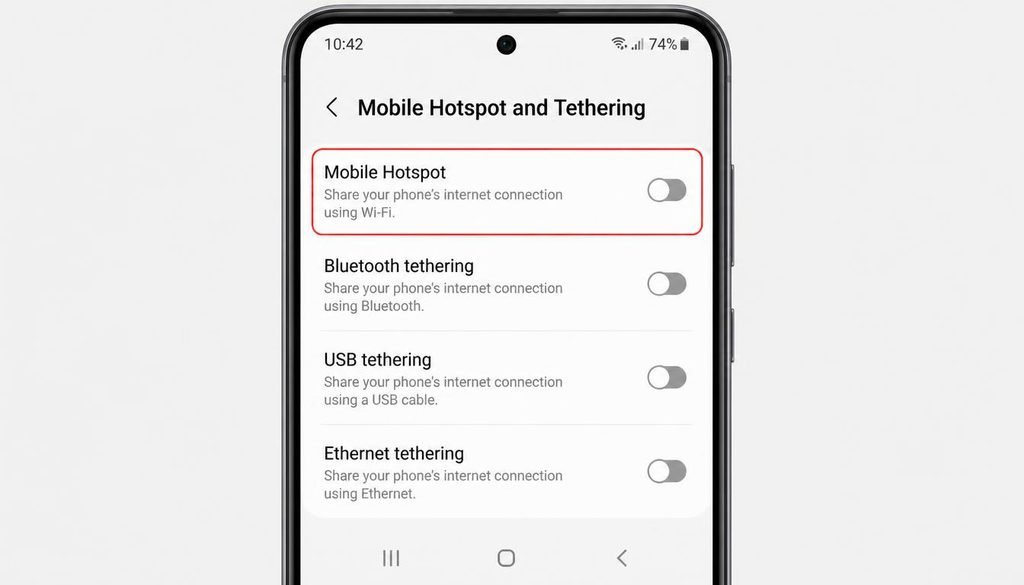
Android phones use different menus depending on the manufacturer, model, and Android version. The feature may be called Mobile Hotspot, Wi Fi Hotspot, or simply Hotspot.
Step 1. Turn on Mobile Data
Open Settings and locate Network & Internet, Connections, or the corresponding cellular menu.
Turn on mobile data and test a website with Wi Fi disabled. If mobile internet does not work, troubleshoot your cellular signal, SIM, or data plan first.
Step 2. Open the Hotspot Setting
On many Android phones, you can swipe down from the top of the screen and look for the Hotspot tile.
If it is missing from Quick Settings, edit the available tiles or open the full Settings menu. The location and label vary between devices.
On Google Pixel devices, start by checking the Network & Internet section. On Samsung Galaxy devices, look under Connections for Mobile Hotspot and Tethering.
If the option is visible but disabled, continue to the next step.
Step 3. Check Your Carrier and SIM
Some mobile operators limit or charge extra for tethering. Confirm that your current plan supports hotspot use and that the correct SIM is selected for mobile data.
If mobile internet works but hotspot remains unavailable, ask your carrier whether the account allows tethering and whether any network configuration issue needs attention.
Step 4. Restart and Update Your Phone
Restart the device, check for available system updates, and test the hotspot again.
If the problem began after an update, check whether another update or a manufacturer support recommendation is available. Do not assume that the update itself is responsible without further evidence.
Step 5. Test Another Sharing Method
If your device supports it, try USB tethering or Bluetooth tethering as a temporary alternative.
These methods have different compatibility requirements and may still be restricted by your carrier. For Android instructions, consult Google’s official hotspot and tethering guide.
If all tethering methods fail despite working mobile data, contact your carrier or device manufacturer.
What If the Hotspot Is Grayed Out on a Windows Laptop?
First, identify which hotspot problem you have. Windows has its own Mobile Hotspot feature, which shares an existing internet connection. This is different from connecting your laptop to your iPhone or Android hotspot.
If Windows Mobile Hotspot Is Disabled
- Open Settings > Network & internet > Mobile hotspot.
- Check the Share my internet connection from option.
- Select an available connection, such as Wi Fi or Ethernet.
- Review the Share over option.
- Check whether the Mobile Hotspot toggle can now be enabled.
The available options depend on your computer’s network hardware, drivers, Windows version, and current network configuration.
If the feature remains disabled, restart the computer and check for available Windows and network adapter updates.
You can also review Microsoft’s official guide to using Windows as a mobile hotspot.
If Windows Cannot Find Your Phone Hotspot
If your phone’s hotspot is already enabled but the laptop cannot find it:
- Confirm that another device can see the hotspot, if possible.
- Turn the laptop’s Wi Fi off and back on.
- Keep the phone near the laptop while testing.
- Confirm that the phone’s hotspot is enabled and that the network name is correct.
- If the phone offers a compatibility option, consult its instructions and test an alternative setting where appropriate.
If the laptop sees the hotspot but cannot connect, forget the saved network and reconnect using the correct password.
For broader connection problems, see this guide to troubleshooting Wi Fi connection problems.

why is my personal hotspot grayed out ?
Why Is the Hotspot Still Grayed Out After Trying Everything?
If none of the steps works, the next move is to determine whether the restriction comes from your device, carrier, or receiving computer.
Your carrier has not enabled tethering
A carrier can offer mobile data without supporting hotspot use on every plan. Ask support to verify the specific plan and account, not just whether your phone has cellular service.
Your device is managed
A work or school device may have restrictions that prevent changes to network sharing. The administrator must confirm whether hotspot use is allowed.
Your cellular configuration needs correction
A carrier settings issue, unsupported APN configuration, or problem with the selected SIM may affect tethering. Ask your carrier to verify the appropriate settings instead of changing them randomly.
The receiving device has a separate problem
If another laptop can connect successfully, the original laptop may have a Wi Fi adapter, saved network, or compatibility issue.
You can investigate general Windows network problems separately. If the hotspot is enabled and working on the phone, avoid resetting the phone’s network settings without a reason.
How to Prevent Personal Hotspot Problems
A few sensible habits can help you diagnose future issues more quickly.
- Keep your phone’s operating system updated when updates are available and appropriate.
- Check your carrier plan before changing data plans or SIMs.
- Keep a record of the carrier’s recommended APN settings if your carrier uses them.
- Confirm that cellular data works before troubleshooting tethering.
- Avoid installing unknown configuration profiles or network tools.
- Keep your hotspot password private and use the security settings recommended by your device.
- Check your mobile data allowance if the connection becomes slow or stops working.
If you frequently share mobile data, learn how to check how much hotspot data you have left. Your available data and your plan’s tethering eligibility are separate things, so check both when diagnosing a problem.
Final Troubleshooting Checklist
Before contacting support, confirm the following:
- Cellular data is enabled and mobile internet works.
- Your mobile plan supports Personal Hotspot or tethering.
- The correct SIM or eSIM is selected for cellular data.
- Available carrier settings and software updates have been checked.
- Device management restrictions have been considered.
- You have restarted the phone and tested the setting again.
- You understand the consequences before resetting network settings.
- You have checked whether the problem affects the phone or only one receiving device.
If cellular data works but the hotspot option is still unavailable, contacting your carrier is often the most useful next step.
FAQ
Why cannot I enable Personal Hotspot?
Personal Hotspot may be unavailable because cellular data is not working, your carrier plan does not support tethering, or a device restriction is in place. Start by testing mobile internet and confirming that your carrier supports hotspot use. If both are working, review carrier settings and device restrictions.
How do I fix a grayed out setting on my iPhone?
First, turn on Cellular Data and check that your iPhone can access mobile internet. Then confirm that your carrier supports Personal Hotspot, check for carrier settings updates, and restart the device. If the option remains unavailable, ask your carrier to verify tethering eligibility before resetting network settings.
Why is my hotspot grayed out on my laptop?
On Windows, the Mobile Hotspot feature may be unavailable because there is no suitable connection to share or a network configuration issue exists. If you are trying to connect to a phone hotspot instead, the problem may be Wi Fi related. Check which hotspot feature is disabled before changing network settings.
Why will my iPhone not let me enable my hotspot?
Your iPhone may not let you enable Personal Hotspot if the feature is unsupported by your cellular plan, carrier settings are incomplete, or a device restriction applies. Check Cellular Data first, then confirm hotspot support with your carrier. If the carrier confirms everything is configured correctly, contact Apple Support.
Why is Personal Hotspot missing from my iPhone Settings?
Personal Hotspot may be missing because of carrier support, cellular configuration, or device management restrictions. Menu placement can also vary by iOS version and configuration. Check the Cellular section and contact your carrier if the option is absent. Do not assume that a missing menu means the phone is damaged.
Can my carrier disable Personal Hotspot?
Yes. A carrier may restrict tethering based on your mobile plan or account configuration. This can happen even when ordinary cellular data works. Ask your carrier to confirm that your specific plan supports Personal Hotspot and that it is enabled on your account. Available features vary by provider and plan.
Why is Personal Hotspot grayed out after an iOS update?
An update may coincide with a carrier settings, configuration, or software issue, but timing alone does not prove the update caused the problem. Test cellular data, check for a carrier settings update, and restart your iPhone. If the hotspot remains unavailable, ask your carrier to verify your account and configuration.
How do I fix a grayed out hotspot on Android?
Turn on mobile data, test internet access, and open the Mobile Hotspot or Wi Fi Hotspot setting. Restart the phone and check whether your carrier permits tethering. If mobile internet works but hotspot remains disabled, verify your plan and SIM configuration. Menu names and available options vary by manufacturer.
Will resetting network settings fix a disabled hotspot?
Resetting network settings can help with certain configuration problems, but it does not guarantee that Personal Hotspot will become available. On an iPhone, the reset removes saved Wi Fi networks and passwords and resets certain cellular, VPN, and APN settings. Check carrier eligibility first and save important network details before proceeding.
Can a work or school profile disable Personal Hotspot?
Yes. A managed device may have policies that restrict network sharing or prevent users from changing certain settings. The exact restrictions depend on the organization’s configuration. Contact your IT administrator to confirm whether hotspot use is allowed. Do not remove management profiles or attempt to bypass organizational restrictions.
Conclusion
A grayed out Personal Hotspot does not automatically mean that your iPhone, Android phone, or laptop is faulty. The most useful first checks are cellular connectivity, carrier plan eligibility, network configuration, and device restrictions.
Start with the simplest checks and move to more advanced troubleshooting only when necessary. If mobile data works but hotspot remains unavailable, ask your carrier to verify tethering support before spending time on repeated resets.
Related Hotspot Troubleshooting & Setup Guides
If you are continuing to manage your mobile connection or want to optimize your tethering setup across other devices, review our detailed technical walkthroughs below:
- General Connection Issues: If your tethering stays inactive after fixing menu restrictions, learn why your mobile hotspot is not working and how to clear underlying carrier handshaking errors.
- Basic Network Functionality: To understand data routing and cellular conversion, read our breakdown on how mobile hotspots work behind the scenes and explore how host devices share data.
- Device Setup Protocols: Follow our step-by-step instructions on how to connect a mobile hotspot to your laptop or check our dedicated guide on how to turn on mobile hotspot on iPhone.
- Data & Cost Management: Avoid unexpected plan charges by verifying whether using a hotspot costs extra money and learn how to check how much hotspot data you have left.
- Security & Access Settings: If your client device cannot authenticate the network, check how to find your mobile hotspot password to re-enter your WPA2/WPA3 security key.


4 Comments