Network Adapter Not Working? Causes & Safely Fixes (2026)
A network adapter not working can leave your PC without WiFi or Ethernet, but you can usually find the cause by checking a few things in the right order.
Quick Answer
⚡ Quick Answer
To fix a network adapter not working in Windows, first test other devices on your network to isolate the issue. Next, open Device Manager, expand Network adapters, and ensure your adapter is enabled. If it fails, update or reinstall the network driver from your PC manufacturer, and perform a Network Reset only as a final resort.
How to Fix a Network Adapter Not Working:
- Isolate the Network: Test if other devices can connect to the same Wi-Fi or Ethernet connection.
- Check Device Manager: Right-click Start, open Device Manager, and expand Network adapters.
- Enable the Adapter: Right-click your network controller and select Enable device if it is disabled.
- Update Network Drivers: Download and reinstall the official network driver from your PC maker’s support page.
- Run Network Reset: Go to Settings > Network & internet > Advanced network settings and use Network reset if gentler fixes fail.
Table of Contents
Quick Diagnosis Table
| Symptom | Likely Cause | Recommended First Action |
| WiFi toggle or WiFi option missing | Airplane mode, stopped WLAN AutoConfig service, disabled adapter, or driver not loaded | Turn off Airplane mode, then look for the adapter in Device Manager |
| Adapter absent from Device Manager | Hidden device, missing driver, or adapter not detected | Select View > Show hidden devices, then Action > Scan for hardware changes |
| Adapter listed but disabled | Turned off manually or by a setting | Right click it and select Enable device |
| Yellow warning icon or Code 10 | Driver or device failed to start | Open Properties, read the Device status message, then use the error code table below |
| Ethernet connection not detected | Cable, port, router, or Ethernet driver | Try another cable and another router port |
| WiFi disconnects after sleep | Power Management setting or driver issue | Clear the power saving checkbox on the adapter Properties page |
| Internet failed after a driver or Windows update | Changed or incompatible driver | Check the Driver tab and use Roll Back Driver if it is available |
What a Network Adapter Does and Why It Fails
A network adapter is the hardware and driver combination that lets your PC join a network. A wireless adapter connects to a router using radio signals. An Ethernet adapter connects through a cable. Many laptops have both, many desktops have only Ethernet, and a USB adapter can add either.
Adapters stop working for several reasons. A driver may fail to load, Windows may have disabled the device, a service may have stopped, or a power setting may switch the adapter off. Less often, a firmware setting or a physical fault is responsible.
This guide moves from basic checks to advanced recovery. You do not need every step. Stop as soon as your connection returns.
Understand the Problem Before You Change Anything
Different symptoms point to different fixes. Match yours first.
- Disabled adapter: Windows can see the adapter, but it is turned off. Device Manager usually shows a small down arrow on the icon.
- Missing or undetected adapter: Nothing appears under Network adapters, even with hidden devices shown. This does not prove the hardware is damaged. A missing driver or a detection problem can look the same.
- Driver failure: The adapter is listed with a yellow warning icon and an error code, such as Code 10.
- Connected but no internet: The adapter works, but names or traffic fail beyond your router. Our guide to DNS server not responding in Windows 11 covers that situation.
- Router or ISP problem: Every device on the network fails, not just your PC.
- Possible hardware fault: Software steps, driver recovery, and firmware checks have all failed.
A weak signal is also different from a failed adapter. If your connection works but is slow or drops at a distance, read how to fix a weak WiFi signal instead.
How to Tell an Adapter Problem From a Router or ISP Problem
Run these three checks in order.
- Test another device. Connect a phone or another computer to the same network. If it fails too, the problem is probably the router or ISP.
- Try Ethernet. If your router has a free LAN port, connect your PC with a cable. Microsoft notes that working Ethernet points toward the WiFi router or the wireless side. See Microsoft’s Wi-Fi troubleshooting guide.
- Ping your router. Open Command Prompt, run
ipconfig, and note the Default Gateway address. Then runpingfollowed by that address. Replies mean your PC can reach the router, so the fault is likely beyond it.

If the router is the problem, use our general WiFi troubleshooting guide and learn how to access your router settings.
Network Adapter Not Working: Troubleshooting Solutions
Work through the fixes in order. Use these decision points to skip ahead.
- Adapter visible but disabled: go to Fix 4.
- Adapter visible with an error code: go to Fix 5 and the error code table.
- Adapter missing entirely: go to Fixes 6, 7, 8, 10, 16, and 17.
- WiFi works but Ethernet does not: follow the wired path after Fix 18.
- Ethernet works but WiFi does not: focus on the wireless adapter and its driver.
Fix 1. Restart the PC and Test Another Device
A restart clears temporary faults. Use Start > Power > Restart rather than Shut down, because a restart reloads Windows fully. Then test another device on the same network.
Expected result: Your connection returns, or you learn the network itself is failing. If a smart TV or phone cannot join either, see how to connect a smart TV to WiFi while you check the router. If only your PC fails, continue.
Fix 2. Check Airplane Mode, Wireless Keys, and the WiFi Toggle
- Go to Settings > Network & internet > Airplane mode and make sure it is off.
- Select the network icon on the taskbar and make sure WiFi is turned on.
- Check for a physical wireless switch or a function key with an antenna icon. Some laptops have these. Intel also lists the hardware toggle as a first check.
Expected result: Available networks appear. If the WiFi option has vanished from Settings, read our guide to the Windows 11 no WiFi option and continue below.
Fix 3. Run the Network Troubleshooter
On Windows 11, Microsoft recommends the Network and Internet troubleshooter in the Get Help app. On Windows 10, use Settings > Update & Security > Troubleshoot > Additional troubleshooters.
Expected result: The tool may repair a simple fault. A message saying Windows did not detect a properly installed network adapter points to a driver or detection problem, not a router problem. Continue to Fix 4.
Fix 4. Enable a Disabled Adapter
- Right click Start and select Device Manager.
- Expand Network adapters.
- Right click your adapter and select Enable device.
If the menu shows Disable device instead, the adapter is already enabled. Microsoft lists this step for a missing WiFi option.
Expected result: The adapter icon loses its down arrow and networks appear. If it turns off again, check Fix 12.
Fix 5. Read the Adapter Status and Error Message
Double click the adapter and read Device status on the General tab. Record the adapter name, the message, and any code before changing anything. Microsoft advises collecting this baseline before you reset or remove a driver, because those actions can erase evidence.
Fix 6. Check Hidden Devices and Other Categories
- In Device Manager, select View > Show hidden devices.
- Select Action > Scan for hardware changes.
- Look under Network adapters, Other devices, and Unknown devices.
An entry such as Network Controller or Unknown device may be your adapter without a working driver.
Expected result: The adapter appears. If it is still absent, continue to Fix 7 and Fix 8.
Fix 7. Check the WLAN AutoConfig Service
When WLAN AutoConfig is stopped, Microsoft Learn notes that the WiFi control is hidden and netsh wlan commands report the service is not running.
- Press Win + R, type
services.msc, and press Enter. - Find WLAN AutoConfig.
- Confirm Status is Running and Startup type is Automatic. Right click it and select Restart if needed.
TP-Link gives the same Automatic startup instruction for adapters that cannot find any WiFi signal.
Expected result: The WiFi option returns and networks are listed.
Fix 8. Update the Driver From a Trusted Source
- Go to Settings > Windows Update > Check for updates and install what is offered.
- In Device Manager, open the adapter Properties, select the Driver tab, and note the Driver Version and Driver Date.
- Compare them with your PC manufacturer’s support page for your exact model.
Use the PC maker or the adapter maker, such as Intel or TP-Link, for drivers. Avoid unknown driver download sites and driver updater apps. Intel also suggests updating the BIOS and chipset driver from your system manufacturer’s website when its wireless adapter is disabled or not working.
Expected result: A current driver loads and the adapter works. If the problem began right after an update, try Fix 9.
Fix 9. Roll Back a Recent Driver
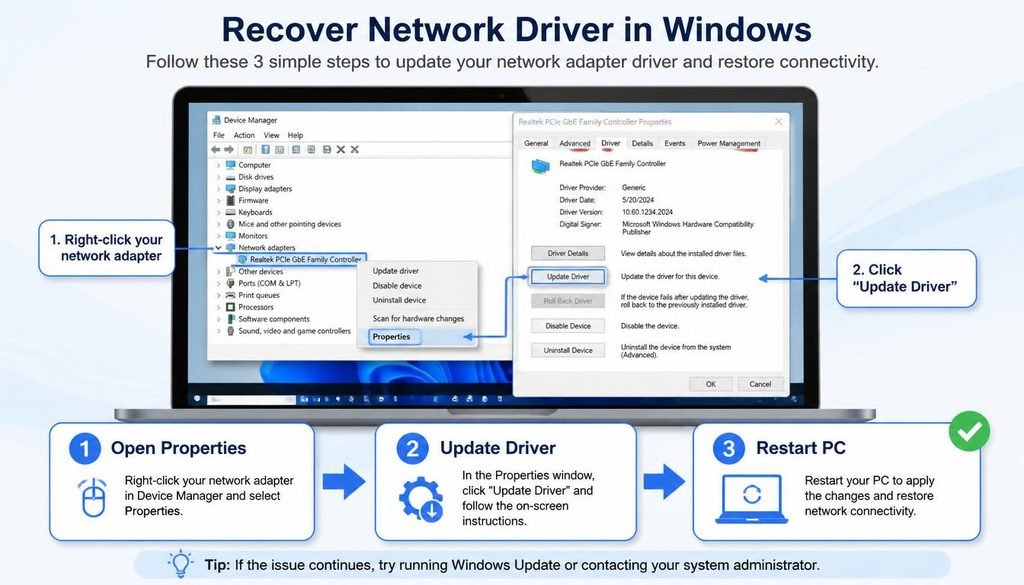
If the problem began right after a driver update, open the adapter Properties, select the Driver tab, and choose Roll Back Driver. The button is unavailable when Windows has no earlier driver to restore. Restart afterward.
Expected result: The earlier driver returns and the connection recovers.
Fix 10. Prepare a Backup Driver Before You Uninstall Anything
Do this before Fix 11 when your PC may lose internet access. Microsoft advises having the driver ready because Windows may not reinstall one automatically.
- On another computer, find your PC maker and exact model name or number.
- Open the maker’s support page and download the WLAN or WiFi driver and the LAN or Ethernet driver for your Windows version.
- Copy the files to a USB flash drive.
If you do not know which chipset you have, download both network drivers for your model. Many phones can also share a temporary connection over USB tethering, which may let Windows fetch a driver.
Expected result: A driver installer is ready on a USB drive.
Fix 11. Uninstall and Reinstall the Adapter Driver
Advanced step. Complete Fix 10 first.
- In Device Manager, right click the adapter and select Uninstall device.
- Check Attempt to remove the driver for this device, then select Uninstall.
- Restart the PC with Start > Power > Restart.
Windows should detect the adapter and install a driver after the restart. If it does not, select Action > Scan for hardware changes, then run the installer from your USB drive. Microsoft recommends this approach when problems began after a recent update.
Expected result: The adapter returns under Network adapters with no warning icon.
Fix 12. Adjust Power Management
Use this when the connection drops after sleep or the adapter turns itself off.
- Open the adapter Properties and select the Power Management tab.
- Clear Allow the computer to turn off this device to save power.
- Select OK and restart.
You can also go to Control Panel > Hardware and Sound > Power Options, choose Change plan settings, then Change advanced power settings. Under Wireless Adapter Settings, set Power Saving Mode to Maximum Performance. Laptops may use slightly more battery.
Expected result: The connection survives sleep and power state changes.
Fix 13. Check Band and Wireless Mode Settings
Use this only when the adapter works but cannot see your network.
- Open the wireless adapter Properties and select the Advanced tab.
- Look for Wireless Mode or Band.
- Make sure it allows the frequency your router uses (2.4 GHz or 5 GHz).
Names and options vary by driver, and some adapters support only 2.4 GHz. Write down the original value before changing it, and change one setting at a time.
Expected result: Your network appears in the list.
Fix 14. Use Network Commands Only When the Evidence Fits
Commands help with IP configuration, Winsock, or DNS problems. They do not bring back a missing adapter. See the command line section below.
Fix 15. Use Network Reset as a Later Step
Network Reset is disruptive. Read the Network Reset warnings before using it.
Fix 16. Check BIOS or UEFI Settings (Advanced, Applicable Devices Only)
Check firmware settings only when the adapter is absent even with hidden devices shown, and your maker’s documentation names a wireless or LAN option for your model. Menu names differ by manufacturer.
Change one setting at a time and note the original value. Do not update the BIOS casually. An interrupted update can leave a PC unable to start, so follow the maker’s instructions and keep the charger connected.
Expected result: The adapter appears after a restart. If nothing changes, undo your change.
Fix 17. Separate a Hardware Fault From a Driver or Configuration Problem
These signs lean toward hardware, but none is proof on its own.
- The adapter stays absent after a clean driver install and a firmware check.
- Code 43 returns after every reinstall.
- A USB adapter also fails on another computer.
- The laptop was dropped or exposed to liquid.
These signs lean toward drivers or settings.
- The adapter works at times.
- The problem began after an update.
- Failures follow sleep or power changes.
Fix 18. Consider a USB WiFi Adapter or Professional Repair
A USB WiFi adapter can restore access while you investigate. TP-Link notes that when you add a USB or PCIe adapter to a laptop with a built in adapter, you may need to remove or disable the original adapter driver first.
A technician or your PC maker should handle suspected internal hardware faults, especially under warranty.
The Wired Path: Ethernet Adapter Not Working
Microsoft recommends checking the cable at both ends and confirming it is in a router LAN port, not the Internet port. Try another cable. Then check Settings > Network & internet for an Action needed message, and check Device Manager for the Ethernet adapter. See Microsoft’s Ethernet troubleshooting guide. If both another PC and your PC fail on Ethernet, suspect the router, ISP, or cable.
Windows 11 and Windows 10 Differences
| Task | Windows 11 | Windows 10 |
| Open Device Manager | Right click Start > Device Manager | Right click Start > Device Manager |
| Network troubleshooter | Get Help app, Network and Internet troubleshooter | Settings > Update & Security > Troubleshoot > Additional troubleshooters |
| Airplane mode | Settings > Network & internet > Airplane mode | Settings > Network & Internet > Airplane mode |
| Windows Update | Settings > Windows Update | Settings > Update & Security > Windows Update |
| Network Reset | Settings > Network & internet > Advanced network settings > Network reset | Settings > Network & Internet > Status > Network reset |
Windows 10 reached end of support on October 14, 2025. Existing PCs can still follow these steps, but security updates now depend on Microsoft’s Extended Security Updates program. Check Microsoft’s Windows 10 support page for current terms.
Legacy Note: Windows 7
Windows 7 no longer receives normal security updates. Its menus differ from the ones above. If you must use it, download drivers only from your PC maker, never from unknown sites, and plan an upgrade to a supported version of Windows.
Advanced Command Line Diagnostics
Advanced section. Do not run every command blindly. Each answers a different question.
| Command | What It Does | Administrator Needed | Use It When |
Get-NetAdapter (PowerShell) | Lists adapters with a Status such as Up, Disconnected, or Disabled | Not to view | You want a quick view of adapter state |
ipconfig /all | Shows adapters, IP address, default gateway, and DNS servers | No | You need to check addressing |
netsh wlan show interfaces | Shows the WiFi interface and connection state | Run elevated, as Microsoft advises for diagnostics | WiFi connects badly or not at all |
netsh wlan show drivers | Shows wireless driver details | Run elevated, as Microsoft advises for diagnostics | You need driver information |
ipconfig /release then ipconfig /renew | Drops and requests a new IP address | Yes | The adapter works but has no valid address |
ipconfig /flushdns | Clears the DNS cache | Yes | Names fail to resolve |
netsh winsock reset and netsh int ip reset | Reset the Winsock catalog and TCP/IP stack | Yes | Evidence points to a damaged network stack |
How to read results.
- An address starting with 169.254 means Windows did not get an address from the router. Check that DHCP is enabled on the router, as Microsoft describes.
- If
netsh wlanreports that the WLAN AutoConfig service is not running, return to Fix 7. - A listed adapter with Status Disabled returns you to Fix 4.
What these cannot prove. A flushed DNS cache cannot repair a missing physical adapter or failed driver. Restart after the Winsock and TCP/IP resets. Microsoft’s guides run the reset commands in the order listed in its Wi-Fi troubleshooting guide.
To capture a baseline for support, Microsoft Learn suggests netsh wlan show wlanreport, which creates an HTML report of recent wireless sessions. See its wireless troubleshooting guide.
Network Adapter Error Codes
A code identifies a reported device or driver problem. It does not always show the root cause. Microsoft documents these in its Device Manager problem codes.
| Error Code or Status | What It Usually Indicates | Safe Troubleshooting Steps |
| Code 10 | The device failed to start | Restart, read the full status text, update or reinstall the driver from the manufacturer |
| Code 22 | The device is disabled | Right click it and select Enable device |
| Code 28 | Drivers are not installed | Install the driver from your PC or adapter maker |
| Code 31 | The device was not added, often because Windows cannot load the required driver | Reinstall the driver from the manufacturer |
| Code 43 | Windows stopped the device after it reported problems | Restart, reinstall the driver, try another USB port for a USB adapter, and consider hardware if it persists |
| Not listed | Hidden, undetected, or no driver | Fixes 6, 8, and 16 |

Reset Adapter, Reinstall Driver, or Network Reset?
| Option | What It Does | Disruption | Best Time to Use It |
| Disable and enable the adapter | Restarts one adapter | Low | Quick glitch, early in troubleshooting |
| Uninstall and reinstall the driver | Removes and reloads one adapter driver | Medium | Driver errors, failed updates |
| Network Reset | Removes and reinstalls all network adapters and resets their settings | High | Last resort after other fixes |
Network Reset Warnings
Microsoft says Network Reset should be the last step. It removes network adapters and their settings. After the restart, adapters are reinstalled with default settings.
You may need to reinstall or reconfigure VPN software and Hyper-V virtual switches. Saved connections may also change to a public network profile. Intel also warns that you may need to re-enter WiFi or VPN passwords and may need to reinstall adapter drivers. After the PC reconnects, you may need to add wireless devices again, such as a printer. See how to connect a printer to WiFi.
Windows 11: Settings > Network & internet > Advanced network settings > Network reset > Reset now > Yes.
Windows 10: Settings > Network & Internet > Status > Network reset > Reset now > Yes.
Save your work first. The PC restarts afterward.
When Nothing Works: Final Decision Tree
- Do other devices work on the same network?
- No: restart the modem and router, check for an ISP outage, and review router settings.
- Yes: continue.
- Is the adapter listed, with hidden devices shown?
- No: install the maker driver, check firmware settings, test a USB adapter, then contact your PC maker or a technician.
- Yes: continue.
- Is it disabled? Enable it.
- Does it show an error code? Use the error code table.
- No code, but no connection? Reinstall the driver, then use commands only if the evidence fits, then Network Reset.
- Still failing? Collect evidence and contact support.
Whom to contact
- PC maker: built in adapters, especially under warranty.
- Adapter maker: USB or PCIe adapters.
- ISP: the router responds to ping but internet access fails on every device.
- Repair technician: suspected hardware faults.
Evidence to collect: adapter name, driver version and date, error code, Windows version, recent updates, and whether Ethernet or another network works. If other Windows features also misbehave, our guide on how to fix common Windows 11 problems may help.
Prevention Checklist
- Download drivers only from your PC maker or the adapter maker.
- Install Windows updates and restart when prompted, not hours later.
- Create a restore point before major driver changes.
- Avoid random driver updater applications.
- Keep a backup network driver on a USB drive for important devices.
- Record the adapter name and error code before changing settings.
Conclusion
Start with the simple checks: a restart, another device, and Device Manager. Then follow your symptoms. Enable the adapter, fix the driver, and keep Network Reset for last.
If you are still stuck, leave a comment with your adapter name, Windows version, and any error code. That detail makes the next step much easier to identify.
Frequently Asked Questions
How do I reset my network adapter?
You can reset an adapter in two ways. For a quick reset, disable the adapter and enable it again in Device Manager. For a full reset of all adapters and settings, use Network Reset in Settings after trying gentler fixes. Network Reset removes and reinstalls adapters and may require you to set up VPN software again.
How do I repair my WiFi adapter?
Repair usually starts with software, because drivers and settings are common causes. Enable the adapter, then update, roll back, or reinstall its driver from your PC maker. Check that WLAN AutoConfig is running and that power saving is not turning the adapter off. Consider a hardware fault only after these steps fail.
Why is my adapter suddenly not working?
A sudden failure usually follows a change. Common triggers include a Windows or driver update, a power state change such as sleep, a stopped WLAN AutoConfig service, or a disabled device. Router problems can look similar, so test another device first. Record the Device Manager status before changing anything.
What causes a WiFi adapter to be disabled?
A WiFi adapter can be disabled by a manual action, Airplane mode, a function key, a power saving setting, a driver fault, or a firmware setting. Intel also notes that some adapters may disable themselves after receiving many bad frames from an access point, so router firmware can matter.
Why is my WiFi adapter missing from Device Manager?
Windows may not detect it, may hide it, or may lack a working driver. Select View, Show hidden devices, then Action, Scan for hardware changes. If it is still absent, install the driver from your PC maker and check firmware settings. Missing does not automatically mean broken hardware.
What does Code 10 mean for a network adapter?
Code 10 means Windows tried to start the device and it failed to start. The cause may be a driver, a device fault, or a conflict, so the code alone does not identify the root cause. Restart, read the Device status text, then update or reinstall the driver from the manufacturer.
How do I reinstall a network driver without internet?
Use another computer. Download the driver from your PC or adapter maker, copy it to a USB drive, and run the installer on the affected PC. Do this before uninstalling the old driver whenever possible. A phone using USB tethering may also provide a temporary connection.
How do I fix an Ethernet adapter that is not working?
Start with the cable, port, and router lights. Try another cable and a different router LAN port, then check Device Manager for the Ethernet adapter and its status. Update or reinstall the Ethernet driver from your PC maker. Use Network Reset only as a later step.
Can a Windows update break a network adapter?
An update can be followed by adapter problems, sometimes because a driver changed. Check the Driver tab and use Roll Back Driver if it is available. Microsoft also suggests uninstalling the adapter driver after update related problems, with a backup driver ready first.