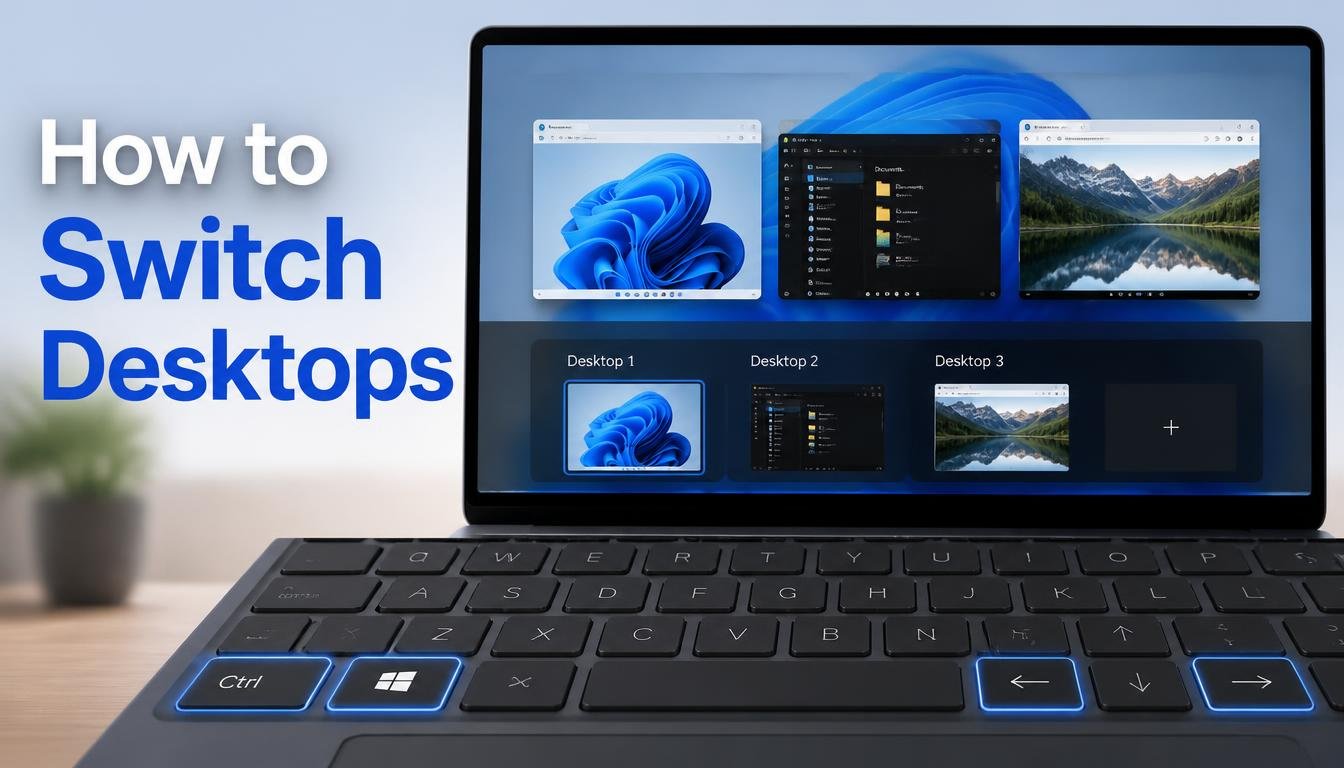
How To Switch Desktops In Windows: Easy Shortcuts (2026)
How to switch desktops in Windows is simple once you know the right keyboard shortcut. Virtual desktops let you create separate workspaces on the same PC, so you can keep work, personal apps, research, or different projects organized without using separate monitors.
The fastest way to switch between virtual desktops is Windows + Ctrl + Left Arrow or Windows + Ctrl + Right Arrow. You can also use Task View, your mouse, or a supported touchpad gesture.
This guide explains how to switch desktops on Windows 11 and Windows 10, create and close virtual desktops, move apps between them, change desktop backgrounds, and fix common problems.
Quick Answer
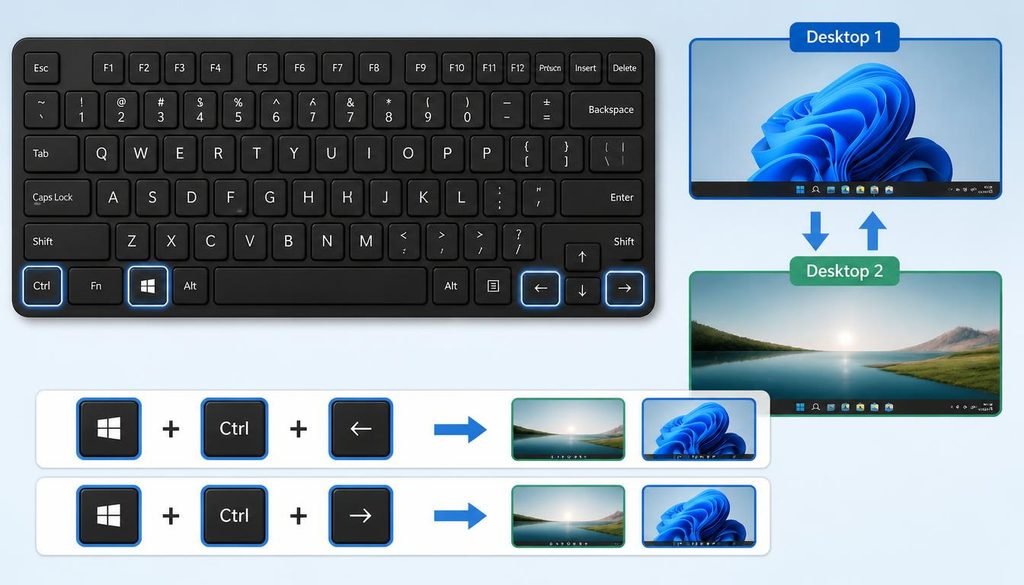
To switch between virtual desktops on Windows, press Windows + Ctrl + Right Arrow to move to the desktop on the right, or Windows + Ctrl + Left Arrow to move to the desktop on the left. You can also press Windows + Tab to open Task View and select the desktop you want.
Windows Virtual Desktop Shortcuts at a Glance
| Action | Keyboard shortcut |
|---|---|
| Switch to the desktop on the right | Windows + Ctrl + Right Arrow |
| Switch to the desktop on the left | Windows + Ctrl + Left Arrow |
| Create a new virtual desktop | Windows + Ctrl + D |
| Close the current virtual desktop | Windows + Ctrl + F4 |
| Open Task View | Windows + Tab |
These shortcuts work with virtual desktops in both Windows 10 and Windows 11.
1. How to Switch Desktops on Windows 11
Windows 11 gives you several ways to move between virtual desktops. The keyboard shortcut is usually the fastest, but Task View is useful when you want to see all your desktops before choosing one.
Use the Keyboard Shortcut
The easiest way to switch desktops is:
- Press Windows + Ctrl + Right Arrow to move to the next desktop on the right.
- Press Windows + Ctrl + Left Arrow to move to the desktop on the left.
- Continue pressing the shortcut to move through your available virtual desktops.

For example, if you have three desktops, you can use Windows + Ctrl + Right Arrow to move from Desktop 1 to Desktop 2 and then from Desktop 2 to Desktop 3.
You do not need to open Task View first.
Use Task View
If you prefer a visual method:
- Press Windows + Tab.
- Look at the desktop thumbnails displayed in Task View.
- Select the desktop you want to use.
You can also hover over the Task View button on the taskbar and select a virtual desktop from the desktop preview.
Task View is particularly useful when you have several desktops and want to see which workspace contains a specific app.
Use a Touchpad Gesture
On supported Windows laptops with a compatible Precision Touchpad, you can switch between virtual desktops with a four-finger swipe.
- Swipe left with four fingers to move to the desktop on the left.
- Swipe right with four fingers to move to the desktop on the right.
If the gesture does not work, check your touchpad settings. Windows allows supported touchpad gestures to be configured under the touchpad settings.
If you are configuring your PC beyond virtual desktops, our guide to Windows 11 debloater guide explains how to remove unnecessary components and improve system efficiency.
2. How to Switch Desktops on Windows 10
The basic virtual desktop shortcuts in Windows 10 are the same as Windows 11.
Use:
- Windows + Ctrl + Right Arrow to switch to the desktop on the right.
- Windows + Ctrl + Left Arrow to switch to the desktop on the left.
- Windows + Tab to open Task View.
- Windows + Ctrl + D to create a new desktop.
- Windows + Ctrl + F4 to close the current desktop.
You can also select a desktop from Task View using your mouse.
Important Windows 10 Support Note
Microsoft ended standard support for Windows 10 on October 14, 2025. The virtual desktop shortcuts described in this guide can still work on Windows 10, but Windows 10 no longer receives standard free security updates and technical support from Microsoft.
If your PC supports Windows 11, upgrading is worth considering for continued security support.
3. How to Create a New Virtual Desktop
Before you can switch between desktops, you need to have more than one virtual desktop.
The fastest method is:
Press Windows + Ctrl + D.
Windows immediately creates a new virtual desktop and switches you to it.
You can also create one through Task View:
- Press Windows + Tab.
- Select New desktop.
- Windows creates another virtual desktop.
- Select the new desktop to start using it.
For example, you could use:
- Desktop 1: Work
- Desktop 2: Personal apps
- Desktop 3: Research
- Desktop 4: Communication
If you are setting up a Windows PC for regular use, you may also want to learn about Windows 11 automatic login to simplify the sign-in process.
The apps remain organized within their respective virtual desktops while you move between the workspaces.
4. How to Close a Virtual Desktop
You do not have to keep every desktop you create.
To close the desktop you are currently using, press:
Windows + Ctrl + F4
Windows closes that virtual desktop and moves its open apps to another available desktop.
You can also close a desktop through Task View:
- Press Windows + Tab.
- Find the desktop you want to close.
- Select the X on its desktop preview.
Closing a virtual desktop does not normally mean that your applications are simply deleted. Windows moves open app windows to another available desktop.
5. How to Move an App to Another Desktop
You can move an application from one virtual desktop to another without closing it.
Using Task View
- Press Windows + Tab.
- Find the application window you want to move.
- Drag the application thumbnail onto another desktop.
- Select that desktop if you want to continue working there.
You can also right-click an application window in Task View and use the Move to option to select another desktop.
This is useful when you accidentally open an application on the wrong desktop or decide to reorganize your workspace.
Example
Suppose you are working on Desktop 1 and accidentally open your browser there, but you want your browser on Desktop 2.
Open Task View, right-click the browser window, select Move to, and choose Desktop 2.
You do not need to close the browser and open it again.
6. How to Rename Virtual Desktops
Windows allows you to give your virtual desktops meaningful names instead of relying only on Desktop 1, Desktop 2, and similar labels.
To rename a desktop:
- Press Windows + Tab.
- Find the desktop you want to rename.
- Select its current name.
- Enter a new name.
For example, you could rename your desktops:
- Work
- Personal
- School
- Projects
Clear names make Task View easier to navigate when several virtual desktops are open.
7. How to Change the Background for a Virtual Desktop
Windows also allows you to use different picture backgrounds for different virtual desktops.
To change a desktop background:
- Open Settings.
- Go to Personalization > Background.
- Find the Recent images section.
- Right-click the picture you want to use.
- Choose Set for all desktops or select the specific desktop where you want the picture to appear.
This can make it easier to recognize which virtual desktop you are using.
There is an important limitation: Windows does not support a separate slideshow background for each virtual desktop.
8. Virtual Desktops vs. Multiple Monitors vs. Alt + Tab
These features can look similar, but they solve different problems.
| Feature | What it does | Main shortcut |
|---|---|---|
| Virtual desktops | Creates separate workspaces on one PC | Windows + Ctrl + Left/Right Arrow |
| Multiple monitors | Moves your display or window between physical screens | Windows + Shift + Left/Right Arrow |
| Alt + Tab | Switches between open applications and windows | Alt + Tab |
| Task View | Shows your open windows and virtual desktops | Windows + Tab |

Virtual Desktops
Virtual desktops are separate workspaces within the same Windows installation. They are useful when you want to organize different groups of applications without connecting another monitor.
Multiple Monitors
Multiple monitors are physical displays connected to your computer.
If you are trying to move a window from one physical monitor to another, Windows + Shift + Left Arrow or Windows + Shift + Right Arrow is the relevant shortcut.
That is different from switching between virtual desktops.
Alt + Tab
If you simply want to switch from one open application to another, use Alt + Tab.
For example, if Microsoft Edge and File Explorer are both open and you want to move between them, Alt + Tab is usually faster than changing virtual desktops.
If you are actually trying to display your computer screen on another device rather than create another virtual desktop, see our guide on screen mirroring without Wi-Fi.
9. Common Problems When Switching Desktops
The Windows + Ctrl + Arrow Shortcut Does Nothing
First, make sure you have more than one virtual desktop.
Press:
Windows + Ctrl + D
This creates another desktop. Then try Windows + Ctrl + Left Arrow or Windows + Ctrl + Right Arrow again.
If the shortcut still does not respond, use Windows + Tab and check whether multiple desktops appear.
Task View Is Missing From the Taskbar
You can still open Task View by pressing:
Windows + Tab
If you prefer the Task View button on the taskbar, check your Windows taskbar settings and make sure Task View is enabled.
Four-Finger Touchpad Swipe Does Not Work
The gesture depends on compatible touchpad hardware and supported touchpad settings.
Open your touchpad settings and check the available three-finger and four-finger gesture options.
If your laptop does not support the required touchpad features, use the keyboard shortcuts instead.
You Are Actually Trying to Switch Monitors
If you have two physical monitors and want to move a window from one screen to another, virtual desktop shortcuts are not the right tool.
Use:
Windows + Shift + Left Arrow
or
Windows + Shift + Right Arrow
You Are Trying to Switch Apps
If you have several programs open and only want to move between them, press:
Alt + Tab
You do not need to create multiple virtual desktops just to switch between applications.
10. Common Mistakes to Avoid
Confusing Virtual Desktops With Physical Monitors
A virtual desktop does not create another physical display. It creates another workspace within Windows.
If you want more physical screen space, you need another monitor.
Using Alt + Tab for Everything
Alt + Tab is excellent for switching applications, but it is not a replacement for virtual desktops.
Use virtual desktops when you want to separate groups of applications into different workspaces.
Creating Too Many Desktops
Virtual desktops are useful, but creating too many can make navigation harder.
For most people, two or three clearly organized desktops are easier to manage than a long list of nearly identical workspaces.
Closing an App Instead of Moving It
If an application is on the wrong desktop, you do not have to close it.
Open Task View and use Move to or drag the window to another desktop.
FAQ (How to switch desktops?)
How to split desktop 1 and 2?
Desktop 1 and Desktop 2 are separate virtual workspaces, not two halves of the same screen. Press Windows + Ctrl + D to create another desktop, then use Windows + Ctrl + Left Arrow or Right Arrow to move between them. If you want two apps side by side on one screen, use Windows Snap instead.
How do I turn off desktop 1 and 2?
You cannot turn off the virtual desktop feature itself, but you can close individual virtual desktops. Press Windows + Tab, find the desktop you want to close, and select its X. You can also press Windows + Ctrl + F4 to close the current virtual desktop.
How do I switch between two desktop screens?
If you mean two virtual desktops, press Windows + Ctrl + Left Arrow or Windows + Ctrl + Right Arrow. If you mean two physical monitors, use Windows + Shift + Left Arrow or Windows + Shift + Right Arrow to move the active window between displays.
How do I switch from desktop to another?
Press Windows + Ctrl + Right Arrow to switch to the virtual desktop on the right or Windows + Ctrl + Left Arrow to switch to the one on the left. You can also press Windows + Tab and select a desktop from Task View.
What is the shortcut to switch desktops in Windows 11?
The main Windows 11 shortcut is Windows + Ctrl + Left Arrow or Windows + Ctrl + Right Arrow. These shortcuts move you between virtual desktops without opening Task View.
How do I switch desktops on a Windows laptop?
On a Windows laptop, use Windows + Ctrl + Left Arrow or Windows + Ctrl + Right Arrow. If your laptop has a supported Precision Touchpad, you can also swipe left or right with four fingers to switch between virtual desktops.
How do I change Desktop 1 to Desktop 2 with a shortcut?
Press Windows + Ctrl + Right Arrow to move to the desktop on the right. The shortcut does not specifically mean “Desktop 1 to Desktop 2”; it moves you to the next virtual desktop in that direction.
Can I move an application from one desktop to another?
Yes. Press Windows + Tab, right-click the application window, select Move to, and choose another desktop. You can also drag the application thumbnail onto another desktop in Task View.
Can I have different backgrounds on different virtual desktops?
Yes. Windows allows you to assign different picture backgrounds to individual virtual desktops. Open Settings > Personalization > Background, right-click a recent image, and choose the desktop where you want to apply it.
What is the difference between a virtual desktop and a second monitor?
A virtual desktop is a separate workspace within Windows. A second monitor is a physical display connected to your computer. Virtual desktops help organize applications, while multiple monitors give you additional physical screen space.
Conclusion
For most Windows users, Windows + Ctrl + Left Arrow and Windows + Ctrl + Right Arrow are the fastest ways to switch between virtual desktops.
If you prefer a visual approach, press Windows + Tab to open Task View. From there, you can switch between desktops, create new ones, close desktops, rename them, and move applications between workspaces.
Once you understand the difference between virtual desktops, physical monitors, and Alt + Tab, choosing the right Windows shortcut becomes much easier.