Why Is My Ethernet Slower Than WiFi? Easy Fixes Guide (2026)
A cable plugged straight into the router should win every time. It does not always. Sometimes a phone on WiFi posts a higher speed test result than a computer on Ethernet, and that result looks wrong because it is unusual, not because the cable is magic.
Quick Answer
Quick Answer: Ethernet is slower than WiFi when the wired link negotiates a lower speed than expected or when one component limits it. The usual causes are a 100 Mbps link from a damaged cable or old port, a limited adapter or router port, a driver fault, or an internet plan faster than the wired port can carry.
In This Guide
The fix is rarely to buy new equipment first. Out where the bottleneck sits, then change one thing at a time.
| Symptom | Most Likely Cause | What to Check |
|---|---|---|
| Ethernet stuck around 100 Mbps | Link negotiated at 100 Mbps: damaged cable, old port, or limited adapter | Link speed in Windows or console, then cable and port |
| Speed fluctuates heavily | Poor cable, failing port, driver, or interference on the cable run | Packet loss test, another cable, driver version |
| Disconnects under load | Loose connector, faulty port, power saving on the adapter | Cable seating, adapter power settings, another port |
| Slower on one computer only | Adapter, driver, or software on that computer | Adapter model, driver, VPN, security software |
| Slower on Xbox only | Console network settings or a congested router queue | Console speed test, router port, background downloads |
| Slower on PS5 only | Console connection settings or router limits | Connection status, cable, another router port |
| Slower after a Windows update | Driver replaced or settings reset | Device Manager driver version, Advanced settings |
| Suddenly became slow | Cable disturbed, router change, ISP issue, new VPN | Link speed, router restart, test on another device |
| WiFi faster but Ethernet has lower ping | Normal behavior: Ethernet often has better latency | Compare ping, jitter, and packet loss, not only download |
| Shows 1 Gbps but internet is slow | Bottleneck beyond the local link: ISP, modem, or router | Test another device, bypass the router, check ISP plan |
Why Ethernet Can Be Slower Than WiFi
Two separate numbers decide what you see. The first is the link speed between your device and the network port it plugs into. The second is the internet speed your provider delivers beyond your home. A speed test reports whichever of the two is smaller, plus any loss along the way.
Ethernet can lose to WiFi in four ways:
- The wired link negotiated at 100 Mbps while WiFi connects at several hundred Mbps.
- The wired link is gigabit, but the internet plan is faster than 1 Gbps and WiFi 6, 6E, or 7 can use more of it.
- The wired path has a fault, such as a damaged cable, a bad port, or a driver problem.
- The test is unfair: different device, different server, a VPN, or a background download.
Why Is My Ethernet Slower Than WiFi ?
How Ethernet Speed Actually Works
Think of a house. The internet speed is the water supply from the street. The link speed is the width of the pipe inside your house. A very wide pipe cannot create more water than the street supplies. A narrow pipe wastes a generous supply. A device showing 1 Gbps can still have a slow internet plan, and a device showing 100 Mbps can be a serious bottleneck on a fast plan.

Ethernet ports negotiate speed automatically. Both ends advertise what they support, and the link settles on the highest rate both can use over the cable. Gigabit Ethernet over twisted pair (1000BASE-T, defined in IEEE 802.3ab) uses all four wire pairs. Fast Ethernet at 100 Mbps needs only two pairs. This matters because a damaged connector or cable that still carries two good pairs will work, but only at 100 Mbps. The device works. It is just slower.

Cable categories also matter. Cat5e supports gigabit up to 100 meters. Plain Cat5 is rated for 100 Mbps. Cat6 and Cat6a support higher rates over shorter or longer distances respectively. For 2.5 Gbps (IEEE 802.3bz), Cat5e is generally sufficient over normal home distances, although a clean installation matters.
The slowest link in this chain is the limit:
Internet service, then modem or ONT, then router, then router LAN port, then Ethernet cable, then the port on your computer or console, then the network adapter and driver, then the operating system, then the application or speed test.
Before Changing Anything, Run a Proper Speed Test
A single result does not identify a cause. It only shows that something differs. To compare Ethernet and WiFi fairly:
- Use the same device when possible. A phone and a desktop are not comparable.
- Use the same speed test server and the same test tool.
- Stop downloads, game updates, cloud backups, and streaming first.
- Turn off the VPN, or run the test both with and without it.
- Run the test at least three times and compare the range, not one number.
- Compare download, upload, and ping. Do not look at download only.
- Check the link speed separately from the internet speed.
- Test Ethernet and WiFi at about the same time and under similar conditions.
A browser based test depends on the browser and the computer. If results look odd, try the vendor application or a second tool.
Step 1: Check the Negotiated Ethernet Link Speed
This is the most important step. Everything else depends on the answer.
On Windows 11: open Settings, then Network and internet, then Ethernet. The Link speed (Receive/Transmit) line shows the negotiated rate. The older view is also available: Settings, then Network and internet, then Advanced network settings, then More network adapter options, right click Ethernet, choose Status, and read Speed.
A faster check: open Task Manager, select Performance, choose Ethernet, and read the link speed. In PowerShell, run Get-NetAdapter. The LinkSpeed column shows the negotiated rate.
What the result means:
- 100 Mbps: the link is the bottleneck. Go to Steps 2, 3, and 4.
- 1 Gbps: the local link is fine. The slowdown is beyond it or elsewhere in the chain.
- 2.5 Gbps or higher: confirm the router port and cable also support it.
- 10 Mbps or a very low number: a serious cable or adapter fault.
Step 2: Check Whether You Are Connected to a Gigabit or Multi Gigabit Port
Look at the router or switch. Many routers label each LAN port, and some sell a mix of speeds. Common traps: an old unmanaged switch limited to 100 Mbps; a wall jack wired to a different device; a powerline adapter or a media converter in the path; and an ISP supplied router with one Fast Ethernet port. Read the router manual or product page to confirm the port speed. For help locating router details, see how to access router settings.
What to observe: many routers also show per port link status in their admin page. If the port shows 100 Mbps while the cable and device support gigabit, move on to the cable and port tests.
Step 3: Test the Ethernet Cable
Cable problems are the most common reason for a 100 Mbps link on equipment that should reach 1 Gbps. Check these in order:
- Reseat both ends firmly. Look for a broken locking tab or bent contacts.
- Look for kinks, crushed sections, or staples through the cable.
- Replace the cable with a short, known good Cat5e or Cat6 cable. Note the link speed again.
- If the run goes through a wall, test the wall jack with the short cable and then test the long run.
What the result means: if the link changes from 100 Mbps to 1 Gbps after the swap, the original cable or its connector was the cause. If it does not change, the cable is probably not the problem, so you have eliminated one component without spending money.
Step 4: Check the Ethernet Adapter
Not every adapter supports gigabit. Older laptops, some small computers, and some USB adapters are limited to 100 Mbps. USB 2.0 Ethernet adapters cannot sustain gigabit speeds. A USB 3.0 gigabit adapter is needed.
In Windows 11: right click Start, open Device Manager, expand Network adapters, and note the exact adapter name. Search the maker’s specification page for the maximum speed.
If the adapter is gigabit capable but the link is 100 Mbps even with a known good cable and port, test the adapter in another place or use a different adapter to confirm.
Step 5: Check Speed and Duplex Settings
Open Device Manager, then Network adapters, then your Ethernet adapter, then Properties, then Advanced, then Speed and Duplex. Available options vary by Ethernet controller and driver, so your screen may differ.
Auto Negotiation is usually the correct setting. Gigabit Ethernet depends on Auto Negotiation, and many gigabit devices do not behave well when a fixed rate is forced. If one end is forced to 100 Mbps Full Duplex while the other end is set to automatic, the automatic end can fall back to half duplex. That mismatch can cause collisions, errors, and very poor throughput. Cisco documents this as a classic cause of slow links.
Force a setting only as a short test, write down the original value, and return to Auto Negotiation if the test does not help.
Step 6: Update or Reinstall the Ethernet Driver
A faulty or generic driver can cause drops, low throughput, or a wrong negotiated speed. Windows Update sometimes installs a generic driver that lacks features of the manufacturer driver, and a major Windows update can replace a working one.
In Device Manager, then Network adapters, then your adapter, then Driver, note the driver date and version. Then try these in order:
- Install the latest driver from the computer or motherboard maker. Intel and Realtek also publish drivers, but the system maker version is often safer on laptops.
- If the problem began after an update, try Roll Back Driver if the button is available.
- If neither helps, choose Uninstall device, restart, and let Windows reinstall the adapter.
What the result means: if the link speed is correct but throughput is poor or unstable, the driver becomes a stronger suspect. If the link speed is wrong, a driver is a less likely cause than a cable or port.
Step 7: Disable Ethernet Power Saving as a Test
Power saving features can interrupt the link on some adapters. This step is a test, not a permanent recommendation.
In Device Manager, then your adapter, then Properties, then Power Management, clear Allow the computer to turn off this device to save power. On the Advanced tab, some adapters list Energy Efficient Ethernet or Green Ethernet. Turn those off, test, and record the result.
If nothing improves, restore the original values. Laptops on battery may use slightly more power with these features off.
Step 8: Check Router and Switch Ports
Try another LAN port on the router. Avoid the WAN or Internet port, which is a different function. If the router has a mix of port speeds, use a port labeled for gigabit or higher. If a switch sits between the router and your device, plug the device directly into the router to test.
On a fast plan, a router with a weak processor can also limit wired throughput, especially with features such as QoS, traffic shaping, or security scanning turned on. As a test, check the router settings and see whether temporarily disabling one feature at a time changes the result. Do not leave security features off. Updating router firmware is also worth checking. See how to access router settings for the login steps.
What the result means: if a different port or a direct connection fixes it, the earlier port or switch was the cause. If the router is the cause across all wired devices, firmware, settings, or the router model is the next area.
Step 9: Check Background Traffic, VPNs, and Security Software
A VPN adds encryption overhead and routes traffic through another server, so speeds depend on the VPN provider as well as your link. WiFi on a phone may not be using the VPN at all, which makes the comparison unfair. Test with the VPN off and on.
Other causes of a lower result: cloud backups, game updates, torrent clients, Windows Update delivery, and several browser tabs streaming video. To see what is using the network, open Task Manager, then Performance, then Ethernet, or Resource Monitor, then Network. A background process using most of the line explains a low test result without any hardware fault.
Security software that scans traffic can slow a connection. Do not turn off your antivirus or firewall to test. If you suspect it, check its web protection or network scanning settings, or test with a clean startup instead. If Windows itself seems crowded with background apps, the Windows 11 debloater guide covers how to reduce them.
Step 10: Test for Packet Loss and Connection Stability
A speed test measures throughput. It does not show lost packets or unstable delay. Use ping for that.
ping 8.8.8.8 -t sends a continuous test to a public server and shows reply time. It is not a bandwidth test. Watch for “Request timed out” lines and for large jumps in time. Stop it with Ctrl+C and read the loss summary.
ping 192.168.1.1 -t (replace with your router address from ipconfig) tests only the path to the router. If this shows loss, the problem is local: cable, port, adapter, or driver. If the router ping is clean but the internet ping is not, the issue is beyond your router.
tracert 8.8.8.8 lists the hops to a destination and the delay at each. Use it to see where delay begins. Some hops do not reply to tracert, so a single missing reply does not prove a fault. pathping gives a more detailed loss view per hop.
Use these distinctions: bandwidth is how much data per second; latency is how long a packet takes; jitter is how much that delay varies; packet loss is packets that never arrive; link negotiation is the speed the two ends agreed on.
Step 11: Reset Windows Network Components When Appropriate
Do this only after the hardware checks, and only when the symptoms point to the Windows network stack, such as odd behavior after a VPN removal or update. Open Command Prompt as administrator.
ipconfig /allshows adapter details, IP address, gateway, and DNS servers. It changes nothing.ipconfig /releaseandipconfig /renewdrop and request a new IP address from the router. This helps with address conflicts and stale leases. It does not raise bandwidth.ipconfig /flushdnsclears the cached name lookups. It helps when sites fail to load or resolve to old addresses. It does not raise raw internet speed. DNS affects how quickly a name turns into an address, not how fast data downloads once the connection begins.netsh winsock resetresets the Windows socket catalog. It can remove damage caused by old VPN or security software layers. Restart afterward.netsh int ip resetrewrites TCP/IP related registry settings to defaults. Restart afterward. Custom static IP settings may need to be entered again.
These resets cannot fix a bad cable or a 100 Mbps link.
Step 12: Test Another Ethernet Port and Another Device
This is the isolation step. Change one thing at a time and see what the problem follows.
- Problem follows the device: the first computer stays slow, but a second computer works well on the same cable and port. Focus on the first device: adapter, driver, software.
- Problem follows the cable: it moves with the cable to a different port and device, so replace the cable.
- Problem follows the router port: it appears on every device and cable at that port, but a different port works.
- Problem is on every wired device: focus on the router, switch, modem, or ISP.
When possible, connect a computer directly to the modem or ONT, with the router out of the path. Some providers require their own router to authenticate, so check the provider documentation before testing this way. If speed is good directly and poor through the router, the router is the bottleneck.
Why Ethernet May Be Slower Than WiFi on Windows 11
On Windows 11, the most common reasons are a 100 Mbps negotiated link, a driver replaced by an update, a USB 2.0 adapter, VPN or security software, and a wireless adapter that is simply newer than the wired controller. Confirm the link speed first (Step 1), then check the driver and Advanced settings (Steps 5 and 6). Compare a WiFi test and an Ethernet test on the same computer, because that isolates the adapter. Also check that Windows is not using both connections in a confusing way. If the WiFi is still connected, open Network connections and disable WiFi temporarily so that Ethernet tests are clean.
If your slow WiFi is the reason you plugged in, how to fix WiFi covers that side of the problem.
Why Ethernet May Be Slower Than WiFi on Xbox
Xbox consoles show connection details under Settings, then General, then Network settings. Use Test network speed and statistics and the Advanced settings page to confirm that the console reports a wired connection. Menu names can change with system updates.
Check the cable and router port with the same method as a computer. Pause background downloads and updates before testing. A game download can look slow because the content server is slow, not because Ethernet is slow.
NAT type affects whether other players can connect to you. It does not set your download speed. Router changes such as UPnP or port forwarding apply to connectivity, not raw bandwidth.
Why Ethernet May Be Slower Than WiFi on Xbox Series X
The Xbox Series X has a gigabit Ethernet port, so the console itself is not the usual limit on connections under 1 Gbps. If the console shows slower wired speeds than WiFi, look at the cable, the router LAN port, and anything between them, such as an old switch. Test the same console with a short known good cable to a different port.
If your internet plan is above 1 Gbps, the console cannot exceed its port speed over Ethernet. WiFi may still not be better in practice, because game servers and stores rarely deliver that speed. Also, check the console speed test results over several runs before concluding anything.
Why Ethernet May Be Slower Than WiFi on PS5
The PS5 has a gigabit Ethernet port. Open Settings, then Network, then Connection Status to see the connection type and run the internet connection test. Menu names can change between system software versions.
Use the same isolation approach: another cable, another router port, no downloads in progress. PlayStation Store downloads depend heavily on the content server, and the console can show slower speeds than a speed test on another device even when the link is healthy.
Gaming note: do not judge a console connection by download speed alone. Online play is far more sensitive to latency, jitter, and packet loss than to bandwidth. A wired connection with a lower speed test score and steady low ping can still be the better gaming connection.
When 100 Mbps Ethernet Is the Real Problem
At 100 Mbps, a fast plan is wasted. A gigabit plan tested over a 100 Mbps link will usually show a number below 100 Mbps, while WiFi may reach several hundred. The usual causes, from most to least common: a damaged or poor cable, a Fast Ethernet router or switch port, a USB 2.0 adapter, an old adapter, or a driver or duplex problem.
How to Change Ethernet From 100 Mbps to 1 Gbps
You cannot simply switch it on. Gigabit needs every part of the chain to support it:
- A gigabit capable Ethernet adapter.
- A gigabit capable router or switch port.
- A suitable cable. Cat5e or better is the normal choice.
- A correct physical connection, with both connectors fully seated and all eight contacts intact.
- Auto Negotiation enabled on both ends.
- A correct driver.
- No damaged connector or cable.
Start with a known good short cable and a different router port. Keep Speed and Duplex on Auto Negotiation. Forcing 1 Gbps Full Duplex is not a universal first step. Gigabit Ethernet relies on Auto Negotiation to work out its settings, and forcing options on one end can create a mismatch or a worse link. Use a forced setting only as a short test when Auto Negotiation clearly fails, and return to Auto afterward.
When 1 Gbps Ethernet Is Connected but Internet Speed Is Still Slow
The local link is healthy, so look beyond it. Test another cable, another router port, and another device. Turn off the VPN and stop background transfers. Compare against a direct connection to the modem where your provider allows it. Check the plan: the advertised speed may be “up to” a number, and peak hours can lower it. If the router has QoS, traffic shaping, or security scanning, test with a feature off for a moment and see whether the result changes.
If every device behaves the same way and a direct connection to the modem is slow, contact the provider with your test results and times.
Ethernet Speed Versus Latency and Stability
WiFi can show a higher download number while Ethernet still gives the better experience. Ethernet usually offers lower and steadier ping, less jitter, and fewer dropped packets, because it does not share airtime with other devices or suffer wall and distance loss. If your video calls and games feel smoother on Ethernet while the speed test is lower, the wired connection may be working as intended. Compare ping, jitter, and loss as well as download speed.
When WiFi Being Faster Than Ethernet Is Actually Normal
- The internet plan is above 1 Gbps, the Ethernet port is limited to 1 Gbps, and WiFi 6, 6E, or 7 can reach higher in good conditions.
- The Ethernet device has an older 100 Mbps adapter, and the WiFi device is a newer phone.
- The two tests used different servers, different devices, or different times.
- A VPN ran on one device but not the other.
In these cases the Ethernet connection is behaving as its hardware allows. An upgrade to a 2.5 Gbps adapter and a matching router port, with a suitable cable, would be the fix.
When the Problem Is Probably Your Router, Cable, NIC, or ISP
Use the results of your tests:
- Cable: link speed improves with a different cable.
- Router port: link speed or throughput improves with a different port.
- NIC or adapter: the problem stays on one device across cables and ports, and the link speed or drops remain after driver work.
- Router: every wired device is slow, and a direct connection to the modem is faster.
- ISP: every device is slow, including a direct connection to the modem, at several times of day.
Troubleshooting Decision Tree
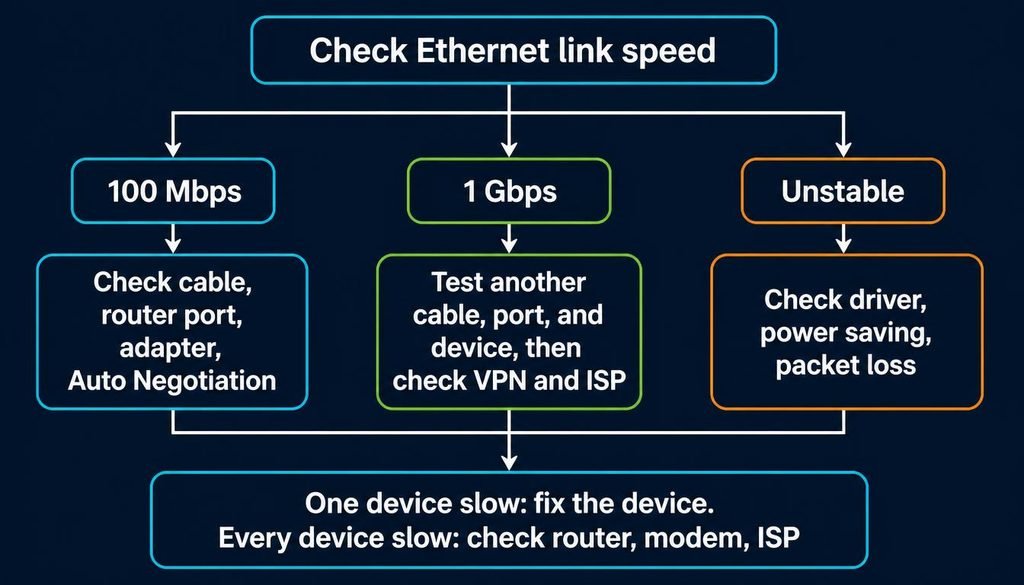
If Ethernet link speed is 100 Mbps:
- Check the cable.
- Check the router or switch port.
- Check adapter capability.
- Check negotiation and Speed and Duplex.
If Ethernet link speed is 1 Gbps but internet speed is low:
- Test another cable and another router port.
- Test another device.
- Check VPN and background traffic.
- Compare a direct connection to the modem where appropriate.
If Ethernet speed is unstable:
- Check the cable and adapter.
- Check the driver and power management.
- Run a packet loss test.
- Check router firmware.
- Suspect hardware if the issue remains.
If only one device is affected: focus on that device.
If every wired device is affected: focus on the router, switch, modem, or ISP.
If WiFi is faster only on one device: compare the Ethernet adapter and the WiFi adapter on that device.
Final Diagnostic Checklist
- Same device, same server, no VPN, no downloads, three tests each.
- Link speed checked in Windows or on the console.
- Cable swapped for a known good one.
- Different router port tested.
- Adapter model and maximum speed confirmed.
- Speed and Duplex on Auto Negotiation.
- Driver updated or rolled back.
- Ping and packet loss checked.
- Another device tested on the same cable and port.
- Direct connection to the modem tested where allowed.
FAQ (Why Is My Ethernet Slower Than WiFi?)
Why is my Ethernet not reaching full speed?
The most common reason is a lower negotiated link speed, often 100 Mbps. Check the link speed in Windows or on the console. A damaged cable, an old router port, a USB 2.0 adapter, or a driver fault can all hold the link back. If the link is 1 Gbps, look at the internet plan, VPN, and background traffic.
How do I make my Ethernet faster?
Confirm the negotiated link speed, then change one component at a time. Replace the cable with a known good Cat5e or Cat6 cable, try another router port, update the adapter driver, and keep Speed and Duplex on Auto Negotiation. Stop the VPN and background downloads before testing, then run several speed tests.
Is 500 Mbps fast for Ethernet?
Yes, 500 Mbps is fast for most homes. It supports many simultaneous streams, video calls, and large downloads. On a gigabit link it is about half of the line rate, which is normal if your plan is 500 Mbps. If you pay for 1 Gbps, check the cable, port, and router.
How do I change Ethernet from 100 Mbps to 1 Gbps?
You need gigabit support at every point: adapter, router or switch port, cable, and driver. Use a known good Cat5e or Cat6 cable, try another port, and set Speed and Duplex to Auto Negotiation. Forcing 1 Gbps is not a universal fix, and gigabit relies on Auto Negotiation to work correctly.
Why is Ethernet slower than WiFi on Windows 11?
Check the link speed first. A 100 Mbps link, a replaced driver after an update, a USB 2.0 adapter, a VPN, or security software are the usual causes. Compare Ethernet and WiFi on the same computer with WiFi switched off during the wired test, so that the result is clean.
Why is Ethernet slower than WiFi on Xbox or PS5?
Look at the cable, the router LAN port, and background downloads. Both the Xbox Series X and the PS5 have gigabit Ethernet ports, so the console is rarely the limit on plans below 1 Gbps. Test with a short known good cable and another port. Remember that low latency matters more for play than raw speed.
Why is my Ethernet suddenly slow?
Something changed, so look at what changed. Common causes are a disturbed cable, a driver replaced by an update, a new VPN, a router firmware change, or a provider issue. Check the link speed, restart the router, test another device, and test at a different time of day.
Why is Ethernet showing 100 Mbps instead of 1 Gbps?
A damaged cable or connector is the most frequent cause. Gigabit uses all four wire pairs and 100 Mbps uses two, so a broken pair can drop the link to 100 Mbps. An old port, an adapter limited to Fast Ethernet, or a forced Speed and Duplex setting can cause the same result.
Can WiFi really be faster than Ethernet?
Yes, in some situations. If your internet plan is above 1 Gbps and your Ethernet port is limited to 1 Gbps, a WiFi 6, 6E, or 7 device in good conditions can show a higher number. A 100 Mbps wired link, a VPN, or an unfair test can also explain it.
Conclusion
The most important principle is to identify the negotiated Ethernet link speed first. Then isolate the bottleneck one component at a time: cable, router port, adapter, driver, then everything beyond your router. A good troubleshooting record, with each change and its result, is more useful than a new purchase made on a guess.
If you want to keep working through network problems, Problevo has more step by step guides, such as how to fix WiFi and how to access router settings. Use them alongside this checklist.