

How to Restart Spectrum Router Safe Steps for Any Setup 2026
Your WiFi shows full bars, yet pages will not load. Or the connection keeps dropping at the worst moment. Spectrum’s own troubleshooting resources start with a power cycle, and it takes about five minutes.
This guide explains how to restart Spectrum router equipment correctly, whether you have a separate modem and router or one combined device. It also covers what to do when the restart does not help.
⚡ Quick Answer
To restart Spectrum router equipment, unplug the power cord, wait 60 seconds, and plug it back in. If you have a separate modem and router, unplug both, power the modem first and wait two minutes, then power on the router. Combined gateways require a single power cycle.
How to Restart Spectrum Router Equipment Step-by-Step:
- Unplug Power Cords: Disconnect the power cables from both your Spectrum modem and router.
- Wait One Minute: Leave both devices unplugged for at least 60 seconds to clear memory.
- Power On Modem First: Plug the modem in and wait 2 minutes until the connection lights turn solid.
- Power On Router: Plug in the router and wait 2 minutes for Wi-Fi to restore.
A restart is a safe first step. It does not change your WiFi name or password, but it is not a guaranteed fix either.
In This Guide
Quick Symptom Guide: What You See and What to Try
Treat each symptom as a clue, not a diagnosis. The same sign can come from more than one cause.
| Symptom | Likely Cause | Recommended Action |
|---|---|---|
| Router is online but internet does not work | The modem has not connected to Spectrum, an outage, or an account issue | Check for an outage, then restart the modem first and the router second |
| Router has a red or blinking status light | Meaning varies by model. It often points to an incomplete connection. | Check cables, restart in order, wait the full period, then check your model’s guide |
| Router is blinking blue | Possibly still starting or connecting, depending on the model | Wait through the full reconnection time, then restart in order if it continues |
| WiFi connects but websites do not load | The router works but has no working link to the modem or Spectrum | Test with an Ethernet cable, restart modem then router, check for an outage |
| Modem appears offline | Loose coaxial cable, outage, or an equipment or signal problem | Check the coaxial connections, restart, and call Spectrum if the lights never turn solid |
| Internet does not return after restarting | Outage, damaged cable, equipment fault, or account issue | Recheck outage status and cables, test by Ethernet, then contact Spectrum |
| Works briefly and disconnects again | Loose connection, failing equipment, or a line problem | Reseat cables, note when drops happen, and report the pattern to Spectrum |
Before You Restart Your Spectrum Router
The correct steps depend on what is sitting on your shelf, so identify it first.
- Separate modem and router: Two boxes. The coaxial cable (the round cable with a threaded connector) runs from the wall into the modem. An Ethernet cable then runs from the modem to the router.
- Combined gateway: One box. The coaxial cable goes in, and the same device broadcasts your WiFi. Spectrum Business Insights notes that routers and modems are generally packaged as a single unit, with older models being separate devices.
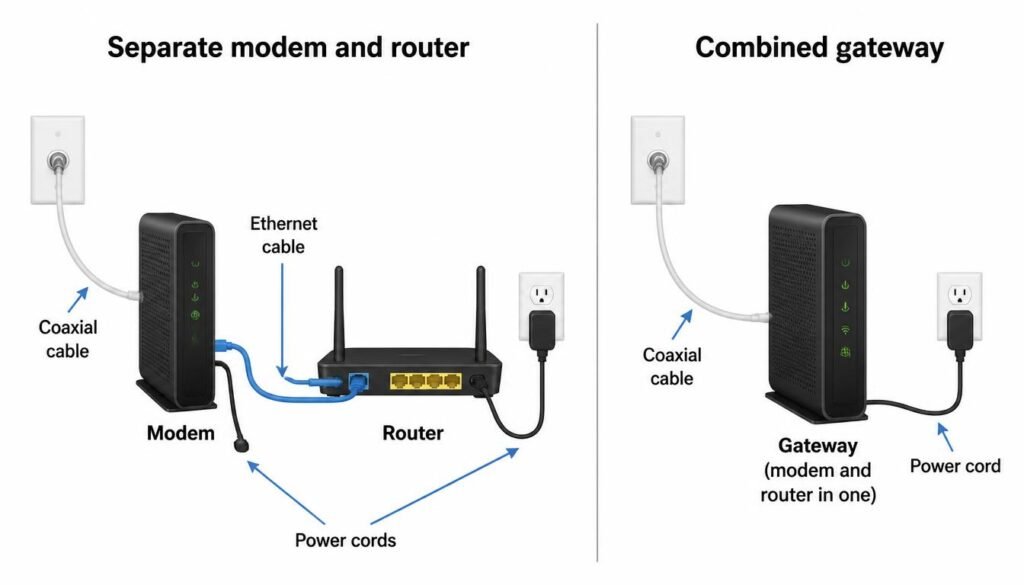
A few precautions apply to every setup:
- Unplug only the power cords. Leave coaxial and Ethernet cables connected.
- Fiber customers: Spectrum advises avoiding the back of a fiber modem so the fiber cable is not damaged. Handle only the power cord.
- Battery backup: If your modem has a Home Phone battery, Spectrum says to remove it when unplugging and reinsert it afterward.
- Expect a short outage. Every connected device loses internet for a few minutes, so pause calls, downloads, and updates.
- Skip the reset button. A recessed button on the back is for resetting, not restarting.
Try a normal restart before anything else. A restart keeps your settings. A factory reset removes them.
How to Restart Spectrum Router Step by Step
Pick the procedure that matches your equipment.
How to Restart a Spectrum Modem and Router Together
Use this when you have two separate devices.
- Unplug the modem’s power cord.
Remove the backup battery if one is installed. Why: Cutting all power is a more complete restart than pressing a power button, which may not fully recycle some devices. - Unplug the router’s power cord.
Leave every other cable in place. Expected result: Both devices go dark. - Wait at least one minute.
Why: The devices need time to fully shut down before they start fresh. - Plug in the modem and reinsert the battery.
Wait at least two minutes. Expected result: The modem lights come on gradually and settle to solid. If not: Give it a few extra minutes, then use the reconnection steps later in this guide. - Plug in the router.
Wait at least two minutes for it to finish starting. - Test a device.
Spectrum says your device should rejoin your WiFi automatically. If it does not, select your network manually, then open a few different websites.

How to Restart Spectrum Router ?
Why the modem goes first: The modem has to connect to Spectrum before the router can share that connection with your devices. Starting the router first can leave it booting without a working internet link.
How to Restart a Combined Spectrum Gateway
Use this when one box does everything.
- Unplug the gateway’s power cord. Remove the backup battery if one is installed.
- Wait at least one minute.
- Plug the gateway back in and reinsert the battery.
- Wait at least two minutes. Spectrum says to allow this time and that the connection lights should be solid once connected. Expected result: Your WiFi network reappears. If not: Check the cables and outage status below.
- Test a device on WiFi by opening several sites.
You do not need a modem first, router second order here, because there is only one device. Lights and buttons differ by model, so check your equipment guide for anything model specific.
How to Restart a Spectrum Router From Your Phone
If you want to know how to restart router from phone, Spectrum offers an account option. According to Spectrum’s support pages, you can restart equipment online or in the My Spectrum app:
- Sign in to your Spectrum account in the app or at spectrum.net.
- Open the Services tab, then the Internet sub tab.
- Choose your equipment from the list.
- Select Restart Equipment.
When an item shows a “Connection Issue” status, Spectrum’s outage guide adds a short path: select Troubleshoot, choose Restart Equipment next to the device, then confirm by selecting Restart Equipment again.
Two limits apply. Your equipment must appear in your account, which depends on your account and equipment. Also, your phone needs working mobile data if home WiFi is down. If the option is missing or the restart does not help, use the physical power cycle above.
What Happens to Your WiFi Password When You Restart?
Nothing happens to it. A normal restart keeps your network name and password. If you searched for how to restart Spectrum router password steps, the good news is that you do not need one. You only need to enter a password if a device fails to rejoin automatically.
Rebooting, changing a password, and resetting are three different actions:
- Rebooting powers the device off and on.
- Changing the password is a deliberate edit in your settings. If you want to do that, see how to access your router settings.
- A factory reset returns the device to its defaults and erases custom settings, according to BroadbandNow’s restart and reset guide.
What to do if you already performed a factory reset: Treat it as new setup. First, power cycle the equipment in the order above and wait for the modem lights. Next, look for the default network name and password on the label, which First Rate Tech notes is where the defaults are printed. Then join that network, rebuild any custom settings, and reconnect your devices. If the equipment will not come online at all, contact Spectrum. It may need activation, and only Spectrum can confirm that.
How to Fix a Spectrum Router That Will Not Reconnect
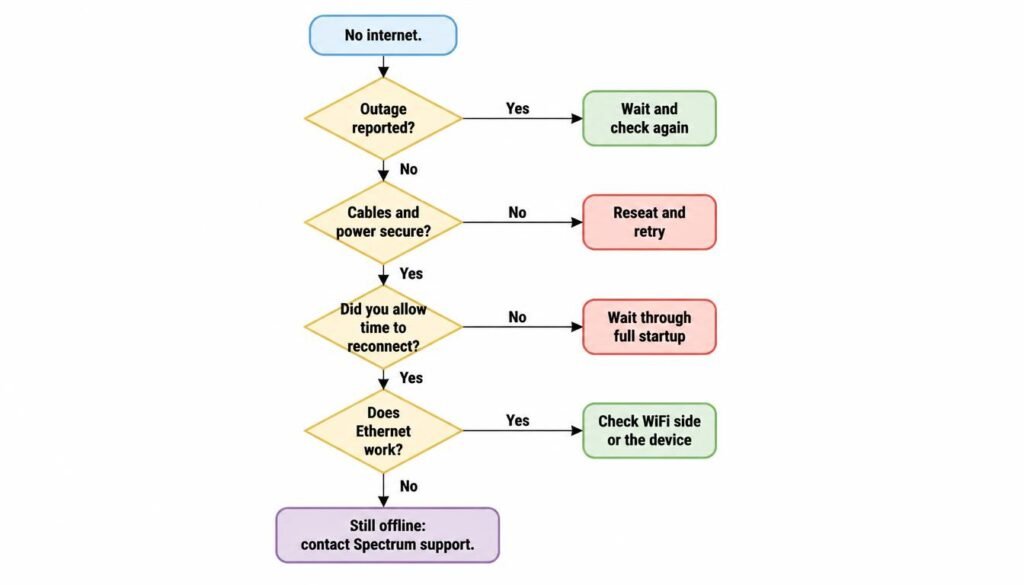
Work through these in order. Do not repeat the same restart over and over.
- Check for an outage. Use mobile data on your phone to open your Spectrum account or the app. Why: A restart cannot fix a problem outside your home. If an outage is shown: Wait. Spectrum notes you may need to restart equipment after service returns.
- Confirm power. Check that the outlet and any power strip work, and try another outlet. Expected result: Lights appear. If not: The adapter or device may be faulty.
- Inspect every connection. Make sure the coaxial cable is snug at the wall and the modem, and that the Ethernet cable is seated at both ends. Look for cuts, kinks, or loose connectors.
- Allow the full time. Spectrum’s guides allow two minutes for the modem and two for the router. Expected result: The modem lights turn solid.
- Test by WiFi and, if possible, Ethernet. Connect a laptop to the modem or gateway by cable. Why: If Ethernet works but WiFi does not, the problem is the wireless side. If one device is offline while others work, the problem may be that device. For a TV, see how to connect your TV to the internet.
- Look for signs of a hardware or service issue. Warning signs include lights that never settle after careful restarts, a device with no power at a working outlet, damaged cable, or repeated drops.
- Contact Spectrum. Use the checklist later in this guide.
What Spectrum Router Blinking Lights Mean
Light meanings depend on the model. A Spectrum modem, a router, and a gateway can each use different colors and patterns, and some devices use a single light.
The Spectrum guides cited in this article say only that modem lights should be solid once connected. They do not give one universal meaning for red or blue. Some independent guides describe blinking red as a failed or incomplete connection and blinking blue as starting up or connecting. Treat that as a clue, not as an official definition.
To check your equipment:
- Find the model name on the label, usually on the back or bottom.
- Search for that model in Spectrum’s support pages or your equipment guide.
- Wait through the full startup time before judging a blinking light.
- If a light is still blinking after careful restarts and checked cables, note the color and pattern for support.
Restart vs. Reset: What Is the Difference?
People use “restart,” “reboot,” and “power cycle” to mean the same thing. If you are wondering how to reboot WiFi router equipment, it is exactly the unplug and replug method above. A reset is something else. If you are searching for how to reset modem and router equipment, remember that it usually erases your settings.
| Action | What it does | Effect on settings and password | Best used when |
|---|---|---|---|
| Restart or reboot | Cuts power briefly, then restores it so the device starts fresh | Keeps your network name, password, and custom settings | First step for slow, dropped, or missing internet |
| Factory reset | Returns the device to its original defaults, usually through a recessed button | Erases customized settings, including network name and password. Every device must reconnect. | Spectrum advises it, or you cannot log in and accept rebuilding the network |
| Changing the WiFi password | Updates the credentials in your router settings | Changes only the password. Every device must rejoin with the new one. | You want better security or suspect someone else knows the password |
For a routine connectivity problem, a restart is the safest option. Reset button behavior can vary by model, and holding it risks erasing your configuration. Avoid it unless Spectrum support tells you to use it.
When to Contact Spectrum Support
Self troubleshooting has limits. These patterns suggest a cause you cannot fix at home:
- Service outage: Several devices are offline, or your account or app reports an outage.
- Activation issue: New, replaced, or factory reset equipment will not come online.
- Damaged connection: You see a cut, crushed, or loose cable you cannot reseat.
- Equipment fault: There is no power at a working outlet, lights never settle, or drops continue after careful restarts.
Before you contact support, gather:
- Your equipment model and whether you have separate devices or a gateway.
- The color and pattern of any lights.
- The steps you tried, with times.
- Whether Ethernet works when WiFi does not.
- What your outage check showed.
You can reach Spectrum through your account or the My Spectrum app.
Frequently Asked Questions
How do you restart a router?
Unplug the router’s power cord, wait at least one minute, then plug it back in. Allow about two minutes for the lights and WiFi to return. If the router connects to a separate modem, restart the modem first, let it reconnect, then power the router. Avoid pressing the reset button.
How do I turn my Spectrum internet back on?
You usually cannot switch Spectrum internet on yourself. Restart your modem and router, check the cables, and look for an outage in your account or the My Spectrum app. If service stays down, or you suspect an account or activation problem, contact Spectrum so they can check your service.
Do you restart the modem or router first on Spectrum?
Restart the modem first. Unplug both devices, wait at least one minute, then power the modem and wait two minutes for its lights to turn solid. After that, power the router and wait two more minutes. A combined gateway has no separate order, so you only restart that one device.
Why is my Spectrum router not connecting to the internet?
Common causes include a service outage, a modem that has not connected, a loose coaxial or Ethernet cable, or a temporary equipment fault. Check for an outage first, confirm the cables are snug, then restart the modem and router in order. If the lights never settle, contact Spectrum because the equipment or line may need service.
How long does a Spectrum router take to restart?
Plan for about five minutes in total. Spectrum advises waiting at least one minute with power removed, then allowing about two minutes for the modem and two for the router. A combined gateway needs about two minutes after power returns. Some models take longer, so wait the full time before judging the result.
Can I restart my Spectrum router from my phone?
Often yes. Sign in to the My Spectrum app, open Services, choose Internet, select your equipment, and tap Restart Equipment. Availability depends on your equipment and account, and your phone needs working mobile data while home WiFi is down. If your equipment does not appear, use the physical power cycle instead.
Will restarting my Spectrum router change my WiFi password?
No. A normal restart keeps your WiFi network name and password. Only a factory reset, which returns the device to default settings, or a manual change in your router settings would alter them. If a device cannot connect after a restart, confirm it is joining the correct network and entering the correct password.
What does a blinking red Spectrum router light mean?
The exact meaning depends on your equipment model. Independent guides often link blinking red to a failed or incomplete connection, but the Spectrum guides cited here do not define it for every device. Check cables, look for an outage, restart in order, and consult your model’s guide or Spectrum support.
What should I do if my Spectrum router keeps blinking blue?
First, wait through the full reconnection period, because some equipment blinks while starting. If it keeps blinking, check the coaxial and power connections, restart the modem and router in order, and look for an outage. If it still does not settle, contact Spectrum with your model and the steps you tried.
What is the difference between restarting and resetting a Spectrum router?
First, wait through the full reconnection period, because some equipment blinks while starting. If it keeps blinking, check the coaxial and power connections, restart the modem and router in order, and look for an outage. If it still does not settle, contact Spectrum with your model and the steps you tried.
Final Thoughts
The safest approach is the simplest one. Check for an outage, restart the equipment in the right order, give it the full time to reconnect, and leave the reset button alone. A restart will not fix every problem, but it keeps your settings and rules out the most common temporary faults.
One useful next step: take a photo of the label on your modem, router, or gateway. When you contact Spectrum, you will have the model and default network details ready.
If you are still experiencing connection drops or data limits after trying these steps, you can troubleshoot broader network performance using our comprehensive guide on how to fix WiFi issues
. For users sharing mobile internet, keep track of your remaining monthly tethering allowance by checking how much hotspot data you have left
. Additionally, if background system processes are consuming bandwidth without your permission, optimize your operating system using our step-by-step Windows 11 debloater guide to improve overall speed and network efficiency.




2 Comments