
Fix Slow WiFi on Xbox Series X: Easy Guide & Fixes (2026)
A game that should take twenty minutes is crawling, while your phone loads video without trouble. Before you change any settings, find out what is actually slow, because slow downloads, lag, and disconnects have different causes.
Quick Answer
Quick Answer: Fix Slow WiFi on Xbox Series X
Slow WiFi on an Xbox Series X is often caused by a weak signal, channel interference, the wrong frequency band, or a busy network. It can also stem from your router, internet provider, or Microsoft’s download servers.
First Steps to Diagnose:
- Run the network speed test directly on your Xbox.
- Compare the results with a phone tested in the exact same spot.
This guide teaches you to separate those causes before you try fixes. That saves time and avoids changing settings that cannot help.
In This Guide
Diagnostic table
First, find out what is actually slow
These terms describe different things.
- Download speed: how fast data arrives. It matters for game downloads.
- Upload speed: how fast data leaves. It matters for party chat and streaming.
- Ping (latency): how long a message takes to reach a server and return. It matters for lag.
- Jitter: how much ping varies from moment to moment.
- Packet loss: the share of data that never arrives. Even a small amount can hurt online play.
- NAT type: how easily your Xbox can connect to other players.
- WiFi signal quality: the strength and cleanliness of the wireless link.
A fast internet plan does not mean every Xbox download runs at the advertised speed. The Xbox may sit far from the router, a game server may limit speed, and other devices may use bandwidth. This answers a common question: your WiFi can be fast on a speed test and still feel slow on the Xbox because the speed test measures one thing in one place.
Why is Xbox WiFi slower than my phone?
A phone and an Xbox are not an equal comparison unless you set it up carefully.
- Test in the same location, with the phone next to the Xbox.
- Use the same WiFi band. A phone on 5 GHz and an Xbox on 2.4 GHz will differ.
- Pause other downloads and streaming during the test.
- Remember that devices have different WiFi hardware, so results can differ even on the same network.
- Remember that a game download depends on the Xbox download server as well as your connection.
A phone speed test does not prove the Xbox is faulty. It tells you whether the network is likely fine near that spot.
Step by step troubleshooting
Xbox menu names can change with software updates, so the wording on your console may differ slightly. Change one thing at a time and test after each change.
Step 1: Check whether the Xbox itself has the problem.
Test a phone or computer on the same network first. If every device is slow, skip to the router and provider steps.
Step 2: Run the Xbox network test.
Press the Xbox button, then go to Profile & system > Settings > General > Network settings. Run Test network connection first. Then run Test network speed & statistics to see download speed, upload speed, latency, and packet loss. Write the results down.
Step 3: Pause games and downloads.
Active games and other downloads compete for bandwidth. Quit the game, pause other downloads, then test again. Expect better speed if background traffic was the cause.
Step 4: Restart the Xbox correctly.
Hold the Xbox button on the controller and choose Restart console. This clears temporary network states. If the console freezes, holding the power button on the console for about ten seconds forces a shutdown. It does not erase games or saves.
Step 5: Restart the router and modem.
Unplug both for about 30 seconds, plug in the modem first, wait, then plug in the router. This helps if other devices also had problems.
Step 6: Check distance from the router.
Walls, floors, and distance weaken WiFi. For a test, move the Xbox closer or bring the router closer. If speed jumps, signal strength is the issue.
Step 7: Compare 2.4 GHz and 5 GHz.
See the section below.
Step 8: Know when each band makes sense.
Choose 5 GHz at short range and 2.4 GHz at long range or through many walls, then test both.
Step 9: Test Ethernet.
Connect a cable between the Xbox and the router, then run the speed test again. See the Ethernet section below.
Step 10: Check NAT type.
Run Test multiplayer connection. NAT affects multiplayer connections, not raw download speed. See the NAT section below.
Step 11: Check packet loss and latency.
Use the numbers from the speed test. Packet loss above zero on repeated tests is worth investigating.
Step 12: Review DNS only with a reason.
See the DNS section below.
Step 13: Check router placement and interference.
Keep the router in an open, central, raised position and away from microwaves, cordless phones, and thick walls.
Step 14: Test other devices at the same time.
If speed collapses when others stream or download, congestion is likely. Pause those devices to confirm.
Step 15: Note the time of day.
If problems happen only in the evening, congestion or provider peak hours become more likely.
Step 16: Check Xbox service status.
If many people report problems, the cause may be outside your home. Check the official Xbox status page before changing settings.
Step 17: Investigate the router or provider.
If every device is slow, even on Ethernet, contact your provider.
Step 18: Consider the Xbox WiFi adapter.
If the Xbox is slow only on WiFi, other devices are fine in the same spot on the same band, and Ethernet works well, a console WiFi problem becomes more likely. This is a last conclusion, not a first one.
If you need to adjust router settings along the way, see how to access router settings. For general wireless problems that affect more than the Xbox, read how to fix common WiFi problems.
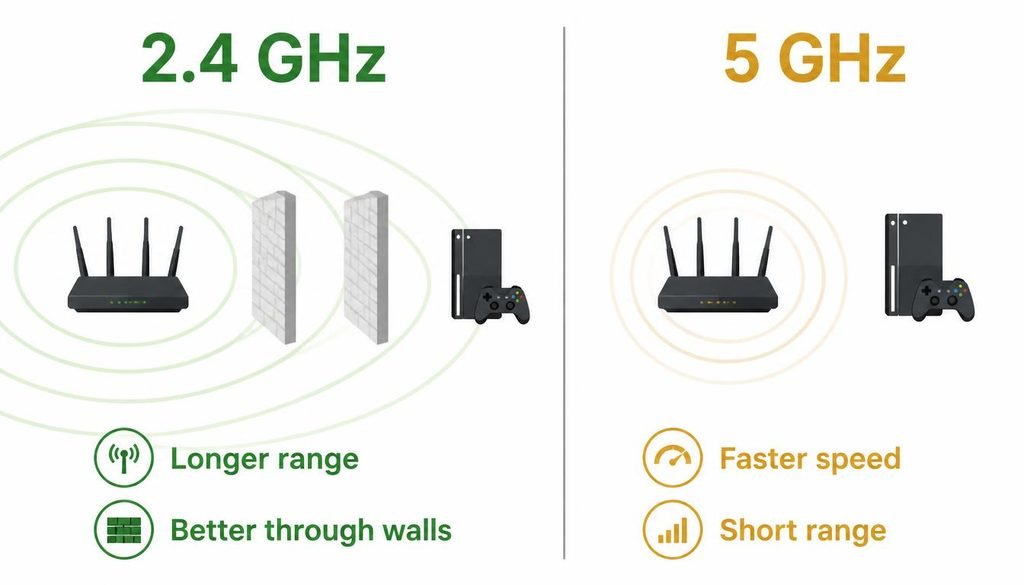
2.4 GHz vs 5 GHz: which is better for Xbox Series X?
The Xbox Series X supports both bands. Neither is always better.
Fix Slow WiFi on Xbox Series X ?
5 GHz is often the better choice at short range because it is usually less crowded and can carry more data. 2.4 GHz can be more stable at longer distances because its signal travels farther. Real results depend on signal strength, interference, router capability, channel conditions, distance, and network load, so do not assume 5 GHz is always faster.
If your router combines both bands under one name, you may not control which one the Xbox uses. Giving each band its own name in the router settings lets you connect to a specific one. Test both and keep the one that gives steadier results.
Xbox lagging even though the internet is fast?
Lag and slow downloads are different problems. A speed test reports download speed. Gaming depends on ping, jitter, and packet loss.
- High ping delays every action.
- Jitter makes ping uneven, so the game feels inconsistent.
- Packet loss drops data, which causes rubber banding and disconnects.
- Interference can cause all three on WiFi.
Fast internet plus packet loss still gives a poor gaming experience. To check, run Test network speed & statistics several times and look at latency and packet loss, not only download speed. Then repeat on Ethernet. If the cable fixes lag, wireless interference is the likely cause. Also check whether others in the house are streaming or uploading during your session, since this raises ping on busy networks.
Is Ethernet better than WiFi on Xbox Series X?

Ethernet avoids wireless interference and usually gives steadier ping. It does not raise your internet plan speed. A cable cannot make a 50 Mbps plan faster.
It is a very useful test. If Ethernet is consistently much better than WiFi under similar conditions, investigate the wireless connection instead of blaming the provider. If Ethernet is also slow, the router or provider is more likely.
Router side troubleshooting
Keep changes simple. Check these first:
- Placement: central, open, and raised if possible.
- Distance and walls: fewer obstacles help.
- Interference: microwaves and cordless phones can disturb 2.4 GHz.
- Congestion: many devices, especially streaming and large downloads.
- Band selection: see the section above.
- Reboots: a restart can help if the router has been running a long time.
- Firmware: follow the manufacturer’s instructions for updates.
- Provider combined modem and router units: these may have limited settings, so ask the provider if needed.
Avoid changing advanced router settings without a clear reason. Wrong changes can make things worse. TVs and streaming boxes also use bandwidth, so if yours shares the network, see how to connect a TV to Wi Fi to check which band it uses.
DNS: what it does and what it does not
DNS turns website names into addresses. It affects how quickly a name is found, not how fast data travels. Changing DNS is not a bandwidth booster.
It can help only when name lookups fail or are slow, such as store pages not loading while the connection otherwise works. To test, go to Settings > General > Network settings > Advanced settings > DNS settings, choose manual, and enter a public DNS such as 8.8.8.8 and 8.8.4.4 or 1.1.1.1 and 1.0.0.1. Menu names can differ by software version. If nothing improves, return to automatic.
NAT: Open, Moderate, and Strict
NAT describes how well your Xbox can connect to other players.
- Open: the easiest connections.
- Moderate: most connections work, with some limits.
- Strict: the most limits, and party chat or matchmaking problems are more likely.
NAT affects multiplayer connectivity, party chat, and matchmaking. It does not directly set raw download speed. If NAT is not open and you have multiplayer problems, check whether UPnP is enabled on the router before trying anything more advanced.
Common mistakes that can make Xbox WiFi troubleshooting worse
- Changing several settings at once
- Assuming DNS increases bandwidth
- Blaming the Xbox immediately
- Treating a speed test as the same thing as game download speed
- Ignoring packet loss
- Ignoring router distance
- Comparing different WiFi bands
- Changing advanced router settings without understanding them
- Assuming 5 GHz is always better
- Ignoring other devices that use bandwidth
Advanced troubleshooting
Use these only after the basics.
- UPnP: helps NAT in many homes. Enable it only if NAT problems persist.
- Static IP and port forwarding: only for stubborn multiplayer problems, and only if you understand your router.
- Provider troubleshooting: ask for a line test if every device is slow.
- Firmware: keep the router updated through the manufacturer.
- Congestion: if evenings are slow, ask about plan limits and peak hour performance.
- Hardware: consider the Xbox WiFi adapter only after Ethernet and other devices prove the rest is fine.
If you rely on a phone hotspot for your Xbox, large game downloads can use a lot of data, so see how to check your remaining hotspot data.
Decision tree

- If the Xbox and all other devices are slow: this points more strongly toward the router or provider.
- If the Xbox is slow but a phone and PC are fast: this makes the Xbox WiFi link, band, distance, interference, or a server limit more likely.
- If Ethernet is fast but WiFi is slow: this makes wireless conditions more likely.
- If download speed is acceptable but games lag: this points more strongly toward latency, jitter, or packet loss.
- If only one game downloads slowly: consider server conditions before blaming the whole network.
- If problems occur only at certain times: this makes congestion or provider peak hours more likely.
These are likelihoods, not proof.
When to contact support
- Your internet provider: when every device is slow, including on Ethernet, or the line drops.
- The router manufacturer: when the router fails, overheats, or has unclear settings.
- Xbox or Microsoft support: when the Xbox is slow on both WiFi and Ethernet, other devices are fine, and a restart and update do not help. Do not replace hardware without evidence.
FAQ (Fix Slow WiFi on Xbox Series X)
Is 2.4 or 5GHz better for Xbox?
Neither is always better. 5 GHz is often better at short range because it is faster and usually less crowded. 2.4 GHz can be steadier at long range or through many walls. Test both from the Xbox location and keep the one with steadier speed and lower ping.
How can I make my WiFi faster on Xbox?
Run the Xbox speed test, pause other downloads, restart the console and router, move closer, and test 5 GHz and 2.4 GHz. Ethernet is the best test for whether WiFi is the problem. These steps improve wireless conditions, but they cannot exceed your plan speed.
Why is my Xbox so laggy but the internet is fine?
Lag depends on ping, jitter, and packet loss, not only download speed. A speed test can look good while ping is high or packets are lost. Check latency and packet loss in the Xbox test, then compare on Ethernet.
Why is my WiFi so slow even though it is fast?
Your plan may be fast, but the signal near the device may be weak. Distance, walls, interference, the wrong band, and busy networks reduce real speed. Test in the same spot with a phone and compare against Ethernet to find the weak link.
Why is my Xbox Series X download speed slower than my phone?
They may use different bands, locations, and WiFi hardware, and a game download depends on the download server. A phone speed test is not the same as a game download. Test both side by side on the same band for a fair comparison.
Does Ethernet make Xbox downloads faster?
Often it makes them steadier, not faster than your plan. If WiFi was weak, Ethernet can raise real speed to near your plan limit. If your plan or the server is the limit, a cable cannot help much.
What is the best WiFi setting for Xbox Series X?
There is no universal best setting. Use 5 GHz at short range and 2.4 GHz at long range, keep the router in an open spot, and avoid unnecessary advanced changes. Test each change with the Xbox speed test.
Does changing DNS make Xbox faster?
Not for download speed. DNS only affects how names are looked up, so it can help when store pages or lookups fail. If downloads are slow because of signal, congestion, or the provider, DNS will not fix it.
Should I use 5 GHz WiFi for Xbox Series X?
Try it first if the Xbox is close to the router. 5 GHz is often faster and less crowded at short range. If the signal is weak or drops, 2.4 GHz may be steadier, so compare both.
Does NAT type affect download speed?
Not directly. NAT mainly affects multiplayer connections, party chat, and matchmaking. If downloads are slow, check signal, band, and congestion first. Improve NAT only when you have multiplayer problems.
Conclusion
Start by measuring: run the Xbox speed test, compare with a phone in the same spot, and try Ethernet. Those three checks separate WiFi, router, provider, and Xbox causes. Fix signal and band problems first, treat DNS and NAT as special cases, and contact your provider or support only when the evidence points there.
For more practical network and device guides, explore the rest of Problevo.






One Comment