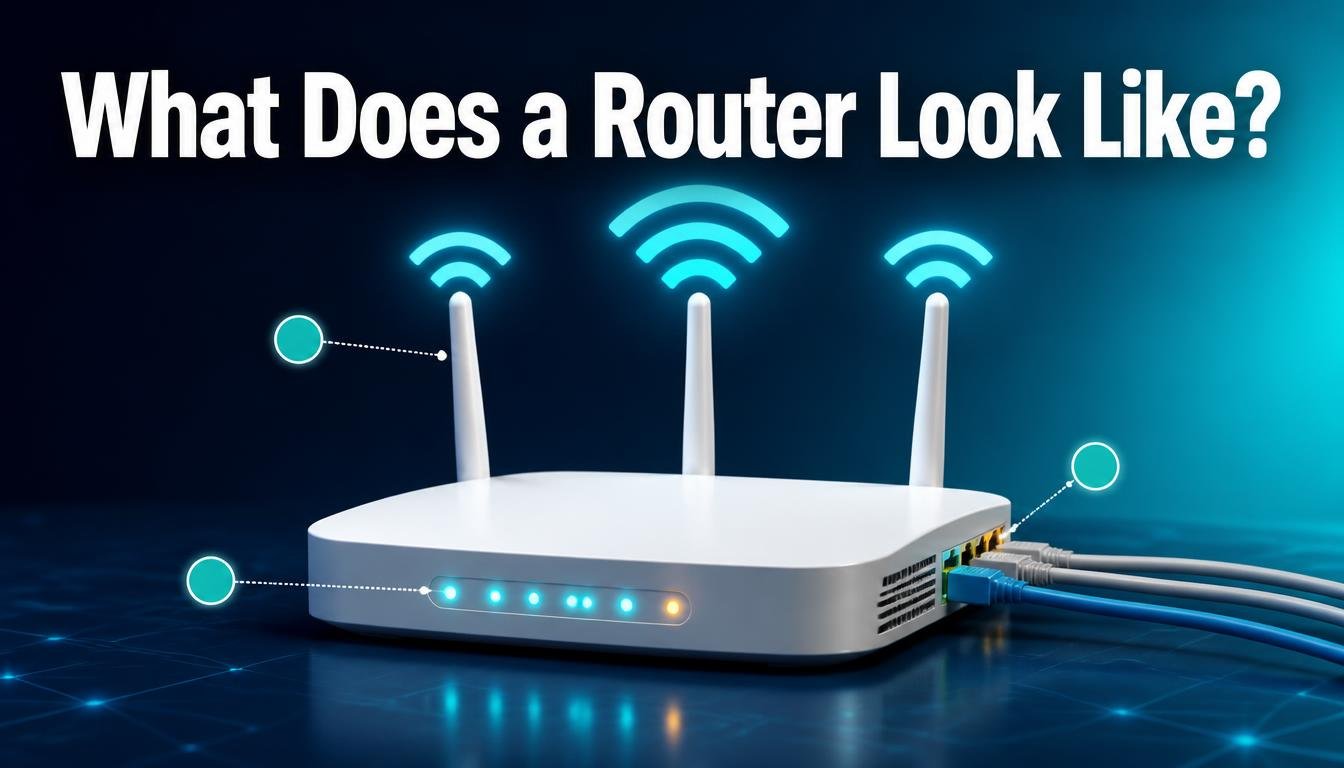
What Does a Router Look Like? A Simple Visual Guide
You are looking at a cluster of boxes and cables, and you need to know which one is the router. So, what does a router look like? Most home routers are small plastic boxes or upright units with status lights, a power connection, and Ethernet ports. This guide shows you how to recognize one by its parts, and how to tell it apart from a modem.
Quick Answer
Quick Answer: A home WiFi router is usually a small box or upright unit with status lights, a power connection, and Ethernet ports. Many models have external antennas, but some hide them inside. One port is often labeled Internet or WAN. Designs vary, so check the label and model number.
This guide covers networking routers. A wood router is a power tool for shaping wood, and it is not covered here.
Quick Identification Table
| Visible feature | What it usually indicates | How to identify it |
|---|---|---|
| External antennas | Often a wireless router, but not always | Look for rods or panels. Many routers hide antennas inside, so their absence proves nothing |
| An Internet or WAN port | A router or a modem router combo | One Ethernet style port, often labeled Internet or WAN. Cisco notes it is often a different color from the other ports |
| Several LAN ports | A router, or a switch | A group of Ethernet ports. A switch has these ports but no WiFi details or Internet port |
| Status lights | Power, internet, and WiFi activity | Look for small lights on the front or top. Meanings vary, so check the manual |
| A label with a WiFi name and password | A wireless router or gateway | Cloudflare notes that the default network name is usually printed on the side or bottom |
| A model number on the label | The exact device | Search the number with the word “manual” to see the real ports and lights |
| A DSL port, or a cable connection for your internet line, plus WiFi | A modem router combo (gateway) | Check the ports on the back. Aussie Broadband notes DSL ports are slightly smaller than Ethernet ports |
No single feature proves what a device is. Use two or three clues together.
What Does a Router Look Like?
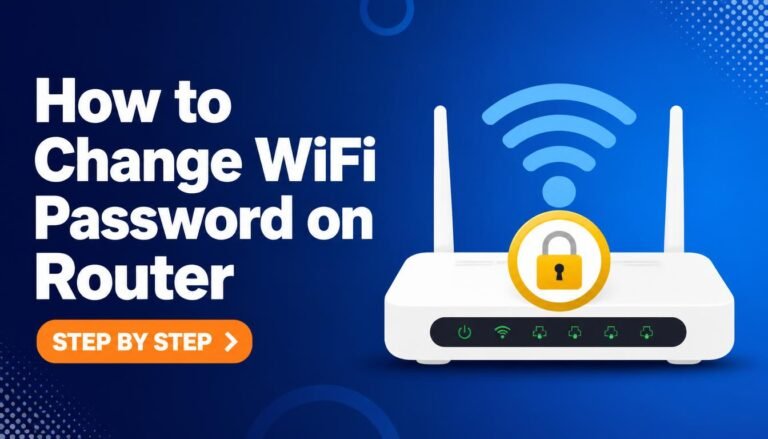
A home router is typically a compact plastic box. Some are flat and horizontal, some stand upright, and some have antennas that fold or rotate. Cisco describes desktop wireless routers as small boxes, often with several short antennas.
Designs vary a lot:
- Horizontal routers: a flat box that sits on a shelf, often with antennas on the back or sides.
- Upright routers: a tall, narrow body that stands on its end, often with internal antennas.
- Mesh WiFi units: small pods or cylinders sold in sets. The main unit usually connects to your internet line, and the others spread WiFi around the home.
- Routers with internal antennas: a plain body with no visible antennas.
Colors are often white or black, but there is no standard.
What Does a WiFi Router Look Like in a Home?
Routers are often placed where the internet line enters the home: a living room, home office, media cabinet, or utility area. Many sit on a shelf or desk.
Location alone does not prove a device is a router. A modem, a switch, a cable box, and a power adapter can all sit in the same spot. Follow the cables and check the ports and label.
How to Identify a Router by Its Parts
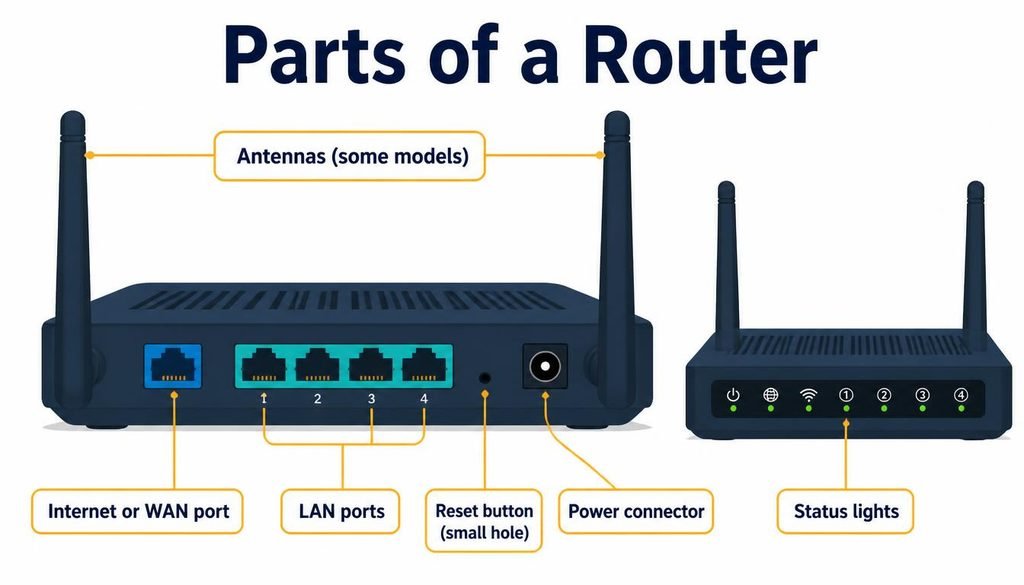
Antennas
Antennas are rods or panels that send and receive WiFi signals. They are common but optional. A router with internal antennas has none that you can see.
WAN or Internet Port
This port connects the router to your modem or other internet device. Aussie Broadband describes the WAN, EWAN, or Internet port as the defining feature of a router. It sits apart from the other Ethernet ports, often by color.
LAN Ethernet Ports
LAN ports connect wired devices such as a computer or TV. Aussie Broadband notes that some routers have only a few, from two up to five or six. Some mesh units have just one or two.
Status Lights
Lights show whether the device has power, can reach the internet, or is broadcasting WiFi. The colors and meanings differ by model. Always check the manual before reading a light as a fault.
Power Connector
Most routers have a small power connector for an adapter. Some routers also have a power switch.
Model and Serial Labels
The label usually lists the model number, serial number, and the default network name and password. Use the model number to find the manual or the manufacturer’s product page.
Reset and WPS Buttons
A reset button is often a small hole you press with a pin. Do not press it just to identify the device. A reset can erase your WiFi settings. WPS buttons are optional, and some routers do not have one.
What Does a Modem Look Like vs a Router?
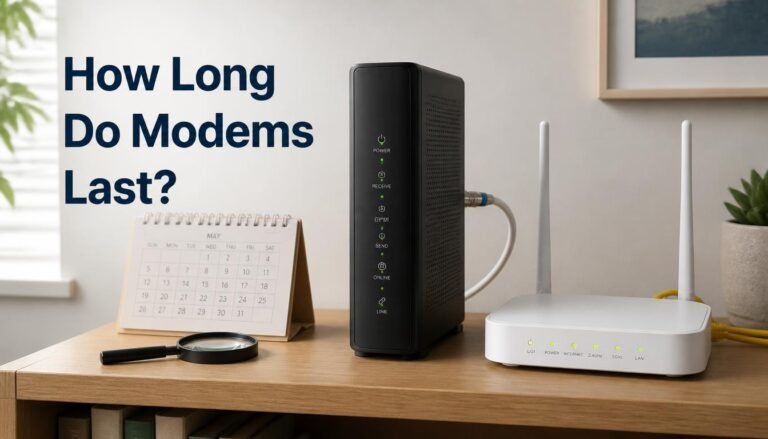
A modem connects your home to your internet provider. A router builds your home network and provides WiFi. A combined modem router, often called a gateway, does both.
| Device | Main job | Typical connections | Physical clues |
|---|---|---|---|
| Modem | Connects your home to the internet provider | Your internet line comes in, and often one Ethernet port goes out | Usually few or no antennas, and the label may say modem |
| Router | Creates your home network and WiFi | A WAN or Internet port, plus LAN ports | Often has antennas and a WiFi name on the label, and several Ethernet ports |
| Modem router combo (gateway) | Does both jobs in one box | Your provider’s line, plus LAN ports and WiFi | One device supplied by the provider, with WiFi details and ports |
Not every modem has a coaxial connection. It depends on your internet type:
- Cable: the line is usually coaxial.
- DSL: the line is a phone cable.
- Fiber: your home may use an optical network terminal (ONT) instead of a modem. Aussie Broadband shows several differently shaped connection boxes, which shows how much they vary.
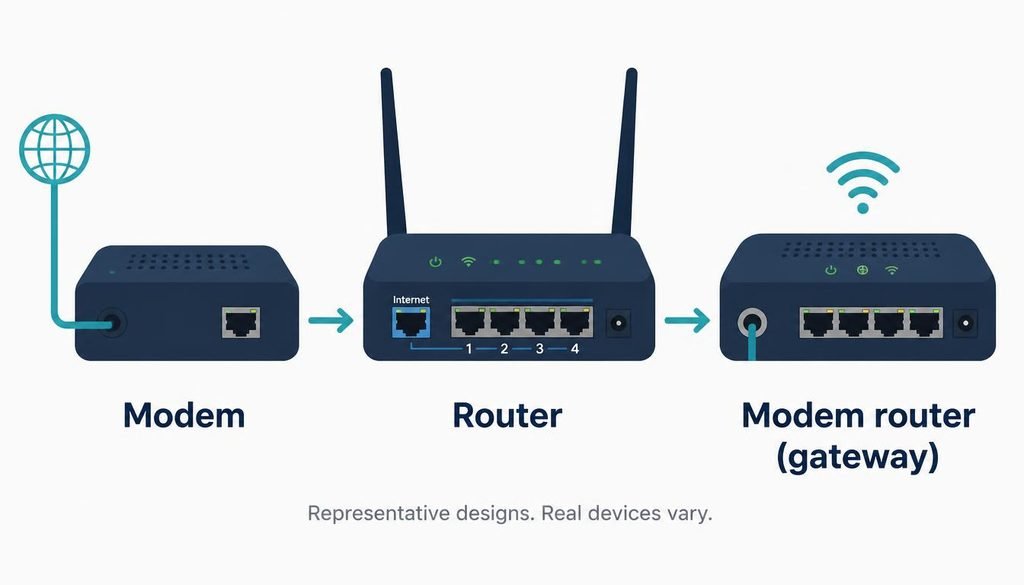
Modern devices can combine functions, so two separate boxes are not always required.
What Does a Spectrum Router Look Like?
Spectrum equipment varies by model and generation, so there is no single look. Some customers have a separate modem and router, and others have a combined gateway.
A design award page describes the Spectrum WiFi 6 router as having a sleek, organically shaped body, a status light, WAN and LAN Ethernet, a reset button, and a power supply. Other models look different. To identify yours:
- Find the model name and number on the label.
- Check whether the label lists WiFi details.
- Compare the model number with the equipment guide in your Spectrum account or on the Spectrum website.
- Do not assume your device matches a photo from another customer.
If you need to restart it, see how to restart a Spectrum router.
What Does a Router Look Like on a Computer or Laptop?
A router is a physical device, so it does not appear as an object on your screen. A computer shows the router’s address instead. This address is called the default gateway.
On Windows:
- Select Start, type cmd, and open Command Prompt.
- Type
ipconfigand press Enter. - Under your active adapter (WiFi or Ethernet), find Default Gateway.
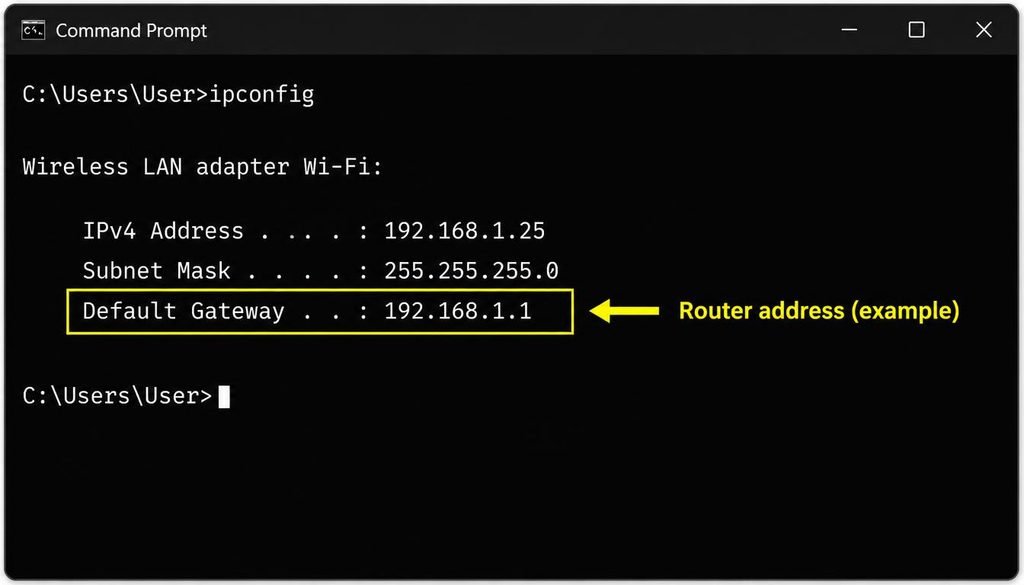
Microsoft says ipconfig without options shows the IP address, subnet mask, and default gateway for each adapter. The gateway commonly identifies your router’s local address, but it can vary with network setup. It may be blank if you are not connected, and virtual adapters may add extra entries. Read the entry for the adapter you are actually using.
This command only displays information and changes nothing. To open the router’s settings page with this address, read how to access router settings.
How to Find Your Router If You Cannot Identify It
- Look for the internet source. Find where the internet line enters your home, then follow cables from there.
- Examine labels, ports, and lights. Look for WiFi details, an Internet or WAN port, and several Ethernet ports.
- Check the model number. Search it with the word “manual” or check your provider’s equipment guide.
- Check the default gateway. Use
ipconfigon a connected Windows computer. - Check whether your provider supplied a gateway. If one box has your provider’s line, Ethernet ports, and WiFi details, it may do both jobs.
Do not unplug random cables or press reset buttons while you are unsure.
Common Identification Mistakes
- Assuming antennas decide it. Some routers have none, and other devices may have them.
- Calling every box with lights a router. Modems, switches, and other devices have lights too.
- Confusing a switch with a router. A switch adds ports but does not create your network.
- Confusing a connection box with a router. An ONT or modem is not the device that creates WiFi.
- Pressing reset to check. It can erase your settings.
What to Do After Identifying Your Router
Once you know which device is the router:
- Open its settings: how to access router settings.
- Change the WiFi password: how to change your router WiFi password.
- Check for faults: how to tell if your router is bad.
- Fix connection problems: how to troubleshoot common WiFi problems.
- Connect devices: a printer to your wireless network or your smart TV to WiFi.
FAQs
What does the WiFi router look like?
A WiFi router is usually a small plastic box or upright unit with status lights, Ethernet ports, and a power connection. Many have external antennas, but some hide them inside. Colors and shapes vary by brand and model, so use the label, ports, and model number to confirm what you have.
How do you identify a router?
Look for the device that has an Internet or WAN port plus several Ethernet ports and broadcasts your WiFi name. Check the label for the model number and WiFi details. If you are unsure, run ipconfig on a Windows computer and check the Default Gateway address.
How do I tell the difference between a modem and a router?
A modem connects your home to your internet provider, while a router creates your home network and WiFi. A router usually has a WAN or Internet port, and a combined gateway may also have a cable or DSL connection. Connection types differ, so check the equipment guide from your provider.
Is a router and WiFi the same thing?
No. WiFi is the wireless technology that lets devices connect, while a router is the hardware that usually creates the WiFi network. A router can also provide wired Ethernet connections. Some devices, such as access points, add WiFi without being the main router.
What does a modem look like?
A modem is often a plain box with a power connection, status lights, and a connection for your internet line, such as a coaxial cable, phone line, or ONT cable. It usually has few or no antennas. The design depends on whether you have cable, DSL, or fiber service.
Can a router work without external antennas?
Yes. Many routers use internal antennas inside the case, so nothing sticks out. Antennas do not determine whether a device is a router. Check for WAN and LAN Ethernet ports, WiFi details on the label, and the model number instead.
Where is my router usually located?
Routers are often placed in a living room, home office, media cabinet, or utility area, usually near where the internet line enters the home. Location alone does not prove a device is a router. Follow the cable from the internet connection and check the ports and label.
How do I find my router on a laptop?
A laptop does not show a physical router, but it shows the router address. On Windows, open Command Prompt, run ipconfig, and read the Default Gateway under your active adapter. That value commonly identifies the local address of your router, though network setups can vary.
What does a Spectrum router look like?
Spectrum equipment varies by model and generation, so there is no single look. Check the model name and number on the label and compare it with the Spectrum equipment guide. Some customers use a separate modem and router, while others use a combined gateway.
Can a modem and router be the same device?
Yes. A modem router combo, often called a gateway, combines both functions in one box. Your provider may supply one, which can make a separate router unnecessary. Look for a cable or DSL connection plus Ethernet ports and WiFi details on the same device label.
Conclusion
The most reliable clues are a label with WiFi details, an Internet or WAN port, several Ethernet ports, and status lights. Antennas help but are not required. Appearance varies by model, so always confirm with the model number or the default gateway.
If you need to do something with your router next, start with how to access router settings or browse the other Problevo WiFi guides.