
How to Connect Brother Printer to WiFi: Easy Methods and Fixes
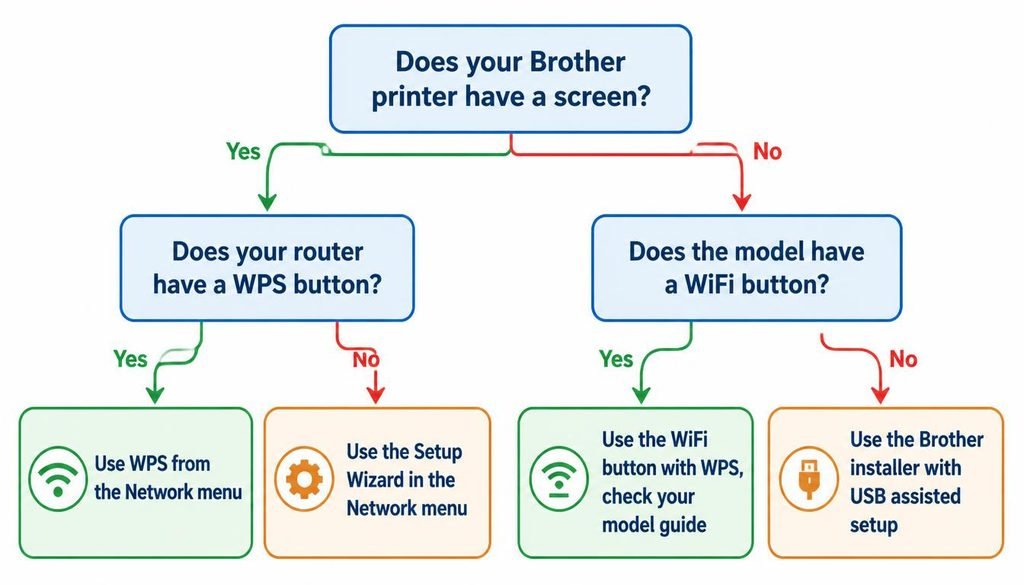
If your Brother printer is not on your home network yet, you can usually finish setup from the printer’s network menu, with WPS, or with Brother’s installer on a computer. Which one you use depends on your model, so this guide shows how to tell them apart.
Quick Answer (How to Connect a Brother Printer to WiFi)
How to Connect Brother Printer to WiFi
To connect a Brother printer to Wi-Fi, find your network name and password, then use the printer’s wireless setup menu, WPS button, or Brother’s official installer on a computer. On models with a built-in screen, the Setup Wizard inside the Network menu is usually the fastest method.
Note: Menu navigation paths differ slightly depending on your exact printer model. Always verify your device specifications first.
Brother menus are not the same on every printer. Where a path is model specific, this article says so and names the model.
In This Guide
Quick diagnostic table
What you need before connecting
Collect these first:
- Network Name (SSID): the name of your Wi Fi network.
- Network Key (password): the Wi Fi password. Brother lists it as the password, security key, or encryption key.
- Printer powered on and, if possible, within a few meters of the router.
- A computer or phone for installing software afterward.
Brother says it cannot provide your SSID or password. Look on the side or base of your router or in its documentation, or ask your internet provider. If you need to look inside the router, see how to access router settings.
Also check the Wi Fi band. Many Brother models support 2.4 GHz networks, and some newer ones also support 5 GHz, so check your model’s specifications. If your router joins both bands under one name, a printer that supports only 2.4 GHz will still look for the 2.4 GHz side.
How to connect a Brother printer to Wi Fi
Method 1: Setup Wizard (printers with an LCD)
This path is from Brother’s guide for the MFC-L2700DW. Other models can differ.
- Turn the printer on.
- Press Menu.
- Use the arrow keys to select Network, then press OK.
- Select WLAN, then press OK. Brother notes this step may not apply to all machines.
- Select Setup Wizard, then press OK.
- When WLAN Enable? appears, choose Yes.
- Select your network name from the list.
- Enter the Network Key if one is required, then confirm.
- When it connects, the display shows Connected and the printer prints a wireless connection report.
If the connection fails, the printer prints a report with an error code. Look the code up on Brother’s support page for your model.
On touchscreen models, the menu usually sits under Settings > All Settings > Network > WLAN(Wi-Fi). Brother lists WPS/Push Button there for several newer models, such as the HL-L2465DW and DCP-L2640DW. Check your model’s guide for the wizard option.
Method 2: WPS (push button)
Use this only if your router has a WPS button. Not every router supports WPS, and some have it turned off.
On Brother LCD models such as the HL-L2350DW series, Brother’s guide describes this path:
- Press the arrow key to select Network, then OK.
- Select WLAN, then OK.
- Select WPS, then OK.
- When WLAN Enable? appears, choose On.
- When the display shows Press Key on rtr, press the WPS button on your router.
The printer should find the router and show Connected. The router’s WPS window usually lasts only a limited time, so press its button soon after the printer asks.
Method 3: USB assisted wireless setup
This is useful for printers without a screen, or when menus are confusing. On many Brother models, the installer from the Brother Downloads page offers a wireless setup option. During it, the installer may ask you to connect a USB cable temporarily so your computer can pass the Wi Fi details to the printer. Follow the screens for your model. The cable can be removed afterward.
Download the Full Driver & Software Package for your model from Brother’s support site, not from other sites.
Method 4: Connect from a Windows computer
After the printer joins the network, install the Full Driver & Software Package from Brother Downloads. If the printer does not appear afterward, open Settings > Bluetooth & devices > Printers & scanners, then choose Add device and select your printer. Menu names can differ slightly between Windows versions.
Method 5: Connect from a Mac
Brother says Mac users should download the Full Software Package, or the Printer Driver and Scanner Driver if the full package is not offered. If neither is offered, many models work with AirPrint. If your model does not support AirPrint, Brother recommends Brother iPrint&Scan from the App Store.
On macOS 15 or later, if Brother iPrint&Scan cannot use the network, Brother says to check System Settings > Privacy & Security > Local Network and allow it. To add a printer by hand, open the Printers & Scanners section in System Settings and choose Add Printer.
Method 6: Connect a Brother printer to a phone
Make sure the printer is on the same Wi Fi network as the phone, then use one of these:
- iPhone: AirPrint, if your model supports it, or the Brother iPrint&Scan app.
- Android: the Brother iPrint&Scan app, or the printing options in Android settings if your model supports them.
Not every Brother printer supports every mobile feature, so check your model’s support page.
How to connect Brother printers without an LCD screen
Printers without a screen cannot show a network menu, so you have three realistic options.
- WPS, if your model and router support it. On the DCP-T420W, Brother describes pressing the WiFi button three times until it blinks, then pressing the WPS button on the router.
- USB assisted setup with Brother’s installer, covered above.
- Brother’s setup software from the Downloads page for your model.
Do not guess at button combinations. Use the sequence in Brother’s guide for your exact model.
Model specific examples
Brother HL-L2325DW
This model has built in wireless networking. I could not confirm the exact button sequence for the HL-L2325DW in Brother’s current pages, so use the Online User’s Guide for the HL-L2325DW on Brother’s support site. The installer method (Method 3) is the most reliable general route. If you see an LCD style menu on a similar Brother model, the Network > WLAN path above may apply, but confirm it for your model first.
Brother DCP-T420W
Brother’s guide for the DCP-T420W, DCP-T425W, and DCP-T426W describes WPS this way:
- Press the WiFi Button/LED three times. It starts blinking.
- Press the WPS button on your router.
- When the connection works, the Power LED and WiFi LED stay lit.
Some third party pages claim this model has no WPS, but Brother’s own guide says otherwise.
Brother DCP-T510W
Brother’s guide for the DCP-T510W, DCP-T710W, and MFC-T810W says to select WPS from the control panel menu, then press the WPS button on your router when the LCD tells you to. The LCD shows Connected when it works. The steps before selecting WPS are not shown in the part of the guide I checked, so follow the LCD prompts and the Online User’s Guide for your model.
How to connect a Brother printer to Wi Fi without a cable
Use the printer’s own wireless setup:
- The Setup Wizard on LCD models
- WPS if the router supports it
- The WiFi button sequence on models that have it
Then install the software on your computer or use a mobile app. No cable is needed if your model offers one of these.
How to connect a Brother printer to Wi Fi with a cable
If the printer has no screen, or the wireless menu will not work, use USB assisted setup. Connect the printer to your computer with a USB cable when the Brother installer asks, finish the wireless step, and then unplug the cable. If your printer also has an Ethernet port, a wired network connection is a separate option, and you can switch to wireless later.
Why your Brother printer cannot find Wi Fi
Work through these in order.

How to connect brother printer to wifi?
- Check that the printer’s wireless function is enabled (the WLAN Enable? prompt on LCD models).
- Confirm the router is broadcasting the network and other devices can see it.
- Check which bands your model supports. A 2.4 GHz only printer cannot join a 5 GHz only network.
- Move the printer closer to the router.
- Restart the printer and the router.
- Run wireless setup again.
- Reset the network settings only if the steps above fail.
If the problem seems to be your router, see how to fix common Wi Fi problems.
Troubleshooting
For general printer connection steps that apply to other brands as well, see how to connect a printer to Wi Fi.
When to reset network settings
Reset only after trying the steps above, because a reset removes the saved Wi Fi details and you will need to set the printer up again. Many Brother models have a Network Reset option inside the Network menu, but the exact path differs by model. Check your model’s guide, run the reset, and then repeat wireless setup from Method 1, 2, or 3.
How Wireless Direct works

A normal Wi Fi connection joins the printer to your router. Wireless Direct (called Wi-Fi Direct on some models) lets a phone or computer connect straight to the printer without a router. The printer creates its own small network, and the device connects to it.
On the DCP-T420W series, Brother says to press the WiFi button and Copy Shortcut at the same time. The printer then prints an information sheet with the network name (it looks like DIRECT-xxDCP-xxxx_BRxxxx) and the password. Select that network on your phone and enter the key. Other models use different steps.
This is not the same as joining your home network, so your phone may lose internet access while it is connected directly. Wireless Direct is useful when you have no router nearby or want a quick one off connection. For a similar idea of connecting without a router, see how screen mirroring works without Wi Fi.
FAQ
How do I connect my printer to Wi Fi?
Find your network name and password, then use the printer’s wireless setup menu, WPS, or the manufacturer’s installer. On Brother printers with a screen, use Network > WLAN > Setup Wizard where available. Models differ, so check the guide for your exact model.
Why is my Wi Fi not showing up on my Brother printer?
The printer may be too far away, the router may not be broadcasting, or your model may not support the band. Check whether your printer supports 2.4 GHz or 5 GHz, move it closer to the router, restart both, and run wireless setup again.
How do I set up Wi Fi on my Brother HL-L2325DW printer?
This model has built in wireless networking, but I could not confirm its exact buttons in current Brother pages. Use Brother’s Online User’s Guide for the HL-L2325DW, or run the installer from Brother Downloads and choose the wireless setup option.
How do I set up Wi Fi Direct on my Brother printer?
Steps depend on the model. On the DCP-T420W series, press the WiFi button and Copy Shortcut together, which prints a sheet with the network name and key. Then select that network on your phone and enter the key. Check your model’s guide for others.
Can I connect a Brother printer to Wi Fi without a screen?
Yes, on supported models. Use WPS or USB assisted setup with Brother’s installer. On the DCP-T420W, Brother describes pressing the WiFi button three times, then pressing WPS on the router. Do not guess button combinations for other models.
Does a Brother printer work on 5 GHz Wi Fi?
Many Brother models support only 2.4 GHz, and some newer models also support 5 GHz. Check your model’s specifications on Brother’s support page. If the printer supports only 2.4 GHz, make sure your router broadcasts a 2.4 GHz network.
Why does my Brother printer say offline after connecting?
The printer may have dropped the connection or changed its IP address. Restart the printer and router, then check the printer in the Brother software or in Windows Printers & scanners. If it stays offline, run wireless setup again.
How do I connect a Brother printer to a laptop?
Join the printer to your Wi Fi network first, then install the Full Driver & Software Package from Brother Downloads. On Windows you can also use Settings > Bluetooth & devices > Printers & scanners > Add device. On a Mac, use Printers & Scanners or AirPrint.
What should I do if WPS does not work?
Check that your router supports WPS and that it is turned on. Repeat the steps promptly, because the WPS window is usually short. If it still fails, use the Setup Wizard on LCD models or the USB assisted installer.
When should I reset the network settings on a Brother printer?
Reset only after the printer cannot join, even after restarts and a repeat setup. A reset clears the saved Wi Fi details, so you will need to set up the printer again. The reset option and its menu path depend on the model.
Conclusion
The easiest way to connect a Brother printer to Wi Fi depends on the model. Use the Setup Wizard on screen models, WPS when the router supports it, and USB assisted setup when there is no screen or the menu will not work. If the network does not appear, check the band and distance first. If the printer connects but stays offline, restart it and the router, then reinstall the Brother software. Reset the network settings only as a last step.
For more connection guides, read how to connect a printer to Wi Fi on Problevo.





One Comment