How to Increase Download Speed: Complete PC & Mobile Guide
Knowing how to increase download speed eliminates slow file transfers, removes game update bottlenecks, and maximizes your internet bandwidth.
Quick Answer: How to Increase Download Speed
- Wired Connection: Switch to an Ethernet cable instead of WiFi for a stable, faster link.
- Browser Flags: Enable Chrome parallel downloading flags to split large files into multiple threads.
- DNS Server: Change DNS servers to 1.1.1.1 (Cloudflare) or 8.8.8.8 (Google) for quicker lookups.
- Background Processes: Close background bandwidth hogs using Task Manager.
- Network Reset: Restart your modem and router to clear network congestion.
Table of Contents
Download Speed Bottlenecks: Symptom & Technical Fix Matrix
| Download Issue | Network or System Root Cause | Actionable Technical Fix |
| Speed test shows 100 Mbps but files download at about 12 MB/s | Bits versus bytes confusion, not a system fault | Divide Mbps by 8 to calculate actual MB/s rate |
| Downloads start fast, then drop dramatically | Weak WiFi signal or 2.4 GHz frequency interference | Move to 5 GHz band or connect via an Ethernet cable |
| Pages and downloads stall before starting | Slow or unresponsive ISP DNS server | Switch to 1.1.1.1 or 8.8.8.8 and run ipconfig /flushdns |
| Large files download slowly in Chrome | Single connection thread per file download | Enable chrome://flags#enable-parallel-downloading |
| Windows uses bandwidth you cannot account for | Background update uploads and delivery network | Turn off Delivery Optimization and sort Task Manager by Network |
| Steam or Battle.net downloads crawl | Incorrect server region, bandwidth cap, or stale cache | Change region, remove speed limits, and clear download cache |
| Mobile downloads are slow on a good signal | Low Data Mode, Data Saver, or stuck tower registration | Toggle Airplane mode and disable data-saving options |
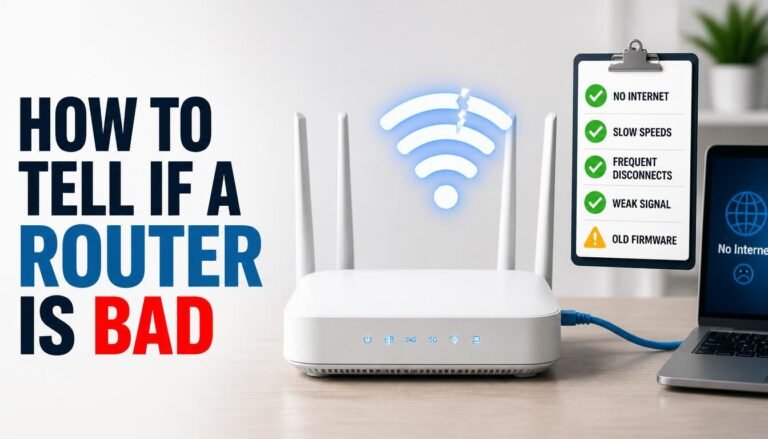
| Speed is slow at every device in the house | Modem fault, ISP line congestion, or outdated plan | Restart the modem, update firmware, or contact your ISP |
Understanding Download Speeds (Mbps vs. MB/s Explained)
Most people think their internet connection is malfunctioning because of a simple unit mix-up. Internet service providers (ISPs) and speed test tools advertise speeds in megabits per second (Mbps). Your web browser, Steam, and Windows display file transfer progress in megabytes per second (MB/s). These are two distinct units of measurement.
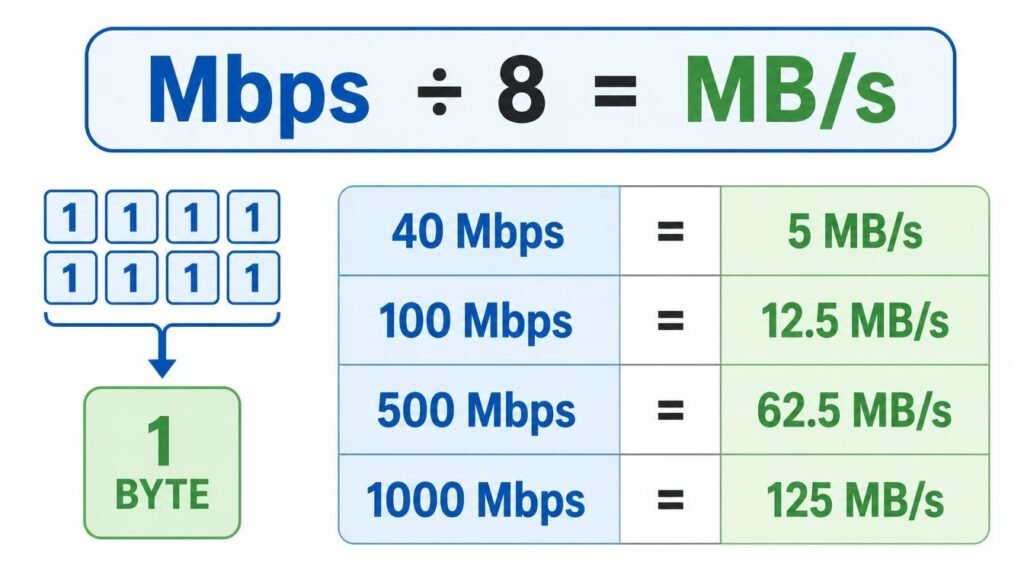
One byte contains 8 bits. To convert your connection speed to your theoretical maximum file download rate, divide the Mbps figure by 8.
$$\text{Mbps} \div 8 = \text{MB/s}$$
- 100 Mbps plan downloads at roughly 12.5 MB/s
- 40 Mbps plan downloads at roughly 5 MB/s
- 500 Mbps plan downloads at roughly 62.5 MB/s
- 1000 Mbps (1 Gbps) plan downloads at roughly 125 MB/s
A 100 Mbps connection will never show 100 MB/s during a file download. If your file transfer displays between 11 and 12 MB/s on a 100 Mbps plan, your line is performing correctly. Real-world results usually land between 85% and 95% of the theoretical maximum due to network protocol overhead.
Once the math checks out and your real speed remains far below your plan allowance, the cause is usually signal degradation. If your overall wireless signal keeps dropping while downloading large files, check our guide on how to fix wifi. To improve signal strength through thick walls on wireless connections, review how to fix weak wifi signal.
How to Increase Download Speed on PC (Windows System Tweaks)
Work through these five steps in order. Each targets a specific layer of the network stack, from physical hardware to Windows registry throughput settings.
Step 1: Connect via Ethernet or Switch to a 5 GHz WiFi Band
A physical cable removes wireless interference completely. Plug a Cat5e or Cat6 Ethernet cable from your router into your PC and run your download test again.
If using a cable is not feasible, switch your wireless frequency:
- Open the WiFi list in your Windows taskbar.
- Connect to the network SSID ending in 5G or 5 GHz.
- Stay within clear sight of the router for maximum throughput, as 5 GHz signals degrade faster through solid walls.
The 2.4 GHz band reaches farther but is slower and susceptible to interference from microwaves, Bluetooth devices, and neighboring networks. If you need to extend coverage to another room for a stable download connection, read how to extend wifi range.
Step 2: Enable TCP Window Auto-Tuning via Command Prompt
TCP Window Auto-Tuning allows Windows to dynamically adjust how much incoming data it buffers before waiting for a sender acknowledgment. When disabled or restricted, high-speed lines cannot reach full throughput.
- Press the Windows key, type
cmd, right-click Command Prompt, and select Run as administrator. - Verify your current configuration by running:DOS
netsh int tcp show global - Locate the line named Receive Window Auto-Tuning Level. If it displays disabled, restricted, or highlyrestricted, proceed to step 4.
- Execute the following command:DOS
netsh int tcp set global autotuninglevel=normal - Restart your computer and re-test your download speed.
Note: Windows sets this to normal by default; this adjustment fixes issues where third-party optimizer utilities or legacy network software modified the value.
Step 3: Change DNS Servers to Cloudflare (1.1.1.1) or Google (8.8.8.8) and Flush DNS
DNS translates web addresses into numerical IP addresses. A slow ISP DNS server delays the initiation of every transfer. While it does not increase total bandwidth, it eliminates latency before a file starts downloading.
- Press Windows + R, type
ncpa.cpl, and press Enter. - Right-click your active network adapter (Ethernet or WiFi) and select Properties.
- Highlight Internet Protocol Version 4 (TCP/IPv4) and click Properties.
- Select Use the following DNS server addresses.
- Enter 1.1.1.1 as the Preferred DNS server and 8.8.8.8 as the Alternate DNS server. You can also use 1.0.0.1 as an alternative Cloudflare address.
- Click OK, open Command Prompt, and execute:DOS
ipconfig /flushdns

If Windows reports that your network lookup is failing after changing settings, resolve DNS server errors that stall file downloads on Windows by checking fixing DNS server not responding on Windows 11.
Step 4: Turn Off Windows Delivery Optimization Background Uploads
Delivery Optimization uses your connection to seed Windows update files to other PCs across the internet, consuming upstream bandwidth and throttling active downloads.
- Open Settings (Windows + I).
- Navigate to Windows Update > Advanced options > Delivery Optimization.
- Toggle Allow downloads from other PCs to Off.
(On Windows 10, navigate to Settings > Update & Security > Delivery Optimization).
Step 5: Close Background Apps Using Task Manager Network Column Sorting
- Press Ctrl + Shift + Esc to open Task Manager.
- On the Processes tab, click the Network column header to sort processes by active usage.
- Select any unnecessary bandwidth-heavy applications (such as cloud syncing tools, torrent clients, or background launchers) and click End task.
Check other devices on your local network. A smart TV streaming 4K media or a gaming console updating in the background will consume a significant portion of your bandwidth.
If your router requires channel adjustments or a firmware update to handle high loads, follow how to access router settings. If network adapter settings disappear during Windows network troubleshooting, read fixing the Windows 11 no Wi-Fi option bug.
How to Increase Download Speed in Chrome and Web Browsers
Enable Parallel Downloading in Chrome Flags
Parallel downloading forces Chrome to split target files into multiple segments, fetching them simultaneously over separate HTTP connections.
- Open Google Chrome and enter
chrome://flags#enable-parallel-downloadinginto the address bar. - Locate Parallel downloading in the search results.
- Change the dropdown menu setting from Default to Enabled.
- Click the Relaunch button at the bottom of the screen to apply changes.
Note: Chrome flags are experimental features that may change between browser builds. If the flag does not appear in your version, ensure Chrome is updated or utilize a dedicated download manager.
Clear Browser Cache and Disable Heavy Extensions
- Press Ctrl + Shift + Delete within Chrome.
- Select Cached images and files, set the time range to All time, and click Clear data.
- Navigate to
chrome://extensionsand disable active extensions you do not require—specifically VPNs, ad blockers, and shopping assistants that inspect network packets.
Use a Dedicated Download Manager
Dedicated download managers open dozens of parallel connections per file, automatically resume broken transfers, and optimize thread allocation. Tools such as Free Download Manager or JDownloader can maximize throughput on servers that throttle single-connection browser downloads. Always download installer packages directly from official vendor websites.
How to Increase Download Speed on Steam and Battle.net
Game client applications implement internal rate limits, regional server assignments, and local disk caches. Windows-level optimizations alone will not resolve throttled game updates if the launcher configuration is misconfigured.
Steam Download Speed Tweaks
- Launch Steam, click Steam in the top-left menu, and select Settings.
- Select Downloads from the left navigation pane.
- Under Download Region, select a different server located near your physical area. If your local node is congested during a major game release, switching to a neighboring city or country often bypasses the bottleneck.
- Ensure Limit bandwidth to is unchecked or set to No limit.
- Toggle Throttle downloads while streaming to Off.
- Click Clear Download Cache and confirm. Steam will restart and require you to sign in again.
- (Optional) If Steam displays speeds in Mb/s instead of MB/s, toggle Display download rates in bits per second to match your preferred units.
How to Increase Download Speed?

Battle.net Download Tweaks
- Open Battle.net, click the Blizzard logo in the top-left corner, and select Settings.
- Navigate to the Downloads tab.
- Under Network Bandwidth, ensure Latest Updates and Pre-release Content fields are set to 0 (which designates unlimited speed).
- Uncheck Pause downloads when launching a game.
- If downloads remain stuck at low speeds, close Battle.net, press Windows + R, type
%programdata%, press Enter, and delete both the Battle.net and Blizzard Entertainment directories before restarting the client.
How to Increase Download Speed on Mobile (Android & iPhone)
Toggle Airplane Mode to Refresh Cell Tower Registration
Switching on Airplane mode for 10 seconds forces your mobile modem to disconnect from the radio network and re-register with the cell tower offering the strongest signal.
Disable Low Data Mode and Background App Refresh
iPhone (iOS):
- Open Settings > Cellular > Cellular Data Options and turn off Low Data Mode.
- For WiFi, open Settings > Wi-Fi, tap the (i) icon next to your network, and turn off Low Data Mode.
- Navigate to Settings > General > Background App Refresh and limit or disable background activity.
Android:
- Open Settings > Network & internet (or Connections > Data usage on Samsung devices) and disable Data Saver.
- Open Google Play Store, tap your profile icon, select Settings > Network preferences > App download preference, and set it to Over any network.
Switch from 2.4 GHz to 5 GHz WiFi or Use 5G Cellular
Mobile devices often default to 2.4 GHz WiFi to conserve battery. Manually select your router’s 5 GHz network within your WiFi settings. When on cellular networks, ensure 5G is enabled under Settings > Cellular > Cellular Data Options > Voice & Data on iPhone, or Preferred network type on Android.
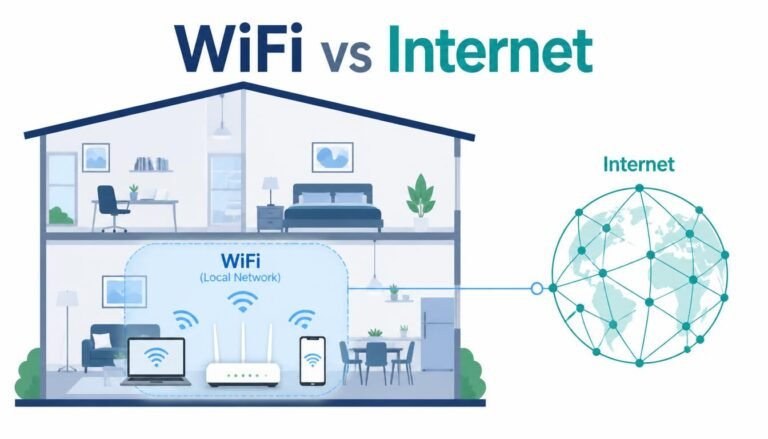
To verify whether your subscription speed matches your actual connection type, review is wifi and internet the same. If you are considering upgrading from legacy connections to high-speed lines, check blog how to get fiber internet.
When using mobile tethering for downloads and checking bandwidth limits, read why is my hotspot slow. To inspect mobile data allowances before downloading large installer packages, consult how much hotspot do I have left.
Frequently Asked Questions
How fast is 100 Mbps download speed?
A 100 Mbps connection delivers a theoretical maximum speed of 12.5 MB/s, which yields roughly 10 to 12 MB/s in real-world use. This bandwidth can download a 1 GB file in approximately 90 seconds, stream multiple 4K video streams simultaneously, and support low-latency online gaming across several devices.
How can I get 1000 mbps?
To reach 1000 Mbps (1 Gbps), you must subscribe to a gigabit fiber plan from your ISP. Your hardware setup requires a gigabit-capable router, Cat5e or Cat6 Ethernet cabling, and a 1000 Mbps network interface card (NIC) on your device. WiFi 6 can approach these speeds, but wired connections are required to sustain full gigabit rates.
How to get 1 GB download speed?
Getting 1 Gbps (Gigabit) download speed requires ordering a gigabit internet plan, connecting via a Cat6 Ethernet cable, and utilizing gigabit network ports. Note that a 1 Gbps bandwidth rate (125 MB/s) differs from a 1 GB file size, which downloads in under 10 seconds on a gigabit line.
Is 40 Mbps a fast download speed?
A 40 Mbps speed is adequate for basic household usage, delivering approximately 5 MB/s. It easily supports HD video streaming, web browsing, and remote work calls. However, large game downloads will feel slow, as a 50 GB game package requires approximately 80 minutes to finish downloading.
How to increase download speed on pc?
Connect your PC using an Ethernet cable, enable TCP Window Auto-Tuning via netsh int tcp set global autotuninglevel=normal, switch your DNS servers to 1.1.1.1 or 8.8.8.8, turn off Windows Delivery Optimization, and close network-heavy background processes in Task Manager.
How to increase download speed in Chrome?
Navigate to chrome://flags#enable-parallel-downloading in your address bar, change the dropdown menu to Enabled, and relaunch Chrome. Additionally, clear your browser cache, disable unnecessary extensions, and consider using a multi-threaded download manager for large files.
How to increase download speed on Steam?
Open Steam > Settings > Downloads, select a different nearby Download Region, uncheck Limit bandwidth, and click Clear Download Cache. Disable Throttle downloads while streaming, and ensure your computer uses a wired Ethernet connection during large game installations.
How to increase download speed on mobile?
Toggle Airplane mode on and off to reset cell tower registration, disable Low Data Mode or Data Saver, and restrict background app refreshing. Connect to a 5 GHz WiFi network or switch to an active 5G cellular connection while staying near your access point.
Final Thoughts on Maximizing Download Speeds
Maximizing your download speeds requires systematically addressing bottlenecks across your network setup. Start by verifying the mathematical conversion between Mbps and MB/s, as a 100 Mbps connection is designed to yield approximately 12.5 MB/s.
From there, work through your hardware setup, router configurations, DNS settings, Windows parameters, browser flags, and game launcher options in order. If every device on your network continues to download at speeds well below your provisioned rates after applying these steps, the restriction exists at your modem or ISP line level, requiring a service call or plan upgrade.