How to Boost the WiFi: Complete PC & Mobile Guide
Knowing how to boost the wifi eliminates frustrating buffering, speeds up file downloads, and pushes wireless coverage into every room of your living space.
Most slow connections are not caused by your internet plan. They come from poor router placement, crowded radio channels, outdated drivers, and background apps quietly eating bandwidth. Each of these can be fixed in minutes, and many fixes cost nothing.
This guide covers Windows command line tweaks, adapter settings, Android and iPhone adjustments, wall attenuation physics, extender placement, and router level optimizations that most guides skip.
Quick Answer: How to Boost the WiFi
- Router Placement: Move the router to an elevated, central position away from walls and metal.
- Frequency Bands: Switch from congested 2.4 GHz to 5 GHz for faster speeds.
- System Drivers: Update your Wi-Fi network adapter drivers.
- DNS Optimization: Change DNS servers to 1.1.1.1 for quicker lookups.
- Bandwidth Management: Clear background bandwidth hogs and heavy downloads.
Table of Contents
WiFi Speed & Signal Diagnostics: Symptom & Technical Fix Matrix
| Visible Network Symptom | Underlying Hardware/Environmental Cause | Actionable Technical Fix |
| Fast near the router, slow in other rooms | Signal loss through walls, floors, and furniture | Relocate the router centrally and higher; consider a mesh system or extender |
| Speeds drop in the evening | Channel congestion from neighbors on 2.4 GHz | Switch to 5 GHz or move to channel 1, 6, or 11 |
| Pages pause before loading, then load fast | Slow DNS lookups from the ISP default resolver | Change DNS to 1.1.1.1 or 8.8.8.8 and run ipconfig /flushdns |
| Wi-Fi slows when the microwave runs | 2.4 GHz interference from household devices | Move the router away from microwaves, baby monitors, and Bluetooth hubs |
| Only one laptop is slow, others are fine | Outdated driver or restrictive adapter settings | Update the driver and adjust Transmit Power and Roaming Aggressiveness |
| Phone is slow on Wi-Fi but fine on cellular | Battery saver, Low Data Mode, or corrupt network cache | Disable saver modes and reset network settings |
| Video calls stutter while someone downloads | No traffic prioritization on the router | Enable QoS rules for work or gaming devices |
| Extender shows full bars but speeds are poor | Extender placed too far from the router | Place it at the midpoint where the router signal is still strong |
How to Boost the WiFi Signal Without a Booster (Free Methods)
You do not need to buy anything to see a real improvement. Start with these zero cost changes.
Optimal Router Positioning
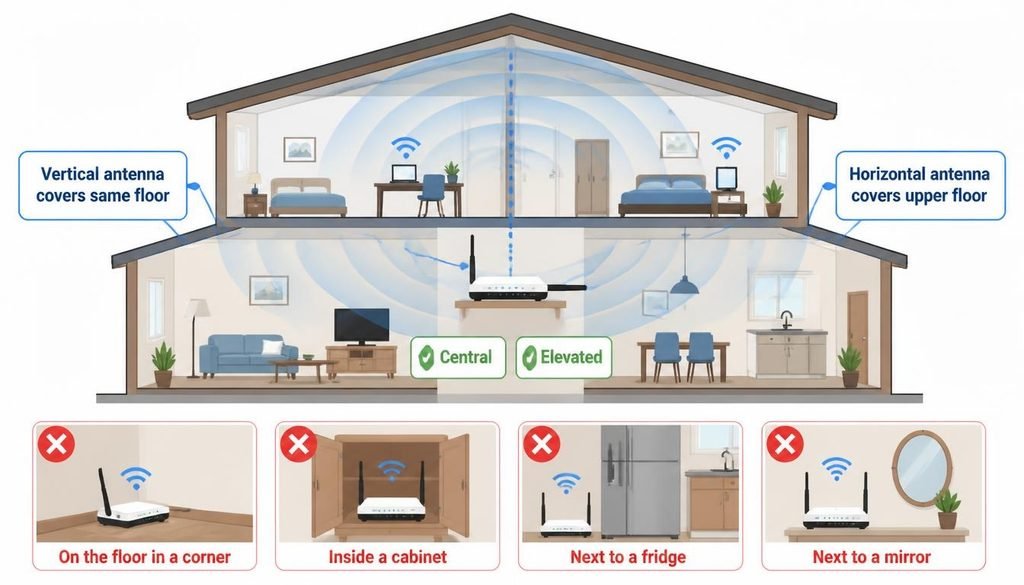
Radio waves spread outward and downward from the antennas. A router on the floor in a corner wastes most of its power on the outdoors and the ground.
- Go central: Place the router near the middle of the area you want to cover.
- Go high: A shelf or the top of a cabinet, roughly 1.5 to 2 meters up, clears most furniture.
- Avoid metal and water: Refrigerators, filing cabinets, mirrors, aquariums, and water heaters absorb or reflect signals.
- Stay in the open: Do not hide the router inside a cabinet, behind a TV, or inside a closet.
If your overall router connection drops continuously across every device, review our guide on how to fix wifi.
Adjusting Router Antennas
Antennas radiate energy in a donut shape around the metal rod. The strongest signal travels outward from the sides of the rod, not from its tip.
- Step 1: Point one antenna vertically to cover the same floor of your home.
- Step 2: Tilt a second antenna horizontally to send signal up and down between floors.
- Step 3: If your router has three or more antennas, mix vertical and 45 degree angles.
- Step 4: Retest speed after each change, since small adjustments can matter.
To diagnose and correct weak wireless coverage through concrete floors, read how to fix weak wifi signal.
Changing Wi-Fi Channels
On the 2.4 GHz band, only channels 1, 6, and 11 do not overlap. If a neighbor uses channel 3, they interfere with both channel 1 and channel 6, so stick to the three clean options.
- Use a free Wi-Fi analyzer app to see which channel is least crowded.
- Pick the quietest of 1, 6, or 11 in your router settings.
- Set channel width to 20 MHz on 2.4 GHz in crowded buildings. It is slower on paper but far more stable.
- Use 40 MHz on 2.4 GHz only in low interference areas.
- Use 80 MHz on 5 GHz for the highest speeds at short to medium range.
Channel width matters because wider channels carry more data but catch more noise and overlap with more neighbors.
Switching to 5 GHz or 6 GHz
The 2.4 GHz band travels farther and passes through walls better, but it is slower and crowded. The 5 GHz band is faster with less interference but loses strength through obstacles. The 6 GHz band, available on Wi-Fi 6E and Wi-Fi 7 equipment, is the cleanest of all but has the shortest range.
Rule of thumb: Use 5 GHz or 6 GHz when you are in the same room or one room away, and use 2.4 GHz for distant rooms where range matters more than speed.
Clear Radio Interference Sources
Several household devices share the 2.4 GHz band and degrade your signal:
- Microwave ovens, which can cause sharp drops while running
- Baby monitors and cordless phones
- Bluetooth speakers and wireless peripherals
- Neighboring routers and smart home hubs
Keep the router at least a few meters from these devices where you can.
How to Boost the WiFi in PC (Windows System Tweaks)
If Wi-Fi is slow only on your Windows computer, the problem is usually software settings, not the router. Work through these steps in order.
Step 1: Enable TCP Window Auto-Tuning via Command Prompt
Auto-tuning lets Windows adjust the receive window for faster, more efficient downloads. It is normally on, but it is sometimes disabled by old tweak tools.
- Step 1: Press the Windows key, type
cmd, right click Command Prompt, and choose Run as administrator. - Step 2: Check the current state by typing
netsh int tcp show globaland pressing Enter. - Step 3: Look for Receive Window Auto-Tuning Level. If it says disabled, continue.
- Step 4: Type
netsh int tcp set global autotuninglevel=normaland press Enter. - Step 5: Restart your computer and retest your speed.

If you see strange results afterward, you can return to the default with the same command. If Wi-Fi toggles completely disappear from your system tray during troubleshooting, read fixing the Windows 11 no Wi-Fi option bug.
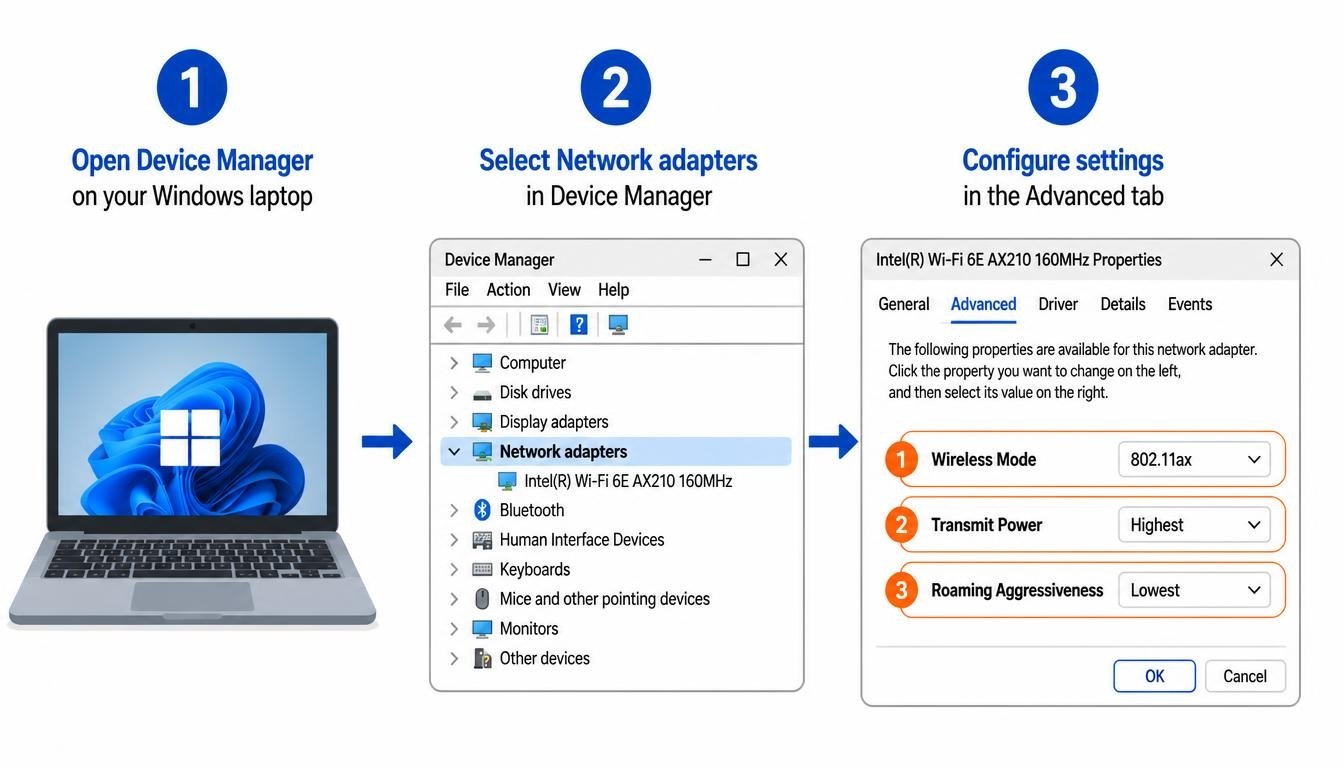
Step 2: Configure Network Adapter Properties
Windows adapter settings can quietly limit speed or cause the card to hop between access points.
- Step 1: Press Windows + X and choose Device Manager.
- Step 2: Expand Network adapters and double click your Wi-Fi adapter.
- Step 3: Open the Advanced tab.
- Step 4: Set Wireless Mode to the newest standard available, such as 802.11ax or 802.11ac.
- Step 5: Set Transmit Power to Highest.
- Step 6: Set Roaming Aggressiveness to Lowest or Medium if your device stays in one place, since high roaming makes the card scan constantly and drop speed.
- Step 7: If a Preferred Band option exists, set it to 5 GHz.
- Step 8: Open the Power Management tab and uncheck Allow the computer to turn off this device to save power.
- Step 9: Click OK and reconnect to the network.
Also use the Driver tab to select Update Driver, or download the latest driver from the laptop or chipset maker.
Step 3: Change DNS Servers and Flush the Cache
DNS translates website names into addresses. A slow DNS server makes pages hesitate before they load, even when raw bandwidth is fine.
- Step 1: Open Settings, then Network & internet, then Wi-Fi, then your network, then Hardware properties.
- Step 2: Next to DNS server assignment, click Edit and choose Manual.
- Step 3: Turn on IPv4 and enter 1.1.1.1 as the preferred DNS and 8.8.8.8 as the alternate DNS.
- Step 4: Save the settings.
- Step 5: Open Command Prompt as administrator and run
ipconfig /flushdnsto clear the old cache.
To resolve long page-loading pauses caused by slow domain lookups, check fixing DNS server not responding on Windows 11.
Step 4: Disable Windows Delivery Optimization Background Uploads
Windows can upload update files to other computers over your connection, which eats upload bandwidth.
- Step 1: Open Settings, then Windows Update, then Advanced options.
- Step 2: Click Delivery Optimization.
- Step 3: Turn off Allow downloads from other PCs.
- Step 4: Also open Task Manager, sort the Network column, and close apps that are syncing or updating in the background.
If physical router relocations are insufficient to bridge long distances, check how to extend wifi range. When logging into your router administrative panel to adjust channel widths, follow how to access router settings.
How to Increase WiFi Speed in Mobile (Android & iPhone Settings)
Phones have aggressive power and data saving features that can slow Wi-Fi without telling you.
Disabling Wi-Fi Power Saving Mode on Android
- Step 1: Open Settings, then About phone, and tap Build number seven times to unlock Developer options.
- Step 2: Return to Settings, then System, then Developer options.
- Step 3: Look for any Wi-Fi power saving or aggressive Wi-Fi to cellular handover toggle and turn it off. The exact name and availability vary by manufacturer.
- Step 4: Also turn off Battery saver and any Adaptive Wi-Fi or Wi-Fi power saving option under battery or connection settings.
Battery saver modes reduce radio activity to preserve charge, which can throttle throughput.
Turning Off Low Data Mode and Data Saver
- iPhone: Go to Settings, then Wi-Fi, tap the info icon beside your network, and turn off Low Data Mode.
- Android: Go to Settings, then Network & internet, then Data Saver, and turn it off.
Resetting Network Settings
This clears corrupt caches, saved DNS data, and stale network profiles.
- iPhone: Open Settings, then General, then Transfer or Reset iPhone, then Reset, then Reset Network Settings.
- Android: Open Settings, then System, then Reset options, then Reset Wi-Fi, mobile & Bluetooth.
- Step 3: Reconnect to your Wi-Fi and enter the password again.
Note that this removes saved Wi-Fi passwords, so keep yours handy. If changing your master network password is required during security hardening, review how to change wifi password on router.
Toggling Airplane Mode
Turn Airplane Mode on, wait ten seconds, then turn it off. This forces your phone to register again with the router and the cellular tower, and often clears a stuck or weak association.
To compare local home Wi-Fi speeds against mobile cellular tethering performance, read why is my hotspot slow. For the related question of how to increase net speed in mobile, the same steps apply, and you should also check that the browser cache is cleared and that no apps are updating in the background.
How to Boost WiFi Signal Through Walls & Dead Zones
The Physics of Signal Loss
Every material absorbs or reflects some radio energy. The loss is measured in decibels (dB). A loss of 3 dB roughly halves signal power, so a 10 dB loss removes about 90 percent of it.
| Building Material | Typical Signal Loss |
| Drywall or plasterboard | About 3 dB |
| Wooden door or wall | About 3 to 5 dB |
| Brick wall | 6 to 10 dB |
| Low-E coated glass | Roughly 6 to 10 dB, varies by coating |
| Concrete wall or floor | 10 to 15 dB |
| Metal, metal studs, and mirrors | About 12 dB or more, since they reflect signals |
| Foil backed insulation | Can block signals almost completely |
These are approximate figures, and the 5 GHz band loses more through the same material than 2.4 GHz. This is why a distant bedroom may work on 2.4 GHz but fail on 5 GHz.
Powerline Adapters vs Dual Band Extenders vs Mesh Networks
- Powerline adapters: Send the network through your electrical wiring. They are useful when walls are thick concrete, but speed depends on wiring quality.
- Dual band extenders: The cheapest option. They repeat your signal but can cut speed roughly in half if they share one radio for both directions.
- Mesh networks: Several nodes share one network name and hand devices off automatically. They cost more, but they give the most consistent coverage across large or multi story homes.
If you want to know which is best, choose mesh for large homes, powerline for stubborn concrete, and an extender for a single weak spot.
How to Boost the WiFi Extender Performance (The 50% Midpoint Rule)
Most extenders fail because they are placed in the dead zone itself. An extender can only repeat a signal it can actually hear.
- Step 1: Measure the distance from the router to the dead zone.
- Step 2: Plug the extender in at about the midpoint, where your phone still shows a strong signal from the router.
- Step 3: Check that the extender receives at least 50 percent signal strength from the router. If the indicator light shows weak, move it closer.
- Step 4: Keep it away from metal objects and mirrors, and mount it at a similar height to the router.
- Step 5: Connect to the extender band that matches your device, and test speed in the dead zone.
To understand the fundamental difference between internal wireless signals and external ISP lines, consult is wifi and internet the same. It explains why a perfect Wi-Fi signal cannot fix a slow internet plan.
Advanced Hardware & Router Tweaks
Update Router Firmware
Router firmware can develop memory leaks that slow the device after days of uptime. Updates also patch security holes and improve radio performance.
- Step 1: Log in to the router admin page.
- Step 2: Find Firmware Update or Administration.
- Step 3: Install the latest version from the manufacturer.
- Step 4: Reboot, and consider scheduling a weekly restart if the router slows over time.
Set Up Band Steering
Band steering lets the router push each device to the best band automatically. To enable it, give your 2.4 GHz and 5 GHz networks the same SSID and password. Devices then pick the faster band when strong, and fall back to 2.4 GHz when far away. If a particular device behaves badly, split the names again and connect it manually.
Configure Quality of Service (QoS) Rules
QoS tells the router which traffic matters most during congestion.
- Step 1: Open the router admin page and find QoS, Smart Queue, or Traffic Control.
- Step 2: Set your upload and download speeds to about 90 percent of what your plan delivers.
- Step 3: Prioritize your gaming console, work laptop, or video calling app.
- Step 4: Save and test during a busy period.
If you plan to upgrade from legacy copper lines to symmetrical high speed lines, check blog how to get fiber internet. Faster fiber plans remove the line bottleneck so your Wi-Fi tuning can show full results. To compare local Wi-Fi performance against cellular, read why is my hotspot slow alongside your speed test results.
Frequently Asked Questions
How to boost the wifi in pc?
Run netsh int tcp set global autotuninglevel=normal in an administrator Command Prompt, update the Wi-Fi adapter driver, set Transmit Power to Highest in Device Manager, and switch DNS to 1.1.1.1. Then flush the cache with ipconfig /flushdns and restart.
How to increase wifi speed in mobile?
Turn off Battery saver, Low Data Mode, and Data Saver, then connect to the 5 GHz network. If speeds stay low, toggle Airplane Mode for ten seconds or use Reset Network Settings to clear corrupt caches.
How to boost wifi signal through walls?
Walls absorb signal: concrete costs about 10 to 15 dB and brick about 6 to 10 dB. Move the router closer, use the 2.4 GHz band for distant rooms, and add a mesh node or powerline adapter to bypass dense barriers.
How to boost the wifi extender?
Place the extender at the midpoint between the router and the dead zone, where it still receives at least 50 percent signal. Keep it away from metal and mirrors, mount it at router height, and update its firmware regularly.
How to boost wifi speed on pc?
Close background bandwidth hogs, disable Delivery Optimization uploads, connect to 5 GHz, and update the network driver. Also set Roaming Aggressiveness to a lower level and disable adapter power saving in Device Manager.
How to boost wifi signal without booster?
Raise the router to a central, elevated spot, angle antennas vertically and horizontally, and pick channel 1, 6, or 11 on 2.4 GHz. Move it away from microwaves, mirrors, and metal appliances for a free improvement.
How to boost your wifi signal for free?
Free fixes include repositioning the router, adjusting antennas, choosing a clean channel, switching to 5 GHz, rebooting, and removing interference from Bluetooth devices and baby monitors. Also remove unused devices from your network to free bandwidth.
How to increase net speed in mobile?
Close background apps, disable Data Saver, clear browser cache, and use Wi-Fi instead of weak cellular when available. Restart the phone, toggle Airplane Mode, or reset network settings if speeds stay slow after these basics.
Final Thoughts on Boosting Your WiFi Connection
Boosting your Wi-Fi is mostly about removing obstacles. Start with the free changes: move the router, adjust antennas, choose a clean channel, and use 5 GHz where you can. Then tune your devices with the Windows commands, adapter settings, and mobile resets covered above.
Four core optimization rules:
- Elevate and centralize: Keep your router off the floor and away from dense metal.
- Tune device settings: Enable TCP Auto-Tuning on Windows and disable battery saver modes on mobile.
- Use non-overlapping channels: Stick to channels 1, 6, or 11 on 2.4 GHz.
- Observe the 50% rule: Position range extenders halfway between the router and dead zones.
If walls and distance are still the problem, add a properly placed extender or a mesh system rather than buying a stronger router. Test your speed after each change so you know exactly what worked, and keep the router firmware current.