
5 Ways How to Find SSID of WiFi: Easy steps For Any device
Your WiFi network already has a name, and learning how to find SSID of WiFi takes only a few taps or clicks once you know where to look. The right place depends on your device, and on whether you are connected to the network at that moment.
Quick Answer
Your SSID (Service Set Identifier) is simply the public name of your WiFi network.
- If Connected: Open your device’s WiFi Settings and read the name of the currently connected network.
- If Disconnected: Check the physical label/sticker on the bottom or back of your router for the default SSID.
-
If Renamed: Log into your router’s administration portal (e.g., via
192.168.1.1) to view the active network name.
Note: Exact menu titles vary by operating system, and a custom-renamed network will not match the default router label.
Where Can You Find Your Wi-Fi SSID?
- Windows: Select the Wi-Fi icon on the taskbar and look for the connected network.
- Mac: Click the Wi-Fi icon in the menu bar.
- iPhone or iPad: Open Settings and tap Wi-Fi.
- Android: Open Settings and select Wi-Fi or Internet.
- Router: Check the label on the back or bottom for the default network name.
- Not connected: Check another connected device or sign in to your router settings to confirm the current SSID.
Remember that the label on your router may show the original network name. If someone renamed the network, the current SSID may be different.
Table of Contents
Which Method Fits Your Situation?
| Situation | What It Usually Means | What to Do |
|---|---|---|
| Already connected on a phone or computer | The connected network name in WiFi settings is your SSID. | Open WiFi settings on that device and read the name at the top. |
| Not connected to any network | Your device only sees nearby names, which may belong to neighbors. | Check the router label, another connected device, or the router settings page. |
| Router label is available | The label shows the default SSID set at the factory. | Compare it with the names in your WiFi list, but confirm it has not been renamed. |
| Name differs from the router label | Someone changed the SSID after setup. | Trust the name in router settings or on a connected device, not the sticker. |
| Network is hidden | The router is not broadcasting its name. | Get the exact name from the router settings or from a device already connected. |
| Several similar names appear | Separate bands, a guest network, a mesh node, or an extender. | Check the router settings to see which names belong to your setup. |
| Phone hotspot is turned on | The phone broadcasts its own separate network name. | Open the hotspot screen on the phone. |
What Is an SSID?
SSID stands for Service Set Identifier. It is the name that a router or access point broadcasts so nearby devices can find and identify a wireless network. In everyday language, the SSID is the WiFi network name, also called the wireless network name or simply the network name.
An SSID can be up to 32 characters long and is case sensitive on most devices. That means HomeWiFi and homewifi are treated as two different names. The SSID only identifies the network. It does not grant access by itself, because a separate password controls who can join.
What Does an SSID Look Like?
An SSID looks like ordinary text: a word, a phrase, or a mix of letters and numbers. Many routers ship with a default name that combines the brand with a short code, such as the examples below. Owners often replace the default with something easier to recognize.
These are examples only, not real networks:
- HomeWiFi
- MyHomeNetwork
- TP-Link_5G
- NETGEAR_1234
- GuestWiFi
Default names often reveal the router brand, and sometimes part of the router hardware code. A custom name should avoid your full name, your street address, or other personal details.
How to Find SSID of WiFi on Windows 11
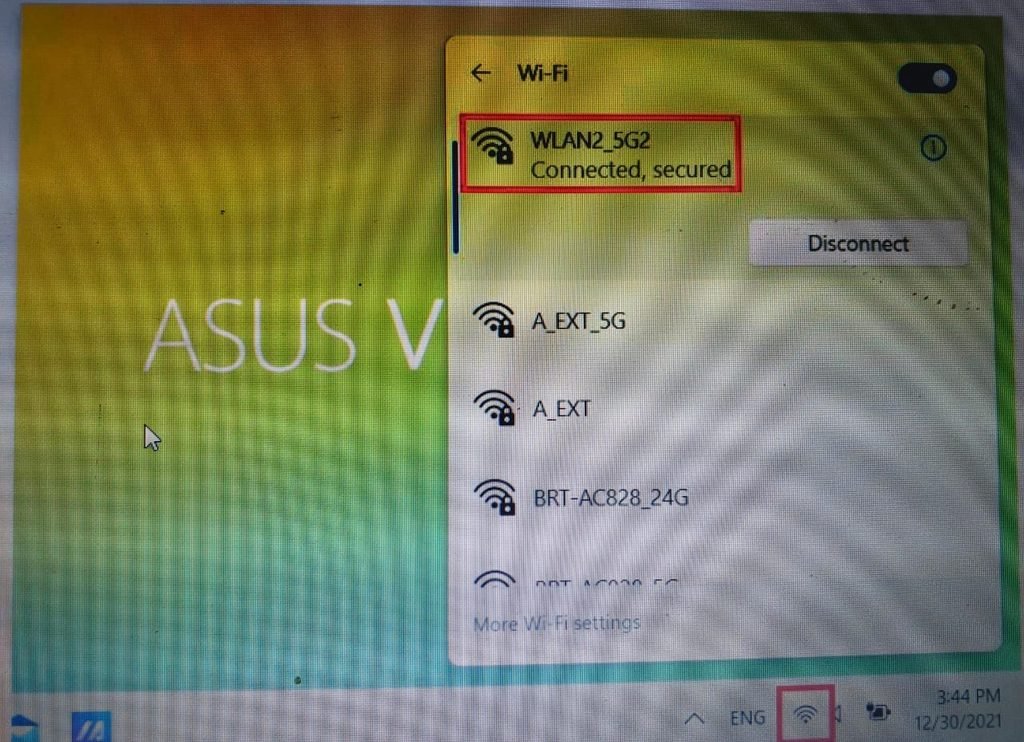
You can find your current Wi-Fi network name through Windows 11 Quick Settings or the Settings app.
Method 1: Use the taskbar
- Select the network, sound, or battery area on the right side of the taskbar to open Quick Settings.
- Find the Wi-Fi tile.
- Select the arrow beside the Wi-Fi tile if necessary to open the available network list.
- Look for the network marked Connected.
The connected network name is your SSID.
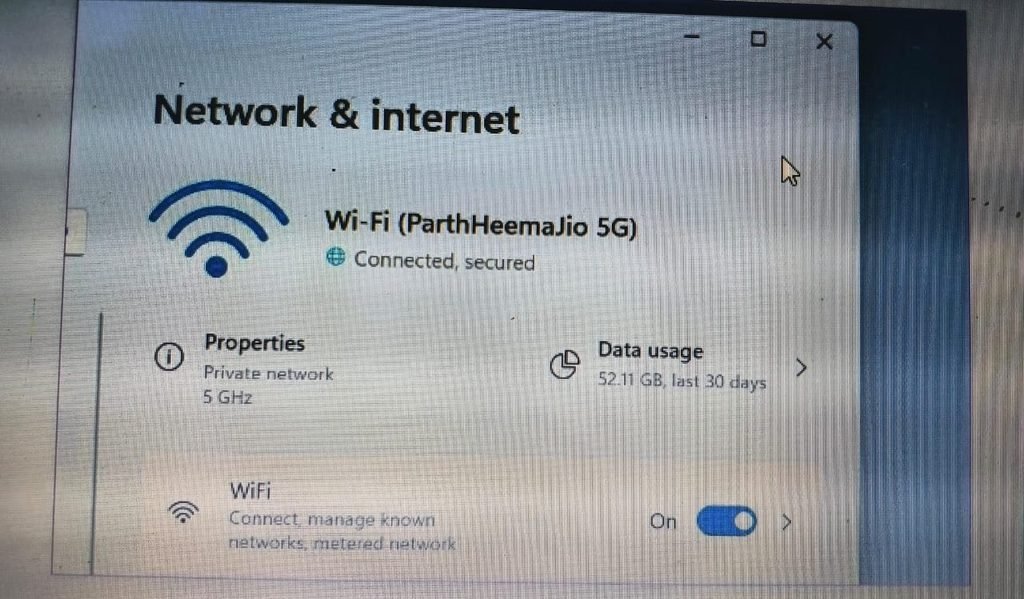
Method 2: Use Windows Settings
- Press Windows + I to open Settings.
- Select Network & internet.
- Select Wi-Fi.
- Open the connected network’s properties if you need additional connection details.
Menu labels can vary slightly by Windows version.
Method 3: Use Command Prompt
If you prefer a command-line method, you can check your wireless interface.
- Open Start and search for Command Prompt.
- Open it and enter:
netsh wlan show interfaces - Press Enter.
- Find the line labeled SSID.
The value beside SSID is the connected wireless network’s name. Do not confuse it with Name, which identifies the wireless interface, or BSSID, which identifies a particular access point.
If the wireless interface is disconnected, this command may not show a current SSID.
Advanced method: Command Prompt on Windows 11
The command line is useful when you want to confirm the exact spelling of the name or see technical details.
- Press the Windows key, type cmd, and press Enter.
- Type netsh wlan show interfaces and press Enter.
- Find the line that begins with SSID. The text after the colon is your WiFi network name.
A shortened example of the output looks like this:
Name        : Wi-Fi
State       : connected
SSID        : HomeWiFi
BSSID       : aa:bb:cc:dd:ee:ff
Band        : 5 GHz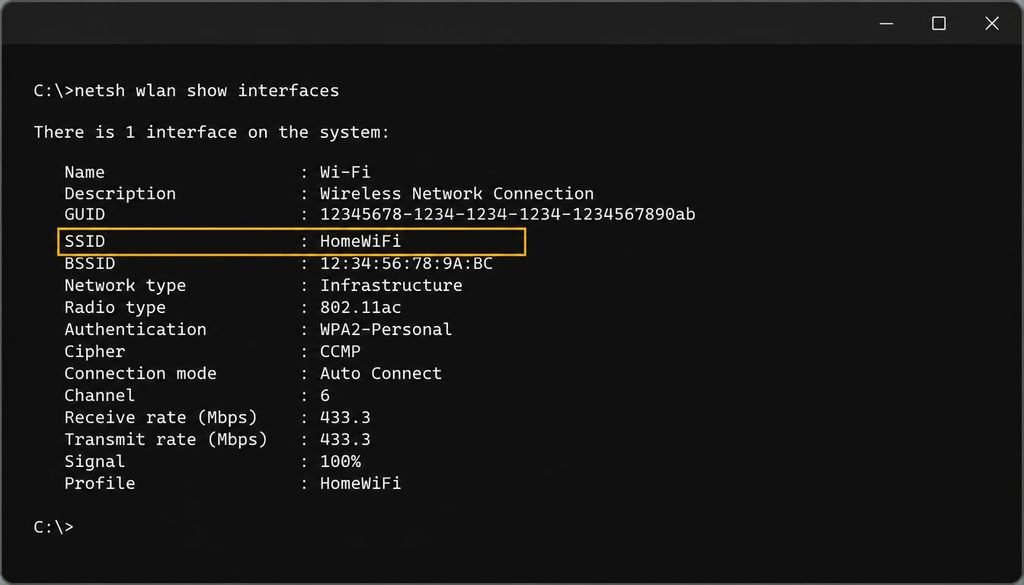
Read the SSID line, not the Name line. In this output, Name is the name of your network adapter, and BSSID is the hardware address of the specific access point you are connected to. If the State line says disconnected, no SSID is shown. On some recent Windows 11 builds, the SSID may appear blank unless Location services are turned on.
How to Find SSID of WiFi on Windows 10
Windows 10 skips the Quick Settings panel, so the method is a little shorter.
- Select the network icon in the notification area at the bottom right of the screen.
- The network you are using appears at the top of the list, usually with Connected, secured beneath the name.
You can also open Settings > Network & Internet > Wi-Fi to see the current network name. The Command Prompt method above works the same way on Windows 10.
The main difference between the two versions is the layout. Windows 11 shows a WiFi tile first, while Windows 10 opens the list of networks directly.
How to Find SSID on Mac
On a Mac, the name is one click away.
- Select the Wi-Fi icon in the menu bar at the top of the screen.
- The connected network is shown with a checkmark or at the top of the list.
You can also open System Settings > Wi-Fi on recent versions of macOS, or System Preferences > Network > Wi-Fi on older ones.
For extra detail, hold the Option key while clicking the Wi-Fi icon. The menu then shows technical information about the connection, including the network name, channel, and security type.
Advanced method: Terminal on Mac
Open Terminal and run networksetup -getairportnetwork en0. The output begins with Current Wi-Fi Network, followed by the name. The WiFi interface is en0 on many Macs, but not all. Run networksetup -listallhardwareports to find the correct interface name. On some recent macOS versions, this command may not report the name, so the menu bar method is the more dependable choice.
How to Find SSID on iPhone and iPad
The steps are nearly identical on iPhone and iPad.
- Open Settings.
- Tap Wi-Fi.
- Look for the network with a checkmark beside it. That name is your SSID.
Tap the information button next to the name to see further details, such as the IP address. If you ever see the label Hidden Network under a name, the router is not broadcasting its SSID, which is covered later in this guide.
How to Find SSID on Android
Android menus differ between manufacturers and software versions, so the exact path may vary. The common paths are:
- Settings > Network & internet > Internet (or Wi-Fi) on many Pixel and stock Android phones
- Settings > Connections > Wi-Fi on Samsung phones
- A similar Wi-Fi entry under Network or Wireless on other brands
Once you open the WiFi screen, the connected network is listed near the top, often with the word Connected beneath the name. Tap the name or the gear icon to see more details. If you cannot find the menu, use the search bar at the top of Settings and type Wi-Fi.
How to Find SSID on a Router
A router can show its SSID in two different ways, and they are not always the same.
A. The label on the router
Most routers have a sticker on the bottom or back. It usually lists the default SSID (sometimes labeled Network Name) and the default WiFi password, sometimes called the network key or WPA key. Some dual band routers list one name for 2.4 GHz and another for 5 GHz.
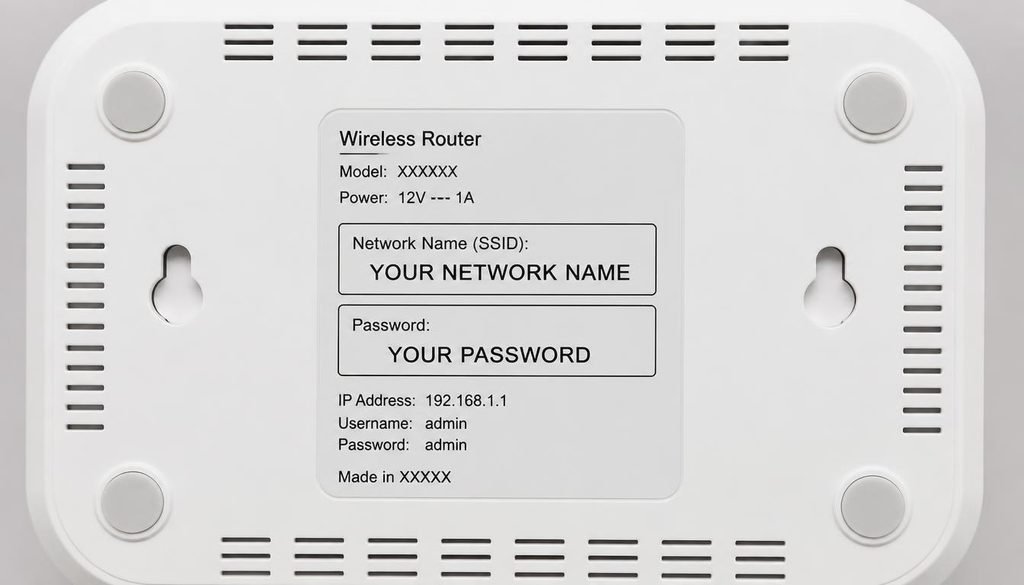
The sticker shows the name the router had when it left the factory. If anyone changed the name later, the sticker is now out of date. Your internet provider may also have changed the name during installation.
B. The router administration page
The router settings page shows the current SSID. This is the reliable source.
- Connect your computer or phone to the router with WiFi or an Ethernet cable.
- Open a web browser and enter the router address. Common examples are 192.168.1.1 and 192.168.0.1, but the correct address varies by router. It is often printed on the label.
- Sign in with the admin username and password. These are separate from the WiFi password and are often printed on the label as well.
- Open the section named Wireless, WiFi, WLAN, or Network. The SSID or Network Name field shows the current name.
Menu names and layouts differ by brand, so use the label or the manual for your model. If you cannot find the address or the sign in page, the guide to accessing router settings explains the process step by step. Many internet providers also offer a mobile app that shows the network name.
On Windows, you can find the router address by running ipconfig in Command Prompt and reading the Default Gateway line.
How to Find SSID of a Mobile Hotspot
A phone hotspot is a small WiFi network with its own name. It is separate from your home WiFi, and its password is also separate.
- iPhone: Open Settings > Personal Hotspot. The hotspot name is the name of the iPhone itself, which you can see or change under Settings > General > About > Name.
- Android: Open Settings > Network & internet > Hotspot & tethering > Wi-Fi hotspot. On Samsung phones, look under Settings > Connections > Mobile Hotspot and Tethering. The network name and password are shown on that screen.
If you also want to track how much data the hotspot has left, the guide on checking how much hotspot data you have left covers the main carriers.
How to Find SSID When You Are Not Connected
Being offline does not always block you from finding the name. Work through these options in order.
- Check the router label.
It lists the default name, which is correct unless the network was renamed. - Check another connected device.
A phone, laptop, or smart TV on the same network can show the SSID in its WiFi settings. - Look at saved networks.
Devices remember networks they joined before. On Windows, run netsh wlan show profiles to list saved network names. On phones, look for Saved networks or Known networks inside the WiFi settings, since the exact wording varies by version. - Use the router settings page.
Connect your computer to the router with an Ethernet cable, then sign in at the router address. This works even when WiFi is off or the internet is down. - Compare nearby networks.
Your device lists every network in range, which may include your neighbors. Windows can also list them with netsh wlan show networks.
There is an important difference between identifying a network and proving that it belongs to you. A name that looks right, or a network with the strongest signal, is not proof of ownership. Someone can create a fake network with a name similar to yours. Confirm the name through the router label or the router settings before you enter a password.
A simple physical test also helps. Turn the router off for a minute and refresh the WiFi list. The name that disappears belongs to that router, though extenders and mesh points can remain visible.
Ethernet alone does not reveal the WiFi name. A wired connection often appears in settings under a generic label such as Ethernet or Network, and that label is not the SSID.
How to Find SSID on a Hidden WiFi Network
A hidden network is one whose router is not broadcasting the SSID. The network still exists and still works. Your device simply does not show its name in the normal list.
To join a hidden network, you need the exact name, the security type, and the password. On an iPhone, go to Settings > Wi-Fi, tap Other, and enter the name. On Windows, choose Hidden network in the list of networks and enter the name. Because the name must match exactly, including capital letters, a small typo will cause the connection to fail.
If you forgot the name, the owner can confirm it in the router settings, where the SSID field still shows it. A device that has already joined the network can also show the saved name.
Hiding the SSID is not a complete security measure. Readily available network tools can still detect hidden networks, and Apple notes that devices looking for hidden networks can expose information about the networks they use. Strong encryption and a strong password do far more to protect a network.
SSID vs WiFi Password vs IP Address vs MAC Address
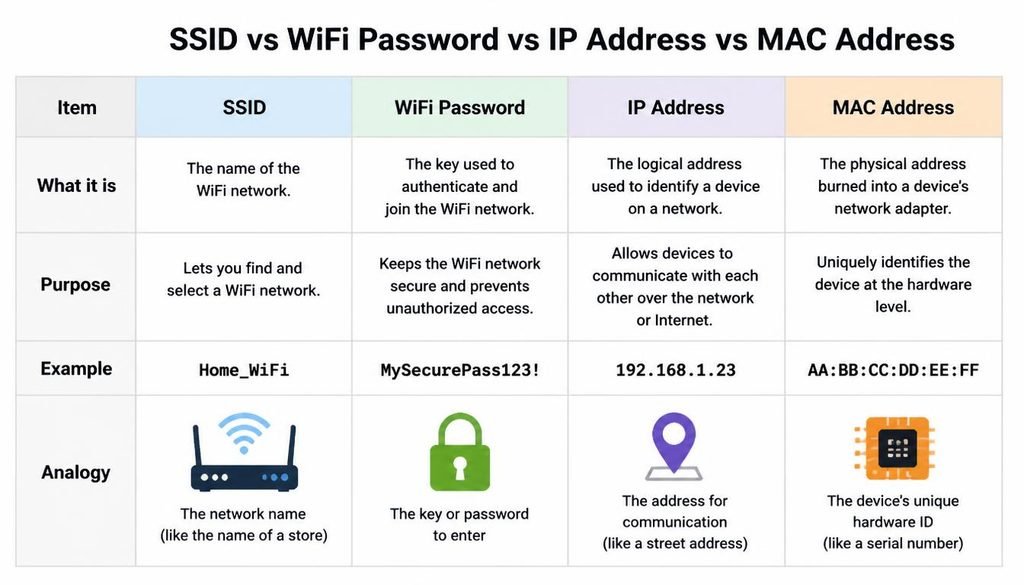
These four items are often confused. Each one has a different job.
| 📶 Item | 💡 What it Identifies | 📌 Example | ⚙️ Used For |
|---|---|---|---|
| SSID | The name of a WiFi network | HomeWiFi | Choosing which network to join |
| WiFi password | The secret that grants access to the network | A long phrase you create | Proving you are allowed to join |
| IP address | A device or the router on a network | 192.168.1.1 | Sending data and opening router settings |
| MAC address | The hardware address of a network adapter or access point | aa:bb:cc:dd:ee:ff | Identifying a specific piece of hardware |
A few clarifications help avoid mistakes:
- The SSID is the WiFi name, not the password.
If someone asks for your SSID, they want the name. If they ask for the password, they want the key. - The SSID is not a WiFi address.
On an iPhone, the entry called Wi-Fi Address under Settings > General > About is a MAC address. Modern iPhones may use a different private address for each network, which is a separate privacy feature. - The BSSID is different from the SSID.
The BSSID, which Windows shows in the netsh output, is the MAC address of the specific access point, not the network name. - An SSID is not a number.
Default names often include digits, which is why people search for an SSID number. The SSID is still the full name, including any letters and numbers.
If you want the saved password rather than the name, that is a separate task. On a Windows computer that has already joined the network, the password can be revealed from the network properties.
Why You Might See Multiple Similar SSIDs
Seeing names such as HomeWiFi, HomeWiFi_5G, HomeWiFi_2.4G, and HomeWiFi_EXT is common. They can mean several different things:
- Separate frequency bands.
Some routers broadcast 2.4 GHz and 5 GHz as different names. Newer routers may add a 6 GHz band. Others combine the bands under one name. - A guest network.
A separate name with its own password, kept apart from your main devices. - A mesh access point.
Mesh systems usually share one name, but some show extra names during setup. - A WiFi extender.
Many extenders add a suffix such as EXT to the original name. - A neighbor with a similar default name.
Routers from the same brand and provider often share naming patterns.
No suffix has a universal meaning. A manufacturer, provider, or owner may use any of them in different ways. The reliable way to tell is to open the router settings and compare the names listed there with the names in your WiFi list. If a name does not appear in your router settings, treat it as someone else’s network.
Different bands are also worth understanding. The 2.4 GHz band reaches farther but is usually slower, while 5 GHz and 6 GHz are generally faster over shorter distances.
Common SSID Problems and Fixes
SSID not appearing Likely cause: The network is hidden, out of range, or the router is off. Some older devices also cannot see 5 GHz networks. Action:
- Move closer to the router and refresh the list.
- Restart the router and wait two minutes.
- Check the router settings to see whether SSID broadcast is turned off.
SSID changed Likely cause: Someone renamed the network, or a router update or reset changed it. Action:
- Check the name in the router settings.
- Ask other household members whether anyone renamed it.
- Reconnect your devices to the new name and enter the password again.
Router sticker does not match Likely cause: The sticker shows the factory default, and the network was renamed. Action:
- Use the name shown in the router settings.
- Treat the sticker as a record of the original setup only.
Cannot connect after finding the SSID Likely cause: The password is wrong, the security type is mismatched, or a similar name was selected by mistake. Action:
- Confirm you chose the correct name, not a similar one.
- Retype the password carefully, checking capital letters.
- Forget the network on your device and join it again.
Phone hotspot SSID not visible Likely cause: The hotspot is off, the band is not supported by the other device, or the phone is too far away. Action:
- Confirm the hotspot is turned on.
- On an iPhone, turn on Maximize Compatibility in the Personal Hotspot screen. On Android, try the 2.4 GHz band in the hotspot settings.
- Bring the devices closer together.
WiFi network appears on one device but not another Likely cause: The second device may not support the band the network uses, or its WiFi list needs a refresh. Action:
- Turn WiFi off and on again on the second device.
- Check whether the network is 5 GHz only.
- Restart the device.
Router recently reset Likely cause: A factory reset returns the SSID and password to the defaults printed on the label. Action:
- Read the default name from the router sticker.
- Join using the default password from the sticker.
- Sign in to the router settings and set a new name and password.
If none of these solve the problem, the broader WiFi troubleshooting guide walks through router, device, and provider checks.
Security Tips When Choosing or Sharing an SSID
A good SSID is easy for you to recognize and does not reveal anything personal. The following habits help:
- Avoid your full name, home address, apartment number, or phone number in the SSID.
- Avoid names that identify the router model if you want to give outsiders less information about your hardware.
- Change the default SSID so it is easy to tell apart from neighbors who use the same router brand. The US Cybersecurity and Infrastructure Security Agency also recommends changing the default name.
- Use WPA2 or WPA3 encryption and a strong, unique WiFi password. These matter far more than the name.
- Change the router admin password, since the default is often printed on the label.
- Share the SSID freely if needed, but share the password only with people you trust. Consider a guest network for visitors.
After you rename the network, every device must rejoin with the new name. Plan to update smart home devices and printers as well. If you are reconnecting a printer, the guide on connecting a printer to WiFi covers the setup steps.
Practical Troubleshooting Checklist
- Open WiFi settings on a connected device and read the connected network name.
- If no device is connected, read the router label for the default name.
- Sign in to the router settings to confirm the current SSID.
- Compare names carefully if several look alike, and confirm which belong to your router.
- For a hidden network, copy the exact spelling from the router settings.
- For a hotspot, check the hotspot screen on the phone, not the home WiFi list.
- Never join a network only because it has the strongest signal.
- If the name is correct but you still cannot connect, check the password and the band.
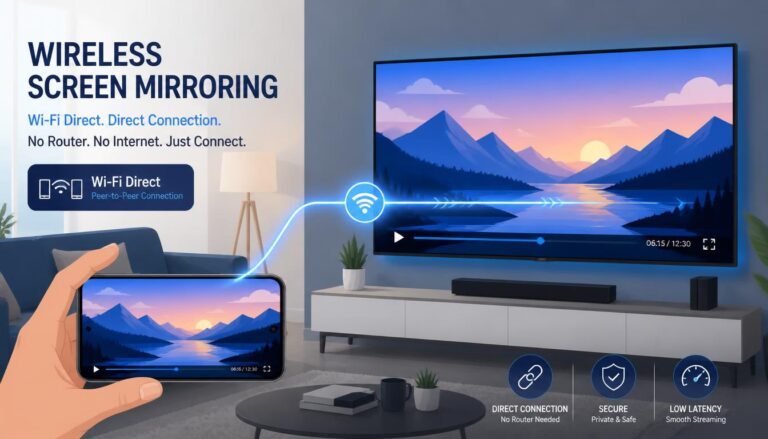
Some tasks depend on both devices sharing the same network name. For example, the guide on screen mirroring without WiFi explains what to do when the usual shared network is not available.
FAQ
How do I find my hotspot SSID?
Open the hotspot screen on your phone to see the hotspot name. On an iPhone, go to Settings and tap Personal Hotspot, where the name matches the device name. On Android, open Hotspot and tethering. The hotspot has its own name and password, separate from home WiFi.
What does an SSID look like?
An SSID looks like ordinary text, such as HomeWiFi or NETGEAR_1234. It can contain letters, numbers, and some symbols, up to 32 characters. Default names usually combine a brand with a short code, while custom names are whatever the owner chooses.
Is SSID the same as WiFi address?
No, an SSID is not the same as a WiFi address. The SSID is the name of the network. A WiFi address, such as the one shown on an iPhone under About, is a MAC address that identifies the hardware of a device. They serve different purposes and look completely different.
How do I get my SSID number?
There is no separate SSID number, because the SSID is the full network name. Open WiFi settings and read the name of the connected network. If the name contains numbers, those numbers are part of it. Do not confuse it with the BSSID, which is a hardware address.
What is SSID on a router?
The SSID on a router is the WiFi network name that the router broadcasts. You can find the default name on the router label and the current name in the router settings. If the network was renamed, the label may no longer match.
Is SSID the WiFi name?
Yes, the SSID is the WiFi name. SSID stands for Service Set Identifier, which is the technical term for the name of a wireless network. Devices list SSIDs when you search for networks, and you choose one to join. A separate password controls access.
Is SSID the same as WiFi password?
No, the SSID is the network name and the password is the secret used to join it. Think of the SSID as the name on a door and the password as the key. Routers usually print both on the label, so check which one you need.
How do I find SSID on my phone?
Open WiFi settings and read the name of the connected network. On an iPhone, go to Settings and tap Wi-Fi, then look for the checkmark. On Android, open Settings and choose Wi-Fi or Internet, since the exact menu path varies by manufacturer.
Can I find my SSID if I am not connected?
Yes, you can find it from the router label, a connected device, or the router settings. You can also list saved networks on your computer or phone. Do not assume the strongest nearby signal is yours, because it may belong to a neighbor.
Why is my SSID not showing?
The most common reasons are a hidden network, weak signal, or an unsupported band. Move closer, restart the router, and refresh the list. If the network is hidden, join it by entering the exact name manually, which you can confirm in the router settings.
Conclusion
Finding your SSID comes down to one question: are you connected? If you are, open WiFi settings and read the network name. If you are not, use the router label, a connected device, or the router settings page, and remember that a renamed network will not match the sticker. Always confirm a network belongs to you before you join it.
Want to keep your connection running smoothly? Explore more WiFi and troubleshooting guides on Problevo.com, starting with the WiFi troubleshooting guide and the router settings guide.
Related Network & Wi-Fi Setup Guides
If you are configuring your home network, troubleshooting local speeds, or connecting smart hardware, explore our dedicated network tutorials below:
- Core Networking Concepts: Learn the technical distinction between your local wireless broadcast and global data routing in our breakdown on whether Wi-Fi and internet are the same thing.
- Router Management & Security: Once you locate your network name, protect your wireless network by learning how to change the Wi-Fi password on your router.
- Alternative Internet Access: If you are setting up a home network without traditional phone or cable infrastructure, review our guide on how to get Wi-Fi without cable access.
- Network Performance Troubleshooting: If your wired setup is underperforming compared to your wireless connection, inspect our fixes for why ethernet is slower than Wi-Fi or resolve gaming network lag with our guide to fix slow Wi-Fi on Xbox Series X.
- Smart Device Integration: Connect your smart peripherals to your network SSID using our step-by-step guides on how to connect Google Home to Wi-Fi and how to connect a Brother printer to Wi-Fi.


2 Comments