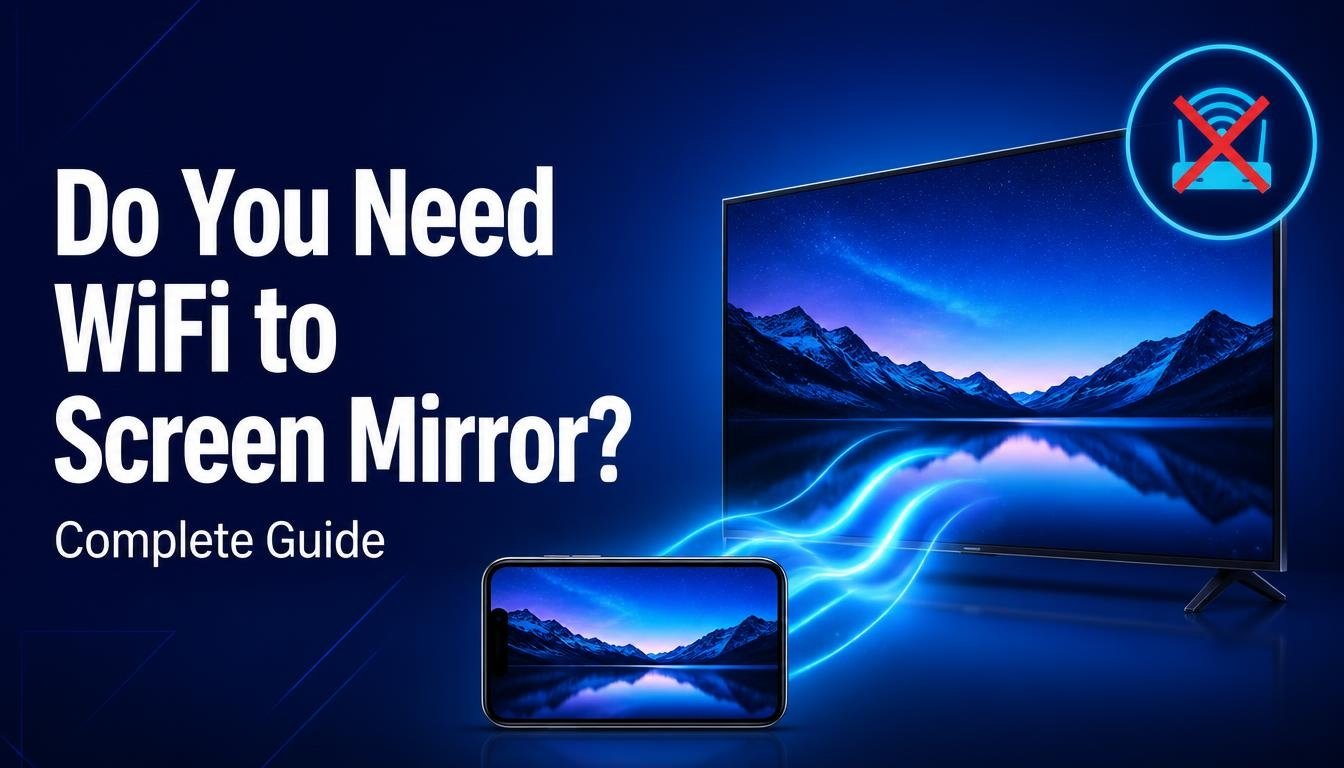
Do You Need WiFi to Screen Mirror? Complete Easy Guide 2027
Wondering whether you need WiFi to screen mirror leaves many people confused when a home router is not available, such as in a hotel room, a classroom, an office meeting room, or a holiday rental. The answer is more flexible than most guides admit. Several methods work with no router and no broadband connection at all.
Quick Answer: Do You Need WiFi to Screen Mirror?
Quick Answer: Do You Need WiFi to Screen Mirror?
- Wi-Fi Direct: Miracast and AirPlay can link phone and TV directly, no router needed.
- Mobile Hotspot: Turn one phone into a hotspot and join both screens to it.
- Wired HDMI: Plug in a Lightning or USB-C adapter for a cable connection with no Wi-Fi needed.
In This Guide
Screen Mirroring Without Router: Connection Method Matrix
| Device Pairing | Direct Connection Technology | Requires Router WiFi? | Setup Prerequisite |
|---|---|---|---|
| iPhone to Apple TV | AirPlay Peer-to-Peer (Bluetooth discovery plus direct Wi-Fi) | No | Wi-Fi and Bluetooth switched on for both devices |
| iPhone to AirPlay 2 smart TV | AirPlay Peer-to-Peer | Usually no, varies by TV model | TV must support AirPlay 2 and be powered on |
| iPhone to MacBook | AirPlay to Mac | Often no | Supported Mac with AirPlay Receiver enabled |
| Android to Miracast TV | Miracast over Wi-Fi Direct | No | TV must support Miracast or screen mirroring |
| Samsung phone to Samsung TV | Smart View (Miracast based) | No | Screen Mirroring input enabled on the TV |
| Windows PC to Miracast TV | Miracast (Win + K) | No | Wireless Display feature supported by the PC |
| Phone to TV through a hotspot | Local network created by a second phone | No home router, but a hotspot is required | One phone sharing mobile data or a local hotspot |
| iPhone to TV by cable | Lightning to HDMI adapter | No | Apple Lightning Digital AV Adapter and HDMI cable |
| Android or iPhone 15 and later to TV by cable | USB-C to HDMI adapter | No | Phone must support DisplayPort Alt Mode |
The Short Answer: Can You Screen Mirror Without a Router?
Yes, you can. Whether you need a router depends on the technology your devices use to talk to each other.
Home WiFi is a local network created by your router. Devices join that network and exchange data through it. The router may or may not be connected to the internet, and that second part is where many people get confused.
Wi-Fi Direct works differently. Two devices use the same radio hardware that powers normal Wi-Fi, but they create a private link between themselves. There is no router in the middle and no broadband connection involved.
Both Miracast and AirPlay Peer-to-Peer rely on this idea. They use Wi-Fi radio frequencies, but they create a direct hardware handshake between the sending device and the screen. Your internet provider is not part of the process.
Here is how the three terms differ:
- Router WiFi: A shared local network. Devices must join it first.
- Internet: The connection from your router to the outside world. Local mirroring does not need it.
- Wi-Fi Direct and peer-to-peer: A direct radio link between two devices with no router.

If you are unsure whether a local streaming setup needs broadband, read is wifi and internet the same for a clear breakdown of the difference.
Direct links are also more fragile than router connections. Distance, walls, and interference from other 2.4 GHz and 5 GHz devices can all interrupt them. If your wireless connection drops during setup, check how to fix wifi before you assume the hardware is faulty.
Signal strength matters just as much. To resolve weak local signal strength between devices, read how to fix weak wifi signal. As a rule, keep the phone and screen within a few meters, with no thick walls between them.
How to Screen Mirror iPhone Without WiFi (AirPlay Peer-to-Peer)
Apple designed AirPlay to work even when no shared network exists. This feature is called AirPlay Peer-to-Peer. It lets an iPhone, iPad, or Mac find a nearby receiver and stream to it directly.
The process has two stages:
- Discovery. Your iPhone uses Bluetooth to find nearby AirPlay receivers.
- Streaming. The devices then open a direct Wi-Fi link and send the video across it.
This is why both Bluetooth and Wi-Fi must be switched on, even though you are not joining a network.
Compatibility is the main limit. An Apple TV works best with this method. Smart TVs with AirPlay 2 can also receive a mirrored screen, but behavior varies by brand and model. If one TV refuses a direct connection, it is a model limitation rather than a mistake on your side.
Before you rely on direct mirroring, confirm what your setup needs. To confirm whether local streaming setups require broadband, check is wifi and internet the same. Apps that load video from the web still need an internet source. Plain screen mirroring does not.
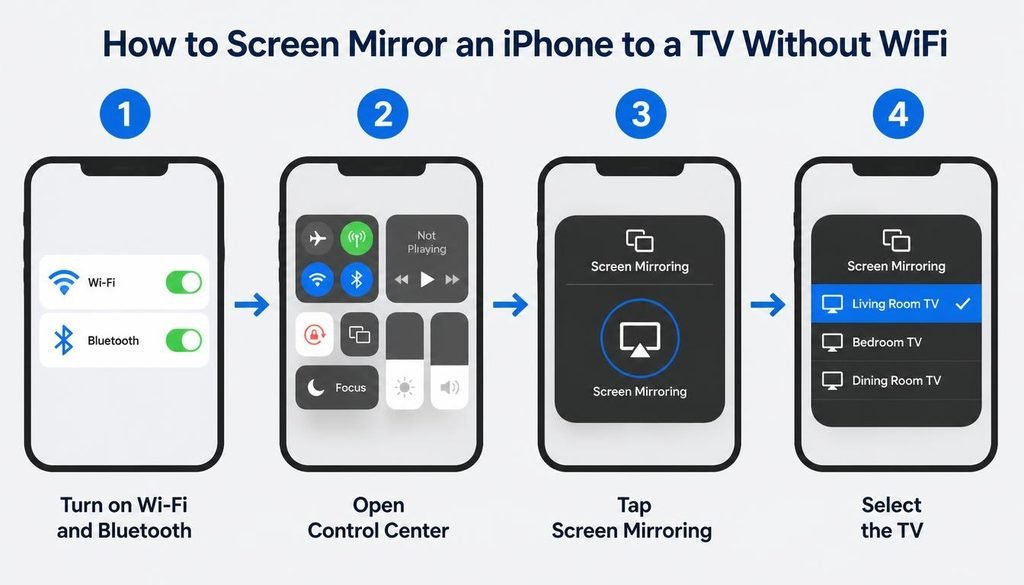
Steps to Mirror an iPhone With AirPlay Peer-to-Peer
Step 1. Turn on Wi-Fi and Bluetooth on your iPhone. You do not need to join any network, but both radios must be active. If Airplane Mode is on, switch it off and enable Wi-Fi and Bluetooth manually.
Step 2. Power on the Apple TV or AirPlay 2 compatible TV and keep it within a few meters of the iPhone.
Step 3. Open Control Center. On iPhone models with Face ID, swipe down from the top right corner. On models with a Home button, swipe up from the bottom edge.
Step 4. Tap Screen Mirroring.
Step 5. Select your Apple TV or TV from the list of available devices.
Step 6. Enter the AirPlay passcode if one appears on the TV screen.
Step 7. Wait for the iPhone screen to appear on the TV. To stop, open Control Center, tap Screen Mirroring again, and choose Stop Mirroring.
If your iPhone does not list the receiver, move closer, restart both devices, and check that no older network setting is forcing the TV onto a different connection.
When a Hotspot Is Better Than Peer-to-Peer for iPhone
Some TVs do not support direct AirPlay at all. In that case, a hotspot can act as a temporary local network. When managing cellular data limits for tethered screen sharing, review how much hotspot do I have left so you do not hit your cap in the middle of a session.
How to Screen Mirror Android Without WiFi (Miracast & Wi-Fi Direct)
Android phones use Miracast for direct screen mirroring. Miracast is a wireless display standard that builds on Wi-Fi Direct. It sends your screen to a compatible TV, projector, or adapter without a router.
Manufacturers use different names for the same feature:
- Smart View on Samsung phones and Samsung TVs
- Screen Cast, Cast, or Wireless Display on other Android phones
- Screen Mirroring on many Sony, LG, and Hisense TVs
One important point: Google Chromecast does not use Miracast. Chromecast needs both devices on the same network. If you own a Chromecast and have no router, use a hotspot instead.
To configure streaming hardware displays correctly, check how to connect smart tv to wifi. Even though Miracast does not need a router, a smart TV that is already configured properly gives you more options if direct mirroring fails.
Likewise, to link home entertainment gear properly, follow how do i connect my tv to the internet. Streaming apps built into the TV will still need internet access.
Steps to Mirror an Android Phone With Miracast
Step 1. Turn on the TV and open its input or source menu. Select Screen Mirroring, Miracast, or Wireless Display. Some TVs enable this automatically when you open the menu.
Step 2. On your Android phone, swipe down to open Quick Settings.
Step 3. Tap Smart View, Cast, or Screen Cast. The name depends on the phone brand.
Step 4. Wait while the phone scans for nearby displays using Wi-Fi Direct.
Step 5. Select your TV from the list.
Step 6. Accept the connection prompt on the TV if one appears.
Step 7. Open any app on your phone and confirm that it appears on the TV. To stop, return to the same menu and tap Disconnect.
Mirroring a Windows PC With Miracast
Windows laptops can also use Miracast. Press Windows key + K, select your TV, and approve the connection. If the PC reports that it does not support Miracast, the problem is usually an outdated graphics or wireless driver. To resolve local adapter errors on Windows systems mirroring displays, inspect how to fix common Windows 11 problems.
Android Troubleshooting
- Turn Wi-Fi on. Wi-Fi Direct needs the radio active, even without a network.
- Turn off battery saver, which can disable wireless display discovery.
- Restart the TV and the phone, then try again.
- Move closer to the screen.
Using a Mobile Hotspot for Screen Mirroring
A mobile hotspot turns one phone into a portable router. It creates a local network that other devices can join. If your TV and casting phone both join that network, they behave as if they were on home WiFi.
This is the best fallback for Chromecast, many smart TVs, and DLNA based casting. DLNA is a local media sharing protocol that lets one device send video or photos to another over a shared network.
You need two devices for the cleanest setup:
- Phone A creates the hotspot.
- Phone B is the phone you want to mirror, and the TV joins the same hotspot.
Using the same phone to host the hotspot and cast from it can work on some models, but results vary and many devices struggle with it. A second phone, a travel router, or a small mobile router is more reliable.
If your personal tethering toggle appears unavailable, inspect why is my personal hotspot grayed-out. A carrier plan restriction or a network settings problem is the usual cause.
To manage cellular data sharing from mobile devices, read how do you turn on mobile hotspot on iphone.
Steps to Mirror Through a Mobile Hotspot
Step 1. On Phone A, open Settings and turn on Personal Hotspot (iPhone) or Mobile Hotspot (Android).
Step 2. Set a clear network name and a strong password.
Step 3. On the TV, open Settings, then Network, and join the hotspot network.
Step 4. On Phone B, open Wi-Fi settings and join the same hotspot.
Step 5. Start mirroring using AirPlay, Smart View, or Cast as you normally would.
Step 6. Confirm that the TV shows the phone screen.
Cellular Hotspot Pitfalls
A hotspot solves the router problem, but it creates new ones.
- Frame rate drops. A busy hotspot on a weak cellular signal can lower video smoothness. Local mirroring itself stays on the hotspot network, but a poor signal on the host phone can still cause stutter.
- Bandwidth caps. Mirroring a local screen uses little cellular data. Casting from apps such as YouTube or Netflix makes the TV pull video from the internet, which uses real mobile data. Many carriers also slow hotspot speeds after a fixed allowance.
- Battery drain. The host phone works hard and gets warm. Keep it plugged in.
- Band limits. Some phones default to the 2.4 GHz band for hotspots. This improves range but lowers speed. An iPhone with Maximize Compatibility enabled uses 2.4 GHz.
For a smoother result, use a phone with a strong signal and place it close to the TV.
Wired Alternatives: HDMI Adapters and Cables
A wired connection avoids every wireless problem. It has no pairing steps, no interference, and zero perceptible latency, which makes it ideal for presentations, gaming, and video calls on a larger screen.
Lightning to HDMI for Older iPhones
For iPhones with a Lightning port, use the Apple Lightning Digital AV Adapter and an HDMI cable.
- Plug the adapter into the iPhone.
- Connect an HDMI cable from the adapter to the TV.
- Switch the TV to the correct HDMI input.
- Your iPhone screen appears automatically. Connect a charging cable to the adapter if you want to keep the phone powered.
USB-C to HDMI for Newer iPhones and Android Phones
iPhone 15 and later use USB-C. Many Android phones do too. Use a USB-C to HDMI adapter or cable.
- Check that your phone supports DisplayPort Alt Mode or video output over USB-C. Some phones do not.
- Plug the adapter into the phone.
- Connect an HDMI cable to the TV.
- Select the correct HDMI input on the TV.
Do You Need WiFi to Screen Mirror?

If nothing appears, the phone likely lacks video output over USB-C. Try a different cable or adapter only after confirming support in the phone specifications.
Wired Notes
- Some streaming apps block output through certain adapters because of HDCP copy protection.
- Cheap adapters can fail. Choose a trusted brand.
- Use a short cable to avoid signal loss.
If network performance issues persist across your home network, review how to access router settings. Changing the wireless channel or band on your router can improve both direct and network based mirroring. Meanwhile, a cable lets you skip the problem entirely.
Frequently Asked Questions
Do you need wifi to screen mirror iphone to tv?
No, not always. An iPhone can mirror to an AirPlay 2 compatible TV or Apple TV using peer-to-peer AirPlay, which uses Bluetooth discovery and a direct Wi-Fi link. Support varies by TV brand and model, so if the connection fails, use a Lightning Digital AV Adapter and an HDMI cable.
Do you need wifi to screen mirror apple tv?
No, an Apple TV does not need a shared router network when an iPhone, iPad, or Mac is nearby. Peer-to-peer AirPlay lets the devices connect directly using Bluetooth and Wi-Fi radios. Both devices must have Wi-Fi and Bluetooth switched on, and the Apple TV must be powered and in range.
Do you need wifi to screen mirror iphone to macbook?
Often not. An iPhone can mirror to a supported Mac using AirPlay to Mac, and the devices can often pair over a direct peer-to-peer link when both have Wi-Fi and Bluetooth enabled. The Mac must run macOS Monterey or later and be a supported model, with AirPlay Receiver turned on.
Do you need wifi to screen mirror samsung tv?
It depends on the method. A Samsung TV can receive Smart View or Miracast style mirroring from many Android phones over Wi-Fi Direct, with no router. Mirroring from an iPhone through AirPlay 2, or casting from apps, usually expects both devices on one shared network.
Do you need wifi to screen mirror from phone to tv?
Not always. Android phones can use Miracast over Wi-Fi Direct, and iPhones can use peer-to-peer AirPlay with compatible receivers. Chromecast style casting does require a shared network. If neither direct method works, a mobile hotspot or an HDMI adapter will still get your screen onto the TV.
Can you use Apple AirPlay without an internet router?
Yes, in many cases. Peer-to-peer AirPlay lets an iPhone, iPad, or Mac stream to an Apple TV or supported receiver without a router or internet service. Both devices need Wi-Fi and Bluetooth switched on. Content that must be fetched online, such as a streaming app, still needs an internet source.
Does screen mirroring consume cellular data when not on WiFi?
Screen mirroring itself sends video between your devices locally, so it uses little or no cellular data. However, casting from a streaming app makes the TV or phone pull video from the internet, which does consume mobile data. Mirroring over a hotspot also uses data if the content loads from online sources.
What is the best way to mirror a phone to a TV without wireless signals?
The best way to mirror a phone to a TV without wireless signals is a wired HDMI adapter. Use a Lightning Digital AV Adapter for older iPhones, or a USB-C to HDMI cable for iPhone 15 and later and Android phones with DisplayPort Alt Mode. It delivers near zero latency and needs no pairing.
Final Thoughts on Screen Mirroring Without WiFi
You do not need a home router to screen mirror, but you do need the right method for your devices. Apple users should try AirPlay Peer-to-Peer first. Android users should try Miracast through Wi-Fi Direct. If your TV does not support either, a mobile hotspot creates a temporary network, and a wired HDMI adapter removes wireless problems completely.
Keep these rules in mind:
- Direct wireless methods depend on TV support, so check your model before you travel.
- Hotspots work for almost any setup, but watch your mobile data allowance.
- Cables give the most stable picture and the lowest delay.
Pick the method that matches your phone and your screen, test it once at home, and you will be ready the next time a router is nowhere to be found.
For more technical troubleshooting guides, visit our complete tutorial on do you need wifi to screen mirror
.