How to Set Up a Home Network For Beginners Easy Guide 2026
Learning how to set up a home network comes down to three jobs: getting the internet connection into your home, connecting a router, and joining your devices securely. This guide explains the equipment in plain English, then walks you through setup, WiFi security, file sharing, and common problems.
Quick Answer
Quick Answer: Most homes need internet service, an ISP modem or ONT when required, and a router or ISP gateway. Connect the router, set a unique WiFi name and strong password, join devices by WiFi or Ethernet, and test. Equipment depends on your ISP and existing hardware.
What You Need at a Glance
| Home Network Need | Equipment or Setting | Purpose |
|---|---|---|
| Internet access | ISP connection and required modem or ONT | Connects the home to the provider |
| Wireless access | WiFi router or gateway | Connects phones, laptops, and other wireless devices |
| More wired ports | Ethernet switch, if needed | Connects additional wired devices |
| Better WiFi coverage | Access point or mesh system, if needed | Extends wireless coverage |
| Secure access | Strong WiFi password and supported WPA2 or WPA3 security | Helps prevent unauthorized access |
| Local file sharing | Compatible devices and correctly configured sharing settings | Allows approved devices to exchange files |
Not every home needs every item. Many homes need only the equipment their ISP already supplied.
What Is a Home Network?
A home network is a group of devices that can communicate with each other through a router. Phones, laptops, smart TVs, printers, and game consoles all join it by WiFi or by Ethernet cable.
Local network access and internet access are two different things. Your router connects your devices to each other, and it also connects them to your ISP. If the internet goes down, two devices can often still reach each other, for example to print or share a file, depending on settings. For a deeper look at this difference, read whether WiFi and the internet are the same thing.
What Equipment Is Needed for a Home Network?
- Modem or ONT. A modem connects the home to the ISP over cable or DSL. An optical network terminal (ONT) does the same job for fiber connections. Microsoft lists fiber, cable, and DSL as the common connection types. Some ISPs supply a combined modem and router, often called a gateway.
- Router. A router directs traffic between your devices and the internet. A wireless router also provides WiFi. It can be a separate box or part of the ISP gateway.
- Ethernet cables. They give wired devices a stable connection. For gigabit speeds, TechTarget advises Cat5e or better, and says older Cat5 tops out at 100 Mbps.
- Ethernet switch (optional). A switch adds more wired ports when the router runs out. It does not replace a router.
- Wireless access point (optional). An access point adds WiFi coverage and connects wireless devices to the existing network.
- WiFi adapter. Most laptops, phones, and tablets already have one built in.
Beginner checklist:
- Find out what your ISP supplied: modem, ONT, or gateway.
- Check whether your router has a spare port labeled WAN or Internet.
- Keep the Ethernet cable that came with the router.
- Locate the router’s label with its default network name and login details.
- Have your ISP account details ready in case your connection type needs them.
Do not buy a separate modem if your ISP already provides the equipment you need.
Home Network Setup Diagram
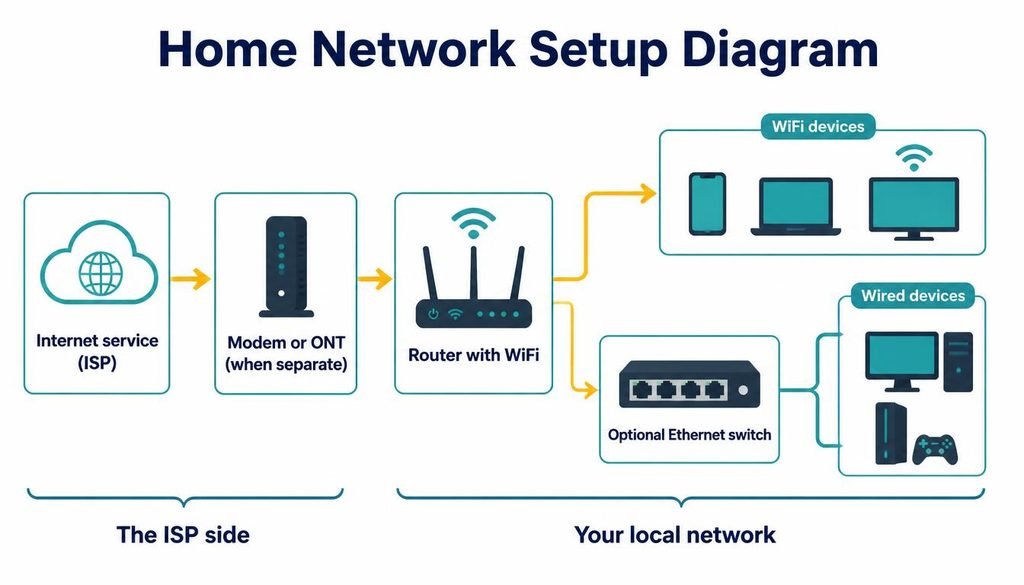
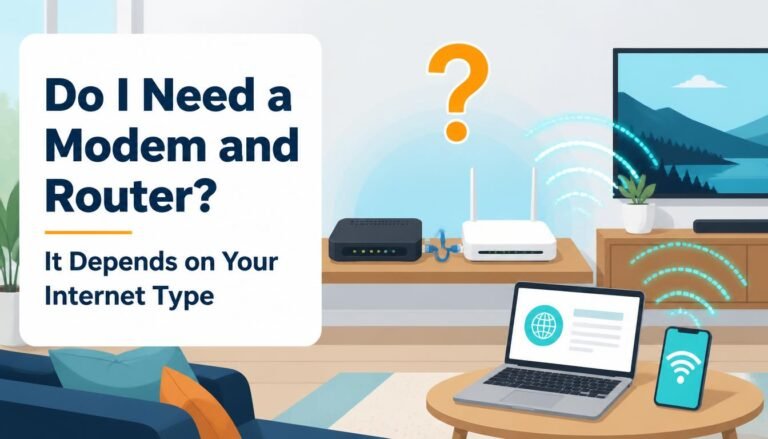
Internet service > modem or ONT (when separate) > router > WiFi devices and wired Ethernet devices. An optional switch connects to the router when you need more wired ports.
If your ISP gave you a gateway that combines the modem, router, and WiFi in one box, the diagram is shorter. The gateway replaces the first two boxes and acts as the router.
How to Set Up a Home Network Step by Step
Router steps differ by brand and ISP. Use these steps as the general order and follow your manufacturer’s instructions for exact screens.
Step 1. Check your ISP connection and existing equipment
Identify whether you have a modem, an ONT, or a gateway. Cisco suggests confirming that the internet works by connecting a computer to the ISP device before adding a new router.
Step 2. Connect the modem or ONT and router

Plug an Ethernet cable from the ISP device into the router’s WAN or Internet port. TP-Link’s guide says to unplug the modem first, connect it to the router, power the modem on, and wait about two minutes before powering on the router.
If your ISP gateway already contains a router, you can often keep using it as your router. If you add your own router, Cisco notes the gateway may need its router function turned off so the two do not conflict. Ask your ISP how to do this for your model.
Step 3. Power on and wait
Let the devices finish starting. Check the lights on the router, since an Internet or WAN light usually shows whether it found a connection.
Step 4. Connect a setup device
Connect a laptop to a router LAN port with an Ethernet cable, or join the router’s default WiFi network from a phone. The default network name and password are normally printed on the router’s label.
Step 5. Open the official setup app or admin page
Use the manufacturer’s app, or open the router’s admin page in a browser. The address varies. TP-Link uses tplinkwifi.net or 192.168.0.1, while Cisco calls 192.168.1.1 a common address. Check your router’s label, and read how to access router settings if the page will not open.
Step 6. Choose the internet connection type
TP-Link’s wizard offers three common types:
- Dynamic IP: used by most cable users, with no login details from the ISP.
- PPPoE: needs a username and password from the ISP.
- Static IP: the ISP gives you a fixed address and settings.
Some ISPs also require a VLAN ID. If you do not know which applies, contact your ISP instead of guessing.
Step 7. Set a WiFi name and password
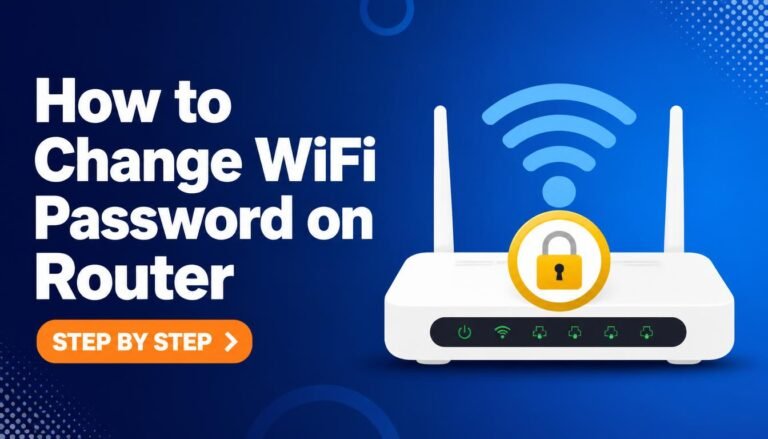
Choose a unique network name (SSID). Avoid names that reveal your address or family name. Use a long password: devolo suggests at least 12 characters. Also change the router’s default admin username and password, since Microsoft recommends it. Never post router passwords in comments or forums.
Step 8. Enable the strongest supported security
Microsoft recommends WPA3 if your router and devices support it. Use WPA2 if some of your devices cannot join a WPA3 network. If your router offers a mixed mode, check the manual, since options vary by model.
Step 9. Update the router firmware
Firmware is the software that runs the router. Both Cisco and TP-Link recommend updating it during setup, and TP-Link’s wizard offers an auto update option. Use the router’s own update process.
Step 10. Connect your devices
See the sections below for phones, computers, TVs, printers, and wired devices.
Step 11. Test the connection
Open a website on two devices. Then check WiFi in each room using a speed test, as devolo suggests, and compare it with the result near the router. Test local sharing separately if you plan to use it.
How to Set Up WiFi at Home
- Name and password: see Step 7 above.
- Placement: Microsoft advises placing the router in a central location, off the floor, and away from walls and metal objects. devolo suggests a central, free standing, and high position.
- Bands: a router may offer 2.4 GHz and 5 GHz, and some offer 6 GHz. Availability depends on both the router and the device. TechTarget notes that 2.4 GHz generally reaches further, while 5 GHz generally gives higher speed over shorter distances. Neither is best for every home.
- Interference: Microsoft notes that 2.4 GHz equipment shares a frequency with many microwaves and cordless phones, so interruptions can happen.
How to Connect Devices to Your Home Network
Windows 11: Select the network icon on the taskbar, choose your WiFi network, select Connect, and enter the password. You can also use Settings > Network & internet > Wi-Fi.
Windows 10: The steps are similar, with slightly different menus. Follow the Windows 10 tab on Microsoft’s support pages if yours differs.
Phones and tablets: Open the WiFi settings, choose your network, and enter the password. Some routers can generate a QR code that joins a phone without typing, as devolo notes.
Smart TVs: Use the TV’s network settings. See how to connect a smart TV to WiFi.
Printers: Use the printer’s screen or the manufacturer’s app. See how to connect a printer to WiFi.
Wired devices: Plug an Ethernet cable from the device into a router LAN port, or into a switch connected to the router. Wired connections are generally more stable than WiFi.
How to Set Up a Home Network for File Sharing
Internet access and file sharing are separate. These steps are for Windows 11 and are based on Microsoft’s file sharing and network settings pages. Windows 10 menus differ a little.
- Put both computers on the same network. Connect them through the same router.
- Set the network to Private, only on a trusted home network. Go to Settings > Network & internet, choose Wi-Fi or Ethernet, select your network, and under Network profile type choose Private network. Microsoft says Windows 11 sets new networks to Public by default, and that Public hides your PC from file and printer sharing.
- Turn on network discovery. Open File Explorer, go to Network, and select the banner Turn on network discovery and file sharing if it appears.
- Share a folder with selected people. Right click the folder, select Show more options, choose Give access to, then Specific people.
- Open the shared folder. On the other computer, open Network in File Explorer. You can also map a network drive: select This PC, then the More menu, then Map network drive.
- Remove sharing when finished. Right click the folder, select Show more options, Give access to, then Remove access. To see what you share, type
\\localhostin the File Explorer address bar.
Microsoft’s troubleshooting list includes turning off password protected sharing for all networks. Do not use that as a blanket fix. Keep password protected sharing on and share with specific people instead. Never expose file sharing directly to the internet. For sharing over the internet, Microsoft points to OneDrive.
How to Set Up a Home Network Between Two Computers
The simplest method is to connect both computers to the same router, by WiFi or Ethernet. Then follow the file sharing steps above.
A direct Ethernet cable between two computers can work, but it needs extra configuration, such as matching addresses. Most modern network ports do not require a special crossover cable, though you should check your hardware. A router is usually simpler.
How to Set Up a Home Network on Windows 10 and Windows 11
Windows connects your computer to a network. The router or gateway manages the home network itself. To view network details, go to Settings > Network & internet and select your connected network. Look for IPv4 address, which is the address your router gave the computer. To see your network adapters, open Device Manager and expand Network adapters.
Microsoft ended support for Windows 10 on October 14, 2025. A Windows 10 computer still works, but it no longer receives free security updates. Consider upgrading to Windows 11 or checking Microsoft’s current options, especially for a computer that handles personal files.
How to Extend WiFi Coverage Throughout Your Home
Work through this order:
- Move the router to a more central, open, raised position.
- Check for interference from thick walls, metal objects, and microwaves.
- Use an access point connected by Ethernet if you can run a cable. TechTarget calls Ethernet the best option.
- Use a mesh system if you cannot run cables. Cisco notes that mesh needs a router or system with that capability.
- Consider an extender only for small gaps. TechTarget argues extenders can mask problems instead of fixing them.
A more expensive router is not always the answer. Test each room before you spend money.
How to Secure Your Home Network
- Change default router admin credentials and use a unique admin password.
- Use a strong WiFi password, at least 12 characters.
- Use WPA3 where supported, or WPA2 where it is not.
- Update router firmware, and turn on automatic updates if available.
- Use a guest network for visitors and less trusted devices.
- Turn off remote administration unless you really need it, as TechTarget advises.
- Avoid unnecessary port forwarding. Open only the ports you need.
- Review connected devices in the router app and remove ones you do not recognize.
- Update phones and computers, not just the router.
- Back up your router settings where the router supports it.
Menus differ by brand, so use your manufacturer’s official documentation.

Common Home Network Problems and Fixes
| Symptom | Possible Cause | First Action |
|---|---|---|
| WiFi network is missing | Router broadcast, device adapter, or signal issue | Check router status and device WiFi |
| Connected but no internet | ISP outage, modem issue, or router configuration | Test the connection and check the ISP equipment |
| WiFi is weak in one room | Distance, obstacles, or interference | Reposition the router and reassess coverage |
| Computer cannot see shared folders | Network profile, discovery, or permissions | Check trusted network and sharing settings |
| Ethernet does not work | Cable, port, adapter, or configuration issue | Test another cable or port |
| New devices cannot connect | Password, compatibility, or router limit | Verify credentials and router settings |
Troubleshooting in order:
- Check the router lights and your ISP’s outage page.
- Test one device on Ethernet to see whether the problem is only WiFi.
- Restart the modem or ONT first, then the router, and wait a couple of minutes.
- Forget the network on the device and rejoin with the correct password.
- Check that the cable from the ISP device sits in the router’s WAN or Internet port.
- For Windows, run
ipconfigin Command Prompt. It only displays information. Note the Default Gateway, then runpingfollowed by that address to test the connection to your router. A successful reply does not prove the internet, DNS, and every app are working. - If pages will not load on Windows 11, read about DNS server not responding.
- For general WiFi trouble, see how to fix WiFi.
- Contact your ISP if the problem continues.
Do not start with a factory reset. It erases the router’s configuration, and you may need your ISP’s connection details to restore service. Do not disable your firewall or weaken encryption to fix an ordinary problem.
Do You Need a Home Network Server?
A server is a computer that stores or provides services for other devices. Most homes do not need one just to use the internet or share files.
Reasons to consider a server include shared storage (often a network attached storage device, or NAS), media libraries, backups, or learning projects. If you only need a few files shared, folder sharing between two computers is usually enough.
Frequently Asked Questions
How do I create my own home network?
Connect a router to your ISP modem or ONT, then set a unique WiFi name and strong password. After that, join your devices by WiFi or Ethernet and test internet access. If your ISP supplied a combined gateway, you can use it as the router and configure its settings instead.
What is the best way to set up a home network?
The best way is to start simple: use the ISP gateway or one good router, place it centrally, and secure it before adding extras. Use Ethernet for fixed devices such as desktops or TVs and WiFi for phones and laptops. Add a switch, access point, or mesh system only when a real need appears.
How do I set up a Wi-Fi network in my home?
Log in to your router, then set a unique WiFi network name (SSID) and a strong password. Choose WPA3 security if all your devices support it, or WPA2 if some do not. Place the router centrally and away from obstacles, then join each device from its WiFi settings.
What equipment is needed for a home network?
Most homes need an internet connection, a modem or ONT if your ISP does not supply a combined gateway, and a WiFi router. Ethernet cables, a switch, and an access point or mesh system are optional. A laptop or phone needs a built in WiFi adapter, which most already have.
Can I set up a home network without internet access?
Yes, devices can often communicate locally through a router even when the internet is down. Local file sharing and printing can still work, depending on your settings. Websites and streaming will not work until the connection returns. A router with no ISP connection can still create a local network.
What is the difference between a router and a modem?
A modem connects your home to the ISP, while a router directs traffic between your devices and the internet. Many ISP gateways combine both in one box. A fiber connection may use an ONT instead of a modem, and your router connects to that device.
How do I connect two computers on the same network?
Connect both computers to the same router by WiFi or Ethernet. Set the network to Private on trusted home networks, then turn on network discovery and share a folder with specific people. A direct Ethernet cable between two computers can work, but it needs extra configuration, so a router is simpler.
How can I share files between computers on my home network?
Make sure both computers are on the same network, then share a folder from File Explorer. On Windows 11, right click the folder, choose Show more options, then Give access to, then Specific people. The other computer can open it through the Network section or by mapping a network drive.
How can I improve WiFi coverage in every room?
Start by moving the router to a central, open, raised location. If a room still has weak WiFi, add an access point connected by Ethernet or a mesh system. Use a speed test in each room to compare results, and change one thing at a time so you know what helped.
Is Ethernet better than WiFi for a home network?
Ethernet is generally faster and more stable, so it suits desktops, TVs, and gaming consoles. Use WiFi for phones, tablets, and laptops that move around. Most homes use both. Cable quality matters, since older Cat5 cable is limited to 100 Mbps while Cat5e or better supports gigabit .
Conclusion
A reliable home network does not need much: your ISP connection, a router or gateway, and careful security settings. Start simple, secure the router first, and add switches, access points, or mesh only when you find a real need.
Your next step takes a few minutes. Log in to your router, confirm that WPA3 or WPA2 is on, and check for a firmware update. To keep going, read how to access router settings or browse the other Problevo WiFi guides.