How Does a WiFi Extender Work for Home & Gaming (2027)
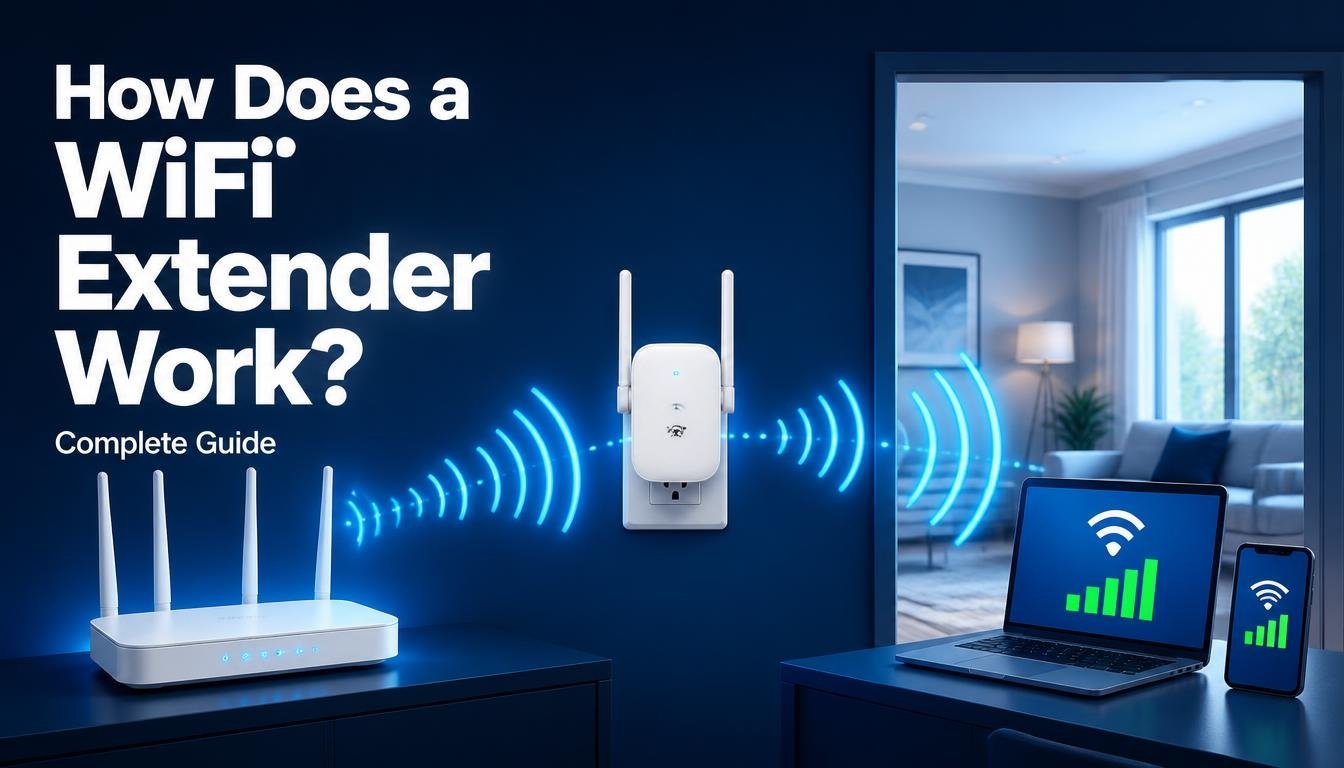
Understanding how does a wifi extender work helps homeowners eliminate dead zones, extend wireless coverage to far rooms, and choose the right network booster before spending money on the wrong hardware.
Quick Answer: How Does a WiFi Extender Work
- Signal Reception: Grabs the existing router signal from a spot with a strong connection.
- Rebroadcasting: Rebroadcasts that signal on an extended channel or SSID.
- Bridging Coverage: Bridges dead zones the router cannot reach on its own.
- Reducing Obstructions: Reduces wall and floor obstruction by splitting one long path into two shorter ones.
Table of Contents
WiFi Extender Performance Diagnostics: Issue & Fix Matrix
| Extension Symptom | Underlying Network Cause | Actionable Technical Fix |
| Extended speed is about half of the router speed | Half-duplex relay on a single radio channel | Use a dual-band or tri-band extender with a dedicated 5 GHz backhaul, or switch to Ethernet backhaul |
| Extender shows weak or red signal light | Extender is placed inside the dead zone, so its uplink is already poor | Move it to the 50% distance point between router and dead zone |
| Connected to extender but no internet | Upstream link lost, DHCP mismatch, or wrong router password | Re-pair the extender, confirm the router password, reboot both devices |
| Frequent disconnects while moving through the house | Device clings to the weaker router signal instead of roaming | Use one SSID with band steering, or move to a mesh system |
| High ping and jitter in online games | Extra wireless hop adds retransmission and queuing delay | Use a wired connection to the extender or an Ethernet backhaul |
| Slow speeds only on the 2.4 GHz extended network | Interference from microwaves, neighbors, and Bluetooth devices | Move devices to 5 GHz, change the channel, or relocate the extender |
| IP address conflict warnings | Extender and router both acting as DHCP servers | Set the extender to bridge or access point mode and disable its DHCP server |
The Core Science: How Does a WiFi Extender Work?
A WiFi extender is a small two-way radio relay. It listens to your router, then repeats what it heard at a new location where the signal is still strong enough to decode.
Step-by-Step Packet Relay Process
- Step 1: Packet Broadcast.
Your router sends data as radio packets on a channel, for example 2.4 GHz channel 6 or 5 GHz channel 36. - Step 2: Signal Reception.
The extender receives those packets on its receiving radio. It checks them for errors and reads the destination address. - Step 3: Packet Buffering.
The extender places the packets in a small memory buffer. - Step 4: Packet Transmission.
The extender transmits the packets again, either on the same channel or on a different band, to your phone, laptop, or console. - Step 5: Reverse Relay.
Traffic from your device travels the same path in reverse. The extender receives it, then forwards it to the router.

This is a store-and-forward design. The extender does not simply amplify noise. A proper extender decodes the frame, confirms it is valid, and builds a fresh transmission. That is why a good extender can rescue a weak but usable signal, while a very poor signal cannot be fixed by any extender.
Radio Physics Behind the Relay
Wi-Fi uses radio waves in the 2.4 GHz and 5 GHz bands. A 2.4 GHz wave is about 12.5 cm long and passes through walls better. A 5 GHz wave is about 6 cm long, carries more data, but loses more energy through concrete, brick, and floors.
Every wall, floor, and mirror reduces signal strength. Every doubling of distance also costs about 6 dB in free space, and indoor obstacles make the loss worse. An extender works because it replaces one long, lossy path with two shorter paths that each stay above the minimum signal level needed for high data rates.
Router Signal vs. Extender Broadcast vs. Client Connection
It helps to separate three links in your network:
- Router signal: The original wireless broadcast from your main router. This is the uplink the extender listens to.
- Extender broadcast: The new wireless network the extender creates. Some models use a name like
YourNetwork_EXT. Others copy the router name. - Client connection: The link between your device and either the router or the extender, whichever it chooses.
Your device only talks to one of them at a time. The extender talks to both the router and your device. That double duty is the reason for the speed penalty explained below.
The Half-Duplex Penalty Mechanics
Wi-Fi radios are half-duplex. A radio can transmit or receive on a channel, but not both at the same moment. Devices also follow a rule called CSMA/CA, which means each device listens first and waits for a quiet moment before sending.
A single-band extender has one radio working on one channel. It must receive a packet from the router, then switch to transmitting that same packet to your device. Both steps use the same airtime on the same channel. Each packet needs two trips through the same slice of airtime, so the usable throughput drops to about 50% of the best link speed, and often lower once acknowledgements and contention from other devices are counted.
Example: If the extender hears the router at a solid 300 Mbps link rate, a single-band extender will deliver roughly 150 Mbps or less to your device. If the router link is weak, the result is worse.
This is also why placement matters. The extender is only as fast as its connection back to the router, and it then loses roughly half of that connection to the relay process.
If your main router already drops connections before you add any hardware, fix that first. Our guide on how to fix wifi walks through the router side of the problem. To diagnose overall signal degradation across multi-story homes, review how to fix weak wifi signal.
WiFi Extender vs. Repeater vs. Booster vs. Mesh
People use these names as if they mean the same thing. They do not. The differences affect speed, cost, and how stable your connection feels.
| Device | How It Works | Speed Impact | Best Use |
| Repeater | Single radio repeats the signal on the same channel | Often 50% loss | Small, low-cost fix for one weak room |
| Extender (Dual-Band) | One radio listens to the router, another serves devices | Moderate loss, often 10% to 30% | Larger homes with one dead zone |
| Booster | Marketing term, usually meaning a repeater or extender | Varies by hardware | Check the specification sheet |
| Powerline Adapter | Sends data through electrical wiring, then a local Wi-Fi radio broadcasts it | Depends on wiring quality | Homes with thick walls where wireless relay fails |
| Mesh System | Several nodes share one network name and manage traffic together | Low loss with a dedicated backhaul | Whole-home coverage and roaming |
In plain English, a repeater is the simplest kind. It copies the signal on the same channel. An extender is usually a more capable device that can use a second band or an Ethernet port. The word booster is mostly a retail label. Many products sold as boosters are just repeaters. A powerline adapter avoids the airwaves for the long trip and uses your home wiring instead. A mesh system is a set of coordinated nodes that act as one network.
Single-Band vs. Dual-Band Extenders
A single-band extender receives and transmits on the same band. It suffers the full half-duplex penalty.
A dual-band extender can use one band to talk to the router and another band to talk to your devices. The link to the router is called the backhaul. When the extender uses 5 GHz for backhaul and 2.4 GHz for clients, the two jobs do not fight for the same airtime. A tri-band model adds a second 5 GHz radio, so one radio is reserved for backhaul and two others serve clients.
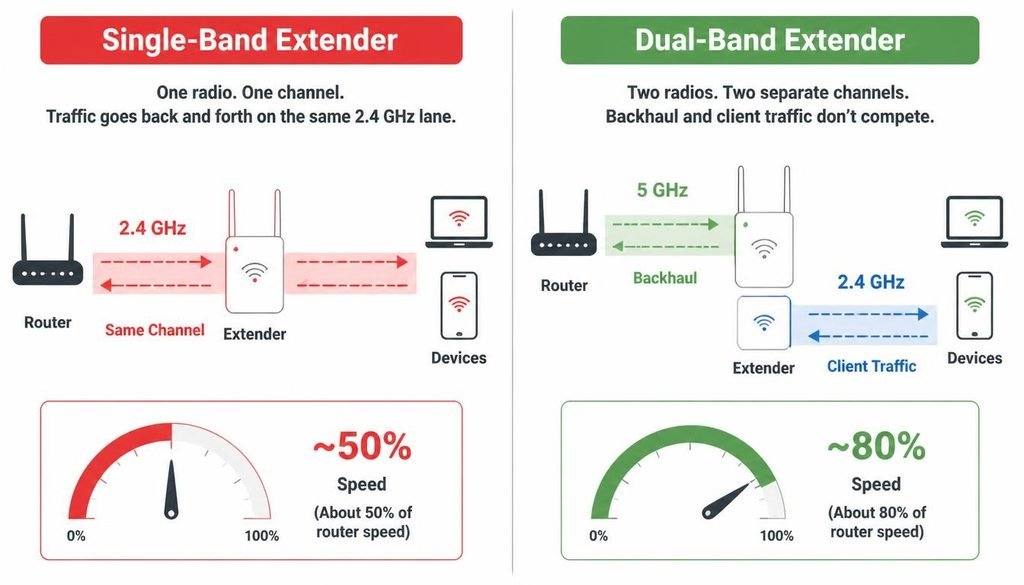
The tradeoff is range. A 5 GHz backhaul is faster but weaker through walls, so the extender must sit closer to the router. A 2.4 GHz backhaul reaches farther but is slower and more crowded. If you are deciding between hardware boosters and physical router adjustments, read how to extend wifi range.
Why Mesh Systems Handle Roaming Better
A traditional extender creates a separate wireless cell. Your phone often stays attached to the router until the signal is nearly gone, even when the extender is much closer. This is called a sticky client problem.
A mesh system uses standards and software that tell your device when to move to a better node. The nodes share one network name and one management system. Most good mesh kits also use a dedicated backhaul radio or an Ethernet cable between nodes. The result is a more stable connection when you walk through the house on a video call.
Mesh costs more, but it solves the roaming problem that most extenders leave in place. To configure any of these devices, you will need your router login page. Follow how to access router settings if you have not done this before.
How to Connect a WiFi Extender (Step-by-Step Setup)
There are two main ways to pair an extender. The first is the WPS button method. The second is the web admin browser page. Both start the same way.
Step 1: Plug the Extender Into an Outlet Near the Main Router
Place the extender in the same room as the router, or within a few meters. Wait for the power light to turn solid. Pairing close to the router removes signal strength as a variable and prevents failed setups.
Step 2: Pair Using WPS or the Web Admin Page
Option A: WPS Pairing
- Press the WPS button on the router. Look for a label that says WPS or a symbol with two arrows.
- Within two minutes, press the WPS button on the extender.
- Wait for the signal light to turn solid green or white. This means the extender has joined the router.
- If the light stays blinking or red, repeat the process. Some routers have WPS turned off in the settings.
Option B: Web Admin Pairing
- Connect your phone or laptop to the extender default network. The name is printed on the label.
- Open a browser and type the setup address printed on the label or in the manual. Many models use a name like
tplinkrepeater.netor an IP address such as192.168.0.254. - Create an admin password if prompted.
- Choose Wireless Settings or Range Extender, then select your home network from the scan list.
- Enter your router Wi-Fi password and select Save or Apply.
- Wait for the extender to restart.
Use the web method if WPS fails or if you want to name the extended network yourself. If you need to change your master Wi-Fi network key during extender configuration, read how to change wifi password on router. Remember that changing the password later means you must pair the extender again.
Step 3: Move the Extender to the 50% Optimal Distance Location
This step is where most setups fail. People plug the extender into the outlet inside the dead zone. That does not work, because the extender cannot rebroadcast a signal it cannot hear well.
Follow the 50% distance rule:
- Measure the path between the router and the center of the dead zone.
- Place the extender at about halfway, or slightly closer to the router.
- Plug it in and watch the signal strength light. Aim for a strong or green signal.
- Keep it away from metal shelves, microwaves, cordless phones, and mirrors.
- Mount it at chest height or higher, with open space around it.
- If the light is weak, move it a few steps closer to the router and test again.
How Does a WiFi Extender Work?

The goal is a strong link on both sides. A strong router link with a weak device link wastes the extender. A weak router link wastes everything.
Step 4: Connect Your Devices to the Extended Network SSID
Open the Wi-Fi list on your phone or laptop. Choose the extended network, often shown with EXT in the name. Enter the same password as your router. If the extender uses the same name as the router, your device will choose between them on its own.
Test the result with a speed test in the dead zone, then compare it to a test next to the router. To connect smart home devices or office hardware to the new extended network, check how to connect a printer to wifi for a practical example. Most smart devices only support 2.4 GHz, so make sure the extender broadcasts that band.
Are WiFi Extenders Good for Gaming and 4K Streaming?
For 4K streaming, a good dual-band extender is usually fine. A 4K stream needs roughly 25 Mbps, and a decent extended connection can deliver that.
For online gaming, the answer is more careful. Games send small packets and depend on low and steady latency, not high speed. An extender can hurt both.
Latency, Ping Spikes, and Half-Duplex Packet Delays
Each extra hop adds time. The packet must be received, checked, queued, and sent again. On a healthy link this adds a few milliseconds. On a busy or weak link it can add 10 to 50 ms or more.
Three things cause the pain in games:
- Added latency: The extra hop increases your base ping.
- Ping spikes: When the wireless link retries a lost frame, that packet arrives late.
- Jitter: The delay changes from packet to packet, which makes aiming and movement feel uneven.
Half-duplex behavior makes this worse. On a single-band extender, the radio is either receiving or transmitting. If another device is downloading a large file, your game packet waits for airtime. That queue creates the spikes you see on the ping graph.
Why Ethernet Backhaul and Mesh Outperform Extenders for Gaming
The best gaming fix is to plug the console or PC into the extender with an Ethernet cable. This removes the wireless client hop. The second best fix is an Ethernet backhaul, where the extender or mesh node connects to the router by cable. That removes the wireless relay, so no airtime is shared and no half-duplex penalty applies.
A mesh system with a dedicated backhaul also performs better than a basic extender, because the nodes manage traffic and do not compete with your game for the same channel. If you can run a cable, do it. If you cannot, use a powerline adapter or a tri-band mesh kit.
If network adapter settings disappear on Windows PCs while connecting to the extended SSID, review fixing the Windows 11 no Wi-Fi option bug. To verify whether your subscription speed matches your extended connection performance, review is wifi and internet the same. That page explains why a Wi-Fi problem and an internet service problem need different tests.
Troubleshooting Common WiFi Extender Problems
Extender Connected but No Internet Access
This is the most common complaint. The extender joined your router, but websites do not load. Work through these fixes in order:
- Check the router first: Connect a device directly to the router. If it has no internet, the problem is not the extender.
- Restart both devices: Unplug the router and extender for 30 seconds. Power on the router first, then the extender.
- Confirm the password: A typo in the router password gives a connection without a valid network link.
- Check the band: If the extender is joined to a 5 GHz network and the signal is weak, move it closer or use 2.4 GHz for the backhaul.
- Update the firmware: Use the Firmware or System Tools menu in the admin page.
- Reset and repeat setup: Hold the reset button for about 10 seconds, then pair again from the beginning.
Frequent Disconnects and IP Address Conflicts
Disconnects usually come from one of three causes: poor placement, channel interference, or duplicate network services.
- Poor placement: The extender is too far from the router. Move it closer to the 50% point.
- Interference: Microwaves, baby monitors, and neighboring networks crowd the 2.4 GHz band. Change the channel on the router to 1, 6, or 11.
- IP address conflicts: Both devices hand out addresses. Open the extender admin page, find the DHCP setting, and turn off the extender DHCP server. Or set the extender to access point mode so the router handles all addresses.
Also check whether your devices keep clinging to the router. Turn Wi-Fi off and on, or forget the network and join the extender name directly.
If your plan or router is the real limit, adding an extender will not help. If you consider upgrading your home link to gigabit speeds instead of extending older routers, check blog how to get fiber internet. To compare extended Wi-Fi speeds against mobile tethering performance, consult why is my hotspot slow.
Frequently Asked Questions
Do you just plug in a wifi extender and it works?
No. You must plug it in, then pair it with your router using the WPS button or the web setup page. After pairing, move it to a halfway position. Plugging it in without pairing creates its own network but gives no internet access.
How do you connect a wifi extender?
Plug the extender in near the router, then press WPS on the router and WPS on the extender within two minutes. Or log in to the extender setup page, select your home network, and enter the Wi-Fi password. Then move the extender halfway to the dead zone.
Are WiFi extenders actually worth it?
They are worth it for one dead zone with a decent router signal nearby, such as a bedroom or garage. They are less useful for gaming, large homes, or heavy multi-device use. In those cases, a mesh system or Ethernet backhaul gives better speed and stability.
How far will a wifi extender extend the signal?
Most home extenders add about 15 to 30 meters (50 to 100 feet) of useful range indoors, depending on walls and interference. The real limit is the link to the router. If the extender hears only a weak router signal, the extended coverage will also be weak and slow.
How does a wifi extender work with a TP-Link router?
A TP-Link extender pairs with a TP-Link router using the WPS button or the setup page. Some models also support OneMesh, which lets compatible router and extender pairs share one network name and manage roaming. A non-TP-Link router still works through standard WPS or manual setup
What is the difference between a WiFi repeater and a WiFi extender
A repeater receives and retransmits on the same channel, which usually cuts speed by about half. An extender often has a second radio or an Ethernet port, which allows a separate backhaul and better performance. In stores, the two names are often used loosely for the same product.
Do WiFi extenders work for gaming?
They can work for casual games, but they often add latency, ping spikes, and jitter. A single-band extender is the weakest choice. For competitive gaming, use an Ethernet cable to the extender, a wired backhaul, or a mesh system with a dedicated backhaul.
Where should a WiFi extender be placed in a house?
Place it at about halfway between the router and the dead zone, where it still shows a strong signal from the router. Keep it high, in open space, and away from metal, microwaves, and thick walls. Never place it inside the dead zone itself.
Final Thoughts on WiFi Extenders
A WiFi extender is a simple relay. It receives your router signal, repeats it, and fills a gap in your coverage. It works best when it sits halfway between the router and the dead zone, uses a dual-band design, and is paired correctly with your router.
Three core rules for extender success:
- Use the 50% placement rule: Never place the extender inside the dead zone.
- Understand speed limits: Single-band extenders cut throughput in half due to half-duplex relay.
- Choose the right hardware: Use wired backhaul or mesh networks if gaming ping and smooth roaming are priorities.
Start with correct placement and a clean setup. Test the result in the room that needs it. If the speed is still not enough, move to a stronger design instead of buying a second extender.