How to Use Mobile Data on a Laptop: Easy Step-by-Step Guide
Need internet on your laptop but don’t have access to Wi-Fi? You can use your phone’s mobile data to connect your laptop to the internet. Whether you have an Android phone or an iPhone, there are several ways to share your cellular connection.
The easiest method is to turn on your phone’s mobile hotspot and connect your laptop through Wi-Fi. If you prefer a wired connection, USB tethering may also work. Bluetooth tethering is another option on supported devices, although it is generally slower.
In this guide, you’ll learn how to use mobile data on a laptop, how to set up a hotspot, and how to fix common connection problems.
Quick Answer: How to Use Mobile Data on a Laptop
How to Use Mobile Data on Your Laptop
- Turn on mobile data on your Android phone or iPhone.
- Enable Mobile Hotspot (or Personal Hotspot on iOS).
- Open Wi-Fi settings on your laptop.
- Select your phone’s network name from the available list.
- Enter the hotspot password and click Connect.
Your laptop is now connected to your phone’s cellular internet.
Quick Troubleshooting Guide
| Problem | What to Try |
|---|---|
| Hotspot doesn’t appear | Turn Wi-Fi off and on, then check hotspot settings |
| Laptop won’t connect | Verify the password and reconnect |
| Connected but no internet | Check mobile data and your phone’s signal |
| Internet is slow | Improve signal strength and reduce connected devices |
| USB tethering isn’t working | Check the cable, drivers, and device settings |
| Hotspot disconnects | Keep your phone charged and reduce overheating |
| Mobile data runs out | Check your plan and monitor usage |
How to Use Mobile Data on a Laptop?
What You Need Before Connecting
Before using mobile data on your laptop, make sure you have:
- A working Android phone or iPhone with an active cellular data connection.
- A mobile plan that allows hotspot or tethering use.
- A laptop with Wi-Fi, Bluetooth, or a compatible USB connection.
- Your hotspot password, if you’re connecting over Wi-Fi.
- Sufficient battery power or access to a charger.
Some mobile carriers restrict tethering or apply separate hotspot allowances. Check your plan if the hotspot option is unavailable or your connection stops working.
3 Ways to Use Mobile Data on a Laptop
You can share your phone’s internet connection using one of these methods.
| Method | Best For | Main Advantage |
|---|---|---|
| Wi-Fi Hotspot | Everyday laptop use | Easy wireless setup |
| USB Tethering | Longer sessions | Wired connection and phone charging on many setups |
| Bluetooth Tethering | Basic browsing | Wireless alternative with lower typical speeds |
Wi-Fi hotspot is usually the easiest option for most users.
Method 1: Use an Android Phone as a Wi-Fi Hotspot
An Android phone can share its cellular internet connection with your laptop through a Wi-Fi hotspot.
Step 1: Turn On Mobile Data
- Open Settings on your Android phone.
- Go to Network & Internet, Connections, or Mobile Network, depending on your device.
- Turn on Mobile Data.
- Confirm that your phone can access the internet.
Step 2: Enable Mobile Hotspot
- Open your phone’s Settings.
- Search for Mobile Hotspot or Hotspot & Tethering.
- Open the hotspot settings.
- Turn on Wi-Fi Hotspot.
- Check your network name and password.
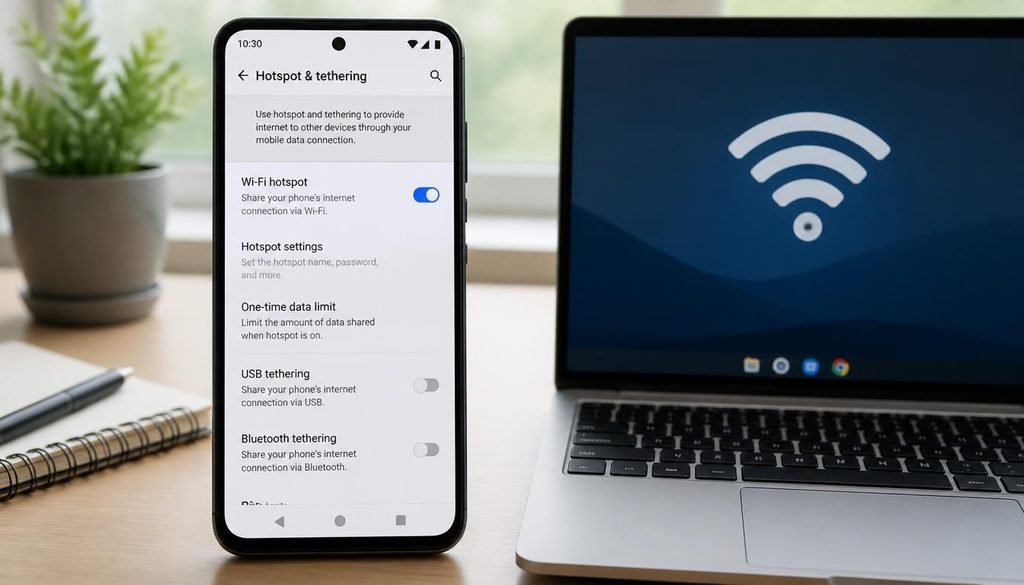
Some Android phones also allow you to change the hotspot name, password, and supported band.
For more detailed instructions, see our guide on how to connect a hotspot to a laptop.
Step 3: Connect Your Laptop
- Turn on Wi-Fi on your laptop.
- Open the available Wi-Fi networks.
- Select your phone’s hotspot name.
- Click Connect.
- Enter the hotspot password.
- Wait for the laptop to establish the connection.
Open a website to check whether the internet is working.

Tip: Keep your phone near your laptop for a more reliable connection.
Method 2: Use an iPhone as a Personal Hotspot
You can also share mobile data from an iPhone using Personal Hotspot.
Step 1: Enable Cellular Data
- Open Settings on your iPhone.
- Tap Cellular or Mobile Data.
- Turn on Cellular Data.
- Check that your cellular internet connection is working.
Step 2: Turn On Personal Hotspot
- Open Settings.
- Tap Personal Hotspot. Depending on your iOS version, this option may appear under Cellular.
- Turn on Allow Others to Join.
- Check the Wi-Fi password displayed on the screen.
Keep the Personal Hotspot settings screen open while connecting if your devices are having trouble discovering the network.
Step 3: Connect Your Laptop
- Open Wi-Fi settings on your laptop.
- Find your iPhone’s network name.
- Select the network.
- Enter the Personal Hotspot password.
- Click Connect.
Your laptop should now be able to use your iPhone’s mobile data.
If you need more help, follow our guide on how to turn on Personal Hotspot on iPhone.
Apple notes that Personal Hotspot availability and supported connections can depend on your carrier and device.
Method 3: Connect Your Phone Using USB Tethering
USB tethering allows you to share your phone’s mobile data with a laptop through a compatible USB cable.
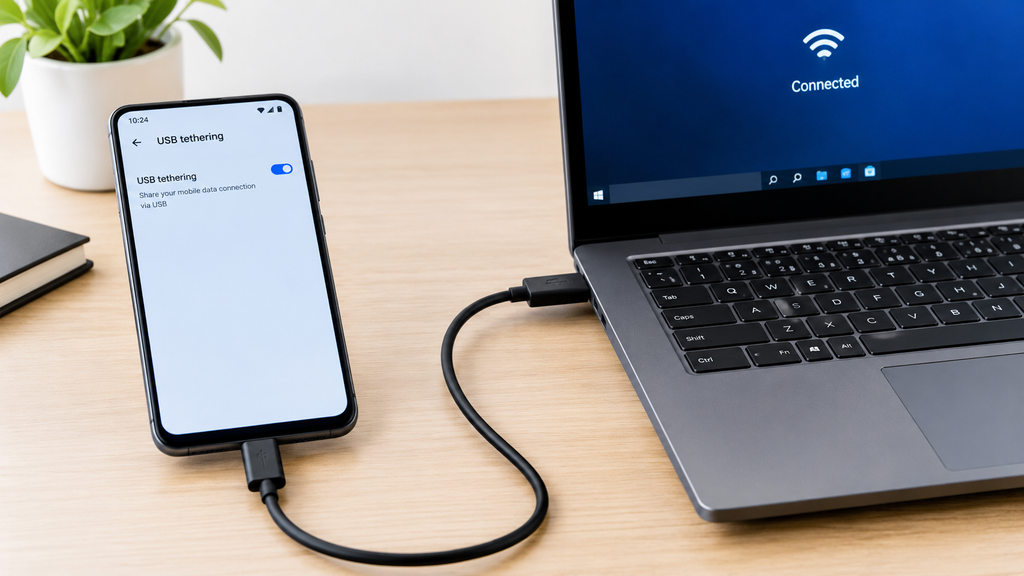
This method can be useful if you want a wired connection or your laptop’s Wi-Fi is unavailable.
Android USB Tethering
- Connect your Android phone to your laptop using a data-capable USB cable.
- Unlock your phone.
- Open Settings.
- Go to Hotspot & Tethering or search Settings for USB Tethering.
- Turn on USB Tethering.
- Wait for Windows to detect the network connection.
The exact menu names vary by manufacturer and Android version.
Note: USB tethering may be unavailable or disabled with some cable, device, or connection configurations. A charging-only cable may not support data transfer.
iPhone USB Tethering on Windows
You can share an iPhone’s Personal Hotspot through USB on a supported Windows computer.
- Turn on Cellular Data on your iPhone.
- Open Settings > Personal Hotspot.
- Enable Allow Others to Join.
- Install the latest Apple Devices app or compatible iTunes for Windows if required.
- Connect your iPhone to the laptop using a compatible USB cable.
- Unlock your iPhone.
- Tap Trust if your iPhone asks whether you trust this computer.
- Allow the connection if Windows or your iPhone displays an authorization prompt.
Windows should recognize the iPhone connection when the required software, drivers, and permissions are working.
If it doesn’t connect, try another USB port or cable and check whether Apple Devices or iTunes recognizes the iPhone.
For Apple’s official instructions, see:
https://support.apple.com/en-by/111785
Method 4: Use Bluetooth Tethering
Bluetooth tethering can provide an alternative when Wi-Fi isn’t convenient. However, connection options vary by phone, laptop, and operating system.
Bluetooth is generally better for light browsing than demanding activities such as large downloads or video streaming.
Android Bluetooth Tethering
- Turn on Bluetooth on your Android phone and laptop.
- Pair the two devices through their Bluetooth settings.
- Open your Android phone’s Hotspot & Tethering settings.
- Enable Bluetooth Tethering if the option is available.
- On Windows, open Settings > Bluetooth & devices > Devices.
- Select your paired phone and look for the Personal Area Network (PAN) option.
- Select Join, then choose Access Point and Connect if those options are available.
Windows interface options can differ between versions and devices. If the PAN option is unavailable, use Wi-Fi hotspot or USB tethering instead.
iPhone Bluetooth Tethering
An iPhone supports Personal Hotspot over Bluetooth, but Windows connection steps may vary.
- Enable Bluetooth on your iPhone.
- Open Settings > Personal Hotspot.
- Turn on Allow Others to Join.
- Pair your iPhone with your Windows laptop.
- Follow the available Windows Bluetooth networking instructions to establish a network connection.
If Windows doesn’t provide a compatible Bluetooth networking option, Wi-Fi or USB is the more practical alternative.
How to Connect a Mobile Hotspot on Windows 11
Connecting to a phone hotspot on Windows 11 is straightforward.
- Turn on your phone’s mobile hotspot.
- Click the network or Wi-Fi icon in the Windows taskbar.
- Open the available Wi-Fi networks.
- Find your phone’s hotspot name.
- Click Connect.
- Enter the hotspot password.
- Wait for Windows to confirm the connection.
Open your browser to test the internet.
If Windows asks whether your PC should be discoverable, choose the appropriate network profile for your situation. For a phone hotspot used in public places, keeping unnecessary network discovery off is a sensible precaution.
How to Connect a Mobile Hotspot on Windows 10
The basic connection process is similar on Windows 10.
- Enable your phone’s hotspot.
- Click the Wi-Fi icon in the taskbar.
- Select your phone’s network.
- Click Connect.
- Enter the password.
- Confirm that the connection works.
Windows 10 support notice: Standard Windows 10 support ended on October 14, 2025. If your laptop still runs Windows 10, consider upgrading to a supported operating system or checking Microsoft’s available support options.
How to Fix Mobile Hotspot Connection Problems
If your laptop connects to your phone but can’t access the internet, work through these troubleshooting steps.
1. Check Your Mobile Data
Make sure mobile data is enabled and your phone has a working cellular connection.
Try opening a website directly on your phone with Wi-Fi turned off.
If the phone itself cannot access the internet, troubleshoot your cellular connection before troubleshooting the laptop.
2. Check Your Hotspot Settings
Confirm that your hotspot is enabled and that tethering is allowed by your mobile plan.
On Android, check Hotspot & Tethering.
On iPhone, check Personal Hotspot and Allow Others to Join.
If the option is missing or unavailable, your carrier, plan, device, or configuration may be responsible.
3. Verify the Hotspot Password
An incorrect password can prevent your laptop from connecting.
Check the password in your phone’s hotspot settings and enter it again.
If necessary, update the password and reconnect using the new one.
4. Forget the Network and Reconnect
If your laptop has saved incorrect network details:
- Open your laptop’s Wi-Fi settings.
- Find the saved hotspot network.
- Select Forget.
- Search for available networks again.
- Reconnect using the correct password.
5. Restart Both Devices
Restart your phone and laptop.
Then enable mobile data, turn on the hotspot, and try connecting again.
A restart can resolve temporary network or software problems.
6. Improve Signal Strength
Your phone’s cellular signal affects hotspot performance.
Try these tips:
- Move closer to a window or an area with better reception.
- Keep your phone away from obstructions.
- Avoid placing it near sources of excessive heat.
- Disconnect devices that don’t need the connection.
A weak cellular signal may cause slow speeds even when your laptop shows a strong Wi-Fi signal.
7. Check Wi-Fi Compatibility
Some phones and laptops may have difficulty connecting because of Wi-Fi band or compatibility settings.
If your Android phone allows it, try switching the hotspot band to 2.4 GHz.
On supported iPhones, you can try enabling Maximize Compatibility in Personal Hotspot settings.
Compatibility settings may affect speed or security, so use them only when needed.
For additional help, see our guide on how to fix common WiFi problems.
8. Check Windows Network Settings
If your laptop still can’t connect:
- Turn Wi-Fi off and on.
- Run the Windows network troubleshooter if available.
- Check whether Airplane Mode is enabled.
- Update your Wi-Fi adapter driver using your laptop manufacturer’s recommended method.
- Restart the laptop and try again.
Avoid resetting all network settings immediately because doing so may remove saved network configurations.
If other Wi-Fi networks also fail, the problem may be related to the laptop’s wireless adapter or Windows network configuration rather than the phone hotspot.
What If Your Laptop Says Connected but No Internet?
A connected Wi-Fi status doesn’t always mean the phone has working internet access.
Try these checks:
- Open a website directly on your phone using cellular data.
- Confirm that your mobile data allowance hasn’t run out.
- Check whether your carrier limits hotspot use.
- Disconnect and reconnect the laptop.
- Disable any VPN temporarily if it appears to be causing the issue.
- Restart the phone’s hotspot.
If the phone can browse normally but the laptop cannot, check the laptop’s proxy, VPN, DNS, and network configuration.
Can You Use Mobile Data on a Laptop Without a Phone Hotspot?
Yes. You have several alternatives depending on your laptop and available equipment.
Use a USB Cellular Modem
A compatible cellular modem can provide mobile internet directly to your laptop.
You’ll need a supported modem, SIM or eSIM arrangement where applicable, and a suitable data plan.
Device compatibility and carrier requirements vary.
Use a Portable MiFi Device
A portable MiFi router connects to a cellular network and shares the connection over Wi-Fi.
This can be useful if you regularly need internet access on multiple devices.
Use a Laptop With Built-In Cellular Connectivity
Some laptops support cellular connectivity through built-in hardware and a compatible SIM or eSIM plan.
Check your laptop’s specifications and carrier compatibility before purchasing a data plan.
How Much Mobile Data Does a Laptop Use?
Laptop data usage depends on what you do online.
| Activity | Typical Data Impact |
|---|---|
| Reading websites | Low to moderate |
| Email and messaging | Usually low |
| Video calls | Moderate to high |
| Music streaming | Moderate over time |
| HD video streaming | High |
| Large downloads and updates | Potentially very high |
Actual usage varies with quality settings, app activity, resolution, and background downloads.
For example, a laptop may consume data through cloud synchronization, operating system updates, automatic backups, and browser tabs even when you’re not actively browsing.
To check your remaining allowance, contact your carrier or use its official app. You can also read our guide on how much hotspot data you have left.
How to Reduce Mobile Data Usage on Your Laptop
If you’re using a limited mobile data plan, these steps can help.
Set Your Connection as Metered
On Windows 11:
- Open Settings.
- Select Network & internet.
- Open Wi-Fi.
- Select your connected hotspot network.
- Turn on Metered connection if the option is available.
On Windows 10, open Settings > Network & Internet > Wi-Fi, select the connected network, and enable Set as metered connection.
A metered connection helps Windows and some apps reduce data usage. It does not block all downloads or guarantee that no background data will be used.
Microsoft guide:
https://support.microsoft.com/en-us/windows/experience/connectivity-networking/metered-connections-in-windows
Other Ways to Save Data
- Pause large downloads.
- Disable automatic cloud backups temporarily.
- Lower video streaming quality.
- Avoid unnecessary HD streaming.
- Close apps that use background data.
- Check Windows Update and app download settings.
- Monitor your hotspot allowance regularly.
Tips for a More Stable and Secure Hotspot
Follow these tips for a better connection:
- Use a strong hotspot password.
- Share the password only with trusted people.
- Turn off your hotspot when you’re finished.
- Keep your phone charged.
- Avoid overheating by keeping your phone ventilated.
- Place the phone where cellular reception is stronger.
- Disconnect devices you don’t recognize.
- Use USB tethering when it better suits your setup.
- Avoid sensitive activities on unfamiliar or untrusted networks.
Remember that hotspot Wi-Fi security depends on your device’s supported settings and configuration.
FAQs
Can I use my mobile phone data on my laptop?
Yes. You can share your phone’s cellular internet with a laptop through a WiFi hotspot, USB tethering, or Bluetooth tethering. The best option depends on device compatibility and carrier support. Turn on mobile data, enable a supported sharing method, connect your laptop, and test internet access.
How do I turn on mobile data on my laptop?
Most laptops do not have their own mobile data switch unless they include cellular hardware. To use phone data, enable cellular data on your phone and share it through a hotspot or tethering. A laptop with a supported cellular modem and active plan can connect independently.
How can I use mobile data on my laptop without WiFi?
Use USB tethering if your phone and laptop support it. Connect them with a data capable cable and enable USB tethering on the phone. Bluetooth tethering may also work if both devices support it. A laptop with cellular hardware can connect directly through a suitable plan.
How to use mobile data on laptop without hotspot?
You can use USB tethering or Bluetooth tethering without turning on the phone’s WiFi hotspot, if supported. USB tethering requires a compatible cable and device support. Bluetooth tethering requires compatible Bluetooth networking. Both methods share the phone’s mobile data rather than giving the laptop its own cellular service.
How do I connect a mobile hotspot to a Windows 11 laptop?
Enable your phone hotspot and open Windows Quick Settings. Select Manage WiFi connections, choose your phone’s network, and enter its password. Confirm the connection and open a webpage. If the network does not appear, check the phone hotspot, laptop WiFi, and network compatibility.
How do I connect an iPhone to a Windows laptop using USB?
Enable Personal Hotspot on the iPhone and connect it using a compatible USB cable. On Windows, install the latest Apple Devices app or iTunes for Windows as directed by Apple. Allow the accessory connection if prompted and tap Trust on the iPhone if requested. Test internet access afterward.
Why does my laptop connect to my hotspot but have no internet?
The phone may have no cellular internet, the mobile plan may restrict tethering, or the laptop may have a temporary networking problem. Test mobile internet on your phone first. If that works, reconnect the laptop and check the carrier plan, hotspot settings, and other connected devices.
Does using a mobile hotspot consume more data on a laptop?
It can. Operating system updates, cloud synchronization, video streaming, and downloads may use substantial data. Actual consumption depends on your activities. Set your hotspot connection as metered in Windows, pause unnecessary background downloads, and monitor your mobile plan’s usage information.
Can I use mobile data on a Windows 10 laptop?
Yes. Connect through a phone hotspot, compatible USB tethering, or Bluetooth tethering. Windows 10 supports joining WiFi networks through the taskbar network menu. However, standard Windows 10 support ended on October 14, 2025, so review your device’s security support options.
Conclusion
The easiest way to use mobile data on a laptop is usually through a phone’s WiFi hotspot. Turn on mobile data, enable the hotspot, and connect through your laptop’s WiFi settings.
If WiFi is unavailable, try compatible USB tethering or Bluetooth tethering.
If the connection fails, test mobile internet on the phone first. Then check the hotspot settings, laptop connection, and carrier restrictions before making major network changes.