Why Is My Upload Speed So Low? 7 Ways to Fix It
Running an online speed test only to find that your download speed is blazing fast while your upload speed crawls at a fraction of a megabit is deeply frustrating. If you are asking yourself why is my upload speed so low, you are not alone. Whether you are hosting video meetings, uploading content, or gaming online, severely throttled upload performance can disrupt your entire workflow.
⚡ Quick Answer
A low upload speed is usually caused by network throttling, asymmetrical ISP bandwidth caps, outdated network drivers, background cloud syncing, Wi-Fi signal degradation, or faulty network hardware. Fixing it requires adjusting adapter settings, restarting network equipment, disabling background sync apps, and using wired connections.
Table of Contents
| Symptom | Root Cause | Actionable Fix |
| Low upload speed on Wi-Fi | Frequency interference or signal attenuation | Switch to 5 GHz band or use an Ethernet cable |
| Fast download but slow upload | Asymmetric ISP bandwidth throttling or upload cap | Contact ISP or reset router QoS settings |
| High latency and slow upload during gaming | Background cloud backup or peer-to-peer sync | Pause OneDrive, Google Drive, or torrent uploads |
| Ethernet upload capped at 10 Mbps | Network adapter duplex mismatch or bad cable | Change adapter Speed and Duplex settings to Auto/1Gbps Full |
| Mobile data upload speed dropped | Carrier network congestion or VPN overhead | Toggle Airplane Mode and disable active VPN protocols |
Understanding Why Upload Speed Is So Low When Download Is Fast
It is common to run a speed test and see 200 Mbps download speeds paired with a tiny 3 Mbps upload speed. This difference is often not a bug, but a structural feature of consumer internet connections.
Asymmetrical Broadband vs Symmetrical Connections
Most traditional cable internet and Digital Subscriber Line (DSL) providers use asymmetrical bandwidth allocation. Technologies like Data Over Cable Service Interface Specification (DOCSIS) allocate the vast majority of physical frequency channels on the coaxial line to downstream data, leaving only a small fraction for upstream transmission. Internet Service Providers (ISPs) design networks this way because standard consumer web browsing, video streaming, and downloading consume significantly more downstream bandwidth than upstream bandwidth.
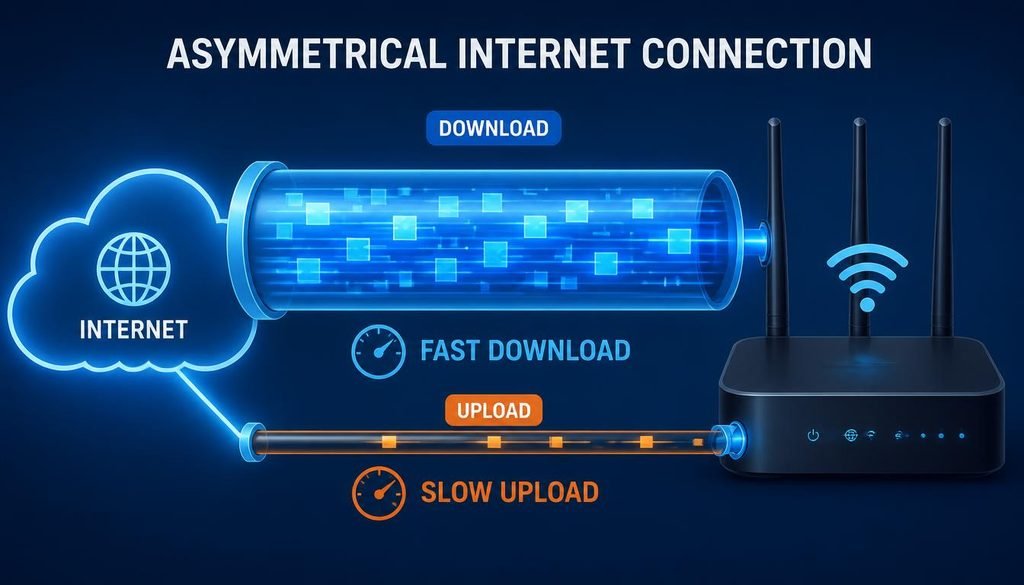
In contrast, symmetrical fiber optic networks provide equal upload and download capacity. If you possess a cable internet plan, your ISP intentionally caps your upload ceiling, making local network efficiency and proper router optimization far more critical.
Step-by-Step Fixes for Slow Upload Speed
Work through these verified technical solutions in order to resolve software glitches, driver bottlenecks, and hardware misconfigurations.
Step 1: Perform a Hard Power Cycle on Modem and Router
Temporary memory leaks, clogged state tables, and prolonged heat buildup in modem and router hardware frequently cause upload degradation.
- Unplug the power cords from both your standalone modem and wireless router.
- Wait a full 60 seconds to allow all residual electrical charge to drain completely from the internal capacitors.
- Plug the power cord back into the modem first and wait until all connection indicators stay solid green or blue.
- Plug the router back into power and allow two minutes for the internal system software to finish booting.
If you experience broader connection drops after rebooting, read our guide on how to fix WiFi.
Step 2: Switch From Wi-Fi 2.4 GHz to 5 GHz or Ethernet
The 2.4 GHz wireless frequency band is highly congested due to overlapping neighbor networks, Bluetooth peripherals, and household appliances. This frequency interference leads to severe packet drops on outgoing signals.
- Open your device network settings and connect to your router 5 GHz or Wi-Fi 6 network broadast, which offers higher bandwidth and significantly less signal congestion.
- Move your primary device closer to the wireless router to eliminate wall attenuation. Users experiencing physical signal degradation should check how to fix weak WiFi signal.
- For heavy file transfers, abandon wireless signals completely and connect a direct Cat6 Ethernet cable from your device to a router LAN port.
Step 3: Disable Background Cloud Syncing and P2P Uploads
Active background uploads continuously saturate your upstream channels, starving all other active applications on your local network.
- Press Ctrl + Shift + Esc to open Task Manager in Windows 11.
- Select the Processes tab and click the Network column header to sort active applications by bandwidth utilization.
- Look for cloud storage utilities like Microsoft OneDrive, Google Drive, Dropbox, or torrent clients.
- Right click any application consuming upload throughput and select End task.
To remove unnecessary background system processes consuming upload bandwidth on a permanent basis, read the Windows 11 debloater guide.
Step 4: Update or Roll Back Network Adapter Drivers in Windows 11
Corrupted or generic network adapter drivers supplied by default operating system updates often cause network throughput throttling.
- Right click the Start button and select Device Manager.
- Expand the Network adapters section.
- Right click your primary Ethernet or Wi-Fi controller (for example, Intel, Realtek, or Killer Wi-Fi) and select Properties.
- Navigate to the Driver tab. If a recent system update broke performance, select Roll Back Driver.
- If no roll back exists, select Update driver and choose Search automatically for drivers. Alternatively, download the latest official package directly from your motherboard manufacturer website.
For broader OS troubleshooting techniques, review how to fix Windows 11 problems. If your wireless adapter fails to display entirely in Device Manager, consult fixing Windows 11 no WiFi option.
Step 5: Flush DNS and Reset TCP/IP Stack via Command Prompt
Corrupted local network cache files and misconfigured TCP parameters frequently throttle outbound transmission rates.
- Click Start, type cmd, right click Command Prompt, and select Run as administrator.
- Execute the following system commands one by one, pressing Enter after each line:DOS
netsh winsock reset netsh int ip reset ipconfig /release ipconfig /renew ipconfig /flushdns - Restart your computer to apply the core network stack resets.
For Windows system level resolution of lingering connectivity errors, see DNS server not responding on Windows 11.
Step 6: Adjust Network Adapter Advanced Properties
Default power management features and network offloading routines in Windows can cause upload speed degradation.
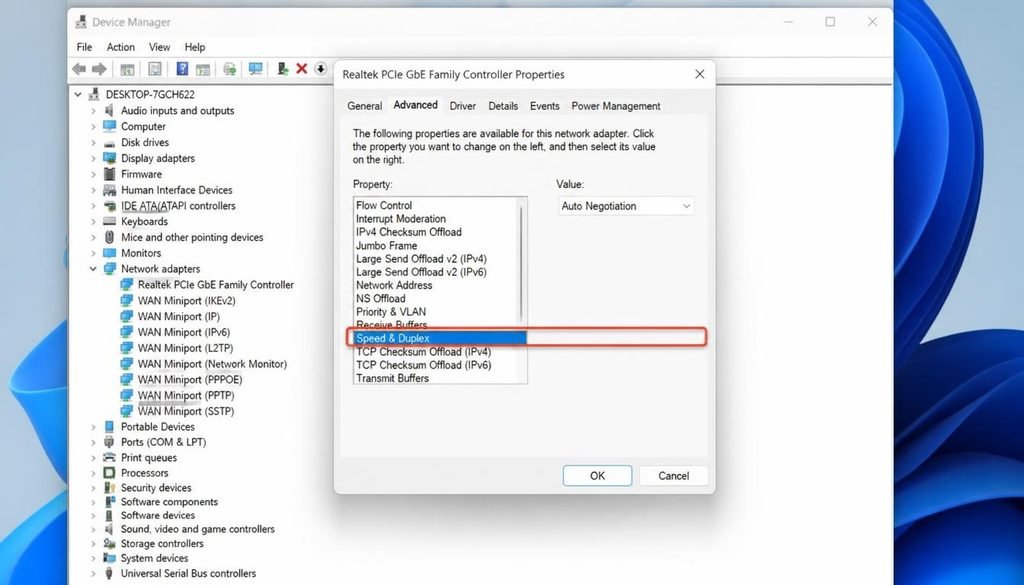
Device Manager ➔ Network Adapters ➔ Right-Click Adapter ➔ Properties ➔ Advanced Tab
- Open Device Manager, right click your active Ethernet adapter, and open Properties.
- Switch to the Advanced tab.
- Locate Large Send Offload v2 (IPv4) and Large Send Offload v2 (IPv6). Change their values to Disabled. This prevents the network hardware from improperly segmenting outgoing data packets.
- Locate Interrupt Moderation and set it to Disabled or Low for instant packet processing.
- Select Speed & Duplex and change the value from Auto Negotiation to 1.0 Gbps Full Duplex (assuming your network switch supports gigabit connections).
why is my upload speed so low?
Step 7: Configure Router Quality of Service (QoS) and Firmware Settings
Quality of Service (QoS) software inside your wireless router directs upstream traffic flow. Misconfigured QoS caps will artificially limit your connection speed.
- Open a web browser and enter your router default IP gateway address (typically
192.168.1.1or192.168.0.1). - Enter your administrator credentials. When managing router settings, learn how to access router settings to configure QoS parameters correctly.
- Locate the QoS or Bandwidth Management section in the administration dashboard.
- Ensure your manual upload ceiling is not set below your actual ISP package speed.
- Enable priority tags for outbound interactive traffic like gaming or video conferencing, or disable QoS entirely if your router processor is underpowered.
Fixing Low Upload Speed on Specific Devices
Different computing platforms have unique network stack configurations that require tailored troubleshooting steps.
Why Is My Upload Speed So Low on PS5 and Xbox?
Console network adapters require specific port rules and Maximum Transmission Unit (MTU) packet sizes to communicate smoothly with gaming servers.
- Navigate to Settings > Network > Set Up Internet Connection on your console.
- Select your active network connection and choose Advanced Settings.
- Change DNS Settings to Manual and input Primary
8.8.8.8and Secondary8.8.4.4(Google Public DNS). - Set MTU Settings to Manual and set the value to 1492 or 1500.
- Ensure your router has UPnP (Universal Plug and Play) enabled to achieve an Open NAT Type (Type 1 or Type 2), eliminating upstream firewall blocking.
Why Is My Upload Speed So Low on Mobile Data?
Cellular data networks utilize dynamic tower resource distribution, making upload connections vulnerable to localized cellular traffic density.
- Enable Airplane Mode for 10 seconds, then disable it to force your mobile device to establish a fresh connection to the closest cell tower.
- Open your mobile VPN app and disconnect completely. Heavy encryption protocols create substantial upload overhead on mobile networks.
- If upload speeds are slow while tethering your phone connection to a laptop, check how much hotspot data you have left.
Very Slow Upload Speed on Ethernet Cable
If your wired Ethernet connection is severely capped, physical infrastructure components are usually at fault.
Cat5 Cable (Capped at 100 Mbps / Poor Shielding) ➔ Upgrade to Cat6 ➔ 1000 Mbps Gigabit Full Duplex
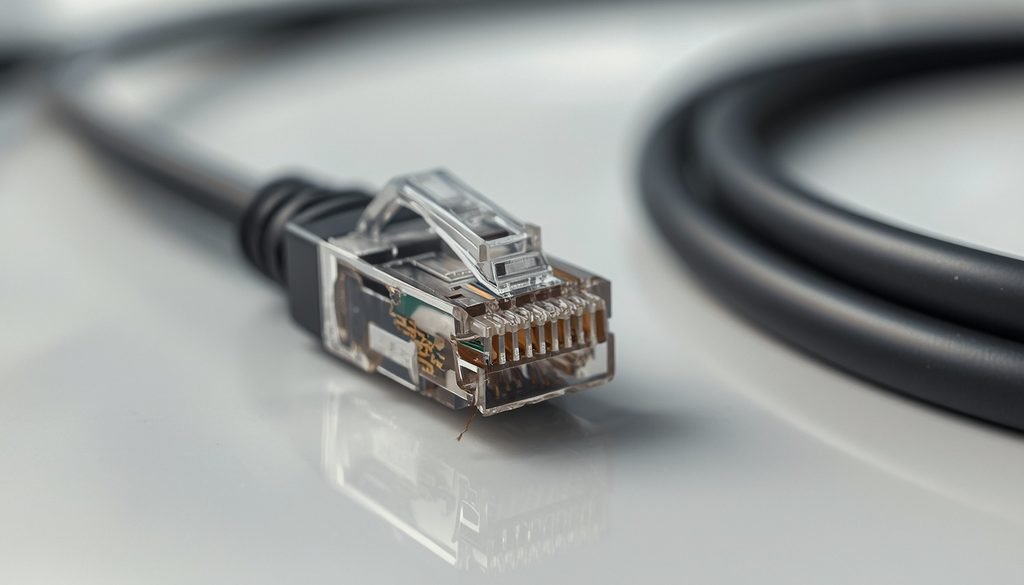
- Cable Grade Check: Ensure you are using a Cat5e or Cat6 Ethernet cable. Legacy Cat5 cables lack tight copper wiring twists and max out at lower throughput ceilings with severe cross-talk interference.
- Physical Port Inspection: Check the RJ-45 copper pins inside your PC Ethernet jack and router LAN ports. Bent pins drop the link state automatically to 10 Mbps or 100 Mbps half-duplex.
Dedicated Frequently Asked Questions (FAQ)
How do I fix low upload speed?
You can fix low upload speed by switching to an Ethernet connection, restarting your router, disabling background cloud backups like OneDrive, and updating your network adapter drivers. Additionally, flushing your TCP/IP stack via Command Prompt restores stable upload throughput.
Is 1.7 Mbps upload speed good?
A 1.7 Mbps upload speed is insufficient for modern internet tasks. While it suffices for basic web browsing and sending plain text emails, it causes severe lag during HD video calls, 4K streaming, online gaming, and large file uploads.
Is 20 Mbps upload speed slow?
A 20 Mbps upload speed is adequate for most households. It easily supports multiple simultaneous 1080p video calls, smooth online gaming, and moderate file uploads. However, heavy content creators uploading raw 4K videos may still find it restrictive.
How to increase Wi-Fi upload speed?
To increase Wi-Fi upload speed, connect to the 5 GHz or Wi-Fi 6 band, move closer to the router, and change the wireless channel to reduce interference. Turning off WMM or QoS caps in router settings also boosts performance. If you are configuring connected home appliances on your network, see how to connect a printer to WiFi.
Why is my upload speed so slow all of a sudden?
Sudden upload speed drops are typically caused by ISP network congestion, active background cloud syncing, corrupt network drivers, or overheating router hardware. Performing a hard router reboot usually restores normal speeds immediately. For smart display issues on your home network, check how to connect smart TV to WiFi.
Is slow upload speed bad for gaming?
Yes, slow upload speed causes high ping, packet loss, and severe lag spikes in online gaming. Multiplayer games require constant upstream data transmission to send player actions to game servers without delay.
Why is my upload speed slow on Ethernet?
Slow Ethernet upload speed usually indicates a damaged Ethernet cable (Cat5 instead of Cat6), a speed duplex setting misconfiguration, outdated network adapter drivers, or a faulty router LAN port.
Does a VPN cause low upload speed?
Yes, a VPN can reduce upload speed due to encryption overhead and routing traffic through distant servers. Disabling the VPN or switching to lighter protocols like WireGuard usually resolves the issue.
Conclusion
Low upload speeds are rarely permanent hardware failures. They are almost always the result of software configuration bottlenecks, background application saturation, Wi-Fi interference, or improper network adapter settings. Working logically through power cycles, adapter tweaks, and driver updates will usually restore your full upstream performance.
If you have completed every technical step in this guide and still experience suppressed uploads on a wired connection, contact your Internet Service Provider directly to check for physical line noise, degraded optical signals, or account level configuration caps.