
How Do You Turn On Mobile Hotspot on iPhone? Easy Steps
Your laptop needs internet, the WiFi is gone, and your phone still has signal. The question how do you turn on mobile hotspot on iPhone has a short answer, but a few details decide whether it actually works. Apple calls the feature Personal Hotspot, and this guide shows the exact steps, how to connect other devices, and what to do when the setting is missing or greyed out.
Quick Answer
⚡ Quick Answer: How to Turn On iPhone Personal Hotspot
- Check Cellular Data: Open Settings > Cellular and verify Cellular Data is toggled ON.
- Enable Hotspot: Go to Settings > Personal Hotspot (or Cellular > Personal Hotspot).
- Allow Connections: Toggle Allow Others to Join ON to make your iPhone discoverable.
- Connect Device: On your secondary device (laptop or iPad), select your iPhone under Wi-Fi settings and enter the Wi-Fi Password displayed on your iPhone screen.
- Carrier Check: If Personal Hotspot is missing or greyed out, verify that your mobile carrier plan supports tethering features.
Table of Contents
Quick diagnosis table
Use this table to jump to the right fix. These are starting points, not final diagnoses.
| Symptom | Likely cause | Recommended action |
|---|---|---|
| Personal Hotspot is missing | Carrier support or configuration issue | Check cellular data and contact the carrier if needed |
| Hotspot is greyed out | Cellular or carrier configuration issue | Check cellular settings and carrier support |
| Other devices cannot find the iPhone | Discovery or compatibility issue | Check WiFi, Bluetooth, hotspot settings, and proximity |
| Connected device has no internet | Cellular connection or data restriction | Test mobile data directly on the iPhone |
| Password is rejected | Incorrect or outdated password | Verify the current hotspot password |
| Windows PC does not see the iPhone over USB | Apple software missing or trust prompt not accepted | Install Apple Devices or iTunes and tap Trust |
| Hotspot works, but data disappears quickly | Updates, video, or sync on the connected device | Check usage and disconnect devices when finished |
How to turn on Personal Hotspot on iPhone
This is the standard answer to how do you turn on mobile hotspot on iPhone, and it works for most people. Apple documents the steps on its Personal Hotspot support page.
- Open Settings.
- Tap Personal Hotspot. On some iOS versions, tap Cellular, then Personal Hotspot. If you have never used the feature, you may see Set Up Personal Hotspot under Cellular. Tap it and follow the onscreen instructions. Some regions label Cellular as Mobile.
- Turn on Allow Others to Join.
- Review the WiFi password. It appears on the same screen. To change it, tap Wi-Fi Password and enter at least eight characters, using only ASCII characters (English letters, numbers 0 through 9, and some punctuation marks). Stay on this screen until the other device connects.
- Connect the second device and test it. Open a webpage or app on that device to confirm it has internet.

The hotspot name is the name of your iPhone. To change it, go to Settings > General > About > Name.
Menu availability depends on your iOS version, your carrier, and your plan. If you cannot find the option, read the section on missing or greyed out settings below.
How to connect different devices
Apple describes three ways to connect. The WiFi method is the one most people need.
| Method | Works with | What to know |
|---|---|---|
| WiFi | iPhone, iPad, Android, Windows, Mac, and other WiFi devices | Keep WiFi and Bluetooth on and the devices within 30 feet (10 meters) |
| USB | Mac and Windows | Windows needs Apple Devices or iTunes |
| Bluetooth | Mac and Windows | Pair the devices first |
How Do You Turn On Mobile Hotspot on iPhone?
Another iPhone or iPad
Open Settings > Wi-Fi and tap the name of the iPhone providing the hotspot. Apple devices signed in to the same Apple Account, or in the same Family Sharing group, can connect faster through Instant Hotspot, and in some cases without typing the password.
Android phone
Open the WiFi settings on the Android phone, choose the name of your iPhone, and enter the hotspot password. Android menus differ between manufacturers, and Apple points to the device maker’s own instructions for non-Apple devices.
Windows computer over WiFi
Select the network icon on the taskbar, choose the name of your iPhone from the list, and enter the password. Windows menus vary by version, so use your PC maker’s instructions if the labels differ.
Mac over WiFi
Click the Wi-Fi icon in the menu bar, then choose the name of your iPhone and enter the password. A Personal Hotspot icon appears in the Mac status bar when it is connected.
A computer over USB
- On the iPhone, turn on Allow Others to Join.
- On a Windows PC, install the latest Apple Devices or iTunes for Windows.
- Connect the iPhone with a USB cable.
- If the computer asks to allow the accessory, click Allow. On the iPhone, tap Trust if asked.
Personal Hotspot stays active while the iPhone is connected by USB. Turn it off when you do not need it, because the computer may connect again each time you plug in the iPhone to charge.
A computer over Bluetooth
Turn on Allow Others to Join, then open Settings > Bluetooth on the iPhone and stay on that screen. On the computer, open Bluetooth settings, choose your iPhone, and confirm the pairing code matches on both devices. On Windows, follow the manufacturer’s instructions for a Bluetooth network connection.
TVs, consoles, and printers
Other devices use their own WiFi menus, and the hotspot appears in the list like any other network. For TV steps, see connecting a smart TV to WiFi. If your real goal is getting a printer online, connecting a printer to WiFi covers that process in detail.
How to turn on hotspot on specific iPhone models
Use the shared procedure above for every model. Here is how do you turn on mobile hotspot on iPhone 11, 13, 14, 15, 16, and 17 in one sentence: open Settings, tap Personal Hotspot (or Cellular, then Personal Hotspot), and turn on Allow Others to Join. Apple’s iPhone User Guide describes one procedure for the whole lineup.
| iPhone | What is different |
|---|---|
| iPhone 11 | Apple names iPhone 12 and later for the Maximize Compatibility option, so you may not see that switch |
| iPhone 13, 14, 15, 16, 17 | Same steps. Apple lists Maximize Compatibility for iPhone 12 and later, so it may appear under Personal Hotspot |
| All models | The menu layout follows your iOS version, not your model. The number of devices that can join depends on your carrier and iPhone model |
Apple’s guide includes a version selector, so you can match the page to your iOS version.
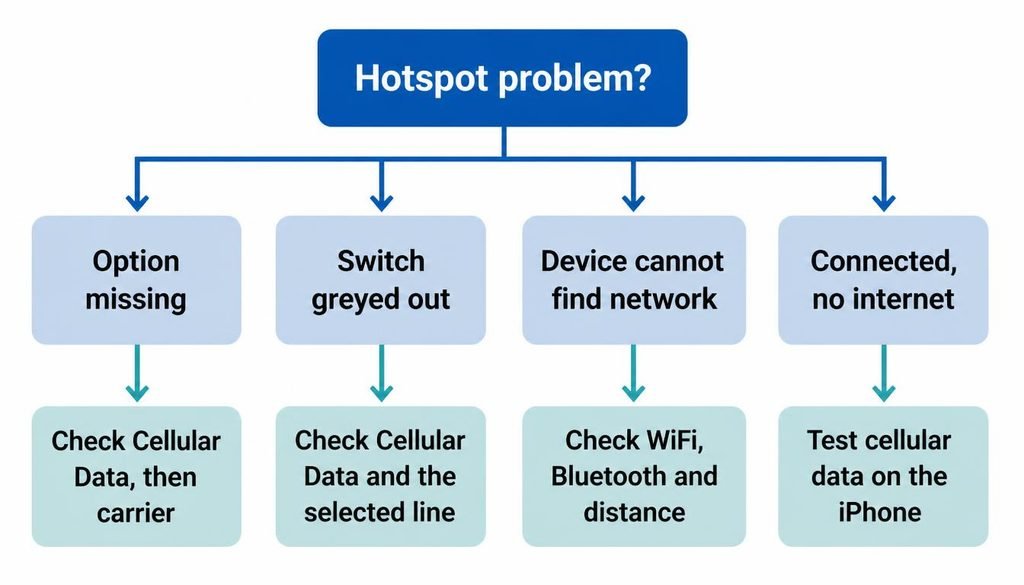
Why Personal Hotspot is missing or greyed out
Two different problems look similar:
- Missing: the Personal Hotspot row, or the Set Up Personal Hotspot option, does not appear at all.
- Greyed out: the row appears, but the control is dimmed or unavailable.
Check these in order.

- Cellular Data. Open Settings > Cellular and make sure Cellular Data is on. Apple gives this as the first check when the option is dimmed or unavailable.
- The selected cellular line. On an iPhone with two SIMs, Personal Hotspot uses the line you select for cellular data. Make sure that line has working data.
- Carrier support. Personal Hotspot requires a carrier that supports it, and extra fees may apply. Apple’s carrier support list shows Personal Hotspot for many carriers, often with a note that an added fee or requirement may apply.
- Carrier settings. Open Settings > General > About. If an update appears, follow the onscreen instructions. Apple explains how to update carrier settings manually.
- iOS update and restart. Install the latest iOS and restart the iPhone.
You can safely check steps 1, 2, 4, and 5 yourself. If Cellular Data is on and Set Up Personal Hotspot is still missing, Apple advises contacting your carrier about adding Personal Hotspot to your plan. The carrier must turn that on, and your phone settings cannot override it.
Troubleshooting checklist
Try the steps in order, and test the connection after each one. The list starts with the least disruptive fixes.
- Test cellular internet on the iPhone itself. Open a webpage in Safari. If it does not load, the hotspot cannot work either.
- Confirm the selected cellular line has working data. This matters most on Dual SIM iPhones.
- Check the Personal Hotspot settings. Confirm Allow Others to Join is on and note the password. Stay on the screen while the other device connects.
- Toggle WiFi and Bluetooth. On the device that needs to connect, turn WiFi off and on, then choose the correct network name. If that device has trouble with WiFi in general, see fixing common WiFi connection problems.
- Keep the devices close. Apple says they should be within 30 feet (10 meters).
- Restart both devices.
- Install updates. Check for the latest iOS and carrier settings.
- Try Maximize Compatibility. Go to Settings > Personal Hotspot and turn on Maximize Compatibility if you see it. Apple lists it for iPhone 12 and later, and notes it may reduce internet performance and WiFi security for connected devices. Verizon’s support page describes the setting as switching the network from 5 GHz to 2.4 GHz.
- Contact your carrier. Ask them to confirm that hotspot is included and provisioned on your plan.
- Reset Network Settings, only after the steps above fail. Go to Settings > General > Transfer or Reset iPhone > Reset > Reset Network Settings. Apple says this also resets saved WiFi networks and passwords, mobile data settings, and VPN and APN settings you have used before. Expect to rejoin WiFi networks afterward.
Do not erase the iPhone or change APN values as a hotspot fix. Apple’s hotspot guidance does not recommend either.
For a Mac that cannot connect over USB, Apple suggests updating macOS, confirming the iPhone appears in Finder, then making the iPhone USB network service inactive and active again in Network settings.
Hotspot data usage and security
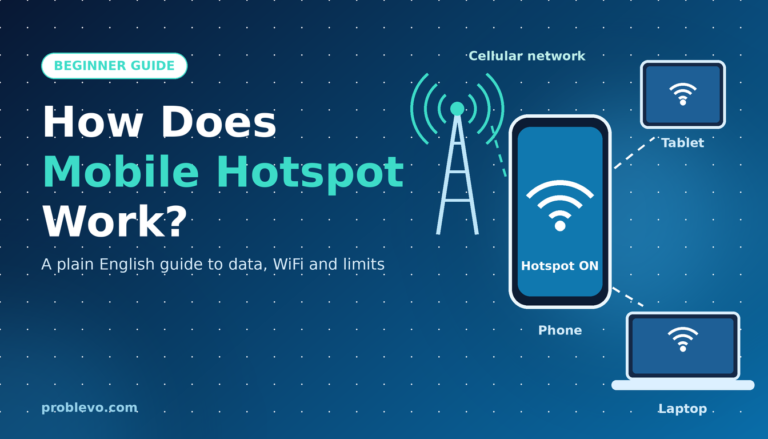
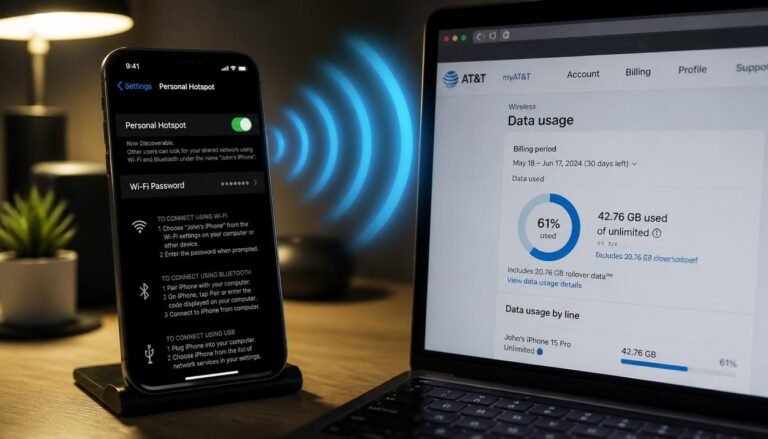
Personal Hotspot uses your iPhone’s cellular data. Every connected device adds to that usage, and updates, video streaming, cloud sync, and large downloads can use a lot quickly. You can review iPhone usage under Settings > Cellular, but your carrier account shows the real hotspot allowance. For that, see checking how much hotspot data you have left.
Apple also notes that some apps and features that require WiFi, such as iCloud backup, may not work over a hotspot.
Practical safety habits
- Use a password you do not share widely, and change it if you gave it to someone temporarily.
- Share the hotspot only with devices you recognize.
- Turn off Allow Others to Join when you are finished.
Common mistakes
- Expecting the iPhone to share a WiFi network. Apple states that Personal Hotspot shares the iPhone’s cellular connection. It cannot join a WiFi network and pass that network along.
- Leaving the Personal Hotspot screen too early. Apple advises staying on it until the other device connects.
- Confusing “connected” with “online.” A device can show a WiFi connection and still have no usable internet. Test the iPhone’s own cellular data first, and read about the difference between WiFi and internet access.
- Treating screen sharing as internet. Mirroring a screen does not give a device internet access. See screen mirroring without WiFi for how it works.
- Using the hotspot to avoid a home network fault. If the home router is the real problem, learn accessing router settings when troubleshooting a home network.
- Typing an old password. Check the current one in Personal Hotspot settings.
FAQ
Why can’t I turn on my mobile hotspot on my iPhone?
Start with Cellular Data. Open Settings, tap Cellular, and make sure Cellular Data is on. Personal Hotspot also needs a carrier and plan that support it, and some plans charge extra. If the switch still will not turn on, restart the iPhone, install updates, and ask your carrier to confirm hotspot access.
Why is my hotspot greyed out?
A greyed out hotspot usually points to Cellular Data or the carrier plan. Apple advises confirming that Cellular Data is on, because Personal Hotspot also requires a carrier that supports it. Turn on Cellular Data, check the correct line on a Dual SIM iPhone, then contact your carrier if the control stays unavailable.
How do I activate the hotspot on my iPhone?
Open Settings, tap Personal Hotspot, and turn on Allow Others to Join. On some iOS versions you reach it through Settings, Cellular, then Personal Hotspot. First time setup may show a Set Up Personal Hotspot option under Cellular. Keep the screen open until the other device joins using the WiFi password shown there.
Why isn’t my Personal Hotspot showing up on my iPhone?
A missing option often means the carrier has not enabled it for your plan. Apple says that if Cellular Data is on but Set Up Personal Hotspot is missing, you should contact your carrier about adding it. Install the latest carrier settings update first, then restart the iPhone before calling.
How do I turn on hotspot on iPhone 17?
The steps are the same as on other recent iPhones. Open Settings, tap Personal Hotspot, then turn on Allow Others to Join. Some iOS versions place it under Cellular instead. The Apple guide describes one procedure for every model, and carrier support still applies.
Can I use my iPhone hotspot without WiFi?
Yes, because Personal Hotspot shares cellular data, not a WiFi connection. The iPhone needs working Cellular Data, but it does not need to be joined to a WiFi network. Apple also states that an iPhone cannot connect to a WiFi network and then share that network through Personal Hotspot.
Why can my laptop not find my iPhone hotspot?
Stay on the Personal Hotspot screen until the laptop connects. Apple recommends keeping both devices within 30 feet (10 meters) with WiFi and Bluetooth on. Turn WiFi off and on again on the laptop, confirm Allow Others to Join is on, and look for the exact name of your iPhone in the network list.
How do I change my iPhone hotspot password?
Go to Settings, Personal Hotspot, then tap Wi-Fi Password. Enter a new password of at least eight characters using only ASCII characters, such as English letters, numbers, and some punctuation marks. On some iOS versions the same screen is under Settings, Cellular, then Personal Hotspot. Reconnect each device with the new password.
Does using Personal Hotspot consume mobile data?
Yes. Personal Hotspot uses the cellular data connection of the iPhone. Every connected device adds to that usage, including updates, video, and cloud sync. You can review usage under Settings, Cellular. Your carrier account shows the hotspot allowance and what remains, because the iPhone counter does not always match the billing cycle.
Why is my iPhone hotspot connected but not working?
First test cellular internet on the iPhone itself. If Safari cannot load a page there, the connected device cannot either. If the iPhone works, restart both devices, try Maximize Compatibility on iPhone 12 or later, and note that iCloud backup and some features that require WiFi may not work over a hotspot.
Conclusion
The simplest working solution is short: turn on Cellular Data, open Settings, tap Personal Hotspot, and switch on Allow Others to Join. That is the whole answer to how do you turn on mobile hotspot on iPhone for most people. If it fails, decide which problem you have first: a missing option, a greyed out control, a device that cannot find the network, or a device that connects without internet. Then follow the matching checks above, and contact your carrier if the option is missing after Cellular Data is on.
For more plain troubleshooting guides, browse the Mobile & iOS Guides section on Problevo.

6 Comments