WiFi Connected but No Internet Access? Fix It, Guide (2026)
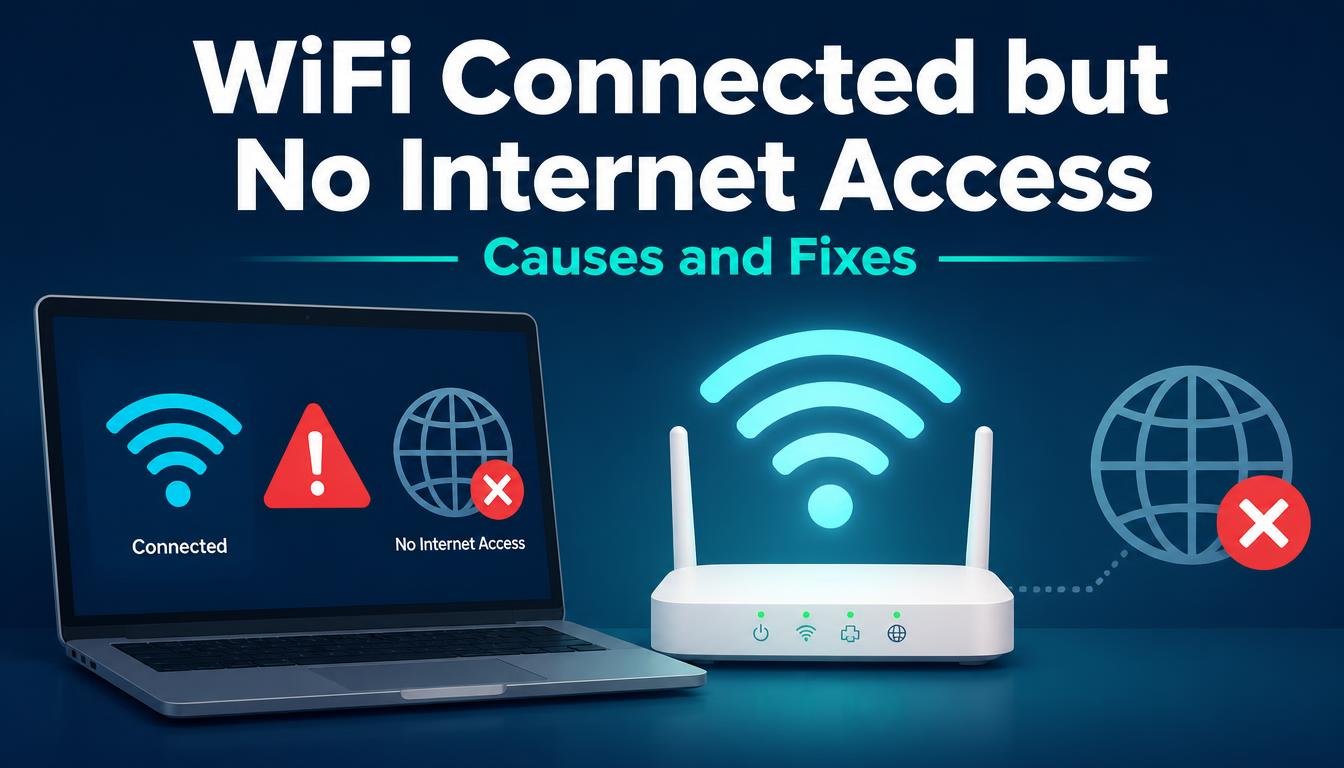
Your phone or laptop shows full WiFi bars, yet no page loads. The device has joined your router, but something between the router and the wider internet has failed.
Quick Answer ( WiFi Connected but No Internet Access )
⚡ Quick Answer: WiFi Connected But No Internet
Being “Connected” only means your device joined the router, not that the router can reach the internet.
- Every device is offline? Suspect the router, modem, or your ISP.
- Only one device is offline? Suspect that specific device, its settings, or its network adapter.
Table of Contents
Quick Diagnostic Table
| Symptom | Likely Cause | What to Do |
|---|---|---|
| Every device has no internet | ISP outage, modem or router fault | Check ISP, restart modem then router |
| Only one laptop has no internet | Device settings, DNS, adapter or VPN | Forget network, check IP, disable VPN |
| Phone works, laptop does not | Problem is on the laptop | Follow the Windows section |
| Router page opens, websites do not | Router has no internet or DNS is failing | Run the three ping test |
| Works on mobile hotspot, not home WiFi | Home router or its configuration | Restart router, check settings, contact ISP |
| Error messages mention DNS | Name lookup is failing | Flush DNS, check DNS servers |
| WiFi drops repeatedly | Interference, weak signal or power saving | Move closer, try another band |
| Network reset did not help | Fault is outside the device | Test other devices and the ISP |
This guide focuses on the path from your device to your router, ISP and the internet. Menu names can differ by device model and operating system version.
What “Connected but No Internet” Actually Means
Internet access travels through a chain:
Device, then WiFi, then router, then modem or WAN port, then ISP, then the internet.
The WiFi icon only confirms the first two links. Your device can be connected to the router with a valid local address while the router has no connection to the ISP. That is why strong bars do not prove the internet works.
The failure can sit at five places:
- Device: wrong settings, a bad driver or an interfering VPN.
- WiFi link: weak signal or interference.
- Router: crashed, misconfigured or not receiving an address from the ISP.
- Modem or WAN: a loose cable or a modem that has lost its line.
- ISP: an outage or an account problem.

WiFi Connected but No Internet Access?
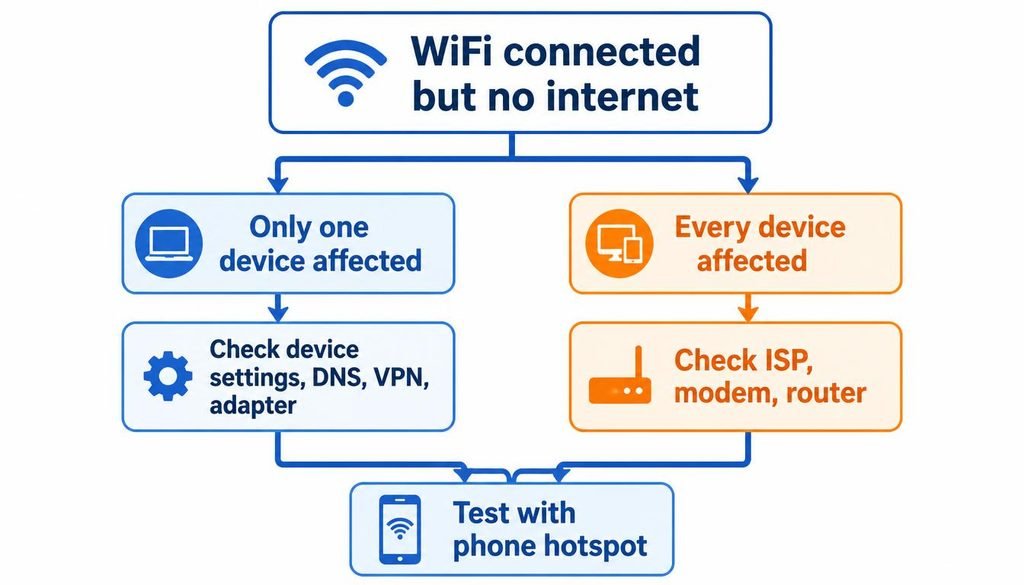
First Determine Whether One Device or Every Device Is Affected
This one test removes half of the possible causes.
Only one device affected
The router and ISP are probably fine. Focus on the device: its WiFi profile, IP address, DNS, VPN, proxy or network adapter.
Every device affected
The fault is probably the router, modem, WAN connection or ISP. Fixing one laptop will not help.
Test with another device
Connect a second device to the same WiFi. If it also has no internet, the problem is upstream of both devices.
Test using a mobile hotspot
Connect the affected device to your phone hotspot. If it works there, the device can reach the internet and the fault is with your home network. If it still fails, the device itself is the problem. You can check how much hotspot data you have left before testing, because a laptop can use data quickly.
The Fastest Fixes, in Order
Step 1: Check for an ISP outage
Use your ISP status page or app on mobile data. If your ISP reports an outage, wait. No setting on your devices will fix it.
Step 2: Restart the modem and router correctly
- Unplug the router and the modem.
- Wait about 30 seconds.
- Plug in the modem first and wait until it settles.
- Plug in the router and wait a few minutes.
Restarting only the router can miss the cause when the modem is the one holding a bad connection.
Step 3: Check cables and indicator lights
Confirm the cable from the modem to the router WAN or internet port is firmly seated. Indicator light colors and meanings differ by manufacturer, so check your router manual before assuming a red or amber light means a specific fault.
Step 4: Restart the affected device
A restart clears temporary network states and is quick to try.
Step 5: Forget and reconnect to the WiFi network
On Windows, Microsoft lists Network & internet > Wi-Fi > Manage known networks, then select the network and choose Forget. Reconnect with the password. Android uses a similar flow, covered below. Have the WiFi password ready first.
Windows Troubleshooting
These steps cover Windows 11 and Windows 10. Names can differ slightly between versions.

Run the three ping test
Open Command Prompt and run the tests in order. A ping tells you whether a destination replies.
- Find the default gateway with ipconfig /all. This is your router address.
- Run ping followed by the gateway address.
- Run ping 8.8.8.8. This is a public address used only as a test target.
- Run ping google.com.
| Result | What it indicates | Next action |
|---|---|---|
| Gateway ping fails | Problem between device and router | Reconnect WiFi, restart router, check adapter |
| Gateway works, 8.8.8.8 fails | Router cannot reach the internet | Check modem, WAN cable, ISP |
| 8.8.8.8 works, google.com fails | DNS failure | Flush DNS, check DNS servers |
| All three work, browser fails | Proxy, VPN, browser or firewall issue | Check proxy and VPN settings |
Some networks and firewalls block ping replies, so a failed ping is a strong clue but not absolute proof.
Read the output of ipconfig /all
ipconfig /all shows the full network configuration. Look at these lines:
| Line | Healthy sign | Warning sign |
|---|---|---|
| IPv4 Address | An address in your home range | An address starting with 169.254 |
| Default Gateway | Shows the router address | Blank |
| DHCP Enabled | Yes | No, when you did not set a manual address |
| DNS Servers | Router address or a known provider | Unexpected or unreachable servers |
An address starting with 169.254 is an automatic private address. Windows assigns it when it cannot get an address from the router, so the device is not receiving proper settings.
A valid local address with a gateway but no outside connectivity points at the router WAN side or ISP, not at your PC.
Release and renew the IP address
ipconfig /release drops the current address. ipconfig /renew asks the router for a new one. Use them when the address looks wrong or missing. Afterward, run ipconfig /all again and check that a valid address and gateway appear. They do not fix every problem.
Flush the DNS cache
ipconfig /flushdns clears stored name lookups. It helps when old or bad DNS entries cause failures. Afterward, test with the ping to google.com again.
Check the network adapter
Open Device Manager and expand Network adapters. Look for a warning icon on your WiFi adapter. A driver update is worth trying only if the adapter shows a fault or if the problem followed an update. Updating drivers without evidence of an adapter problem wastes time.
Network reset as a late step
Microsoft says network reset should be the last step you try. On Windows 11 it is under Advanced network settings > Network reset. It removes installed network adapters and their settings and can require you to set up VPN and virtual switch software again. Use it after the simpler fixes fail.
DNS Troubleshooting
DNS turns a website name into an address. When DNS fails, you may be fully online but unable to open any named site, which looks like an outage.
How to test: If ping 8.8.8.8 works and ping google.com fails, DNS is the likely cause.
What to do:
- Flush the DNS cache.
- Check that the DNS setting is automatic unless you set one on purpose.
- Restart the router, which often provides DNS.
Changing to a public DNS provider can help in some cases, but it is not a universal fix. Test first. If DNS is not the problem, changing it will not help.
Android and Samsung Troubleshooting
Menu names vary by manufacturer and Android version.
- Test another network. Google suggests trying another device or another WiFi network to find out whether the phone or the network is at fault.
- Forget and reconnect. In Android WiFi settings, tap the network, choose Forget, then add it again. On many Samsung phones this is under Settings > Connections > Wi-Fi, then the gear icon next to the network.
- Check date and time. Google notes that an incorrect date and time can cause WiFi problems. Set them to automatic.
- Check Private DNS. On many Android phones it sits near Settings > Network & internet > Private DNS. Samsung phones commonly place it under Settings > Connections > More connection settings. Set it to Automatic or Off if you set a custom value earlier.
- Turn off VPN. A VPN that is not working can block all traffic.
- Reset network settings. On Pixel and stock Android, Google lists System > Reset options > Reset Bluetooth & Wi-Fi. Samsung phones commonly use General management > Reset > Reset network settings. This removes saved WiFi networks and Bluetooth pairings, so have your passwords ready.
Google also suggests testing in safe mode. If WiFi works in safe mode, an installed app may be interfering.
Other Devices
- iPhone and Mac: Forget the network and rejoin, then restart the device. The same one device versus all devices test applies.
- Smart TV: TVs often fail after a router change. See connecting a smart TV to WiFi and the guide on how to connect a TV to the internet.
- Printer: A printer can lose its connection after a router restart. See connecting a printer to WiFi.
- Ethernet: Plug a laptop into the router with a cable. If Ethernet works and WiFi does not, the problem is the WiFi link. If both fail, look at the router or ISP.
Advanced Troubleshooting
Try these only after the basics.
Proxy settings. Likely when a browser fails but ping works. Check that no proxy is set unless your workplace requires one.
VPN, firewall and security software. Likely when the problem began after installing or updating such software. Temporarily turn off the VPN and test. Do not leave security software off.
WiFi band and interference. If both a 2.4 GHz and a 5 GHz network exist, Microsoft suggests trying the other one. 2.4 GHz reaches farther. 5 GHz is usually faster at short range. Crowded channels can cause drops. Moving closer to the router is a safe test.
Captive portals. Hotels, cafes and campus networks may require a sign in page. Open a browser and try a plain website to trigger the page.
Router firmware and settings. An outdated or misconfigured router can fail to connect to the ISP. To check, access your router settings and look at the WAN or internet status. Changing router settings carries risk, so note the original values first.
MAC filtering or access control. If your router limits which devices may join, a device can connect to WiFi but be blocked. Check the allowed device list in the router.
ISP authentication. Some ISPs require a login or registered device. If the router shows no WAN address, contact the ISP.
For more general fixes, see this guide on fixing WiFi connection problems.
Factory Reset Warning
A factory reset is not the same as restarting the router. A restart only reboots it. A factory reset erases the router configuration. You may lose:
- the WiFi name and password
- ISP login or configuration
- port forwarding rules
- access control lists
- all other custom settings
Reset only after every other test points to the router and you have saved the settings you need.
Decision Tree
IF every device has no internet:
   Check ISP outage
   Restart modem, then router
   Check the WAN cable and indicators
   Test one device by Ethernet
   Check WAN status in router settings
   Contact the ISP if the WAN shows no address

IF only one device has no internet:
   Restart the device
   Forget and reconnect to WiFi
   Run ipconfig /all (check address, gateway, DNS)
   Run the three ping test
   Check VPN, proxy and security software
   Check the network adapter

IF the device works on a mobile hotspot:
   The device is fine
   Investigate the home router, DNS, DHCP or router settings

IF the device fails on every network:
   Investigate drivers, firewall, VPN, proxy or the operating system
   Reset network settings as a late step
Common Mistakes That Waste Time
- Factory resetting the router too early.
- Changing DNS without testing whether DNS is the problem.
- Updating drivers without evidence that the adapter is at fault.
- Restarting only the router when the modem also needs a restart.
- Assuming strong WiFi bars mean the internet works.
- Blaming the ISP when only one device is affected.
- Blaming the device when every device is offline.
When to Contact Your ISP
Contact your ISP when all devices fail, Ethernet fails too, the modem and router have been restarted correctly, and the router shows no WAN address. If the router is old, hardware replacement may be worth discussing after the ISP confirms the line is working.
FAQ
Why is my WiFi connected but no internet is loading?
Your device joined the router, but the router may have no working connection to the internet, or your device may have a settings fault. Test another device. If all fail, restart the modem and router and check the ISP. If only one fails, fix that device.
How to fix WiFi with no internet access?
First decide whether one device or every device is affected. For every device, check the ISP outage and restart the modem and router. For one device, forget the network, reconnect, then check the IP address and DNS. Work through the steps in order instead of resetting at once.
Why is my internet connected but I do not have any signal?
These are two different things. “No signal” usually means no cellular or WiFi radio signal, while “connected” means the device joined a network. Check that WiFi is on, move closer to the router, and confirm the phone is not in airplane mode. If bars show, the fault is likely upstream.
What causes WiFi to have no internet connection?
Common causes are an ISP outage, a modem or router fault, a DNS failure, a bad IP address, a VPN or proxy, an incorrect date and time, or a faulty network adapter. The cause depends on whether one device or all devices are affected.
Why does WiFi work on my phone but not my laptop?
The router and ISP are fine, so the problem is on the laptop. Forget and reconnect, run ipconfig /all to check the address and gateway, and turn off any VPN. A network adapter or driver issue is possible if those checks pass.
How do I know whether the router or my device is the problem?
Connect a second device and try your phone hotspot. If other devices also fail on the home WiFi, suspect the router, modem or ISP. If the device works on the hotspot but not at home, the home network is at fault. If it fails everywhere, the device is.
What does ipconfig /all tell me?
It shows your IP address, default gateway, DHCP status and DNS servers. An address beginning with 169.254 means the device did not receive a proper address from the router. A blank default gateway also points to a connection problem with the router.
Should I change my DNS server?
Only if a test points to DNS. If ping 8.8.8.8 works but ping google.com fails, DNS is the likely cause and changing it may help. If both fail, DNS is not the problem and changing it will not fix the connection.
Will a factory reset fix WiFi connected but no internet?
Rarely as a first step. A factory reset erases your WiFi name, password and ISP settings. It can help when the router configuration is corrupted, but only after simpler tests show the router is at fault. A normal restart is far safer to try first.
When should I call my ISP?
Call when every device has no internet, a cable test also fails, and a correct modem and router restart did not help. Also call if the router shows no WAN or internet address. Report which devices you tested and what the router status shows.
Conclusion
WiFi connected but no internet access is easier to fix once you stop guessing. Decide whether one device or every device is affected, then run the ping test to separate router, DNS and ISP problems. Save factory resets for the end. If the problem remains after these steps, your ISP is the next call. For related help, see how to fix WiFi connection problems on Problevo.