

How Do I Find My Hotspot Password? Easy Steps Guide (2026)
If you are wondering how do I find my hotspot password, you can usually find it in your phone’s hotspot settings within a few taps. This guide explains where to find your hotspot password on Android, Samsung Galaxy, Google Pixel, Motorola, Xiaomi, Redmi, and iPhone, plus what to do when the password is missing or another device cannot connect.
Quick Answer
Quick Answer
To find your hotspot password, open your phone’s hotspot settings and look for the password field. On Pixel, go to Settings > Network & internet > Hotspot & tethering > Wi Fi hotspot. On Samsung, open Settings > Connections > Mobile Hotspot and Tethering > Mobile Hotspot. On iPhone, open Settings > Personal Hotspot and check Wi Fi Password. Menu names vary by device and software version.
Table of Contents
Quick Diagnosis
| Symptom | Root Cause | Actionable Fix |
|---|---|---|
| Cannot find the hotspot password | The hotspot settings are in a different menu | Search Settings for hotspot or mobile hotspot |
| Hotspot option is missing | Carrier or device restrictions may apply | Check your mobile plan or contact your carrier |
| Password is not visible | It may be inside a configuration screen | Open Configure, Set up, or the password field |
| Another device cannot connect | Incorrect password, network name, or compatibility issue | Confirm the hotspot name and password, then check compatibility settings |
| Previous password no longer works | The hotspot password was changed | Check the current password and reconnect |
| Hotspot keeps turning off | Timeout or power saving settings may be enabled | Check the hotspot timeout and power saving options |
Which Password Do You Need?
Several phone credentials can sound similar, but they are not the same.
- Hotspot password: Protects the Wi Fi network created by your phone.
- Home Wi Fi password: Protects your home wireless network.
- Router password: Usually refers to the administrator credentials used to access your router settings. You can learn more in our guide to accessing router settings.
- Phone lock password: Used to unlock your phone.
- SIM PIN: Protects access to your SIM.
- Carrier account password: Used to access your mobile provider account.
If another device is asking for a password while connecting to your phone’s hotspot, you normally need the hotspot password, not your phone’s lock password or your home Wi Fi password.
How Do I Find My Hotspot Password on Android?
The exact menu can vary between Android manufacturers, but the general Android hotspot settings are usually found under Network & internet or a similarly named connection menu.
On Pixel phones, Google currently documents this path:
- Open Settings.
- Tap Network & internet.
- Tap Hotspot & tethering.
- Tap Wi Fi hotspot.
- Tap the hotspot settings to view or change the name or password.

Google also notes that some Android phones can share mobile data through Wi Fi, Bluetooth, or USB. Some carriers may restrict or charge for tethering.
If your phone does not use these exact menu names, search the Settings app for hotspot.
How do I find my hotspot password?
Samsung Galaxy
Samsung uses a different menu structure from stock Android.
To find the password on many Galaxy phones:
- Open Settings.
- Tap Connections.
- Tap Mobile Hotspot and Tethering.
- Tap Mobile Hotspot.
- Look for the Password field.
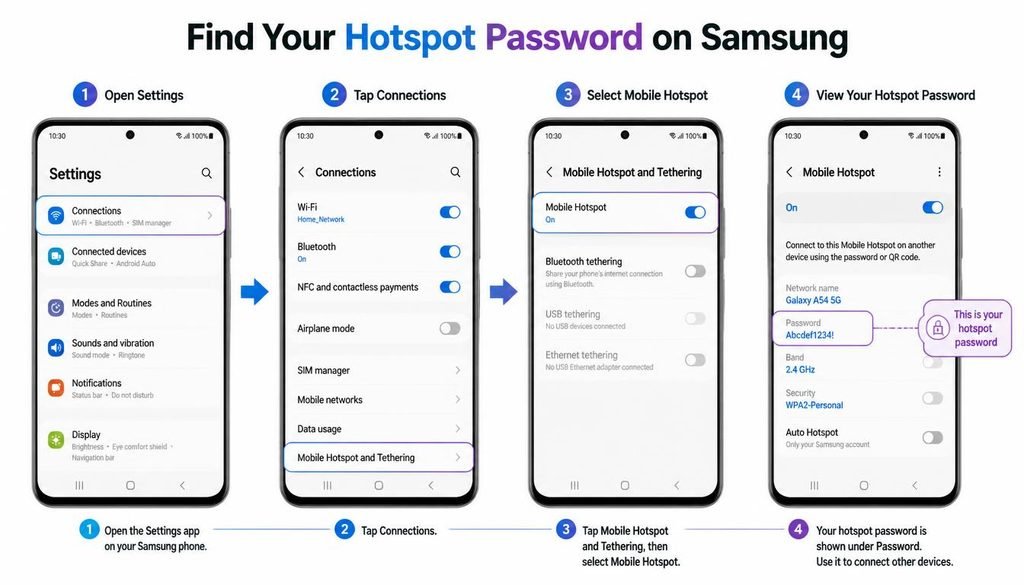
On supported Galaxy devices, Samsung also lets you change the network name, password, security setting, and hotspot band from the Mobile Hotspot configuration screen. Samsung’s current support documentation confirms this path and notes that options can vary by device and carrier.
If you see a Configure option, open it to view or change the password.
Samsung Hotspot QR Code
If you want someone to connect without typing the password, some Galaxy phones provide a QR Code option inside the Mobile Hotspot settings.
The general process is:
- Open Settings.
- Tap Connections.
- Tap Mobile Hotspot and Tethering.
- Tap Mobile Hotspot.
- Tap QR Code if the option is available.
- Let the other device scan the displayed code.
Samsung currently documents QR based hotspot sharing on supported Galaxy devices. Availability can vary by model and regional software version.
Samsung One Time Hotspot Password
Some newer Galaxy phones also support a One time password feature.
When enabled, Samsung generates a temporary password for the hotspot. A new password is generated after the hotspot is turned off and turned on again. Samsung’s current documentation says the feature and available settings can vary by software version and phone model.
This is useful when you want to let someone connect temporarily without giving them a permanent hotspot password.
Google Pixel Hotspot Password
Google provides a specific path for Pixel phones:
- Open Settings.
- Tap Network & internet.
- Tap Hotspot & tethering.
- Tap Wi Fi hotspot.
- Tap the hotspot setting to find or change the password.
Google also states that a Pixel can share its mobile data connection with up to 10 devices through a Wi Fi hotspot. Carrier restrictions can still apply.
If you have used the hotspot before and cannot find the setting, swipe down to Quick Settings and look for the Hotspot tile. On supported Android devices, touching and holding the tile can take you to the hotspot settings.
How to Find Your Hotspot Password on Motorola
Motorola phones can use slightly different menu names depending on the model and Android version.
Try this path:
- Open Settings.
- Tap Network & internet.
- Tap Hotspot & tethering.
- Tap Wi Fi hotspot.
- Open the hotspot settings and look for the password.
If your Motorola uses a different label, search Settings for hotspot or tethering.
Some Motorola models also provide settings for connected devices, device limits, and hotspot compatibility. These options can vary by model, software version, and carrier.
How to See Your Hotspot Password on Xiaomi and Redmi
Xiaomi and Redmi phones can use labels such as Portable hotspot or Portable Wi Fi hotspot.
A common path is:
- Open Settings.
- Tap Connection & sharing or More connectivity options.
- Tap Portable hotspot.
- Tap Set up portable hotspot.
- Find the Password field.
Current Xiaomi documentation shows the Portable hotspot settings under Connection & sharing on some devices, while other current Xiaomi models use More connectivity options > Portable hotspot. Xiaomi also documents changing the hotspot name and password from Set up portable hotspot.
Because Xiaomi and Redmi menu names can vary between MIUI, HyperOS, Android versions, and models, using the Settings search box for hotspot can be the fastest option.
How Do I Find My Hotspot Password on iPhone?
On an iPhone, the feature is called Personal Hotspot.
To find the password:
- Open Settings.
- Tap Personal Hotspot.
- Look for Wi Fi Password.
On some iPhone configurations, you may reach Personal Hotspot through Cellular or Mobile Service first.

Apple currently documents the Wi Fi Password setting as the password used by other devices to join the iPhone’s Personal Hotspot. You can also change the password from this screen.
How to Change the iPhone Hotspot Password
- Open Settings.
- Tap Personal Hotspot.
- Tap Wi Fi Password.
- Enter a new password.
- Save the new password.
Apple states that the Personal Hotspot password must contain at least eight characters. Changing the password disconnects devices that are already connected, so they will need the new password.
How Do I Give Someone My Hotspot Password?
You have several options depending on your phone.
Option 1: Show the Password
Open the hotspot settings and show the password to the person who needs to connect.
They can then open Wi Fi settings on their device, select your hotspot name, enter the password, and connect.
Option 2: Use a Samsung QR Code
On supported Samsung Galaxy phones, open the Mobile Hotspot settings and select QR Code.
The other device can scan the code instead of manually entering the password.
Option 3: Use iPhone Instant Hotspot
Apple supports automatic hotspot connections between compatible Apple devices. When the devices meet Apple’s requirements, another Apple device using the same Apple Account can connect without manually entering the hotspot password.
Option 4: Connect a Windows PC
On Windows:
- Open the Wi Fi network list.
- Select your phone’s hotspot name.
- Enter the hotspot password.
- Select Connect.
Option 5: Connect a Mac
Open the Wi Fi menu on the Mac, select the phone’s hotspot, and enter the password when requested.
Option 6: Connect a Smart TV
If you are connecting a television to your phone’s hotspot, select the hotspot from the TV’s Wi Fi settings and enter the password.
You can also read our guides on how to connect a smart TV to Wi Fi and how to connect a TV to the internet.
Option 7: Connect a Printer
If the goal is to put a printer online through your phone’s hotspot, check our guide on how to connect a printer to Wi Fi.
QR sharing and automatic hotspot sharing are not available in the same way on every phone.
What If You Cannot See the Hotspot Password?
If the password is not where you expect it to be, work through these checks.
1. Search Settings for Hotspot
Open your phone’s Settings app and search for:
hotspot
You may also find it under:
tethering
mobile hotspot
portable hotspot
Personal Hotspot
2. Open the Settings Page, Not Just the Switch
Some phones show a hotspot switch without immediately displaying the configuration details.
Tap the words Wi Fi hotspot, Mobile Hotspot, or Personal Hotspot to open the full settings page.
3. Look for Configure or Set Up
Some devices place the password inside:
Configure
Set up
Advanced
or a similar settings menu.
4. Check Your Mobile Plan
Not every carrier supports hotspot access under every plan. Google and Apple both advise checking with the carrier when Personal Hotspot or tethering is unavailable.
5. Check for Device Management
A work or school managed phone may restrict hotspot or tethering features.
If the phone belongs to an organization, contact the administrator if the hotspot option is unavailable.
6. Restart the Phone
If the hotspot settings are missing because of a temporary software issue, restart the phone and check the settings again.
What If the Other Device Cannot Connect?
If you found the correct password but another device still cannot connect, check these items in order.
- Confirm that the hotspot is turned on.
- Confirm that mobile data is available.
- Select the correct hotspot network name.
- Reenter the password carefully.
- Move the devices closer together.
- Check whether the hotspot has reached its device limit.
- Turn Wi Fi off and on again on the receiving device.
- Restart the hotspot.
- Restart the receiving device.
- Check the hotspot’s security and band settings if the receiving device is older.
For example, Samsung documents changing the hotspot band when an older device cannot detect the network. Samsung also recommends checking the security setting when a device cannot connect to a Galaxy hotspot.
On Pixel, Google recommends checking hotspot settings and restarting the hotspot if necessary. Google also notes that some devices cannot use Wi Fi and a hotspot at the same time.
For problems on the receiving device, see our guide on how to fix Wi Fi.
Why Does My Hotspot Keep Turning Off?
A hotspot can turn off automatically when no device is connected or when a timeout or power saving setting is enabled.
For example, Google documents automatic hotspot shutdown after a period without connected devices on some Pixel phones.
Check the hotspot settings for options such as:
Turn off automatically
Turn off when no device is connected
Power saving mode
The exact wording depends on the phone.
How to Change Your Hotspot Password
You normally change the password from the same screen where you found it.
Android
Open the hotspot settings and tap the password field.
Samsung
Go to:
Settings > Connections > Mobile Hotspot and Tethering > Mobile Hotspot
Then open the password or configuration setting. Samsung confirms that the password can be viewed and changed from the Mobile Hotspot settings.
Xiaomi and Redmi
Open:
Settings > Connection & sharing > Portable hotspot > Set up portable hotspot
Then edit the password where available.
iPhone
Go to:
Settings > Personal Hotspot > Wi Fi Password
Then enter the new password.
After changing the password, previously connected devices may need to reconnect using the new password.
Hotspot Password Ideas and Security Tips
A good hotspot password should be unique, difficult to guess, and long enough to resist simple guessing attempts.
Avoid using:
- Your phone number
- Your name
- Your birthday
- Your address
- A simple sequence such as 12345678
Fictional examples of stronger password patterns include:
- Maple7 Teapot Rain 42
- BlueKettle Orbit 58
- Harbor Lantern Stone 903
Do not copy these examples as your actual password.
If someone you do not know has connected to your hotspot, change the password and reconnect only the devices you trust.
You can also monitor your mobile data usage with our guide on how much hotspot data you have left.
Is a Hotspot Password the Same as a Wi Fi Password?
No.
Your hotspot password protects the Wi Fi network created by your phone.
Your home Wi Fi password protects the wireless network created by your router.
These are separate credentials.
For example, if your laptop is connected to your phone’s hotspot, it needs the phone’s current hotspot password. It does not need the password for your home router.
Can You Connect Without Typing the Hotspot Password?
Sometimes.
Some devices support methods that avoid manually entering the password.
Samsung supports QR code hotspot sharing on supported Galaxy devices.
Apple supports Instant Hotspot for compatible Apple devices that meet the required account and connectivity conditions.
Google also supports instant hotspot and automatic credential sharing between compatible personal devices, although the exact experience varies by device and manufacturer.
These features are not universal, so if the automatic option does not appear, use the normal Wi Fi password method.
FAQ (How Do I Find My Hotspot Password?)
How do I find my hotspot on Android?
Open Settings > Network & internet > Hotspot & tethering > Wi Fi hotspot on devices that use Google’s standard Android menu structure. From there, you can view or change the hotspot name and password. Samsung, Xiaomi, Motorola, and other manufacturers can use different menu names, so search Settings for hotspot if necessary.
What is the hotspot password on Samsung?
On a supported Samsung Galaxy phone, open Settings > Connections > Mobile Hotspot and Tethering > Mobile Hotspot. The Password appears in the hotspot settings and can be changed there. Samsung also provides QR code sharing on supported models, which lets another device connect without manually typing the password.
How do I find my iPhone hotspot password?
Open Settings > Personal Hotspot and look for Wi Fi Password. Depending on your iPhone configuration, Personal Hotspot may also appear through Cellular or Mobile Service. Tap Wi Fi Password if you want to view or change it.
How do I give someone my hotspot password?
You can show them the password from your hotspot settings and let them enter it in their Wi Fi settings. On supported Samsung Galaxy phones, you can also use a QR Code. Compatible Apple devices can use Instant Hotspot without manually entering the password when Apple’s requirements are met.
How do I find my hotspot password on a Google Pixel?
Open Settings > Network & internet > Hotspot & tethering > Wi Fi hotspot. Tap the hotspot settings to view or change the password. Google also documents sharing a Pixel hotspot with up to 10 devices, although carrier restrictions can apply.
How do I find my hotspot password on Motorola?
Open Settings and look for Network & internet > Hotspot & tethering > Wi Fi hotspot. The exact wording can vary by Motorola model and Android version. If you cannot find the option, use the Settings search box and enter hotspot or tethering.
How do I see my hotspot password on Xiaomi or Redmi?
On many Xiaomi and Redmi phones, open Settings > Connection & sharing > Portable hotspot > Set up portable hotspot. Some models use a slightly different path, such as More connectivity options > Portable hotspot. The password is available inside the hotspot setup screen.
Why can I not see my hotspot password?
The menu may be different on your phone, or the password may be inside Configure, Set up, or another hotspot settings screen. Search Settings for hotspot. If Personal Hotspot or tethering is completely unavailable, your carrier plan or a device management policy may be restricting the feature.
Is the hotspot password the same as my Wi Fi password?
No. Your hotspot password protects the Wi Fi network created by your phone. Your home Wi Fi password belongs to your router and home wireless network. A phone’s hotspot password is also different from its screen lock password, SIM PIN, and carrier account password.
How do I change my hotspot password?
Open your phone’s hotspot settings and edit the password field. On iPhone, use Settings > Personal Hotspot > Wi Fi Password. On Samsung, use the Mobile Hotspot configuration settings. Xiaomi and Redmi devices provide the password under Set up portable hotspot on supported models.
Conclusion
Your hotspot password is normally stored inside your phone’s hotspot settings. On Google Pixel, check Network & internet > Hotspot & tethering > Wi Fi hotspot. On Samsung, check Connections > Mobile Hotspot and Tethering > Mobile Hotspot. On iPhone, check Personal Hotspot > Wi Fi Password.
If your phone uses different menu names, search Settings for hotspot. The exact location can vary by manufacturer, model, carrier, and software version.
If you also need to troubleshoot a connection after finding the password, our guide on how to fix WiFi is a useful next step.




2 Comments