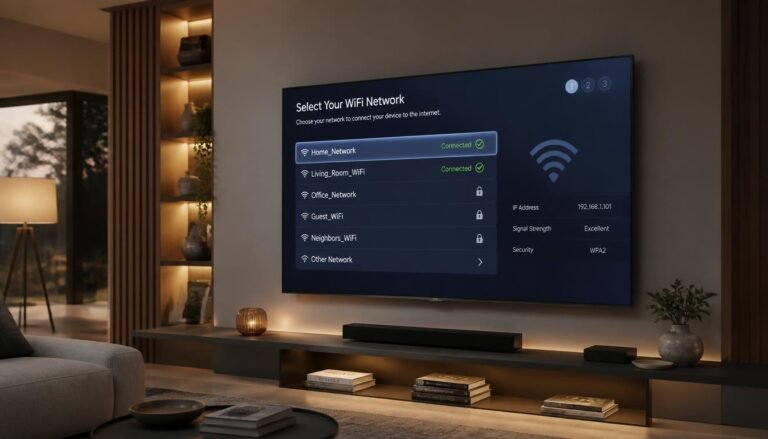
How to Share WiFi Password: iPhone, Android & PC Guide 2027
Knowing how to share WiFi password details quickly removes the biggest connection bottleneck for guests, whether they arrive with a phone, a tablet, a laptop, or a smart TV.
Quick Answer: How to Share WiFi Password Across Devices
Quick Answer: How to Share WiFi Password Across Devices
- Apple Devices: Bring your unlocked iPhone near the guest device and tap Share Password on the prompt.
- Android Devices: Open Wi-Fi settings, tap the network, then show the QR code for scanning.
- Windows PCs: Open Network and Internet settings, then reveal the saved Network security key for any guest.
The right method depends on the two devices involved. Apple devices use a Bluetooth proximity prompt. Android phones generate a scannable QR code. Windows and smart TVs rely on a visible key or a router lookup. The matrix below shows which route fits each pairing before you read the full steps.
In This Guide
WiFi Password Sharing: Device Method Matrix
| Source Device | Target Device | Quick Sharing Method | Prerequisite Requirement |
|---|---|---|---|
| iPhone | iPhone | Proximity prompt, then tap Share Password | iOS 11 or later, Bluetooth on, guest Apple ID email saved in Contacts |
| iPhone | Mac | Proximity prompt after choosing the network in the Mac Wi-Fi menu | macOS High Sierra or later, Bluetooth on |
| iPad | iPhone | Proximity prompt, then tap Share Password | Both devices unlocked, Wi-Fi and Bluetooth on |
| iPhone | Android | View the password in Settings > Wi-Fi and type it, or scan a QR code | iOS 16 or later to view the saved password |
| Android | Android or iPhone | Share button, then scan the QR code | Android 10 or later, screen unlock or fingerprint |
| Windows PC | Phone or laptop | Read the key in Wireless Properties, or turn on Mobile hotspot | Administrator rights to view the key |
| Phone | Smart TV | Manual key entry, or the phone setup prompt on Google TV and Apple TV | TV powered on and within range of the router |
| Router | Any device | Wireless page of the admin panel, or the router label | Admin login credentials |
How to Share WiFi Password on iPhone and iPad
Apple built password sharing into iOS, iPadOS, and macOS, and it is the fastest method on this page when both devices belong to the Apple ecosystem. The guest never sees the password. Your device sends it directly after you approve the request.
Proximity Sharing Requirements
The prompt will not appear unless every item below is true.
- Both devices run iOS 11 or later (macOS High Sierra or later for a Mac).
- Wi-Fi and Bluetooth are switched on for both devices.
- Your device is unlocked and already connected to the network you want to share.
- The guest Apple ID email address is saved in your Contacts app.
- The devices sit within a few feet of each other.
- The network uses WPA2 or WPA3 Personal security. Enterprise networks that need a username are not supported.

How to Share WiFi Password from iPhone to iPhone
- On the sharing iPhone, unlock the screen and confirm it is connected to the network under Settings > Wi-Fi.
- On the guest iPhone, open Settings > Wi-Fi and tap the network name.
- Keep the guest iPhone beside yours. A card titled Wi-Fi Password slides up on the sharing iPhone and asks whether to share with the guest name.
- Tap Share Password on the sharing iPhone.
- Wait for the guest iPhone to show a checkmark beside the network, then tap Done on yours.
The same steps work from an iPad to an iPhone, from an iPhone to an iPad, and from an iPhone to a Mac. On a Mac, choose the network from the Wi-Fi menu in the menu bar and wait for the prompt on your iPhone.
How iCloud Keychain Sync Changes Everything
Sometimes you do not need to share anything. When iCloud Keychain is on, saved WiFi passwords sync between every device signed in with the same Apple ID. A new iPad or Mac that uses your Apple ID can join the network automatically once it is in range.
Check the toggle under Settings > [your name] > iCloud > Passwords (the label reads Passwords and Keychain on some versions). Sync covers your own devices only. A guest still needs the proximity prompt, a QR code, or the typed password.
How to View a Saved Password on iPhone
After iOS 16, Apple lets you reveal a saved password for a network you have joined.
- Open Settings > Wi-Fi.
- Tap the info icon (i) beside the connected network.
- Tap Password.
- Approve with Face ID, Touch ID, or your passcode.
- Read the password, or tap it to copy it.
On iOS 18 and later, the Passwords app also lists saved WiFi networks, and it can offer a network QR code for supported entries. Menu labels shift slightly between releases, so follow the nearest matching option on your device.
Sharing from iPhone to a Windows Laptop
Apple proximity prompts do not reach Windows. Reveal the password using the steps above, then type it into the laptop. If your computer experiences connectivity drops during setup, check our guide on how to fix wifi. If the laptop shows no wireless settings at all, review fixing the Windows 11 no Wi-Fi option bug before you try the password again.
How to Share WiFi Password on Android Devices
Android does not use a proximity prompt. It turns your saved network into a QR code that any modern camera can read. That makes Android the most flexible sender, because the same code works for another Android phone, an iPhone, and many tablets.
How to Generate a WiFi QR Code on Android
The menu names differ slightly by brand, but the path is nearly identical on Google Pixel, Samsung Galaxy, and most other phones running Android 10 or later.
- Connect your phone to the network you want to share.
- Open Settings > Network & internet > Internet (on Samsung, use Settings > Connections > Wi-Fi).
- Tap the gear icon beside the connected network.
- Tap Share (on Samsung, tap QR code at the bottom of the screen).
- Confirm with your fingerprint, face, or PIN.
- Hold the screen steady while the guest scans the code. On many Pixel phones the password also appears in plain text below the code.

How a Guest Scans the Code
On an iPhone or iPad:
- Open the Camera app and point it at the code.
- Tap the banner that reads Join Network.
- Confirm the join prompt and wait for the checkmark in Settings > Wi-Fi.
On another Android phone:
- Open Settings > Network & internet > Internet.
- Tap Add network.
- Tap the QR code icon beside the network name field and scan the screen.
- Tap Connect.
Pixel phones also show a Nearby option on the Share screen, which sends the credentials to a close Android device without scanning.
Cross Platform Mechanics: Apple Prompts Versus Android QR Codes
These two systems solve the same problem in different ways, which is why they do not talk to each other directly.
Android QR engine. The code is a plain text string that follows a common layout. A typical payload looks like this:
WIFI:T:WPA;S:HomeNetwork;P:YourPassword;;T is the security type, S is the network name (SSID), and P is the password. WPA3 networks use T:SAE, and a hidden network adds H:true. No radio exchange happens during the scan. The camera reads the text, the operating system asks you to join, and then the normal WPA2 four step handshake or the WPA3 SAE handshake runs between the guest device and the router.
Apple proximity engine. The guest device announces itself over Bluetooth, your device checks the guest Apple ID against your contacts, and the password travels over a short range encrypted link after you tap Share Password. Apple has not published every protocol detail, so treat this as the observable behavior. Once the guest receives the key, the same WPA2 or WPA3 handshake with the router completes the connection.
Because an iPhone camera reads the common QR layout, an Android code works on an iPhone. The reverse needs one extra step. An iPhone does not show a ready made code in Settings, so reveal the password and type it, or generate a code from the network details with a trusted app.
After the Phone Connects
If network performance degrades because the phone sits at the edge of coverage, read how to fix weak wifi signal. Once the phone is stable, you can add household hardware. To connect household hardware after sharing credentials, follow how to connect a printer to wifi, since most printers need the password typed on their own panel instead of scanned.
How to Share WiFi Password to Laptops and Computers
Windows has no proximity prompt and no built in QR sharing. Sharing to or from a Windows PC always comes down to one of three jobs: reading the saved key, copying the saved profile to another machine, or pulling the key from the router.
How to Find the Saved WiFi Password on Windows
You must be connected to the network, and you need an account with administrator rights.
- Press Windows key + R, type
ncpa.cpl, and press Enter. - Right click your Wi-Fi adapter and choose Status.
- Click Wireless Properties.
- Open the Security tab.
- Tick Show characters to reveal the Network security key.
- Read the key to your guest or type it into their device.

Some recent Windows 11 builds also show a View option under Settings > Network & internet > Wi-Fi > Manage known networks. If you do not see it, the classic path above always works.
Command Line Method for Any Saved Network
The steps above only cover the network you are on now. To read a network you joined earlier, use Command Prompt as administrator.
- Search for Command Prompt, right click it, and choose Run as administrator.
- List saved profiles with this command:
netsh wlan show profiles- Reveal the key for one profile, replacing the name with your own:
netsh wlan show profile name="HomeNetwork" key=clear- Look for the line labeled Key Content under Security settings.
How to Share a Saved WiFi Profile Between Two Windows PCs
When you set up several computers, you can export the profile once and import it elsewhere.
- On the first PC, run
netsh wlan export profile name="HomeNetwork" key=clear folder=C:\Tempin an administrator Command Prompt. - Copy the exported XML file to the second PC.
- On the second PC, run
netsh wlan add profile filename="C:\Temp\Wi-Fi-HomeNetwork.xml". - Delete both copies of the file afterward. The exported file stores the password in readable text.
How to Share WiFi Password to a Mac Laptop
A Mac receives the password from a nearby iPhone through the proximity prompt covered earlier. To read a password already stored on the Mac, open Keychain Access, search for the network name, double click the entry, tick Show password, and approve with your Mac login.
How to Share a Connection from Windows Using Mobile Hotspot
When a guest device cannot reach the router, your PC can broadcast its own network.
- Open Settings > Network & internet > Mobile hotspot.
- Choose the connection to share, such as Wi-Fi or Ethernet.
- Select Edit to set the network name, password, and band.
- Turn on Share my Internet connection with other devices.
- Join the new network from the guest device using the name and password shown.
If you plan to put a television on the same network afterward, check how to connect smart tv to wifi to configure streaming displays without guesswork.
Router Gateway Access: Retrieve the Key When Device Sharing Fails
Sometimes no connected device remembers the password. The router always does. Here is how to reach it.
- On Windows, open Command Prompt and run
ipconfig. Note the Default Gateway address. Common values are192.168.0.1,192.168.1.1, and10.0.0.1. - Type that address into a browser on any device connected to the network.
- Sign in with the admin username and password. They are printed on the router label unless someone changed them.
- Open the Wireless, Wi-Fi, or WLAN page, then the Security section.
- Find the field named Password, Passphrase, Network Key, or Pre Shared Key, and click Show or the eye icon.
- Confirm the security mode reads WPA2 or WPA3 and not the outdated WEP or open mode.
If the old key is lost or has been shared too widely, you can replace it right there. To modify master security keys directly at the source, learn how to change wifi password on router.
How to Share WiFi Password to Smart TVs and Devices
A smart TV has no camera and no Bluetooth prompt for passwords in most cases, so there are three realistic options: let your phone push the settings during setup, type the key with the remote, or give the TV a temporary network from your phone.
Option 1: Let Your Phone Set Up the TV
- Google TV and Android TV: during first setup, choose the option to set up with your Android phone. The phone confirms a code and sends its saved WiFi details to the TV, so you never type the key.
- Apple TV: place an unlocked iPhone near the box and choose Set Up with Device. The iPhone passes along the network details and your Apple ID settings.
- Chromecast and similar casting devices: the Google Home app sends the network credentials from your phone during setup. Casting afterward needs both devices on the same network.
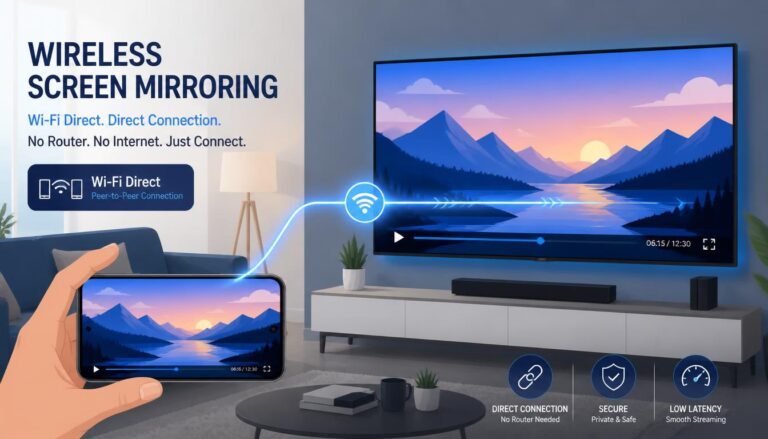
Wi-Fi Direct and Miracast screen mirroring can show a phone screen without any router password. They send video straight between the two devices, but they do not give the TV internet access for streaming apps.
Option 2: Enter the Key Manually with the Remote
This method works on every smart TV brand. Menu names vary, so use these as a map.
- Press Home or Settings on the remote.
- Open the network menu: Settings > General > Network on Samsung, Settings > All Settings > Connection > Wi-Fi Connection on LG, or Settings > Network & Internet on Google TV and Sony.
- Select your network name from the list. If it is missing, choose Add network or Other and type the name by hand.
- Enter the password using the on screen keyboard. Use the eye icon or Show password option to check for typing errors, and watch for capital letters.
- Select Connect and wait for the Connected message.
If your model hides these options, check the quick start guide that came with the TV. If you use a small Windows 11 PC as a media box beside the TV and its network login fails after every restart, inspect how to configure Windows 11 automatic login.
Option 3: Pair the TV with a Phone Hotspot
When the router is down or too far away, your phone can become the network.
- On Android, open Settings > Network & internet > Hotspot & tethering > Wi-Fi hotspot. On iPhone, open Settings > Personal Hotspot and turn on Allow Others to Join.
- Note the hotspot name and password shown on screen.
- On the TV, open the network menu and select the hotspot name.
- Type the hotspot password and select Connect.
- Keep the phone plugged in and close to the TV, since a hotspot drains the battery quickly.
Streaming video over cellular data burns through plans fast. Before you leave the TV on a hotspot, review how much hotspot do I have left to check your remaining allowance.
Other Devices That Need Manual Entry
Game consoles, streaming sticks, smart speakers, and printers follow the same pattern. Open the network menu on the device, pick your network, and type the key. Devices without a screen usually rely on a companion app that sends the credentials from your phone.
Troubleshooting Failed Sharing Attempts
Most failures come from a missing requirement, a hidden network name, or a security mismatch between the guest adapter and the router. Start with the quick table, then use the detailed fixes.
| Symptom | Likely Cause | Fix |
|---|---|---|
| No Share Password card appears | Bluetooth off, device locked, or guest email missing from Contacts | Turn on Bluetooth, unlock the sender, add the guest Apple ID email |
| QR code scans but the join fails | Wrong security type or an outdated adapter on WPA3 only networks | Enable WPA2/WPA3 mixed mode on the router |
| Network name is not listed | Hidden SSID | Join manually with the exact name and security type |
| Password rejected every time | Typing error, capital letters, or a changed key | Show the password while typing and compare it with the router |
| Connected but no internet | DHCP or upstream problem | Restart the router and check the cable or ISP status |
Bluetooth Proximity Errors on Apple Devices
- Confirm Bluetooth and Wi-Fi are on for both devices, and that Airplane Mode is off.
- Unlock the sending device and keep both screens awake.
- Move the devices within a foot of each other.
- Check that the guest Apple ID email is saved in the sender Contacts app, and that the contact card uses the same email as the guest Apple ID.
- Restart both devices. A stalled Bluetooth service is a common cause of a missing prompt.
- Forget the network on the guest device under Settings > Wi-Fi > info icon > Forget This Network, then try again.
Hidden SSID Visibility Errors
A hidden SSID means the router does not broadcast its network name. The guest device cannot find it in the list, so a proximity prompt or a simple tap will not work.
- Open the Wi-Fi settings and choose Other or Add network.
- Type the exact network name. It is case sensitive.
- Choose the matching security type, such as WPA2 Personal or WPA3 Personal.
- Enter the password and connect.
An Android QR code carries H:true for hidden networks, so scanning it fills in the name and security type for you. Hiding the SSID does not add real security, because the name still appears in the traffic of connected devices. Use a strong WPA2 or WPA3 password instead.
Adapter Authentication Handshake Failures
A failed join often means the four step handshake between the guest adapter and the router did not finish. The common reasons are a wrong password, a security mode the adapter does not support, a MAC filter that blocks the new device, or a full address pool on the router.
On Windows, reset the network stack from an administrator Command Prompt:
netsh winsock reset
netsh int ip reset
ipconfig /release
ipconfig /renew
ipconfig /flushdns
Restart the PC afterward. You can also open Device Manager, expand Network adapters, right click your wireless adapter, and choose Disable device, then Enable device. If you need to inspect router security, mixed mode, or MAC filtering, read how to access router settings so you reach the admin panel without software errors.
On iPhone, Settings > General > Transfer or Reset iPhone > Reset > Reset Network Settings clears the networking stack, but it also erases saved WiFi passwords, so use it last. On Android, use Settings > System > Reset options > Reset Wi-Fi, mobile & Bluetooth.
If the adapter still misbehaves on a Windows machine, work through how to fix common Windows 11 problems to resolve local adapter errors when connecting new devices.
Quick Check for the 2.4 GHz and 5 GHz Split
Many routers broadcast two bands under one name or under two names. Older smart TVs, printers, and plugs only support 2.4 GHz. If a device cannot find your network, confirm that the router has the 2.4 GHz band enabled and temporarily connect the older device to that band.
Frequently Asked Questions
How to share wifi password between iphones?
Unlock the iPhone that already knows the network, keep Wi-Fi and Bluetooth on, and bring it close to the second iPhone. When the second iPhone selects the network, tap Share Password on yours. Both devices need iOS 11 or later, and the guest Apple ID email must be saved in your contacts.
How to share wifi password from iphone to android?
Apple proximity sharing does not work with Android, so use a different route. On iOS 16 or later, open Settings > Wi-Fi, tap the info icon beside the network, and reveal the password with Face ID or your passcode. Then type it on the Android phone, or scan a QR code generated from the network details.
How to share wifi password from iphone to mac?
Use a Mac running macOS High Sierra or later with Wi-Fi and Bluetooth on. Select the network from the Mac Wi-Fi menu, then tap Share Password on the unlocked iPhone nearby. The Mac Apple ID email must be saved in your iPhone contacts, and both devices should stay within a few feet.
How to share wifi password from ipad to iphone?
The steps match iPhone to iPhone sharing. Unlock the iPad, keep it beside the iPhone, and turn on Wi-Fi and Bluetooth on both devices. When the iPhone selects the network, tap Share Password on the iPad. The iPhone Apple ID email must be in your iPad contacts.
How to share wifi password to laptop?
Windows laptops do not accept proximity prompts, so open the laptop Wi-Fi list, choose the network, and type the security key. If you do not remember it, view it on a connected device or retrieve it from the router admin panel. A Mac laptop can receive the password from a nearby iPhone.
Can you share a wifi password without showing plain text?
Yes, partly. A QR code or the Apple Share Password prompt lets a guest join without you reading the key aloud. The guest device still stores the key, and the QR code itself contains it in readable text, so only share it with trusted people. A guest network limits the risk further.
How do I find my saved wifi password on a smartphone?
On iPhone with iOS 16 or later, open Settings > Wi-Fi, tap the info icon beside the network, and select Password. On Android 10 or later, open the network settings and tap Share to see the QR code, which on many phones shows the password beneath it. Both require your fingerprint, face, or PIN.
Why is my phone failing to share the wifi network?
The usual causes are Bluetooth or Wi-Fi switched off, a locked sharing device, a missing Apple ID email in contacts, devices too far apart, or a hidden SSID. Restart both devices, forget the network on the guest device, and try again. If it still fails, read the key from the router.
Final Thoughts on Sharing WiFi Passwords Securely
The best sharing method is the one that fits both devices: the proximity prompt for Apple to Apple, a QR code for Android and mixed households, a revealed key for Windows, and a router lookup when nothing else remembers the password. Keep the router admin panel in reach, because it is the one source that always holds the current key.
Sharing is also a security decision. These habits keep your network safe:
- Use WPA3 where every device supports it, and WPA2 with AES otherwise. Avoid WEP and open networks.
- Put visitors on a guest network so they cannot reach your computers, printers, and cameras.
- Do not post a QR code in a public place or send the password through unprotected messages or screenshots.
- Change the password after a large event or when a former guest no longer needs access.
- Delete exported profile files and keep the router admin password different from the WiFi password.
With these steps, you can get any guest, laptop, or television online in under a minute, and you will know exactly where to look when a sharing attempt fails.