

How Do I Use My Mobile Data On My Laptop, Easy Guide(2026)
Your laptop has lost its connection, but your phone still has a strong signal. The question how do i use my mobile data on my laptop has a practical answer: your phone can share its mobile data through a WiFi hotspot, a USB cable, or Bluetooth. This guide helps you choose the right method and fix it when the laptop will not connect.
⚡ Quick Answer: How to Connect Laptop to Phone Internet
- Enable Mobile Data: On your phone, turn on Cellular Data via quick settings.
- Turn On Tethering: Go to Settings > Network & Internet > Hotspot & Tethering (or Personal Hotspot on iPhone) and turn on Wi-Fi Hotspot or USB Tethering.
- Connect Laptop: On your laptop, open Wi-Fi Settings, select your phone’s hotspot name, enter the security password, and click Connect.
- Alternative USB Option: Plug a compatible USB cable between your phone and laptop, then toggle USB Tethering ON in your phone settings for a faster, wired connection.
Table of Contents
Quick diagnosis table
These are starting points, not final diagnoses.
| Symptom | Likely cause | Recommended action |
|---|---|---|
| Laptop cannot see the phone | Hotspot disabled or discovery problem | Enable the hotspot and check wireless settings |
| USB tethering option is missing | Unsupported connection, cable, or phone setting | Check cable capability and the phone’s tethering settings |
| Phone only charges through USB | Charging only cable, USB mode, or driver issue | Try a data capable cable and verify device recognition |
| Laptop connects but has no internet | Mobile data or carrier problem | Test mobile internet on the phone itself |
| Connection repeatedly disconnects | Power, cable, signal, or compatibility problem | Check the physical connection, signal, and power settings |
| Mobile data runs out quickly | Background downloads or high data use | Monitor data usage and limit large downloads |
| Windows Mobile hotspot is on, but no phone internet arrives | That feature shares the laptop’s own connection | Connect to the phone hotspot or use USB tethering instead |
| Instant Hotspot is not offered | Phone, Windows, or app requirements not met | Check the Microsoft requirements below |
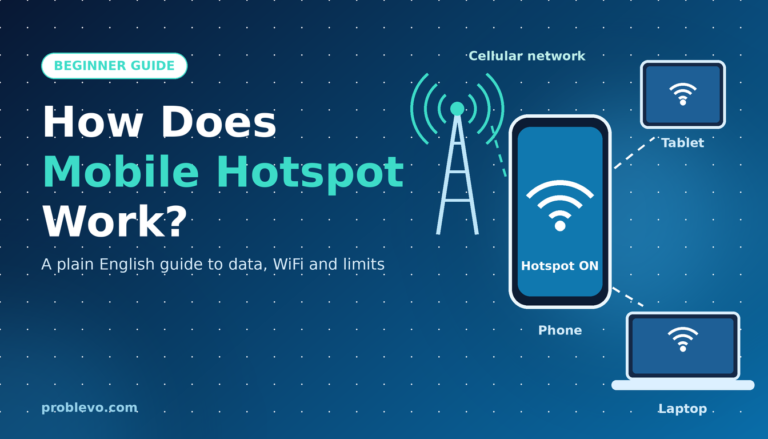
The short answer to how do i use my mobile data on my laptop is to let your phone share its connection. The phone does the cellular work, and the laptop treats the shared connection like any other network.
Google confirms that most Android phones can share mobile data by WiFi, Bluetooth, or USB. Apple documents the same three options for the iPhone Personal Hotspot.
| Method | Setup difficulty | Practical advantage | Limitation |
|---|---|---|---|
| WiFi hotspot | Easiest | Wireless, and can serve several devices. Google says an Android hotspot can share with up to 10 devices. | Needs a WiFi adapter in the laptop |
| USB tethering | Moderate | Wired connection. Google advises plugging devices in while tethering. | Needs a data capable cable. iPhone on Windows needs Apple software. Android USB tethering does not work with Mac computers. |
| Bluetooth tethering | Moderate to harder | Works when WiFi is unavailable | Usually slower, and availability varies by device |
How Do I Use My Mobile Data on My Laptop?

How to choose
- Pick WiFi hotspot if the laptop has a working WiFi adapter and you want the simplest setup.
- Pick USB tethering if the laptop WiFi is unavailable or unreliable, and you have a data cable.
- Pick Bluetooth only when the other two are not possible.
Phone sharing is not the same as a laptop with its own cellular modem. A laptop with a built in modem and an active SIM or eSIM plan can show a Cellular page under Settings > Network & internet in Windows. Most laptops do not have this, so they depend on a phone.
Method 1: Connect your laptop using a mobile hotspot
Android
- Turn on mobile data and confirm a webpage loads on the phone.
- Swipe down to Quick Settings and tap Hotspot. If it is missing, tap Edit and drag it in. On a Google Pixel you can also use Settings > Network & internet > Hotspot & tethering > Wi-Fi hotspot. On a Samsung Galaxy, look under Settings > Connections for Mobile Hotspot and Tethering. Other brands differ.
- Turn on the hotspot.
- Tap the hotspot to check the network name and password.
- On the laptop, open the WiFi menu, choose the phone name, and enter the password.
- Open a website to confirm internet access.

Google notes that some steps work only on newer Android versions, so your menus may look slightly different.
iPhone
- Open Settings > Cellular and turn on Cellular Data.
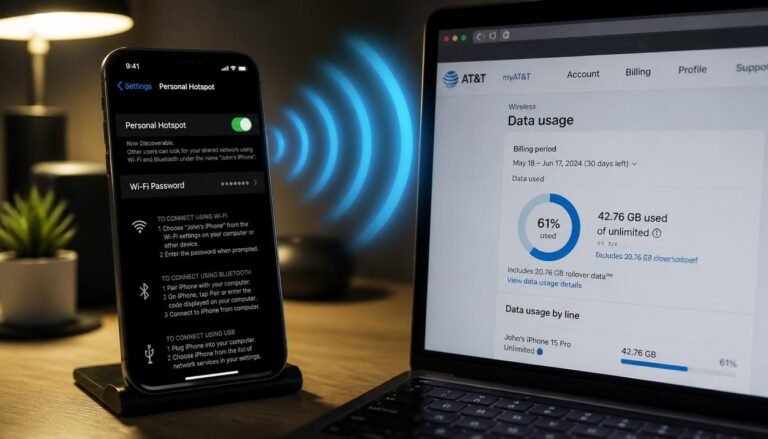
- Open Settings > Personal Hotspot (or Cellular > Personal Hotspot, or Set Up Personal Hotspot).
- Turn on Allow Others to Join.
- Check the Wi-Fi Password on the same screen.
- On the laptop, choose the iPhone name from the WiFi menu and enter the password.
- Verify internet access.
If the iPhone setting is dimmed or missing, see fixing a greyed out Personal Hotspot setting on an iPhone. Apple documents the full process in its Personal Hotspot guide.
Method 2: Connect mobile data to a laptop using a USB cable
USB tethering is a separate option from the hotspot. It uses the cable instead of WiFi.
Android
- Confirm that mobile data works on the phone.
- Connect the phone directly to the laptop with a cable that supports data transfer.
- Swipe down from the top of the phone and turn on USB tethering. On a Pixel, the path is Settings > Network & internet > Hotspot & tethering > USB tethering. Labels differ between manufacturers.
- Check that Windows shows a new network connection and that a webpage loads.
Some guides report that the USB tethering switch cannot be turned on until a cable is connected, so connect first.
iPhone on Windows
- On the iPhone, turn on Allow Others to Join.
- Install the latest Apple Devices or iTunes for Windows.
- Connect the iPhone with a USB cable.
- If the computer asks to allow the accessory, choose Allow. If the iPhone asks to trust the computer, tap Trust.
Apple notes that Personal Hotspot stays active while connected by USB, so turn it off when you are finished.
Charging only cable versus data cable
A charging only cable carries power but not data, and you often cannot tell by looking. If the phone only charges, try a different cable that you know supports data, connect directly to the laptop (not a hub), and unlock the phone. Then check the phone’s USB notification for the tethering option.
Method 3: Connect using Bluetooth tethering
Treat this as a backup method.
- Pair the phone with the laptop in the Bluetooth settings of both devices.
- On an Android phone, turn on Bluetooth tethering. Google says to then set up the laptop’s network connection over Bluetooth. Windows labels for this vary.
- On an iPhone, turn on Allow Others to Join, open Settings > Bluetooth on the iPhone, and keep that screen open. On the computer, choose the iPhone in Bluetooth settings and confirm the pairing code matches on both devices.
Bluetooth tethering is usually slower than WiFi or USB, and availability varies by device and operating system.
How to use mobile data on a Windows 10 laptop
Two different features use the word hotspot:
- Connecting to your phone hotspot. The laptop is the receiver. Turn on the hotspot on the phone, select the network icon on the taskbar, choose the phone name, and enter the password.
- Windows Mobile hotspot. Under Settings > Network & internet > Mobile hotspot, Windows shares a connection that the laptop already has (WiFi, Ethernet, or cellular). It is not the normal way to receive internet from a phone. See Microsoft’s guide to using a Windows device as a mobile hotspot, which applies to Windows 10 and 11.
USB and Bluetooth tethering work the same way as described above.
Windows 10 reached end of support on October 14, 2025, so Microsoft no longer provides free security updates for it. Consider upgrading to Windows 11 if your laptop is eligible, and check Microsoft’s current guidance.
How to use mobile data on Windows 11
The WiFi hotspot and USB methods work the same way. Choose the phone name from the WiFi list in the taskbar quick settings.
Phone Link Instant Hotspot (some Android phones only). Microsoft lists these requirements:
- A PC running Windows 11, version 22H2 build 22621 or later, with Bluetooth and a WiFi adapter.
- Phone Link and the Link to Windows app, both at or above the versions Microsoft specifies.
- A supported phone: Samsung with OneUI 4.1.1 or later, HONOR with Magic OS 8.1 or later, OPPO, OnePlus, or Realme with ColorOS 14.1 or later, or vivo with Funtouch 15.0 or later.
- A SIM with a hotspot capable plan.
Microsoft lists the setup path as Settings > Features > Instant Hotspot on the PC, then turning on Instant Hotspot in the Link to Windows app on the phone. See Microsoft’s Instant Hotspot page. It does not work with every Android phone.
How to connect mobile data to a Lenovo laptop
Lenovo is a laptop brand, not a separate tethering method. Use the Windows steps in this guide.
Not every Lenovo model has cellular, so do not assume one exists. If your Lenovo laptop cannot see any WiFi networks at all, the cause may be the WiFi adapter or its driver. In that case use USB tethering while you check the driver for your exact model on Lenovo’s support site.
How to use mobile data on a laptop without WiFi
Readers who ask how do i use my mobile data on my laptop without WiFi usually have one of three options:
- USB tethering. Often the most practical choice when the laptop WiFi is unavailable.
- Bluetooth tethering. Possible, but slower.
- The laptop’s own cellular modem, if it has one and a plan is active.
A wireless hotspot normally needs a compatible WiFi adapter in the laptop. Using a hotspot is also not the same as having no wireless connection at all, because the phone creates a WiFi network.
Why will my laptop not connect to mobile data?
Work through these in order. The first steps are simple and reversible.

- Confirm mobile internet works on the phone. If it does not, the laptop will not get internet either. A laptop can also show a WiFi connection without usable internet, so read about understanding the difference between WiFi and internet access.
- Confirm mobile data is on and the signal is usable.
- Check that the plan permits tethering. Google warns that carriers may limit or charge extra for tethering, and Apple says Personal Hotspot requires a carrier that supports it. Apple’s carrier list shows support by carrier.
- Restart the hotspot and reconnect.
- Recheck the hotspot password and the WiFi selection. If the laptop WiFi itself is unstable, see fixing common WiFi connection problems.
- Try a data capable USB cable if wireless fails.
- Check that Windows recognizes the connection. Open Command Prompt and run
ipconfig. This read only command lists network adapters. For a working tether you should see an adapter with an IPv4 address. The label varies. “Media disconnected” means Windows has no link on that adapter. - Check the network adapter or driver only if there is evidence of a driver problem, such as a missing adapter or a warning icon in Device Manager.
- Restart both devices and update the phone and Windows.
- Contact your carrier if tethering may not be provisioned on your plan.
Do not use registry edits or random network resets for this problem.
How much mobile data does laptop tethering use?
A laptop can use mobile data quickly. Operating system updates, cloud backup, streaming, and large downloads can run in the background. This article gives no usage figures because they depend on your activity and carrier.
Set your hotspot network as metered in Windows. Microsoft says WiFi networks are non-metered by default, and a laptop joined to a phone hotspot appears as a WiFi network. Open Settings > Network & internet > Wi-Fi, select the connected network, and turn on Metered connection. Microsoft says this limits some background activity, such as Windows updates and Store downloads. Windows 10 uses similar settings with different labels, so check Microsoft’s metered connection page.
Also pause large downloads and monitor usage. For the allowance side, see checking how much hotspot data you have left.
Common mistakes to avoid
- Using a charging only cable. The phone charges but tethering never appears.
- Typing an old password. Check the current hotspot password.
- Ignoring carrier limits. Tethering may be restricted or billed separately.
- Weak mobile signal. The laptop cannot get faster internet than the phone has.
- Confusing the Windows Mobile hotspot with a phone hotspot. They work in opposite directions.
- Confusing internet sharing with screen mirroring. Mirroring shows a screen and does not provide internet access. See screen mirroring without WiFi.
- Using tethering to avoid a home network fault. If the home router is the problem, learn accessing router settings to troubleshoot a home network.
- Expecting every device to use the same setup. Devices such as printers are set up through their own wireless menus. See connecting a printer to WiFi.
FAQ
Is there a way to use my mobile data on my laptop?
Yes, most phones can share mobile data with a laptop by WiFi hotspot, USB tethering, or Bluetooth tethering. Google notes that most Android phones support all three, and iPhone supports all three through Personal Hotspot. Some carriers limit or charge extra for tethering, and the steps vary by phone.
How do I turn on mobile data on a laptop?
A laptop without a cellular modem has no mobile data switch of its own. Turn on mobile data on your phone, then share it by hotspot or USB. A laptop with a built in cellular modem and an active SIM or eSIM plan may show a Cellular page under Settings, Network and internet instead.
How can I use mobile data on my laptop without WiFi?
Use USB tethering or Bluetooth tethering. Both share the mobile data of your phone without needing WiFi on the laptop. USB can be the more practical choice, but it needs a data capable cable. A laptop with its own cellular modem can also connect directly.
Why can’t my laptop connect to my mobile data?
Test mobile internet on the phone first. If the phone has no internet, the laptop will not either. If the phone works, check that tethering is allowed on your plan, the hotspot is on, the password is correct, and the cable carries data. Then restart both devices and reconnect.
How do I connect an iPhone to a Windows laptop for internet?
Use Personal Hotspot over WiFi, or connect by USB. For USB, install the latest Apple Devices app or iTunes for Windows, plug in the iPhone, allow the accessory, and tap Trust. Turn on Allow Others to Join in the iPhone settings first. Apple lists Bluetooth as a third option.
Why does my laptop only charge my phone when I connect them?
The cable may carry power only, or the phone may be set to charging mode. Try a different cable that supports data, plug directly into the laptop instead of a hub, and unlock the phone. Then check the USB notification and enable USB tethering. Windows may then show a new network connection.
Does laptop tethering use more mobile data?
Yes, and a laptop can use it quickly. Updates, cloud backup, streaming, and large downloads can run in the background. Microsoft says a metered connection limits some background activity, such as Windows updates and Store downloads. Set your hotspot network as metered and check usage in your carrier account.
Can I use mobile data on a Lenovo laptop without WiFi?
Yes, if the phone can tether by USB or Bluetooth, or if your Lenovo model has a cellular modem and an active plan. Lenovo is only the laptop brand, so the Windows steps are the same. Not every Lenovo model has cellular, and USB tethering can still work when the laptop WiFi adapter is unavailable.
Can I use my laptop’s Mobile hotspot to receive my phone’s internet?
No. The Mobile hotspot setting in Windows shares a connection that the laptop already has. Microsoft says it can share WiFi, Ethernet, or cellular data from the laptop. To receive internet from a phone, connect the laptop to the phone hotspot, use USB tethering, or pair by Bluetooth instead.
Can I use mobile data on a Windows 10 laptop?
Yes, the same methods work, but Windows 10 reached end of support on October 14, 2025. Connect to the phone hotspot from the WiFi menu, or use USB tethering. Because Microsoft no longer provides free security updates, consider upgrading to Windows 11 if your laptop is eligible.
Conclusion
The most practical method is the WiFi hotspot: turn on mobile data, enable the hotspot, and join it from the laptop. That is the simplest answer to how do i use my mobile data on my laptop. If it fails, switch to USB tethering with a data capable cable, and test mobile internet on the phone before changing anything on the laptop. If the plan may not allow tethering, contact your carrier.
For more practical guides, browse the related troubleshooting articles on Problevo.


5 Comments