

Why My Hotspot Is Not Working: Causes and Fixes, Guide 2026
Few problems are more annoying than asking why my hotspot is not working while a laptop, tablet, or television waits for a connection. The cause almost always sits in one of four places: the phone’s cellular connection, the hotspot settings, the carrier plan, or the device that is trying to connect. This guide helps you find the right one before you change anything.
Quick Answer: A hotspot usually fails because mobile data is down, the carrier plan blocks tethering, a saver setting interferes, the WiFi band does not suit the receiving device, or that device has a fault. Restart both devices and test mobile data on the phone first.
Diagnostic Table
| Symptom | Likely Cause | Recommended Fix |
|---|---|---|
| Hotspot cannot be turned on, or the switch is dimmed | The plan does not include tethering, mobile data is off, or the carrier has restricted the feature | Confirm mobile data works, then check hotspot availability with your carrier |
| Hotspot is not visible on another device | Hotspot is off or timed out, the band is not supported by the other device, or the iPhone hotspot screen is closed | Turn the hotspot off and on, try the 2.4 GHz band, and keep the iPhone hotspot screen open while searching |
| Device connects but has no internet | The phone has no working mobile data, tethering is blocked, a data cap applies, or a VPN conflicts | Load a webpage on the phone, then check the plan and turn off the VPN |
| Hotspot repeatedly disconnects | Automatic turn off when idle, battery saving, heat, weak signal, or too many devices | Check the timeout setting, turn off Battery Saver, and keep the phone plugged in and cool |
| iPhone hotspot is not appearing | Allow Others to Join is off, Maximize Compatibility is needed, or the plan lacks the feature | Check Settings > Personal Hotspot and follow the iPhone section below |
| Android hotspot is not working | Data Saver or Battery Saver, wrong band, or a carrier tethering limit | Check the Android section below, noting that menus differ by brand |
| Laptop cannot connect | Stale saved profile, adapter without 5 GHz support, or a driver problem | Test with a second device, forget the network, and reconnect |
| Television cannot connect | The TV does not support the selected band, wrong password, distance, or no internet on the phone | Switch the hotspot to 2.4 GHz, move closer, and test the phone’s internet |
These patterns are clues, not diagnoses. Symptoms overlap, and no single fix works in every case.
Why My Hotspot Is Not Working
A hotspot turns your phone into a small WiFi router that forwards traffic over its cellular connection. If you want the full mechanics, read how a phone hotspot works. For troubleshooting, it helps to remember that four layers must all work at once.
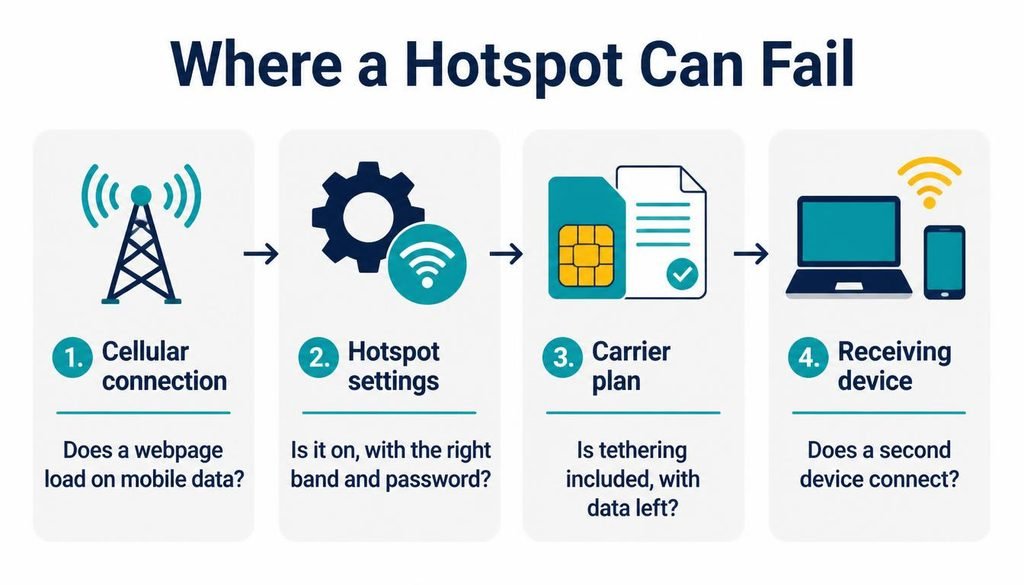
The phone has no usable mobile data
A hotspot only shares the phone’s cellular connection. Apple states that Personal Hotspot works only by sharing the cellular connection. If pages do not load on the phone itself with WiFi turned off, the problem is the cellular link, not the hotspot.
The plan or carrier blocks tethering
Google notes that some carriers limit or charge extra for tethering. Samsung says a Galaxy needs a tethering plan on the service account. Normal browsing can work while tethered traffic fails.
A power or data saving setting interferes
Battery Saver, Low Power Mode, and Data Saver can restrict background radio activity. Treat them as suspects and switch them off as a test.
The band or security setting does not suit the receiving device
Some older laptops, TVs, and smart gadgets only see 2.4 GHz networks. A hotspot set to 5 GHz may then be invisible to them.
The receiving device is the problem
A phone hotspot can be healthy while one laptop or TV fails. A second device settles this quickly.
Software or network configuration faults
Outdated software, a conflicting VPN, saved network profiles, or damaged network settings can all break the connection.
A Diagnostic Decision Tree
Follow the first rule that matches. These are starting hypotheses, not final answers.
1. Does a webpage load on the phone using mobile data (WiFi off)?
   NO  -> Investigate the cellular connection first (signal, airplane mode, SIM, plan, data balance).
   YES -> Go to 2.

2. Does the phone show the hotspot as on (and can you find its name)?
   NO  -> Check that tethering is available on the plan, then turn it on.
   YES -> Go to 3.

3. Can a second device see and join the hotspot?
   YES, second device works -> The first device is the problem. Forget the network, check its WiFi, driver, and band support.
   NO, nothing can join     -> Go to 4.

4. Is the hotspot visible but joining fails?
   YES -> Check the password and the security setting.
   NO  -> Hotspot not visible: restart it, try 2.4 GHz, and keep the iPhone hotspot screen open.

5. Does a device join but have no internet?
   -> Check tethering permission, data allowance, VPN, and the connected device's network configuration.
      If the cause is still unclear, contact the carrier.
Exceptions exist. A phone with a faulty WiFi chip, a carrier outage, or a restrictive work profile can break the pattern.
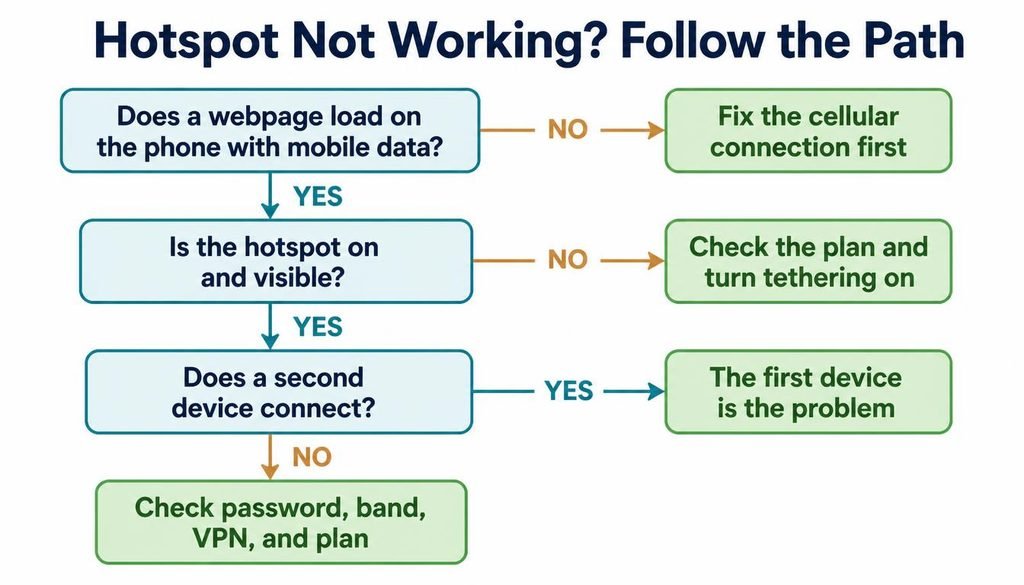
Why My Hotspot Is Not Working?
How to Fix a Hotspot That Is Not Working
Work through these in order. Retest after each step, and skip ahead if your symptom points elsewhere.
Step 1. Confirm mobile data works on the phone
What to do: Turn WiFi off on the phone and open a webpage using mobile data.
Why it helps: The hotspot shares this connection, so it cannot be better than it.
How to check: The page loads normally.
If it fails: Toggle airplane mode off and on, check signal, and check your data balance. This is a cellular problem, so fix it before touching hotspot settings.
Step 2. Confirm the hotspot or tethering feature is on
- iPhone: Settings > Personal Hotspot > Allow Others to Join.
- Pixel: Settings > Network & internet > Hotspot & tethering > Wi-Fi hotspot.
- Samsung Galaxy: Settings > Connections > Mobile Hotspot and Tethering > Mobile Hotspot.
Menus differ by brand and software version, so search your Settings app for “hotspot” if the path does not match.
How to check: The other device can see the network.
If it fails: If the option is missing or dimmed, the plan or carrier may be the cause.

Step 3. Turn the hotspot off and on
What to do: Switch it off, wait a few seconds, then switch it on.
Why it helps: It restarts the WiFi access point function without a full restart.
If it fails: Move to the next step.
Step 4. Reset the connection on the receiving device
What to do: Turn WiFi off and on, select the correct network, and forget the saved hotspot network before rejoining.
Why it helps: A stale saved profile can hold an old password or setting.
How to check: The device joins and gets an address.
Step 5. Restart both devices
Restart the phone and the device that needs to connect. Apple lists this early in its hotspot guidance, and it clears many temporary faults.
Step 6. Check the password and security setting
On an iPhone, Apple says the password appears under Settings > Personal Hotspot. On Android, open your hotspot settings to view or change it. Retype it carefully, because passwords are case sensitive. If your phone lets you choose a security type, an older receiving device may not support the newest option.
Step 7. Check the band and the device limit
- iPhone: On an iPhone 12 or later, Apple says to turn on Maximize Compatibility. Apple warns this may reduce performance and security.
- Android: Look for an AP Band or similar option in the hotspot configuration and try 2.4 GHz.
- Device limit: Google says a Pixel hotspot can share with up to 10 devices. Apple says the iPhone limit depends on the carrier and model. Test with only one device connected.
Step 8. Turn off saver modes and test without a VPN
Turn off Battery Saver, Low Power Mode, and Data Saver. Turn off any VPN on the phone as a test. Turn them back on later if you need them.
Step 9. Check carrier restrictions and data conditions
Confirm tethering is included in your plan and that you have allowance left. You can check how much hotspot data you have left. Samsung also notes that tethering may fail after a recent carrier change.
Step 10. Update software, then reset network settings only if needed
Install the latest operating system update. If nothing else works, reset network settings. This removes saved WiFi networks and passwords, so use it late. Apple describes the iPhone path later in this guide.
Why My Hotspot Is Not Working on iPhone
Apple calls the feature Personal Hotspot. If the setting itself is unavailable, read about a Personal Hotspot that is grayed out. If you have never set it up, see how to turn on mobile hotspot on iPhone.
Work through the checks Apple recommends in its Personal Hotspot troubleshooting page:
- Open Settings > Personal Hotspot and confirm Allow Others to Join is on. If you cannot find or turn it on, Apple says to check that your carrier enabled it and that your plan supports it.
- Stay on the Personal Hotspot screen while the other device searches. Apple recommends this until the connection is made.
- On the other device, turn WiFi off and on, and join the network that uses your iPhone name.
- On an iPhone 12 or later, turn on Maximize Compatibility and try again. Apple’s platform guide says this uses 2.4 GHz connections that help older devices.
- Restart both devices and update iOS.
- As a later step, go to Settings > General > Transfer or Reset iPhone > Reset > Reset Network Settings. Apple says this also resets WiFi networks and passwords, cellular settings, and VPN and APN settings you used before.
Apple notes that an iPhone hotspot appears under the same name as the iPhone, with a Personal Hotspot icon. If your device name is hard to recognize, check the name under your iPhone settings.
Why My Hotspot Is Not Working on Android
Android menus differ across Pixel, Samsung Galaxy, and other makers. Do not expect every path below to match your phone.
Pixel: Google lists Settings > Network & internet > Hotspot & tethering > Wi-Fi hotspot. Google also says Pixel hotspots turn off automatically when no devices are connected, and that you can use USB or Bluetooth tethering instead.
Samsung Galaxy: Samsung lists Settings > Connections > Mobile Hotspot and Tethering > Mobile Hotspot. Samsung has a timeout setting under Configure, and its troubleshooting page covers carrier requirements and recent carrier changes. Some Samsung forum replies point to band choices under the same Configure screen. Treat that as a possible variation, not a guarantee.
What to check on any Android phone:
- Mobile data works on the phone itself.
- Battery Saver and Data Saver are off.
- The hotspot is on and has not timed out.
- The band suits the receiving device (try 2.4 GHz).
- The plan allows tethering.
- A VPN on the phone is not blocking traffic.
Do not change APN settings unless your carrier gives you the exact values. Wrong values can remove mobile data on the phone.
Why My Hotspot Is Not Working on a Laptop
First decide whether the phone or the laptop is at fault. Try joining the hotspot from a second device, such as a tablet or another phone.
- If the second device works, the laptop is the likely problem.
- If the second device also fails, go back to the phone steps above.
If this is your first connection, read about connecting a hotspot to a laptop. For other ways to share data, see using mobile data on your laptop, which covers USB and Bluetooth options.
Windows 10 and Windows 11 checks:
- Turn off Airplane mode and make sure WiFi is on.
- Forget the hotspot network and reconnect with the current password. Microsoft lists this in its Wi-Fi fix guide. In Settings, go to Network & internet > Wi-Fi > Manage known networks, select the hotspot, and choose Forget.
- Restart the laptop.
- Run the built in troubleshooter. On Windows 11, Microsoft says to start with the Network and Internet troubleshooter in the Get Help app.
- Check whether the laptop adapter supports 5 GHz. If not, set the hotspot to 2.4 GHz.
- Check for Windows updates and update the WiFi driver through Device Manager.
- Use the advanced steps below only if the laptop still fails.
If the laptop can join other WiFi networks normally, the problem is more likely the hotspot. If it fails everywhere, read the general WiFi troubleshooting guide.
Mobile Data Is Working but the Hotspot Has No Internet
Working mobile browsing does not prove that tethering is allowed. A plan can permit normal phone data and still restrict or meter shared data. Samsung says tethering data is handled separately from mobile data, and Google says carriers may limit or charge for tethering.
Check in this order:
- Confirm the phone loads a webpage on mobile data.
- Check that your plan includes tethering and that you have hotspot allowance left.
- Turn off any VPN on the phone and on the connected device.
- Restart the hotspot and reconnect.
- Forget and rejoin the network on the connected device.
- Test a second device.
- On a laptop, check the IP configuration (see Advanced Troubleshooting).
- If the cause is still unclear, contact the carrier.
Do not edit APN values without carrier guidance. Apple notes that resetting network settings also clears APN settings used before.
Why My Hotspot Is Not Showing on Another Device
A hotspot can be on and still not appear. Common reasons are a band mismatch, a hotspot that timed out, or an old WiFi scan list.
iPhone: Open Settings > Personal Hotspot and stay on that screen while the other device searches. Turn on Maximize Compatibility on an iPhone 12 or later if the other device is older.
Android: Turn the hotspot off and on, check that it has not timed out, and try the 2.4 GHz band.
On the receiving device: Turn WiFi off and on to refresh the list, and move closer to the phone. Make sure you are looking for the phone’s hotspot name, which may be the phone’s device name.
Why My Hotspot Keeps Disconnecting
Verified behavior:
- Google says a Pixel hotspot turns off automatically when no devices are connected.
- Samsung lists a timeout setting that turns off the hotspot when no one is using it.
- Google recommends plugging the phone in while tethering.
Possible causes (not guaranteed): Battery Saver or Low Power Mode, heat, weak cellular signal, too many connected devices, or a software fault.
What to try: Check the timeout setting, turn off saver modes, keep the phone plugged in and out of direct sun, reduce the number of connected devices, and update the phone.
Why My Hotspot Is Not Connecting to a TV
A TV may support fewer WiFi options than a phone or laptop. Check the following:
- Confirm the password is exact.
- Move the phone near the TV.
- Switch the hotspot to 2.4 GHz. Some TVs support only certain bands, so check your TV manual.
- Confirm the phone has working internet, because a TV can join a hotspot that has no connection.
- Restart the TV and the hotspot.
For TV setup steps, see how to connect a smart TV to WiFi.
Advanced Troubleshooting
Use these only after the basic steps fail.
Check the laptop IP configuration (Windows 10 and 11, read only)
Open Command Prompt and run:
ipconfigThis only displays information. If the WiFi adapter shows an address starting with 169.254, the laptop did not receive an address from the phone, which points to a hotspot or connection fault.
Reset the network stack (Windows 10 and 11, changes settings)
Microsoft lists these two commands. Run Command Prompt as administrator, then restart the laptop:
netsh winsock reset
netsh int ip reset
Risk: These change network configuration. Use them only if basic steps failed.
Reinstall the WiFi driver
In Device Manager, uninstall the network adapter and restart. Microsoft says Windows will then install the driver automatically. Try this if the problem began after an update.
Use Windows network reset last
Microsoft says network reset should be the last step. It removes network adapters and their settings, and you will need to reconnect to saved networks.
Use USB or Bluetooth tethering to isolate the fault
If the WiFi hotspot fails but USB tethering works, the cause is likely the WiFi link or laptop adapter, not the cellular connection.
Reset network settings on the phone
Use this late. It clears saved WiFi networks, passwords, and cellular settings.
Common Mistakes
- Resetting all network settings first. It wipes saved networks and does not address plan or band problems.
- Changing APN values without carrier guidance. This can break mobile data.
- Reinstalling Windows. A second device test often shows the phone is the problem.
- Assuming working mobile data means working tethering. The plan may block shared data.
- Treating every case as a WiFi driver problem. Test another device first.
- Repeating the same step without checking the result. Retest after each change.
- Leaving the iPhone hotspot screen before the other device connects. Apple recommends staying on it.
When to Contact Your Carrier or Device Manufacturer
Contact your carrier if the hotspot option is missing or dimmed, mobile data fails on the phone, tethering stops after a plan or carrier change, or you suspect a data cap or throttling. Contact the manufacturer if the problem continues after a software update, other WiFi features also fail, or the phone overheats.
Collect before you call:
- Phone model and software version.
- Plan name and whether tethering is included.
- What happens when you try the hotspot, with any message.
- Whether mobile data works on the phone.
- Which devices fail and which work.
- The steps you have already tried.
Final Troubleshooting Checklist
- Mobile data loads a webpage on the phone.
- The hotspot is on and has not timed out.
- The plan includes tethering and has allowance left.
- Battery Saver, Low Power Mode, Data Saver, and VPN are off for testing.
- The password is correct on the receiving device.
- The band suits the receiving device (try 2.4 GHz).
- The saved network was forgotten and rejoined.
- A second device was tested.
- Both devices were restarted and updated.
- Network settings were reset only if needed.
FAQ
Why is my Mobile Hotspot not working?
Start by checking that mobile data works on the phone itself, because a hotspot only shares that connection. If it does, check that the hotspot is on, the plan includes tethering, Battery Saver and Data Saver are off, and the receiving device uses a supported band. Restart both devices after each change.
Why is my iPhone hotspot not working?
Open Settings > Personal Hotspot and confirm Allow Others to Join is on. If the option is missing or dimmed, your carrier plan may not include it. Otherwise restart both devices, update iOS, and on an iPhone 12 or later try Maximize Compatibility. Reset Network Settings is a later step.
Why is my Mobile Hotspot not working anymore?
A hotspot that worked before usually stopped because something changed. Common triggers include a software update, a new SIM or carrier, a plan change, a reached data limit, or a reset that cleared settings. Check your plan and allowance first, then confirm the hotspot setting is still on and test mobile data.
How do I restart my hotspot?
Turn the hotspot off, wait a few seconds, and turn it on again. On iPhone use Settings > Personal Hotspot > Allow Others to Join. On Android use the hotspot switch in your hotspot settings or quick settings panel. If that fails, restart the phone, then reconnect the other device.
Why is my hotspot connected but there is no internet?
This usually means the phone has no working mobile data, the plan blocks tethering, or a data cap applies. Load a webpage on the phone using mobile data first. If that works, turn off any VPN, restart the hotspot, forget and rejoin the network on the other device, and contact your carrier about tethering.
Why is my hotspot not showing up on my laptop?
Delete the saved hotspot profile, then reconnect with the current password. Test a second device to see whether the phone or the laptop is at fault. Switch the hotspot to 2.4 GHz if the laptop adapter does not support 5 GHz, and check the adapter driver in Device Manager.
Why is my Android hotspot not working?
Menus differ by manufacturer, but the checks are similar: confirm mobile data works, turn off Battery Saver and Data Saver, try the 2.4 GHz band, and check that the plan allows tethering. On Samsung, open Settings > Connections > Mobile Hotspot and Tethering. On Pixel, open Settings > Network & internet > Hotspot & tethering.
Why does my hotspot keep disconnecting?
Many phones turn the hotspot off after a period with no connected devices, and battery saving, heat, weak signal, or too many devices can also drop connections. Check the hotspot timeout setting and turn off Battery Saver. Keep the phone plugged in and in a spot with good signal.
Why is my hotspot not connecting to my TV?
Some TVs support only certain WiFi bands and may struggle with some hotspot settings. Check the password, move the phone close to the TV, and switch the hotspot to 2.4 GHz. Confirm the phone itself has working internet, because a TV can join a hotspot that has no connection.
Why is my hotspot not connecting to another phone?
Check that WiFi is on, the password is correct, and the hotspot is visible. On iPhone, keep the Personal Hotspot screen open while the other phone searches. Try Maximize Compatibility on iPhone 12 or later, or the 2.4 GHz band on Android, then restart both phones if it still fails.
Conclusion
The fastest route to fixing why my hotspot is not working is to find which part has failed: the phone, the cellular connection, the hotspot configuration, or the receiving device. Test mobile data first, then test a second device, and only then move to advanced steps or a network reset. If you want more help with connection problems, browse the Problevo WiFi and networking guides.



One Comment