How to Connect to WiFi on HP Laptop: Easy Steps Guide (2026)
Getting an HP laptop online should take less than a minute, and this guide covers both the normal method and the fixes for when it does not work. If you typed “how to connect to wifi on hp laptop” into a search bar, you most likely want to join a network, enter a password, or find out why the Wi-Fi option is missing.
Quick Answer
Quick Answer: Click the Network icon on the taskbar, turn Wi-Fi on, select your network name, click Connect, and enter the Wi-Fi password. Make sure Airplane mode is off first. If no networks appear, check the wireless key, Windows Network settings, and the wireless adapter in Device Manager.
Table of Contents
| Symptom | Likely cause | Recommended action |
|---|---|---|
| Wi-Fi is switched off | Wi-Fi toggle off or Airplane mode on | Turn Wi-Fi on and Airplane mode off in Settings |
| Your network is not in the list | Hidden network, router off, or out of range | Refresh the list, move closer, or add a hidden network manually |
| Password is rejected | Typing error or a changed router password | Retype the key carefully or forget the network and reconnect |
| Connection fails after you select Connect | Corrupted saved profile, driver, or router fault | Forget the network, restart the router, then check the driver |
| No Wi-Fi option at all | Airplane mode, disabled adapter, or missing driver | Follow the missing-option section below |
If the table does not match your situation, the guide on troubleshooting common Wi-Fi connection problems covers wider network faults.
How to Connect an HP Laptop to Wi-Fi
These steps work on both Windows 11 and Windows 10. The exact labels differ slightly between versions, and the next sections show each path.
- Open the Windows Wi-Fi controls by selecting the Network, Sound, or Battery icons on the right side of the taskbar.
- Confirm that Airplane mode is off. A laptop with Airplane mode on disables all wireless radios.
- Turn Wi-Fi on if the tile or toggle is off. Wait a few seconds for networks to appear.
- Open the list of available networks.
- Select the correct network name (the SSID). Choose carefully if a neighbor’s network has a similar name.
- Click Connect.
- Enter the network security key, which is the Wi-Fi password, and select Next.
- Confirm that the status under the network name shows Connected.
Connecting to a router and having working internet access are two separate things. A laptop can show Connected while the router has no internet service. If that happens, see the router section later in this guide.
Public networks in cafes, airports, and hotels often require a sign-in page. After connecting, open a browser and wait for the page to load, then accept the terms or enter the code you were given.
How to Connect to Wi-Fi Manually
Most people never need a manual setup. Selecting a visible network from the list is enough, as described above. Manual setup applies in two cases.
A visible network. Select it from the list, click Connect, and type the password. Windows saves the profile automatically.
A hidden network. A hidden network does not broadcast its name, so it never appears in the list. You must create the profile yourself and know three details: the exact SSID, the security type, and the password.
- Open Settings > Network & internet > Wi-Fi > Manage known networks.
- Select Add network (labeled Add a new network on Windows 10).
- Type the exact network name. Capital letters and spaces matter.
- Choose the security type your router uses, then enter the password.
- Save the profile and wait for Windows to connect.
If your network name does not appear and you do not believe it is hidden, select the refresh button in the network list, move closer to the router, and confirm the router is powered on. Manual entry cannot repair a disabled or malfunctioning wireless adapter. If the adapter is the problem, no network profile will help until the adapter works.
How to Connect to WiFi on HP Laptop?
How to Turn On Wi-Fi on an HP Laptop
There are three places to check, from simplest to most model specific.
The Windows Wi-Fi toggle. Open Settings > Network & internet and make sure Wi-Fi is on. HP’s own guidance starts at this screen and also tells readers to confirm that Airplane mode is off.
Airplane mode. Find it in Settings > Network & internet > Airplane mode, or as a tile in Quick Settings on Windows 11. Microsoft lists it as an early check in its Wi-Fi troubleshooting guide.
Function keys and wireless buttons. Many HP laptops have a key with an airplane or wireless signal icon, often in the top row, and some models have a physical switch. The exact key, its indicator light, and whether it needs the Fn key all vary by model. On some models the key toggles Airplane mode rather than a separate Wi-Fi switch. Do not assume the key that looks right is the wireless key, because neighboring keys often control brightness or volume.
To find the correct key for your model, search your laptop’s product name or number on HP Support and open its user guide.
How to Connect an HP Laptop to Wi-Fi on Windows 11
- Select the Network, Sound, or Battery icons on the taskbar to open Quick Settings.
- On the Wi-Fi tile, select Manage Wi-Fi connections (the arrow beside the tile).
- Choose your network and select Connect. If it is missing, use the Refresh network list button in the lower right.
- Type the password and select Next.
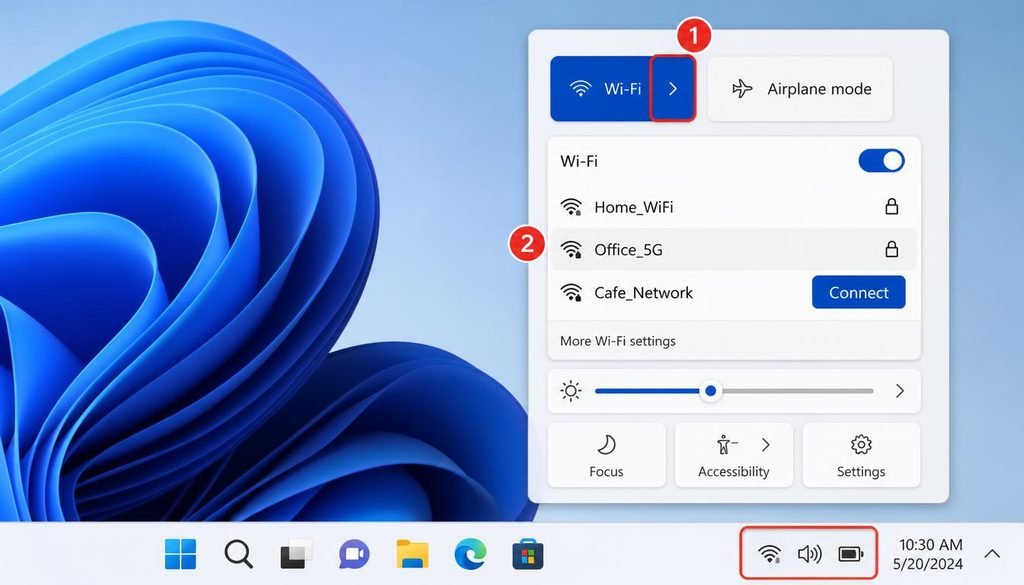
You can also use Settings > Network & internet > Wi-Fi, where the toggle, known networks, and advanced options live. Microsoft also lets Windows 11 devices with a camera join a network by scanning a Wi-Fi QR code in the Camera app.
If the Wi-Fi tile is absent from Quick Settings, do not repeat the connection steps. Go to Settings > Network & internet to check for the Wi-Fi toggle, then read the guide on the Windows 11 Wi-Fi option missing problem and the missing-option section below.
How to Connect an HP Laptop to Wi-Fi on Windows 10
- Select the network icon at the right end of the taskbar.
- Choose your network from the list and select Connect.
- Enter the password and select Next.
For settings, open Settings > Network & internet > Wi-Fi. The interface looks different from Windows 11, so labels in older guides may not match your screen.
Microsoft ended standard support for Windows 10 on October 14, 2025. Specific editions and support arrangements may differ, so check your own device through Microsoft’s support pages if updates matter to you. Wi-Fi still works the same way in the meantime.
Can You Connect an Older HP Laptop Running Windows 7?
Yes, an older HP laptop can still join a Wi-Fi network if its wireless adapter and driver work. In general, you select the network icon in the notification area, choose a network, click Connect, and enter the security key. The interface, menu names, and troubleshooting paths are not the same as Windows 10 or 11, so do not follow the modern paths above on Windows 7.
Windows 7 reached end of support on January 14, 2020. It no longer receives regular security updates, which makes everyday internet use risky for ordinary users. Treat a Windows 7 laptop as a temporary or offline device, and consider whether the hardware can run a supported version of Windows.
Why Is My HP Laptop Not Showing the Wi-Fi Option?
A missing Wi-Fi option is different from a missing network. When the whole option is gone, Windows is usually not seeing a working wireless adapter or the radio is switched off. Work through these checks in order, from simplest to most involved.
- Airplane mode or a hardware control. Check Airplane mode in Settings, then look for a wireless key or switch. If you turn it on and the Wi-Fi option returns, the cause was a radio switch.
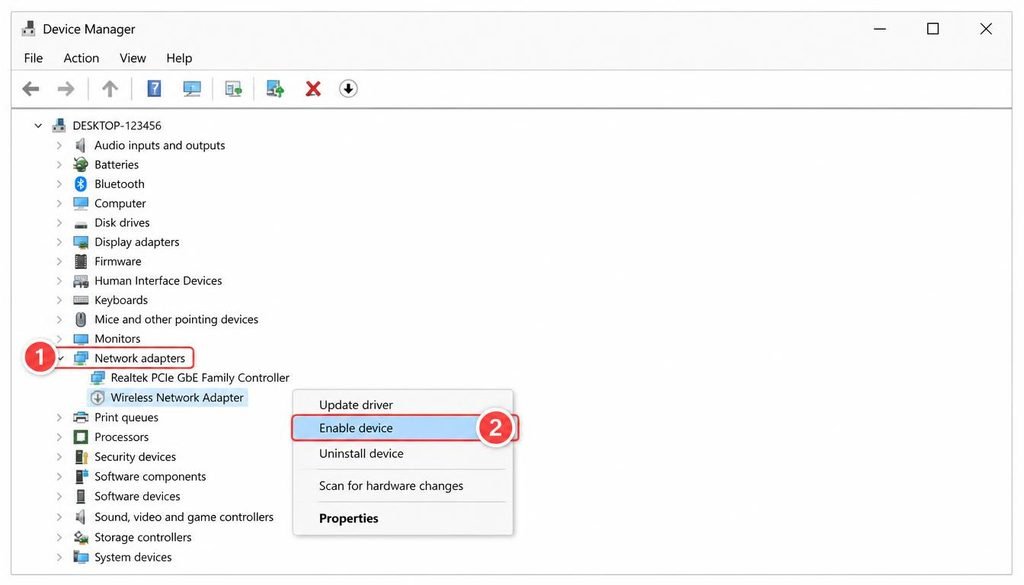
- A disabled wireless adapter. Open Device Manager (search for it in the taskbar) and expand Network adapters. If your wireless adapter shows a down arrow, right-click it and select Enable device.
- Adapter missing from Device Manager. If no wireless adapter is listed anywhere, Windows does not detect the hardware. Microsoft notes you may then have to install the driver manually from the manufacturer’s site. Use HP Support for your exact model, not third-party driver websites.
- A yellow warning on the adapter. This points to a driver problem. Right-click the adapter, select Properties, and read the device status message. Update the driver through Windows Update or HP Support.
- The WLAN AutoConfig service. Microsoft suggests restarting this service. Press Win + R, type
services.msc, find WLAN AutoConfig, right-click it, and select Restart. - Possible hardware failure. If the adapter never appears after driver steps, the wireless card may be loose or damaged. A USB Wi-Fi adapter can confirm this, and a repair technician can inspect the internal card.
Avoid random driver installers. A wrong driver can make the problem worse, and unofficial sites are a known risk for unwanted software.
How to Fix an HP Laptop That Will Not Connect to Wi-Fi
Use these steps when the Wi-Fi option exists and networks show up, but the connection fails. Start at the top, because the early steps are the least disruptive.
- Check whether the network works elsewhere. Problem: the fault may be the router. Action: try the same network on a phone or another laptop. Expected result: if the other device also fails, the router or internet service is the cause. If it works, continue.
- Check Airplane mode and wireless controls. Problem: a radio is off. Action: confirm Airplane mode is off and the wireless key or switch is on. Expected result: networks reappear. If not, move on.
- Restart the laptop and the router. Problem: temporary glitches. Action: restart the laptop. For the router, unplug it, wait at least 30 seconds, and plug it back in. Expected result: the connection recovers. If not, continue.
- Forget the network and reconnect. Problem: a corrupted or outdated saved profile, including after a password change. Action: go to Settings > Network & internet > Wi-Fi > Manage known networks, select the network, choose Forget, then reconnect with the correct password. Expected result: a fresh profile connects. If not, continue.
- Run the Windows network troubleshooter. Problem: a common configuration fault. Action: on Windows 11, Microsoft points to the Network and Internet troubleshooter in the Get Help app. On Windows 10, use Settings > Update & Security > Troubleshoot > Additional troubleshooters > Internet Connections. Expected result: Windows reports or repairs the fault.
- Inspect the adapter in Device Manager. Problem: the adapter is disabled or has an error. Action: expand Network adapters and look for a warning symbol or a down arrow. Expected result: an enabled adapter with no warning. If there is an error, go to step 7.
- Update or reinstall the driver. Problem: a corrupted or outdated driver. Action: run Windows Update, then check HP Support for your model. As a last driver step, right-click the adapter, select Uninstall device, restart, and let Windows reinstall it. HP’s own guide recommends the same Device Manager route. Keep a backup driver on a USB drive first. Expected result: the adapter works after restart.
- Compare one network and all networks. Problem: you need to find where the fault sits. Action: try another known-working network, such as a phone hotspot. Expected result: if only one network fails, suspect that router. If every network fails, suspect the laptop.
- Consider a network reset. Problem: settings damaged beyond the earlier fixes. Action: use Settings > Network & internet > Advanced network settings > Network reset on Windows 11, or Status > Network reset on Windows 10. This removes and reinstalls network adapters and returns their settings to defaults, so VPN clients and virtual switches may need setup again. Use it last, as Microsoft advises.
- Know when to seek hardware help. Problem: no software fix works. Action: if the adapter is absent or fails after all steps, contact HP Support or a repair technician, especially if the laptop is under warranty. Expected result: a hardware diagnosis.
None of these steps guarantees a fix, because the cause depends on the model, the adapter, and the network.
Advanced Checks for Wi-Fi Connection Problems
These commands help you read your connection state. Open Command Prompt as administrator by searching for “command prompt” in the taskbar, then selecting Run as administrator and Yes.
ipconfigshows your IP address and Default gateway, which is the router address.ipconfig /alladds DNS servers and whether DHCP is enabled. A DHCP server is the router feature that assigns IP addresses automatically.ipconfig /releasefollowed byipconfig /renewasks the router for a new IP address. Use this when you are connected but have no internet.ipconfig /flushdnsclears the DNS cache and helps when websites fail to load.netsh wlan show interfacesshows the connected network name, signal quality, and radio type.netsh wlan show driversshows driver details, including supported wireless modes.
Microsoft’s troubleshooting page also lists netsh winsock reset and netsh int ip reset as resets for the network stack. Run them only after simpler fixes fail, and restart afterward.
Be realistic about what these do. Renewing an IP address does not help when Windows cannot detect the adapter at all. An IP address beginning with 169.254 means Windows could not get an address from the router, so check that DHCP is enabled on the router.
When the Problem Is Your Router Rather Than Your HP Laptop
Use these checks to decide where the fault sits:

- Other devices fail too. If a phone and another laptop also cannot join, the router or internet service is the likely cause.
- Another network works. If your HP laptop joins a phone hotspot or a friend’s Wi-Fi, the laptop is probably fine.
- The network is invisible. Confirm the router is on and broadcasting. Move closer, since walls and distance weaken the signal. Related help: fixing a weak Wi-Fi signal.
- Connected but no internet. The laptop reached the router, but the router may have no internet service. Microsoft explains that Windows sends a small request to an internet server to test this. If DNS pages fail, see fixing the DNS server not responding error.
- Router restart. Unplug the router and modem for at least 30 seconds, plug the modem in first, then the router, and wait a few minutes.
- Router settings. A changed password or a hidden network name is set in the router, so learn about accessing your router settings. If you need a new key, see changing your router’s Wi-Fi password.
On a work or school network, a network administrator may need to help.
Final Checklist
- Wi-Fi is on in Settings.
- Airplane mode is off.
- The correct network name is selected.
- The password is correct.
- The status shows Connected.
- A website loads, so internet access works.
- If something still fails, you know whether the fault is the laptop, the router, or the internet service.
Conclusion
The simplest method is to open the taskbar network controls, confirm Wi-Fi is on and Airplane mode is off, select your network, and enter the password. If the Wi-Fi option is missing, start with Airplane mode and Device Manager. If the connection fails, forget the network and test another device. If you need internet urgently while you troubleshoot, read about using mobile data on a laptop, and browse more Problevo troubleshooting guides for related network problems.
FAQs
How do I manually connect my laptop to Wi-Fi?
Open Settings > Network & internet > Wi-Fi > Manage known networks and select Add network (Add a new network on Windows 10). Enter the exact network name, choose the security type, type the password, and save. Use this method for hidden networks. A visible network can be selected directly from the Wi-Fi list.
How do I connect my HP laptop to Wi-Fi?
Open Settings > Network & internet > Wi-Fi > Manage known networks and select Add network (Add a new network on Windows 10). Enter the exact network name, choose the security type, type the password, and save. Use this method for hidden networks. A visible network can be selected directly from the Wi-Fi list.
Why is my HP laptop not showing the Wi-Fi option?
The usual causes are Airplane mode, a disabled wireless adapter, or a missing driver. Check Airplane mode first, then open Device Manager and look under Network adapters. If no wireless adapter is listed, Windows does not detect it, and the driver or the hardware needs attention.
How to connect Wi-Fi to HP?
Open Quick Settings on Windows 11 or the network icon on Windows 10, select your network, and enter the network security key. The key is often printed on the router or set by whoever manages the network. Click Connect and confirm the status changes to Connected.
How do I turn on Wi-Fi if my HP laptop has no Wi-Fi button?
Use Windows settings instead of a key. Open Settings > Network & internet, switch Wi-Fi on, and confirm Airplane mode is off. Many HP models have a wireless key, but the exact key varies, and a missing button does not mean the laptop lacks Wi-Fi.
Why does my HP laptop see Wi-Fi but fail to connect?
A visible network that rejects the connection usually means a wrong password, a bad saved profile, or a router fault. Forget the network under Manage known networks, restart the router, and reconnect with the correct password. If other devices also fail, the router or internet service is the likely cause.
How do I connect an HP laptop to a hidden Wi-Fi network?
A hidden network does not appear in the list, so add the profile manually. Go to Manage known networks, select Add network, and enter the exact SSID, the security type, and the password. A spelling or capitalization error will block the connection, so confirm the details with the network owner.
How do I fix an HP laptop that says connected but has no internet?
Connected without internet means the laptop reached the router but not the internet. Restart the router and modem, then run ipconfig /release and ipconfig /renew. Check that the IP address does not begin with 169.254. If pages still fail, test DNS settings or contact your internet provider.
How do I reinstall the Wi-Fi driver on an HP laptop?
Open Device Manager, expand Network adapters, right-click the wireless adapter, and select Uninstall device. Restart so Windows reinstalls the driver. Download a backup driver from HP Support to a USB drive first, because a laptop without a working adapter cannot download one.