How to Connect Internet to Laptop: 4 Easy Methods (2026)
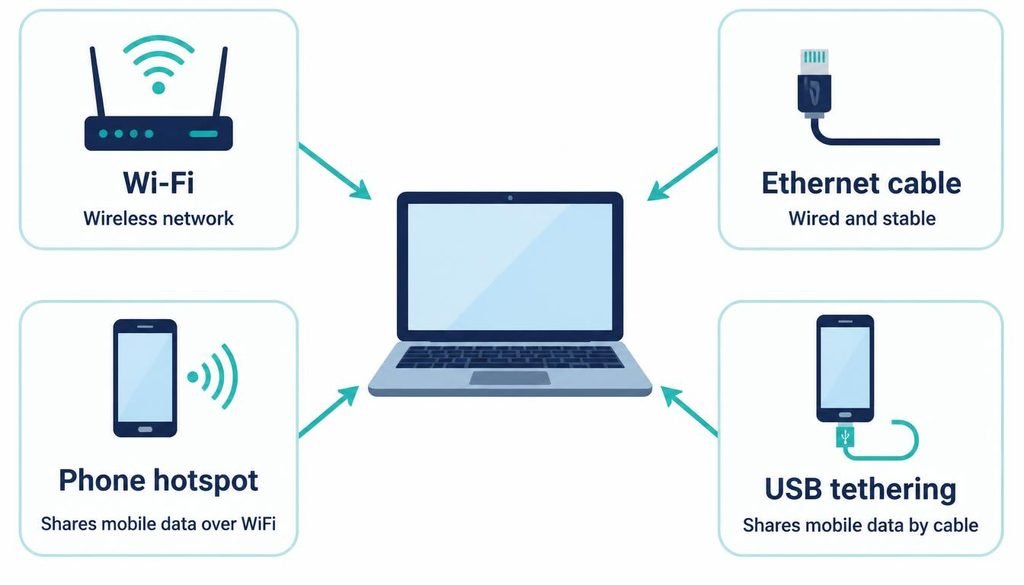
If you are searching for how to connect to internet to laptop, the fastest method depends on what you have nearby: a wireless router, a network cable, or a phone with mobile data.
Quick Answer (How to Connect Internet to Laptop)
Quick Answer: Open the network icon on the Windows taskbar, turn on Wi-Fi, choose your network, and enter the password. No wireless network? Plug in an Ethernet cable, turn on your phone hotspot, or use USB tethering. Then open a website to confirm the connection actually has internet access.
Table of Contents
What is your problem right now?
| Symptom | Likely cause | Recommended action |
|---|---|---|
| No Wi-Fi networks listed | Wi-Fi off, Airplane mode on, or adapter problem | Turn Wi-Fi on, turn Airplane mode off, then check Device Manager |
| Your network is missing | Out of range, or the router is off | Move closer, refresh the list, or check the router |
| Password rejected | Wrong password | Retype it, or forget the network and reconnect |
| Connected, but no internet | Router, provider, DNS, or IP problem | Test another device, restart the router, then check the IP configuration |
| Ethernet shows no connection | Loose cable or wrong router port | Check both ends and use a LAN port, not the Internet port |
| USB tethering fails | Setting off, wrong cable, or missing Apple software | Enable tethering on the phone, use a data cable, and see the iPhone notes below |
How to Connect Internet to Laptop?
How to connect a laptop to the internet using Wi-Fi
Wi-Fi is the most common method. It needs a wireless router with a working internet connection, and a laptop with a wireless network adapter. Microsoft notes that most laptops already include one.
- Select the Network, Sound, or Battery icons on the right side of the taskbar to open Quick Settings.
- Make sure Wi-Fi is turned on.
- Check that Airplane mode is off. You can find it under Settings > Network & internet > Airplane mode.
- On the Wi-Fi tile, select Manage Wi-Fi connections (the arrow beside it).
- Choose your network and select Connect. If it is missing, select the Refresh network list button.
- Type the network password and select Next.
- Open any website to confirm that you have internet access.
These steps follow Microsoft’s Windows 11 instructions. On Windows 10, you usually click the network icon on the taskbar, choose the network, and select Connect. Labels can vary by Windows version and device.
At a coffee shop or airport, you may also need to open a browser and accept terms on a sign in page before the internet works.
If the signal is weak or the network keeps dropping, read about fixing a weak Wi-Fi signal.
How to connect a laptop to the internet with an Ethernet cable
A wired connection is simple and does not depend on a wireless signal. It needs a router or network port that already provides internet.
- Plug one end of an Ethernet cable into a numbered LAN port on the router.
- Plug the other end into the Ethernet port on the laptop.
- Wait for Windows to detect the connection.
- Open Settings > Network & internet and check that Ethernet shows Connected.
Two cautions from Microsoft. Use a regular Ethernet port on the router, not the Internet port that connects the modem to the router. And if your laptop has no Ethernet port, a USB to Ethernet adapter can add one.
A cable that is plugged in does not prove that you have internet access. The router still needs a working connection to your provider.
How to connect internet from a mobile phone to a laptop
Your phone can share its mobile data. That works as a hotspot (Wi-Fi) or by USB tethering (cable). The phone must have a working mobile data connection, and some carriers limit or charge extra for tethering.

Using a phone hotspot (Android)
- Turn on mobile data on the phone.
- Turn on the hotspot. Google says you can tap Hotspot in Quick Settings, or go to Settings > Network & internet > Hotspot & tethering > Wi-Fi hotspot.
- On the laptop, open the Wi-Fi list and pick the phone’s hotspot name.
- Enter the hotspot password and wait for the connection.
Google’s guide says a phone can share mobile data with up to 10 devices through a hotspot. Sharing drains the battery and uses your data plan, so plug the phone in when you can. For more detail, read about using mobile data on a laptop.
Using a phone hotspot (iPhone)
Apple says to go to Settings > Cellular > Set Up Personal Hotspot. If that option is missing even though cellular data is on, ask your carrier whether your plan includes it. You also need to set a Wi-Fi password for the hotspot. See how to turn on an iPhone mobile hotspot. If the option is dim, read about fixing a grayed-out personal hotspot.
How to connect internet to a laptop using USB tethering
USB tethering shares your phone’s connection through a cable. Android and iPhone work differently, so follow the matching steps.
Android USB tethering
- Confirm that mobile data works on the phone.
- Connect the phone to the laptop with a USB cable that supports data. Some cables only charge.
- On the phone, open Settings > Network & internet > Hotspot & tethering, or swipe down, touch and hold Hotspot.
- Turn on USB tethering.
- Wait for Windows to recognize the connection. A vendor guide says it usually appears as a wired (Ethernet) connection.
- Open a website to test.
Menu names vary by Android version and phone maker, based on Google’s Android hotspot and tethering guide.
iPhone USB internet sharing
Apple’s guide for connecting a computer lists these requirements. If the laptop runs Windows, install the latest Apple Devices app or iTunes for Windows first.
- Turn on Personal Hotspot on the iPhone, as described above.
- Connect the iPhone to the laptop with a USB cable.
- If the iPhone asks whether to trust the computer, tap Trust.
- Check that Windows shows a new network connection.
Apple says Personal Hotspot stays active while the iPhone is connected by USB. See Apple’s Personal Hotspot instructions. Just plugging in a phone does not share its internet. The settings and permissions above must be on.
How to connect to the internet on Windows 10
Windows 10 follows the same pattern. Click the network icon on the taskbar, choose your network, select Connect, and enter the password. For Settings, go to Settings > Network & internet > Wi-Fi.
Windows 10 reached the end of support on October 14, 2025. Help Net Security reports that Microsoft extended the consumer Extended Security Updates program to October 12, 2027, though earlier sources list October 13, 2026. Check Microsoft’s current page for your edition.
The Windows 10 path for network reset differs from Windows 11. Microsoft lists Status > Network reset for Windows 10.
How to connect a laptop to the internet without Wi-Fi
You still need an internet source. These alternatives avoid the laptop’s wireless adapter:
- Ethernet cable from a router or network port.
- USB to Ethernet adapter, if the laptop has no Ethernet port.
- Phone USB tethering, using the steps above.
- Mobile broadband. Some laptops support a cellular connection or eSIM, as described by Microsoft.
- External USB Wi-Fi adapter, if the built in wireless hardware is faulty. Anker suggests this as a quick fix.
No method works with every laptop, phone, or carrier.
Why is my laptop not connecting to the internet?
Start with the simple checks and work down.
- Wi-Fi off or Airplane mode on. Check the taskbar tiles and the physical Wi-Fi switch if your laptop has one.
- Wrong password. Retype it, or forget the network in Settings > Network & internet > Wi-Fi > Manage known networks, then reconnect.
- Weak signal. Move closer to the router.
- Router or provider outage. If other devices also fail, the problem is not the laptop.
- Disabled adapter or bad driver. In Device Manager, expand Network adapters. If your wireless adapter is missing, Windows is not detecting it. If it is disabled, right click it and choose Enable device. Download driver updates only from Windows Update or your laptop maker’s website.
- Missing Wi-Fi option. See fixing the missing Wi-Fi option in Windows 11.
- Proxy or VPN. Turn off a manual proxy under Settings > Network & internet > Proxy, or pause the VPN to test.
- Cable or hardware fault. Try another cable or port.
For a broader checklist, see troubleshooting common Wi-Fi connection problems.
How to fix a laptop connected to Wi-Fi but without internet
Windows decides there is no internet when a small test request gets no reply. Microsoft says this means the laptop reaches the local network but not the internet.
- Try another website or app. This shows whether one service is the problem.
- Test another device on the same network. If it also has no internet, the router or provider is likely at fault.
- Restart the modem and router. Unplug both for at least 30 seconds, plug in the modem first, then the router. See checking whether a router is failing.
- Check proxy and VPN. Turn off a manual proxy or pause the VPN.
- Run the Windows network troubleshooter. On Windows 11, use the Get Help app’s Network and Internet troubleshooter.
- Check the IP address. An address starting with 169.254 means Windows did not get an address from the router.
- Test DNS. If you can reach the router but websites do not load, see fixing the DNS server not responding error.
- Contact your provider if multiple devices are affected.

Advanced Windows network troubleshooting
Open the search box, type Command Prompt, and choose Run as administrator for commands that change settings.
ipconfigshows your IP address and default gateway.ipconfig /alladds DNS servers and adapter details.netsh wlan show interfacesshows the connected Wi-Fi network, state, and signal.ipconfig /releasethenipconfig /renewasks the router for a new IP address. It helps when you have no valid address.ipconfig /flushdnsclears stored DNS results. It helps when names fail to resolve.
These do not fix a broken cable, a router outage, or an adapter that Windows cannot see.
Microsoft also lists netsh winsock reset and netsh int ip reset for deeper problems. Use them after the simple steps, then restart.
Network reset is the last resort. It removes network adapters and their settings, and you may need to set up VPN software again. On Windows 11, go to Settings > Network & internet > Advanced network settings > Network reset.
Which internet connection method is best for a laptop?
| Connection method | What you need | Main advantage | Main limitation |
|---|---|---|---|
| Wi-Fi | Router and wireless adapter | Convenient | Signal and interference |
| Ethernet | Cable and a network port | Stable | Needs a cable and port |
| Phone hotspot | Phone with mobile data | Works almost anywhere | Uses data and battery |
| USB tethering | Data cable and tethering support | No wireless needed | Setup differs by phone |
| External adapter or mobile broadband | Compatible hardware or plan | Backup option | Extra equipment or cost |
Final connection checklist
- You picked a method your laptop and phone support.
- The right network or cable is connected.
- Hotspot or tethering is turned on, if you use a phone.
- Windows shows a connection.
- A website loads.
- If not, you know whether the laptop, phone, router, or provider is the problem.
FAQs
How can I connect my Internet directly to my laptop?
Plug an Ethernet cable from a LAN port on your router into the laptop’s Ethernet port. If the laptop has no port, use a USB to Ethernet adapter. The router must already have a working internet connection, so check Settings for a Connected status.
Why is my Internet not connecting on my laptop?
Common causes are Wi-Fi turned off, Airplane mode, a wrong password, a weak signal, or a router outage. Test another device. If it also fails, restart the router or call your provider. If only the laptop fails, check Device Manager and the driver.
How do I connect Internet from mobile to laptop?
Turn on mobile data, then enable the phone’s hotspot and join it from the laptop’s Wi-Fi list with the hotspot password. You can also use USB tethering with a data cable. Some carriers limit or charge for tethering.
How to activate internet connection?
Turn on Wi-Fi and turn off Airplane mode, then choose a network and enter the password. For wired internet, plug in an Ethernet cable. If a provider must activate service first, contact them. Confirm success by opening a website.
How do I connect my laptop to the internet without Wi-Fi?
Use an Ethernet cable, a USB to Ethernet adapter, or USB tethering from your phone. Some laptops also support a cellular connection. You still need an internet source, such as a router or mobile data.
Can I use a USB cable to get internet from my phone to my laptop?
Yes, with USB tethering on Android, or Personal Hotspot over USB on iPhone. Use a cable that supports data. On Windows, an iPhone needs the Apple Devices app or iTunes, and you must tap Trust on the phone.
Why does my laptop say connected but have no internet?
The laptop reached the router but not the internet. Test another device, then restart the router. Check the IP address, DNS, proxy, and VPN settings if only your laptop is affected. Contact your provider if all devices fail.
Does USB tethering use mobile data?
Yes, if the phone is sharing its cellular connection. The data counts against your plan, and some carriers limit or charge for tethering. If the phone shares a Wi-Fi connection instead, it uses that connection’s data.
Why is my phone hotspot not appearing on my laptop?
The hotspot may be off, or the phone may lack mobile data. Refresh the Wi-Fi list and check the hotspot name. On iPhone, confirm that Personal Hotspot is available on your plan. See the grayed out hotspot guide if the option is dim.
How do I connect a laptop directly to a router?
Use an Ethernet cable between a LAN port on the router and the laptop. Avoid the router’s Internet port, which is meant for the modem. Check that Windows shows Connected, and confirm that websites load.
Conclusion
Start with Wi-Fi, since it is the quickest. If that is unavailable, use an Ethernet cable, a phone hotspot, or USB tethering. If you are connected without internet, test another device and restart the router before changing settings on the laptop.
For more help with home networking and connection problems, browse the other troubleshooting guides on Problevo.