
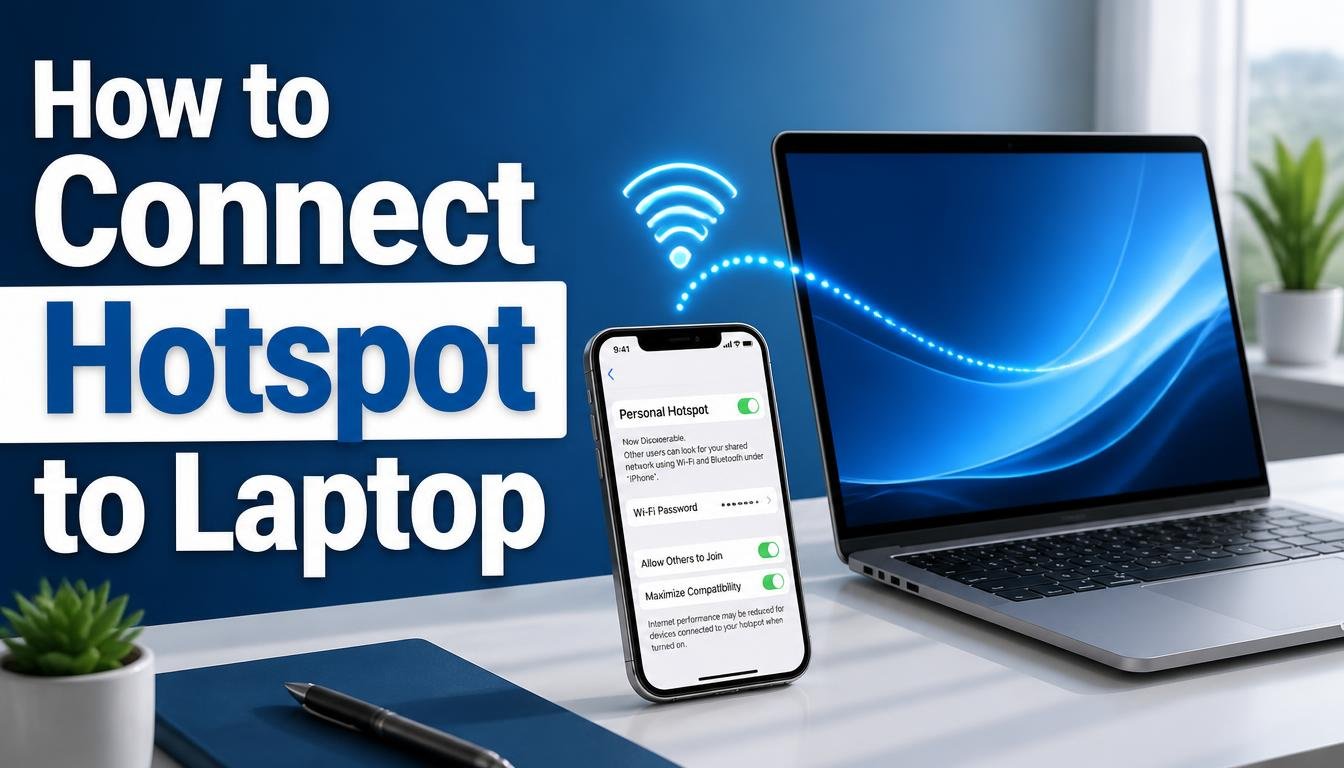
How to Connect Hotspot to Laptop: A Complete Guide (2026)
Need internet on your laptop but do not have access to WiFi? Your smartphone can share its mobile internet connection with your laptop in just a few steps.
Quick Answer: To learn how to connect hotspot to laptop, turn on mobile data and enable Personal Hotspot on your iPhone or Mobile Hotspot on Android. Open WiFi settings on your laptop, select your phone’s network, enter its hotspot password, and connect. Confirm that internet access is working.
Quick Troubleshooting Table
| Symptom | Possible Cause | Recommended Fix |
|---|---|---|
| Hotspot does not appear | Hotspot is off or network compatibility issue | Check hotspot settings and WiFi band |
| Incorrect password | Wrong or outdated password | Verify the current password |
| Connected but no internet | Mobile data or carrier issue | Test internet on the phone |
| Connection keeps dropping | Weak signal, heat, or power saving | Keep devices nearby and check power settings |
| Slow internet | Weak cellular signal or network congestion | Move to a better coverage area |
| USB tethering not working | Cable or driver issue | Try a data capable cable |
| Bluetooth tethering fails | Pairing or compatibility issue | Reconnect Bluetooth devices and verify support |
These are possible causes, not confirmed diagnoses. Start with the simplest checks before changing advanced network settings.
The easiest way to connect your laptop to a phone hotspot is through WiFi. You do not need a separate router or a special hotspot application if your devices already support this feature.
Step 1: Turn on Mobile Data
First, make sure your smartphone has a working cellular internet connection.
- Open your phone settings.
- Enable mobile data or cellular data.
- Open a website using your phone.
- Confirm that the page loads without relying on another WiFi connection.
If the internet does not work on your phone, solve that problem before troubleshooting your laptop.
You can also read our guide on how to use mobile data on a laptop.
Step 2: Turn On Your Phone Hotspot
On Android:
- Open Settings.
- Search for Hotspot or Tethering.
- Open the Mobile Hotspot or WiFi Hotspot settings.
- Enable the hotspot.
- Check the network name and password.
On many Android phones, you can also swipe down to open Quick Settings and tap Hotspot.
Menu names differ between Samsung, Google Pixel, Xiaomi, and other Android devices.
On iPhone:
- Open Settings.
- Tap Personal Hotspot. On some versions, it may appear under Cellular or Mobile.
- Turn on Allow Others to Join.
- Check the WiFi password displayed on the screen.
Keep the Personal Hotspot settings available while connecting if the network does not appear immediately.
For more instructions, read how to turn on mobile hotspot on iPhone.
Step 3: Open WiFi Settings on Your Laptop
On your Windows laptop:
- Click the network icon in the taskbar.
- Make sure WiFi is enabled.
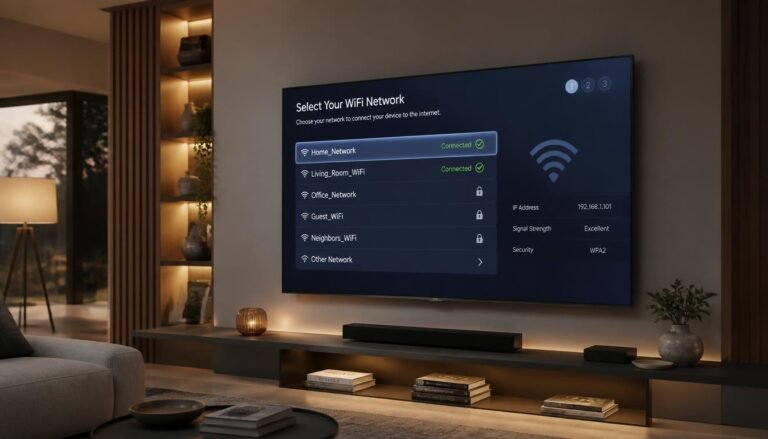
- Open the available WiFi networks.
- Find your phone’s hotspot name.
- Select the network.

How to connect hotspot to laptop?
Your hotspot name may be your phone’s device name or a custom name.
If you cannot see it, move to the troubleshooting section below.
Step 4: Enter Your Hotspot Password
Select Connect and enter the password displayed in your phone’s hotspot settings.
Check the following:
- Password capitalization.
- Special characters.
- Extra spaces.
- Whether the password was changed recently.
If Windows has saved an outdated password, forget the network and connect again.
Read our detailed guide on how to find your hotspot password.
Step 5: Test Your Internet Connection
After connecting:
- Open your browser.
- Visit a trusted website.
- Check whether the page loads.
- If it fails, test another website.
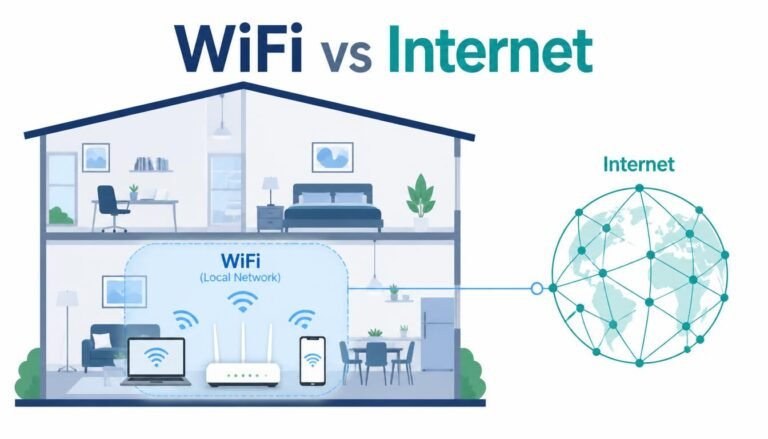
Remember: Being connected to WiFi does not always mean your laptop has working internet access.
Your phone may be broadcasting a hotspot successfully while its cellular connection is unavailable.
How to Connect Hotspot to Laptop Windows 11
Windows 11 makes connecting to a phone hotspot straightforward.
- Turn on your phone hotspot.
- Click the network icon in the Windows taskbar.
- Open the WiFi network list.
- Select your phone’s hotspot.
- Click Connect.
- Enter the hotspot password.
- Wait for Windows to confirm the connection.
If the network list does not appear, verify that WiFi is enabled and Airplane mode is off.
You can also open:
Settings > Network & internet > WiFi
The exact interface may vary by Windows build.
If Your Windows 11 Laptop Cannot Find WiFi
Open Settings > Network & internet and check whether WiFi is available.
If the WiFi control is missing, the wireless adapter may be disabled, unavailable, or affected by a driver issue.
Start with the Windows Get Help network troubleshooter before trying advanced changes.
How to Connect Hotspot to Laptop Windows 10
Windows 10 uses a slightly different settings layout.
- Turn on your phone hotspot.
- Click the WiFi icon on the taskbar.
- Find your mobile hotspot network.
- Select the network.
- Click Connect.
- Enter your password.
- Confirm that internet access works.
You can also open:
Settings > Network & Internet > WiFi
If your phone hotspot is missing, check Airplane mode, wireless adapter status, and hotspot compatibility.
Security note: Microsoft ended standard Windows 10 support on October 14, 2025. Ordinary Windows 10 installations no longer receive standard free security updates. Eligible extended security arrangements may differ. Consider moving to a supported operating system.
How to Connect Mobile Hotspot to PC Windows 7
Windows 7 is an outdated operating system and is no longer supported for normal security updates.
If you temporarily need to connect an old Windows 7 laptop:
- Enable the phone hotspot.
- Open the available wireless networks from the taskbar.
- Find your hotspot network.
- Select Connect.
- Enter the password.
- Test internet access.
This process depends on the laptop having a working wireless adapter and compatible drivers.
Some older adapters may not support the frequency band or security settings used by a newer phone.
If the hotspot does not appear, check the adapter specifications and supported wireless standards.
Important: Connecting an unsupported computer to the internet increases security risks. Use a supported operating system for regular browsing, banking, work, and sensitive activities.
How to Connect Hotspot to an HP Laptop
An HP laptop generally connects to a phone hotspot using the same Windows WiFi process.
- Enable your phone hotspot.
- Open the WiFi menu on your HP laptop.
- Select your phone network.
- Enter the password.
- Confirm internet access.
If WiFi is missing or disabled:
- Check Airplane mode.
- Check whether your laptop has a physical wireless control.
- Check the wireless adapter in Device Manager.
- Review HP support information for your exact laptop model.
Some models have manufacturer specific wireless controls, but there is no universal HP shortcut that works on every laptop.
How to Connect an iPhone Hotspot to a Laptop
You can connect a Windows laptop to an iPhone using WiFi, USB, or Bluetooth where supported.
Connect iPhone to Laptop Using WiFi
- Open Settings on your iPhone.
- Open Personal Hotspot.
- Enable Allow Others to Join.
- Open WiFi settings on your laptop.
- Select the iPhone network.
- Enter the hotspot password.
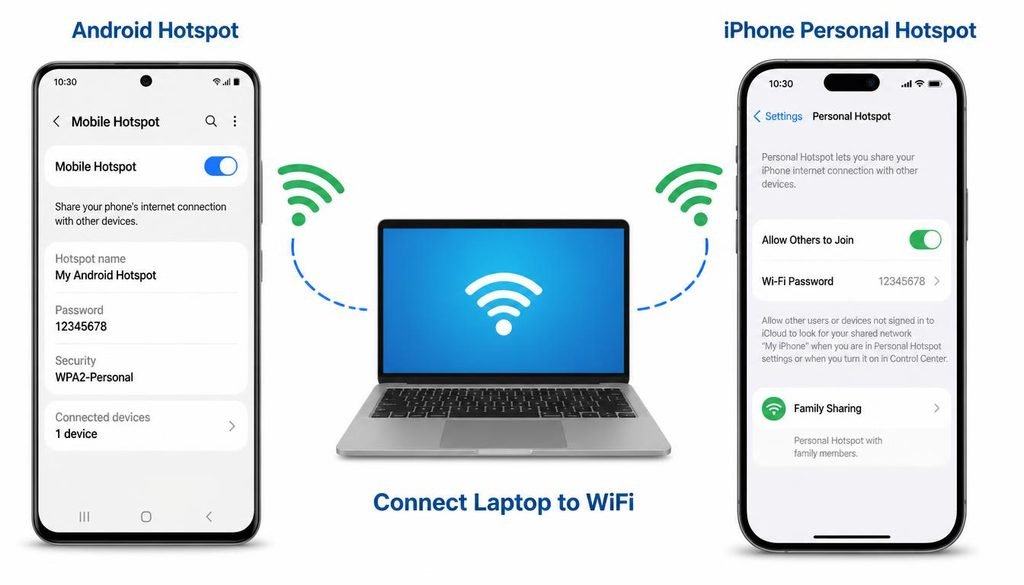
If your iPhone hotspot does not appear, keep the devices nearby and verify that the hotspot is enabled.
For compatible configurations, the iPhone’s Maximize Compatibility option may help with certain connection issues. Availability and behavior depend on the iPhone model and software version.
Connect iPhone to Windows Using USB
- Enable Personal Hotspot on your iPhone.
- Connect your iPhone to the laptop using a suitable USB cable.
- Install the latest Apple Devices app or iTunes for Windows, as required.
- If prompted, tap Trust on your iPhone.
- Allow the computer to recognize the connection.
- Check whether the internet connection works.
Apple documents USB Personal Hotspot support for Windows with the required Apple software.
A cable that supports charging only may not establish a data connection.
If iPhone Personal Hotspot Is Grayed Out
Possible causes include carrier restrictions, account settings, cellular configuration, or device software issues.
Check your cellular plan and carrier settings first.
See our guide on why Personal Hotspot may be grayed out.
How to Connect an Android Hotspot to a Laptop
Most Android phones support sharing mobile internet through WiFi, Bluetooth, or USB, although available methods vary.
Android Hotspot Setup
- Open Settings.
- Find Hotspot and tethering.
- Open WiFi hotspot.
- Turn it on.
- Check the network name and password.
- Connect from your laptop.
If your Android phone supports hotspot band selection, check whether it offers 2.4 GHz and 5 GHz.
Why does this matter?
Some older wireless adapters do not support every frequency band used by newer devices. If the hotspot is invisible, trying a compatible 2.4 GHz setting may help.
Use a secure hotspot password and avoid disabling network security.
Android Hotspot Device Limits
Some phones limit the number of connected devices or automatically turn off the hotspot when no devices are connected.
If your laptop cannot connect, check whether the device limit has been reached.
Hotspot behavior also depends on the manufacturer and carrier.
How to Connect Hotspot to Laptop Using USB
USB tethering can be useful when WiFi is unreliable or unavailable.
It may also reduce wireless interference, although it does not improve weak cellular coverage by itself.
Android USB Tethering
- Turn on mobile data.
- Connect your Android phone to the laptop using a data capable USB cable.
- Open Settings on your phone.
- Find Hotspot and tethering.
- Enable USB tethering if available.
- Wait for Windows to recognize the network connection.
- Test internet access.
If USB tethering is unavailable, check the cable, USB connection, device settings, and software support.
Some phones may require you to unlock the screen or select an appropriate USB connection mode.
Note: USB tethering is not universally supported across all Android devices, operating systems, and carriers.
iPhone USB Tethering
For iPhone USB tethering on Windows, enable Personal Hotspot, connect a suitable cable, and install the required Apple Devices app or iTunes software.
Accept the Trust prompt if it appears.
If Windows does not recognize the connection, check the cable, USB port, Apple software, and device connection status.
How to Connect Hotspot to Laptop Using Bluetooth
Bluetooth tethering is another option, but it may be slower than WiFi and is not supported in every device combination.
Basic Bluetooth Tethering Process
- Turn on Bluetooth on your phone and laptop.
- Pair the two devices.
- Enable Bluetooth tethering on your phone if supported.
- Open the laptop’s Bluetooth network connection options.
- Select the appropriate connection method.
- Test internet access.
Bluetooth network controls vary by operating system and device.
Pairing alone does not automatically guarantee an internet connection.
If the Bluetooth network option is missing, your device or operating system may not support the required tethering method.
For most users, WiFi or supported USB tethering is simpler.
How to Connect Mobile Hotspot to Another Mobile
Connecting one phone to another phone’s hotspot works much like joining a regular WiFi network.
- Turn on the hotspot on the first phone.
- Open WiFi settings on the second phone.
- Select the hotspot network.
- Enter the password.
- Confirm that internet access works.
The receiving phone uses the shared connection rather than its own cellular data for traffic routed through that hotspot, subject to system behavior and any network restrictions.
Carrier limitations and device connection limits may apply.
Troubleshooting: Why Is My Laptop Not Connecting to My Hotspot?
If your laptop still cannot connect, identify the exact symptom before changing settings.
Problem 1: Laptop Cannot Find Mobile Hotspot
When the hotspot does not appear in the WiFi list, check these points.
Step 1: Verify that hotspot is enabled.
Open the phone hotspot settings and confirm that it is active.
Step 2: Keep devices close.
Place your phone near the laptop while testing.
Step 3: Check laptop WiFi.
Make sure WiFi is on and Airplane mode is off.
Step 4: Check hotspot frequency compatibility.
If your phone supports it, try a compatible 2.4 GHz setting.
Step 5: Check whether other devices can see the hotspot.
If no device can find it, investigate the phone settings.
If other devices can see it, investigate laptop compatibility or adapter problems.
Problem 2: Laptop Says Incorrect Hotspot Password
An incorrect password error may occur because Windows has an outdated saved network profile.
Try the following:
- Check the password on the phone.
- Open WiFi settings on Windows.
- Find the saved hotspot network.
- Select Forget.
- Reconnect and enter the current password.
If necessary, change the hotspot password on your phone and reconnect.
Do not share your password with strangers or post it publicly.
Problem 3: Laptop Is Connected to Hotspot but Has No Internet
This problem means the wireless connection may be working, but internet traffic is failing somewhere.
Start with the phone.
Step 1: Open a website directly on your phone.
Step 2: Check mobile data and cellular signal.
Step 3: Verify your data allowance and carrier tethering policy.
Step 4: Disconnect and reconnect the hotspot.
Step 5: Test another website and another browser.
If the phone itself cannot access the internet, contact your carrier if necessary.
If the phone works but the laptop does not, continue with Windows troubleshooting.
You can also read WiFi connected but no internet access.
Problem 4: Hotspot Keeps Disconnecting
Frequent disconnections can have several causes.
Try these steps:
- Keep the phone close to the laptop.
- Check whether the phone is overheating.
- Review battery saver settings.
- Check hotspot timeout options if available.
- Reduce unnecessary connected devices.
- Restart WiFi on the laptop.
- Check wireless adapter power settings.
On Windows, you may find a power management option in Device Manager under the wireless adapter properties.
The exact option depends on the driver and device.
Do not change power settings if the relevant option is not available.
Problem 5: Hotspot Is Too Slow
A slow hotspot may result from cellular network congestion, weak coverage, WiFi interference, or plan restrictions.
Try:
- Moving to a location with stronger cellular reception.
- Placing the phone closer to the laptop.
- Disconnecting unused hotspot devices.
- Checking your carrier’s speed or data restrictions.
- Testing another supported connection method.
A faster WiFi link between the phone and laptop does not necessarily mean faster internet. Cellular network performance may remain the limiting factor.
Problem 6: Windows WiFi Adapter Is Not Working
If your laptop cannot detect any WiFi networks, the issue may involve its wireless adapter.
Step 1: Open Device Manager.
Press Windows + X, then select Device Manager.
Step 2: Expand Network adapters.
Look for your wireless adapter.
Step 3: Check its status.
If it is disabled, enable it if appropriate.
If an error appears, note the message before making changes.
Step 4: Check the driver.
Use Windows Update or your laptop manufacturer’s official support page for a compatible driver.
Avoid unofficial driver download sites.
Step 5: Restart the laptop.
Test the connection again.
Do not uninstall the wireless adapter driver unless you have a recovery plan or access to the correct replacement driver.
Useful Windows Commands for Hotspot Troubleshooting
Windows includes commands that can help diagnose network problems.
Open Command Prompt or Windows Terminal.
1. Check Your IP Configuration
Run:
ipconfig
Look for your WiFi adapter.
Check whether it has an IPv4 address and a Default Gateway.
An address beginning with 169.254 can indicate that Windows did not obtain a normal IPv4 address through automatic configuration, although the full situation requires further checks.
2. View Detailed Network Information
Run:
ipconfig /all
This shows additional information, including adapter configuration, DHCP status, DNS servers, and physical address.
Do not share the full output publicly without removing sensitive network details.
3. Release and Renew the IP Address
If the WiFi connection is established but Windows has a configuration problem, you can try:
ipconfig /release
Then:
ipconfig /renew
These commands affect IP configuration and may temporarily interrupt connectivity.
If renewing fails, check the adapter status and connection first.
4. Flush the DNS Cache
Run:
ipconfig /flushdns
This clears the local DNS resolver cache.
It may help with certain name resolution issues, but it does not repair a broken cellular connection or every hotspot problem.
5. Run the Windows Network Troubleshooter
On Windows 11, use the Get Help network troubleshooter.
On Windows 10, troubleshooting options may appear under:
Settings > Network & Internet
The interface depends on your version.
6. Use Network Reset Only as a Last Resort
Network reset can remove and reinstall network adapters and restore network settings to defaults.
It may also affect VPN software and virtual network configurations.
Try simpler fixes first.
Microsoft recommends network reset as a later troubleshooting step.
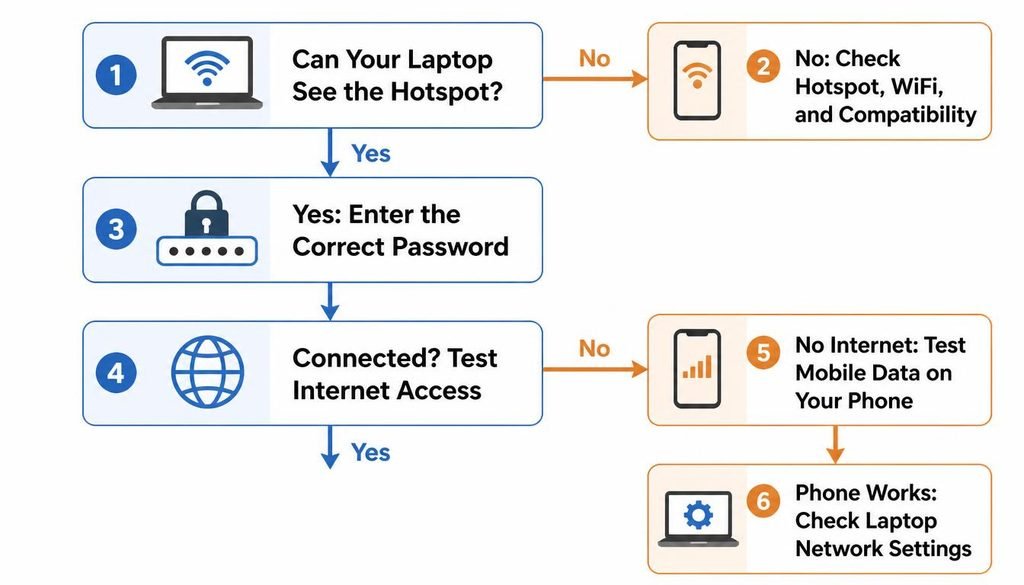
A Simple Hotspot Troubleshooting Decision Tree
Can your laptop see the phone hotspot?
- No: Check hotspot settings, WiFi, band compatibility, and the wireless adapter.
- Yes: Select the network and enter the password.
Does the laptop connect successfully?
- No: Verify the password and forget the saved network before reconnecting.
- Yes: Test internet access.
Does the internet work on your phone?
- No: Check cellular coverage, mobile data, plan restrictions, and carrier service.
- Yes: Check laptop IP configuration, VPN settings, DNS, and browser behavior.
Does another device connect successfully?
- Yes: The problem may be specific to the laptop.
- No: Investigate the phone hotspot or mobile network.
This approach helps narrow down the problem without changing multiple settings at once.
Hotspot Data Usage: What You Should Know
A mobile hotspot uses your phone’s internet connection to provide access to other devices.
Your laptop may consume more data than you expect because desktop websites, video streaming, software updates, cloud backups, and downloads can use substantial bandwidth.
How to Reduce Hotspot Data Consumption
- Pause unnecessary downloads.
- Disable automatic cloud backups temporarily if appropriate.
- Avoid high resolution video streaming when data is limited.
- Check Windows data usage.
- Monitor your carrier’s hotspot allowance.
- Disconnect devices that no longer need internet access.
Windows may offer a metered connection option for a WiFi network.
You can review it under the network’s properties, where supported.
A metered connection can help reduce certain background downloads, but it does not block all data usage.
For related guidance:
- Does hotspot cost money?
- How to check how much hotspot data you have left
- How much hotspot data do I have left?
Check whether your plan has a separate hotspot allowance, tethering restrictions, or additional charges.
WiFi Hotspot vs USB Tethering vs Bluetooth
| Method | Main Advantage | Limitation |
|---|---|---|
| WiFi hotspot | Easy wireless setup | Uses WiFi and phone battery |
| USB tethering | Wired connection | Needs a compatible cable and support |
| Bluetooth tethering | Can work as an alternative | Often slower and device dependent |
For everyday use, WiFi is usually the easiest choice.
USB tethering may be useful when wireless connectivity is unreliable.
Bluetooth can be considered when supported alternatives are unavailable.
Common Mistakes to Avoid
1. Turning on hotspot without mobile data
Your laptop may connect to the hotspot but have no internet.
2. Entering an old password
The saved password may no longer match the phone’s current settings.
3. Ignoring frequency compatibility
Older laptops may not support every band available on newer phones.
4. Installing random network drivers
Untrusted driver downloads can introduce security risks or compatibility problems.
5. Resetting network settings too early
A network reset can affect saved settings and networking software.
6. Ignoring hotspot data limits
Extended laptop use can consume mobile data quickly.
FAQ
How do I connect my mobile hotspot to my laptop?
Enable mobile data and turn on your phone hotspot. Open WiFi settings on your laptop, select your phone’s network, and enter the hotspot password. Wait for the connection, then test a website to confirm that your laptop has internet access.
How do I activate the hotspot on my laptop?
If you want to share your laptop’s internet connection, open Settings > Network & internet > Mobile hotspot on supported Windows versions. Select the internet connection to share, choose WiFi or Bluetooth, configure the settings if needed, and turn on Mobile hotspot.
Why cannot my laptop connect to my hotspot?
Common causes include an incorrect password, incompatible WiFi band, disabled wireless adapter, saved network problems, or phone connectivity issues. Forget the saved hotspot and reconnect first. If that fails, check whether another device can connect to the same hotspot.
How do I hotspot from my iPhone to my laptop?
On your iPhone, open Settings > Personal Hotspot and enable Allow Others to Join. Open WiFi settings on your laptop, select your iPhone network, and enter its password. You can also use supported USB tethering with the required Apple software on Windows.
How do I connect my Android hotspot to a Windows laptop?
Open Android settings and enable WiFi hotspot. On Windows, open the WiFi network list, choose your phone’s hotspot, and enter its password. If the hotspot does not appear, check its visibility, supported frequency band, and the laptop’s wireless adapter.
Can I connect my laptop to a hotspot using USB?
Yes, USB tethering is supported on many compatible Android phones and Windows configurations. Connect a data capable cable and enable USB tethering in your phone settings. For iPhone on Windows, Apple Devices or iTunes may be required. Device support and carrier restrictions vary.
Why is my laptop connected to my hotspot but has no internet?
The phone may have lost cellular service, exhausted its data allowance, or encountered carrier restrictions. If internet works on the phone, investigate the laptop’s IP configuration, VPN, DNS, or browser. Test another website and another device to narrow down the cause.
How do I connect a hotspot to a laptop using Bluetooth?
Pair your phone and laptop through Bluetooth, then enable Bluetooth tethering on the phone if supported. Configure the laptop’s Bluetooth network connection and test internet access. Bluetooth pairing alone does not guarantee tethering support, and the steps differ by operating system.
Does using a mobile hotspot consume mobile data?
Yes. Laptop activity such as video streaming, downloads, browsing, and software updates can use your phone’s mobile data. Some carriers apply separate hotspot limits or additional charges. Check your mobile plan and data usage before using a hotspot for extended periods.
Why does my laptop keep disconnecting from my phone hotspot?
Possible causes include weak cellular coverage, WiFi interference, battery saving settings, phone overheating, or hotspot timeout settings. Keep your devices nearby, check battery and temperature, and reconnect. If the problem continues, test another device to determine which side may be responsible.
Conclusion
Connecting your laptop to a phone hotspot is usually simple. Turn on mobile data, enable your phone’s hotspot, select the network on your laptop, and enter the correct password.
If the connection fails, identify whether the problem involves hotspot visibility, authentication, WiFi connectivity, or internet access.
Start with basic checks and move to advanced troubleshooting only when necessary.


3 Comments