
How to Change WiFi Password on Router (5-Min Guide, 2026)
Your WiFi password protects everything connected to your home network, so knowing how to change WiFi password on router settings is worth a few minutes of your time. People usually do it after moving into a new home, sharing the password too widely, replacing a router, or noticing that the original password is still printed on the label.
Quick Answer
⚡ Quick Answer: How to Change Router Wi-Fi Password
- Connect to Network: Ensure your device is connected to the router via Wi-Fi or Ethernet cable.
- Access Router Gateway: Open a web browser and type your router IP address (e.g., 192.168.1.1 or 192.168.0.1).
- Log In as Admin: Enter your administrator username and password (found on the router sticker).
- Update Wi-Fi Settings: Go to Wireless / Security Settings, select your network (2.4GHz/5GHz), and type a new password.
- Save & Reconnect: Click Save/Apply and reconnect all your phone and laptop devices with the new password.
Time needed: about 5 minutes | Difficulty: Easy | Works on: TP-Link, Netgear, ASUS, Linksys, D-Link, Huawei, Tenda, Xfinity, Spectrum and most other routers
The process is the same in outline on most routers, but the login address, the administrator password and the menu names are not. This guide teaches you to find your own gateway address, avoid the most common mix-ups, and recover if a device refuses to reconnect.
Table of Contents
Quick Diagnostic Table
| Symptom | Root Cause | Actionable Fix |
|---|---|---|
| Router login page will not open | Wrong gateway address, active VPN, or phone on mobile data or a guest network | Check the Default Gateway, turn off the VPN, join the main network, and type the address in the browser address bar |
| Administrator login fails | The admin password is not the WiFi password, or it was changed during setup | Check the router label, then use the manufacturer or provider recovery option before any reset |
| WiFi settings are hard to find | Menus are named Wireless, WiFi, WLAN, Basic or Wireless Security depending on model | Look for those names, or open the manual for your exact model |
| Devices disconnect after saving | The wireless network restarted and devices still hold the old password | Forget the network on each device and reconnect with the new password |
| Phone cannot reconnect | Saved profile has the old password, or the new one was mistyped | Forget the network, then type the new password again slowly |
| ISP router settings are locked | The provider manages the router through its own app or portal | Use the provider app or contact provider support |
| Save button does nothing | Invalid password length, a stray space, or an expired login session | Use 8 to 63 characters with no leading or trailing space, then sign in again |
What You Need Before Changing Your WiFi Password
Gather a few things first, and the rest of the process becomes straightforward.
- A way to reach the router.
This is a phone or computer connected to the router, or the manufacturer’s management app for supported models. - The administrator login.
This is the credential for the router settings page, and it is different from the WiFi password. Many routers print a default on the label, but you may have changed it during setup. - The router label and model number.
The label usually shows the model, the default network name and the default WiFi password. Be careful here: if you changed the password earlier, the label still shows the original one, not the current one. - A connected device.
A phone or laptop already on the network is the easiest starting point.
If you can, use an Ethernet cable for the first login. A wired connection keeps working while the wireless network restarts, so you will not be cut off halfway through saving. If you have no cable and need a backup connection to look up your model, a phone hotspot works, and you can learn how to check your remaining mobile hotspot data before you rely on it.
How to Change WiFi Password on Router Step by Step
This is the universal workflow. Brand specific paths follow in the next section.
Step 1: Connect to your router
Join the router’s main WiFi network or plug an Ethernet cable from your computer into a LAN port on the router. Avoid guest networks, because many routers block access to settings from them on purpose.
Step 2: Find the correct router login address
The address you need is called the default gateway. It is the private IPv4 address of the router on your home network. Common examples are 192.168.1.1 and 192.168.0.1, but neither is universal, and guessing wastes time. D-Link’s own guide lists several typical addresses for exactly this reason.
On Windows:
- Press Windows + R.
- Type
cmdand press Enter. - Run
ipconfig. - Find the active adapter and read its Default Gateway value.
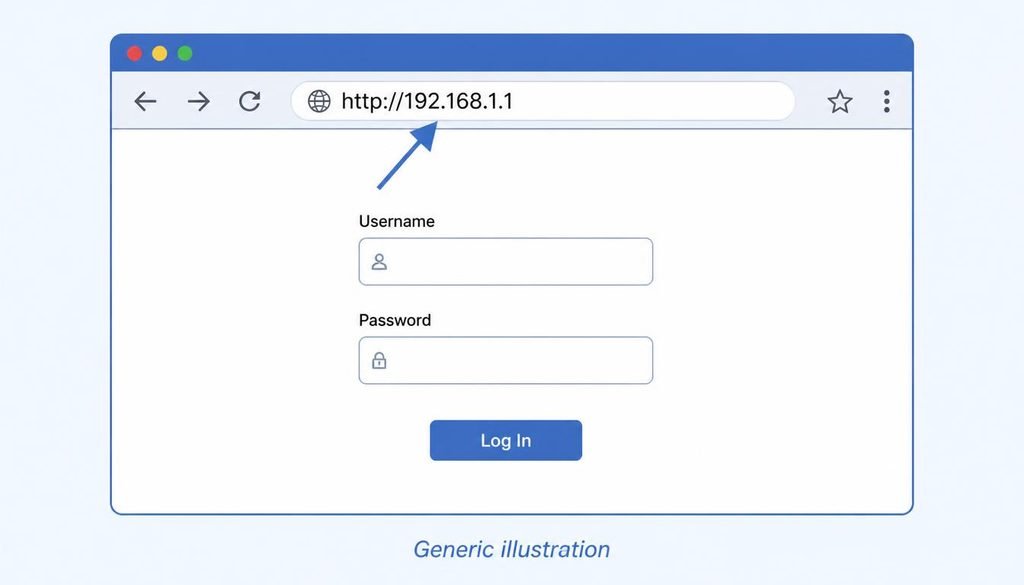
The active adapter may be your WiFi adapter or your Ethernet adapter, depending on how you are connected. Adapters that show a disconnected message, and virtual adapters created by VPN or virtualization software, can display addresses that have nothing to do with your router. Ignore those.
On a phone, open the details of the network you are connected to. On an iPhone, this is usually Settings > WiFi, then the information icon beside the network, where the Router field shows the address. On Android, look in the connected network details for Gateway or Router. The wording and location depend on your Android version and manufacturer. If the address is not shown, use the router label or the manufacturer’s instructions.
One common confusion deserves a mention. A number such as 192.168.0.102 is usually the address your router assigned to a phone or laptop, not the address of the router itself. Your own device address and the gateway address are different values.
Common Router Login Addresses by Brand
| Router or provider | Common login address | Where the WiFi password usually lives |
|---|---|---|
| TP-Link | tplinkwifi.net or 192.168.0.1 | Wireless > Wireless Settings, or Basic > Wireless |
| Netgear | routerlogin.net or 192.168.1.1 | Wireless > Password (Network Key) or Passphrase |
| Netgear Orbi | orbilogin.com or the Orbi app | Wireless, or WiFi Settings in the app |
| ASUS | router.asus.com or 192.168.1.1 | Wireless > General > WPA Pre-Shared Key |
| Linksys | myrouter.local or 192.168.1.1 | WiFi Settings, or Wireless > Wireless Security |
| D-Link | dlinkrouter.local or 192.168.0.1 | Settings > Wireless > Password |
| Tenda (4G300) | 192.168.2.1 | Wireless > Security |
| Huawei | Address on the router nameplate | My Wi-Fi |
| Xfinity gateway | 10.0.0.1 (usually) or the Xfinity app | WiFi > Edit WiFi settings |
| Verizon Fios | 192.168.1.1 or the My Fios app | Wireless Settings |
| AT&T gateway | 192.168.1.254 or the Smart Home Manager app | WiFi settings |
These are common defaults, not guarantees. Firmware, model and provider customisation change them, so confirm the address with your Default Gateway or the router label.
If you want a deeper walkthrough of the login process, see how to access router settings.
Step 3: Open the router management page
Type the gateway address into the browser address bar, not the search field, and press Enter. Some brands also offer a name instead of a number, such as tplinkwifi.net for many TP-Link routers.
You may see a security warning, because many home routers use a certificate that browsers cannot verify. Do not click through automatically. Check that you typed the address exactly, that you are on your own home network, and that the address matches your Default Gateway. Never continue past this kind of warning on a public or unfamiliar network. If the page will not load at all, the troubleshooting section below covers the likely causes.
Step 4: Sign in to the administrator account
Enter the administrator username and password, not the WiFi password. Default credentials vary by brand and model, and many providers set a unique password per device. Do not assume a universal pair such as admin and admin.
The table below shows why people get stuck here.
| Password | What it controls | Where you set it | Changing it affects |
|---|---|---|---|
| WiFi password (wireless security key) | Who can join the wireless network | Wireless or WiFi settings | Every wireless device |
| Router administrator password | Who can open router settings | System, Administration or similar | Only the settings login |
| Internet provider account | Your billing and account portal | Provider website or app | Not the router at all |
Changing one of these does not change the others. A search for a password change at 192.168.1.1 often mixes up the first two.
Step 5: Find the WiFi or Wireless settings
Look for a menu named Wireless, WiFi, WLAN, Wireless Security or Basic. The network name (SSID) and the password may sit on one page or on two separate pages. You do not need to change the network name. If you only want a new password, leave the name as it is.
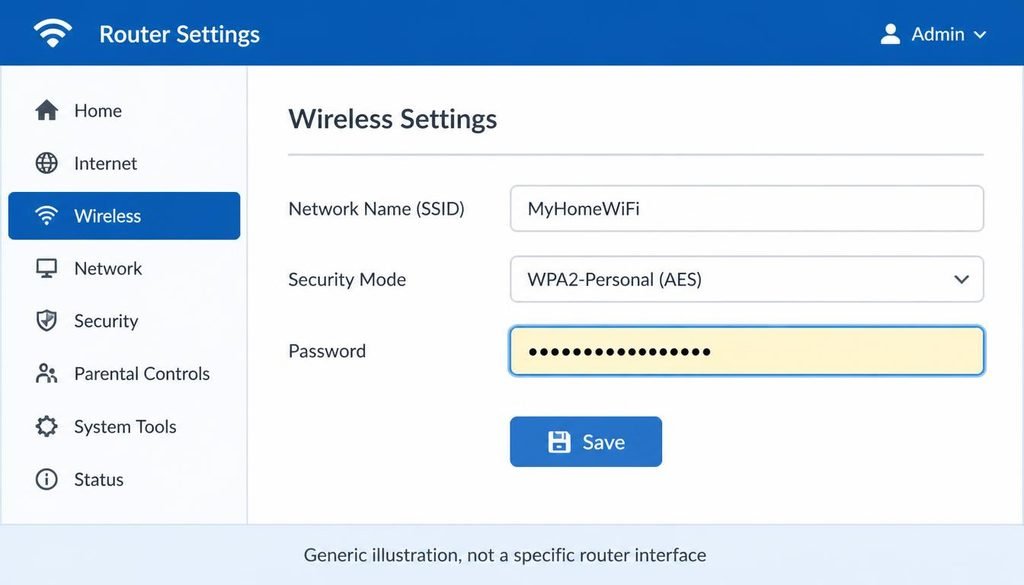
Many dual band routers show one shared network for both bands, while others show separate 2.4 GHz and 5 GHz settings. If they are separate, set the new password on each one, or devices on the band you skipped will keep working with the old password.
Some routers merge both bands under one name with a feature often called Smart Connect or band steering. When it is on, a single password covers every band. If you want a different password for 2.4 GHz and 5 GHz, turn that feature off first. Huawei calls the equivalent options Prioritize 5 GHz and Tri-band auto-switch. On some mesh systems, the password change applies to every node automatically.
Step 6: Set a strong new WiFi password
Also check the security mode on the same page. The comparison right after Step 7 explains which setting to choose.
Step 7: Save the change and reconnect devices
Click Save or Apply. Depending on the model, the router may apply the change immediately, restart its wireless service, or ask for a reboot. Tenda’s 4G300 guide, for example, ends with a reboot. Expect your phone or laptop to disconnect, wait a minute or two, and then reconnect with the new password.
Which WiFi Security Mode Should You Choose?
Pick the security mode on the same page where you enter the new password. A new password only helps if the mode protecting it is modern.
| Security setting | Choose it when | Notes |
|---|---|---|
| WPA3-Personal | Every device on your network supports it | Strongest option for home use. Its handshake makes offline password guessing much harder. |
| WPA2/WPA3 Transition (mixed) | You have a mix of new and older devices | A good migration setting. WPA3 devices use WPA3 and older ones fall back to WPA2. |
| WPA2-Personal (AES or CCMP) | Your router has no WPA3, or an older device will not connect | Still secure in practice with a long, unique password. Choose AES, not TKIP. |
| WPA, TKIP, WEP or Open | Avoid | Outdated or unprotected. If your router offers nothing better, consider replacing it. |
If a device fails to reconnect after you switch to WPA3 only, move to the transition mode instead of turning security off.
How to Change WiFi Password on Different Router Brands
Treat each path below as a starting point. Firmware and model differences change the labels, and the manufacturer manual for your exact model is the authority.
TP-Link routers
Many TP-Link routers answer at tplinkwifi.net or 192.168.0.1, while DSL modem routers commonly use tplinkmodem.net or 192.168.1.1. After signing in, TP-Link’s WiFi password guide says the wireless page depends on the model: Wireless > Wireless Settings, Basic > Wireless, or separate Basic Settings and Wireless Security pages on some older models.
Be careful which TP-Link page you follow. TP-Link also publishes a guide to changing the device admin password, which is a different task. Compatible models can also be managed from the Tether app, so check TP-Link’s compatibility list for your model before relying on it.
Tenda routers
Tenda’s supplied support page applies to the 4G300 only. It uses 192.168.2.1, lists a default password of admin, and sets the name under Wireless > Basic and the key under Wireless > Security. Do not copy those steps to other Tenda models. Tenda’s regional support FAQ describes a different path for other routers, Wi-Fi Settings > Wi-Fi Name & Password. Check your router label for the correct address and credentials.
D-Link routers
D-Link’s router password FAQ uses dlinkrouter.local or 192.168.0.1. Sign in with the admin password, which may be blank if it was never changed, then open the Wireless Settings and set the Password field for the band you want. D-Link separates this from the admin login, so changing the WiFi key does not alter the settings password.
Huawei routers
Huawei describes two methods in its support article. In the AI Life app, connect your phone to the router, open the router, and go to Show more > WiFi management > WiFi, then enter the new name and password. On the web page, use the default IP address on the router nameplate, open My Wi-Fi, and save. If your Huawei router sits behind another Huawei router, its settings follow the uplink router, so change them there. Turning off Prioritize 5 GHz or tri-band auto-switch lets you set separate passwords per band.
Netgear routers
Go to routerlogin.net or 192.168.1.1 and sign in with the administrator login. Open Wireless (on some models, Advanced > Setup > Wireless Setup). Enter the new key in the Password (Network Key) or Passphrase field for each band, then click Apply. The key must be 8 to 63 characters, or 64 hex digits. Orbi mesh systems use orbilogin.com or the Orbi app. In the Nighthawk app, Smart Connect may need to be switched off before you can edit each band separately.
ASUS routers
Go to router.asus.com or 192.168.1.1 and sign in. Click Wireless in the left menu, then open the General tab and choose the band. Enter the new password in the WPA Pre-Shared Key field and click Apply. If AiMesh is enabled, the change passes to the mesh nodes automatically.
Linksys routers
Go to myrouter.local or 192.168.1.1 and sign in. Open WiFi Settings, or on classic firmware go to Wireless > Wireless Security. Make sure the security mode is not set to Disabled, then enter the new Passphrase. Repeat for the second band if the bands are separate, then click Save or Apply. Velop mesh systems can be managed from the Linksys app.
ISP supplied routers and mesh WiFi systems
Providers often manage their own routers through a branded app or online portal, and some lock local settings. Start with the label and your provider’s support pages rather than a generic guide.
Common provider routes (menus change by model, so check your provider’s support page if yours differs):
- Xfinity: open the Xfinity app, tap WiFi, select your network, then choose Edit WiFi settings.
- Spectrum: use the My Spectrum app or spectrum.net, go to Services > Internet, select your router and choose Manage or Edit WiFi. If you use your own router with a Spectrum modem, the Spectrum app does not control it.
- Verizon Fios: use the My Fios app, or sign in at 192.168.1.1 with the admin password on the router label and open the WiFi settings.
- AT&T: use the Smart Home Manager app, or the gateway page at 192.168.1.254.
- BT, Sky and Virgin Media (UK): their apps show network settings under WiFi or My Equipment.
Mesh systems usually use the vendor’s app. Google documents this for Nest Wifi and Google Wifi in its help article: open the Google Home app, then Home > Wifi > Network settings. Passwords must be 8 to 63 characters with no spaces, and every device disconnects until you update it. Google also notes that reusing an old network name and password when replacing a router spares you from reconnecting devices, as long as the old router is switched off or placed in bridge mode.
How to Change WiFi Password From Mobile
There are two reliable methods, and neither requires a special website.
Browser method:
- Connect the phone to the router’s main WiFi network.
- Find the router address in the network details.
- Open the address in the phone browser’s address bar.
- Sign in with the administrator credentials.
- Open the Wireless or WiFi settings.
- Enter and save the new password.
- Reconnect if the phone disconnects.
App method: Supported routers offer a manufacturer app, such as TP-Link Tether or Huawei AI Life. Connect to the router, sign in, and find the WiFi settings. Not every router supports every app, and remote management differs by product, so do not assume you can change settings from a different internet connection.
There is no universal website for a WiFi password change online. The password lives in your router’s settings, so use the router page, the manufacturer app or your provider’s portal. Be cautious with third party apps that promise to change any router password, because the Google Play listing supplied for this topic is an unrelated developer’s app with mixed reviews and is not an authoritative source.
How to Choose a Strong WiFi Password
- Make it long and unique. A passphrase of several unrelated words is easier to manage than a short complex string.
- Avoid personal details. Names, addresses, birthdays and common passwords are easy to guess.
- Choose a modern security mode. Apple recommends WPA3 Personal, or WPA2/WPA3 Transitional for older devices, and WPA2 Personal with AES when nothing better is available.
- Avoid weak or obsolete modes when a secure option exists, and do not switch security off to troubleshoot.
- Store it safely. A trusted password manager prevents lost passwords.
- Handle the admin password separately. If the router login is weak or still the default, change it too. Changing the WiFi password alone does not fix every router security issue.
You do not need to rotate the password on a fixed schedule. Change it when it has been shared widely, someone you do not trust had it, or you suspect misuse.
Router Security Checks to Do While You Are Logged In
You are already inside the settings page, so spend two more minutes on these:
- Change the admin password if it is still the default. The WiFi password and the admin password protect different things.
- Update the router firmware so known security fixes are applied.
- Turn off WPS if you do not use it.
- Turn off remote administration unless you truly need it. Most homes only need settings access from inside the network.
- Set up a guest network for visitors and smart home gadgets, so you never have to share your main password.
- Check the connected devices list and remove any device you do not recognise.
What Happens After You Change Your WiFi Password?
Every device that joined with the old password needs the new one. Devices often keep the old saved credentials, so forgetting the network before reconnecting is the cleanest fix.
| Device type | What to expect | What to do |
|---|---|---|
| Phones and tablets | Disconnect and may retry the old password | Forget the network, rejoin, enter the new password |
| Laptops and desktops | Show a connection or authentication error | Remove the saved network, reconnect |
| Smart TVs and streaming devices | Lose internet access | Reconnect in the TV network settings |
| Printers | Go offline | Re-enter the WiFi details in printer setup |
| Security cameras and smart speakers | Show offline in their apps | Re-run network setup in the device app |
| Extenders and other network equipment | Lose their link to the router | Reconnect or repeat setup |
Printers are the usual stragglers, and the steps in how to connect a printer to WiFi apply again. For televisions, follow how to connect a smart TV to WiFi to rejoin the network.

If a TV still will not get online after you enter the new password, see how to connect a TV to the internet for other ways to restore its connection. If you are unsure whether a casting problem even involves the router, read about whether screen mirroring works without WiFi.
Remember the three credentials from earlier. The WiFi password, the router administrator password and your provider account are separate, and changing the first does not affect the others.
How Often Should You Change Your WiFi Password?
There is no mandatory schedule. Advice varies, from every few months to once a year, but a long, unique WPA2 or WPA3 password that has not been shared widely does not need constant rotation. Change it straight away if:
- you gave it to many people or a guest who should no longer have access,
- you see a device you do not recognise on the network,
- a former housemate, tenant or employee still has it,
- you replace or reset your router.
How to Find Your Current WiFi Password
- Windows: open Command Prompt and run
netsh wlan show profile name="YourNetworkName" key=clear. The password appears under Key Content. - iPhone: go to Settings > Wi-Fi, tap the information icon beside your network, then tap Password and authenticate.
- Android: open Settings > Wi-Fi, tap your network, then choose Share to show a QR code and the password after you verify.
If the saved password is wrong or blank, sign in to the router as administrator and read or reset it in the wireless settings.
Troubleshooting WiFi Password Change Problems
If the problem is wider than a password, how to fix common WiFi connection problems covers the broader checklist. For password specific issues, work through these in order.
- The router login page does not open. Confirm you are on the router’s main network or an Ethernet cable, not mobile data or a guest network. Turn off any VPN, and type the address into the address bar.
- The gateway address appears incorrect. Re-read the Default Gateway on the active adapter only. Ignore virtual or disconnected adapters, and check the router label.
- The administrator password is forgotten. Try the label, then use official recovery first. TP-Link supports Password Recovery through a linked TP-Link ID on some devices, and other brands and providers have their own routes. A factory reset is the last resort. It can erase the WiFi name and passwords, internet connection settings, port forwarding, parental controls and other custom configuration. Collect your provider’s setup details before you reset.
- The WiFi password field is missing. Try Wireless Security, Basic or WLAN pages, or check whether the provider app controls the setting.
- The Save button does not work. Check the length (8 to 63 characters), remove any space at the beginning or end, then sign in again.
- The router restarts or disconnects. This can be normal after saving. Wait a couple of minutes, then reconnect.
- The phone cannot reconnect with the new password. Forget the network, rejoin, and type the password carefully. If you can connect other devices but not this one, the problem is not the password itself. A message such as DNS server not responding points to a different fault, covered in how to fix the DNS server not responding error.
- A printer or smart device stays offline. Run its network setup again. Some smart devices only support 2.4 GHz, so check which band the device joined.
- The router uses separate 2.4 GHz and 5 GHz networks. Update both, or note which one each device uses.
- The ISP or mesh app controls the settings. Use that app or the provider’s support. Local router pages may be read only.
If a computer cannot find any WiFi networks at all, that is a different fault, and how to fix the missing WiFi option in Windows 11 is the better starting point. Also remember that a new password does not improve coverage, so if speeds are poor, see how to fix a weak WiFi signal.
Common Mistakes to Avoid
- Confusing the WiFi password with the administrator password.
- Guessing gateway addresses instead of reading the Default Gateway.
- Following instructions written for a different router model.
- Forgetting to reconnect devices, especially printers and smart home equipment.
- Using an easily guessed password.
- Resetting the router unnecessarily.
- Changing the wrong wireless band or network.
Final Checklist
- I identified my default gateway instead of guessing.
- I signed in with the administrator login, not the WiFi password.
- I changed the password on every band that has separate settings.
- I chose WPA3 Personal or WPA2/WPA3 Transitional where available.
- I saved the change and waited for the router to finish applying it.
- I stored the new password in a password manager.
- I reconnected phones, computers, TVs, printers and smart devices.
Frequently Asked Questions
How do I change the password of my WiFi router?
Connect to the router, find your default gateway address, and open it in a browser. Sign in with the administrator login, open Wireless or WiFi settings, enter a new password, and save. Reconnect each device with the new password. Menu names and addresses differ by brand, so check the label or manual.
Can I change my home WiFi password on my router?
Yes, if you can sign in to the router or its management app. The change needs administrator access, not just the current WiFi password. If your internet provider locks the settings or controls the router through its own app, use that app or contact the provider to make the change.
How do I change my Home Connect router password?
The correct steps depend on what Home Connect means in your case. It may refer to a provider, a specific router product, or a smart home app. Identify the exact device or service name on the label or in your account, then follow that maker’s instructions instead of a generic menu path.
Can I change my WiFi password myself?
Yes, most households can do it without a technician. You need the router’s administrator login and a connected device. If your provider supplied the router, check whether local changes are allowed. Write the new password down safely, because every device will need to reconnect.
How do I change my WiFi password from my phone?
Connect the phone to the router’s WiFi, open the router’s gateway address in the phone browser or use the manufacturer app, and sign in as administrator. Open the wireless settings, enter the new password, and save. The phone will probably disconnect, so reconnect with the new password.
How do I change my TP-Link WiFi password?
Many TP-Link routers open at tplinkwifi.net or 192.168.0.1. Sign in with your admin password, then look under Wireless > Wireless Settings or Basic > Wireless, depending on model. Enter the new password, save, and reconnect devices. Compatible models can also use the Tether app.
What address do I use to change my router WiFi password?
Use your router’s default gateway address, not a guess. On Windows, run ipconfig and read Default Gateway. On a phone, check the connected network details. Common examples include 192.168.1.1 and 192.168.0.1, but neither is universal, and some brands use a name such as tplinkwifi.net
Can I change my WiFi password without changing the network name?
Yes. The network name and the password are separate fields on most routers. Leave the network name unchanged, enter only a new password, and save. Some routers show separate names for 2.4 GHz and 5 GHz, so update the password for each band if the fields are separate.
What should I do if I forget my router administrator password?
Check the router label and the manufacturer’s official recovery option first, such as TP-Link ID recovery where supported, or your provider’s account. Use a factory reset only as a last resort, because it erases custom settings, and you may need your internet provider’s setup details afterward.
Why will my devices not connect after I change my WiFi password?
Most devices still hold the old password. Forget the network on each device, then reconnect and type the new password carefully. Also check that you changed the correct band, that the password has no stray spaces, and that older devices support the security mode you selected.
How often should I change my WiFi password?
There is no fixed rule. If your password is long, unique and shared only with trusted people, you do not need to rotate it constantly. Change it immediately after sharing it widely, spotting an unknown device, or when someone who knew it should no longer have access.
Should I use WPA2 or WPA3 for my home WiFi?
Use WPA3-Personal if every device you own supports it. If you have older devices, choose WPA2/WPA3 Transition mode. If your router has no WPA3, WPA2-Personal with AES is still secure when paired with a long, unique password. Avoid WEP, WPA and TKIP.
Is the WiFi password the same as the router admin password?
No. The WiFi password lets devices join your wireless network. The admin password opens the router settings page. They are set in different places, and changing one does not change the other. Many routers print both on the label as defaults, so change the admin password too.
Will changing my WiFi password disconnect every device?
Yes, every wireless device that used the old password will disconnect. Wired Ethernet devices stay connected. Reconnect phones, laptops, TVs, printers and smart home devices with the new password, and forget the old network first if a device keeps retrying the old one.
How do I change my Xfinity or Spectrum WiFi password?
Use the provider app. For Xfinity, open the Xfinity app, tap WiFi, select your network and edit the WiFi settings. For Spectrum, use the My Spectrum app or spectrum.net and choose Manage or Edit WiFi. If you use your own router, change it on the router instead.
How do I find my current WiFi password?
On Windows, run netsh wlan show profile name="NetworkName" key=clear in Command Prompt and read Key Content. On iPhone, tap the information icon beside the network in Settings > Wi-Fi, then Password. On Android, share the network to see the password. Otherwise, check the router settings.
Conclusion
The safest process is simple. Identify your real gateway address, sign in with the administrator login, set a long new password in the wireless settings, save, and reconnect your devices. If you remember that the WiFi password and the administrator password are separate, you avoid the most common mistake in how to change WiFi password on router settings. Treat a factory reset as a last resort.
If a device still misbehaves after you reconnect it, explore more Problevo WiFi and networking troubleshooting guides for the next step.
Final Thoughts and Next Steps for Better Wireless Performance
Optimizing your home wireless network becomes much simpler once you understand how your router, devices, and signal coverage work together. Whether you are configuring gateway settings, eliminating dead zones, or connecting new devices across your home, small adjustments create a noticeable improvement in daily stability and speed.
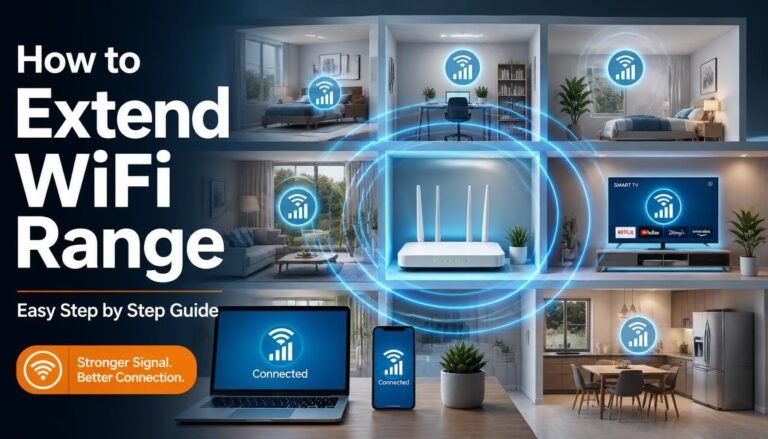
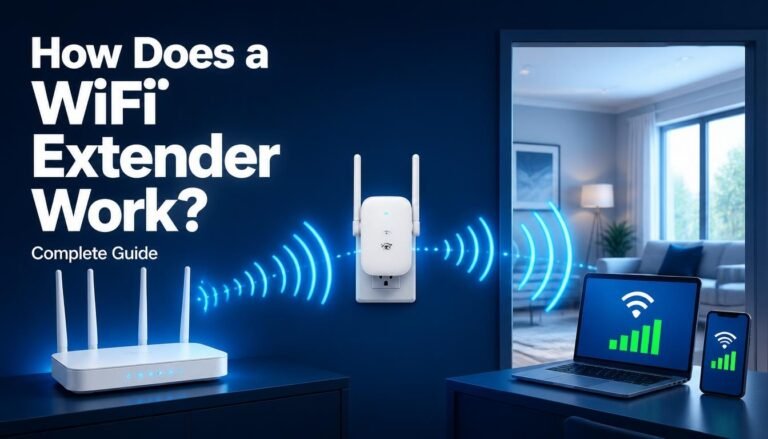
If you need to log into your admin console to adjust channels or security settings, start by learning how to find router IP on your connected device. Once you access your settings, you can apply practical tweaks on how to boost the WiFi or explore how to extend WiFi range so strong coverage reaches every corner of your house. If you are considering adding new hardware to eliminate weak rooms, reading how does a WiFi extender work will help you place it at the exact midpoint for maximum throughput.
Managing individual devices on your network is just as straightforward. When guests visit, you can quickly look up how to share WiFi password from your phone or computer, or follow simple steps on how to connect to WiFi on HP laptop for Windows machines. Finally, if you want to cast media to a bigger screen without network hiccups, check do you need WiFi to screen mirror, and review how do I disable WiFi calling if local wireless voice routing ever interferes with your cellular call quality.


3 Comments