

How to Fix Weak WiFi Signal: 11 Ways to Get Better Coverage
A router that works perfectly in the living room and barely reaches the bedroom is one of the most common household network complaints. The usual reaction is to buy a new router or an extender. Sometimes that is the right call, but often the real cause is placement, interference, a band mismatch, or one misbehaving device.
This guide shows how to fix a weak WiFi signal by finding the cause first, then applying the smallest fix that solves it.
Quick Answer (How to Fix Weak WiFi Signal)
Quick Answer
Start by checking whether the problem is signal or speed, then test a second device in the same spot. Move the router to an open, central position, reduce interference, and choose the right band and channel. If only one device is weak, fix that device. Add mesh or wired access points only when coverage still falls short.
In This Guide
Diagnostic Table: Match Your Symptom to the Likely Cause
| Symptom | Likely Cause | What to Check | Recommended Fix |
|---|---|---|---|
| WiFi is weak only in one room | Distance, walls, or a floor between the router and the room | Compare signal near the router and in the room with the same device | Move the router, or add a wired access point or mesh node near the room |
| WiFi is weak everywhere | Poor router position, router fault, outdated hardware, or heavy interference | Test with a wired connection to see whether the router itself performs well | Reposition the router, update firmware, or replace old hardware |
| Phone is weak but laptop is fine | Device specific issue such as antenna, case, software, or saved network settings | Test both devices in the same spot at the same time | Forget and rejoin the network, update the phone, reset network settings if needed |
| WiFi becomes weak at certain times | Evening congestion, neighbor networks, microwave use, or ISP peak hours | Note the times and compare a wired speed test with a WiFi speed test | Change channel, move to 5 GHz, or contact the ISP if wired speed also drops |
| 5 GHz is fast near the router but weak farther away | 5 GHz loses strength faster over distance and through walls | Check which band the device uses in the weak spot | Use 2.4 GHz for distant devices or add a node closer to the area |
| 2.4 GHz reaches farther but is slow | Crowded band, wide channel, or many devices sharing airtime | Scan nearby networks and count connected devices | Try a clear channel, set 20 MHz width, and remove interference sources |
| Only one device has weak WiFi | Adapter, driver, software, or physical hardware problem | Check whether other devices behave normally in the same place | Update the driver or software, then test another network |
| WiFi drops through walls | Dense materials such as brick, concrete, or metal | Test signal on both sides of the wall | Reposition the router or place a node so the signal avoids the dense wall |
| Signal appears strong but internet is slow | Bandwidth limits, ISP issue, DNS delay, or router overload | Run a speed test wired and over WiFi, then compare | Troubleshoot the connection rather than the signal |
Signal Strength, Slow WiFi, and Internet Problems Are Different Things
Most guides blur these together, and that is why people end up buying the wrong equipment.

Weak signal means the radio signal reaching your device is low. Your device shows few bars, and the connection may drop or fail to load pages at all.
Slow WiFi means data moves slowly over the wireless link. The signal can look strong while the channel is congested or the device is sharing airtime with many others.
An internet problem means the wireless link is fine but data is slow or failing beyond the router. The cause may be the ISP, the modem, or DNS.
A strong signal does not guarantee fast internet. A router in the next room can show full bars while the plan itself is limited, or while the line is having a bad evening. The reverse also happens: a modest signal can still deliver acceptable speed for ordinary browsing.
Signal strength is often reported as RSSI in dBm, a negative number where closer to zero is stronger. As a rough guide, readings around minus 50 dBm are very strong, around minus 67 dBm is a common target for smooth video calls and streaming, around minus 70 dBm is usable but marginal, and anything weaker than minus 80 dBm is usually unreliable. These numbers vary by device and tool, so treat them as a comparison aid rather than a pass or fail test.
If your connection problem is broader than signal, the general guide on how to fix WiFi covers other causes. https://www.tp-link.com/us/support/faq/468/
Why Your WiFi Signal Is Weak
WiFi is a radio signal, and radio signals weaken with distance and with every obstacle they pass through. The common causes fall into a few groups:
- Distance and obstacles: Walls, floors, furniture, and appliances absorb or reflect the signal.
- Interference: Neighbor networks, microwave ovens, Bluetooth devices, and cordless equipment compete for the same airwaves, mostly on 2.4 GHz.
- Band choice: Higher frequencies carry more data but lose strength faster.
- Router limitations: Older routers, weak antennas, outdated firmware, overheating, or poor placement.
- Too many active devices: Every device takes a share of airtime, so a busy network feels slow even when the signal is fine.
- Device limitations: Small phone antennas, damaged adapters, outdated drivers, or power saving settings.
- Sudden changes: A new appliance, a neighbor installing a router, a firmware update, or furniture moved in front of the router.
If your WiFi became weak all of a sudden, ask what changed recently. Something almost always did.
Fastest Fixes First
Before the full process, try these five quick checks. They take a few minutes and solve a surprising number of cases.
- Restart the router once and wait for it to fully come back. This clears temporary faults.
- Move closer and retest to confirm the problem is distance and not the device.
- Take the router out of any cabinet or corner and place it in open air.
- Toggle WiFi off and on on the affected device, or forget and rejoin the network.
- Test a second device in the same spot.
If none of these helps, the step by step process below finds the real cause.
2.4 GHz, 5 GHz, and 6 GHz: Which Band Fits Which Problem
Each band trades range against capacity. None of them is simply better.
2.4 GHz generally travels farther and passes through walls better than higher bands. It has only three non overlapping 20 MHz channels in many regions (1, 6, and 11 in the United States), so it becomes crowded in dense housing. It also shares space with microwaves, Bluetooth, and many household gadgets. It is not always slow. It is often slow because it is crowded.
5 GHz offers more channels, wider channel options, and higher potential speeds. It weakens faster over distance and through dense walls. It performs best when the device has a clear path to the router.
6 GHz is available on WiFi 6E and WiFi 7 equipment. It offers the most capacity and the least congestion because few older devices use it. It has the shortest range of the three and needs compatible devices. It is excellent in the same room or nearby rooms and a poor choice for long distance coverage.
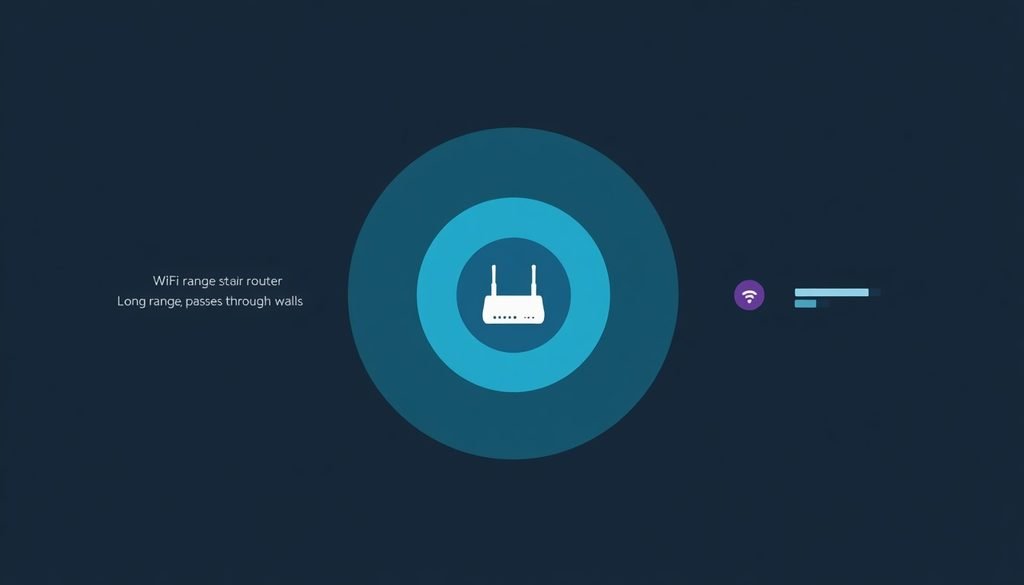
A practical rule: use 5 GHz or 6 GHz when the device is close and speed matters, and use 2.4 GHz when range matters more than speed, such as a distant bedroom, a garage, or a smart plug.
Many routers combine bands under one network name and decide for you, called band steering. Apple recommends using the same network name for every band, so keep that as your normal setup. If a device clings to a weak band, you can temporarily give each band its own name as a test, then merge them again afterward. Apple lists this and other router recommendations in its recommended settings for WiFi routers.
Printers and many smart home gadgets only support 2.4 GHz, which is worth knowing before you try to connect a printer to WiFi on a network that has been set to 5 GHz only.
How to Fix Weak WiFi Signal Step by Step
Work through these in order. Stop when the problem is solved.
1. Determine Whether the Problem Is Signal or Internet Speed
Stand next to the router and run a speed test on your phone or laptop. Then run the same test in the problem area. If the speed is poor even next to the router, the problem is probably not signal strength. Move on to the ISP section later in this guide. If the speed is fine near the router and poor far away, you have a coverage problem.
2. Test the Same Location with Another Device
Take a second device to the problem spot and compare. If both are weak, the room or router is the issue. If only one is weak, the device is the issue. This single test saves more money than any product.
3. Compare Near the Router Versus the Problem Location
Record the signal level in both places. On Windows, run netsh wlan show interfaces and read the Signal percentage. On Android, a free WiFi analyzer app can show dBm readings. iPhone apps are limited by what the system allows them to display. Having numbers makes later changes measurable instead of guesswork.
4. Check 2.4 GHz Versus 5 GHz
Connect to each band separately if your router lets you name them differently. If 2.4 GHz is stable in the weak room but 5 GHz is not, you have a range limit on 5 GHz, not a broken router. Use 2.4 GHz there, or bring a second access point closer.
5. Improve Router Placement
Placement is often the cheapest fix. See the placement section below for details.
6. Reduce Interference
Move the router away from microwaves, cordless phone bases, baby monitors, and large metal objects. Test whether the weakness appears when the microwave runs. Then check nearby networks and channels, covered in the interference section.
7. Check Router Settings
Open the router admin page. If you do not know how, the guide on how to access router settings walks through finding the address and login. Check the channel, channel width, band settings, and transmit power. Exact menu names differ by manufacturer, so check your router documentation.
8. Update Router Firmware
Manufacturers release firmware that fixes bugs and sometimes improves wireless stability. Check the admin page or the manufacturer support site for your exact model. Follow their instructions, and do not interrupt the update once it starts.
9. Troubleshoot the Affected Device
If only one device is weak, update its software, drivers, and settings. Windows and phone steps are covered below.
10. Consider Mesh, Access Points, or an Extender Only When Appropriate
If every device is weak in the same area and placement cannot fix it, you have a coverage gap. Use the decision guide later in this article.
11. Determine Whether the ISP Is Actually Responsible
If a wired connection is also slow or unstable, the WiFi is not the cause. See the ISP section below.
Router Placement: What Actually Helps
Think of the signal as spreading outward from the router in all directions, with obstacles shadowing it. Good placement reduces the number of obstacles between the router and the devices that matter.
- Central position: A router at one end of the home sends half its signal outside. Move it closer to where devices are used, as long as the internet line can reach.
- Height: Raising the router above furniture reduces obstruction. A shelf or a high table is usually better than the floor. There is no magic exact height.
- Open space: Keep it out of cabinets, behind televisions, and tucked behind boxes. Enclosures and electronics absorb and reflect the signal.
- Away from metal and water: Metal shelving, refrigerators, mirrors, and large water containers such as aquariums can block or reflect the signal.
- Away from interference: Keep it a reasonable distance from microwaves, cordless phone bases, and similar devices.
- Antennas: External antennas radiate most strongly around their sides and least from the tip. With two antennas, vertical is a good default. If you need coverage on another floor, angling one antenna can help. Check the manual, since some designs differ.
- Floors and walls: Signal passes through ceilings and floors, but dense slabs reduce it significantly. If the router is on the ground floor and the weak area is two floors up, a node on the upper floor may work better than a more powerful router below.

Walls and Building Materials
Different materials affect WiFi in different ways, and the exact effect depends on construction, frequency, distance, and angle.
- Drywall and wood: Usually allow signal through with modest loss.
- Brick: Reduces signal more noticeably, especially on 5 GHz and 6 GHz.
- Concrete: Can reduce signal heavily, especially reinforced concrete containing steel bars.
- Metal: Reflects and blocks signal. Metal doors, shelves, foil backed insulation, and some window films can create strong shadows.
- Multiple floors: Floor slabs combined with distance can cut coverage sharply.
- Large appliances and mirrors: Refrigerators, washing machines, and mirrors can reflect or absorb signal.
No universal percentage applies here, since every building is different. The reliable method is to measure signal on both sides of the barrier using the same device.
Interference and Channel Congestion
Interference happens when other signals use the same airwaves. On 2.4 GHz, sources include neighbor routers, microwave ovens, Bluetooth devices, cordless phones, and some baby monitors. On 5 GHz, mostly other WiFi networks matter.
Channel congestion happens when many networks use the same or overlapping channels. Devices must take turns, which slows everyone down. Moving to a less crowded channel can help, but the best channel depends on your neighborhood and your router capabilities. Automatic channel selection is a sensible default, and Apple also recommends leaving it on Auto unless you have a reason to change it. In dense areas it can pick poorly, so test manually only if the problem persists.
To see what is nearby on Windows, run netsh wlan show networks mode=bssid. The output lists nearby networks with their channels and signal levels. On 2.4 GHz, if most networks cluster on channel 6, try 1 or 11. On Android, a WiFi analyzer app can show a channel graph. If your channel is crowded and another is clear, switch and compare results. If it makes no difference, change it back.
For channel width, 20 MHz is the safest choice on 2.4 GHz, and Apple recommends it for that band. Wider channels such as 40 MHz can raise potential speed but increase overlap with neighbors. On 5 GHz, wider channels offer more speed but need clean airwaves. Some 5 GHz channels use radar avoidance (DFS), which can cause brief interruptions near airports or weather radar. If your 5 GHz connection drops periodically, trying a non DFS channel is worth testing.
Roaming and Sticky Devices
In homes with mesh systems, extenders, or two routers, a device sometimes stays connected to a distant access point even when a closer one is available. The signal bars look weak, yet a closer unit exists. This is a roaming problem, and the device decides when to switch, not you.
If a phone or laptop clings to a weak connection, turn WiFi off and on near the closer unit so it reconnects fresh. Using one network name across all units and keeping firmware current also helps. Whole home systems that support roaming assistance usually handle this better than standalone extenders.
Windows Troubleshooting
Use these when a Windows laptop or desktop has weak or unstable WiFi but other devices are fine. Microsoft documents the same core steps in its guide to fixing WiFi connection issues in Windows, and menu names can shift between updates.
Check adapter status and signal. Open Command Prompt and run:
“netsh wlan show interfaces“

This shows the connected network, Signal percentage, Radio type (such as 802.11ac or 802.11ax), Band, Channel, and transmit and receive rates. Run it in the problem spot. If the signal is low, the cause is distance or obstruction. If the signal is high but the rates are low, the cause is more likely congestion or the wrong band.
Check the IP configuration. Run:
ipconfig /all
Look for a valid IPv4 address and a default gateway. If the address begins with 169.254, the device did not get an address from the router. Restart the router and reconnect before changing anything else.
Test the local connection. Run ping followed by your default gateway address (for example ping 192.168.1.1). Replies with low, steady times mean the link to the router is healthy. Large spikes or lost packets mean wireless trouble between the device and the router.
Test the internet. Run ping 8.8.8.8. If the gateway ping is fine and this one fails, the problem is beyond your router. Then run nslookup google.com. If the ping to 8.8.8.8 works but this fails, the problem is DNS, not signal.
Flush DNS if names fail to resolve. Run ipconfig /flushdns. It clears the local DNS cache and is safe.
Create a detailed report. Run Command Prompt as administrator and enter netsh wlan show wlanreport. Windows produces an HTML report of recent WiFi sessions, including disconnect reasons. It helps when the problem is intermittent.
Check the driver. Open Device Manager, expand Network adapters, right click the wireless adapter, and choose Update driver. If the problem started after an update, choose Properties, open the Driver tab, and try Roll Back Driver if it is available. Laptop manufacturers often provide a newer WiFi driver on their support page than Windows Update.
Check power management. In the adapter Properties, open the Power Management tab and clear the box that lets the computer turn off the device to save power. Save and test. On the Advanced tab, some adapters offer a preferred band setting.
Reset the network stack if the above fails. In Windows 11, open Settings, Network & internet, Advanced network settings, Network reset. In Windows 10, it is under Settings, Network & Internet, Status, Network reset. This removes and reinstalls network adapters and returns networking components to defaults, so you will need to reconnect to WiFi and re-enter passwords. It may also affect VPN software. Use it after simpler steps have failed.
Phone Troubleshooting
If your phone shows weak WiFi but a laptop in the same spot works normally, suspect the phone before the router.
Basic steps for both Android and iPhone:
- Toggle WiFi off and on, or turn airplane mode on and off.
- Restart the phone.
- Update the operating system.
- Disconnect any VPN and test again.
- Test the phone on a different WiFi network. If it is weak everywhere, the phone is the likely cause.
- Remove thick metal cases or magnetic mounts and test.
Forget and reconnect.
- On iPhone: Settings, Wi-Fi, tap the info icon next to the network, then Forget This Network. Rejoin and enter the password.
- On Android: open Settings, find the Internet or WiFi section, select the network, and choose Forget. Exact menu names differ by manufacturer.
Reset network settings (last resort).
- On iPhone: Settings, General, Transfer or Reset iPhone, Reset, Reset Network Settings.
- On Android: look under Settings, System, Reset options for an option to reset WiFi, mobile, and Bluetooth.
Warning: Resetting network settings removes saved WiFi networks and passwords, and it can also remove paired Bluetooth devices, VPN profiles, and cellular configurations depending on the phone. Make sure you know the passwords you will need before you do it.
If the phone only misbehaves in one room while other phones are fine, that points back to the device. If every phone is weak there, it points back to the room.
Smart TVs deserve a note too. They often have small antennas and sit behind or inside furniture, which weakens reception. If a television is the weak device, the guides on how to connect a TV to WiFi and how to connect a smart TV to WiFi cover setup, and a wired connection often works better than any wireless fix.
Decision Tree: Router, Room, Environment, Device, or ISP
Work through these questions in order.
- Is a wired connection to the router also slow or unstable?
Yes: the problem is likely the ISP, modem, or router, not WiFi coverage. Go to the ISP section.
No: continue. - Is the signal weak for every device in the same spot?
Yes: investigate coverage, placement, walls, interference, or network hardware.
No: continue. - Is only one device weak in places where others are fine?
Yes: investigate that device adapter, driver, software, case, or settings. - Is the signal strong but the internet slow?
Yes: investigate bandwidth, ISP performance, congestion, DNS, latency, or router load rather than signal strength. - Does the weakness appear only at certain times?
Yes: investigate congestion, neighbor networks, interference from appliances, or ISP peak hours.

Two Examples That Teach Diagnosis
These are hypothetical examples to illustrate the method.
Example 1: The bedroom has poor 5 GHz coverage. A router sits in the living room, and a bedroom behind a brick wall gets weak 5 GHz. Before buying hardware, test the bedroom on 2.4 GHz. If 2.4 GHz works, the router is fine and 5 GHz range is the limit. Next, try moving the router a short distance toward the bedroom or lifting it above furniture, then compare readings. If the signal is still weak, a mesh node or wired access point placed between the rooms is the targeted fix. A more powerful router might help less than simply moving the existing one.
Example 2: The phone is weak but the laptop is fine. In the same chair, the laptop shows a strong signal and the phone shows one bar. The router and the room are clearly capable of providing signal, so the router is not the main suspect. Forget and rejoin the network, update the phone, remove the case, and test on another network. If the phone is weak on every network, the issue is in the phone. Replacing the router would change nothing.
If two devices only need to talk to each other, such as a phone and a TV, the router may not be involved at all. The guide on whether you can screen mirror without WiFi explains when a direct connection removes the router from the picture.
Extender, Mesh, Access Point, or Ethernet Backhaul: Which One Fits
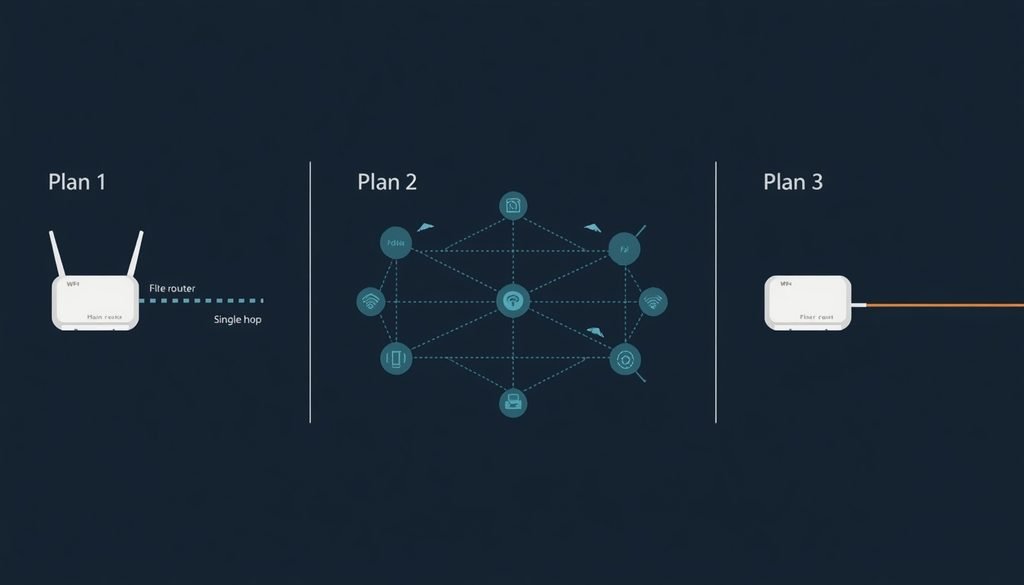
The right choice depends on how the extra coverage point connects back to the router.
| Option | How it works | Best for | Main drawbacks |
|---|---|---|---|
| WiFi extender | Receives the router signal wirelessly and rebroadcasts it | A small gap in an otherwise good coverage area, on a tight budget | Can reduce throughput, needs good placement, may create a second network name |
| Mesh WiFi | Several nodes act as one network and hand devices between them | Medium to large homes with several weak areas | Costs more, performance depends on wireless link quality between nodes |
| Wired access point | A separate WiFi unit connected by Ethernet cable | Homes where cable can be run, and where speed and reliability matter | Needs physical cabling and initial setup |
| Ethernet backhaul | Nodes or access points connect to the router by cable instead of wirelessly | Best performance with mesh systems or multiple access points | Requires professional or DIY cable runs |
| Powerline networking | Sends data through the home electrical wiring | Homes where running cable is hard | Performance depends heavily on electrical wiring quality and circuit layout |
An extender is not a universal speed upgrade. Repeating a wireless signal adds a hop, and each hop costs capacity. If an extender sits where the router signal is already weak, it repeats a weak signal. Place it roughly halfway to the dead zone, where it still receives a good signal.
Mesh systems are easier to manage because they present one network, but the quality of the connection between nodes decides the result. Where possible, wire the nodes together. If your home has Ethernet cabling in the walls, a wired access point or mesh with Ethernet backhaul is usually the most reliable solution.
When Hardware Replacement Makes Sense
Replace the router when:
- Firmware updates stopped years ago and the router has known stability problems.
- It only supports older standards and your devices support newer ones.
- Signal is poor even close to the router, and a wired test confirms the router itself is the weak link.
- The router overheats, resets, or drops connections often.
- Your home layout needs more coverage than a single router can provide, and mesh or access points are the better answer.
Newer standards such as WiFi 6, 6E, and 7 improve efficiency in busy homes and add features like the 6 GHz band, but they do not change the physics of distance and walls. A new router in the same bad spot may disappoint.
When to Contact Your ISP
Plug a laptop directly into the router with an Ethernet cable and run a speed test. If the wired result is far below your plan, or it drops at certain times, the WiFi is not the cause. Check the modem lights, restart the modem and router once, and test again. If the problem remains, contact the ISP with specifics: the times it happens, the wired speed results, and the plan speed. A phone hotspot can serve as a comparison source during the call, and it helps to check how much hotspot data you have left before running repeated tests.
If wired speed is good and WiFi is poor, the ISP is not responsible. Keep working on the wireless side.
Common Mistakes
- Putting the router inside a cabinet. Enclosures absorb signal.
- Buying an extender before diagnosing. It may repeat a weak signal and add problems.
- Assuming more internet speed fixes poor coverage. A faster plan does not extend range.
- Confusing signal strength with internet speed. They are different measurements.
- Changing channels without checking the environment. The best channel depends on what neighbors use.
- Ignoring firmware. Updates can fix real stability problems.
- Ignoring device drivers. An outdated adapter driver can cause problems on a laptop even when the router is fine.
- Using 5 GHz when range is the goal. Distant devices often do better on 2.4 GHz.
- Assuming 2.4 GHz is always better. It reaches farther but is often more crowded.
- Restarting equipment repeatedly without diagnosing. A restart can clear a temporary fault, but it does not explain a recurring one.
Practical Diagnostic Checklist
- Run a speed test next to the router and in the problem spot.
- Test a second device in the same spot.
- Record signal readings in both places.
- Connect to 2.4 GHz and 5 GHz separately and compare.
- Move the router to an open, central, elevated position and retest.
- Check for interference sources and nearby channels.
- Review router channel, width, and band settings.
- Update router firmware.
- Update the device driver or phone software.
- Test a wired connection to rule out the ISP.
- Add coverage hardware only if a gap remains.
Frequently Asked Questions
How do I make my WiFi signal stronger?
Start with placement. Move the router to an open, central, elevated spot away from cabinets, metal, and appliances. Then reduce interference, update firmware, and use the right band for each device. If dead zones remain after that, add a mesh node or wired access point.
How to boost 2.4 GHz signal?
Place the router in the open and away from microwaves and cordless phones. Set the width to 20 MHz, pick the least crowded of channels 1, 6, and 11, and reduce the number of busy devices. If range is still poor, an older router or weak antennas may need replacing.
Why is my 2.4 GHz WiFi so slow?
Usually because the band is crowded. Neighbor networks, Bluetooth, and appliances share the same airwaves, and each device must wait its turn. Check nearby channels and move to the least crowded one. Wide channels and old devices also limit speed, so test on 5 GHz if you are close.
Why is my WiFi signal weak in my house?
Distance, walls, floors, and interference are the usual causes. Router placement matters most. Compare signal near the router with signal in the weak area using the same device. If every device is weak there, adjust placement or add coverage. If only one is weak, check that device.
Why is WiFi weak in one room?
The room is probably far from the router or behind dense material such as concrete or brick. Test with two devices in that room to confirm it is the room and not a device. Then try moving the router closer, or place a node or wired access point near that room.
How can I boost WiFi through walls?
Use 2.4 GHz for the farthest rooms, since it passes walls better than higher bands. Reposition the router so fewer dense walls sit in the path. For brick or concrete, a node on the other side of the wall, ideally connected by Ethernet, works better than a stronger signal.
Why is WiFi weak on my phone but not on my laptop?
That pattern points to the phone. Phones have small antennas, and cases, software, or saved settings can affect them. Forget the network and rejoin, update the phone, and test on another network. If the phone is weak everywhere, the problem is the phone, not the router.
Should I buy a WiFi extender or a mesh system?
Choose by the size of the problem. An extender can fix one small gap, but it can cut speed. For several weak areas or a large home, choose mesh, and wire the nodes with Ethernet if possible. If cable is available, wired access points are often the most reliable.
Does changing the WiFi channel improve signal?
It can improve speed and stability if your channel is crowded, but it does not make the signal physically stronger. Check which channels nearby networks use, then pick a clearer one. If there is no improvement after testing, return to automatic selection.
Does restarting the router improve WiFi?
Sometimes, because a restart clears temporary faults and can trigger a new channel choice. Restart once and test. If the weakness returns, restarting is only hiding a cause, so work through placement, interference, firmware, and device checks instead of repeating it.
Conclusion
Do not buy hardware first. Find out whether the problem is signal coverage, interference, frequency band, router placement, one device, network configuration, or the internet service itself. A second device, a wired speed test, and a few signal readings answer most of these questions in under half an hour.
Then take the smallest fitting step. Move the router before buying a new one. Fix the device before blaming the router. Add a wired access point or mesh node only when a real coverage gap remains. If the wired connection is also poor, talk to the ISP with your results.
If your signal is strong but pages still will not load, the next place to look is the connection itself, and the guide on how to fix WiFi walks through those causes.




17 Comments